


 Video Converter Ultimate
 Εγγραφή οθόνης
 Επισκευή βίντεο
 Ασφαλές κατέβασμα
Πώς να κόψετε βίντεο με το TikTok: Συμπεριλαμβανομένων προγραμμάτων εκτός σύνδεσης για την αποκοπή βίντεο για το TikTok
Έχετε κάποιο βίντεο στο τηλέφωνό σας που θέλετε να ανεβάσετε στο TikTok; Αλλά το πρόβλημα είναι ότι το βίντεο είναι πολύ μεγάλο σε διάρκεια. Αν ναι, αυτή η ανάρτηση‑οδηγός θα σας προσφέρει τις πιο απλές διαδικασίες για να συντομεύσετε ένα βίντεο για το TikTok. Επιπλέον, θα μάθετε εύκολους τρόπους για να κόβετε βίντεο με το TikTok. Ακόμη, θα σας παρουσιάσουμε και ένα πρόγραμμα για χρήση χωρίς σύνδεση, με το οποίο μπορείτε να περικόψετε το βίντεό σας. Οπότε, αν ανυπομονείτε να ανακαλύψετε όλα αυτά τα θέματα, διαβάστε αυτήν την ανάρτηση.

Μέρος 1. Πώς να κόψετε βίντεο για το TikTok στην επιφάνεια εργασίας
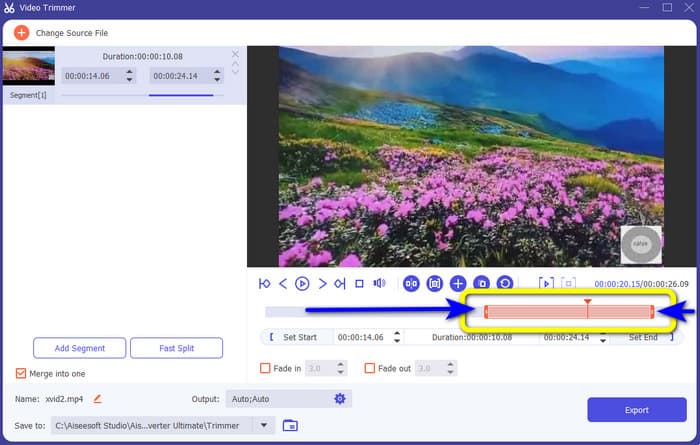
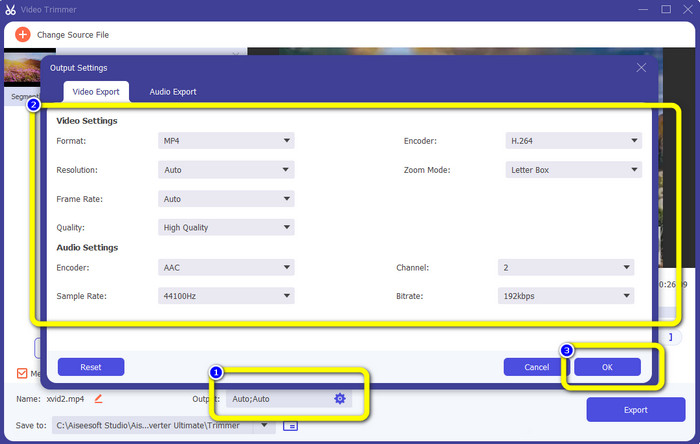
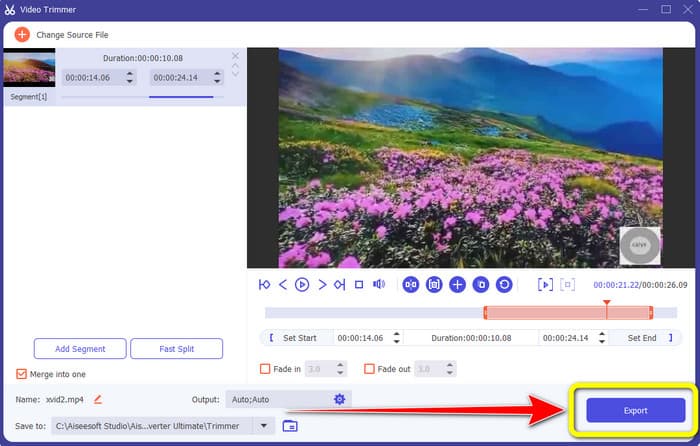
Αν χρησιμοποιείτε τον υπολογιστή σας για να κόψετε ένα βίντεο για το TikTok, υπάρχει ένα εξαιρετικό πρόγραμμα για εσάς. Για να κόψετε ένα βίντεο στον υπολογιστή σας, χρησιμοποιήστε το Video Converter Ultimate. Όσον αφορά την περικοπή βίντεο, σας προσφέρει μια απλή, άμεση μέθοδο. Σας επιτρέπει να κόβετε βίντεο μέσα σε λίγα μόνο κλικ, κάτι που το κάνει βολικό για όλους τους χρήστες. Επίσης, μπορείτε να ρυθμίσετε τα άκρα του βίντεο για να το περικόψετε ή να το κόψετε. Ένας άλλος τρόπος είναι να χρησιμοποιήσετε τις επιλογές Set Start και Set End. Επιπλέον, μπορείτε να κάνετε κλικ στις επιλογές Fade In και Fade Out για να δώσετε ένα επιπλέον εφέ στο βίντεό σας. Κατά τη διάρκεια της περικοπής, μπορείτε ακόμη να μεταβείτε στις ρυθμίσεις ή στις επιλογές εξόδου για να κάνετε κάποιες αλλαγές. Το πρόγραμμα σάς επιτρέπει να αλλάζετε την ανάλυση, τον ρυθμό καρέ, τη λειτουργία ζουμ και την ποιότητα του βίντεο. Μπορείτε ακόμη να αλλάξετε τον ρυθμό δειγματοληψίας (sample rate) και το bitrate του ήχου του βίντεο.
Επιπλέον, οι χρήστες Mac και Windows μπορούν να έχουν πρόσβαση σε αυτό το λογισμικό με δυνατότητα λήψης. Το Video Converter Ultimate είναι διαθέσιμο σε υπολογιστές Windows και Mac, καθιστώντας το βολικό για τους χρήστες. Υπάρχουν περισσότερες δυνατότητες που μπορείτε να συναντήσετε όταν χρησιμοποιείτε αυτό το πρόγραμμα εκτός σύνδεσης. Αν θέλετε να γνωρίσετε τα χαρακτηριστικά του, δοκιμάστε το μόνοι σας. Δείτε τα απλά βήματα παρακάτω για να συντομεύσετε ένα βίντεο για το TikTok χρησιμοποιώντας το Video Converter Ultimate.
Βήμα 1. Κάντε κλικ στο κουμπί Λήψη παρακάτω για να αποκτήσετε πρόσβαση στο Video Converter Ultimate. Τα παρακάτω κουμπιά είναι διαθέσιμα για υπολογιστές Windows και Mac. Αφού εγκαταστήσετε το πρόγραμμα, εκτελέστε το στον υπολογιστή σας.
Δωρεάν ΛήψηΓια Windows 7 ή νεότεραΑσφαλής λήψη
Δωρεάν ΛήψηΓια MacOS 10.7 ή νεότεροΑσφαλής λήψη
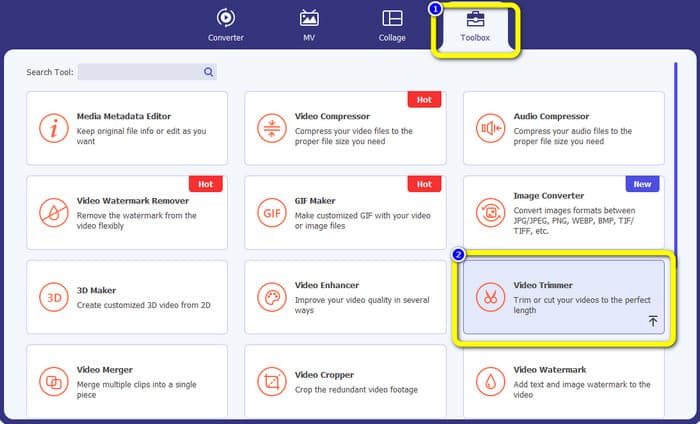
Βήμα 2. Όταν εμφανιστεί η διεπαφή στην οθόνη, κοιτάξτε στο επάνω μέρος της και κάντε κλικ στον πίνακα Toolbox. Στη συνέχεια, επιλέξτε το εργαλείο Video Trimmer για να προχωρήσετε στη διαδικασία περικοπής. Βεβαιωθείτε ότι το βίντεο βρίσκεται ήδη στον υπολογιστή σας πριν χρησιμοποιήσετε το πρόγραμμα χωρίς σύνδεση.
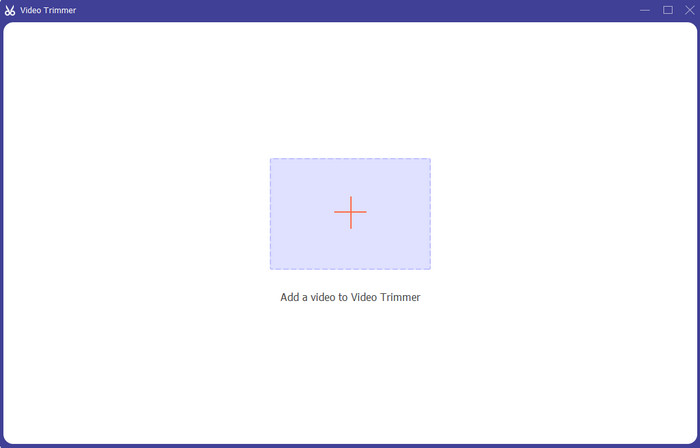
Βήμα 3. Κάντε κλικ στο εικονίδιο Plus στο κέντρο της διεπαφής και προσθέστε το βίντεο από το φάκελο αρχείων.
Βήμα 4. Στη συνέχεια μπορείτε να προχωρήσετε στη διαδικασία περικοπής. Μετακινηθείτε στην κεφαλή αναπαραγωγής του βίντεο. Έπειτα μπορείτε να σύρετε κάθε άκρο του βίντεο για να ξεκινήσετε την περικοπή.
Βήμα 5. Επίσης, μπορείτε να μεταβείτε στην επιλογή Output Settings, όπου μπορείτε να αλλάξετε την ανάλυση, τη μορφή εξόδου, την ποιότητα και τον ρυθμό καρέ του βίντεο. Επιπλέον, μπορείτε ακόμη να αλλάξετε το bitrate, τον ρυθμό δειγματοληψίας (sample rate) και άλλες παραμέτρους του ήχου.
Βήμα 6. Όταν ολοκληρώσετε τη διαδικασία περικοπής, κάντε κλικ στην επιλογή Export για να αποθηκεύσετε το επεξεργασμένο βίντεο. Έπειτα, περιμένετε να ολοκληρωθεί η εξαγωγή κι αυτό ήταν.
Μέρος 2. Πώς να περικόψετε ένα βίντεο για το TikTok χρησιμοποιώντας εφαρμογή για κινητά
Αν θέλετε να χρησιμοποιήσετε το κινητό σας τηλέφωνο για να κόψετε το βίντεό σας, χρησιμοποιήστε το Easy Video Cutter. Αυτή η εφαρμογή για κινητά είναι ικανή να συντομεύει το βίντεό σας εύκολα και γρήγορα. Επιπλέον, διαθέτει κατανοητή διαδικασία, κάτι που την καθιστά ιδανική για όλους τους χρήστες. Για τους χρήστες Android, είναι μια εφαρμογή διαθέσιμη στο Play Store. Πρόκειται περισσότερο για ένα ολοκληρωμένο πακέτο επεξεργασίας βίντεο. Ωστόσο, το εργαλείο κοπής βίντεο αυτής της εφαρμογής ξεχωρίζει χάρη στην ευκολία χρήσης του. Επίσης, τα βίντεο που προκύπτουν μετά την περικοπή δεν έχουν υδατογραφήματα. Χρησιμοποιώντας αυτό το πρόγραμμα μπορείτε επίσης να συνδυάσετε πολλά βίντεο σε ένα. Το να βρείτε το βίντεο που θέλετε να επεξεργαστείτε είναι απλό, και μπορείτε ακόμη να ταξινομήσετε τα βίντεο κατά ώρα, ημερομηνία, άλμπουμ, καλλιτέχνη, διάρκεια και άλλους παράγοντες. Έτσι αποφεύγεται η περιττή ταλαιπωρία όταν ψάχνετε για ένα βίντεο που βρίσκεται θεωρητικά κοντά στο τέλος της λίστας.
Ωστόσο, το Easy Video Cutter έχει μειονεκτήματα. Αυτή η εφαρμογή για κινητά είναι προσβάσιμη μόνο σε Android. Εάν είστε χρήστης iPhone, δεν μπορείτε να χρησιμοποιήσετε την εφαρμογή. Επίσης, η εφαρμογή εμφανίζει ενοχλητικές διαφημίσεις κατά την επεξεργασία ενός βίντεο. Ακολουθήστε τα παρακάτω βήματα για να κόψετε το βίντεο χρησιμοποιώντας αυτήν την εφαρμογή για κινητά.
Βήμα 1. Μεταβείτε στο Google Play Store και κατεβάστε την εφαρμογή Easy Video Cutter. Μετά την εγκατάσταση, εκτελέστε την εφαρμογή στο τηλέφωνό σας.
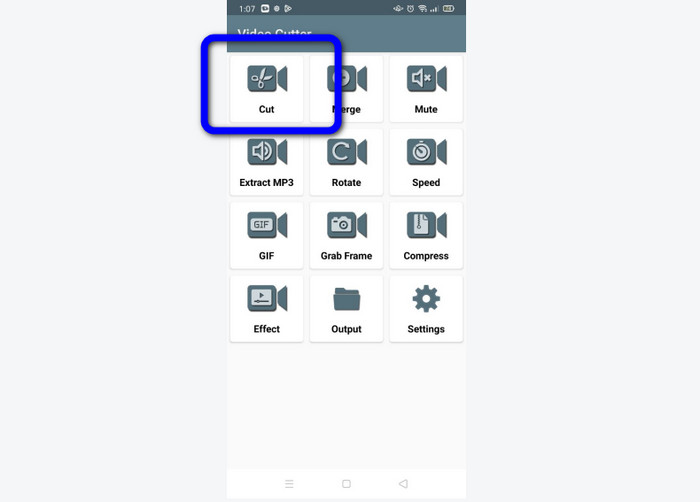
Βήμα 2. Αφού ξεκινήσει η εφαρμογή, η κύρια διεπαφή θα εμφανιστεί στην οθόνη του τηλεφώνου σας. Υπάρχουν πολλά εργαλεία που μπορείτε να δείτε στη διεπαφή. Κάντε κλικ στην επιλογή Cut. Έπειτα, ανοίξτε το βίντεο από τα αρχεία σας.
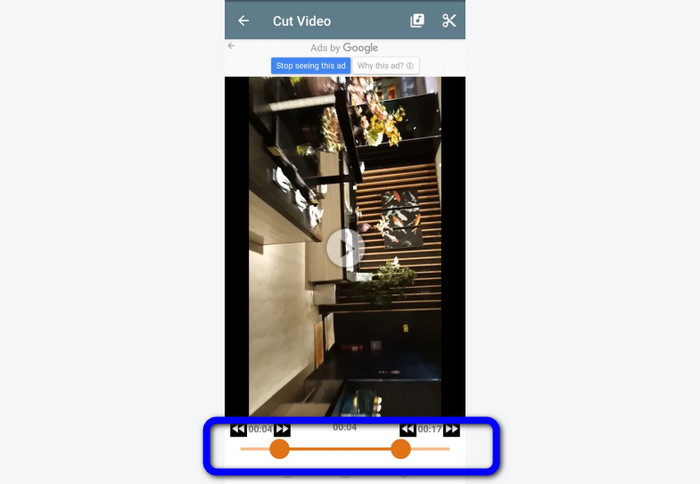
Βήμα 3. Σε αυτό το σημείο, μπορείτε να περικόψετε το βίντεό σας ρυθμίζοντας το ρυθμιστικό βίντεο στο κάτω μέρος της διεπαφής. Μπορείτε να ρυθμίσετε το αρχικό και το τελικό σημείο.
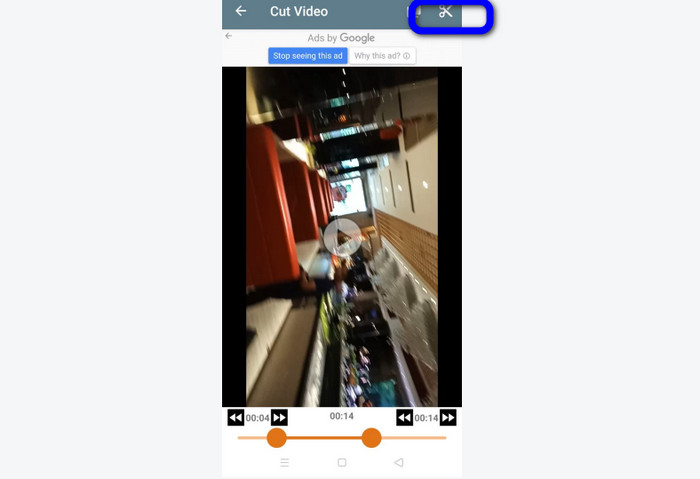
Βήμα 4. Κάντε κλικ στο εικονίδιο με το Ψαλίδι στην επάνω δεξιά γωνία της οθόνης για να κόψετε το βίντεο. Έπειτα αποθηκεύστε το επεξεργασμένο βίντεο στο τηλέφωνό σας. Αυτά είναι όλα σχετικά με το πώς να περικόπτετε βίντεο σε Android.
Μέρος 3. Πώς να περικόψετε ένα βίντεο χρησιμοποιώντας το TikTok
Θέλετε να μάθετε πώς να κόβετε βίντεο στο TikTok; Θα βρείτε την απάντηση σε αυτό το μέρος. Ακολουθήστε τα παρακάτω βήματα για να μάθετε τη μέθοδο περικοπής ενός βίντεο σε προσχέδια του TikTok.
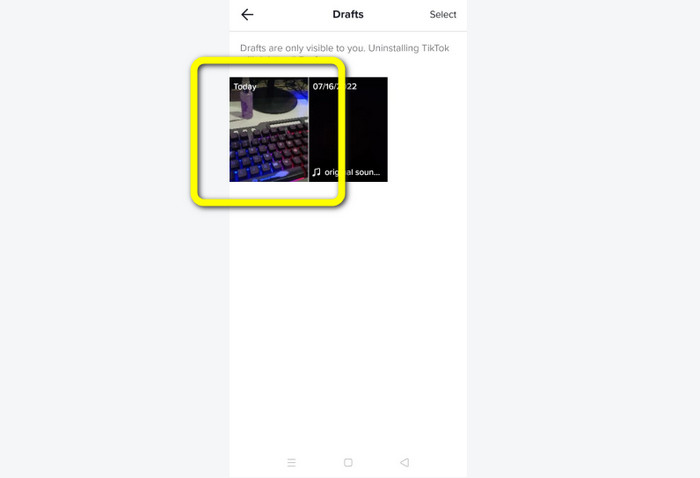
Βήμα 1. Εκκινήστε το TikTok στο κινητό σας τηλέφωνο. Στη συνέχεια, μεταβείτε στο Profile και ανοίξτε το βίντεο στα Drafts.
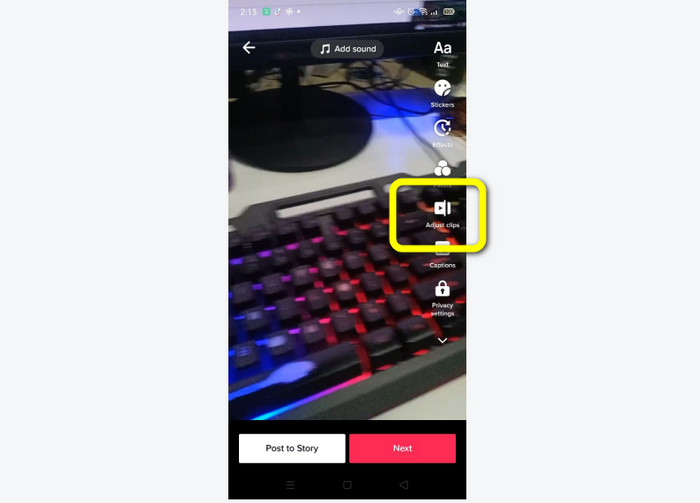
Βήμα 2. Αφού ανοίξετε το βίντεο, πηγαίνετε στο δεξί μέρος της οθόνης και κάντε κλικ στην επιλογή Adjust Clip.
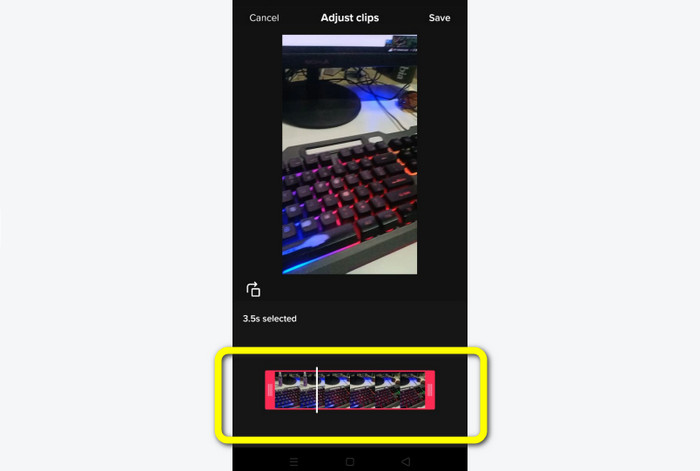
Βήμα 3. Έπειτα μπορείτε να περικόψετε το βίντεο ρυθμίζοντας το άκρο της κεφαλής αναπαραγωγής. Μπορείτε να μετακινήσετε και το δεξί και το αριστερό άκρο του βίντεο.
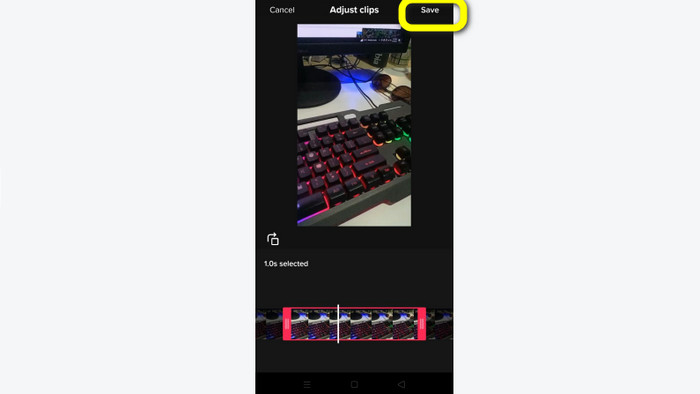
Βήμα 4. Αφού περικόψετε το βίντεο, κάντε κλικ στο κουμπί Save στην επάνω δεξιά γωνία της οθόνης του κινητού. Με αυτόν τον τρόπο μπορείτε να αποθηκεύσετε το επεξεργασμένο βίντεο και να το δημοσιεύσετε στο TikTok σας.
Μέρος 4. Συχνές ερωτήσεις σχετικά με τον τρόπο περικοπής ενός βίντεο με το TikTok
1. Γιατί δεν με αφήνει το TikTok να περικόψω το βίντεό μου;
Ένας από τους λόγους είναι ότι δεν μπορείτε να δείτε το προεπιλεγμένο κουμπί ή έχετε ήδη δημοσιεύσει το βίντεο.
2. Γιατί το TikTok μειώνει τα κλιπ μου;
Το TikTok έχει μέγιστη διάρκεια βίντεο. Εάν το βίντεό σας δεν πληροί την απαίτηση, το TikTok θα κόψει τα κλιπ σας. Σημαίνει ότι το TikTok διασφαλίζει ότι τα βίντεο έχουν τη σωστή διάρκεια.
3. Πόσο πρέπει να είναι τα βίντεό μου στο TikTok;
Μπορείτε να δημοσιεύσετε έως και 3 λεπτά βίντεο πριν. Αλλά τώρα, το TikTok σάς επιτρέπει να ανεβάσετε ένα βίντεο έως και 10 λεπτά περισσότερο.
συμπέρασμα
Αυτό ήταν! Τώρα είστε σε θέση να περικόπτετε τα βίνστεό σας με το TikTok. Αν λοιπόν θέλετε να μάθετε πώς να περικόπτετε ένα βίντεο με το TikTok, διαβάστε τις αναλυτικές πληροφορίες παραπάνω. Επίσης, αν θέλετε να συντομεύσετε το βίντεό σας για το TikTok, το καλύτερο λογισμικό επεξεργασίας βίντεο που μπορούμε να σας προτείνουμε είναι το Video Converter Ultimate. Αυτό το πρόγραμμα διαθέτει πιο εύκολους τρόπους και απλή διεπαφή, κάτι που το καθιστά ιδανικό για όλους τους χρήστες.
-
 2 εύκολοι τρόποι για να επιταχύνετε ένα βίντεο στο TikTok
 Θέλετε να μάθετε το μυστικό για το πώς να επιταχύνετε το βίντεο στο TikTok; Στη συνέχεια, διαβάστε αυτό το άρθρο για να έχετε την ιδέα πώς να το κάνετε και να μάθετε ποια είναι τα άλλα 2 εργαλεία που θα σας βοηθήσουν
-
 4 αποτελεσματικοί τρόποι για να αφαιρέσετε τα υδατογραφήματα Tiktok από τα βίντεο της Tiktok
 Χρειάζεται να αφαιρέσετε το υδατογράφημα Tiktok από τα εξαγόμενα βίντεο Tiktok; Μπορείτε να το κάνετε εδώ με τη βοήθεια των εργαλείων που παρουσιάζουμε. μπορείτε εύκολα να το κάνετε.
-
 3 αποτελεσματικοί τρόποι για να προσθέσετε βίντεο και εικόνες μαζί στο Tiktok
 Θέλετε να μάθετε πώς να προσθέτετε εικόνες σε βίντεο Tiktok; Σε αυτήν την περίπτωση, κάντε κλικ και διαβάστε αυτό το άρθρο για να μάθετε πώς να προσθέτετε εύκολα τις εικόνες στο βίντεό σας στο Tiktok.
