


 Video Converter Ultimate
 Grabador de pantalla
 Reparación de vídeo
Práctica excepcional que habla sobre cómo convertir M4V a MOV
Como extensión de archivo MPEG-4, M4V es similar a MP4. Con esta aplicación se puede codificar una película o un vídeo de la tienda iTunes de Apple. La principal diferencia entre M4V y MP4 es que M4V está protegido y solo puede reproducirse en un ordenador con una licencia de iTunes. Pero, ¿qué pasa si necesitas convertirlo a MOV para verlo en tu reproductor de vídeo? ¿Qué vas a hacer? Aquí tienes las mejores y más destacadas opciones que debes conocer para convertir de M4V a MOV.

Parte 1. Una descripción general de M4V y MOV
Apple creó el formato de vídeo M4V, que se utiliza para distribuir vídeos a través de iTunes en su formato nativo. Aparte de la posibilidad de incluir la protección DRM de Apple, es prácticamente idéntico al vídeo MP4. iTunes almacena contenido de vídeo, como series de televisión, películas y vídeos musicales, que están bien protegidos con este formato de vídeo. Los archivos M4V también permiten crear información de capítulos. Además de iTunes y el reproductor Apple QuickTime, la mayoría de los reproductores de vídeo pueden reproducir archivos M4V sin protección DRM. Video Studio Pro también puede abrir archivos M4V, lo que proporciona amplias capacidades de edición.
Sin embargo, MOV es un formato de vídeo de QuickTime desarrollado por Apple y utilizado en el marco de QuickTime de Mac OS X. La plataforma Windows también es compatible con la capacidad de este contenedor multimedia para almacenar varias pistas, cada una de ellas con un tipo específico de datos (audio, vídeo, subtítulos). Los programas de edición de vídeo pueden beneficiarse enormemente de la separación de los datos multimedia de los desplazamientos de medios, de las referencias de datos abstractos y de las listas de edición de pistas. Es una práctica habitual distribuir películas y vídeos por Internet en formato contenedor MOV.
Parte 2. Cómo cambiar M4V a MOV sin conexión
Si buscas el mejor conversor que puedas usar sin conexión, este software es lo que necesitas. Video Converter Ultimate es el mejor y más recomendado software que puedes utilizar para convertir formatos como M4V a MOV. Está disponible tanto para Windows como para Mac. Además, es gratuito para descargar. Es el conversor más rápido que puedas imaginar porque puede convertir archivos de vídeo de gran tamaño que otros programas y conversores en línea no pueden manejar. También admite varios formatos, incluso los formatos de vídeo más poco habituales que solo verás en este software. Con una excelente calidad de salida y muchas más herramientas disponibles para mejorar tu vídeo, todo el mundo debería usarlo. Sin más preámbulos, aquí están los procedimientos que debes tener en cuenta:
Paso 1. Para empezar, simplemente haz clic en el icono de Descarga gratuita de la derecha para iniciar la descarga. Una vez completada la descarga, puedes elegir instalar el software en Windows o Mac. Primero debes instalar el software en el escritorio de tu ordenador y luego hacer clic en Start Now para empezar a usarlo.
Descarga gratuitaPara Windows 7 o posteriorDescarga segura
Descarga gratuitaPara macOS 10.7 o posteriorDescarga segura
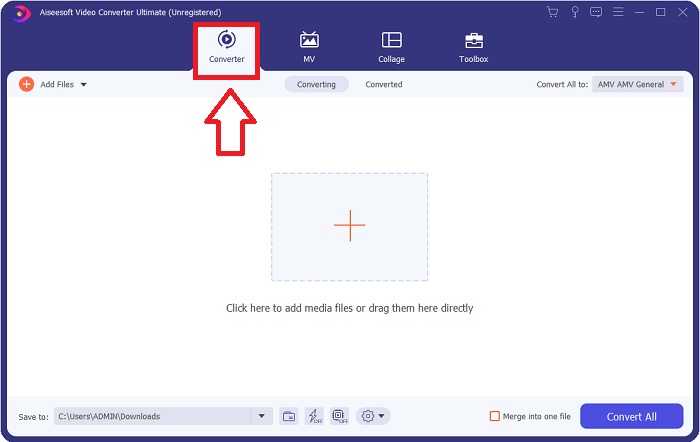
Paso 2. Abre el software que acabas de descargar. Cuando abras el programa por primera vez, se mostrará una ventana con la interfaz de Converter. Introduce aquí tu archivo de vídeo y empieza el proceso de conversión.
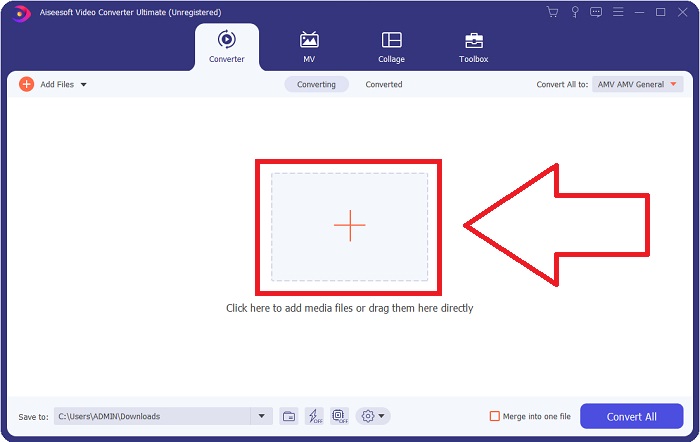
Paso 3. Inicia el proceso de conversión importando tus archivos al conversor. El archivo de vídeo que quieres convertir se puede arrastrar y soltar sobre el icono +.
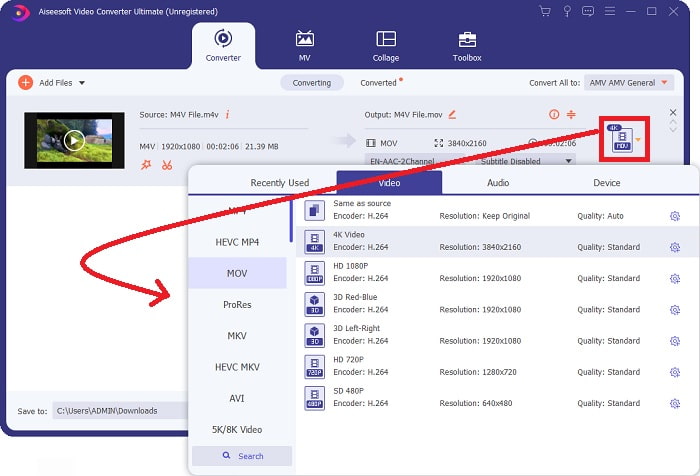
Paso 4: Aparece un menú de opciones en la esquina superior derecha de la pantalla; haz clic en un formato de vídeo de la lista para seleccionarlo. Selecciona el formato MOV en el menú desplegable. Una vez que hayas elegido un archivo MOV, dispondrás de diversas opciones de calidad de vídeo. Pero si la salida de vídeo que has elegido no aparece en la lista, puedes modificar los ajustes de calidad para adaptarlos a tus necesidades. El icono de engranaje te permite cambiar la resolución de la pantalla, la tasa de fotogramas y la calidad del audio. Haz clic en el botón Create New para guardar los cambios.
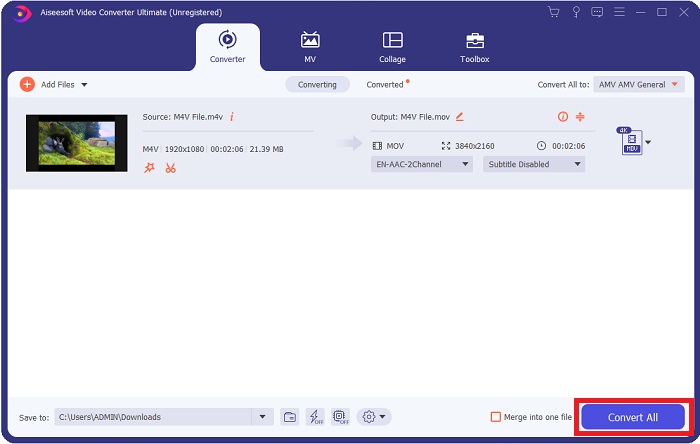
Paso 5. Para comenzar a transferir el vídeo a tu ordenador, selecciona Convert All cuando hayas terminado de editar el vídeo y esté listo para convertirse.
Parte 3. Otras formas de convertir M4V a MOV en línea
Método 1. Usa el convertidor de video gratuito
Utiliza esta versión en línea de Video Converter Ultimate si no tienes tiempo para descargarlo. En Internet, FVC Free Video Converter Online es la mejor aplicación web para convertir de forma rápida y sencilla entre muchos tipos diferentes de formatos de vídeo. Se recomienda para usuarios nuevos, ya que no tiene restricciones en cuanto a los formatos de archivo que puede admitir, a diferencia de otros conversores en línea. Sigue estos pasos para saber más sobre esta herramienta basada en la web.
Paso 1. Al hacer clic en este enlace, serás dirigido a la página principal de FVC Free Video Converter Online.
Paso 2. Para obtener el lanzador para tu ordenador, haz clic en la opción Add Files to Convert que se encuentra a la derecha si es la primera vez que lo utilizas. Cuando se haya descargado por segunda vez, se iniciará automáticamente. Después de que el archivo se haya descargado por segunda vez, localízalo en tu carpeta y haz clic en Open para abrirlo.
Descarga la versión de escritorio para convertir archivos por lotes.
Paso 3. Elegir el formato MOV en el menú Video de abajo y hacer clic en él iniciará el proceso de conversión incluso antes de que comience.
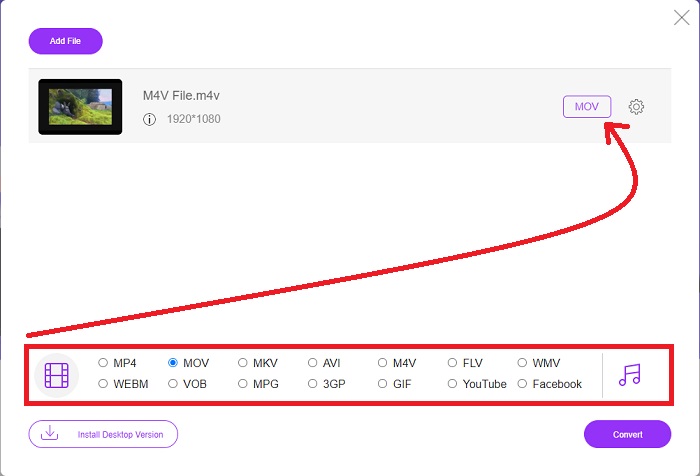
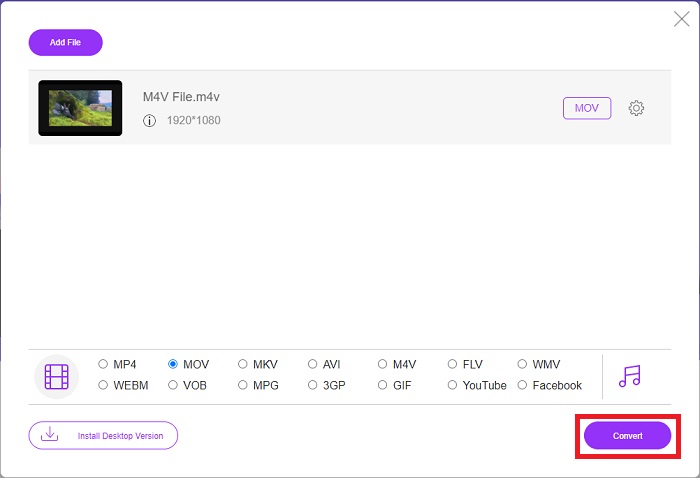
Paso 4. Haz clic en Convert para comenzar el proceso de convertir un formato a otro después de haber seleccionado el formato al que quieres convertir.
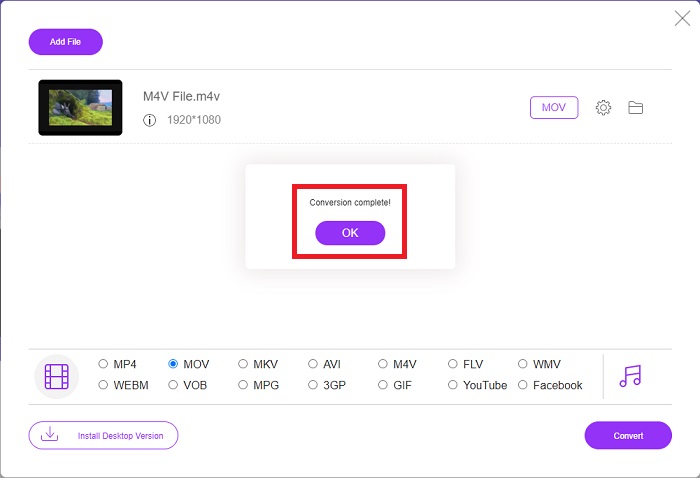
Paso 5. Solo tardará unos minutos en aparecer el archivo convertido en una carpeta, que podrás abrir para empezar a verlo.
Método 2. Usar ConvertFiles
ConvertFiles es un poderoso convertidor de archivos en línea que puede convertir entre una variedad de formatos de archivo. Se admiten documentos, fotos, presentaciones, archivos, archivos de audio y video en más de 200 formatos. Estos son los pasos provistos que necesita para aprender sobre esta herramienta en línea.
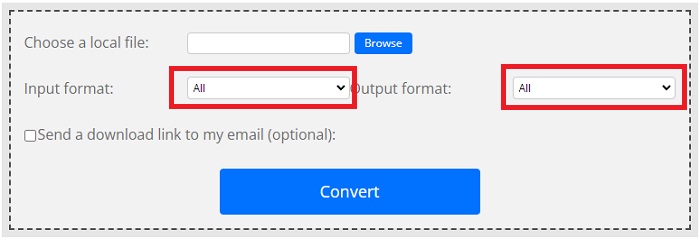
Paso 1. Escribe ConvertFiles en cualquier navegador web y haz clic en la página principal. Después de hacer clic, accederás a la interfaz del sitio web. Haz clic en Browse para localizar en tu disco local los archivos que necesitas convertir.
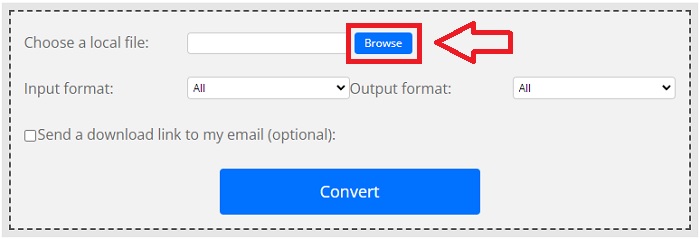
Paso 2. Establece el formato de entrada y salida del archivo de vídeo.
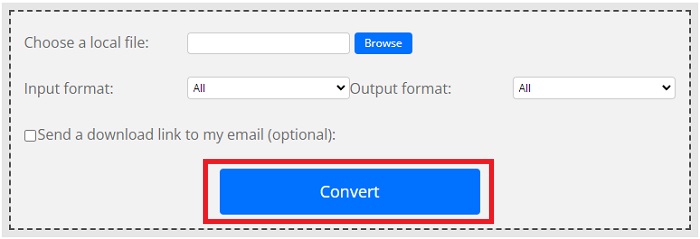
Paso 3. Para convertir tu archivo, haz clic en Convert, espera a que el proceso termine y luego haz clic en Download.
M4V frente a MOV
El M4V es desarrollado por Apple, que también usa MPEG 4. Los archivos M4V se usan a menudo para almacenar los videos descargados de la tienda iTunes de Apple, como videos musicales, episodios de TV, etc. Es posible que encuentre algunos archivos M4V protegidos contra copia ya que usa Protección de derechos de autor FairPlay DRM de Apple.
El formato MOV se puede utilizar para almacenar una película, un programa de televisión, un videoclip corto o una película casera. En realidad, se guarda en el formato de archivo QuickTime (QTFF), que fue presentado por Apple en 1991. Los archivos MOV se usan a menudo cuando las personas quieren guardar un video con alta calidad.
Parte 4. Preguntas frecuentes sobre la conversión de M4V a MOV
¿Qué es mejor, MP4 o MOV?
Los archivos en formato MP4 suelen estar más comprimidos y son más pequeños en tamaño, mientras que los archivos en formato MOV suelen ser de mayor calidad pero de mayor tamaño. Los archivos MOV son preferibles para la edición de vídeo en un Mac, ya que están diseñados principalmente para QuickTime en lugar de otros formatos de vídeo. Sigue aprendiendo más detalles sobre MP4 vs MOV.
¿Por qué el archivo MOV es tan grande?
QuickTime es un códec editable al que iMovie convierte desde el soporte de origen. Los datos utilizados por la cámara están excepcionalmente comprimidos, lo que en la mayoría de los casos los hace inadecuados para el procesado en postproducción. El formato y el códec utilizados requieren una tasa de datos significativamente mayor y mucho más espacio de almacenamiento. Haz clic aquí para aprender a comprimir archivos MOV.
¿Para qué sirve MOV?
En el caso de la extensión de archivo MOV, se refiere a un archivo Apple QuickTime Movie que se ha colocado en un archivo contenedor QuickTime File Format (QTFF) (archivo contenedor). Un archivo MOV puede incluir audio, video y texto en el mismo archivo usando diferentes pistas, o las pistas pueden apuntar a datos que están guardados en otro archivo que no está incluido en el archivo MOV.
Conclusión
Teniendo todo en cuenta, a pesar de todas las herramientas web en línea presentadas arriba, los problemas de conectividad son uno de los principales factores que pueden interrumpir la conversión de un vídeo. Por eso se recomienda encarecidamente que tengas en cuenta el uso de un software gratuito para descargar, como Video Converter Ultimate. Este conversor ofrece muchas funciones además de convertir tu archivo de vídeo de forma muy rápida. Además, es compatible con una gran cantidad de formatos de vídeo, así que no tendrás que preocuparte por convertir archivos poco habituales y podrás disfrutar al máximo de estos vídeos con la mejor calidad de salida posible.
-
 6 formas de convertir gratis M4V a MP4
 Esta publicación es la guía detallada para convertir M4V a MP4 para cualquier reproductor. Puede cambiar M4V a MP4, incluso los archivos M4V protegidos, para que pueda reproducir videos M4V sin límite.
-
 Convertidor de M4V a MP3: 4 mejores métodos para extraer MP3 de archivos M4V
 Cuando desee extraer el audio MP3 de videos M4V con facilidad, puede obtener más información sobre los 4 mejores convertidores M4V a MP3 para obtener los archivos de audio deseados del artículo.
-
 [Guía] Cómo convertir videos M4V a GIF animados en Windows / Mac
 Si desea crear archivos GIF animados a partir de sus videos M4V favoritos, puede aprender sobre 2 formas fáciles y eficientes de convertir videos M4V a GIF con configuraciones personalizadas.

