


 Video Converter Ultimate
 Grabador de pantalla
 Reparación de vídeo
Proceso de conversión de archivos WebM a MOV: métodos sencillos que debe conocer
Cuando se trata de producción y transmisión, no todos los formatos de video son compatibles con todas las plataformas digitales. Al intentar ingresar, producir, cargar o descargar archivos relevantes, esto puede causar problemas importantes. Apple, por ejemplo, no usa los navegadores tradicionales en los que nos hemos convertido en el pasado: tiene su propia plataforma llamada Safari. Es por eso que los formatos de video que solo son compatibles con Google Chrome, Mozilla Firefox, Opera y Microsoft Edge no siempre son accesibles para los usuarios de Mac desde el navegador.
Uno de ellos es un vídeo WebM, un formato que proporciona compresión de vídeo abierta para HTML5. Si usas Mac, necesitas un reproductor multimedia de terceros para verlo. Sin embargo, el formato de archivo MOV es lo que necesitas si quieres reproducir tus vídeos sin ninguna complicación, ya que es un desarrollo propio de Apple para Apple QuickTime Player. Así que, lo que necesitas es convertir WebM a MOV en tu Mac, y en este artículo te ofrecemos las mejores formas de hacerlo.

Parte 1. Una descripción general: WebM y MOV
Si ha estado expuesto al consumo y la transmisión de videos durante bastante tiempo, debe haber visto muchos videos de diferentes formatos utilizando diferentes plataformas. Es posible que alguna vez se haya preguntado qué representan estas extensiones de archivo o en qué se diferencian entre sí. Seguramente ha intentado reproducir cierto video en su navegador pero no lo hace, diciendo que no es compatible. WebM, por ejemplo, solo es compatible con varios navegadores modernos como Chrome, Firefox y Edge, ya que normalmente está incrustado en páginas web usando HTML5.
Parte 2. El mejor convertidor que ayuda a convertir WebM a MOV
Convertir archivos de vídeo no es tan difícil como podrías pensar. Aunque hay numerosos programas y aplicaciones que pueden ayudarte, hay uno de ellos que hace el trabajo de forma rápida y sencilla. FVC Video Converter Ultimate es un software de descarga gratuita que te ahorra todo el tiempo de búsqueda en internet del mejor conversor en línea. Nuestra intención es acercarte lo mejor. No tienes que preocuparte por el formato del vídeo que deseas convertir, porque este software admite varios formatos y, además, ofrece muchas opciones para editar tu vídeo durante el proceso de conversión. Estos son los pasos que debes seguir para usar este software:
Paso 1: Antes del proceso de conversión, primero tienes que descargar el software y puedes hacerlo haciendo clic en el botón Free Download. Puedes elegir entre la versión para Windows o para Mac. En este caso, elige For Mac OS. Espera a que termine de descargarse el archivo .exe y ábrelo cuando haya finalizado para comenzar la instalación.
Paso 2: Cuando el software haya terminado de instalarse, ábrelo y aparecerá una interfaz. Una vez que el programa se inicia, te encontrarás automáticamente en la pestaña Converter. Si no es así, haz clic en ella.
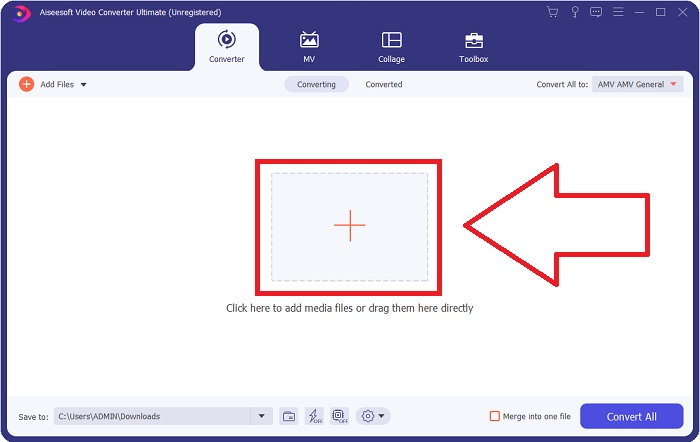
Paso 3: Habrá un botón con el símbolo + en el centro de la interfaz en el que puedes hacer clic para importar el archivo de vídeo que deseas convertir. También puedes simplemente arrastrar y soltar tus vídeos fácilmente.
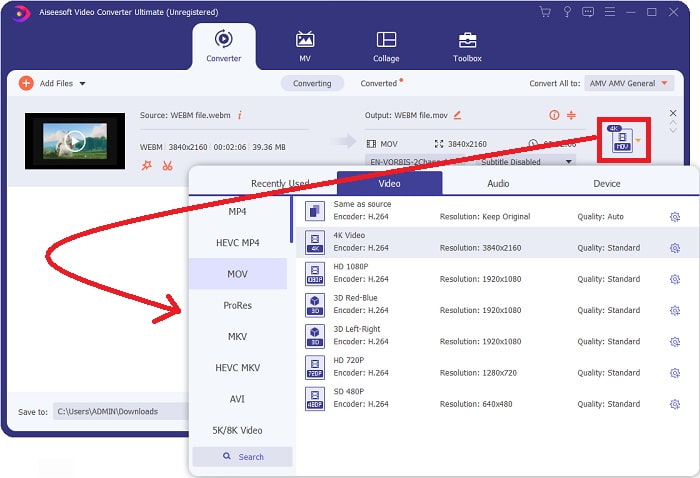
Paso 4: Aparecerá otra interfaz cuando tu vídeo se haya importado correctamente. Desde ahí, puedes ver el formato actual de tu vídeo en el extremo derecho. Hay una flecha desplegable al lado; haz clic en ella y aparecerán varias opciones. Puedes elegir el formato que quieras para convertir tu vídeo, pero en este caso selecciona MOV. Hay opciones entre las que elegir, como la resolución y la calidad del audio. Para ver más, haz clic en el icono de engranaje junto a la calidad o la resolución que hayas elegido, y podrás seguir editando tu vídeo según tus necesidades. Para guardar los cambios realizados, haz clic en Create New.
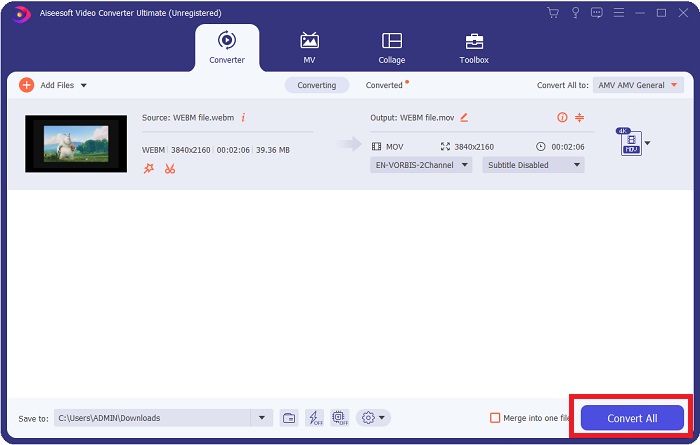
Paso 5: Cuando hayas terminado y estés satisfecho con los cambios, ve a la esquina inferior derecha de la interfaz, donde encontrarás Convert All, y haz clic para exportar tu vídeo convertido.
Parte 3. Consejos adicionales: otros convertidores en línea que convierten WebM a MOV
Método 1: Usar conversión gratuita
Si ya no desea descargar software y simplemente continúa con el proceso de conversión, podemos mostrarle alternativas para este. Esto se hace puramente en línea mientras aún le ofrece las funciones que necesita para sus necesidades de edición. Si desea un método sin complicaciones, esta herramienta web es una forma de hacerlo.
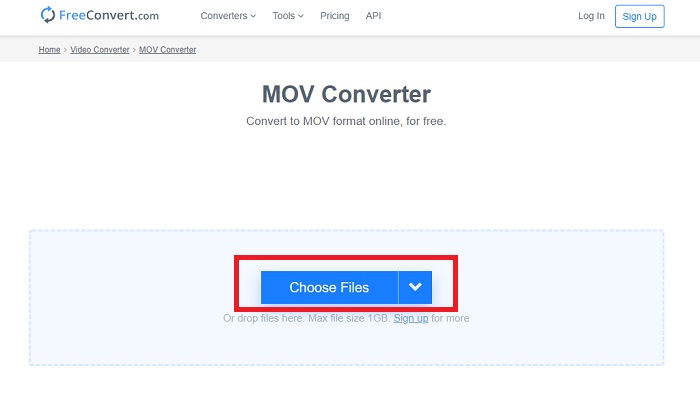
Paso 1: Ve al sitio propiamente dicho y encontrarás una interfaz en la que hay un botón Choose Files en el centro de la página. Haz clic en él para importar el archivo de vídeo que quieres convertir.
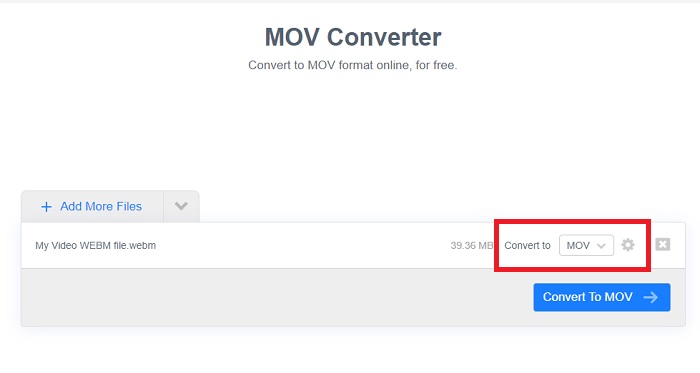
Paso 2: Igual que en el propio software, puedes ver el formato actual de tu vídeo a la derecha y, junto a él, una flecha desplegable. Haz clic y elige entre los formatos a los que quieres convertir tu vídeo. Para más opciones, haz clic en el icono de engranaje para seguir editando tu vídeo. Haz clic en el botón Apply Settings para conservar los cambios realizados.
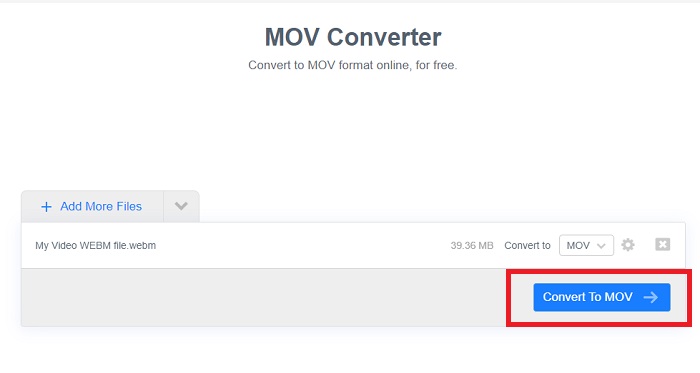
Paso 3: Cuando hayas terminado todos los cambios, ya puedes iniciar la conversión haciendo clic en el botón Convert to MOV que aparece justo debajo y esperar a que termine. Después, podrás exportar tu vídeo convertido haciendo clic en Download MOV.
Método 2: use Cloud Convert
Esta herramienta web le ofrece algunas opciones más mientras convierte su archivo WebM a MOV en línea. No solo puede editar la resolución o la calidad del audio, sino también fps, subtítulos y muchos más. Siga estos sencillos pasos para utilizar este convertidor en línea:
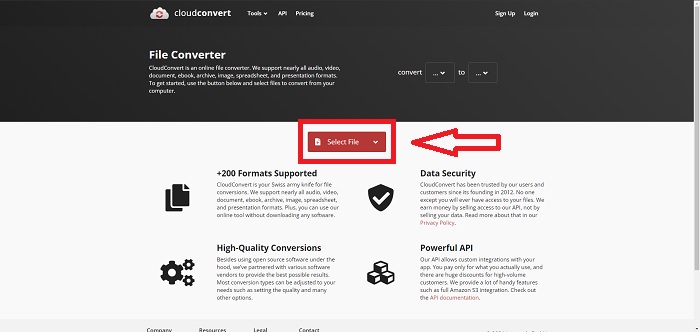
Paso 1: Primero tienes que importar el archivo de vídeo que deseas convertir haciendo clic en el botón Select File en el centro de la página. Si quieres convertir archivos simultáneamente, haz clic en Add more Files.
Paso 2: Junto al archivo, puedes seleccionar el formato de vídeo haciendo clic en la flecha desplegable. También puedes hacer clic en el icono de llave inglesa para ver más opciones. Desde ahí podrás editar ciertos aspectos del vídeo y del audio. Luego, haz clic en OK para guardar los cambios.
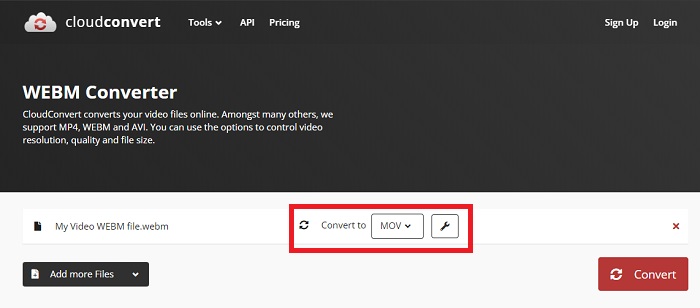
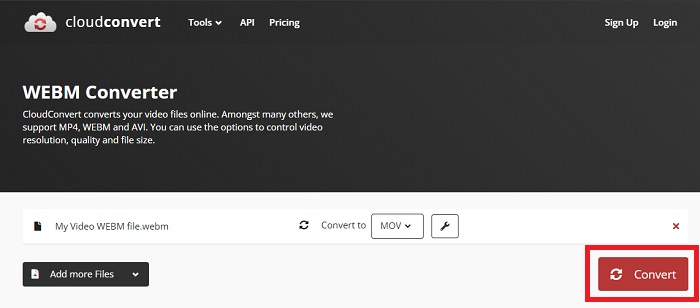
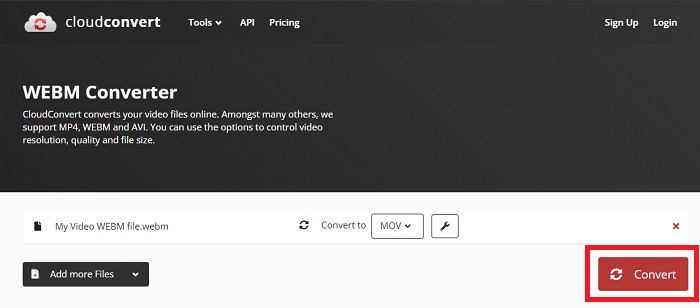
Paso 3: Cuando hayas terminado todas las ediciones, haz clic en el botón Convert resaltado en rojo y espera a que termine. Por último, haz clic en Download resaltado en verde para exportar tu vídeo completamente convertido.
Método 3: Usa ZamZar Convert
Esta herramienta web ofrece menos opciones para su video, ya que solo convierte el formato de video y audio. Sin embargo, hace el trabajo más rápido que los otros métodos mencionados. Para utilizar este convertidor en línea, siga los pasos proporcionados:
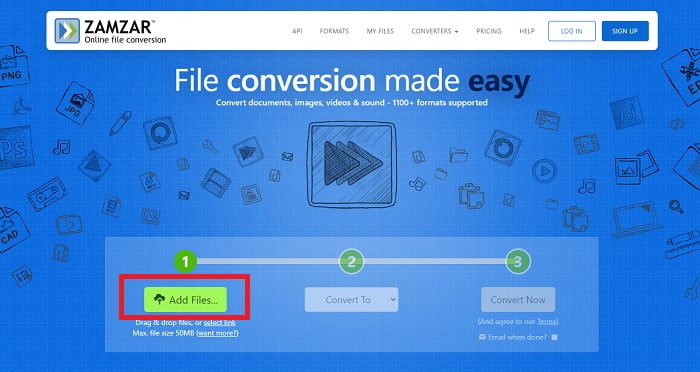
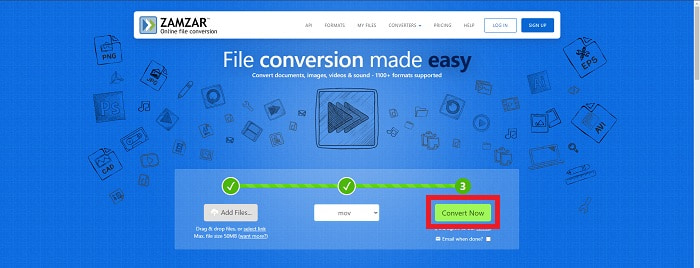
Paso 1: En el centro de la página solo hay tres botones que debes pulsar para que tu vídeo se convierta. Primero, haz clic en Add files para importar tu archivo de vídeo.
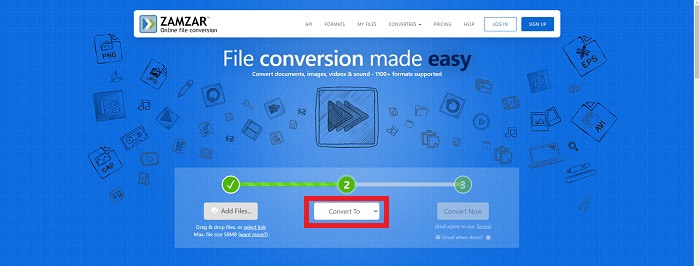
Paso 2: Con el segundo botón, puedes elegir el formato de vídeo y audio que quieres para tu archivo. En este caso, selecciona el formato MOV.
Paso 3: Por último, haz clic en el tercer y último botón, Convert Now, para iniciar la conversión propiamente dicha y espera a que termine. Cuando haya finalizado, haz clic en Download para exportar por fin tu vídeo a tu ordenador.
Parte 4. Preguntas frecuentes sobre la conversión de WebM a MOV
¿Qué es exactamente el formato WebM?
WebM es un formato de archivo multimedia abierto específico de la web que incluye transmisiones de video comprimidas con códecs de video VP8 o VP9, transmisiones de audio comprimidas con códecs de audio Vorbis u Opus y textos WebVTT. La estructura de archivos de WebM se basa en el contenedor de medios Matroska. La mayoría de los navegadores web aceptan archivos WebM, ya que a veces se usan en sitios web HTML5 para reproducir películas en línea. Por ejemplo, YouTube emplea el formato de archivo de video WebM para todos los videos en su página, que van desde 360p hasta otras calidades extremadamente altas. Wikimedia y Skype son lo mismo.
¿Qué reproductores multimedia necesito para reproducir videos WebM en caso de que no quiera convertirlos a MOV?
Existe una alternativa si no quieres pasar por todo el proceso de conversión para reproducir tu vídeo WebM. Puedes utilizar una aplicación de terceros o lo que llamamos multiplataforma. Algunos de estos reproductores multimedia de terceros son VLC, KM Player, Media Player Classic, Winamp, jetAudio Basic, Moovidia, Persian y XBMC, que puedes descargar desde sus sitios correspondientes para reproducir tus archivos WebM.
¿El MOV es de alta o baja calidad?
La reproducción de video es de bastante alta calidad con archivos MOV. MOV es especialmente útil ya que puede contener medios mixtos como imágenes, videos y animaciones de 360 grados. También contiene toda la información de video y audio. Esto hace que editar el archivo sea mucho más simple.
Conclusión
De hecho, hay muchas herramientas que puede usar para convertir su video de un formato a otro, ya sea mediante el uso de un software o mediante una herramienta web que puede encontrar en línea. Sin embargo, todavía van de la mano en términos de opciones o conveniencia que ofrecen. Algunos simplemente hacen el trabajo y otros ofrecen varias opciones para que elijas. Este artículo se centra en esto para ayudarlo a conocer cuál debe usar según sus necesidades. Es por eso que recomendamos Video Converter Ultimate, ya que ofrece todas las opciones adicionales que quizás nunca sepa cuándo las necesitará. Es mejor tener este software a su lado todo el tiempo para ahorrarle todos los problemas de encontrar un convertidor en línea cada vez que lo necesite.
-
 Cómo cambiar el formato GIF a WebM sin perder la calidad de los archivos
 Convierta sus GIF a un formato de video WebM para tener una etiqueta de video HTML5. Confíe en esta herramienta a continuación para saber cuál es la mejor para el trabajo.
-
 3 formas de convertir WebM a MP3 sin perder calidad de sonido
 ¿Tiene algún problema porque los archivos WebM no se pueden usar para reproducir el audio que guardó? Luego, lea este artículo, ya que brindamos una ayuda efectiva al convertir WebM a MP3.
-
 3 software impresionante utilizado para convertir archivos WebM en formato AVI
 ¿No tiene idea de cómo convertir WebM en AVI? Entonces empecemos a leer este artículo. Como especificamos todos los detalles sobre WebM y los tres convertidores que puede usar para convertir.
