


 Video Converter Ultimate
 Grabador de pantalla
 Reparación de vídeo
Cómo agregar un filtro al GIF en Windows/Mac/iPhone/Android con pasos
¿Quieres saber cómo darle más vida a tu GIF añadiéndole un filtro? No te preocupes, porque en este artículo te mostraremos los editores de GIF más utilizados que puedes emplear en tu ordenador y en tu teléfono para añadir filtros. La información que incluimos aquí aportará pruebas fiables sobre cómo añadir filtros a un GIF. Sin más preámbulos, veamos qué software de filtros para GIF puedes usar en tu sistema operativo.

Parte 1. ¿Por qué necesito agregar un filtro a GIF?
Si está compartiendo el GIF en la web, primero debe agregar un filtro al GIF para mejorar el color, según su personalización. Según la investigación, los GIF filtrados atraen más a la audiencia que los GIF que no lo tienen. Entonces, si desea atraer a una gran audiencia, debe comenzar a agregar un filtro en cada GIF que haya creado con el editor de GIF que tiene. Ahora, si no tiene idea de cómo agregar un filtro a su GIF, le recomendamos que lea el artículo completo.
Parte 2. Agregue filtros al GIF con el editor de GIF fenomenal en Windows y Mac [Forma más fácil]
Video Converter Ultimate es el mejor editor de GIF que hemos visto y elegido del mercado. Es conocido por ser tu editor de GIF todo en uno, ya que ofrece múltiples funciones de edición, como añadir filtros a un vídeo o a un GIF. Con esta herramienta no necesitas ser un profesional para usarla, ¿y sabes qué es lo mejor? Que obtendrás un resultado profesional con unos pocos toques. Así que, si quieres añadir un filtro al GIF, puedes seguir el tutorial sin ningún esfuerzo.
Paso 1. Para usar el editor de GIF, pulsa el botón de descarga de abajo y elige el sistema operativo que utilizas. Después de descargarlo, instala el software siguiendo el proceso de instalación y ábrelo para empezar a añadir un filtro al GIF.
Descarga gratuitaPara Windows 7 o posteriorDescarga segura
Descarga gratuitaPara macOS 10.7 o posteriorDescarga segura
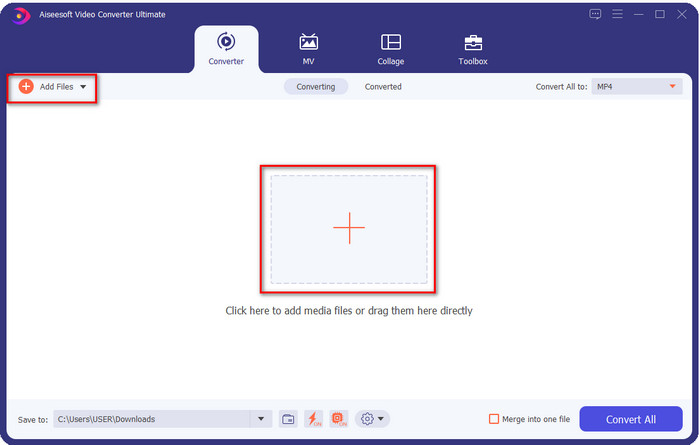
Paso 2. Sube el GIF que quieras haciendo clic en el icono + en el centro de la interfaz principal, aunque también puedes hacer clic en Add Files si lo prefieres; ambas opciones funcionan igual. Busca el archivo .gif en la carpeta del escritorio que aparecerá en la pantalla y haz clic en Open para subirlo.
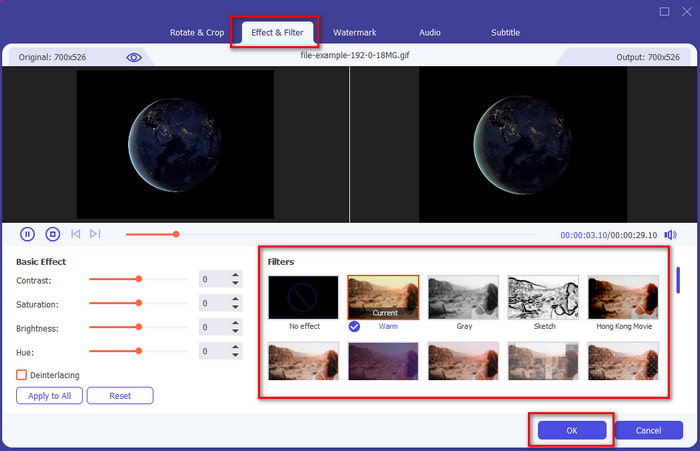
Paso 3. Haz clic en el botón de la varita para abrir una nueva ventana y añadir un filtro al GIF. Ve a Effect & Filters y verás distintos conjuntos de filtros que puedes usar para que tu GIF se vea mejor que otros GIF de la web. Puedes probar todos los filtros haciendo clic en ellos uno por uno; si estás satisfecho con el filtro, debes hacer clic en OK para aplicarlo correctamente al GIF.
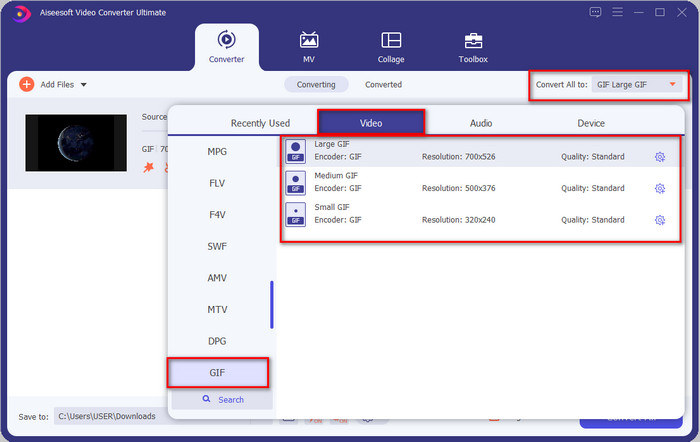
Si quieres mantener el formato de tu GIF, haz clic en Convert All to y busca el formato GIF. Selecciona el formato GIF que quieras y haz clic en él.
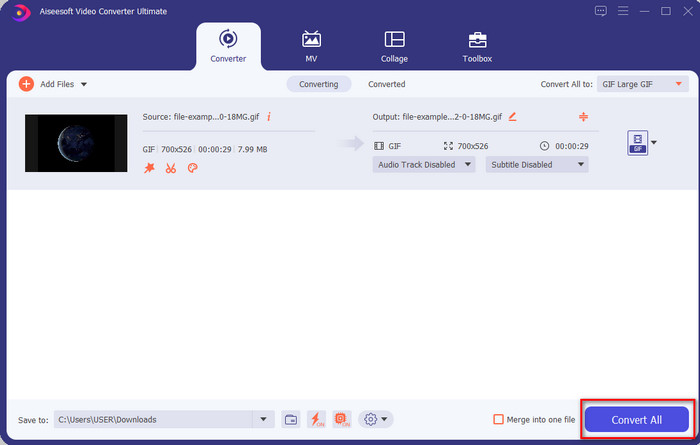
Paso 4. Y para descargar el GIF con el filtro aplicado, haz clic en el botón Convert All. ¿Fácil, verdad? Con Video Converter Ultimate, puedes hacer prácticamente todo lo relacionado con GIF sin ningún esfuerzo.
Parte 3. Cómo agregar un filtro en GIF con GIF Maker-Editor disponible en dispositivos Android
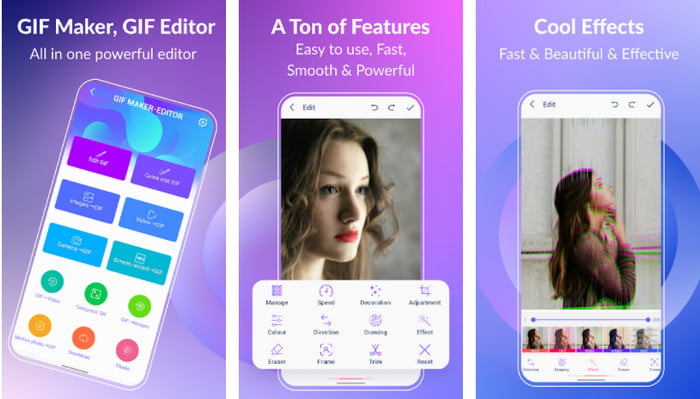
GIF Maker-Editor es una herramienta todo en uno que puedes descargar en tu Android. Esta herramienta admite distintos filtros para ayudarte a crear un GIF atractivo. Aunque la herramienta es excelente, los anuncios aparecen de forma inesperada, así que debes tener cuidado de no pulsarlos. A continuación, te mostramos los pasos para añadir un filtro de color a tu GIF.
Paso 1. Descarga la herramienta desde Play Store y ábrela.
Paso 2. Pulsa Edit GIF y elige el GIF que tengas en tu biblioteca de imágenes.
Paso 3. Busca los efectos deslizando las opciones y haz clic en ellos. Elige el filtro que quieras, pulsa el icono de check y luego OK para guardar el GIF.
Parte 4. Cómo aplicar filtro en GIF con GIF Maker disponible en dispositivos iPhone
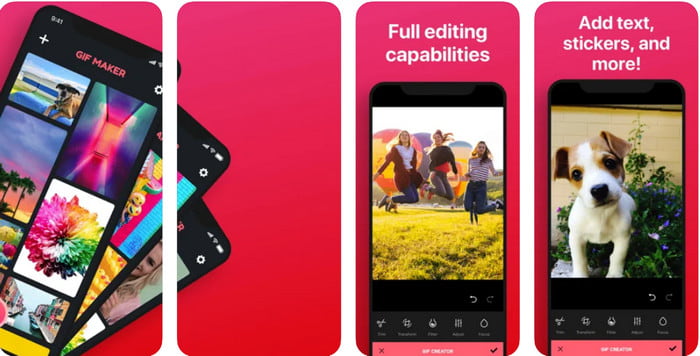
GIF Maker es el editor de GIF todo en uno que puedes descargar en tu iPhone. Con esta herramienta, puedes crear tus propios GIF personalizados en unos pocos clics. Sin embargo, no puedes utilizar un GIF directamente porque el formato no es compatible, pero puedes hacer clic en este enlace y aprender cómo convertir GIF en fondo de pantalla animado. Después de convertir el GIF en un fondo de pantalla animado, puedes seguir los siguientes pasos para añadir un filtro a los GIF.
la versión gratuita de esta herramienta dejará una marca de agua en el GIF que exportes.
Paso 1. Puedes descargar la app gratis desde la App Store.
Paso 2. Abre la herramienta, haz clic en el icono +, pulsa en Choose Live Photo From Library y elige la foto en vivo para subirla.
Paso 3. Después de subir la foto en vivo, haz clic en Filter y elige qué filtro quieres añadir a tu GIF. Pulsa en check para aplicar el vídeo y vuelve a pulsar en check para exportar el archivo.
Parte 5. Preguntas frecuentes sobre cómo agregar filtros a GIF
¿Los filtros afectan el color del GIF?
La combinación de colores afectará el GIF o cualquier medio si agrega el filtro. Estos filtros se usan para corregir la combinación de colores que desea tener, así que no se sorprenda si el color será mucho más profundo o más claro que la imagen en bruto del GIF.
¿Cuáles son los efectos disponibles en Instagram?
Hay numerosos filtros de vídeo que puedes usar en Instagram y, si te preguntas cuáles son, puedes hacer clic en este enlace y ver los 10 filtros más utilizados en Instagram.
¿Puedo hacer un video de alta calidad a través de filtros?
Puedes resaltar los colores del vídeo para que parezca de mayor calidad. Sin embargo, los filtros solo pueden realzar los colores del vídeo, no la calidad general. Pero si quieres mejorar la calidad de tu vídeo, puedes leer este artículo y aprender cómo mejorar la calidad de un vídeo.
Conclusión
Y ahora que tenemos una idea de cómo agregar un filtro al GIF, debe probar las herramientas que proporcionamos anteriormente. Aunque las herramientas presentan diferentes fortalezas en el filtrado de su GIF, aún creemos que Video Converter Ultimate le ofrecerá los mejores filtros que puede usar para hacer un excelente GIF filtrado. No solo eso, con esta herramienta, puede cortar, fusionar, recortar, crear GIF personales y hacer más. ¿No te convence la información que te proporcionamos? Creemos que hay una forma de demostrarle que esta herramienta es la mejor opción para editar el GIF, y es haciendo clic en el botón de descarga de arriba y siguiendo el tutorial que presentamos y disfrute.
-
 Cómo agregar audio y música a videos gratis en su computadora / teléfono
 Este artículo muestra 4 formas sencillas de agregar audio a un video de forma gratuita. No importa qué pista de audio desee agregar a su video, aquí puede obtener resultados satisfactorios.
-
 Convierta GIF en formato de video: convierta memes GIF en video [2021]
 Determine cómo transformar GIF en formato de video con la ayuda de las herramientas que se enumeran a continuación. Elija cuál y aprenda cómo hacerlo, ya que reunimos suficiente evidencia sobre ellos.
-
 Maravillosas aplicaciones GIF a video para dispositivos Android e iOS
 ¿Sabía que puede convertir archivos GIF en cualquier formato de video que desee con su teléfono? Elige las mejores aplicaciones en tu Android o iOS.
