


 Video Converter Ultimate
 Grabador de pantalla
 Reparación de vídeo
4 métodos más fáciles Cómo cambiar la resolución de video con pasos integrales
There are many reasons why do you need to change the video resolution. One of the reasons could be to save some space for the video. Whatever your reason is, this guide will teach you the four methods to lessen or make the video quality high. Without any more delay, let's dig into the video resolution converters you can use to change the resolution of your video.

Parte 1. Primer método: la herramienta de escritorio definitiva para cambiar la resolución de video en Windows y macOS
Video Converter Ultimate is the ultimate tool for this task, as it can help you convert not only the video format but also the video quality within a few clicks. This tool supports an ultra-fast conversion process to easily convert your video quality to the highest or standard video resolution. Isn't it lovely to use this software? Want to know more? If so, this tool supports both desktop platforms. Even though it supports Windows and Mac, what you can see on Windows features are available on Mac features or vice-versa. We know the tools have something special, so we added this to this list. So now, if you want a step-by-step guide, you can follow the written tutorial below to learn how to change video resolution successfully.
Step 1. Click the appropriate button to download the program to your drive successfully. Open the downloaded file and follow the installation process that will show on your screen. After successfully installing it, open the video resolution converter and proceed to the next steps.
Descarga gratuitaPara Windows 7 o posteriorDescarga segura
Descarga gratuitaPara macOS 10.7 o posteriorDescarga segura
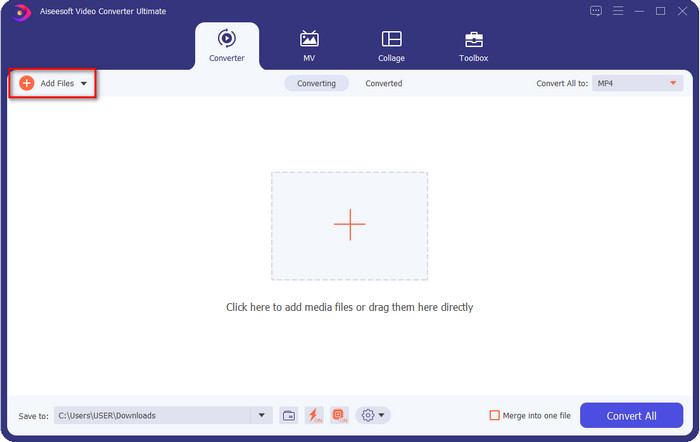
Step 2. To insert the video file you want to change the resolution, click the Add File button. Browse the file on the computer folder that will show, click it, and hit Open.
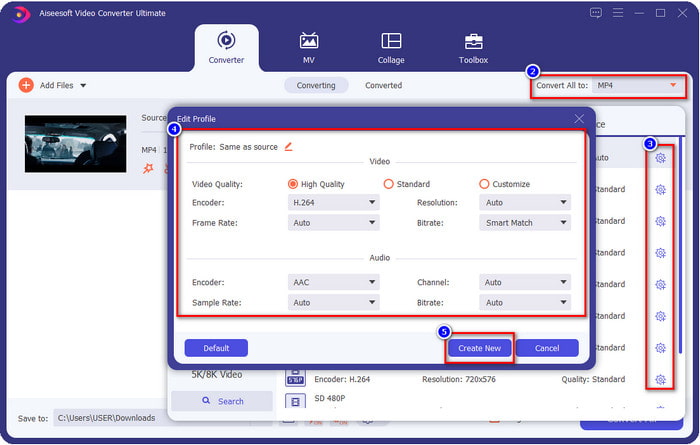
Step 3. Look at the upper-right part and click the drop-down button on the main interface. Choose the video format you want to have, MP4, MOV, AVI, MKV, FLV, and 200+ more formats are available here. After you choose the format, click the widget button to edit the profile of the format. Here you can make your resolution higher or lower change the encoder, quality, bitrate, and more to increase video resolution or not. To save the modification, click Create New.
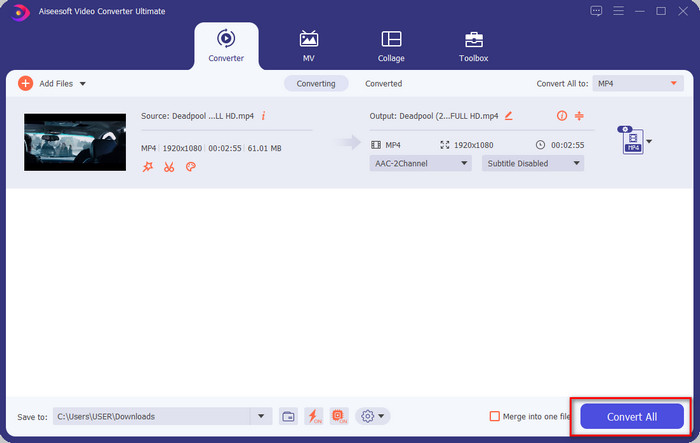
Step 4. Lastly, by clicking the Convert All, the resolution conversion will begin. With that, you have now converted the resolution of the video with the help of the Video Converter Ultimate.
Parte 2. 2nd Methode: El método simple y gratuito para cambiar la resolución de video en línea
Want to change video resolution online? In that case, you must use the online free version of the ultimate tool, the FVC Free Video Converter Online. This tool can help you to convert the resolution of your video freely. It is an online tool, so expect it needs internet connectivity to function. Additionally, this tool doesn’t support all video formats, so there is a limitation on adding video format here. So now, let's try to use the tool to change the resolution by following the steps below.
Step 1. To open the online video resolution converter, click this link to open the tool directly.
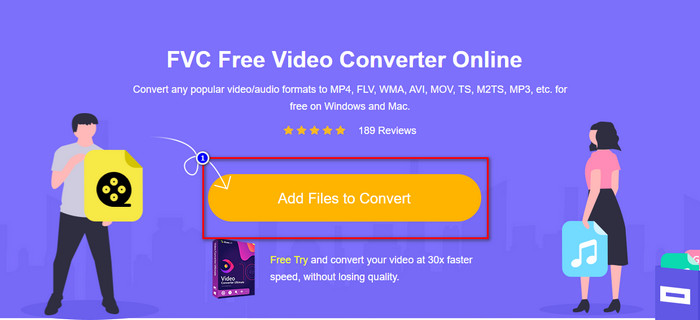
Step 2. Press Add Files to Convert to download the launcher for the first-timer, re-click it again after you've downloaded the installer. After you've clicked it, a folder will show, locate the video file on the folder and click Open.
Step 3. Click the gear button to open a new window to change the video resolution on the window. At the top of the new window, click Resolution, choose the video resolution you want and click OK to save it.
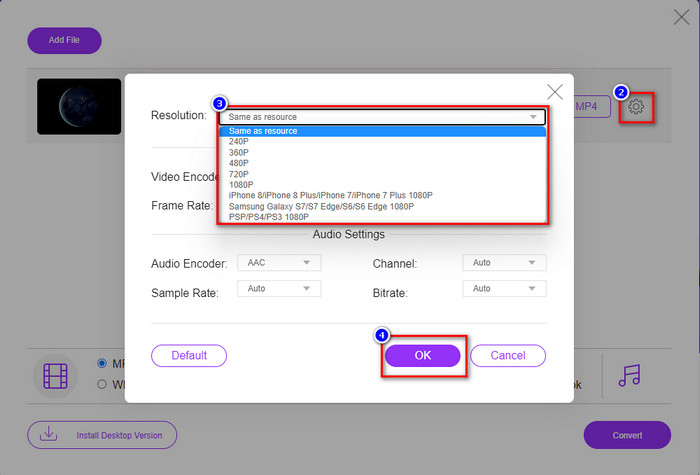
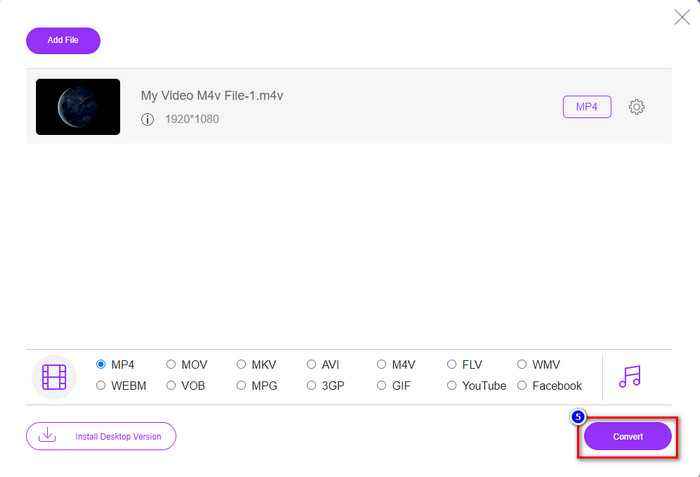
Step 4. Choose the format on the setlist and click Convert to begin converting the resolution process.
Relacionado:
Parte 3. 3er método: forma móvil de cambiar la resolución de video en iPhone y Android
Estos métodos no pueden convertir la resolución de su video, pero puede tomar un video de resolución más baja o más alta. Además, veamos cómo podemos cambiar la resolución del video mientras filmamos el video.
1. Resolución de video de iPhone incorporada
Si es un usuario de iOS, puede cambiar la resolución de video que toma si lo desea. Sin embargo, no puede encontrarlo en la cámara, por lo que si no puede encontrarlo, puede seguir los pasos a continuación para saber cómo cambiar la resolución de video en el iPhone antes de filmar un video.
Estos pasos se tomaron del modelo de iPhone X, por lo que los pasos pueden ser ligeramente diferentes de las otras versiones del nombre o las funciones similares a las del iPhone.
Step 1. Open the Settings of your iPhone.
Step 2. Under it, find the Camera and click it.
Step 3. Click Record Video and choose which resolution you want to have as you shoot the video. Go back to Home, go to your Camera, and film the video with the resolution you've set back on the settings.
2. Resolución de video de Android incorporada
Para los usuarios de Android, puede acceder directamente a la resolución de video en su cámara. Los pasos que proporcionamos no son tan complicados como para iPhone porque no necesitará configurar los ajustes. Entonces, ahora, para cambiar la resolución de video en Android, siga las instrucciones a continuación.
Estos pasos se tomaron de Redmi 10, por lo que los pasos pueden ser un poco diferentes con otros dispositivos Android, como el nombre o la funcionalidad.
Step 1. On your phone, click the Camera app to open it.
Step 2. After it is open, go to the Video, click the three-parallel lined, and choose the video resolution you want.
Step 3. Press the red button to record the video with the set video resolution.
Parte 4. Preguntas frecuentes sobre cómo cambiar la resolución de video
¿Cuál es la resolución de vídeo?
La cantidad de píxeles contenidos por cuadro es lo que llamamos resolución de video. También controla los detalles que puede ver en un solo video, como qué tan clara puede ser la imagen. Además, existen diferentes variedades de resolución de video; llamamos resolución más alta a partir de HD y superior que usa más fotogramas de calidad por segundo. Si bien la resolución más baja comienza desde SD e inferior, esta resolución de video obtiene menos ancho de banda que la resolución más alta, pero tiene una calidad de cuadro por segundo más pequeña.
¿1080 es la mejor resolución de video?
Produce una de las resoluciones de video más elegidas por los usuarios más comúnmente seleccionadas en Youtube y otras aplicaciones de transmisión de video. Pero no siempre es la mejor opción ver un video de alta calidad porque podría llevar más tiempo almacenar el video en el búfer que el 720. Por lo tanto, la próxima vez que vea un video en línea, preferimos usar el 720 que el 1080 para cargar el video mucho más rápido, y no hay cambios significativos en ambas calidades si lo cambia.
¿Reducir la resolución afecta la calidad?
Sí, habrá un cambio una vez que hayas bajado la calidad del video. Por ejemplo, si tu video está en HD, lo cambias a SD, la calidad cambiará drásticamente. Entonces, si cambia la resolución del video, verá un cambio repentino, pero aún se puede ver incluso después de eso.
Conclusión
Por fin, ahora podemos cambiar la resolución del video según nuestras necesidades. Aunque puede usar muchas herramientas diferentes para cambiar la calidad del video, aún presentamos las mejores y más seguras herramientas en línea, fuera de línea e integradas. Esperamos que este artículo te ayude a cambiar la resolución; Si tiene más preguntas, puede dejar un comentario a continuación y, de hecho, responderemos a sus comentarios.
-
 Revisión de los 10 mejores programas de conversión de video HD (gratuito y comercial)
 Lea y compare para obtener el mejor software de conversión de video HD de 10 recomendaciones. Aquí están las revisiones detalladas de cada convertidor de video HD para multiplataforma.
-
 Directrices sobre cómo convertir M4A a WAV [PC y Mac]
 Obtenga más información sobre cómo convertir M4A a WAV con pasos detallados y diferentes herramientas entre las que puede elegir.
-
 Excelente opción para convertir MKV a formato AVI
 Domine cómo convertir videos MKV con sencillos pasos proporcionados exclusivamente para usted. ¿Quieres saber cómo? Luego haga clic en este enlace para obtener más información.
