


 Video Converter Ultimate
 Grabador de pantalla
 Reparación de vídeo
 Descarga segura
Aprenda a hacer una imagen más clara con estos sencillos métodos
Cuando capturas una imagen que resulta estar borrosa, se considera un defecto. Y es muy insatisfactorio tener una imagen borrosa. Pero, por suerte, hoy en día hay montones de aplicaciones que pueden ayudarte a enfocar y desdiborrar tu imagen. Adobe Photoshop es una de las aplicaciones de edición fotográfica más conocidas. Sin embargo, no es una herramienta adecuada para principiantes. Por ello, te mostraremos métodos más sencillos que puedes usar para que tu foto borrosa tenga una calidad excelente. Lee el siguiente texto para aprender cómo hacer que una foto se vea más nítida con pasos sencillos.

Parte 1. Cómo hacer una imagen más clara en línea
Con el uso de la tecnología AI, ahora hay muchos escaladores de imágenes en línea que pueden mejorar su imagen automáticamente. El uso de aplicaciones en línea para que su imagen sea más clara es conveniente porque no necesita descargar nada en su dispositivo. También ahorrará espacio de almacenamiento en su dispositivo porque puede acceder a él en su navegador.
FVC Free Image Upscaler es la aplicación en línea más conocida si quieres enfocar o hacer que tu imagen se vea más clara. Esta herramienta es fácil de usar porque tiene una interfaz muy intuitiva. Además, puedes mejorar la calidad de tu imagen con aumentos de 2x, 4x, 6x y 8x. Asimismo, FVC Free Image Upscaler utiliza tecnología de IA (Inteligencia Artificial) que detecta automáticamente las partes borrosas de tu imagen y luego las mejora. Te permite corregir con precisión los píxeles perdidos, las texturas de color y otros detalles.
Además, admite múltiples formatos de imagen, como PNG, JPG, JPEG y WebP. Y lo mejor de esta herramienta en línea es que no necesita ninguna cuenta para acceder a ella. También es de uso gratuito y seguro de usar. Y a pesar de que es una aplicación en línea, no contiene anuncios molestos que puedan distraerlo, y es rápido y eficiente de usar. Entonces, si está buscando una herramienta conveniente, FVC Free Image Upscaler es la mejor herramienta.
Cómo hacer que una imagen sea más clara en línea usando FVC Free Image Upscaler:
Paso 1. En tu ordenador, abre el navegador y busca FVC Free Image Upscaler en la barra de búsqueda. O bien, puedes hacer clic en el enlace proporcionado para ir directamente a la página principal de la aplicación. Haz clic en el botón Upload Photo para iniciar la aplicación.
Paso 2.0 Después de iniciar la aplicación, haz clic de nuevo en Upload Photo para añadir la imagen que quieres ampliar/enfocar. Se abrirán los archivos de tu ordenador, donde localizarás tu imagen y la abrirás.
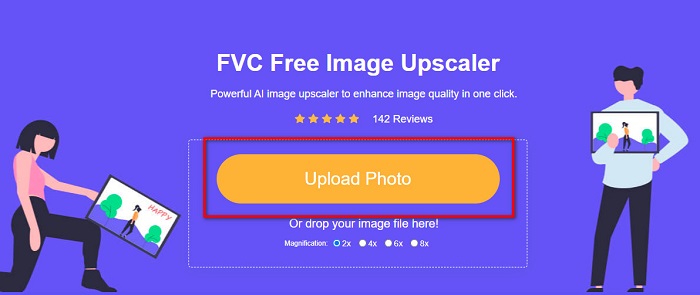
Paso 3. Luego, selecciona el ajuste preestablecido de magnification que prefieras. Cuanto mayor sea la ampliación, mayor será la nitidez de tu imagen. Pero ten en cuenta que el tamaño del archivo también aumentará a medida que aumente la calidad. Puedes elegir la magnification entre 2x, 4x, 6x y 8x.
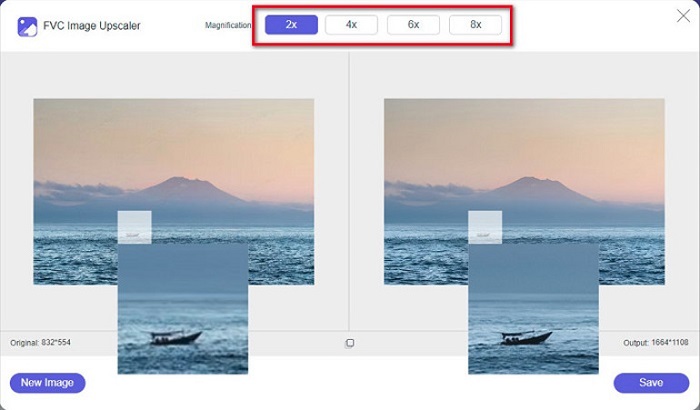
Paso 4. Verás los resultados en la parte derecha de la interfaz. Y si estás conforme con el resultado, haz clic en el botón Save para guardar la imagen en tu dispositivo.
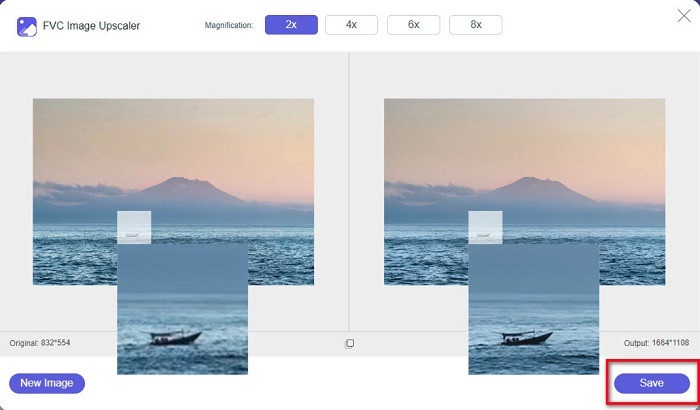
¡Solo espera a que tu imagen se guarde y listo! Ahora puede compartir su increíble foto con amigos o en otras plataformas de redes sociales.
Parte 2. Cómo hacer que una imagen sea más clara sin conexión
También es bueno usar una aplicación fuera de línea cuando desee enfocar o editar su imagen. Muchas aplicaciones de edición de fotos están fuera de línea; debe comprarlos antes de usarlos. Pero no te preocupes; en esta parte, proporcionaremos una herramienta sin conexión gratuita que puede usar en su escritorio.
Paint.net es una de las aplicaciones de edición fotográfica más utilizadas que es gratuita y segura. Esta herramienta sin conexión tiene una interfaz más sencilla que Adobe Photoshop, que es usado por muchos profesionales. Aunque tenga una interfaz simple, puede producir resultados excepcionales y te permite enfocar tu imagen borrosa. Además, dispone de otras funciones de edición que pueden ayudarte a mejorar tu imagen. Con Paint.net puedes enfocar, corregir el color y añadir fondo a tu foto.
Además, al mover el control deslizante, puede elegir la nitidez de su imagen y eliminar las partes borrosas de la misma. Sin embargo, solo está disponible en dispositivos Windows. Sin embargo, si desea agrandar una imagen mientras la enfoca, puede usar Paint.net.
Cómo hacer una imagen más grande y clara usando Paint.net:
Paso 1. Primero, descarga e instala Paint.net en tu ordenador de escritorio y ábrelo cuando termine la instalación. Después, sube tu imagen haciendo clic en File > Open.
Paso 2. Luego, ve a Effects > Photo > Sharpen. Aparecerá otra ventana en la que podrás ajustar la nitidez de tu imagen para desdibujarla.
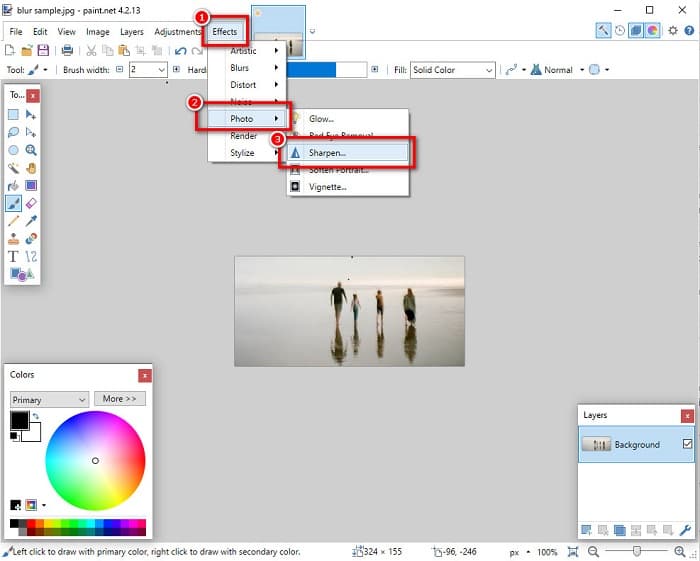
Paso 3. En la pestaña Sharpen, mueve el control deslizante para seleccionar la nitidez deseada de tu imagen. También puedes marcar la up/down arrow para elegir numéricamente el grado de nitidez de tu imagen.
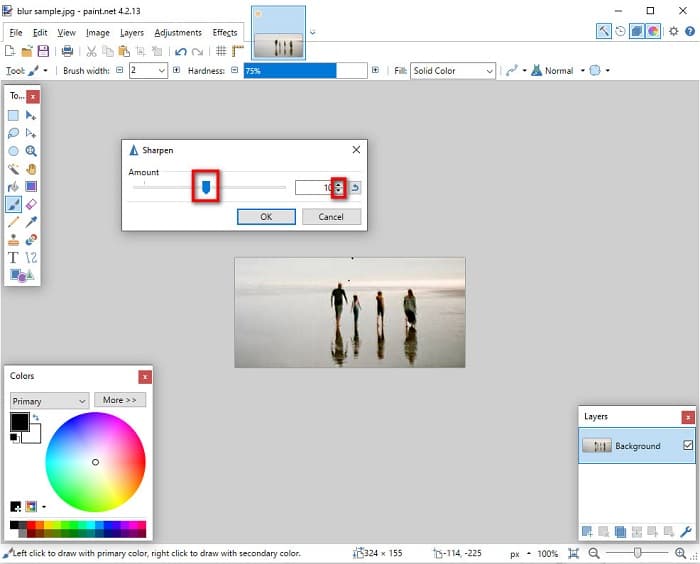
Paso 4. Por último, haz clic en el botón OK y ve a File > Save para guardar el resultado en tu escritorio.
Parte 3. Cómo hacer una imagen más clara en tu iPhone
Y si tiene una imagen borrosa capturada con su iPhone, también puede usar una aplicación de desenfoque para su dispositivo iPhone. Numerosas aplicaciones de edición de imágenes que puede descargar desde AppStore pueden ayudarlo a desenfocar su imagen. Sin embargo, no todas las aplicaciones son de uso gratuito; debe comprarlos antes de usarlos. Afortunadamente, encontramos una aplicación de desenfoque de imágenes que es de uso gratuito desde la AppStore. Lea esta sección por completo para aprender cómo hacer que una imagen sea más clara en su dispositivo iPhone.
Si te preguntas cuál es la aplicación de edición de fotos gratuita que puede ayudarte a desdibujar una imagen, VSCO es la app que estás buscando. VSCO es una conocida aplicación de edición fotográfica disponible para descargar desde la App Store. Además, cuando estés desdibujando una imagen con VSCO, hay algunos ajustes en los que debes centrarte. Para desdibujar tu foto con VSCO, debes ajustar la claridad, la nitidez y la exposición de tu imagen. VSCO también tiene otras herramientas de edición que puedes usar para retocar tus imágenes. Además, es compatible con los formatos de imagen más habituales del iPhone, como HEIC y HEIF. Un pequeño inconveniente de esta app es que solo admite unos pocos formatos de imagen y que debes comprarla para usar sus otras funciones de edición.
Cómo hacer que una imagen sea más clara en iPhone usando VSCO:
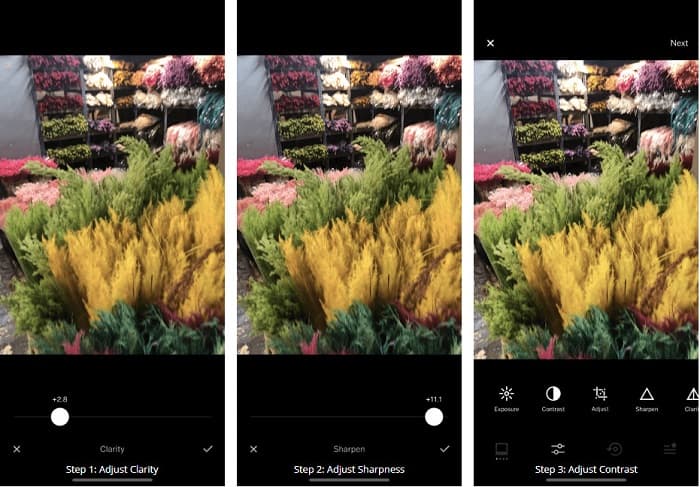
Paso 1. Instala VSCO desde la App Store y luego abre la aplicación en tu iPhone.
Paso 2. Abre tu imagen y luego ve a Clarity. La opción Clarity te ayudará a eliminar el ruido de gran escala de tu imagen. Solo tienes que mover el control deslizante de Clarity un poco más abajo en la interfaz.
Paso 3. A continuación, ajustaremos la nitidez de tu imagen. La función Sharpen te ayudará a conseguir la definición que quieres en tu imagen. Luego, moviendo el slider, puedes seleccionar el nivel de nitidez que deseas para tu foto.
Paso 4. Cuando termines de editar la claridad y la nitidez de tu imagen, pasaremos a ajustar el contraste. Mueve la opción Contrast y el Contrast slider para seleccionar el nivel de brillo y oscuridad que quieres para tu imagen.
Paso 5. Por último, ajustaremos la Exposure de tu foto para aclararla un poco. Aumentar la exposición de tu imagen te ayudará a equilibrar las zonas oscuras con el contraste. ¡Y eso es todo! Ajustando estas funciones, puedes desdibujar tu imagen borrosa. Haz clic aquí para aprender a cambiar el tamaño de una imagen en un iPhone.
Parte 4. Cómo hacer una imagen más clara en tu Android
También hay aplicaciones en Android que puedes usar para hacer una imagen más clara. Entonces, si desea guardar una imagen borrosa en su Galería, esta aplicación puede ayudarlo a mejorar su imagen. Lea esta parte para aprender a desenfocar una imagen en su dispositivo Android.
La aplicación Remini (para Android) es probablemente una de las mejores apps de edición de fotos que puedes usar en tu dispositivo Android. Esta app te permite editar e incluso desdibujar tu imagen borrosa. Además, es fácil de usar y gratuita. Usando la opción Enhance, puedes hacer que tu foto se vea más clara. Sin embargo, primero debes crear una cuenta antes de poder usar la aplicación. Y con su versión Pro, puedes acceder a las funciones avanzadas de desdibujado de esta app.
Cómo desenfocar una imagen usando Remini para Android:
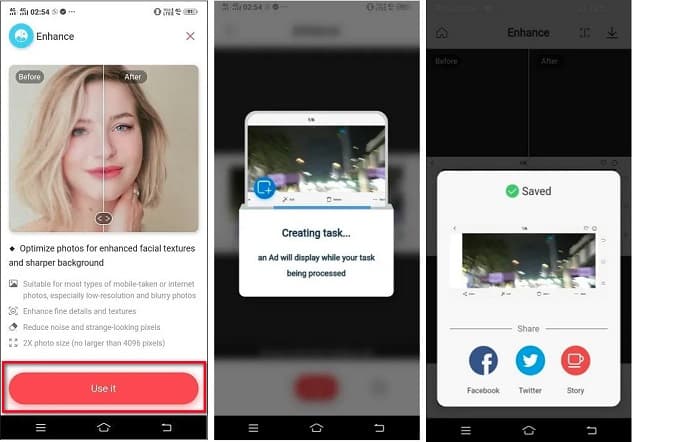
Paso 1. Instala Remini en tu dispositivo Android. Después de instalar la aplicación, ábrela de inmediato. En la interfaz principal de la app, toca el botón Use it para continuar con el proceso de desdibujar tu imagen.
Paso 2. Luego, selecciona la imagen y haz clic en el red button en la parte inferior de la interfaz. Se creará una tarea y se mostrará un anuncio mientras se procesa.
Paso 3. Después de eso, aparecerá el resultado final, donde podrás comparar el antes y el después de tu imagen. Y si ya estás satisfecho con el resultado, guarda tu imagen.
Parte 5. Preguntas frecuentes sobre cómo aclarar una imagen
¿Puedo usar GIMP para desenfocar una imagen?
Sí. GIMP es un increíble software de edición de fotos que puedes usar para desenfocar tu imagen. También puede descargar esta aplicación en su dispositivo Windows.
¿Desenfocar una imagen aumenta el tamaño del archivo?
Sí. Desenfocar una imagen significa aumentar la calidad y la resolución de su imagen. Cuando aumenta la resolución, también aumenta el tamaño del archivo de su imagen.
¿Qué aplicación puedo usar para desenfocar mi imagen?
YouCam Perfect es una aplicación que puede ayudarte a desenfocar tu imagen. Con su tecnología AI, puede desenfocar su imagen de inmediato.
Conclusión
En esta publicación hemos explicado lo que necesitas saber sobre cómo hacer que una foto se vea más nítida. Así que, si estás buscando aplicaciones que te permitan desdibujar una imagen, los métodos anteriores te ayudarán a conseguir tu objetivo. Pero si prefieres usar una herramienta en línea con una interfaz fácil de usar, utiliza FVC Free Image Upscaler.
-
 Revisión fáctica de PicResize que debe saber este 2022
 ¿Quieres saber si PicResize es la mejor opción para editar imágenes? Lea este artículo mientras revisamos la herramienta en general.
-
 Todo lo que necesita saber sobre Waifu2x y la alternativa
 ¿Necesita saber más sobre el Waifu2x? Este artículo proporciona la información que debe destacarse en esta aplicación y su alternativa.
-
 Cómo optimizar la imagen para la Web utilizando las mejores soluciones [Rápido]
 ¿Cómo optimizar la imagen para la web? Necesitará un software confiable y un tutorial; toda la información está aquí.
