


 Video Converter Ultimate
 Grabador de pantalla
 Reparación de vídeo
 Descarga segura
Cómo atenuar el audio en iMovie: tutorial para Mac y iPhone
El fundido es un efecto que se utiliza para crear una transición de aumento o disminución gradual en un determinado medio. En la edición de audio, aprender a añadir efectos de fundido es fundamental; se usa para la transición o simplemente para que los oyentes sepan que el audio se irá desvaneciendo o reduciendo, contribuyendo al resultado global del audio. Los usuarios pueden añadir efectos de fundido con iMovie de forma sencilla, un software de edición de medios diseñado por Apple. Sigue leyendo para descubrir cómo usar tu Mac y tu iPhone para aplicar efectos de fundido y conocer una herramienta alternativa todo en uno para añadir fundidos a tu audio.

Parte 1. Cómo hacer que la música se desvanezca en iMovie en Mac
Manijas de desvanecimiento
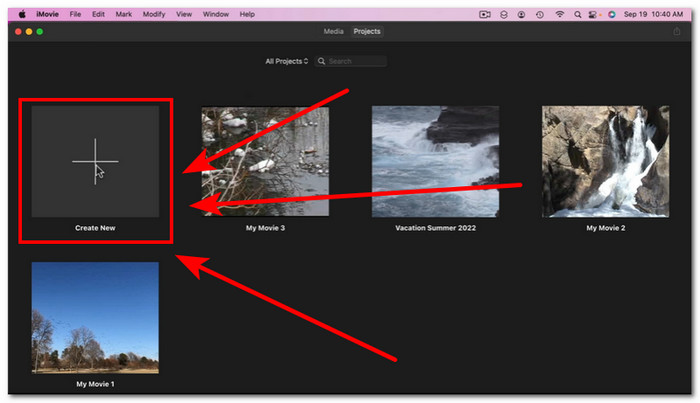
El primer método para agregar efectos de desvanecimiento en el audio con una versión Mac de iMovie es usar el controlador de desvanecimiento. Esta es la forma más fácil de hacerlo, ya que solo requiere que los usuarios carguen su archivo de audio y luego procedan a arrastrar cada una de las barras de control de desvanecimiento que aparecen al principio y al final del clip.
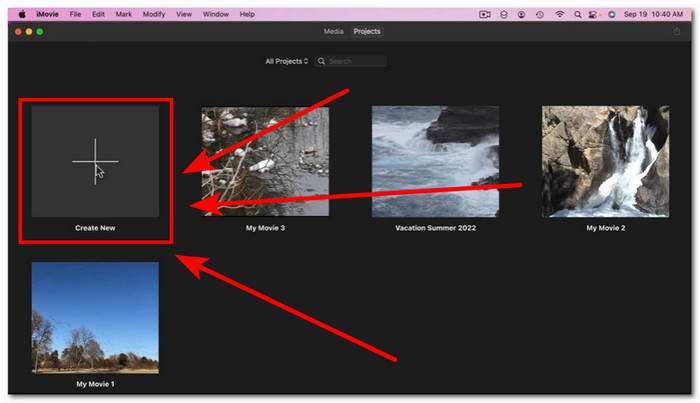
Paso 1. Inicia la aplicación iMovie en tu Mac e importa el archivo de audio que desees arrastrándolo y soltándolo en la línea de tiempo de la interfaz del software.
Paso 2. Una vez que el archivo de audio esté en la línea de tiempo de iMovie, aparecerá un pequeño círculo al principio y al final de cada pista, lo que indica que es posible usar los controladores de fundido para crear efectos de fundido.
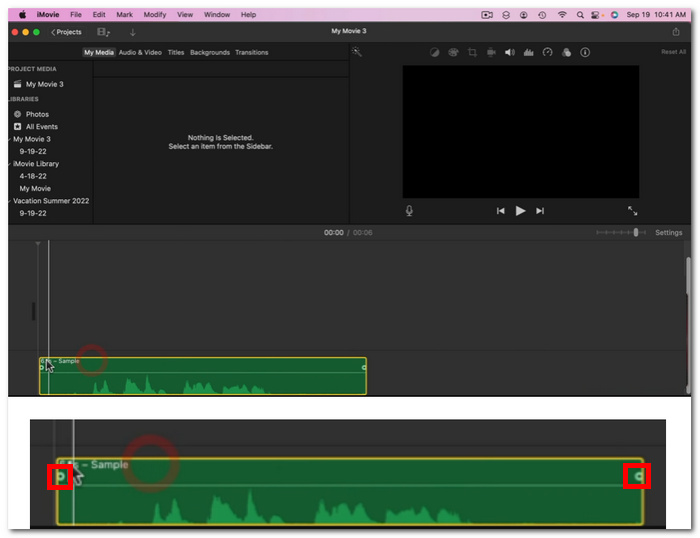
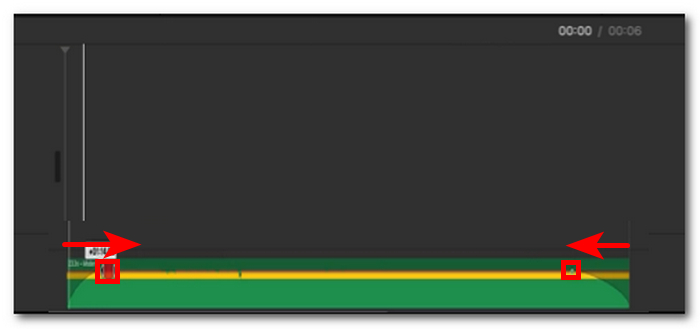
Paso 3. Simplemente arrastra las barras de control de fundido hacia el interior de la pista de audio para crear un efecto de fundido.
Nota: Como puedes ver, crea una pendiente visual en la pista, lo que indica que tu audio ahora tiene un efecto de desvanecimiento.
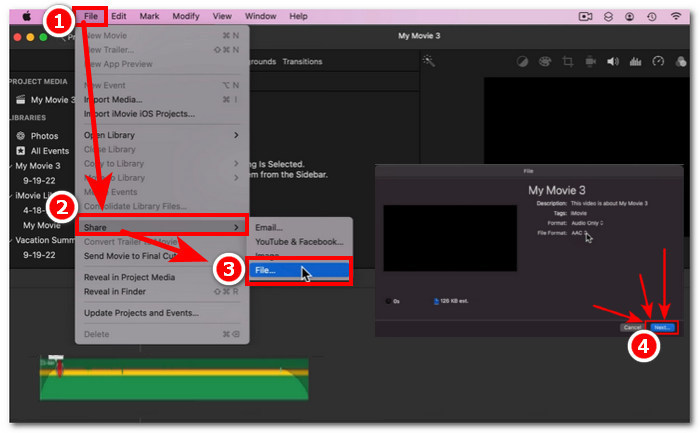
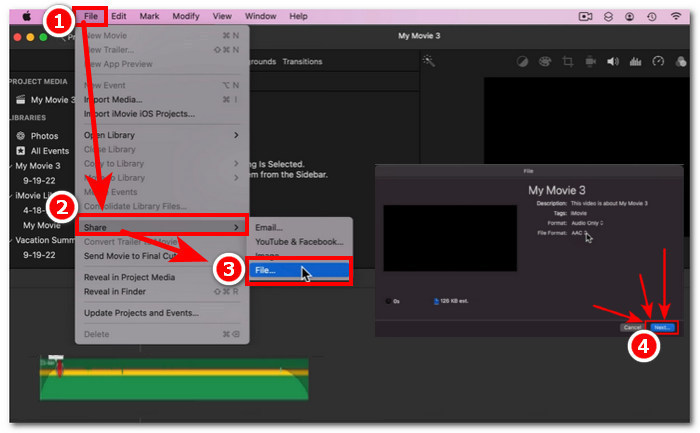
Paso 4. Por último, guarda tu archivo haciendo clic en Archivo > Compartir > Archivo… y en Siguiente para descargarlo en la carpeta de descargas de tu Mac.
Después de descargar el vídeo con el archivo de audio con fundido, si notas que el audio no está sincronizado con el vídeo en iMovie, puedes seguir esta guía para solucionarlo.
Inspector de audio
Otra forma de atenuar el sonido en iMovie con una Mac es a través del Inspector de audio. Esto es mucho más complejo en comparación con los controladores de atenuación. Permite a los usuarios ser precisos al colocar efectos de atenuación, ya que brinda una visualización de la duración del tiempo más calculada y específica en el segundo que desea que tenga el fundido de entrada y de salida en el audio.
Paso 1. En tu Mac, abre o carga el archivo de audio al que quieres aplicar efectos de fundido utilizando el software iMovie.
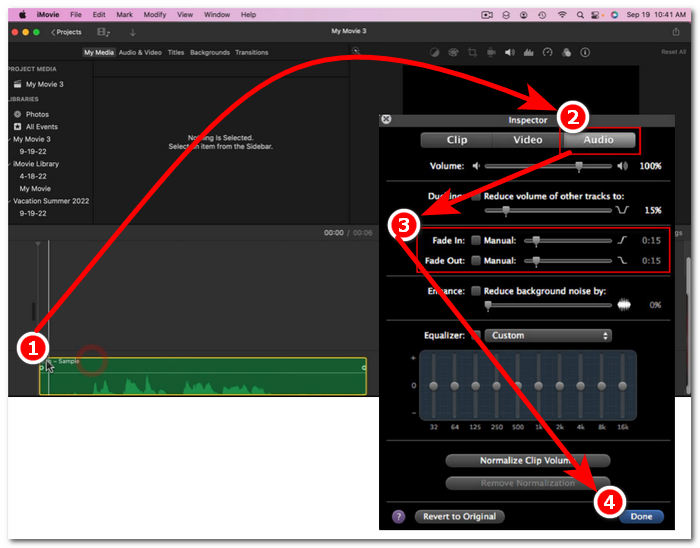
Paso 2. Una vez que el archivo de audio esté en la interfaz del software, haz doble clic en tu archivo de audio en la línea de tiempo y elige Ajustes del clip (Clip Adjustments) para abrir el panel Inspector.
Paso 3. Cuando el panel Inspector esté abierto, ve a la sección Audio. Allí podrás ajustar el fundido de entrada (Fade-in) y el fundido de salida (Fade-out) de tu pista. Simplemente arrastra manualmente la duración de los efectos de fundido a tu gusto y, cuando termines, haz clic en el botón OK (Done) para guardar los cambios en tu archivo de audio.
Paso 4. Cuando todo esté listo, podrás descargar tu archivo de audio haciendo clic en el botón Archivo situado en la parte superior de la pantalla y, a continuación, en Compartir > Archivo > Siguiente.
Parte 2. Desvanecimiento de música en iMovie en iPhone
Desvanecer el audio en iMovie con un iPhone es relativamente fácil, ya que la versión móvil de iMovie para usuarios de iPhone es bastante sencilla. Los usuarios, incluso aquellos que no son expertos en tecnología, pueden hacerlo sin ningún problema.
Paso 1. Para que puedas aplicar efectos de fundido a un archivo de audio, primero debes cargar tu archivo de audio en la app iMovie de tu iPhone,
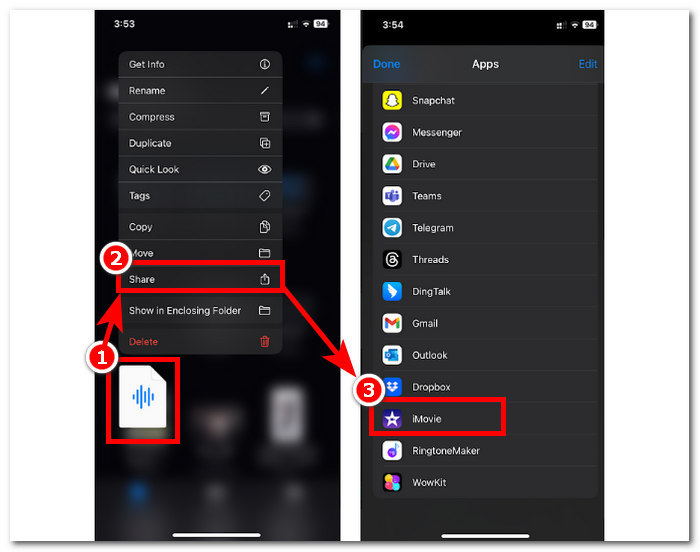
Paso 2. Una vez en la interfaz de la app, toca el botón Sonido > Fundido para mostrar las barras de fundido. Cuando aparezcan las barras de fundido, arrástralas hacia el interior del archivo de audio y ajústalas según tus preferencias; cuando estés satisfecho, toca el botón OK (Done) para guardar los cambios.
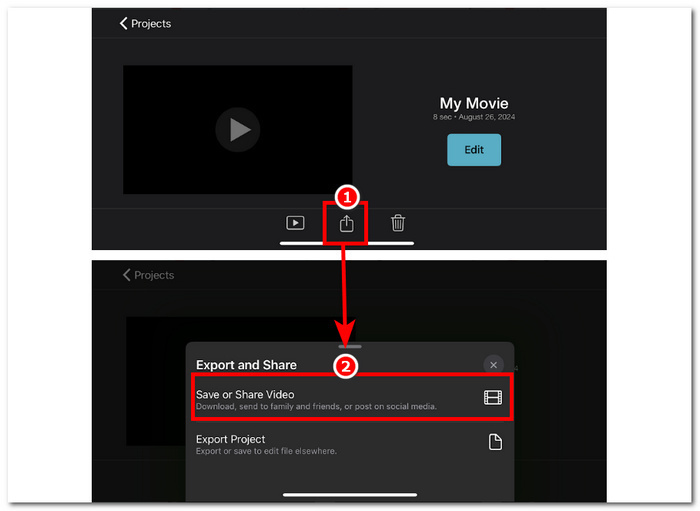
Paso 3. Para guardar tu archivo, toca el icono de Compartir y luego selecciona la opción para Guardar o Compartir vídeo.
Parte 3. La mejor alternativa de iMovie a Fade Music
Cuando iMovie, una herramienta de edición de vídeo muy utilizada en Mac y iPhone, presenta problemas técnicos, FVC-picked Video Converter Ultimate se convierte en la alternativa ideal. Este software está especialmente diseñado para añadir efectos de fundido a los vídeos de forma fluida, gracias a su función específica de Fundido de entrada y salida. Con la introducción precisa de la duración en el tiempo, los usuarios pueden lograr los efectos de fundido deseados con gran exactitud. FVC-picked Video Converter Ultimate va más allá del simple recorte o corte de audio y ofrece un versátil conjunto de herramientas de edición. Además, su extraordinaria velocidad de procesamiento garantiza una edición eficaz manteniendo una calidad de audio sin pérdidas, lo que lo diferencia de otros programas.
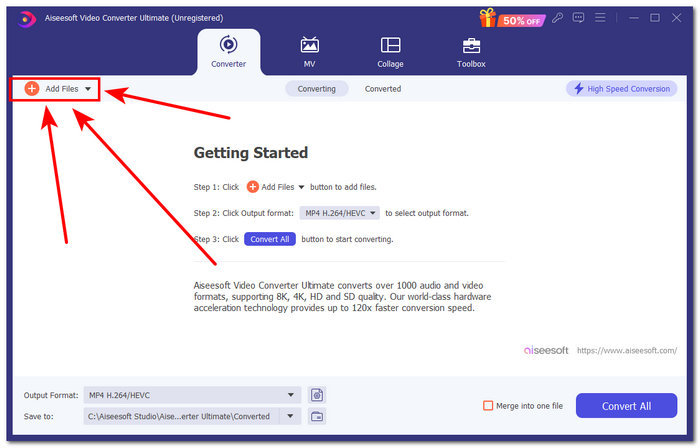
Paso 1. En tu ordenador, descarga e inicia el software FVC-picked Video Converter Ultimate. Localiza el botón Añadir archivos en la interfaz del programa y haz clic en él para cargar el archivo de audio. Este paso es fundamental si quieres recortar o cortar partes específicas del archivo de audio.
Descarga gratuitaPara Windows 7 o posteriorDescarga segura
Descarga gratuitaPara macOS 10.7 o posteriorDescarga segura
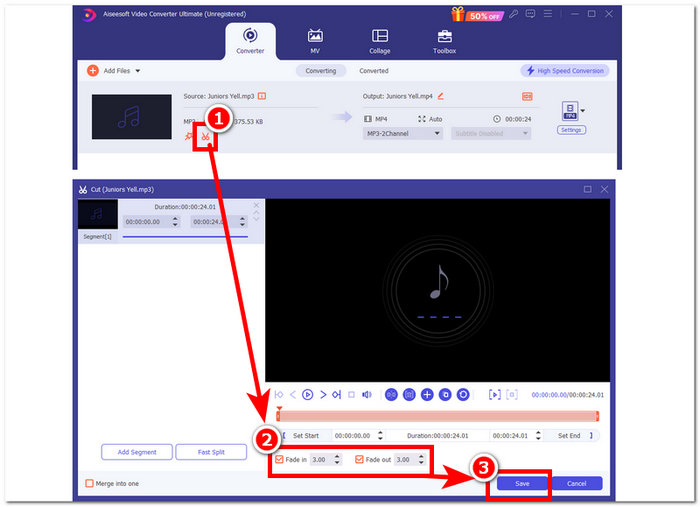
Paso 2. Haz clic en el botón con forma de tijeras para acceder a las funciones de corte y recorte del software. En el panel de corte verás la casilla Fundido de entrada y salida (Fade In & Out). Para añadir efectos de fundido a tu archivo de audio, simplemente márcala.
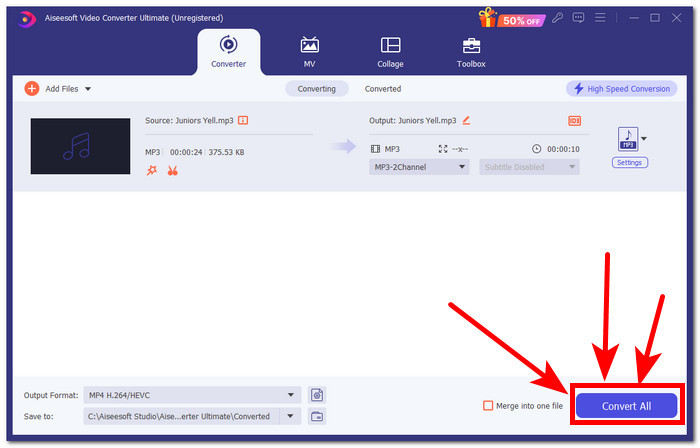
Paso 3. Haz clic en el botón Convertir todo. Esta acción guardará las modificaciones y almacenará el archivo en una carpeta designada de tu ordenador, garantizando que tus cambios se conserven de forma segura.
Parte 4. Preguntas frecuentes sobre cómo atenuar la música en iMovie
¿Cuál es la diferencia entre fundido de salida y fundido de entrada?
El desvanecimiento se refiere al aumento gradual del audio desde un silencio completo, mientras que el desvanecimiento se refiere a la disminución gradual del volumen de un audio hasta un silencio completo.
¿iMovie tiene fundido de entrada?
Sí, iMovie tiene efectos de entrada y salida graduales que permiten a los usuarios de Apple aplicar de forma fluida un aumento y una disminución gradual del volumen en su proyecto. Por lo tanto, no solo se puede utilizar en audio, sino que iMovie también ofrece efectos de entrada y salida graduales en su editor de vídeo.
¿Por qué se utiliza el desvanecimiento?
Un efecto de fundido puede ayudar a añadir una capa adicional de sabor a un proyecto. Crea una transición o final suave, evitando una parada repentina, que es más desagradable de escuchar, especialmente en la música.
Conclusión
Los usuarios de Apple ya no tienen que preocuparse por cómo hacer que la música se desvanezca en iMovie, ya que iMovie para Mac y iPhone puede realizar estas tareas con facilidad. Además del proceso sencillo de aplicar un efecto de fundido a un archivo de audio, se mencionó un software alternativo que sirve como solución de respaldo en caso de que iMovie falle. El FVC-picked Video Converter Ultimate resulta de gran ayuda gracias a su alta velocidad de procesamiento, su ligereza como software, su facilidad de uso y su sencilla función de fundido de entrada y salida.
-
 Maneras simples de agregar texto a un video usando iMovie en Mac y iPhone
 ¿Necesita agregar texto a un video usando iMovie? Lea la publicación completa del blog para aprender cómo agregar títulos de texto en su iMovie con pasos detallados.
-
 Tutorial de iMovie: cómo grabar vídeo y audio en pantalla con iMovie
 Lea y obtenga los pasos detallados para grabar un video con iMovie. Si tiene problemas con la grabación de iMovie, también puede obtener una alternativa gratuita de iMovie para grabar la pantalla en Windows y Mac sin marca de agua.
-
 Cómo agregar una marca de agua a un video en iMovie en Mac [Abarca todo]
 ¿Quieres conocer los secretos de agregar una marca de agua a un video en iMovie? No derrames el té sobre nadie y apréndelo leyendo este artículo.
