


 Video Converter Ultimate
 Grabador de pantalla
 Reparación de vídeo
 Descarga segura
Convertidor de DVD a H.264: 3 métodos para una conversión rápida de DVD
Hoy en día, las plataformas de streaming en línea están reduciendo paulatinamente la demanda y el uso de DVD. Si bien aún hay quienes prefieren usarlos, es innegable que la mayoría de la gente prefiere la flexibilidad y la comodidad al ver videos o películas.
Si no quieres quedarte atrás y deseas conservar tus colecciones de DVD, lo mejor que puedes hacer es convertirlas a formatos digitalizados. Actualmente, la mayoría de dispositivos y reproductores multimedia no son totalmente compatibles con los DVD, pero cuando se copian a formatos digitales populares, puedes disfrutar de su flexibilidad y comodidad. En este artículo, descubre tres formas sencillas de convertir DVD a H.264. Además, no pierdas la oportunidad de entender por qué es necesario convertir tus DVD a este formato. ¿Listo para convertir tus DVD? Desplázate hacia abajo para saber más.

Parte 1. ¿Por qué convertir DVD a H.264?
Hay varias razones por las que necesitas convertir tu DVD a H.264, y la más obvia es preservar el contenido del disco y guardarlo en un formato digitalizado. Sin embargo, hay más que la gente suele pasar por alto o que aún no conoce. A continuación, se detallan las razones por las que necesitas convertir tus DVD a H.264:
Compatibilidad entre dispositivos
H.264 es uno de los códecs de vídeo con mayor soporte en la actualidad; por lo tanto, cuando haya convertido su DVD a este formato, es posible que ya no experimente ni se sienta limitado a distintos dispositivos y reproductores multimedia al mirar el contenido multimedia de su DVD.
Tamaño de archivo más pequeño con alta calidad
En comparación con el formato DVD original, H.264 ofrece una mejor tasa de compresión. Esto reduce el tamaño de los archivos de DVD sin comprometer significativamente la calidad del video. Esto permite almacenar más películas o videos sin consumir demasiado espacio de almacenamiento.
Transmisión y almacenamiento en la nube
Los videos codificados en H.264 son ideales para el almacenamiento y la transmisión en la nube. Esto te permitirá acceder a tu colección multimedia en cualquier momento y lugar.
Edición y personalización
Una vez en formato H.264, sus videos se pueden editar fácilmente con software de edición de video, lo que permite cortar secciones no deseadas, agregar subtítulos o mejorar la calidad del video. Esta flexibilidad no es posible con el formato DVD original.
No necesita una unidad de DVD
Las laptops modernas y algunas computadoras de escritorio ya no incluyen unidades de DVD integradas. Convertir DVD a H.264 elimina la necesidad de reproductores de DVD externos, lo que facilita ver tus películas o series favoritas en cualquier dispositivo.
Parte 2. El mejor método para convertir DVD a H.264
El mejor método para convertir DVD a H.264 es usar AnyMP4 DVD Ripper, la herramienta recomendada por FVC. Esta herramienta destaca por su completo conjunto de funciones que permiten a los usuarios extraer de forma eficaz y sencilla el contenido de cualquier DVD, incluyendo discos, archivos ISO y carpetas, y convertirlos al formato de salida deseado. AnyMP4 DVD Ripper es compatible con prácticamente todos los formatos de salida, como H.264, MP4, MKV, MOV, AVI, FLV, WMV, WEBM, M4V, TS, MXF, MPG, 3GP, VOB y muchos más. Además, cuenta con una interfaz de usuario muy sencilla e intuitiva que facilita su uso. Cualquier usuario, incluso principiantes, puede navegar fácilmente por la herramienta para satisfacer sus necesidades de conversión de DVD.
Aquí tienes cómo convertir un DVD a H.264 usando AnyMP4 DVD Ripper, seleccionado por FVC:
Paso 1. Primero, tienes que descargar e instalar la herramienta en tu dispositivo, independientemente de si tu ordenador funciona con Windows o macOS.
Descarga gratuitaPara Windows 7 o posteriorDescarga segura
Descarga gratuitaPara macOS 10.7 o posteriorDescarga segura
Nota: Antes del siguiente paso, debes insertar el DVD en la unidad de DVD de tu ordenador y esperar unos minutos hasta que sea detectado.
Paso 2. Ahora, inicia la herramienta y haz clic en el icono Getting Started, con forma de + en el centro, para cargar el disco.
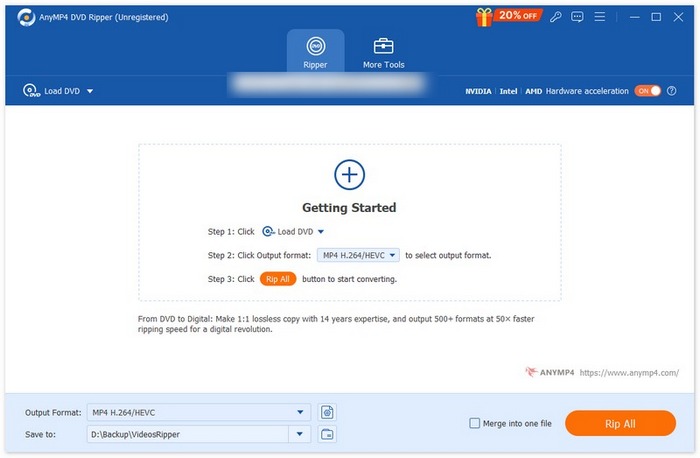
Paso 3. Después de eso, haz clic en Output Format en la parte inferior y elige el formato H.264 en la pestaña Video. Cuando termines, simplemente haz clic en el botón Rip All para empezar a extraer tu DVD.
Lo mejor de AnyMP4 DVD Ripper, la opción preferida de FVC, es que la conversión de DVD a H.264 es directa y no requiere pasos adicionales. Además, su tecnología de codificación es de primera categoría, lo que garantiza que todos los DVD se ripeen con la misma calidad o incluso una calidad superior.
Parte 3. Convertir DVD a H.264 [Gratis]
Si te preguntas si existen herramientas gratuitas para convertir DVD a H.264, ¡tienes razón! Estas herramientas gratuitas de conversión pueden no ser herramientas dedicadas a la conversión de vídeo, a diferencia de Video Converter Ultimate, seleccionado por FVC. Sin embargo, también son capaces de convertir DVD a H.264.
Reproductor de multimedia VLC
VLC es conocido como reproductor multimedia y se utiliza habitualmente para ese propósito. Sin embargo, la mayoría de sus usuarios no sabe que este reproductor multimedia es capaz de convertir DVD a H.264. De hecho, VLC admite formatos de salida de vídeo como MP4, MKV, AVI y otros, lo que lo convierte en una herramienta versátil para la extracción de DVD.
Aquí tienes cómo convertir un DVD a H.264 usando VLC Media Player:
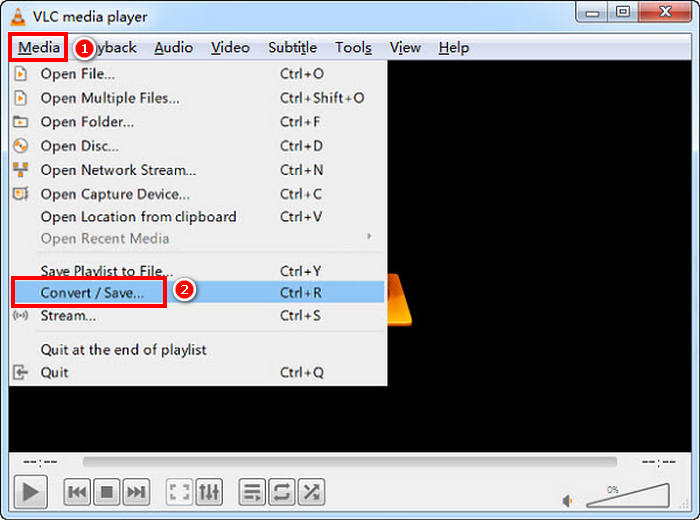
Paso 1. En tu ordenador, tienes que insertar el DVD en la unidad de disco. Después, abre VLC y, en la pestaña Media, selecciona Convert/Save.
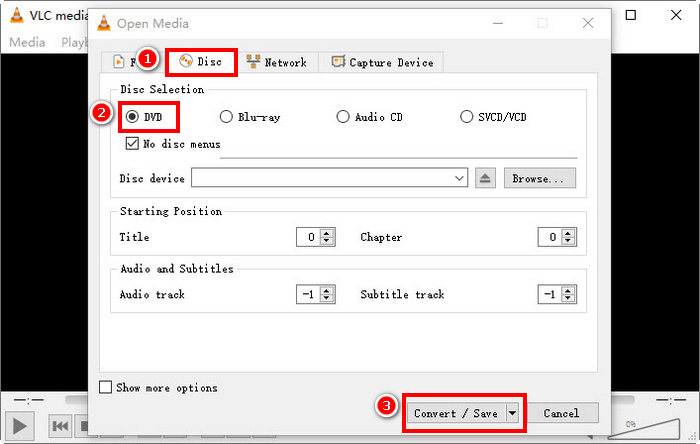
Paso 2. Ahora, en la ventana Open Media, selecciona la pestaña Disc, haz clic en DVD para cargarlo y haz clic en el botón Convert/Save.
Paso 3. En la ventana Convert, ve a la sección Profile y selecciona H.264 + MP4 como formato de salida.
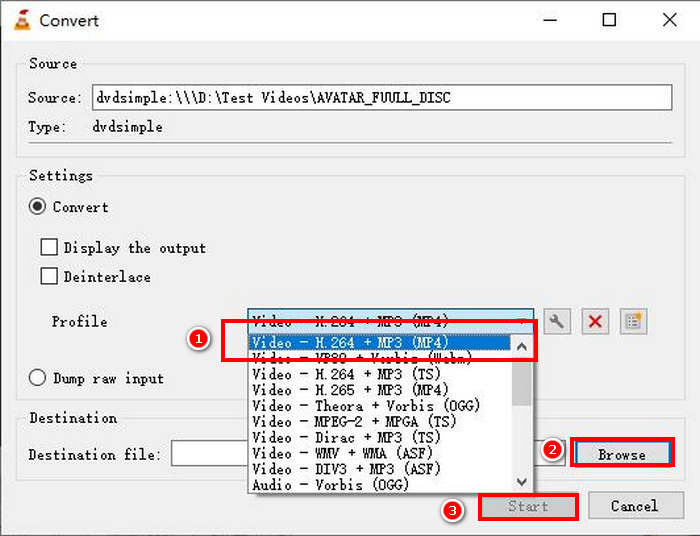
Paso 4. Haz clic en Browse para elegir una carpeta de destino y asignar un nombre a tu archivo.
Paso 5. Por último, haz clic en el botón Start para iniciar el proceso de extracción.
Nota: VLC no puede extraer DVD protegidos contra copia de forma predeterminada. Si encuentras problemas con DVD cifrados, puede que necesites instalar libdvdcss.
Freno de mano
Otra herramienta de conversión de vídeo que puedes utilizar para convertir DVD a H.264 es HandBrake. Esta herramienta es conocida por ser gratuita y de código abierto. Además de H.264, los usuarios pueden extraer sus DVD a formatos de salida como MP4 y MKV.
Aquí tienes cómo convertir un DVD a H.264 usando HandBrake:
Paso 1. Primero, descarga e instala HandBrake en tu ordenador.
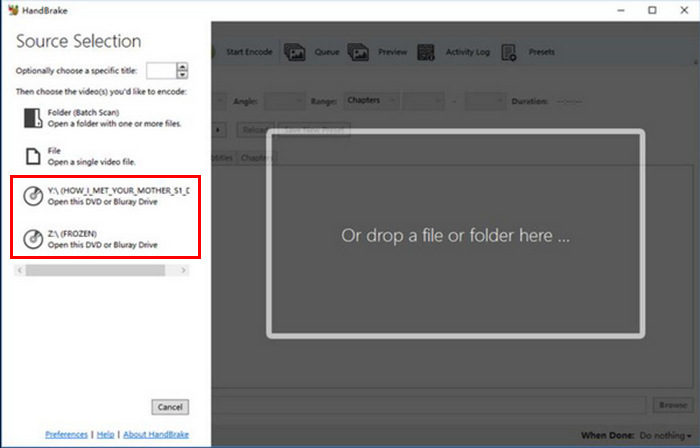
Paso 2. A continuación, inserta tu DVD en la unidad DVD-ROM y selecciona tu DVD en Source Selection. La herramienta empezará entonces a escanear los títulos de la película del DVD.
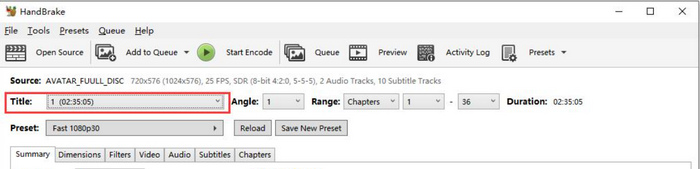
Paso 3. Cuando tengas el DVD abierto, selecciona el título que quieres ripear yendo al menú desplegable Title.
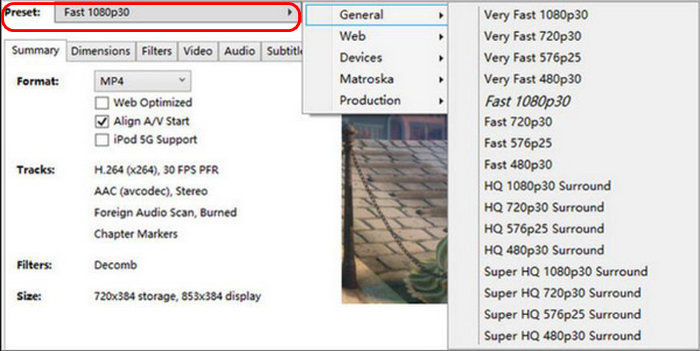
Paso 4. A continuación, tendrás que decidir la calidad de tu archivo de salida. Solo tienes que hacer clic en el botón Preset y personalizar tus ajustes. Debajo verás Format. Haz clic ahí y elige MP4 como formato de salida.
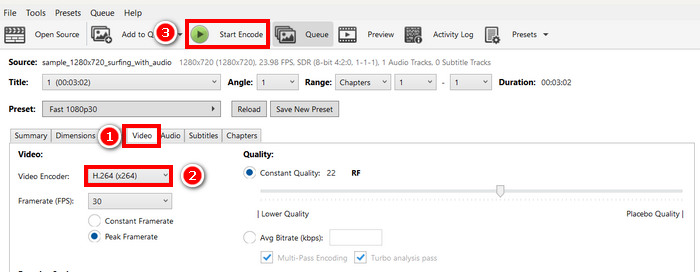
Paso 5. Después, ve a la pestaña Video y, en Video Encoder, haz clic y elige H.264. Por último, haz clic en el botón Start Encode en la parte superior de la ventana para comenzar a extraer tu DVD a H.264.
Parte 4. Preguntas frecuentes sobre la conversión de DVD a H.264
¿El DVD admite formatos H.264?
No. Los DVD no son compatibles con el formato H.264. Sin embargo, si desea almacenar vídeos en formato H.264, deberá ripear y convertir el DVD a H.264 con un conversor de vídeo como Video Converter Ultimate, HandBrake y VLC, seleccionados por FVC.
¿Por qué debería convertir un DVD a H.264?
H.264 ofrece mejor compresión y calidad que MPEG-2. Reduce el tamaño del archivo a la vez que mantiene la claridad del video, lo que lo hace ideal para el almacenamiento y la transmisión digital.
¿Cuál es la diferencia entre H.264 y H.265?
H.265 o HEVC es más reciente y eficiente, y ofrece una mejor compresión que H.264. Sin embargo, H.265 requiere mayor potencia de procesamiento y podría no ser compatible con todos los dispositivos.
Conclusión
Convertir DVD a H.264 no supone ninguna complicación cuando se hace con la herramienta de conversión de vídeo adecuada. Solo tienes que seleccionar el método que mejor se adapte a tus necesidades y recursos y, luego, seguir cuidadosamente los pasos. Si no puedes esperar para conservar y convertir tus DVD, ¡empieza la conversión ahora!
-
 4 métodos para copiar DVD a MacBook [Guía para principiantes]
 Si te preguntas cómo copiar un DVD a una MacBook, continúa leyendo este artículo y déjate guiar por 4 métodos sencillos que puedes probar fácilmente por tu cuenta.
-
 Almacenamiento de DVD DIY: 6 ideas sobre cómo crear un almacenamiento para DVD
 ¿Buscas ideas para crear un sistema de almacenamiento de DVD casero? Lee este artículo para asegurarte de que tus DVD estén en un lugar seguro y accesibles cuando los necesites.
-
 Los 5 mejores convertidores de VHS a DVD para Windows y macOS
 ¿Tienes un montón de cintas VHS en casa y buscas maneras de conservarlas? En este artículo, descubre 5 herramientas que te ayudarán a convertir VHS a DVD fácilmente.
