


 Video Converter Ultimate
 Grabador de pantalla
 Reparación de vídeo
 Descarga segura
Cómo reproducir MP4 en Windows Media Player en una computadora con Windows 10
A veces, un archivo MP4 no se reproduce en Windows Media Player, pero se puede reproducir en otros reproductores como VLC Media Player o KM Player. Dado que MP4 es el formato de video más popular, es compatible con todos los reproductores multimedia y dispositivos multimedia. Es posible que tenga muchos archivos de video guardados en formato MP4. Es bastante molesto si el archivo MP4 no se reproduce en Windows Media Player. Entonces, ¿cómo reproducir archivos MP4 en Windows 10? Bueno, no hay necesidad de preocuparse. Aquí están todas las soluciones para arreglar que el Reproductor de Windows Media no reproduzca archivos MP4.

Parte 1. Por qué el Reproductor de Windows Media no reproduce MP4
According to Microsoft, not all versions of Windows Media Player support MP4 file format. Windows Media Player 7, Windows Media Player for Windows XP, Windows Media Player 9 Series, Windows Media Player 10/11 don't support MP4 file format.
Si Windows Media Player no puede reproducir el videoclip MP4, quizás el video MP4 esté dañado o corrompido. En este caso, puede intentar reproducir el archivo MP4 que no se puede reproducir en otro reproductor multimedia.
Otra razón por la que Windows Media Player no reproduce MP4 es que el archivo MP4 no tiene el paquete de códec adecuado para él.
Parte 2. Juega MP4 con la mejor alternativa a Windows Media Player
If MP4 videos still not playing, you can switch to a media player like FVC Free Video Player. It is a free online video player that plays all popular multimedia files like MP4, MKV, FLV, MOV, AVI, 3GP, MP3, FLAC, AAC, etc. on Windows and Mac. Based on HTML 5 technology, you can play any video files, whether it is from local computer or downloaded.
Step 1. Visit the official website of FVC Free Video Player (https://www.free-videoconverter.net/free-video-player/). Click Play Now button to download and install launcher.

Step 2. Click Open File button to load the MP4 file you want to play. You can also click File menu and select Open File to add the MP4 file.

Once the MP4 video is uploaded, it will be playing on your Windows computer automatically.If you want to edit video effects, you can click Tools and select Effects option and you can adjust hue, brightness, contrast, saturation and gamma to enhance your video.

Parte 3. Convertir MP4 para reproducirlo en Windows Media Player
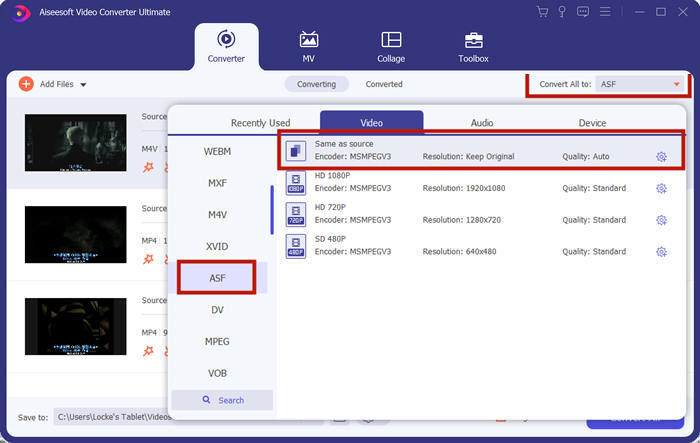
If Windows Media Player cannot play the MP4 file, one simple way is to convert the MP4 file to other format supported by Windows Media Player. You can use a video converter tool like FVC Video Converter Ultimate to convert the MP4 to the default file format for Windows Media Player like WMV, ASF or WMA.
Descarga gratuitaPara Windows 7 o posteriorDescarga segura
Descarga gratuitaPara macOS 10.7 o posteriorDescarga segura
Step 1. Free download, install and launch Video Converter Ultimate on your Windows computer. Click Add Files button to add the MP4 file you want to play.

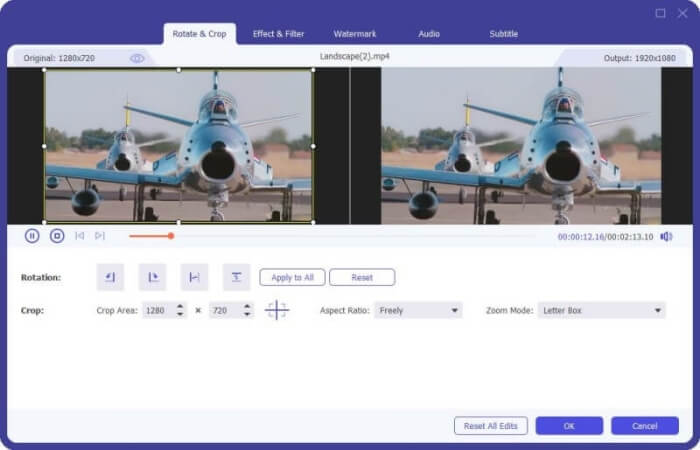
Step 2. If you want to add some effects to your MP4 file, you can click the Edit icon to enter the editing interface. Here you can add effects, apply a filter, rotate or crop the MP4 file, add watermark, adjust audio track and subtitles.
Step 3. Then click the drop-down arrow next to Convert All to, locate in Video tab and select ASF or WMV as the output format.
Step 4. Finally, set the output folder where the converted MP4 file will be saved. Click the Convert All button to convert the MP4 file. After conversion, you can play the converted MP4 file in Windows Media Player.

Parte 4. Consejos comunes para reproducir MP4 en Windows Media Player
To play MP4 on Windows 10, you can locate in the folder where MP4 files are stored. Right-click on the MP4 file you want to play, select Open with and choose Windows Media Player. As simple as it is, sometimes you may get failed to open MP4 file in Windows Media Player. To fix the issue, you can try the following tips.
1. Juega MP4 con otros reproductores multimedia
If your MP4 file doesn't play in Windows Media Player, you can try other media players to open the MP4 file. There are so many media players like FVC Free Video Player, VLC Media Player, KM Player, Real Player, GOM Player, BS Player, DivX Player and more.
2. Instale el códec correcto para Windows Media Player
Faltan códecs si Windows Media Player no reproduce archivos MP4. Para resolver el problema, debe instalar el códec correcto para Windows Media Player.
Step 1. Open Windows Media Player. Click Organize menu and select Options.
Step 2. Move to the Privacy tab and check Download usage rights automatically when I play or sync a file option.
Step 3. To play the MP4 file, you can click the OK button to save the changes.
3. Ejecute el solucionador de problemas en Windows
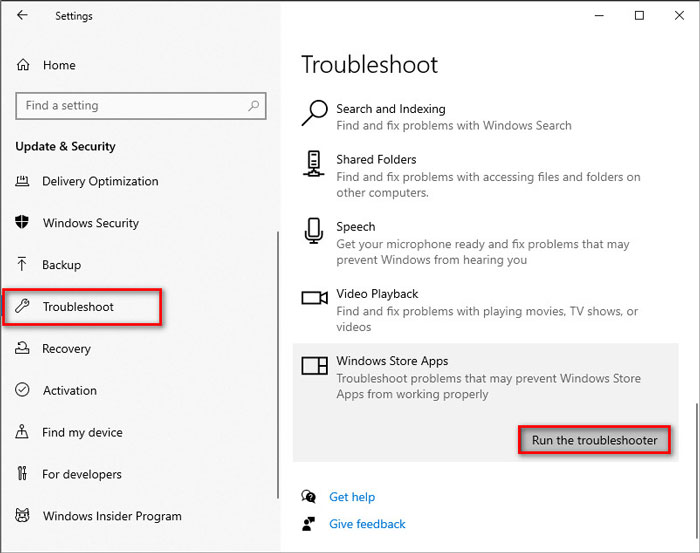
Si MP4 no se pudo reproducir en el Reproductor de Windows Media, puede usar la herramienta Solucionador de problemas para resolver el problema en Windows 10. Siga los pasos para solucionar el problema.
Step 1. On your Windows 10 computer, open Settings and select Update & Security.
Step 2. Go to Troubleshoot area, and click Windows Store Apps.
Step 3. Click Run the troubleshooter button to troubleshoot the Windows Media Player playback issue.
Parte 5. Preguntas frecuentes sobre la reproducción de MP4 en Windows Media Player
¿Cuál es el formato de video predeterminado de Windows Media Player?
El formato de archivo predeterminado de Windows Media Player es WMV (Windows Media Video) y WMA (Windows Media Audio). También es compatible con ASF (Advanced Systems Format) y su propio formato de lista de reproducción basado en XML, Windows Playlist.
¿Cuál es el mejor reproductor MP4?
There are many popular MP4 players on the market, including FVC Free Video Player, VLC Media Player, KM Player, QuickTime Player, RealPlayer, Media Player Classic, GOM Player, PotPlayer and more.
¿Puedo reproducir MKV en Windows Media Player?
El Reproductor de Windows Media 12 integrado en Windows 10 no es compatible con la reproducción de MKV. Debe instalar el códec adecuado para la reproducción.
Conclusión
MP4 es el formato multimedia digital más popular que se usa comúnmente para almacenar video y audio. Es frustrante si el archivo MP4 no se pudo reproducir en Windows Media Player. Espero que pueda reproducir sus archivos MP4 con fluidez en Windows 10 con todos nuestros consejos y soluciones. Puede probar otro reproductor de video como FVC Free Video Player para reproducir sus archivos MP4.
-
 Cómo reproducir archivos MP4 en Google Drive
 ¿MP4 no se reproduce en mi Google Drive? ¿Cómo reproducir archivos MP4 en Google Drive? Esta publicación cuenta 3 formas de reproducir videos MP4 en Google Drive.
-
 Reproducir archivos MP4 en Chromebook 2021
 ¿Puedes reproducir videos en Chromebook? ¿Cómo reproducir archivos MP4 desde USB en Chromebook? Esta publicación comparte 3 formas de reproducir MP4 en Chromebook.
-
 Cómo reproducir DVD en Windows Media Player en 2021
 ¿Por qué mi DVD no se reproduce en Windows Media Player? ¿Cómo reproducir DVD en el reproductor multimedia de Windows 7? Esta publicación comparte 3 formas de reproducir DVD con o sin WMP.
