


 Video Converter Ultimate
 Grabador de pantalla
 Reparación de vídeo
5 redimensionadores de GIF que puede usar para redimensionar su GIF animado en línea y fuera de línea
Cambiar el tamaño de un GIF es una tarea sencilla con cualquier editor, pero no todos los editores admiten este tipo de formato. En lugar de probar diferentes herramientas y perder mucho tiempo, ¿por qué no te quedas a leer este artículo? ¿Por qué? Porque aquí te presentamos los redimensionadores que puedes usar y solo indicaremos hechos sobre estas cinco herramientas. Entonces, ¿estás listo para conocer los redimensionadores de GIF animados disponibles en tus plataformas? Si es así, debemos pasar ahora a un análisis detallado de estos cinco redimensionadores de GIF que verás a continuación y conocer las diferencias entre cada herramienta.

Parte 1. Los 5 mejores redimensionadores de GIF en línea y fuera de línea
1. FVC Video Converter Ultimate [Recomendado]
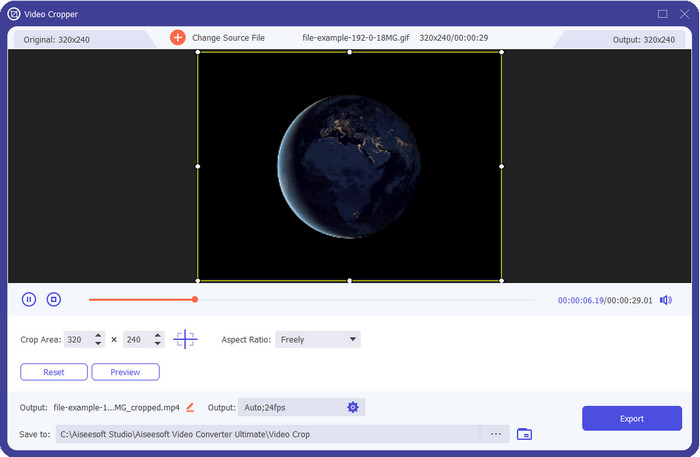
Ninguna de las herramientas que presentamos aquí ofrece lo que FVC Video Converter Ultimate puede aportar a tus GIF. Quizá te preguntes qué hace que esta herramienta sea única. Esta herramienta definitiva ofrece un redimensionado de GIF completo y económico que te encantará usar. Es ideal para obtener un resultado profesional, similar a lo que puede ofrecer Photoshop, pero mucho más rápida tanto para principiantes como para usuarios avanzados. Además, esta herramienta no solo puede cambiar el tamaño de tu GIF, sino que también puedes convertir tus GIF a MP4, MOV, AVI, MKV y otros más de 200 formatos para hacerlos compatibles con otros dispositivos. Supongamos que necesitas crear un GIF y quieres establecerlo como fondo de pantalla; entonces tienes suerte de contar con esta herramienta definitiva, porque incluye un creador de GIF que te ayudará. Si quieres saber cómo crear y configurar GIF como fondo de pantalla, haz clic en este enlace. Aun así, esta herramienta se recomienda a todo tipo de usuarios para aprender a cambiar el tamaño de los GIF de forma sencilla sin necesidad de leer un manual de uso.
Descarga gratuitaPara Windows 7 o posteriorDescarga segura
Descarga gratuitaPara macOS 10.7 o posteriorDescarga segura
Pros
- Cambie el tamaño de su GIF según el tamaño que desee arrastrando los puntos libremente.
- Tiene una vista previa que puede ver para asegurarse de que tenga el tamaño exacto que necesita en sus GIF.
- Tiene un renderizado ultrarrápido incorporado para un proceso de exportación relámpago.
- Disponible en cualquier sistema operativo de escritorio como Windows y Mac.
Contras
- Necesidad de ser comprado.
2.Adobe Photoshop
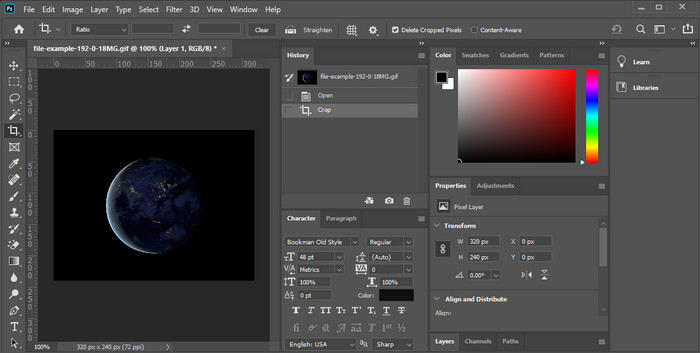
¿Y si lo que quieres es una herramienta profesional para redimensionar? Entonces Adobe Photoshop es una buena opción. Esta herramienta descargable te ayuda a cambiar el tamaño de cualquier GIF fácilmente en cuestión de minutos. Entrando en detalles, esta herramienta es la elección de prácticamente todos los usuarios profesionales que desean editar sus imágenes, incluidos los GIF, para que se vean mejor y más llamativos. Aunque la herramienta es profesional, sigue siendo difícil de usar para quienes no están familiarizados con la tecnología. Además, si solo quieres cambiar el tamaño de tu GIF, se trata de una herramienta cara para ese cometido. Pero si quieres usar Photoshop para cambiar el tamaño de GIF y añadir ciertos detalles, entonces esta herramienta te será de ayuda; sin embargo, aprender a utilizarla te llevará más tiempo que con las demás herramientas.
Pros
- Es la mejor opción para la edición profesional de imágenes.
- Herramienta profesional para uso profesional.
- Funciones de edición avanzadas para GIF.
Contras
- Costoso.
- Difícil de usar si eres nuevo en el área de la edición.
3. GIFGIF
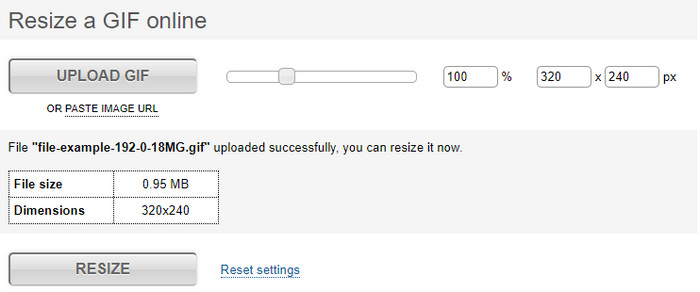
GIFGIFs cuenta con una de las bibliotecas de GIF más amplias que puedes usar para guardar GIF predefinidos en tu disco y dispone de un editor sencillo para redimensionar GIF de gran tamaño. Esta herramienta ha estado disponible para ayudar a los usuarios a ajustar sus GIF cuando lo necesiten a través de servicios en línea. Aunque este redimensionador web es gratuito y funciona online, no muestra anuncios en la interfaz que puedan molestarte, lo cual es excelente. Pero el principal problema de su redimensionador es que tendrás que indicar exactamente el tamaño o la proporción de la imagen que quieres obtener. Este problema resulta más estresante que los anuncios, porque tendrás que probar una y otra vez hasta asegurarte de que es exactamente el redimensionado que deseas. No obstante, si tienes una idea clara de la relación de aspecto que necesitas, esta es una opción para cambiar el tamaño de tus GIF.
Pros
- Biblioteca incorporada para GIF.
- No tiene anuncios en la web que puedan molestarlo o molestarlo mientras cambia el tamaño del GIF.
- Fácil y gratuito de usar.
Contras
- Se necesita Internet para terminar la tarea de cambiar el tamaño de los GIF.
- Es difícil saber si ese es el tamaño exacto que necesita.
4.RedKetchup.io
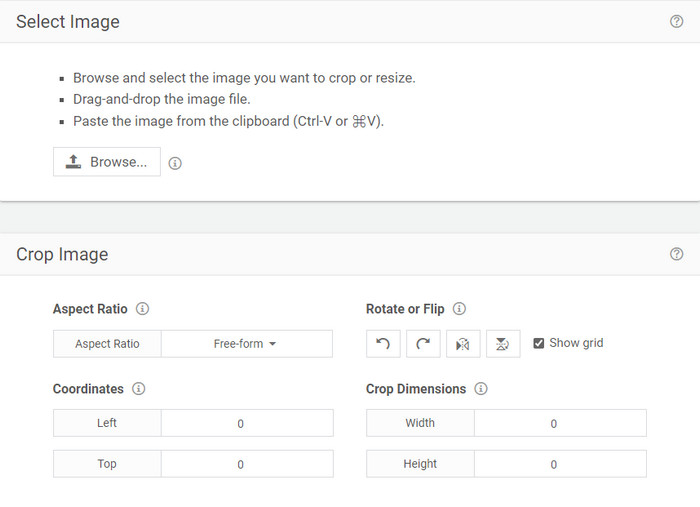
RedKetchup.io ofrece una forma sencilla e interactiva de cambiar el tamaño de los GIF animados dentro de un límite específico que tú elijas. Esta herramienta web permite a los usuarios de Internet mejorar el aspecto de sus GIF mediante las funciones de edición que proporciona. Además, aquí puedes realizar un redimensionado mucho más detallado que el que Ezgif puede ofrecerte. Aunque esta herramienta es mucho más sencilla de usar que la primera, su interfaz carece de colores que le den un aspecto profesional. El único color que verás al acceder a esta herramienta es el de su nombre, en rojo. Por otra parte, la herramienta es de acceso gratuito; aun así, algunos anuncios en la interfaz pueden resultar algo molestos a la vista.
Pros
- Disponible para ser accedido por cualquier persona que tenga una conexión a Internet.
- Cambiador de tamaño de GIF muy detallado.
- Gratis todavía, es fácil de usar.
Contras
- Tiene molestos anuncios en la interfaz.
- Depende de Internet.
5. Ezgif
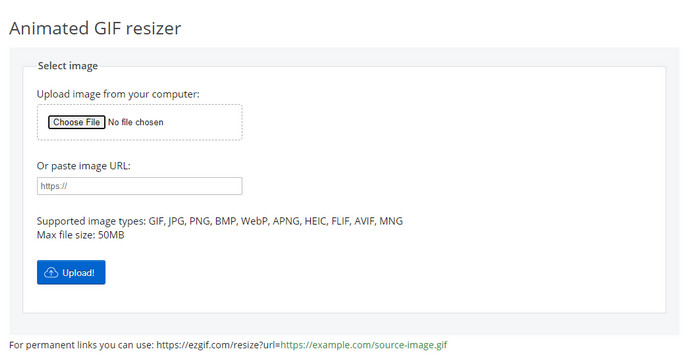
Es conocida por ser uno de los principales creadores de GIF y también puede cambiar el tamaño de GIF online cuando lo necesites. Ezgif ofrece una interfaz intuitiva para mejorar tu GIF sin tener que esforzarte demasiado. Además, si no estás muy familiarizado con la tecnología, esta herramienta es una excelente opción para este tipo de usuarios. Sin embargo, si no tienes conexión a Internet, esta herramienta no es una opción para redimensionar tu GIF porque, al igual que las demás herramientas web que mencionamos, depende de estar en línea. Además, los anuncios en la interfaz pueden distraerte mientras cambias el tamaño de los GIF. Si utilizas este editor, asegúrate de conocer el ancho y el alto que quieres establecer, porque no hay una vista previa para comprobar si el GIF redimensionado se ajusta a tus necesidades, y no puedes arrastrar la proporción para ajustarla como quieras.
Pros
- El mejor creador de GIF en línea.
- Tiene funciones simples de edición de GIF que necesitará.
- Accede a él de forma gratuita.
Contras
- No tiene vista previa para comprobar si el tamaño del GIF es el correcto.
- Hay anuncios en la interfaz que pueden irritarlo.
Parte 2. Cuadro comparativo de los 5 redimensionadores de GIF
| Caracteristicas | Video Converter Ultimate [Recomendado] | Photoshop | GIFGIFs | RedKetchup.io | Ezgif |
| Funciones de edición |  | | | | |
| sin anuncios | | |  | | |
| Fácil de usar | | | | | |
| Dependiente de Internet | | | | | |
| Barato o gratuito | | | | | |
| Panel de vista previa | | | | | |
Parte 3. Preguntas frecuentes sobre GIF Resizer
Después de cambiar el tamaño, ¿cambia la calidad del GIF?
En cuanto a la calidad, el GIF no debe cambiarse drásticamente a uno borroso, pero la calidad cambiará después de cambiar el tamaño del GIF, pero no debería estar muy lejos del GIF original. Entonces, si encuentra este problema, significa que la calidad ha cambiado durante la exportación y no al cambiar el tamaño del GIF.
¿El tamaño del archivo del GIF se vuelve pequeño?
Después de comparar los dos GIF, el original y el redimensionado, vimos un cambio significativo en el tamaño del archivo. Aunque es un pequeño cambio, podemos decir que su tamaño se volvió más pequeño que el original.
¿Puedo devolverlo al GIF original después de cambiar el tamaño?
Después de cambiar el tamaño de su GIF, puede convertirlo en el estado original si aún no lo exportó. Sin embargo, si exporta el GIF y no está satisfecho con el resultado, no puede devolverlo al tamaño original del GIF. Para evitar este problema, debe usar un redimensionador de GIF que tenga una vista previa para verificar la salida antes de exportarla.
Después de convertir JPG a GIF, ¿se moverá?
No, no se moverá porque los JPEG no son animados como los GIF animados. Pero puedes convertir varios JPEG en un GIF si los transformas en un GIF de fotos. ¿Quieres aprender cómo hacerlo? En ese caso, este artículo te ayudará mucho a convertir tu recopilación de JPEG en un GIF.
Conclusión
Ahora que ya sabemos qué redimensionadores de GIF puedes utilizar, ha llegado el momento de elegir. Todas las herramientas online y offline se han probado individualmente para ofrecer información precisa sobre ellas y sus capacidades. Pero hemos llegado a la conclusión de que Video Converter Ultimate ofrece el mejor resultado en cuanto al cambio de tamaño de los GIF. Aunque la herramienta es de pago, podemos afirmar con confianza que tu dinero no se desperdiciará tras adquirir esta solución definitiva. Así que ahora, si aún dudas de lo que estamos diciendo, deberías probar y descargar la herramienta definitiva haciendo clic en el botón de descarga.
Descarga gratuitaPara Windows 7 o posteriorDescarga segura
Descarga gratuitaPara macOS 10.7 o posteriorDescarga segura
-
 Cómo hacer un GIF en iPhone a partir de varias fotos que tomó y guardó
 ¿Quieres saber cómo hacer GIF en iPhone a partir de tus fotos? Esta publicación comparte 3 software que puede usar para hacer GIF en su iPhone.
-
 Los 3 principales convertidores que no debe perderse para convertir PNG a GIF animado
 ¿Quieres darle vida a tu PNG? Luego intente convertir el formato animado PNG a GIF con las útiles herramientas disponibles y los pasos para hacerlo.
-
 Las 4 formas principales de convertir GIF animado a FLV en PC / Mac / Online / Android / iOS
 ¿Quiere convertir su GIF a FLV y compartirlos en línea? Si es así, veamos los mejores convertidores de GIF a FLV que puede usar en PC, Mac, en línea, Android e iOS.
