


 Video Converter Ultimate
 Grabador de pantalla
 Reparación de vídeo
 Descarga segura
Enfoque definitivo con Photoshop para eliminar texto de una imagen
¿Tienes una foto preciosa pero no puedes compartirla en las redes sociales porque tiene texto encima? Pues bien, puedes usar Adobe Photoshop. Además, puedes utilizar otra herramienta para eliminar el texto de tus imágenes. En este artículo se presentan algunos métodos definitivos para borrar texto de una imagen de forma fácil e instantánea, de modo que no tengas que buscar otra solución. Si ya estás aquí, no dejes pasar la oportunidad. Lee este artículo y descubre cómo eliminar texto de las imágenes con Photoshop y con otras aplicaciones útiles.

Parte 1: Cómo quitar texto de una imagen en línea sin Photoshop
Uso del eliminador de marcas de agua sin FVC
Hay muchas aplicaciones que puedes utilizar para saber cómo quitar texto de una imagen sin usar Photoshop. Puedes usar FVC Free Watermark Remover. El texto de una imagen puede eliminarse fácilmente si utilizas esta aplicación en línea. FVC Free Watermark Remover ofrece dos formas: usando las herramientas Watermark Remover y las herramientas de Recorte. Además, a diferencia de otras herramientas, en las que tienes que iniciar sesión antes de utilizar la aplicación, esta no requiere cuenta. Ya puedes borrar el texto de tus imágenes y guardarlas en tu ordenador. En cuanto al nivel de dificultad, cualquiera puede manejarla porque esta herramienta es sencilla; incluso un alumno de primaria puede usarla para eliminar marcas de agua. Sigue estos sencillos pasos para eliminar textos de tus imágenes usando los dos métodos.
Uso de herramientas para eliminar marcas de agua
Si el texto de tu imagen está en el centro, sigue estos pasos. Puedes usar estas tres herramientas.
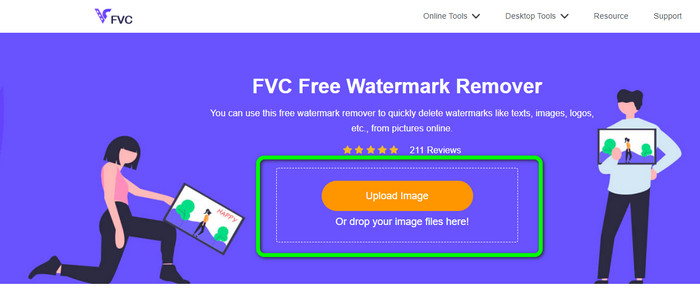
Paso 1: Cuando ya estés en la página web de FVC Free Watermark Remover, pulsa en Upload Image para subir tu foto con texto. También puedes soltar directamente el archivo de imagen en el recuadro.
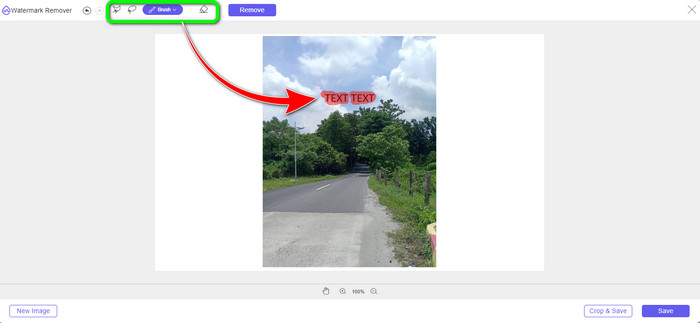
Paso 2: Resalta el texto de tu imagen usando las herramientas de borrado. Hay tres herramientas de borrado que puedes usar: Lazo, Poligonal y Pincel. Usa la herramienta Pincel si quieres resaltar texto grande o pequeño, ya que puedes cambiar el tamaño del pincel. La herramienta Poligonal sirve para crear una forma al resaltar el texto y la herramienta Lazo para seleccionar el texto que quieres eliminar.
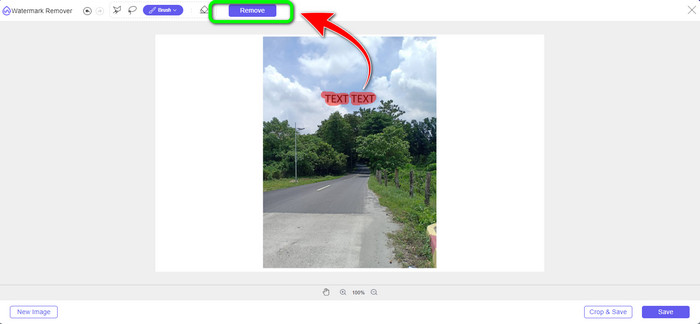
Paso 3: Cuando hayas resaltado todo el texto de tu imagen, haz clic en el botón Remove. Espera a que termine el proceso y pasa al siguiente paso.
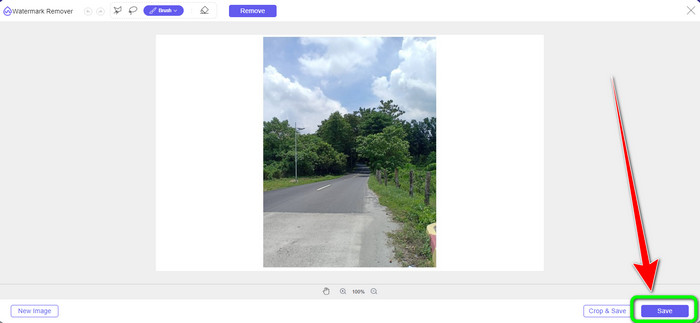
Paso 4: Si estás satisfecho con el resultado, puedes guardar la imagen haciendo clic en el botón Save.
Eliminador de marcas de agua en línea
Watermark Remover Online es otro programa que puedes usar para borrar texto de tu imagen. El eliminador de marcas de agua gratuito en línea está a su disposición para brindarle la mejor imagen al realizar todos los ajustes necesarios, incluida la eliminación de cosas no deseadas de sus fotos. En solo unos segundos, produce fotografías asombrosas. Todos los días, los usuarios de todo el mundo utilizan el eliminador de marcas de agua en línea para generar recuerdos a partir de sus imágenes. En lugar de ver videos con marcas de agua, las personas eligen ver los ideales con mayor interés. Esta herramienta de eliminación de marcas de agua conserva perfectamente el video/película mientras mantiene el formato del archivo. Incluye una interfaz de usuario fácil de usar que cualquiera puede usar. También puede acceder a esta aplicación basada en la web en casi todas las plataformas, como Mozilla Firefox, Google Chrome, Safari, Microsoft Edge, Opera Mini y más. Lo mejor de esta aplicación es que también puedes eliminar elementos perturbadores de tu video, lo que lo hace más conveniente.
Sin embargo, este programa basado en la web ocasionalmente tiene problemas. A veces, el texto permanecía en la imagen incluso después de eliminarlo. Para usar esta eliminación de marca de agua, también se recomienda una conexión a Internet. El proceso de carga y eliminación lleva mucho tiempo. El archivo tarda un minuto en cargarse. Siga los sencillos pasos a continuación para eliminar el texto de su foto usando Watermark Remover Online.
Paso 1: Ve al sitio web de Watermark Remover Online y haz clic en la opción Photo Watermark Remover.
Paso 2: Haz clic o arrastra el archivo de imagen que quieres editar.
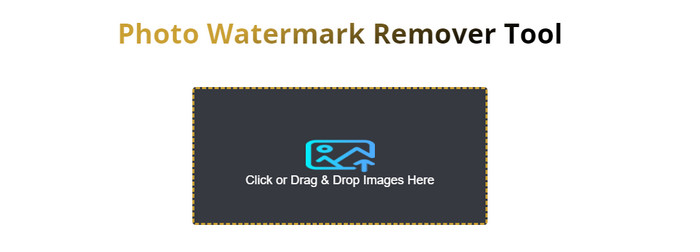
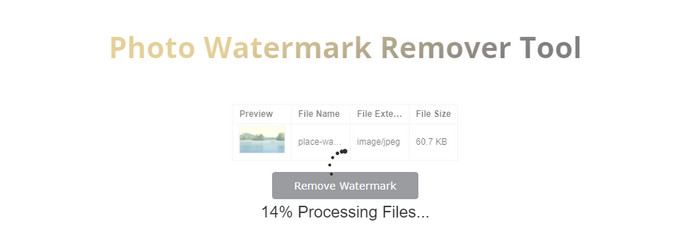
Paso 3: Espera a que termine el proceso de carga. Después, haz clic en el botón Remove Watermark en el centro de la interfaz para proceder a la eliminación. Luego podrás guardar por fin tu resultado final en tu dispositivo.
Parte 2: Cómo quitar texto de las imágenes usando Photoshop
Al eliminar texto de las imágenes, se recomienda utilizar una aplicación. Esta parte le mostrará cómo usar Photoshop para eliminar texto de una imagen. Adobe Photoshop es una herramienta que tiene muchas capacidades. Puedes eliminar cualquier objeto que no quieras de tus fotografías. De esta manera, puede hacer que su foto sea ordenada y agradable a los ojos de sus espectadores. Además de eliminar el texto de tus fotos. Adobe Photoshop tiene muchas cosas que ofrecer. Si desea crear un folleto, puede utilizar esta herramienta. Si quieres mejorar tus fotos, también puedes utilizar esta herramienta. Esta aplicación tiene muchas más funciones de las que imaginas. Entonces, si desea una aplicación de edición todo en uno, puede usar Adobe Photoshop.
Sin embargo, utilizar esta aplicación requiere habilidades avanzadas. Debe saber usarlo porque tiene muchas opciones, herramientas y características que puede encontrar. Si no eres un usuario profesional, te llevará un mes o un año familiarizarte con él. Además, solo tiene una prueba gratuita de siete días. Si desea operarlo por más tiempo, debe comprar la aplicación. Eliminemos el texto de su foto usando Adobe Photoshop.
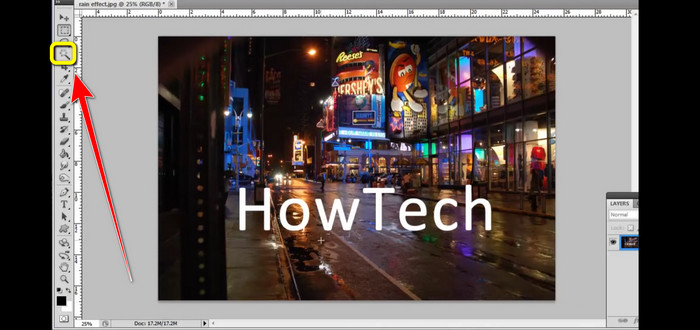
Paso 1: Selecciona la herramienta Magic Wand. Puedes encontrarla en la barra de herramientas a la izquierda de la interfaz. Luego selecciona cada letra del texto manteniendo pulsada la tecla shift.
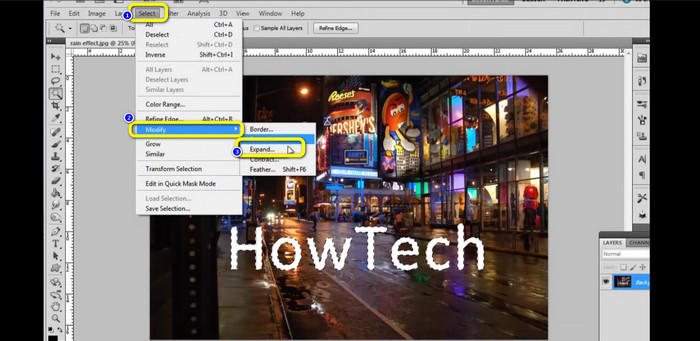
Paso 2: Después de seleccionar todas las letras, ve a las opciones de Selección y luego a Modify > Expand. Después, introduce 3 píxeles y acepta.
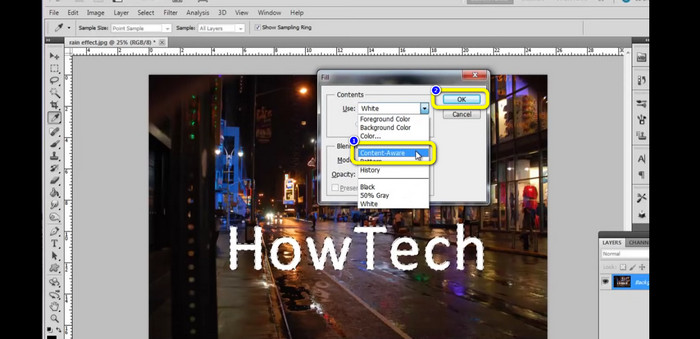
Paso 3: A continuación, pulsa shift backspace en el teclado. Aparecerá la ventana Relleno. Selecciona Content-aware y haz clic en OK. Verás que el texto desaparecerá.
Relacionado con:
Formas más sencillas de eliminar texto de Snapchat de una captura de pantalla
Formas sencillas de añadir texto a un vídeo con iMovie en Mac y iPhone
Parte 3: Preguntas frecuentes sobre la eliminación de texto de las imágenes con Photoshop
1. ¿Cómo eliminas algo de una foto?
Eliminar algo de tu foto es fácil. Utilice el eliminador de marcas de agua sin FVC. Esto puede ayudarlo a eliminar objetos no deseados de su foto, incluidas marcas de agua, logotipos, texto, imágenes, etc.
2. ¿Cómo elimino texto sin cambiar los fondos en Photoshop?
Elige una imagen que quieras editar y la herramienta de selección.
Ve a Seleccionar y Modificar.
Expande la selección para eliminar el texto.
Rellena el fondo ¡y listo!
3. ¿Cómo edito el texto en Photoshop sin una nueva capa?
Tienes que seleccionar la herramienta Tipo horizontal. Luego, haga doble clic en el texto que desea editar. De esta manera, el texto será editable sin crear una nueva capa.
Conclusión
Usar Adobe Photoshop para eliminar texto de una imagen es una gran opción. Pero sabemos que esta herramienta está pensada solo para usuarios avanzados. Si eres principiante, puedes usar FVC Free Watermark Remover. Es accesible para todo tipo de usuarios.
-
 Métodos increíbles para eliminar las marcas de agua de Getty Images
 ¿Cómo quitar la marca de agua de Getty Images? Si esta es tu pregunta, este artículo tiene la mejor respuesta. No parpadees y aprende los mejores procedimientos que puedes probar
-
 Cómo eliminar las marcas de agua de Canva de las fotos ]Métodos completos]
 Las marcas de agua de Canva de las fotos a veces son molestas. Si desea eliminarlos, vaya a esta publicación. Te guiaremos para que aprendas a quitar una marca de agua de Canva
-
 Métodos sin problemas para eliminar un logotipo de una imagen
 Infórmese bien sobre el proceso más excelente que puede aprender usando su computadora con respecto a cómo eliminar un logotipo de una imagen. ¡Leer más para averiguarlo!
