


 Video Converter Ultimate
 Grabador de pantalla
 Reparación de vídeo
6 herramientas gratuitas para eliminar el fondo de la imagen: rápidas y precisas
Eliminar fondos de imágenes con tanta facilidad se ha convertido en un punto de inflexión en la industria de la edición fotográfica. Además, buscar la herramienta adecuada que se adapte y responda a tus necesidades debería ser una prioridad para un usuario como tú; imagina una herramienta innovadora que permita a los usuarios eliminar el fondo de una imagen sin esfuerzo para poder transformarla después en una obra maestra visualmente impactante. En este artículo profundizamos en el arte de la eliminación de fondos, explorando las seis mejores herramientas para quitar fondos, desde las más populares hasta las menos conocidas. Asimismo, revisaremos sus funciones y los pasos simplificados para aprender a utilizarlas eficazmente y elegir las herramientas adecuadas para ti. ¿A qué esperas? Empieza a leer este artículo hoy mismo y descubre el poder transformador que hay detrás de la eliminación de fondos de las imágenes para un proceso fluido y que ahorra tiempo.

Parte 1. Cómo eliminar el fondo de una imagen
Eliminador de fondo libre de FVC
FVC Free Background Remover es una herramienta web diseñada para usuarios que buscan una solución económica para la eliminación de fondos. Esta herramienta fácil de usar está pensada para quienes tienen presupuestos ajustados y ofrece funciones comparables o incluso superiores a las de muchas alternativas de pago. FVC es conocida por su interfaz sencilla, que garantiza comodidad a todo tipo de usuarios. La herramienta da prioridad a la accesibilidad, por lo que está disponible en diversos dispositivos y plataformas. Además, FVC Free Background Remover pone un fuerte énfasis en la seguridad, proporcionando un entorno fiable y seguro para que los usuarios mejoren sus imágenes con total confianza. A continuación se enumeran las funciones de FVC Free Background Remover y los pasos para utilizarla.
◆ Eliminador de fondos automático con IA. Utiliza IA para eliminar el fondo de las imágenes, lo que la convierte en una herramienta que procesa automáticamente e identifica de forma inteligente qué parte de tu imagen debe eliminarse. La IA se somete a pruebas exhaustivas para garantizar que los resultados sean lo más perfectos posible.
◆ Eliminador y cambiador de fondo. Además de eliminar el fondo de las imágenes, también puede cambiar la imagen para que tenga un color sólido, lo que la convierte en una herramienta versátil.
◆ Admite edición. Esta herramienta intuitiva permite a los usuarios editar fácilmente sus imágenes, por ejemplo recortar, girar y voltear. Estas funciones de detalle sencillo repercuten en el resultado global de tus imágenes procesadas, permitiendo previsualizarlas y editarlas.
◆ Descarga de calidad. Disfruta de una alta calidad de salida al utilizar nuestra función de eliminación de fondo. Una vez eliminado el fondo de tu imagen, conserva su calidad original al guardar el resultado editado.
◆ Compatibilidad con múltiples formatos. Admite imágenes de entrada en JPG, JPEG y PNG, y genera un archivo PNG como salida para mantener una calidad sin pérdidas al guardar tus imágenes en tu ordenador.
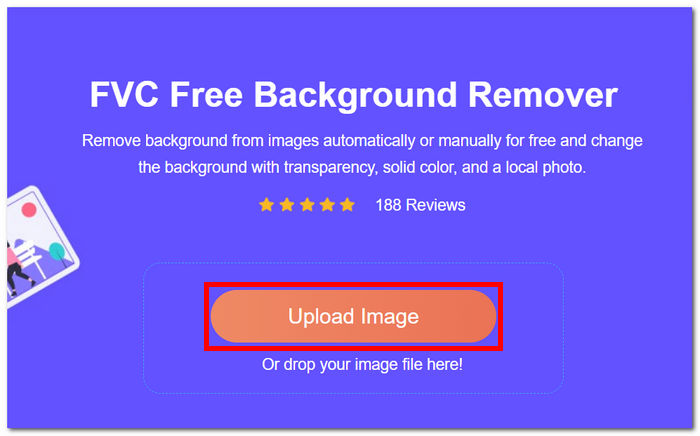
Paso 1. Empieza accediendo al sitio web de FVC Free Background Remover y sube la imagen que desees en el campo designado con la etiqueta Upload Image.
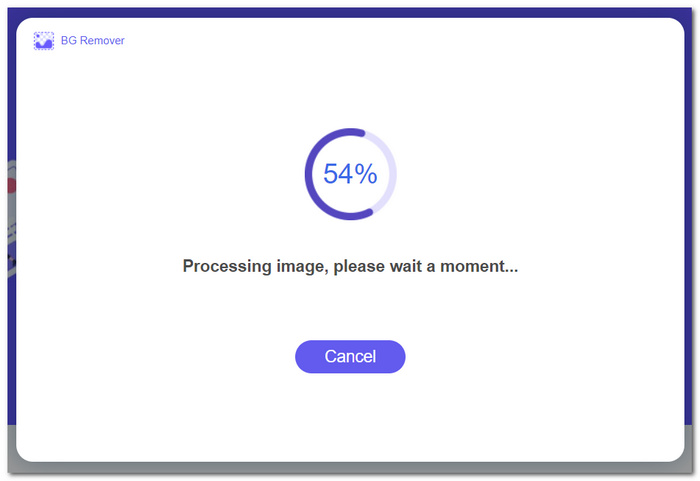
Paso 2. Aprovechando la potencia de la IA, espera a que la herramienta identifique y elimine de forma autónoma el fondo de la imagen que has subido.
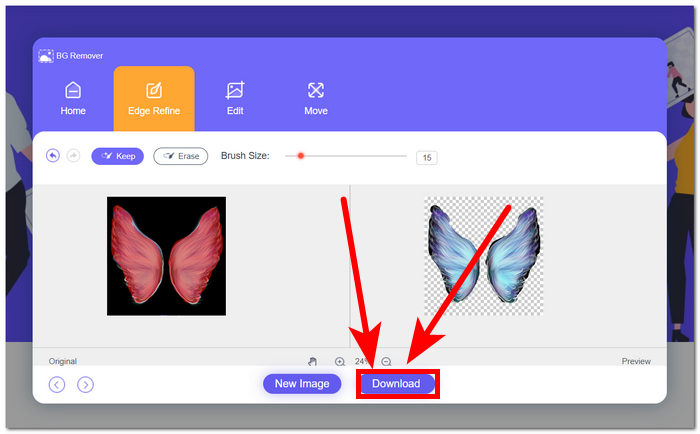
Paso 3. Una vez finalizado el proceso de eliminación del fondo, guarda tu imagen con el fondo eliminado haciendo clic en el botón Download.
FVC Free Background Remover se destaca como una herramienta subestimada, que muchos usuarios a menudo pasan por alto. A pesar de su condición de menos conocida, esta joya escondida ofrece un servicio valioso y gratuito, que contribuye a los esfuerzos creativos de los usuarios que descubren sus capacidades. Al abrazar la simplicidad y la eficiencia, sigue siendo un aliado dedicado en el proceso de edición de imágenes.
Canva
Canva, ¡donde la creatividad no tiene límites! Su plataforma intuitiva permite a los usuarios eliminar fondos de sus imágenes sin esfuerzo, abriendo un mundo de posibilidades de diseño. Eliminar el fondo de las imágenes en Canva puede resultar un desafío para los usuarios que no están familiarizados con la interfaz; Esto se debe a que Canva es un software de edición, lo que significa que hay muchas herramientas presentes en el software de eliminación de fondo de imágenes que pueden abrumar a los usuarios. Por lo tanto, su eliminador de fondo se considera de primer nivel en la categoría de software, ya que la IA ejecuta y potencia la herramienta. A continuación se detallan algunas de sus características en la eliminación de fondo y los pasos para usar Canva.
◆ Eliminador de fondos. Su función de eliminación de fondos actúa al instante e incorpora herramientas adicionales como el borrador mágico y el reemplazo mágico para perfeccionar eficazmente tus imágenes dentro de la propia herramienta.
◆ Tecnología integrada de IA. Su IA es lo bastante potente como para reconocer distracciones en tu imagen y eliminarlas al instante.
◆ Software multieditor. Es una herramienta con la que puedes hacer prácticamente de todo: presentaciones, edición de fotos y vídeos, creación de documentos y eliminación de fondos.
Paso 1. Descarga e instala Canva en tu ordenador, o bien visita la versión web del programa.
Paso 2. En la interfaz principal, sube tu imagen en el campo habilitado en tu pantalla.
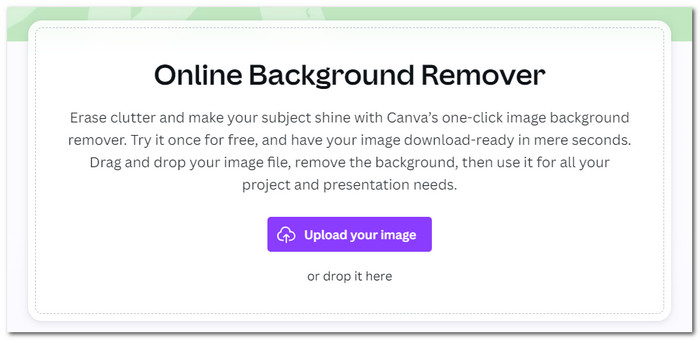
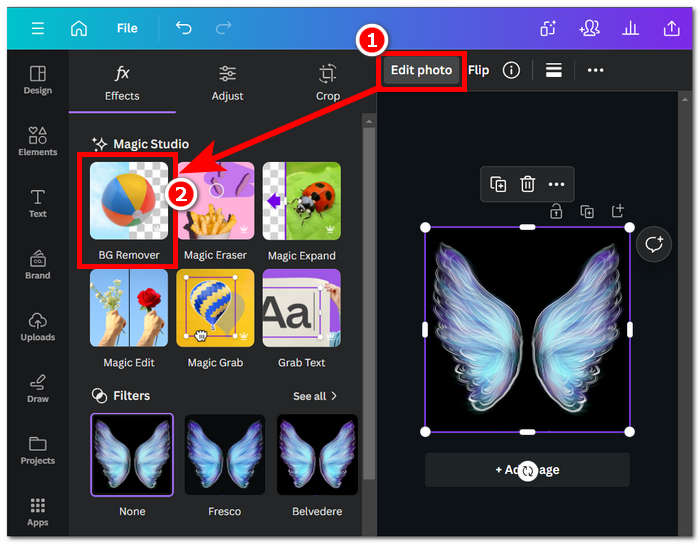
Paso 3. Cuando tu imagen se cargue en Canva, haz clic en BG Remover para eliminar al instante el fondo de tu imagen.
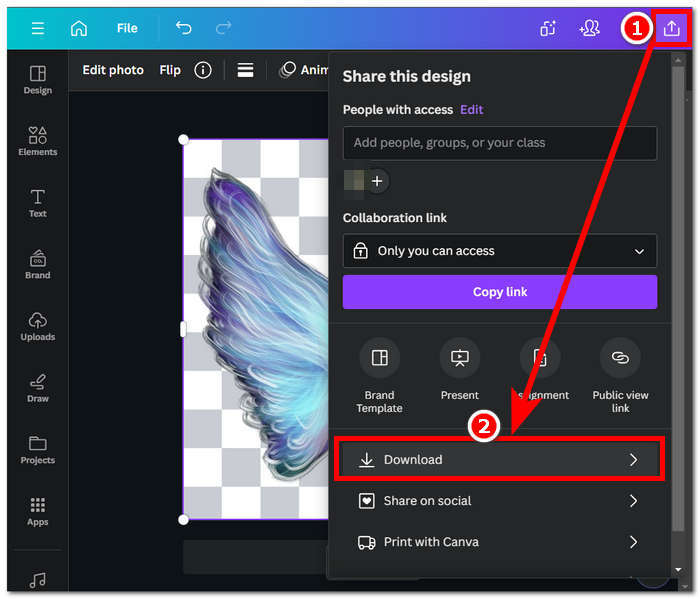
Paso 4. Cuando el proceso termine, haz clic en el icono de compartir situado en la esquina superior derecha de la pantalla y, a continuación, en Download para poder guardarla en tu ordenador.
Explorar la interfaz de Canva puede llevarle tiempo en la tarea de eliminar el fondo, pero vale la pena intentar experimentar esa impresionante capacidad del software. Sin embargo, es posible que los usuarios gratuitos no maximicen el potencial de Canva en la eliminación en segundo plano, ya que el software ofrece suscripciones pagas y tiene una marca de agua limitada para el uso gratuito del software.
adobe expreso
Adobe Express, una función dinámica dentro de la suite Adobe Creative Cloud, redefine la edición de imágenes con sus poderosas capacidades de eliminación de fondo. Diseñada para una accesibilidad fácil de usar, esta herramienta brinda una experiencia perfecta para eliminar fondos de sus imágenes sin esfuerzo.
◆ Eliminador de fondos de nivel profesional. Esta herramienta elimina el fondo de tu imagen de forma profesional, rápida y fluida.
◆ Interfaz sencilla. La simplicidad de la interfaz hace que esta herramienta sea muy fácil de usar. No se requiere ningún conocimiento previo de los programas de Adobe.
◆ Recorte de fondo. Resalta el sujeto de tu imagen, obteniendo como resultado un recorte de fondo preciso de la imagen.
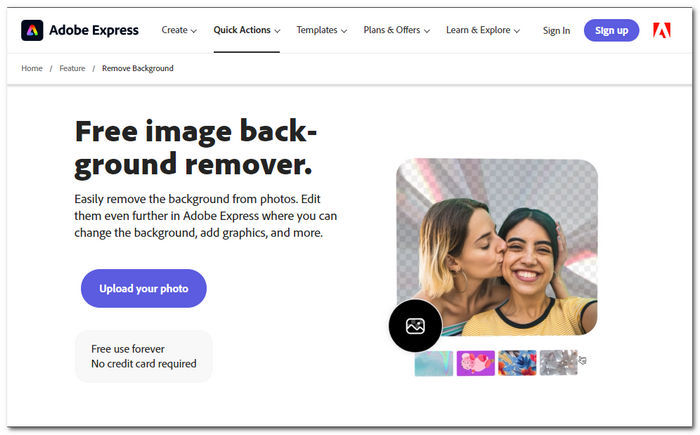
Paso 1. Ve al sitio web de Adobe Express Background Remover en tu navegador y haz clic en Upload your photo, situado en la interfaz de la página.
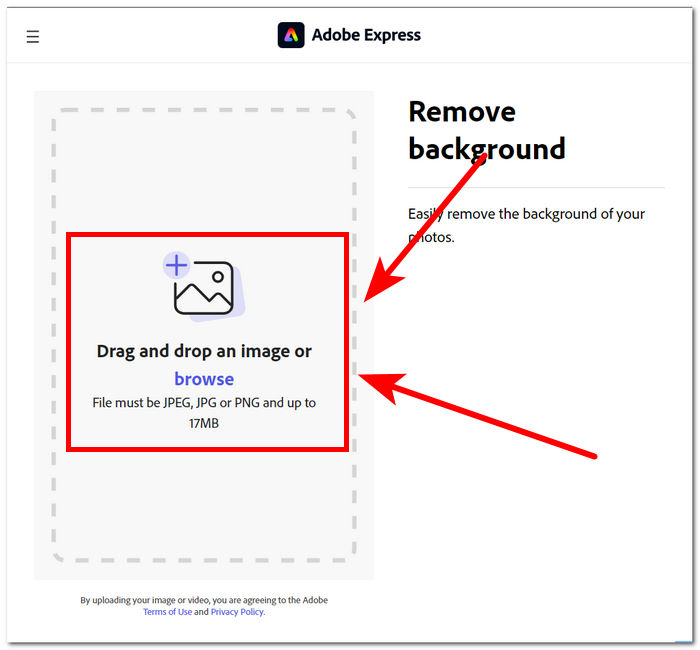
Paso 2. Después de hacer clic en Upload your photo, tendrás que pulsar en el campo browse image para subir tu imagen a la herramienta.
Paso 3. A medida que se suba tu imagen, el fondo se eliminará automáticamente.
Paso 4. Haz clic en Download, situado justo al lado de tu imagen, para guardarla en tu ordenador.
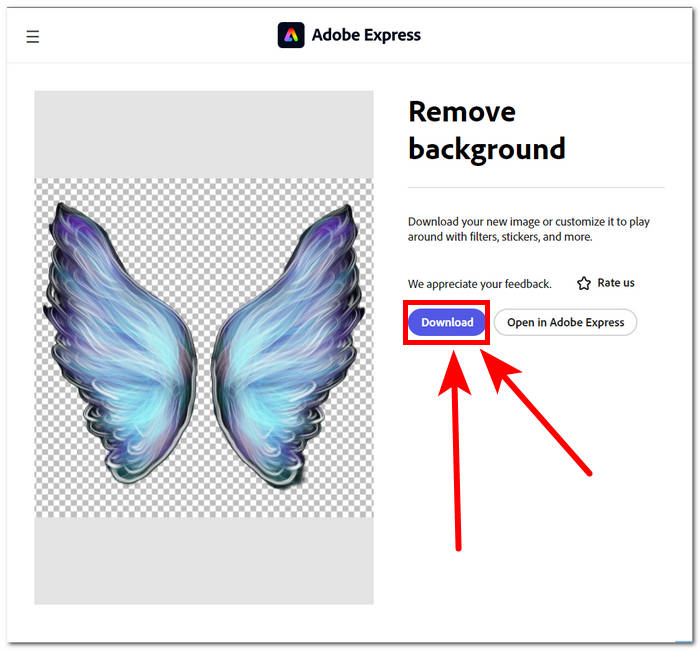
En conclusión, Adobe Express surge como una herramienta de nivel profesional lo suficientemente potente como para eliminar los más mínimos detalles del fondo de sus imágenes. Esta herramienta puede tener un enfoque sencillo en su interfaz para el proceso de eliminación de fondo, pero aún así requiere que te registres para poder guardar tu imagen en tu escritorio.
Parte 2. Cómo eliminar el fondo del escritorio de imágenes
Adobe Photoshop
Adobe Photoshop se posiciona como uno de los programas de mayor rendimiento en el ámbito de la manipulación de imágenes y, en este caso, para eliminar fondos de imágenes. Ofrece a los usuarios una amplia variedad de potentes herramientas y funciones para realizar casi cualquier tarea en un solo programa. Una ejecución impecable de la eliminación de fondos empieza por una buena selección del recorte entre tu sujeto y el fondo; asegúrate también de familiarizarte con cómo usar los recortes en Photoshop para poder maximizar la capacidad de Photoshop en la eliminación de fondos.
Paso 1. Abre Adobe Photoshop en tu ordenador y carga tu foto haciendo clic en el botón Open situado en la interfaz del programa.
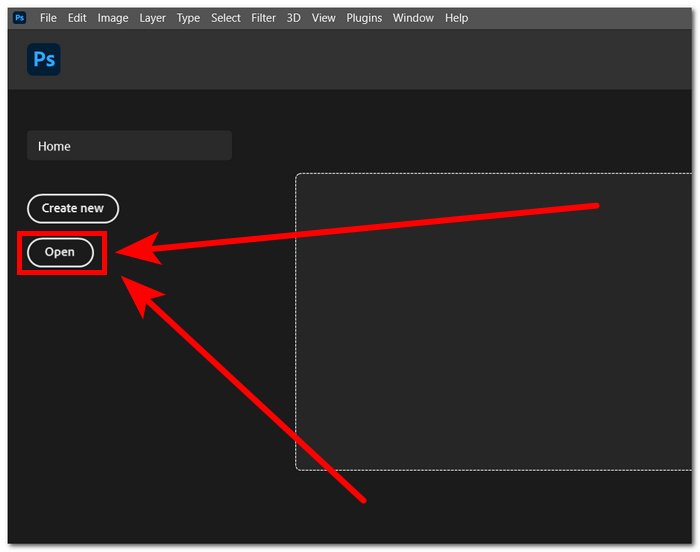
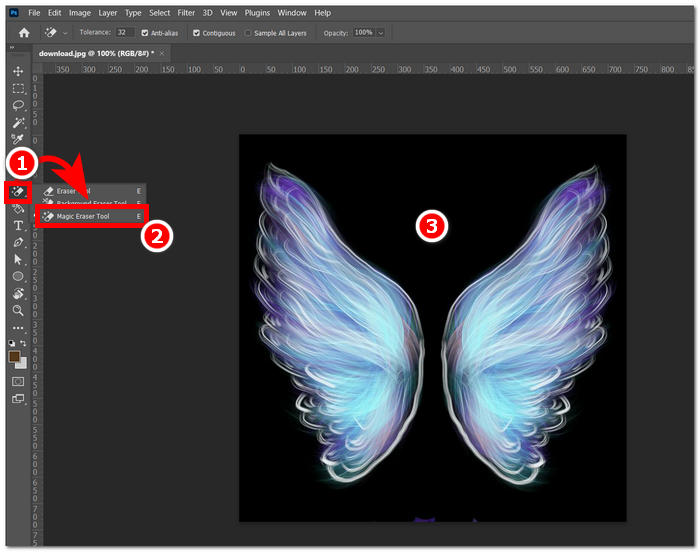
Paso 2. Cuando la imagen se cargue en el programa, localiza la Eraser Tool en la barra de herramientas de la izquierda y selecciona la Magic Eraser Tool.
Paso 3. Una vez seleccionada la Magic Eraser Tool, haz clic en el fondo de tu imagen para eliminarlo automáticamente.
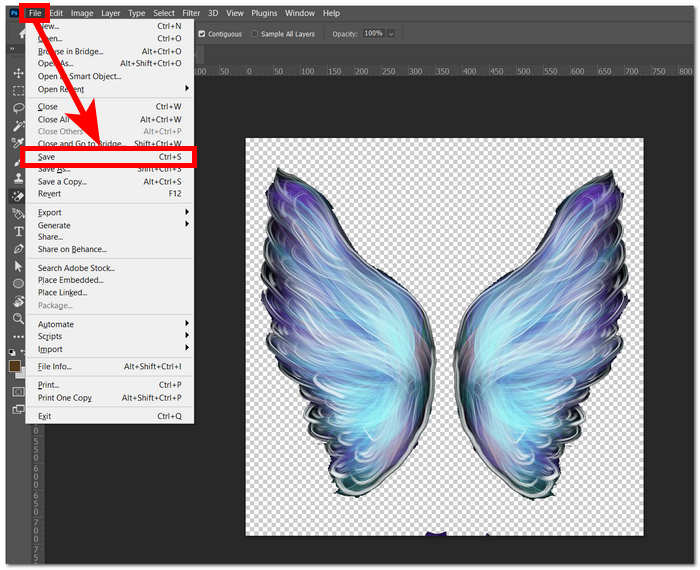
Paso 4. Una vez eliminado el fondo de tu imagen, haz clic en la sección File situada en la parte superior izquierda de la pantalla y selecciona Save o Export para descargar la imagen en tu ordenador.
A través de una combinación de tecnología y funciones avanzadas, Photoshops potencia y libera al creador interior de cada usuario. Adobe elimina el fondo de las imágenes con su interfaz intuitiva, asegurándose de que no sea posible realizar tareas difíciles en el software de Adobe.
CAÑUTILLO
GIMP es una aplicación de código abierto que permite a los usuarios eliminar fondos blancos de las imágenes o cualquier fondo no deseado, lo que la convierte en una opción ideal para entusiastas de los gráficos y principiantes en la edición de imágenes. Más allá de sus funciones de eliminación de fondo, GIMP cuenta con un conjunto versátil de herramientas y funcionalidades, y profundizar en las capacidades de GIMP puede ayudar a maximizar y sobresalir en la eliminación de fondo y también facilita un espectro más amplio de mejora y manipulación visual.
Paso 1. Abre el programa GIMP y, a continuación, importa tu imagen desde la sección File, situada en la parte superior izquierda de la pantalla, haciendo clic en Open para importarla.
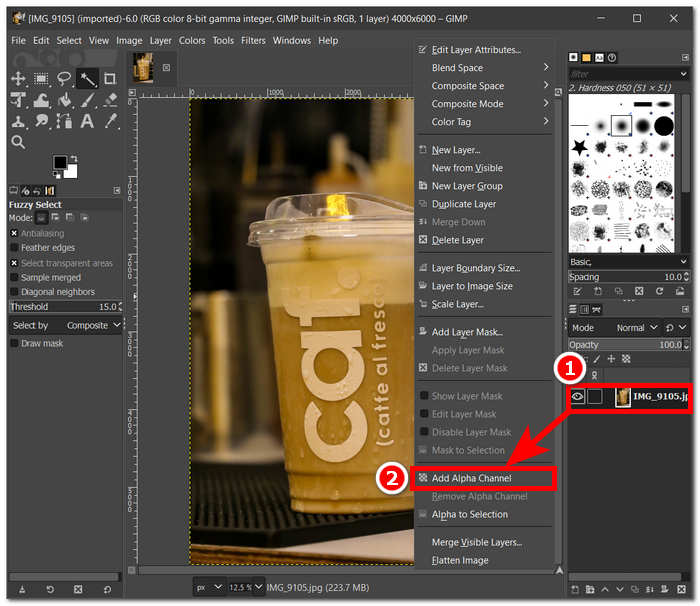
Paso 2. Una vez que tu imagen aparezca en el programa, ve a la parte inferior derecha, selecciona la capa, haz clic con el botón derecho sobre ella y elige Add Alpha Channel en los ajustes.
Paso 3. Haz clic en la herramienta Fuzzy Select en la esquina superior izquierda. Una vez seleccionada, arrastra la herramienta sobre la zona que quieras eliminar de la imagen.
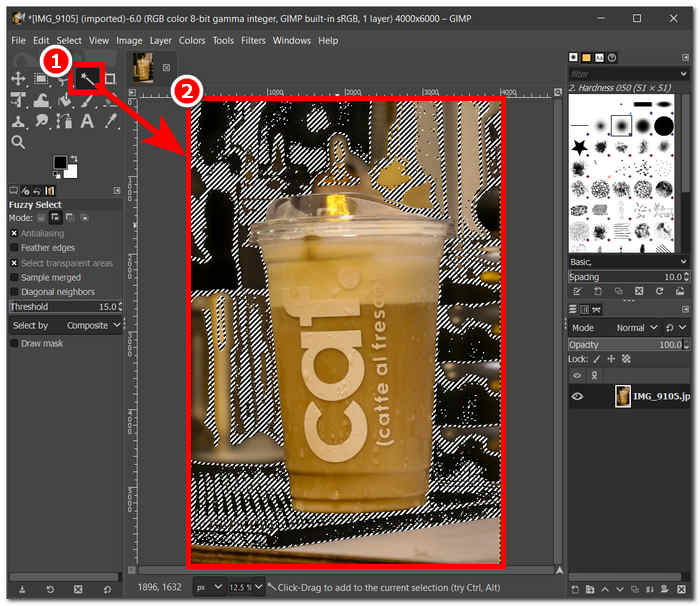
Paso 4. Aparecerá un contorno de puntos en la zona seleccionada y, para eliminar el fondo, basta con pulsar la tecla Supr en tu teclado. Cuando estés satisfecho, busca la opción Save en la sección File, en la parte superior izquierda de la pantalla, para descargar la imagen en tu ordenador.
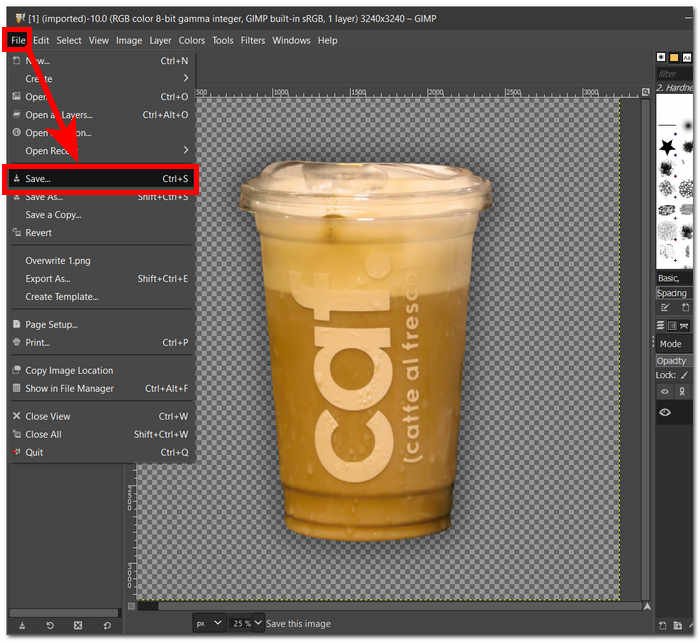
GIMP se ha consolidado como una herramienta ideal tanto para profesionales experimentados como para quienes quieren iniciarse, gracias a su interfaz fácil de usar. Incluye múltiples opciones para la eliminación de fondos, según tus preferencias. Se adapta a tu manera de trabajar con herramientas como las de color, las rutas, las máscaras de capa y la herramienta difusa (Fuzzy), lo que lo convierte en un programa muy versátil.
Picsart
Picsart es una herramienta para principiantes popular por su versión de aplicación en dispositivos móviles. Su herramienta de eliminación presenta un resultado sencillo e instantáneo. Su precisión en la eliminación del fondo y sus formas rápidas y eficientes de eliminarlo provienen de la IA que utiliza. Una de sus características, además de eliminar el fondo, es que puede reemplazar o agregar un fondo a tus imágenes, lo que hace que esta herramienta sea agradable. ¿Cómo borrar el fondo de una imagen? No te preocupes más y simplemente sigue los sencillos pasos que se detallan a continuación.
Paso 1. Dirígete a la herramienta Picsart Background Remover en tu navegador y haz clic en Browse Files para subir tu imagen a la herramienta.
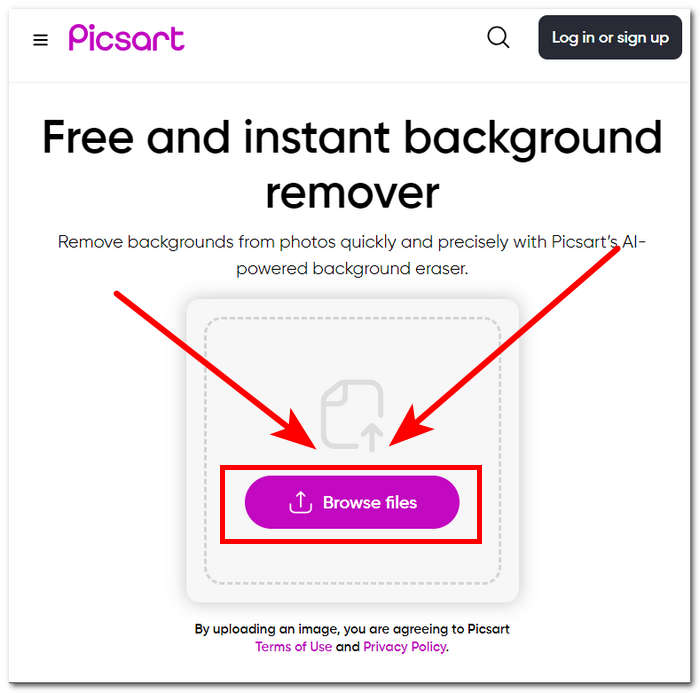
Paso 2. Una vez que comience la subida, la herramienta identificará y analizará automáticamente tu imagen y eliminará el fondo durante el proceso.
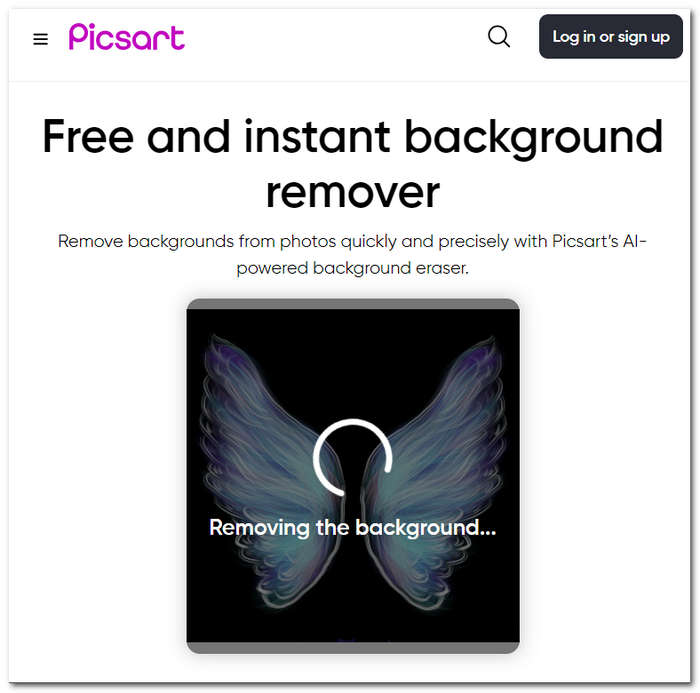
Paso 3. Cuando termine el proceso, podrás previsualizar y editar tu imagen; cuando estés satisfecho con el resultado, guarda tus imágenes haciendo clic en el botón Download.
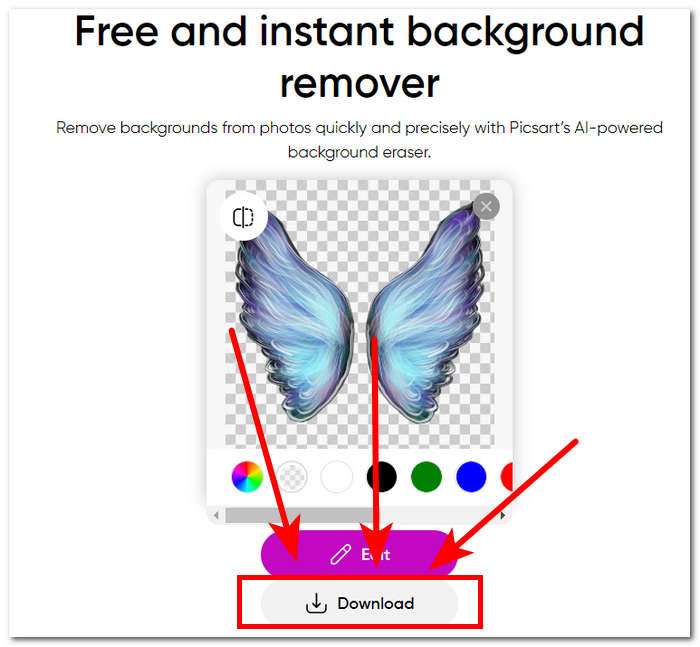
En conclusión, la popularidad de Picsart como aplicación de edición de imágenes se adaptó e invirtió en hacer que la herramienta satisficiera todo tipo de necesidades de edición visual. Su eliminador de fondo seguramente hace su trabajo en un instante con precisión. Por lo tanto, aún necesitarás registrarte para poder descargar tu imagen en alta resolución por completo. De lo contrario, te quedarás atrapado con resultados de baja resolución.
Parte 3. Preguntas frecuentes sobre cómo eliminar el fondo de una imagen
¿Puedes eliminar el fondo de la imagen automáticamente?
Sí, muchas herramientas avanzadas de edición de imágenes, incluidas FVC Free Background Remover, Adobe Express y Canva, utilizan algoritmos de inteligencia artificial para detectar y eliminar fondos de las imágenes automáticamente. Esta característica agiliza el proceso de edición, haciéndolo más rápido y eficiente para los usuarios.
¿Puedes eliminar el fondo de la imagen automáticamente?
Sí, muchas herramientas avanzadas de edición de imágenes, incluidas FVC Free Background Remover, Adobe Express y Canva, utilizan algoritmos de inteligencia artificial para detectar y eliminar fondos de las imágenes automáticamente. Esta característica agiliza el proceso de edición, haciéndolo más rápido y eficiente para los usuarios.
¿Puedes eliminar el fondo de las imágenes JPG?
Por supuesto, las herramientas de eliminación de fondo admiten formatos de imagen JPG. La versatilidad de las herramientas se extiende a varios formatos de imagen, lo que garantiza que los usuarios puedan editar y mejorar fácilmente sus archivos JPEG. Por lo tanto, todavía depende de qué herramientas o software esté utilizando porque algunos requieren una suscripción para poder eliminar el fondo en formatos JPG y similares.
¿Es PNG el único formato de imagen que admite un fondo transparente?
Si bien PNG es un formato comúnmente utilizado para imágenes con fondos transparentes, otros formatos como GIF y TIFF también admiten la transparencia. Sin embargo, las herramientas similares mencionadas anteriormente suelen proporcionar resultados óptimos con PNG debido a su compatibilidad ampliamente aceptada con la configuración de transparencia.
¿Qué puedo usar para eliminar el fondo de una imagen?
Puede utilizar software de edición de imágenes dedicado como Adobe Express y Photoshop o herramientas en línea especializadas como FVC Free Background Remover. Estas herramientas suelen ofrecer interfaces fáciles de usar y funciones avanzadas, lo que le permite lograr resultados precisos y de aspecto profesional.
Conclusión
En resumen, el proceso de eliminar el fondo de una imagen no depende de aplicaciones, programas o herramientas específicas. Su eficacia reside más bien en la capacidad del usuario para utilizar y aprovechar al máximo las funciones de las herramientas disponibles. En última instancia, el éxito de la eliminación de fondos radica en completar el proyecto, lo que pone de relieve que la elección de las herramientas debe ajustarse a las preferencias del usuario, independientemente de la herramienta concreta que se utilice.
-
 Revisión de PicWish Photo Enhancer y herramienta alternativa para probar
 Descubra la magia que el potenciador de imágenes PicWish aporta al mundo de la edición de fotografías. Una revisión en profundidad y la exploración de alternativas viables para que las pruebe.
-
 Cómo eliminar texto de una imagen en Windows/Mac/en línea
 ¡Dile adiós al texto que distrae en tus imágenes! Explore cómo borrar texto de imágenes con estas sencillas soluciones diseñadas a la perfección para la eliminación de texto.
-
 Revisión de Fotor para eliminar el fondo y mejorar las fotografías
 Todo lo que necesitas saber sobre Fotor Background Remover y Photo Enhancer. Mire algunas de sus características y vea la alternativa sugerida que se adapte a sus necesidades.
