


 Video Converter Ultimate
 Grabador de pantalla
 Reparación de vídeo
2 convertidores utilizados para convertir DV a MOV sin deteriorar la calidad
Los archivos DV son el tipo de archivo más común en cualquier videocámara porque almacenan el mejor vídeo para editar y ver. Quizá te preguntes si puedes usar este formato en iMovie para editarlo o verlo en QuickTime. Pero no puedes usar este archivo en bruto porque es una versión antigua y no compatible. Aun así, no tienes de qué preocuparte, ya que puedes convertir tus archivos DV a un formato compatible en Mac, como MOV. A medida que sigas leyendo este artículo, comprenderás en profundidad por qué necesitas convertir DV a MOV en tu Mac.

Parte 1. Convierta archivos DV a MOV en Mac con el potente convertidor sin conexión
FVC Video Converter Ultimate es la herramienta extraordinaria que usarás para convertir DV a MOV tanto en Mac como en PC. Sin ninguna duda, este conversor puede ayudarte a transformar tus archivos a un formato nuevo sin esfuerzo. Además, algunos usuarios quieren una forma rápida de convertir un archivo a un formato diferente; por suerte, esta herramienta te permitirá lograrlo con rapidez. Además de la conversión, también puedes editar aquí, por ejemplo recortar, unir, cortar y mucho más. Así que, si quieres experimentar la capacidad de conversión de esta herramienta definitiva, sigue esta demostración sobre cómo hacerlo.
Cómo convertir archivos DV a MOV con la útil FVC Video Converter Ultimate:
Paso 1. Descarga el conversor de DV en tu Mac o PC, sigue el proceso de instalación y haz clic en Start Now para abrir el software.
Descarga gratuitaPara Windows 7 o posteriorDescarga segura
Descarga gratuitaPara macOS 10.7 o posteriorDescarga segura
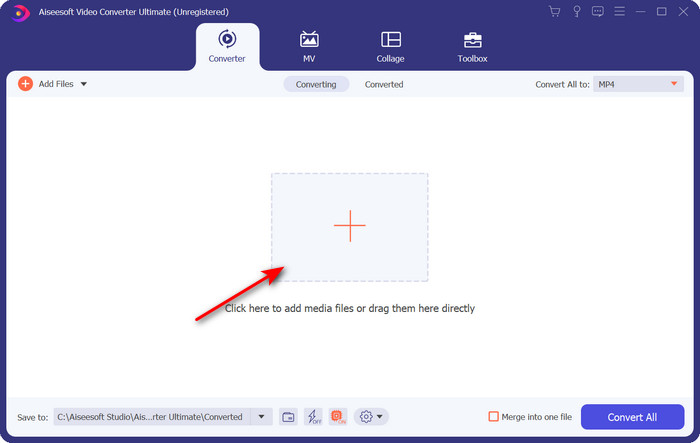
Paso 2. Después de iniciarlo, sube el archivo que quieres convertir haciendo clic en el botón +; se abrirá la carpeta, localiza el archivo y haz clic en Open.
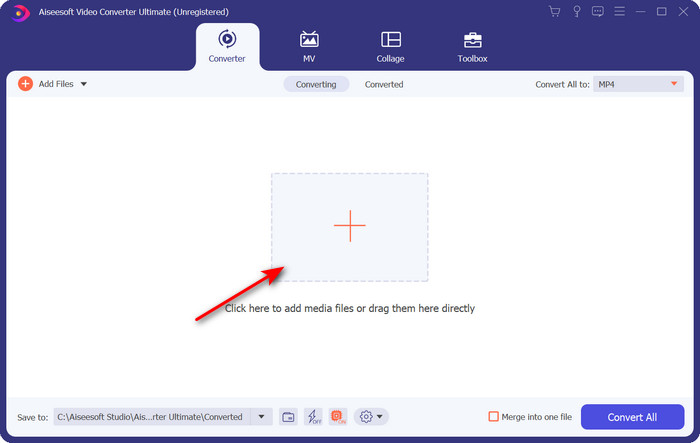
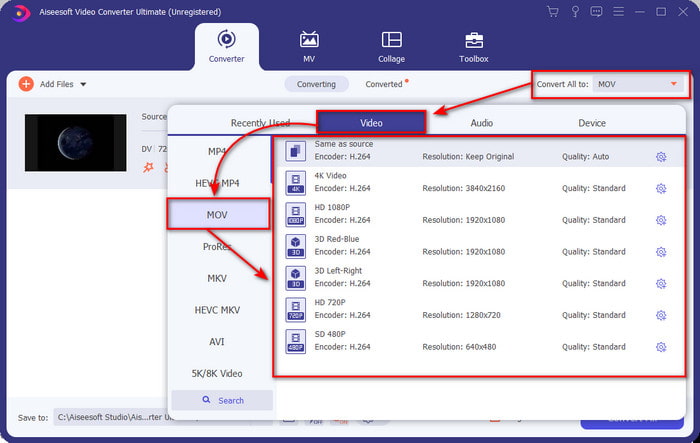
Paso 3. Para seleccionar el formato, haz clic en el botón desplegable, elige el formato MOV y la resolución que desees. La calidad del archivo de salida puede configurarse en alta, pero el tamaño será mucho mayor en comparación con el original.
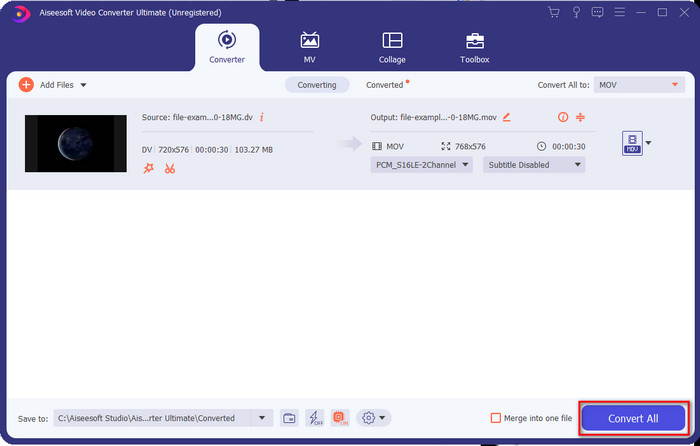
Paso 4. Haz clic en Convert All para iniciar el proceso de conversión de DV a MOV y descárgalo de una vez.
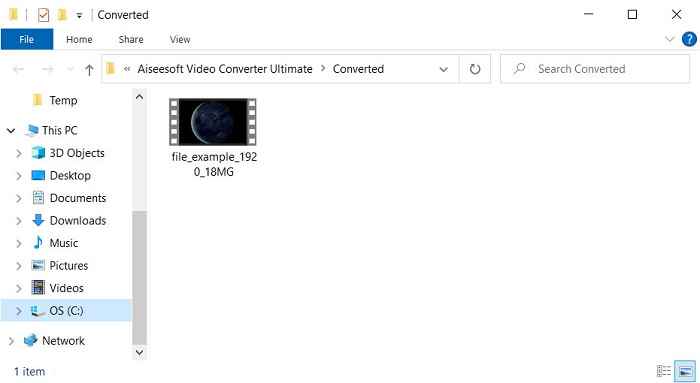
Paso 5. Se mostrará la ubicación del archivo convertido; ahora puedes ver o editar el archivo en tu Mac sin preocuparte por no poder abrirlo.
Parte 2. Convierta DV a MOV gratis con el convertidor en línea
¿Quieres convertir vídeo en tu navegador? Entonces debes usar FVC Free Video Converter Online para convertir DV a MOV gratis. También puedes cambiar la resolución, la tasa de bits y la velocidad de fotogramas además de su capacidad de conversión, igual que con FVC Video Converter Ultimate. Aunque puedes usar esta herramienta gratis en línea, sus prestaciones son muy diferentes a las del conversor de escritorio mencionado arriba. Pero si quieres hacer una conversión sencilla y gratuita, este debe ser tu conversor online de referencia. En resumen, pasemos ahora a los pasos sobre cómo usarlo.
Cómo convertir archivos DV a MOV con el útil convertidor de video gratuito FVC en línea;” /]Paso 1. Para abrir la herramienta online, haz clic en este enlace y se abrirá un nuevo navegador.
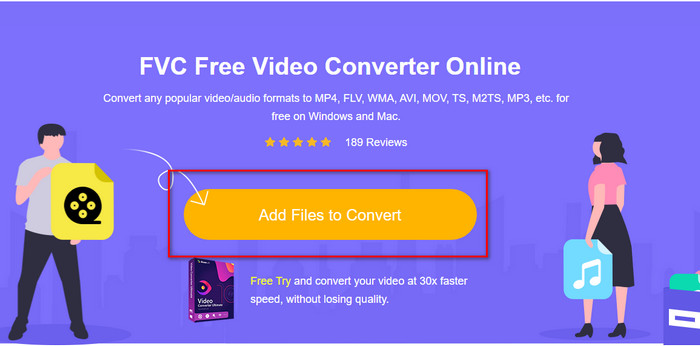
Paso 2. Pulsa Add Files to Convert para ejecutar el conversor online y selecciona el archivo .dv que quieras convertir en la carpeta.
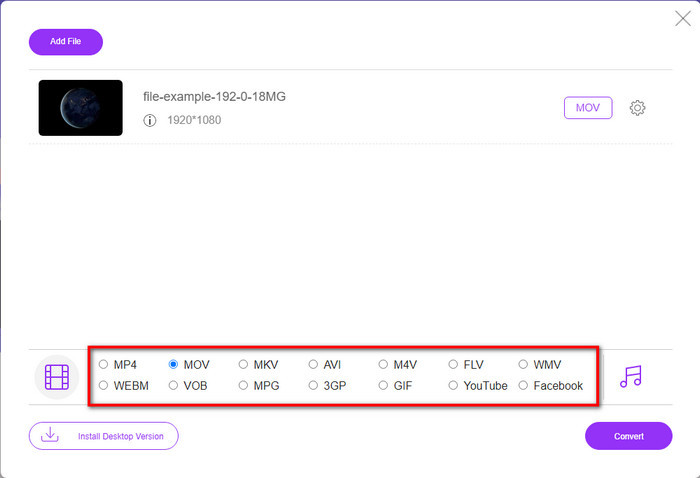
Paso 3. Elige el formato MOV u otro formato que quieras en la lista de abajo.
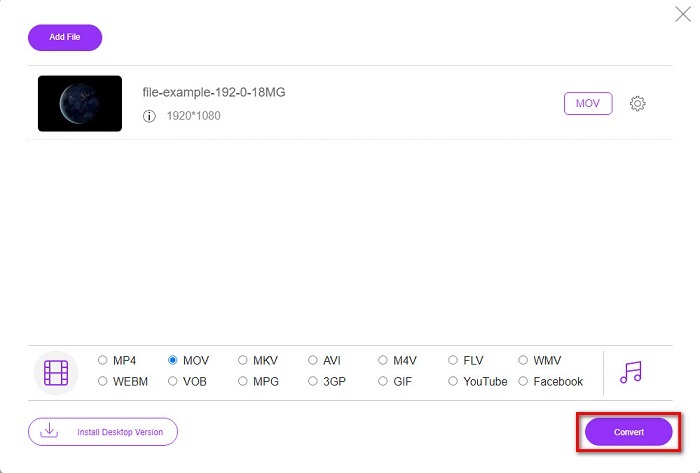
Paso 4. Para iniciar la conversión, haz clic en Convert y espera a que termine el proceso.
Paso 5. Una vez finalizado, aparecerá una carpeta nueva con el archivo convertido en tu pantalla.
Parte 3. DV frente a MOV
El formato DV es ideal para guardar el video y el audio porque utiliza el mismo algoritmo que MPEG. Pero esto es muy diferente de MPEG, ya que no se basa en la compresión de la velocidad de fotogramas anterior. Entonces, en lugar de depender de la compresión dentro de la tasa, usa una compresión independiente para editar la reproducción más rápido. Como resultado, los archivos DV se introdujeron a fines de 1995 como un formato de video estándar en todas las videocámaras. Pero hoy veremos menos videocámaras basadas en cinta porque ahora usamos un disco duro, SSD y tarjetas de memoria para almacenar grabaciones.
Por otro lado, Apple desarrolló el formato MOV para almacenar un archivo multimedia de alta calidad que se puede usar en todos los editores o reproducir con el reproductor multimedia. Este formato gana mucho respeto ya que puede contener elementos multimedia colectivos y cada uno puede recopilar datos para video, audio y texto. Al igual que con el DV, la compresión que proporciona este formato se basa en el algoritmo.
Para colmo, no puede cargar archivos DV directamente en la aplicación Mac porque este formato está desactualizado. Ahora hay mejores formatos que .dv. Pero si sus videos están en este formato, puede usar un convertidor de DV a MOV y convertir el archivo para reproducirlo en Quicktime o editarlo en iMovie.
Parte 4. Preguntas frecuentes sobre la conversión de DV a MOV
¿Por qué no puedo reproducir archivos DV en Mac?
Muchas razones pueden variar en este caso, especialmente los archivos DV, que son menos compatibles con casi todos los sistemas operativos. Pero enumeramos dos posibles razones por las que no puede, y la primera es que el reproductor multimedia que está utilizando no es compatible con este formato. Es el problema más común en la mayoría de formatos por motivos de compatibilidad y su solución al convertir. La otra es que sus archivos .dv podrían estar rotos o dañados. Dado que está dañado o corrompido, el archivo no se reproducirá.
¿Sigue siendo el archivo DV un formato ideal?
Antes era ideal para grabar y editar archivos multimedia, pero hoy el formato no es el mejor. La razón principal es que hay mejores formatos que .dv, y la otra es la compatibilidad.
¿Cómo comprimir archivos DV?
Aunque los archivos DV están comprimidos, su tamaño en MB será mayor si la duración del vídeo es demasiado larga. Por eso es imprescindible comprimir el archivo para transferirlo más fácilmente y ahorrar espacio. Para saber cómo comprimir tus archivos DV u otros archivos multimedia, lee este artículo para aprender cómo comprimir vídeos sin perder calidad.
Conclusión
En resumen, los archivos DV eran de lo mejor para grabar audio y vídeo antes, pero hoy en día existen otros formatos que los han superado. Además, este formato no ofrece tanta compatibilidad como MOV, especialmente si quieres editar o ver los vídeos en Mac. Dado que el formato está desfasado, deberías plantearte convertirlo en línea o sin conexión con la ayuda de la herramienta mencionada arriba. En definitiva, FVC Free Video Converter Online es la mejor que hemos encontrado en la web. Además de ser gratuita, el rendimiento de esta herramienta online es muy distinto al de otras herramientas web disponibles. Pero también hay que dejar espacio al extraordinario conversor FVC Video Converter Ultimate. Esta herramienta no necesita presentación y, sin duda, te ayudará con cualquier problema de conversión que se te presente. Ahora está en tus manos elegir cuál es mejor para ti.
-
 Cómo convertir AVI a MOV con sencillos pasos y herramientas
 ¿Quieres saber cómo convertir AVI en un MOV reproducible? Debes seguir este artículo para saber cómo hacerlo y consejos para tener una conversión exitosa.
-
 4 formas de convertir DivX a MOV gratis [en línea y fuera de línea]
 ¿Luchas con las limitaciones de un DivX o no tienes los reproductores multimedia para acceder a videos en este formato? Si desea convertirlo a formato MOV, continúe leyendo este artículo para llenar los vacíos.
-
 Convertidor gratuito de M4V a MOV - Cómo convertir M4V a MOV
 Si su reproductor multimedia no es compatible con M4V, ¿alguna vez ha tenido problemas para ver una película en su iPhone? El tema principal de este artículo es convertirlo en un archivo de video MOV.
