


 Video Converter Ultimate
 Grabador de pantalla
 Reparación de vídeo
 Descarga segura
Formas gratuitas y profesionales de convertir MKV a MOV
¿No puedes abrir un archivo MKV con QuickTime Player en Mac y quieres convertir MKV a MOV?
MKV (Matroska Multimedia Container) es un formato de contenedor multimedia que puede incorporar audio, vídeo y subtítulos en un solo archivo. MKV se desarrolla como un proyecto de estándares abiertos. MKV se utiliza ampliamente en Internet para vídeos en alta definición porque admite descripciones, valoraciones, carátulas y más. Pero los archivos MKV no se pueden reproducir en QuickTime ni editar en iMovie.

MOV es el formato más compatible con Apple. Si usas un Mac, es mejor convertir MKV a MOV para la reproducción o la edición. En este artículo, te mostraremos 2 formas sencillas de convertir MKV a MOV en Mac y PC con Windows.
Parte 1. Cómo convertir MKV a MOV en línea gratis
Cuando buscas en Google cómo convertir MKV a MOV en Internet, verás que muchos de los resultados son conversores gratuitos de MKV a MOV online. En esta primera parte, queremos presentarte una gran herramienta online para convertir MKV a MOV, FVC Free Online Video Converter, para realizar la conversión de vídeo MKV.
Es altamente compatible con cualquier formato de video de uso frecuente, incluidos MKV, MOV, MP4, AVI, FLV, WMV, MPEG y más. Ofrece una forma sencilla de convertir directamente su archivo MKV a MOV gratis en línea.
Descarga la versión de escritorio para convertir archivos por lotes.
Paso 1. Cuando quieras convertir un archivo MKV online, ve al sitio de FVC Free Online Video Converter en tu navegador. Este conversor gratuito de MKV a MOV es compatible con cualquier navegador popular como Chrome, IE, Safari y Firefox.
Paso 2. Haz clic en el botón Añadir archivos para convertir para instalar un pequeño lanzador (archivo de poco tamaño) para la conversión de vídeo MKV. Después de eso, aparecerá una ventana emergente para que selecciones y subas el archivo MKV que quieres convertir a MOV.

Paso 3. Después de subirlo, verás muchos formatos de vídeo de uso frecuente como MP4, MOV, FLV, AVI, WMV, VOB, WEBM y más, mostrados para que elijas. Puedes seleccionar MOV como formato de salida.
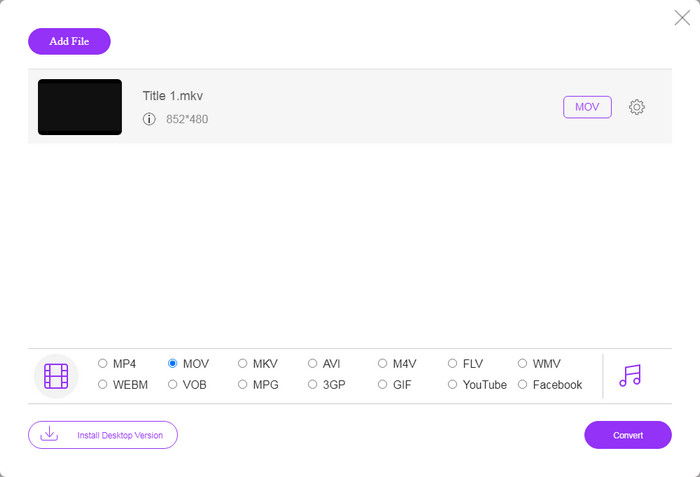
Paso 4. Este conversor de MKV a MOV te permite ajustar varios parámetros de vídeo y audio. Puedes hacer clic en el icono de Configuración para personalizar estos ajustes.

Paso 5. Haz clic en el botón Convertir para empezar a convertir el vídeo de MKV a MOV en tu ordenador. Durante este paso, puedes seleccionar una carpeta de destino adecuada para el vídeo MOV convertido. Después de la conversión, se te dirigirá automáticamente a dicha carpeta.
Parte 2. La mejor manera de convertir MKV a MOV sin pérdida de calidad
Deberías saber eso; la mayoría de los convertidores en línea gratuitos están diseñados principalmente para la conversión de archivos pequeños. Será mejor que elija un convertidor de video profesional si obtiene una mejor experiencia de conversión y una mayor calidad de salida.
Aquí te recomendamos encarecidamente el potente software de conversión de vídeo y audio, Video Converter Ultimate, para convertir MKV a MOV en Mac y PC sin pérdida de calidad. Tiene la capacidad de convertir vídeos manteniendo la calidad original de imagen y sonido.
Video Converter Ultimate es el software profesional de conversión de video y audio que puede convertir MKV a MOV sin pérdida de calidad.
- 1. Convierta videos 4K, 1080p HD y SD a más de 300 formatos como MOV, MP4, AVI, FLV, MP3, etc.
- 2. Potentes funciones de edición como recortar, recortar, rotar, marca de agua, 3D, mejorar, efectos y más.
Descarga gratuitaPara Windows 7 o posteriorDescarga segura
Paso 1. Haz doble clic en el botón de descarga de arriba para instalar gratis y ejecutar este conversor de MKV a MOV en tu ordenador. Debes elegir la versión adecuada según tu sistema.
Paso 2. Selecciona la función Convertidor para realizar la conversión de tu vídeo MKV. Haz clic en Añadir archivos para añadir tu(s) vídeo(s) MKV. Este conversor incluye una función de conversión por lotes para que puedas convertir uno o varios archivos MKV a la vez.

Paso 3. Elige el formato MOV como formato de salida en la lista desplegable de Convertir todo a. Luego haz clic en el botón Convertir todo para iniciar la conversión de MKV a MOV.

Gracias a la adopción de la tecnología de aceleración más reciente, este conversor de MKV a MOV puede ofrecerte una velocidad de conversión súper rápida. También te permite comprimir archivos MOV fácilmente.
MKV frente a MOV
El formato de contenedor multimedia Matroska, lanzado en 2002, es un formato de código abierto que puede incluir varias pistas de video, audio, imágenes y subtítulos. Por lo tanto, puede usarlo para almacenar clips de video cortos, programas de TV y películas fácilmente. Es bastante popular para los fanáticos del anime.
El formato MOV se puede utilizar para almacenar una película, un programa de televisión, un videoclip corto o una película casera. En realidad, se guarda en el formato de archivo QuickTime (QTFF), que fue presentado por Apple en 1991. Los archivos MOV se usan a menudo cuando las personas quieren guardar un video con alta calidad.
Parte 3. Preguntas frecuentes sobre la conversión de MKV a MOV
Pregunta 1. ¿Puede iMovie leer MKV?
No. Como software de edición de video predeterminado para dispositivos Apple, iMovie puede editar fácilmente videos MOV o MP4. Pero no es compatible con los formatos de compresión de video o contenedor como FLV, VOB, WebM y WMV.
Pregunta 2. ¿MKV es mejor que MP4?
No se puede decir simplemente que MKV es mejor que MP4 o que MP4 es mejor. Tanto MKV como MP4 pueden ofrecer vídeo H.264 de alta calidad. Pero, como formato de vídeo más popular, MP4 es compatible con más dispositivos, sistemas, reproductores y editores. Consulta esta página para comparar las diferencias entre MKV y MP4.
Pregunta 3. ¿Puede VLC convertir MKV a MOV?
Sí. VLC puede funcionar como un buen conversor de vídeo para realizar la conversión de MKV a MOV. Puedes abrir VLC, hacer clic en Medio, elegir Convertir/Guardar, añadir tu archivo MKV y seleccionar MOV como formato de salida, y luego hacer clic en el botón Iniciar para realizar la conversión de vídeo de MKV a MOV en VLC. Incluso puedes usarlo para unir archivos MOV.
Conclusión
¿Necesitas convertir MKV a MOV? Después de leer esta página, puedes obtener 2 métodos eficaces para convertir tus archivos MKV a MOV. Si tienes alguna otra recomendación de conversor MKV, compártela en los comentarios con los demás lectores.
-
 Los 8 mejores reproductores MOV para reproducir archivos MOV QuickTime con calidad original
 Obtenga más información sobre los 8 mejores reproductores MOV disponibles para Windows y Mac. Puede elegir el deseado y apropiado para reproducir archivos MOV con la calidad original.
-
 Grabación de pantalla QuickTime - Grabe video con audio en Mac y PC
 La pantalla de grabación con audio en Mac es útil. El reproductor integrado QuickTime Player puede hacerlo. Lea su publicación y sepa cómo capturar la pantalla con sonido en Mac y PC.
-
 4 mejores métodos para convertir MOV a MP3 en Windows y Mac fácilmente
 Cuando desee extraer los archivos de audio MP3 de los archivos MOV, puede obtener más información sobre los 4 convertidores de MOV a MP3 más eficientes para obtener los archivos deseados del artículo.

