


 Video Converter Ultimate
 Grabador de pantalla
 Reparación de vídeo
 Descarga segura
Cómo convertir videos MOV a formato FLV en el escritorio y en línea
MOV es tanto una extensión de archivo como un formato de vídeo. Un archivo con extensión MOV es un archivo de película Apple QuickTime. Funciona muy bien en iOS y Mac. Además, Windows 10 también incluye el códec correspondiente. Sin embargo, no está diseñado para la distribución en línea. Por lo tanto, tienes que convertir MOV a FLV antes de publicarlo en YouTube u otros sitios web. En este artículo compartiremos contigo las dos mejores formas relacionadas.

Parte 1: Cómo convertir MOV a FLV en PC / Mac
Puedes abrir casi todos los archivos MOV en QuickTime, pero no puede cambiar MOV al formato FLV. Así que necesitas un conversor de vídeo, como FVC Free FLV Converter. Aunque es gratuito, obtendrás muchas funciones útiles que solo se encuentran en software profesional.
Funciones principales del mejor conversor gratuito de MOV a FLV
- 1. Convierta archivos MOV ilimitados a formato FLV por lotes.
- 2. Proteja la calidad de video y audio durante la conversión.
- 3. Ofrezca una variedad de funciones adicionales, como personalizar la resolución.
Descarga gratuitaPara Windows 7 o posteriorDescarga segura
Descarga gratuitaPara macOS 10.7 o posteriorDescarga segura
No hace falta decir que es la mejor opción para convertir sus archivos MOV a FLV en el escritorio de forma gratuita.
Cómo convertir MOV a FLV en lote
Paso 1: agregue archivos MOV
Inicia el mejor conversor de MOV a FLV una vez que lo hayas instalado en tu ordenador. Puedes descargar el software gratis desde el sitio web oficial. Haz clic en el botón Add File(s) en la interfaz principal para abrir los archivos MOV que quieres convertir en el software. A continuación, los vídeos aparecerán en el panel de la biblioteca. Aquí puedes previsualizar y editar los vídeos.

Paso 2: establecer el formato de salida
Para cambiar el formato de salida, haz clic y despliega la opción Output format en la parte inferior. Ve a la pestaña General Video, desplázate hacia abajo y selecciona FLV u otro formato relacionado. También puedes cambiar la resolución y otros parámetros en el cuadro de diálogo de perfil. Haz clic en el icono de Gear y aparecerá el cuadro de diálogo de perfil.

Paso 3: convierte MOV a FLV
Haz clic en el botón Open Folder que está junto al cuadro Output folder y selecciona un directorio específico para guardar el resultado. Por último, haz clic en el botón Convert y el conversor de MOV a FLV hará el resto del trabajo. Unos minutos más tarde, encontrarás los archivos FLV en la ubicación que hayas indicado.

Parte 2: La mejor manera de convertir MOV a FLV en línea
Hoy en día tenemos más formas que nunca de editar y convertir archivos de vídeo. FVC Free Online Video Converter, por ejemplo, es un conversor web de MOV a FLV en línea. Te permite procesar varios archivos MOV gratis y sin registro. Además, no tiene límite de tamaño de archivo, marca de agua, etc. Si solo necesitas convertir MOV a FLV de vez en cuando, sigue los pasos siguientes.
Paso 1: Visita https://www.free-videoconverter.net/free-online-video-converter/ en tu navegador. Está disponible en Chrome, Firefox y otros navegadores. Haz clic en el botón Add Files to Convert para descargar el lanzador.
Descarga la versión de escritorio para convertir archivos por lotes.
Paso 2: A continuación, haz clic en el botón Add File cuando aparezca el lanzador. Sube los archivos MOV que quieres convertir desde tu disco duro. Elige FLV en la sección de formato en la parte inferior del lanzador.
Consejo: Si necesitas cambiar la resolución, haz clic en el icono de Settings para abrir la ventana de ajustes y hacerlo fácilmente.
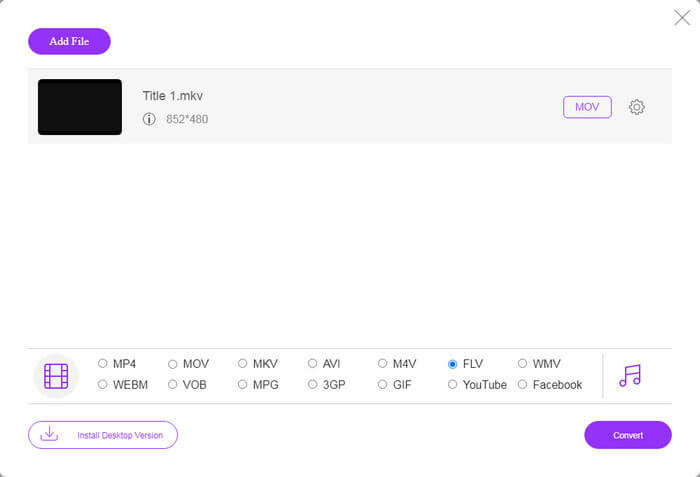
Paso 3: Pulsa el botón Convert para empezar a convertir MOV a FLV en línea. Según nuestras pruebas, solo tarda un momento en completar la tarea. El tiempo real depende de tu conexión a Internet. Luego descarga los archivos FLV a tu ordenador.
Quizás también te interese:
MOV frente a FLV
El formato MOV se puede utilizar para almacenar una película, un programa de televisión, un videoclip corto o una película casera. En realidad, se guarda en el formato de archivo QuickTime (QTFF), que fue presentado por Apple en 1991. Los archivos MOV se usan a menudo cuando las personas quieren guardar un video con alta calidad.
Adobe Flash Player usó FLV para entregar contenido de video como películas y programas de televisión. En la actualidad, Adobe ya no desarrolla el reproductor y recomienda a los usuarios que lo desinstalen por motivos de seguridad. Sin embargo, aún puede usar el formato FLV en muchos programas que no son de Adobe/Macromedia.
Parte 3: Preguntas frecuentes sobre la conversión de MOV a FLV
¿Cómo convierto MOV a FLV en Mac?
No hay forma de convertir MOV a FLV en Mac sin convertidores de video de terceros. Sin embargo, hay muchos convertidores de MOV a FLV para Mac. También puede utilizar aplicaciones web para producir archivos FLV desde MOV.
¿Puede VLC convertir MOV a FLV?
Sí, VLC puede convertir MOV a FLV en Windows, Mac, Linux. La mayor ventaja de VLC es gratuita. La desventaja es un flujo de trabajo complicado. De hecho, la función de conversión está profundamente oculta en la barra de menú.
¿Cuál es mejor, MOV o FLV?
La respuesta depende de tu propósito. Para reproducir o editar en iOS o Mac, MOV es mejor que otros formatos. Sin embargo, FLV puede producir archivos de tamaño pequeño y funcionar bien en Internet.
Conclusión
Esta guía ha hablado sobre las mejores formas de convertir sus archivos de video MOV a formato FLV. Afortunadamente, hay al menos dos formas de hacer el trabajo. En primer lugar, puede cambiar MOV a FLV con una aplicación de conversión de video web. Si necesita funciones más avanzadas, FVC Free FLV Converter puede satisfacer sus necesidades. Además, su uso en computadora es totalmente gratuito. ¿Mas problemas? Por favor contáctenos dejando su mensaje debajo de esta publicación.
-
 2 formas más fáciles de convertir archivos WMV a FLV en PC / Mac
 ¿Cómo se puede convertir WMV a FLV? En primer lugar, debe leer nuestra recomendación y encontrar su método favorito, y luego seguir nuestra guía para hacer el trabajo rápidamente.
-
 4 métodos verificados para convertir TS a FLV en el escritorio / en línea
 No puede abrir TS en su computadora o dispositivo móvil de forma predeterminada. La única forma de ver los archivos de video es convertir TS a FLV u otros formatos con nuestra guía concreta.
-
 3 soluciones para convertir MTS a FLV gratis y en línea
 ¿Quiere convertir MTS a FLV? Aquí hay 3 programas de conversión de MTS a FLV gratuitos que puede probar para convertir MTS a FLV en Mac OS X y Windows 10/8/7.

