


 Video Converter Ultimate
 Grabador de pantalla
 Reparación de vídeo
Herramientas sobresalientes que resuelven la pregunta sobre cómo convertir MPEG a MOV
Como estándar de compresión de archivos de vídeo y audio, también gestiona la transmisión de estos archivos de una forma más eficiente. El Grupo de Expertos en Imágenes en Movimiento (MPEG) está formado por especialistas que establecen las normas MPEG. Todas estas variantes tienen sus propias especificaciones y casos de uso en la industria, lo que hace difícil saber cuál elegir. Esto será un adelanto de lo que trata este artículo. La mayoría de los temas explican cómo convertir MPEG a MOV y algunos de sus detalles e información. Continúa leyendo mientras analizamos las diferencias y comparaciones entre estos dos formatos de vídeo.

Parte 1. MPEG VS. MOV - Introducción
MPEG es un tipo de archivo de vídeo obsoleto que comprime datos de vídeo utilizando compresión MPEG‑1 o MPEG‑2. El vídeo en Internet y la distribución en DVD son dos usos habituales de esta tecnología. El hecho de que no ofrezca compresión sin pérdida ni parte de la flexibilidad de otros formatos lo convierte en un formato poco adecuado para la edición de vídeo. Dado que MPEG ha sido un estándar durante mucho tiempo, cuenta con un amplio soporte por parte de los principales navegadores y reproductores de vídeo y permite la transmisión en streaming. Es una opción excelente para la distribución de vídeo final a través de Internet y en DVD.
No obstante, el vídeo en formato MOV suele asociarse con el reproductor multimedia QuickTime. Apple es la empresa que creó esta extensión de vídeo. Comprime vídeo y audio mediante un algoritmo. Aunque es un producto de Apple, es compatible tanto con sistemas operativos MAC como con Windows. Ahora que ya conoces estos dos formatos de vídeo, en la siguiente parte se analizarán el mejor software y las mejores herramientas en línea que puedes utilizar para convertir MPEG a MOV y viceversa.
Parte 2. Cómo convertir MPEG a MOV en Mac
Si estás buscando el software adecuado que puedas usar en Mac para convertir MPEG a MOV, este artículo recomienda Video Converter Ultimate. Este software se puede descargar de forma gratuita y está disponible tanto para Windows como para Mac. Es un programa que puede ser utilizado por una amplia variedad de usuarios, ya que dispone de una herramienta muy accesible y una interfaz fácil de usar.
Aparte del otro software y herramientas en línea que pueden convertir, este software tiene un convertidor que admite numerosos formatos de video y puede convertir archivos en menos de un minuto. A excepción de su excepcional función de conversión, este software ofrece diferentes herramientas destacadas para mejorar su video aún más. Suficiente con los detalles descriptivos sobre el software, profundicemos en los procedimientos que debe seguir:
Paso 1: Haz clic con el botón derecho en el icono Descarga gratuita que se proporciona a continuación para iniciar el proceso de descarga. Este software es compatible con ordenadores con sistemas operativos Windows y Mac. Cuando finalice la descarga, podrás instalarlo y empezar a usar el software haciendo clic en el botón Iniciar ahora.
Descarga gratuitaPara Windows 7 o posteriorDescarga segura
Descarga gratuitaPara macOS 10.7 o posteriorDescarga segura
Paso 2: Cuando hayas descargado el software, ábrelo. Aparecerá en una ventana cuando el programa se inicie por primera vez. Comienza el proceso de conversión importando aquí tu archivo de vídeo.
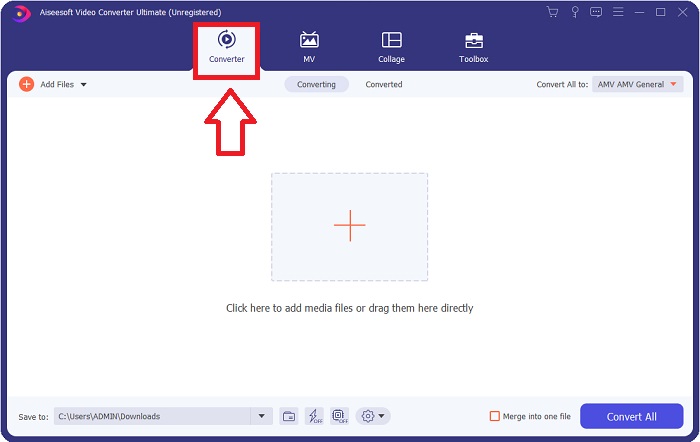
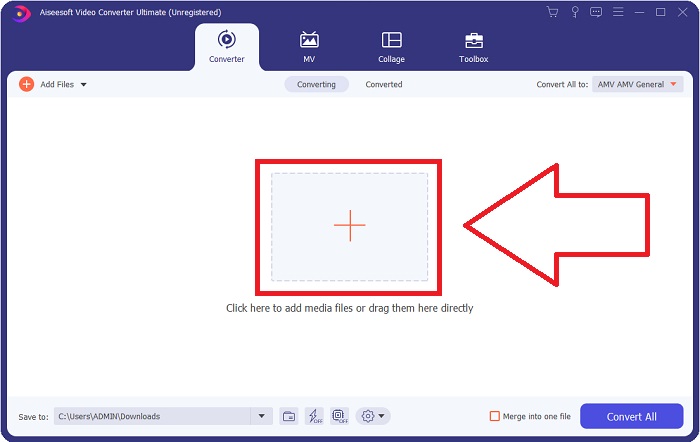
Paso 3: Inicia el proceso de conversión subiendo los archivos que quieres convertir al conversor. Para ello, arrastra el vídeo o haz clic en el símbolo +.
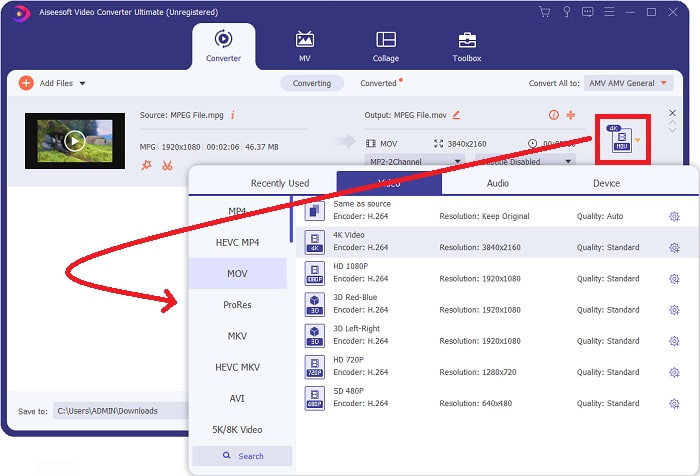
Paso 4: En la esquina superior derecha de la pantalla se muestra un menú de opciones desde el que puedes seleccionar un formato de vídeo. En el menú desplegable de Convertir todo ahora puedes seleccionar MOV como formato de vídeo. Según el archivo MOV que hayas elegido, podrás escoger entre varios ajustes de calidad de vídeo. Sin embargo, también puedes cambiar los ajustes de calidad si no se ofrece la salida de vídeo que prefieres. Es posible modificar la frecuencia de fotogramas de la imagen y la calidad del audio haciendo clic en el icono de engranaje. Para guardar los cambios, utiliza el botón Crear nuevo.
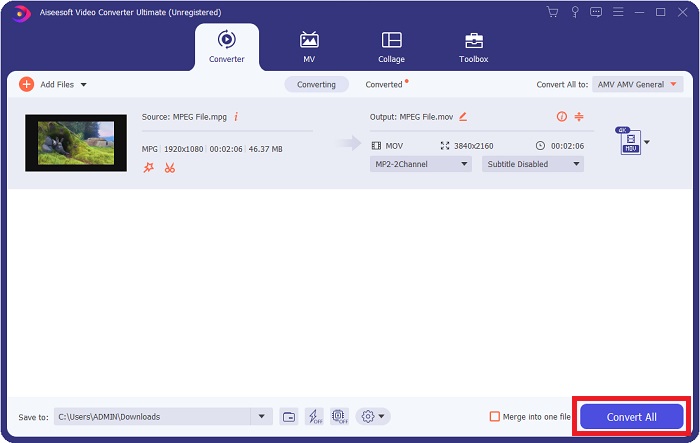
Paso 5: Cuando hayas terminado de editar el vídeo y esté listo para convertirse, haz clic en Convertir todo para iniciar la conversión.
Parte 3. Excelentes convertidores en línea que ayudan a convertir MPEG a MOV
Método 1. Utilice Free Video Converter en línea
FVC Free Video Converter Online es un conversor multimedia de uso gratuito que admite una amplia gama de formatos. Si tienes vídeo en alta definición, puedes convertirlo fácilmente a formatos como MP4, FLV y WMV sin perder calidad. Si tienes muchos vídeos o audios que quieres convertir, puedes hacerlo sin pérdida de calidad. Esta aplicación gratuita de conversión de vídeo es popular para convertir y editar, y ofrece a los usuarios una amplia variedad de opciones para afinar sus vídeos. Vamos a prepararnos y aprender todos los pasos necesarios:
Paso 1: Este enlace te llevará a la página principal del sitio web del conversor FVC.
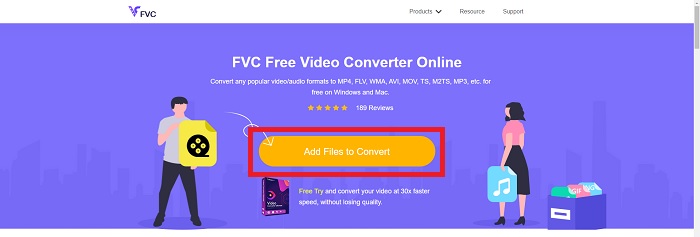
Paso 2: La primera vez, haz clic en Añadir archivos para convertir, a la derecha, para obtener el lanzador para tu equipo. En una segunda descarga, se iniciará automáticamente. En tu carpeta, localiza el archivo y haz clic en Abrir para iniciar de nuevo el proceso de descarga.
Paso 3: Para comenzar el proceso de conversión antes de que empiece, selecciona un formato en el menú desplegable de abajo y haz clic en él.
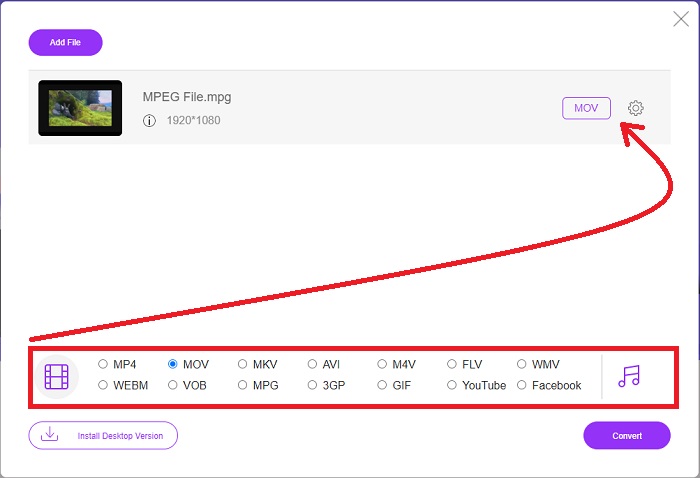
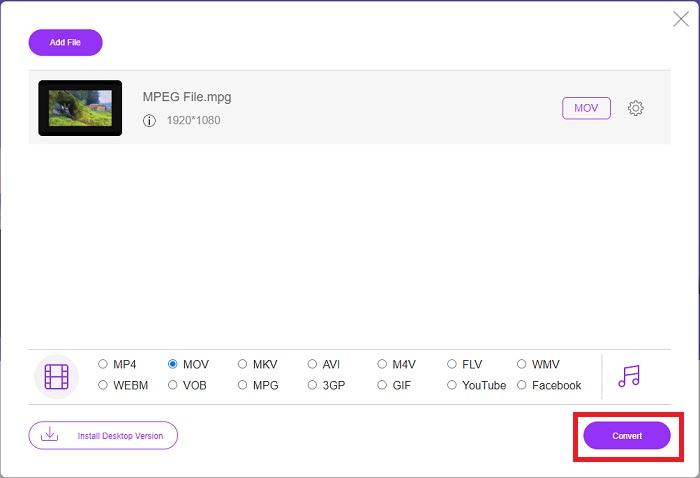
Paso 4: Después de haber elegido el formato MOV al que convertir, haz clic en Convertir para iniciar el proceso de conversión.
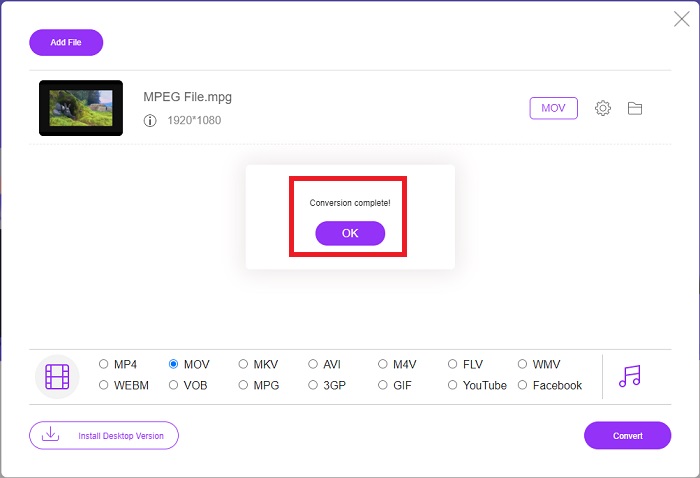
Paso 5: Unos minutos más tarde verás una carpeta con el archivo convertido, que podrás abrir y empezar a ver.
Métodos 2. Utilice CloudConvert
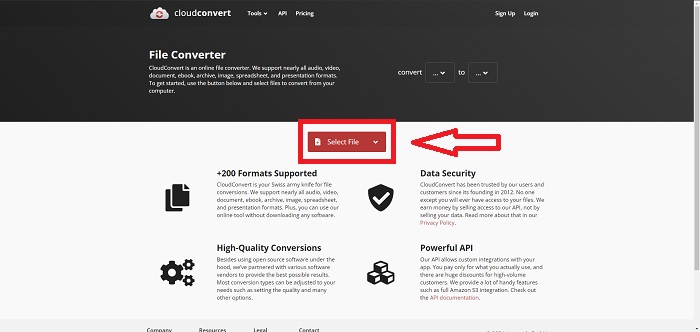
CloudConvert es un conversor de archivos que funciona en línea. Es posible reproducir casi cualquier tipo de archivo de música o vídeo en nuestro sistema. Convertir archivos nunca ha sido tan fácil con CloudConvert. Es posible reproducir casi cualquier tipo de archivo de música o vídeo en nuestro sistema. También puedes usar nuestra herramienta web sin necesidad de instalar ningún software en tu ordenador. Dicho esto, estos son los pasos que debes conocer:
Paso 1: En su interfaz principal, ya puedes establecer el formato de vídeo de tu archivo de vídeo y el formato de vídeo al que quieres convertirlo. Haz clic en Seleccionar archivo para subir un archivo desde tu ordenador.
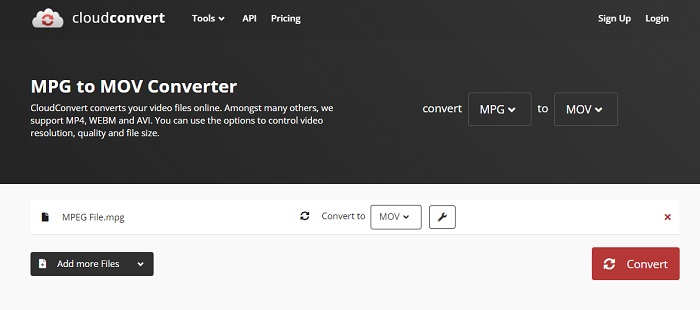
Paso 2: Puedes elegir a qué tipo de formato de vídeo quieres convertir haciendo clic en los puntos suspensivos junto al botón Convertir.
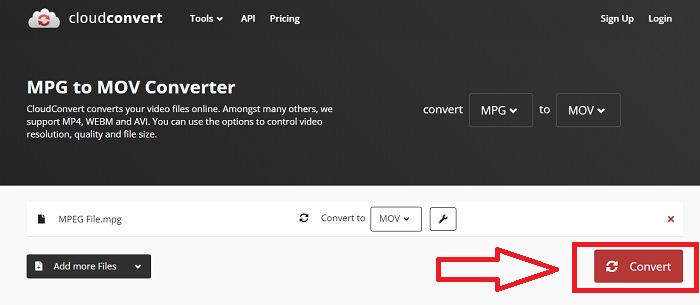
Paso 3: Una vez realizados todos los ajustes, para iniciar el proceso de conversión, haz clic en el botón Convertir.
Parte 4. Cuadro comparativo: MPEG y MOV
| Extensión de archivo | MOV | MPEG |
| Tipo de archivo | Película QuickTime de Apple | Película MPEG |
| Desarrollado por | manzana | N / A |
| Pros | Películas de alta calidad y | Uno de los pocos formatos |
| Los archivos multimedia se pueden comprimir de forma más eficaz con la ayuda de varios códecs. | Reconocido por prácticamente todos los reproductores de DVD; permite una mejor compresión. | |
| Contras | A pesar de que muchos reproductores de video gratuitos pueden reproducirlo, todavía tiene problemas porque es un formato contenedor que contiene varios códecs. | En general, el formato MPEG tiene menor número de aplicaciones y desarrolladores porque es un estándar más estricto. |
Parte 5. Preguntas frecuentes sobre la conversión de MPEG a MOV
¿Cómo reduzco el tamaño de un archivo MOV?
Con VideoConverter, lo único que tiene que hacer es localizar el archivo MOV que desea editar y hacer clic con el botón derecho para seleccionar Propiedades en el menú contextual. Luego seleccione General, luego continúe con Avanzado en el menú desplegable. Para ahorrar espacio de almacenamiento, seleccione la casilla de verificación junto a Comprimir contenido en el menú desplegable. Al hacer clic en Aceptar, el archivo se guardará en un tamaño menor al que tenía originalmente.
¿Cómo comprimir archivos MOV?
Un archivo MOV puede comprimirse y archivarse en Windows seleccionándolo y manteniendo pulsado el botón derecho del ratón hasta que aparezca una ventana emergente; a continuación, selecciona Enviar a en el menú que aparece. En el menú desplegable, elige como destino la carpeta comprimida (en zip). O también puedes usar un compresor de vídeo para comprimir tus archivos MOV.
¿MPG y MPEG son iguales?
Las extensiones de archivo MPEG-1 y MPEG-2 también se utilizan para hacer referencia a archivos MPG. Como medio para mantener sincronizados los datos de audio y video, los archivos MPG de ambos tipos actúan como archivos contenedores para estos datos. Debido a su compatibilidad con varias aplicaciones, MPEG-2 se ha convertido en una opción popular para comprimir archivos.
Conclusión
Para resumir todas las cosas que hemos discutido, es difícil usar un formato de video desconocido para reproducirlo en algunos reproductores multimedia, por eso lo que necesita es un software excelente en el que puede confiar. Video Converter Ultimate es lo que más recomienda este artículo, especialmente en el proceso de conversión y más con sus diferentes y útiles herramientas que pueden convertirlo en un editor profesional.
-
 Cómo convertir archivos MPEG a MP4 gratis en Windows, Mac, en línea
 Lea y obtenga 3 formas gratuitas de convertir archivos MPEG a MP4 en su computadora. Puede usar convertidores de video en línea y de escritorio para convertir MPEG a formato MP4 con facilidad.
-
 [2021] Mejores herramientas y formas fáciles de convertir MPEG a MP3
 Este artículo habla principalmente sobre cómo puede convertir sus videos MPEG a MP3 con el uso de las herramientas más confiables de la lista.
-
 Cómo convertir AVI a MOV con sencillos pasos y herramientas
 ¿Quieres saber cómo convertir AVI en un MOV reproducible? Debes seguir este artículo para saber cómo hacerlo y consejos para tener una conversión exitosa.
