


 Video Converter Ultimate
 Grabador de pantalla
 Reparación de vídeo
3 formas diferentes de transformar archivos MPG a MOV en su escritorio o en línea
Convertir un formato es esencial, sobre todo si vamos a hablar de compatibilidad y de la finalidad del propio formato. Al igual que MPG, este formato almacena datos de DVD, como la intercalación de metadatos, el audio y el vídeo. Pero si extraes este formato de un DVD y lo reproduces en QuickTime o lo editas en iMovie, no podrás subirlo porque el formato no es compatible. Sin embargo, puedes convertir tu .mpg a un formato compatible como el formato MOV. Este artículo sugerirá algunos de los mejores programas conversores que puedes usar para convertir MPG a MOV en Mac gratis y sin tener que ajustar su calidad.

Parte 1. Cómo convertir MPG a MOV en Mac y Windows
El primero de la lista es la crème de la crème de todos los conversores que puedes usar y con el que puedes aprender a convertir MPG a MOV en Mac o en PC. FVC Video Converter Ultimate ofrece la máxima calidad y la conversión más rápida, que puedes realizar en menos de un minuto. Además, descárgalo si no tienes experiencia convirtiendo archivos y no quieres llevarte una decepción en el primer intento. Pero, si eres el tipo de usuario que quiere añadir efectos especiales, recortar, unir y hacer más cosas, échale un vistazo a la Caja de herramientas (Toolbox) de este conversor. Por lo demás, si buscas un software fiable, fácil de usar y que logre un resultado fenomenal al instante, sigue las instrucciones que aparecen a continuación.
Paso 1. Descarga gratis el conversor de MPG a MOV en tu Mac o PC. Después, instala el archivo y realiza la configuración rápida.
Descarga gratuitaPara Windows 7 o posteriorDescarga segura
Descarga gratuitaPara macOS 10.7 o posteriorDescarga segura
Paso 2. Para insertar el archivo, haz clic en el signo + situado en la parte central de la interfaz. Busca el archivo .mpg en la carpeta que aparecerá a continuación, luego haz clic en Open y continúa.
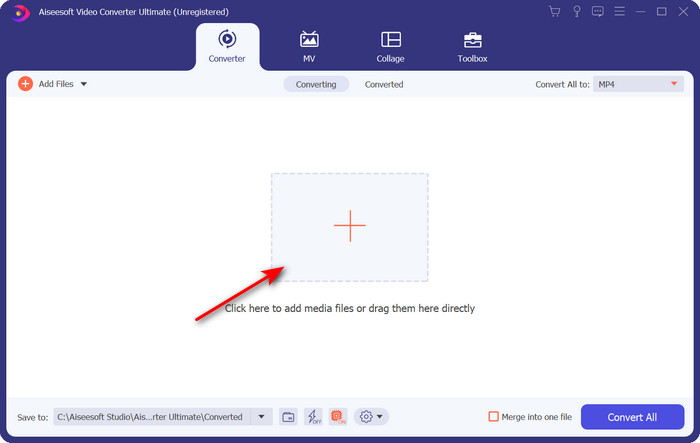
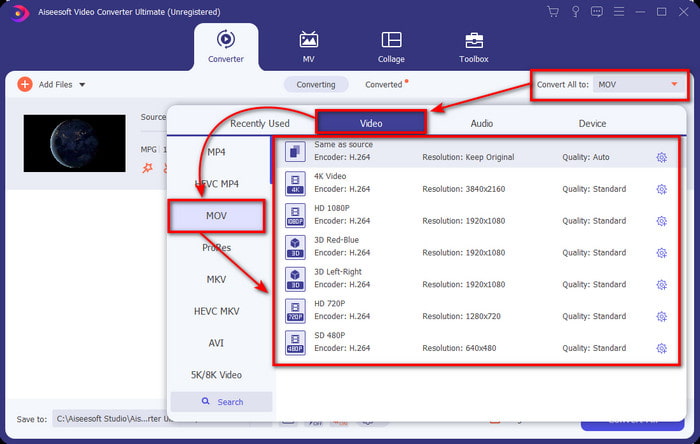
Paso 3. Pulsa el botón desplegable y elige el formato MOV o cualquier otro formato disponible en la lista.
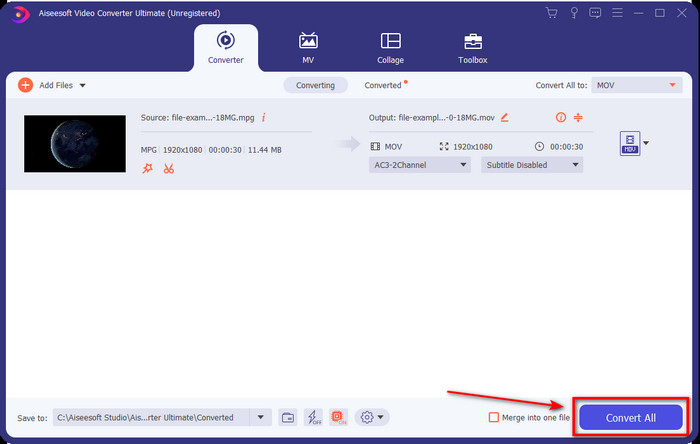
Paso 4. Cuando estés listo para iniciar el proceso de conversión, haz clic en Convert All.
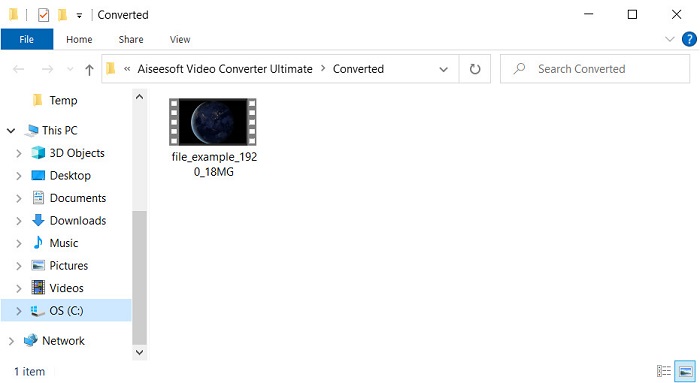
Paso 5. Tu archivo .mov estará listo tras unos segundos y, si la carpeta se abre en tu pantalla, haz clic en el primer archivo para verlo o editarlo en tu dispositivo Apple.
Parte 2. Convierta MPG a MOV usando Quicktime
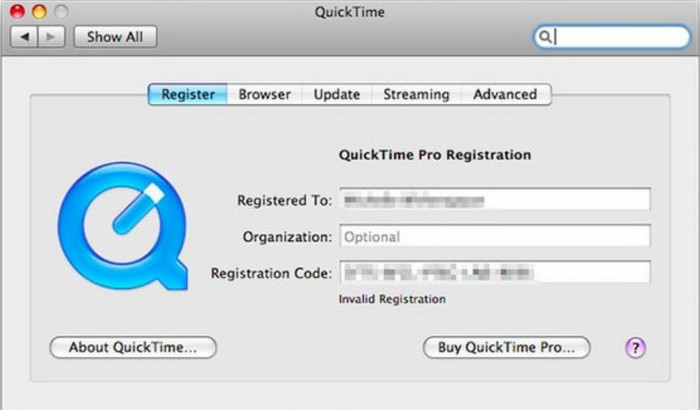
QuickTime Player es un reproductor multimedia nativo creado para dispositivos Apple que permite reproducir casi cualquier formato de vídeo y audio. Pero ¿sabías que también puedes usarlo como conversor? Eso sí, el conversor que ofrece esta herramienta no es tan detallado como el primer conversor mencionado arriba. Aun así, si tienes un dispositivo Apple y quieres convertir MPG a MOV con QuickTime Player, sigue los pasos que indicamos a continuación.
Paso 1. Abre QuickTime Player en tu Mac, haz clic en File debajo de él, haz clic en Open File, localiza el archivo .mkv en la carpeta y pulsa Open.
Paso 2. Haz clic de nuevo en File, pero ahora haz clic en Export As y elige los píxeles disponibles en la lista.
Paso 3. Para empezar a convertir el archivo en QuickTime, haz clic en Save.
Parte 3. Convierta MPG a MOV con el convertidor de MPG a MOV en línea gratuito
¿Quieres conocer el mejor conversor de MPG a MOV gratis online si no quieres arriesgarte a descargar un programa? Entonces FVC Free Video Converter Online es el indicado. Es sencillo, está disponible en todos los navegadores, libre de malware y es una herramienta online fiable. Todo lo que debe tener un conversor sencillo está disponible aquí. Además, este software es compatible con numerosos formatos multimedia y realiza la conversión sin necesidad de iniciar sesión en tu cuenta. ¿Quieres usar esta herramienta? Entonces sigue estos sencillos pasos.
Paso 1. Haz clic en este enlace para ir al sitio web oficial de FVC Free Video Converter Online.
Paso 2. Una vez estés en la interfaz web, haz clic en Add Files to Convert. Busca en la carpeta el archivo .mpg que quieres convertir y luego pulsa Open.
Descarga la versión de escritorio para convertir archivos por lotes.
Paso 3. Después de subir el archivo, elige el formato MOV en el submenú.
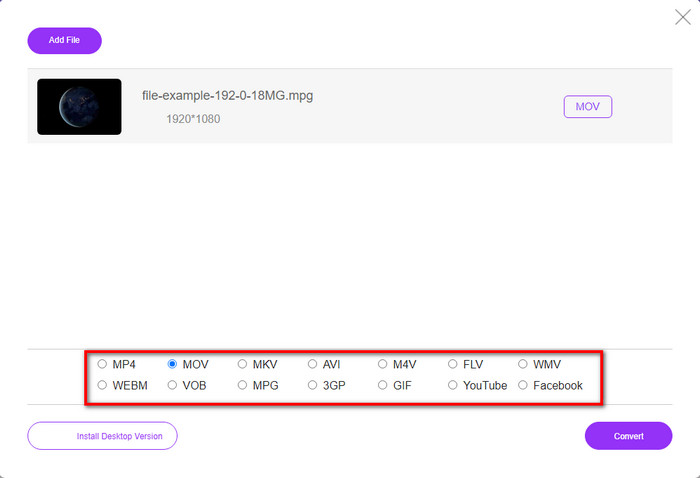
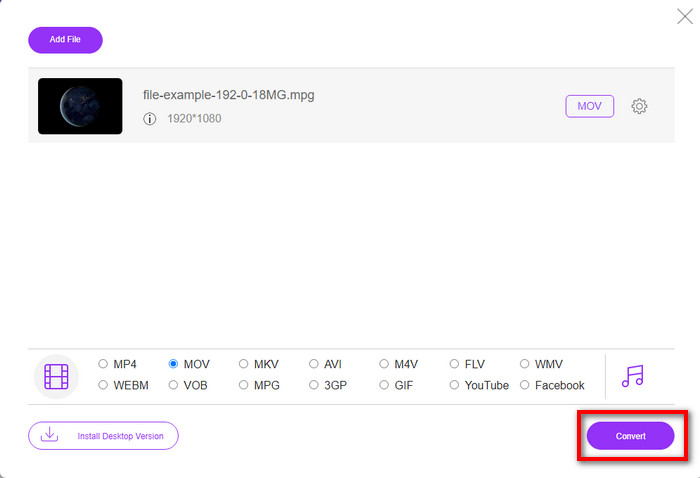
Paso 4. Puesto que ya has hecho clic en MOV, vamos a descargarlo ahora pulsando Convert.
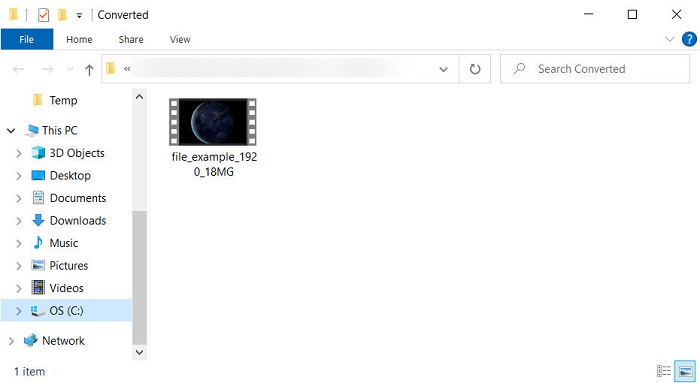
Paso 5. Tras la conversión, aparecerá una carpeta con un archivo .mov.
Parte 4. Amplio conocimiento sobre MPG a MOV y por qué necesitamos convertirlo
MPG es un formato de medios muy conocido que utiliza MPEG como formato de video estándar digital. Este tipo de archivo suele utilizar MPEG-1 y MPEG-2 como codificador de archivos multimedia. Utiliza estos dos compresores para soportar todas las deficiencias del compresor, especialmente para almacenar videos de mayor resolución. Como se dijo anteriormente, este formato puede contener tres elementos: audio, video y metadatos en una transmisión para una distribución más rápida de películas en la web.
Pero MOV puede almacenar un video de alta calidad y un audio nítido que generalmente se usa para editar el video. A diferencia de MPG, este formato de medios multiplex puede realizar un seguimiento de diferentes datos de medios, como video, audio y subtítulos. Pero el codificador y decodificador de este formato comúnmente utilizado es el MPEG-4.
Sería mejor convertir su MPG a MOV porque cuando transfiere el archivo a dispositivos Apple, no se reproducirá en Quicktime ni editará en iMovie. Aunque Quicktime Player e iMovie admiten MPEG-1 y MPEG-4, los otros MPEG, como el MPEG-2 que utiliza un .mpg, no son compatibles. Para que sea compatible en dispositivos Apple es la razón por la que necesita convertir el archivo a MOV.
MPG frente a MOV
Creado por el Grupo de expertos en imágenes en movimiento (MPEG), MPG es un formato de video digital común para almacenar información de video, audio y metadatos. Es bastante útil a la hora de crear películas para compartir en Internet. Esos archivos en MPG generalmente contienen compresión de video/audio MPEG-1 o MPEG-2.
El formato MOV se puede utilizar para almacenar una película, un programa de televisión, un videoclip corto o una película casera. En realidad, se guarda en el formato de archivo QuickTime (QTFF), que fue presentado por Apple en 1991. Los archivos MOV se usan a menudo cuando las personas quieren guardar un video con alta calidad.
Parte 5. Preguntas frecuentes sobre la conversión de MPG y MOV
¿Cuánto tiempo tomaría convertir MPG?
Hay dos factores que pueden afectar su proceso de conversión. Primero, si usa un convertidor en línea, dependerá de qué tan rápido sea su Internet. Este proceso llevaría más tiempo en comparación con el otro convertidor no basado. Y por último, cuanto mayor sea el tamaño del archivo, más tardará en convertirlo. Por lo tanto, si el tamaño de su archivo .mpg es grande, generalmente esperará a que termine.
¿Puedo reproducir archivos .mpg en VLC?
VLC es uno de los principales reproductores multimedia que puede descargar en todos los dispositivos para reproducir videos en formato no reproducible en su reproductor multimedia nativo. También puede reproducir aquí todos los formatos MPEG-1, MPEG-2, MPEG-3 y MPEG-4.
¿Comprimir MPG afecta la calidad?
Comprimir un archivo no debería afectar a la calidad, porque lo que haces es solo reducir su tamaño. Pero cuando comprimes tu .mpg en exceso, su calidad cambiará un poco. Así que, para evitarlo, tendrás que leer estos 7 mejores compresores de vídeo que puedes usar.
Conclusión
Para recapitular toda la información detallada mencionada anteriormente, puede convertir su MPG a MOV si desea utilizar el video en dispositivos Apple. Aunque software como Quicktime e iMovie admite MPEG-1 y MPEG-4, MPEG-2 y MPEG-3 no son compatibles. Entonces, para que sea compatible en tus dispositivos Apple, lo ideal es convertirlo. Todas las herramientas mencionadas aquí son muy efectivas y fáciles de usar si convierte el archivo.
-
 FLV a MPG - Cómo convertir FLV a MPG en Mac, PC y en línea gratis
 ¿Cómo convertir FLV a MPEG? ¿Puedo convertir FLV a MPG gratis? Esta publicación comparte 3 convertidores de video gratuitos para ayudarlo a convertir FLV a MPG sin pérdida de calidad.
-
 Cómo convertir MPG a formato GIF [en línea y fuera de línea]
 ¿Quieres expresar una emoción mucho mejor? Entonces debes usar GIF en su lugar. Este artículo le enseñará cómo convertir un archivo MPG a GIF para expresar sus sentimientos mucho mejor.
-
 [2022] Selecciones calientes de MPG a AVI Converter para ayudarlo a convertir MPG a AVI
 ¿Alguna vez se ha preguntado acerca de convertir su MPG a un archivo de video AVI solo para reproducirlo en su reproductor de video? Aquí está el mejor artículo que puede encontrar que habla sobre el tema anterior.

