


 Video Converter Ultimate
 Grabador de pantalla
 Reparación de vídeo
Pautas que debe seguir para convertir MXF a MOV con alta calidad
Material Exchange Format es lo que significa MXF. OMF es un formato de archivo abierto que permite el intercambio de material audiovisual y sus datos y metadatos asociados. El diseño inicial de MXF fue creado por un grupo de empresas líderes en Radiodifusión y Producción Digital. El objetivo de MXF es estandarizar los formatos de archivo, facilitar la compatibilidad entre diversos proveedores de hardware y software y, finalmente, eliminar la necesidad de las cintas. Si estás buscando un conversor adecuado para convertir de MXF a MOV, aquí tienes varias opciones para que elijas la que mejor se adapte a ti.

Parte 1. Una descripción general: MXF y MOV
MXF es una excelente opción tanto para la adquisición como para la entrega. El uso de compresión entre fotogramas no es lo más óptimo para la producción cinematográfica. La descompresión de la compresión entre fotogramas lleva más tiempo, ya que muchos métodos requieren información subpíxel para lograr precisión fotograma a fotograma en AE. Al usar compresión entre fotogramas, los usuarios deben recrear algunos fotogramas durante la descompresión, y aquí es donde After Effects tiene problemas.
Sin embargo, la extensión de archivo MOV representa el formato de vídeo QuickTime de Apple. Este contenedor multimedia también puede almacenar múltiples pistas con diferentes datos (audio, vídeo, subtítulos). Funciones como la separación de los datos multimedia de sus desplazamientos, las referencias de datos abstractas y las listas de edición de pistas lo convierten en un formato ideal para la edición de vídeo. El contenedor de vídeo MOV también se utiliza ampliamente para la distribución de vídeo en línea.
Parte 2. Excelentes métodos para usar en la conversión de MXF a MOV
Con el software más reciente y eficiente llamado Video Converter Ultimate, ahora puedes convertir MXF a MOV sin conexión, en una gran variedad de formatos que pueden restaurarse. Con este software, ahora puedes convertir MXF a MOV de una forma más rápida que con otros conversores. La calidad del vídeo también se puede modificar antes de convertirlo. También puedes mejorar tu archivo de vídeo utilizando las diversas funciones del conversor. Con esta aplicación, no tendrás que preocuparte por convertir formatos de vídeo que no sean compatibles con el que prefieres. Ahora que ya conoces el mejor conversor, esto es lo que necesitas hacer:
Paso 1. Haz clic en el botón Descarga gratuita de abajo para comenzar la descarga. Una vez completada, puedes elegir instalar el software en Windows o Mac. Primero debes instalar el software en el escritorio de tu ordenador y luego hacer clic en Empezar ahora para comenzar a usarlo.
Descarga gratuitaPara Windows 7 o posteriorDescarga segura
Descarga gratuitaPara macOS 10.7 o posteriorDescarga segura
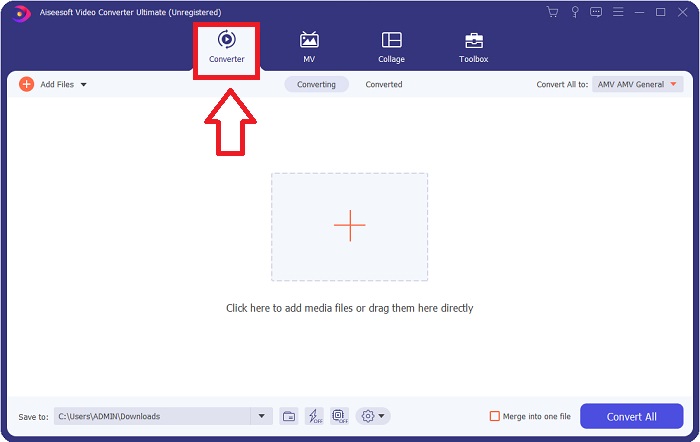
Paso 2. Inicia el programa descargado haciendo clic en el botón. La interfaz de Converter se mostrará en cuanto abras el software por primera vez. Aquí comenzarás el proceso de transcodificación de tu vídeo.
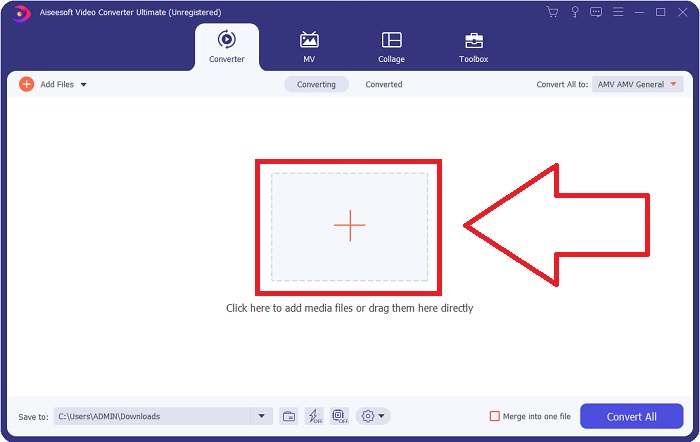
Paso 3. Inicia el proceso de conversión importando tus archivos al conversor. El archivo de vídeo que quieres convertir se puede arrastrar y soltar sobre el icono +.
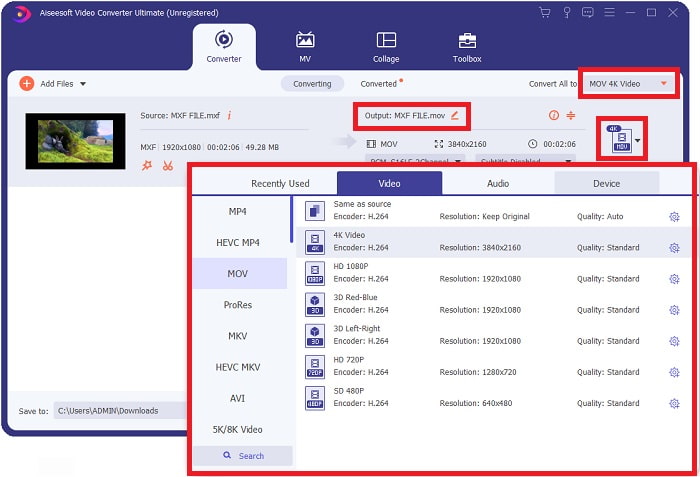
Paso 4. Después, selecciona el formato MOV en el menú desplegable de Convertir todo a. Una vez que hayas elegido un archivo MOV, tendrás acceso a una variedad de opciones de calidad de vídeo. Pero si el formato de salida que deseas no aparece en la lista, puedes modificar los ajustes de calidad para adaptarlos a tus necesidades. Seleccionando el icono de engranaje, podrás ajustar la resolución, la frecuencia de fotogramas e incluso la calidad del audio. Haz clic en el botón Crear nuevo para guardar los cambios.
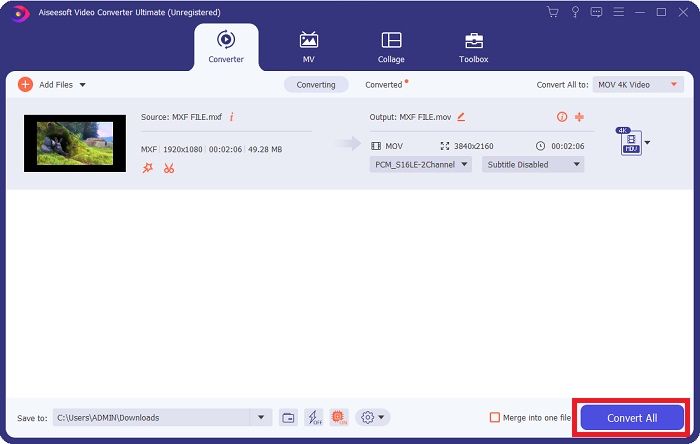
Paso 5. Convertir tu vídeo es tan sencillo como hacer clic en Convertir todo cuando hayas terminado de editar su calidad, resolución, frecuencia de fotogramas, etc.
Parte 3. Otro consejo para convertir MXF a MOV [en línea]
Usar el Free Video Converter Online es la mejor manera de convertir una amplia gama de formatos de vídeo en un corto periodo de tiempo. Este conversor, a diferencia de otros conversores en línea, no tiene restricciones en cuanto a los formatos que puede aceptar. Por eso es una buena opción para ciertos principiantes. A continuación se indican los pasos que debes seguir para conocer mejor esta herramienta web en línea.
Paso 1. Accede a la página principal del conversor FVC haciendo clic en este enlace.
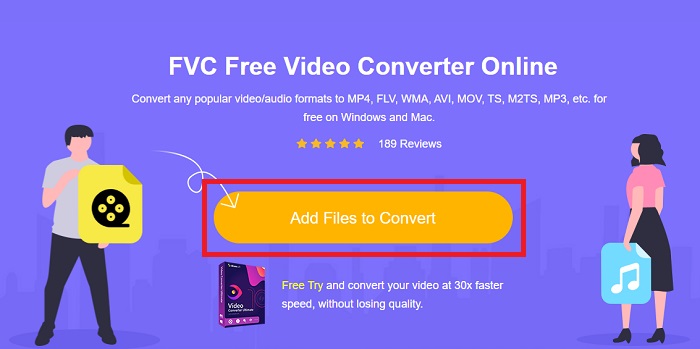
Paso 2. Para obtener el lanzador para tu ordenador, haz clic en el botón Añadir archivos para convertir si es la primera vez que utilizas la herramienta. En cuanto se vuelva a descargar, se ejecutará automáticamente otra vez. Abre el archivo desde la carpeta de descargas seleccionándolo y haciendo clic en Abrir.
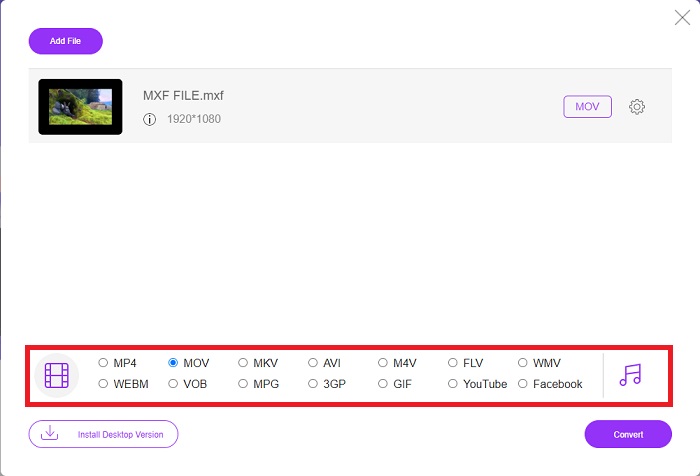
Paso 3. Una vez que hayas seleccionado el formato MOV que deseas utilizar, haz clic en él para comenzar el proceso de conversión.
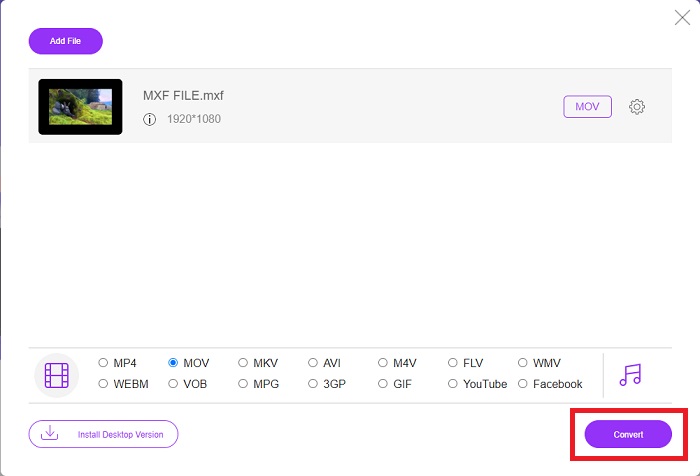
Paso 4. Puedes iniciar el proceso de conversión haciendo clic en el botón Convertir una vez que hayas seleccionado el formato MOV.
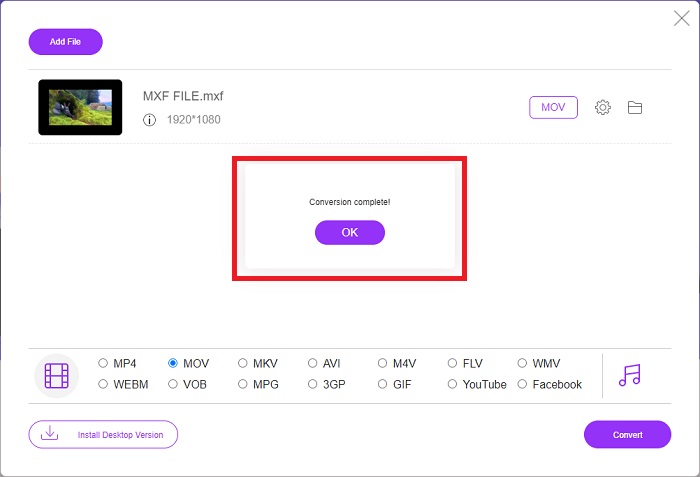
Paso 5. Podrás empezar a ver el archivo convertido haciendo clic en él, pasados unos minutos, cuando aparezca en una carpeta en el escritorio de tu ordenador.
Parte 4. Preguntas frecuentes sobre la conversión de MXF a MOV
¿MXF es lo mismo que MOV?
En el mundo digital, también, esto es un problema. El formato de intercambio de materiales y el formato de vídeo QuickTime se incluyen en el término genérico "formatos de contenedor". Cuando un programa de video admite un formato de contenedor dado, puede utilizar herramientas estándar para manipular los contenedores, como abrir el archivo, buscar un punto específico en el tiempo y reproducir, avanzar o retroceder rápidamente, utilizando estándares y bibliotecas comúnmente disponibles. No es necesario un nuevo formato de archivo o nuevas bibliotecas para manipular medios.
¿El MOV es crudo?
Cuando se trabaja con video RAW, los tipos de archivo más comúnmente encontrados son AVI (.avi) y MOV (.mov); debido a que son videos sin comprimir, el tamaño de sus archivos puede ser extremadamente grande, hasta un gigabyte o más, según la duración y la calidad del video.
¿Qué es el archivo MXF Pro Tools?
Usando las capacidades de Quicktime de Pro Tools, SoundCode Exchange MXF puede intercambiar archivos MXF. Pro Tools puede visualizar archivos MXF como películas Quicktime gracias a un componente Quicktime y una utilidad de arrastrar y soltar. Se puede crear una pista de video en segundos usando la función de importación Quicktime de Pro Tools, que puede reproducir archivos MXF de alta definición o definición estándar. Con una tarjeta de video Blackmagic, ahora puede ver el metraje como una ventana en Pro Tools o enviarlo a una pantalla externa. Al mismo tiempo, las pistas de audio MXF se pueden importar como archivos WAV para editar y mezclar en Pro Tools.
Conclusión
Para concluir, tienes a tu disposición una amplia gama de opciones, tanto si utilizas un programa como un servicio web para convertir tu vídeo de un formato a otro. Sin embargo, en cuanto a las posibilidades o comodidades que ofrecen, siguen siendo complementarios. Algunos simplemente hacen el trabajo, mientras que otros ofrecen una gran variedad de opciones. Este artículo se centra en esto para ayudarte a decidir cuál utilizar según tu situación. Como nunca se sabe cuándo puedes necesitar algunas de estas funciones adicionales —reversión, mejora, fusión, etc.—, recomendamos sobre todo Video Converter Ultimate. En lugar de estar buscando constantemente un conversor en línea, puedes tener este software instalado en tu ordenador en todo momento.
-
 4 formas gratuitas de convertir la videocámara MXF a MP4 para reproducción universal
 Esta publicación es la guía detallada para convertir MXF a MP4 en la computadora. Puede obtener 4 convertidores MXF a MP4 gratuitos para transcodificar la videocámara MXF a MP4 en sencillos pasos.
-
 4 convertidores MXF superiores para convertir MXF a AVI [gratis y de pago]
 ¿Cuál es el archivo MXF? ¿Cómo convertir MXF a AVI? Estas son las pocas preguntas que respondemos. Entonces, si tiene la misma pregunta, lea este artículo.
-
 Cómo convertir AVI a MOV con sencillos pasos y herramientas
 ¿Quieres saber cómo convertir AVI en un MOV reproducible? Debes seguir este artículo para saber cómo hacerlo y consejos para tener una conversión exitosa.
