


 Video Converter Ultimate
 Grabador de pantalla
 Reparación de vídeo
 Descarga segura
Convierte tu PPT a MP4 con 3 métodos efectivos
PPT es una gran herramienta a la hora de realizar presentaciones, ya sea en la escuela, el trabajo, etc. A veces, después de una presentación, algunos pueden solicitar una copia del material PPT para su referencia.
Sin embargo, es importante reconocer que algunas personas no pueden acceder al archivo porque no tienen la aplicación o la herramienta de software instalada en sus dispositivos. Con esto, la mayoría de los presentadores tienen una versión MP4 convertida de la presentación para compartir fácilmente el material con todos.
Así que, si estás buscando una forma de convertir tu PPT a MP4 para poder compartirlo rápidamente y facilitar el acceso al contenido del archivo, estás en la página adecuada. Por lo tanto, sigue leyendo este artículo y sumérgete en el aprendizaje de los 3 métodos diferentes con los que puedes transformar tu archivo PPT en un vídeo.

Parte 1: Cómo convertir PowerPoint a MP4 dentro de PPT
Con la presentación de PowerPoint, los usuarios pueden convertir fácilmente su PPT a MP4. Es una excelente función integrada que brinda comodidad y flexibilidad.
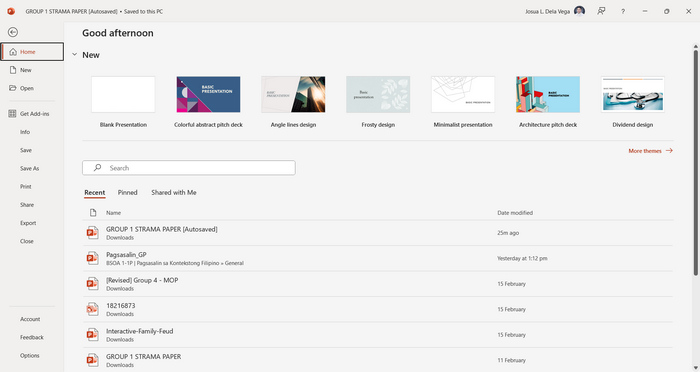
Paso 1. Abre tu presentación utilizando el software de presentaciones PowerPoint en tu dispositivo.
Paso 2. Ve a la pestaña Archivo, busca el botón Exportar y haz clic en él.
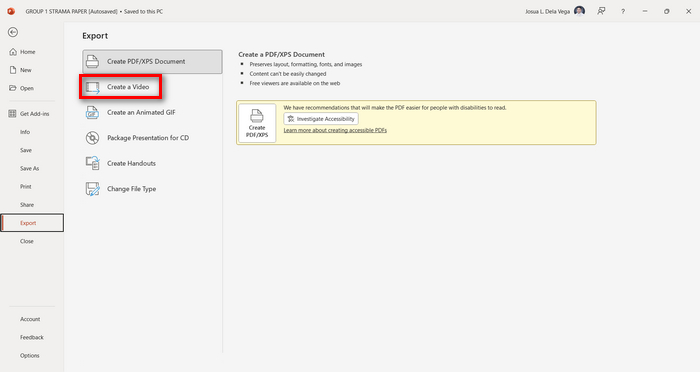
Paso 3. Una vez estés en la pestaña Exportar, haz clic en la opción Crear un vídeo.
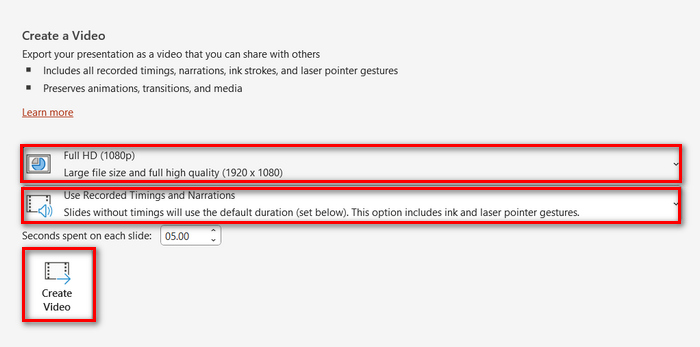
Paso 4. Ahora, establece la resolución de vídeo que prefieras. Puedes elegir entre 480p y 4K. Además, en la opción Usar intervalos y narraciones grabados, puedes configurar manualmente la duración de tus diapositivas. Después de eso, haz clic en el botón Crear vídeo.
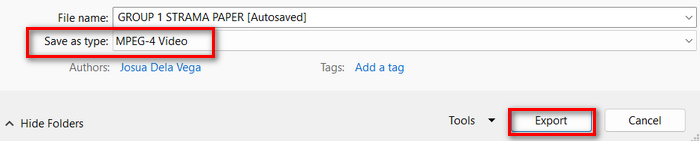
Paso 5. Tras hacer clic en el botón Crear un vídeo, aparecerá una nueva ventana en la que podrás comprobar el formato del archivo de salida y la carpeta en la que quieres guardarlo. Una vez configurado, simplemente haz clic en el botón Exportar y espera a que finalice.
Es, sin duda, muy práctico convertir PowerPoint a MP4 usando su función integrada. Sin embargo, carece de opciones de personalización si quieres añadir música de fondo. No obstante, si tu objetivo es únicamente compartir la presentación, entonces esto no supondrá ningún problema para ti.
Parte 2: Convertir PPT a MP4 con audio en línea gratis
Si tiene el archivo PPT y desea convertirlo en línea porque no tiene una aplicación o herramienta de presentación de PowerPoint en su dispositivo, puede usar MagicSlides. Esta herramienta de conversión en línea le permite convertir PowerPoint a MP4 fácilmente con solo importar el archivo a su sistema.
Paso 1. Sube el archivo PPT que quieres convertir a MP4 haciendo clic en el botón Subir archivo de origen.
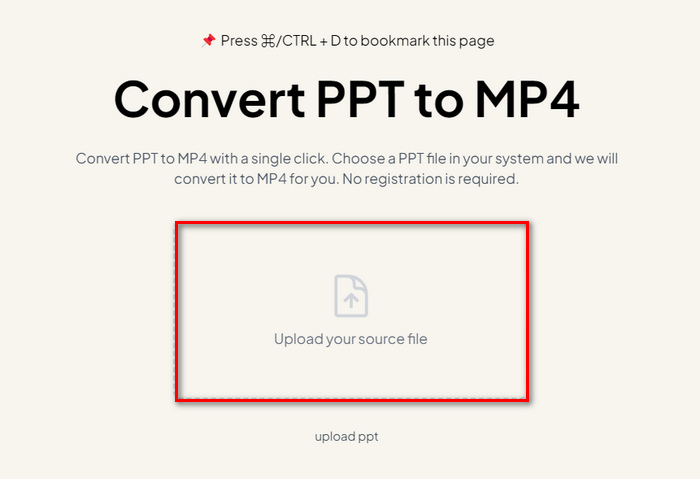
Paso 2. Una vez que el archivo se haya importado, haz clic en el botón Crear MP4 para iniciar el proceso de conversión.
Paso 3. Cuando termine, primero podrás previsualizar el archivo PPT convertido y, cuando estés satisfecho con el resultado, simplemente haz clic en el botón Descargar para guardarlo directamente en tu dispositivo.
Si bien esta herramienta ofrece pasos muy simples para convertir PPT a MP4, importar archivos PPT lleva mucho tiempo, lo que puede resultar desconcertante, especialmente cuando tienes prisa. Además, no tiene opciones de personalización. Literalmente, solo transforma archivos PPT en un video.
Parte 3: Cómo convertir PPT a MP4 con efectos y audio
Si quieres convertir tu PPT a MP4, pero esta vez con efectos y audio, entonces esta opción es perfecta para ti. Con FVC Screen Recorder, puedes transformar tu presentación de PowerPoint en un archivo MP4 creativo e interactivo utilizando sus funciones de edición. Además, no tienes que preocuparte por la calidad del resultado, ya que admite resolución de vídeo de hasta 4K. Así que, para usarlo, sigue la guía que aparece a continuación:
Paso 1. Primero, descarga la herramienta de software e instálala en tu ordenador.
Descarga gratuitaPara Windows 7 o posteriorDescarga segura
Descarga gratuitaPara macOS 10.7 o posteriorDescarga segura
Paso 2. Abre tu presentación de PowerPoint y asegúrate de que esté en pantalla completa.
Paso 3. Ahora, en la herramienta de grabación de pantalla, elige la función Grabador de vídeo y selecciona el área de grabación como Completa.
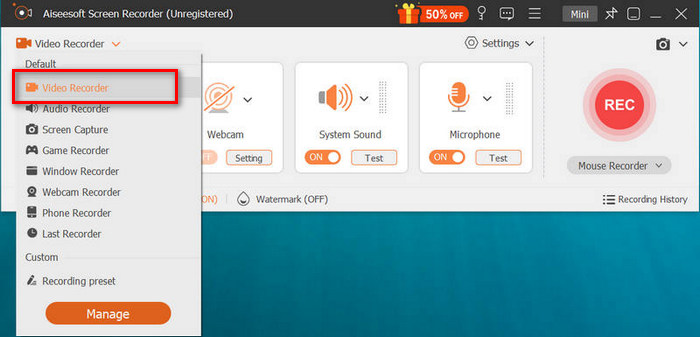
Paso 4. Después de eso, comienza a reproducir la presentación de diapositivas de PowerPoint. Del mismo modo, haz clic en el botón REC para empezar a grabar el PowerPoint.
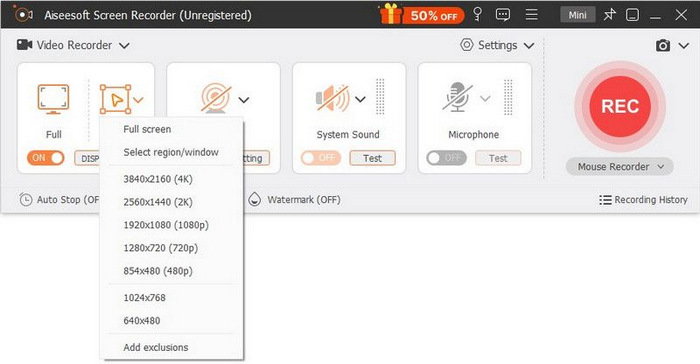
Paso 5. Cuando hayas terminado, simplemente haz clic en el botón Detener y se te llevará a la interfaz de vista previa. Desde ahí, en la esquina inferior encontrarás las funciones de edición que puedes utilizar para editar el audio y los efectos al convertir tu PPT a MP4.

Paso 6. Por último, puedes acceder a tu archivo haciendo clic en el botón Abrir carpeta.
Lo bueno de usar FVC Screen Recorder para convertir PowerPoint a MP4 es que puedes controlar el tiempo y el ritmo de las diapositivas. Además, a diferencia de otras herramientas que solo ofrecen una conversión básica, esta herramienta tiene funciones de edición que se pueden usar para mejorar aún más el archivo MP4 convertido.
Parte 4: Preguntas frecuentes sobre la conversión de PPT a MP4
¿Cuánto tiempo se tarda en convertir PPT a MP4?
El tiempo que lleva el proceso de conversión depende del tamaño del archivo que se va a convertir, pero normalmente las presentaciones sencillas no requieren mucho tiempo durante la conversión.
¿Puedo conservar animaciones y transiciones al convertir PPT a MP4 en PPT?
Sí. La función integrada permite a los usuarios conservar las animaciones y transiciones durante el proceso de conversión. Esto es para garantizar que los elementos visuales de la presentación, como las transiciones y las animaciones, se mantengan durante la conversión al formato MP4. Sin embargo, es importante tener en cuenta que la compatibilidad de las animaciones y las transiciones puede variar según la versión de PowerPoint utilizada y la complejidad de los efectos aplicados.
¿Se conservará la calidad de mi presentación de PowerPoint al convertirla a MP4?
Sí. Las presentaciones de PowerPoint admiten una resolución de video de hasta 4K. Por lo tanto, elegir una resolución más alta ayudará a mantener la calidad de la presentación. Además, cuando elige convertir su PPT a MP4 utilizando alguna herramienta de conversión avanzada que ofrece opciones para ajustar la tasa de bits y la configuración de compresión para optimizar aún más la calidad del video, puede garantizar un resultado de calidad.
Conclusión
Convertir el formato de PPT a MP4 ofrece, sin duda, comodidad y accesibilidad para compartir el archivo en varias plataformas y dispositivos. Ahora que ya sabes cómo convertirlos, es el momento de poner en práctica estos conocimientos. ¡Empieza a convertir hoy mismo y amplía el alcance e impacto de tus presentaciones!
-
 Cómo cambiar el tamaño de una imagen en PowerPoint [La forma más rápida de cambiar el tamaño]
 Aprender a cambiar el tamaño de las imágenes en PowerPoint es esencial, especialmente si desea usarlo en su presentación. Lee este artículo para saber cómo hacerlo.
-
 Revisión del eliminador de marcas de agua de Apowersoft: características, pros y contras, y precio
 Apowersoft Watermark Remover es uno de los mejores removedores de marcas de agua que admite en línea y fuera de línea, ¡haga clic aquí para saber más!
-
 Cómo arreglar el video que no se reproduce en PowerPoint | Guía rápida
 ¿Tu vídeo de PowerPoint no se reproduce? Supere la frustración de los videos incrustados que no se reproducen ahora con nuestras cinco mejores soluciones para resolverlos sin esfuerzo.
