


 Video Converter Ultimate
 Grabador de pantalla
 Reparación de vídeo
 Descarga segura
Los 4 mejores convertidores MP4 a MKV gratuitos para convertir archivos MP4 en MKV con solo unos clics
Si desea agregar subtítulos a un video MP4, será mejor que convierta MP4 a MKV. MKV es un archivo de video de Matroska que admite un número ilimitado de pistas de audio, imágenes y subtítulos. No es difícil convertir archivos MP4 a MKV. Puede obtener más detalles sobre los 4 mejores métodos del artículo. Además, aquí hay un método definitivo para agregar subtítulos y editar el video con la facilidad que debería saber.

Parte 1: 3 mejores métodos para convertir MP4 a MKV
Top 1: Cómo convertir MP4 a MKV en línea gratis
Cuando quieras convertir archivos MP4 a MKV en línea, FVC Free Online Video Converter es un conversor de vídeo versátil que permite convertir gratis la mayoría de formatos de vídeo, como MP4, MKV y muchos más. También te permite ajustar la configuración de vídeo y audio para la salida. Además, admite la conversión por lotes, de modo que puedes convertir fácilmente varios vídeos o archivos de audio a la vez.
- 1. Convierta MP4 a MKV, AVI, FLV y más formatos / ajustes preestablecidos de medios.
- 2. Modifique el códec de video, la velocidad de fotogramas, el formato de video y el formato de video.
- 3. La conversión es sencilla sin marca de agua u otra restricción.
- 4. Proporcione una interfaz fácil para convertir archivos MP4 a MKV en 3 pasos.
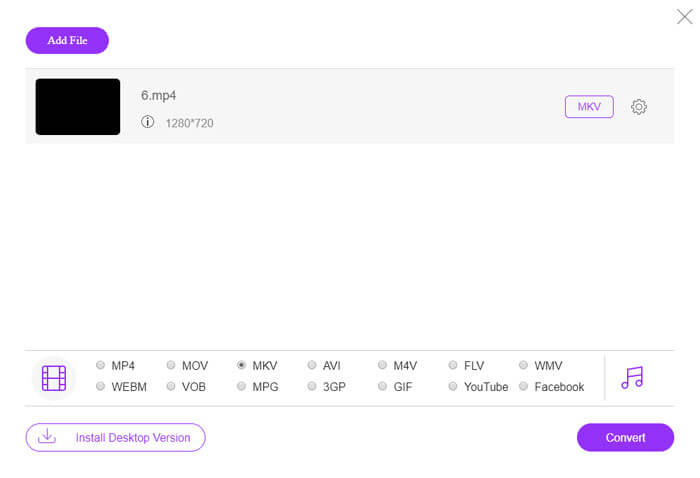
Paso 1. Ve a FVC Free Online Video Converter y haz clic en el botón Add Files to Convert para añadir el archivo MP4 al programa. Si es la primera vez que usas este conversor MP4 a MKV en línea, deberás descargar el instalador de antemano.
Descarga la versión de escritorio para convertir archivos por lotes.

Paso 2. Una vez que hayas importado los vídeos MP4, puedes elegir la opción MKV como formato de salida. Haz clic en el icono de Gear para ajustar la configuración de vídeo y audio, como el códec de vídeo, la velocidad de fotogramas, la resolución y otros parámetros.

Paso 3. A continuación, haz clic en el botón Convert para convertir MP4 a MKV con la calidad deseada. Solo tardarás unos segundos en obtener el MKV que quieres en tu ordenador. Puedes previsualizar el vídeo de salida antes de guardarlo en tu equipo.
Top 2: Cómo convertir MP4 a MKV con VLC Media Player
VLC Media Player es más que un reproductor multimedia para archivos MKV; también incluye su propio conjunto de códecs para la mayoría de formatos de vídeo y audio. Si no dispones de MKV como formato de salida, también puedes buscar algunos complementos para convertir archivos MP4 a MKV con VLC como se indica a continuación.
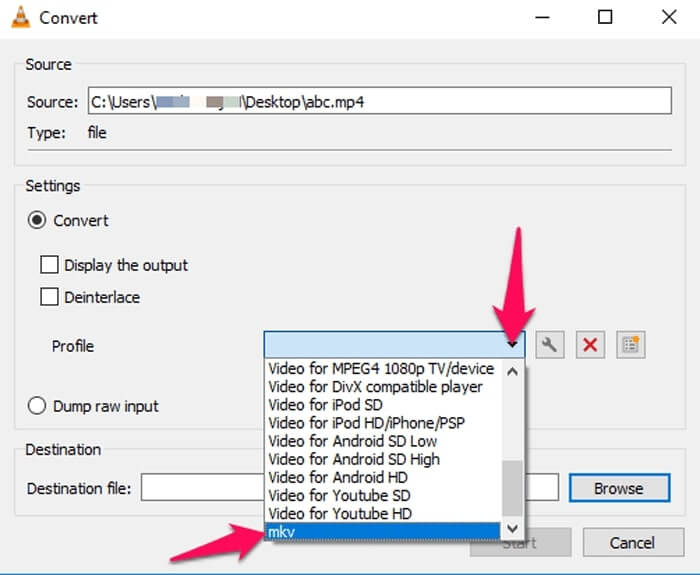
Paso 1. Inicia VLC Media Player y abre el programa en tu ordenador. Haz clic en el menú Media y elige la opción Convert/Save... para importar el archivo MP4 que necesitas convertir.
Paso 2. En la ventana Open Media, haz clic en la opción File y luego en el icono Add. Selecciona el archivo MP4 en tu carpeta. Después, elige el botón Convert en el menú desplegable Convert/Save.
Paso 3. A continuación, puedes elegir MKV como formato de salida. Haz clic en la opción Browse para establecer una carpeta de destino para el archivo convertido. Luego elige la opción Start para convertir MP4 a MKV.
Top 3: Cómo convertir MP4 a MKV desde una URL
¿Es posible convertir un MP4 en línea a MKV directamente? AConvert tiene una serie de convertidores en línea de video a MKV, que puede ingresar la URL del video para convertir al formato deseado. Por supuesto, también le permite modificar la configuración de video.
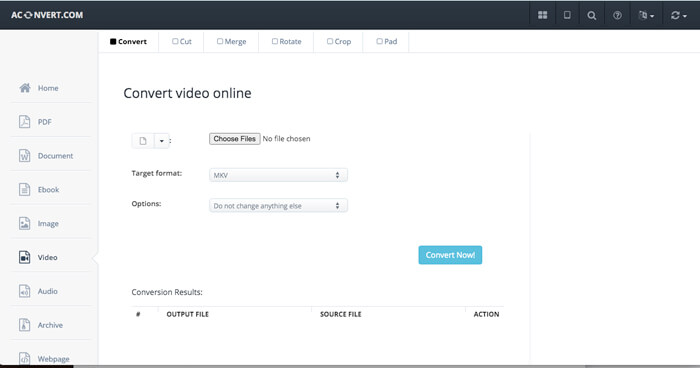
Paso 1. Ve a aconvert.com desde cualquier navegador y elige el menú Convert en la esquina superior izquierda. Haz clic en la flecha para seleccionar la opción Online File en la lista desplegable.
Paso 2. Haz clic en Target format y selecciona el formato MKV. Luego haz clic en Options para ajustar el tamaño del vídeo, la tasa de bits de vídeo, la velocidad de fotogramas, la relación de aspecto y otros parámetros para convertir MP4 a MKV.
Paso 3. A continuación, haz clic en el botón Convert Now! para iniciar la conversión por lotes. Los archivos de salida aparecerán en la sección Conversion Results, desde donde podrás descargarlos a tu ordenador.
Parte 2: El método definitivo para convertir MP4 a MKV
¿Existe algún método para convertir MP4 a MKV con subtítulos directamente? FVC Video Converter Ultimate es un convertidor de MP4 a MKV definitivo que le permite modificar la configuración de video / audio, editar los archivos de video, agregar una pista de subtítulos / audio e incluso extraer archivos de DVD con facilidad.
- 1. Convierta MP4 a MKV en un proceso por lotes con la calidad original.
- 2. Modifique la velocidad de fotogramas, la calidad del video, el código de video y más.
- 3. Edite los videos con clip, gire, recorte, corte, comprima, filtros de video, etc.
- 4. Reproductor multimedia integrado para cualquier formato de video HD 4K / 1080p y archivos de DVD.
Descarga gratuitaPara Windows 7 o posteriorDescarga segura
Descarga gratuitaPara macOS 10.7 o posteriorDescarga segura
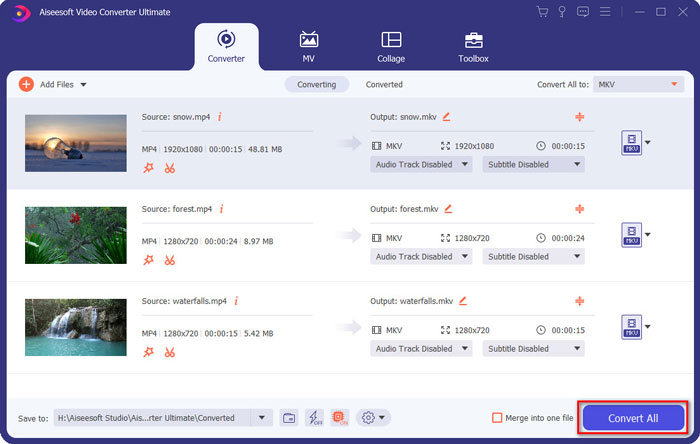
Paso 1. Descarga e instala el programa en tu ordenador; después, haz clic en Add File y selecciona Add File o Add Folders, o arrastra directamente varios archivos de vídeo y audio a este programa.

Paso 2. A continuación, puedes seleccionar MKV como formato de salida y ajustar los parámetros del perfil según tus necesidades, como la resolución, la velocidad de fotogramas, el códec de audio y otras configuraciones.

Paso 3. Cuando necesites añadir subtítulos o pistas de audio, haz clic en el canal de audio o en el subtítulo para elegir el que desees antes de hacer clic en el botón Convert All para convertir MP4 a MKV.
MP4 frente a MKV
Lanzado por el Grupo de expertos en imágenes en movimiento (MPEG) en 2001, el formato MP4 puede ayudarlo a guardar datos de video, audio, subtítulos e imágenes en pistas separadas. Es la abreviatura de MPEG-4 Parte 14. Además, es uno de los formatos más populares utilizados para transmitir y compartir videos.
El formato de contenedor multimedia Matroska, lanzado en 2002, es un formato de código abierto que puede incluir varias pistas de video, audio, imágenes y subtítulos. Por lo tanto, puede usarlo para almacenar clips de video cortos, programas de TV y películas fácilmente. Es bastante popular para los fanáticos del anime.
Parte 3: Preguntas frecuentes sobre cómo convertir MP4 a MKV
1. ¿Cuál es la ventaja de MKV?
Similar al formato de archivo MP4, MKV es otro formato de contenedor general. Puede contener varias pistas diferentes, cada una de las cuales usa un formato de compresión diferente. Puede editar los subtítulos, como SRT, PGS / SUP, VobSub y SSA. Cuando convierte MP4 a MKV, siempre puede personalizar los videos con el subtítulo deseado y la pista de audio en consecuencia.
2. ¿Cómo editar archivos MKV con facilidad?
Por supuesto, puede simplemente usar un convertidor profesional de MP4 a MKV para editar la configuración de video / audio, o incluso editar la pista de audio y los subtítulos, como FVC Video Converter Ultimate. Además, también puede usar MKVToolNix de nivel de entrada gratuito para editar y administrar los subtítulos en Windows, Mac y Linux con facilidad.
3. ¿Qué es importante para convertir MP4 a MKV?
Si necesita convertir MP4 a MKV, debe prestar atención al tamaño del video de salida. Por lo general, el archivo MKV es mucho más grande que el MP4, especialmente cuando necesita agregar subtítulos y pistas de audio. Cuando usa los convertidores de video en línea, es posible que no pueda convertir correctamente todos los videos MKV.
Conclusión
Cuando desee localizar los videos de transmisión en línea, puede obtener más detalles sobre los mejores métodos para convertir MP4 a MKV con facilidad. Simplemente marque los 3 métodos en línea más utilizados, así como la solución definitiva del artículo. Si tiene alguna consulta sobre la conversión de archivos MP4 a MKV en Windows y Mac, puede dejar un comentario en el artículo.
-
 Cómo convertir M2TS a MKV sin perder calidad
 ¿Quiere convertir M2TS a MKV manteniendo la calidad original? Esta publicación le muestra métodos gratuitos y en línea para cambiar M2TS a MKV sin pérdidas.
-
 MKV vs MP4: Cuáles son las diferencias y cómo convertir
 ¿Cómo elegir entre MKV y MP4? ¿Qué formato es mejor para la calidad de video? En este artículo, haremos una comparación detallada de MKV vs MP4 para ayudarlo a tomar una decisión.
-
 Cómo convertir MP4 a WMV para Mac / Windows
 Esta publicación comparte cómo convertir videos MP4 a formato WMV en Mac o Windows. También le ofreceremos varias opciones, que incluyen tanto software de escritorio como convertidores en línea basados en la web. ¿Listo para conocer las mejores herramientas de conversión de MP4 a WMV?

