


 Video Converter Ultimate
 Grabador de pantalla
 Reparación de vídeo
 Descarga segura
Las 3 formas principales de reproducir MP4 en Chromebook
¿Chromebook ya no reproduce videos MP4? Recientemente, muchos usuarios se han quejado de que el video no se reproduce en un problema de Chromebook. ¿Te enfrentas a la misma situación?
Chromebook es un portátil producido por Google. Ejecuta Chrome OS y es compatible con muchos tipos de archivos y servicios de almacenamiento en la nube. Puede guardar vídeos en Google Drive y en el almacenamiento en la nube de Google para verlos. ¿Sabes cómo reproducir MP4 en un Chromebook?

Chromebook tiene un reproductor de vídeo integrado para reproducir archivos multimedia. Sin embargo, algunos archivos MP4 simplemente no se pueden reproducir con él. Teniendo eso en cuenta, esta publicación quiere compartir 3 métodos eficaces para ayudarte a reproducir archivos MP4 en un Chromebook.
Parte 1. Cómo reproducir MP4 en Chromebook con Google Drive
Cuando el reproductor de video nativo de Chrome OS no puede leer su códec contenedor MP4, no puede reproducir MP4 en Chromebook. En ese caso, puede optar por reproducir archivos MP4 a través de Google Drive. Chromebook le permite almacenar videos MP4 en Google Drive, Dropbox y otros servicios de almacenamiento en la nube. Puede abrir videos MP4 con Google Drive en Chromebook.
Cuando desee reproducir MP4 en Chromebook, primero debe cargar los archivos MP4 en Google Drive. Luego, puede ubicar MP4 en Google Drive y reproducirlo.
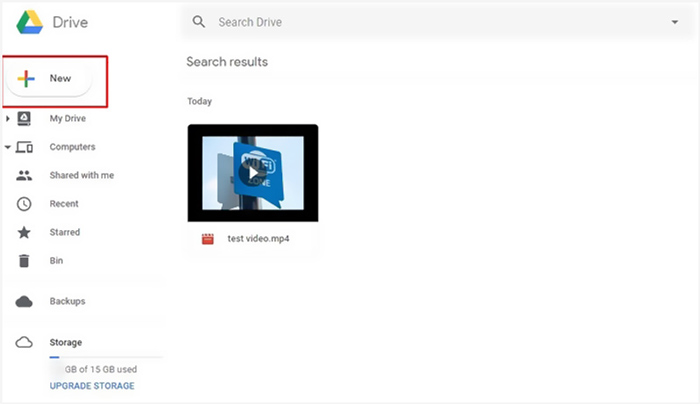
Tenga en cuenta que, para reproducir archivos MP4 en Chromebook a través de Google Drive, se requiere una buena conexión de red.
Parte 2. Instale VLC para Chrome OS para reproducir MP4 en Chromebook
Además del método anterior, también puedes instalar un reproductor multimedia de terceros para reproducir MP4 en tu Chromebook. Como Chromebook utiliza Chrome OS, puede que no tengas muchas buenas opciones de reproductor. Afortunadamente, el popular VLC Media Player ofrece una versión para Chrome OS que te permite disfrutar de todo tipo de archivos de vídeo y audio en Chromebook. Puedes recurrir a él para reproducir MP4 en Chromebook sin complicaciones.
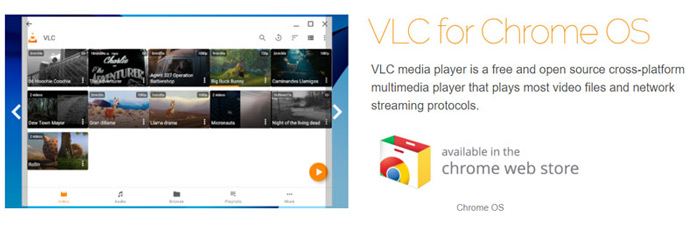
Abre la Chrome Web Store en tu Chromebook y busca VLC. Cuando encuentres VLC for Chrome OS, sigue las instrucciones para instalarlo. Después podrás reproducir archivos MP4 en Chromebook con VLC. Ofrece una amplia compatibilidad con la mayoría de archivos multimedia, retransmisiones en red y DVDs. Además de MP4, VLC for Chrome OS también puede reproducir MOV, MKV, AVI, OGG, TS, M2TS, AAC, MP3, FLAC y otros formatos.
Parte 3. Convertir formato de video para reproducción MP4 en Chromebook
MP4 es un contenedor de archivos para códecs de audio y video. Chromebook solo admite video MP4 codificado con códec de compresión H.264 o MPEG-4. Por lo tanto, cuando desee reproducir MP4 en Chromebook, debe transcodificar MP4 a un formato compatible con Chromebook. Además de MP4, Chromebook también admite videos en 3GP, WebM, MOV y AVI con códec específico.
Para convertir MP4 a un formato compatible con Chromebook, puedes recurrir al conversor profesional de vídeo a Chromebook, Video Converter Ultimate. Dispone de una categoría específica para Chromebook para que conviertas directamente MP4 a un formato admitido por Chromebook. Aún más importante, puede convertir vídeo sin pérdida de calidad.
- • Convierta videos MP4 a archivos compatibles con Chromebook sin perder calidad.
- • Convierta videos 8K / 5K / 4K, 1080p / 720p HD y SD a más de 500 formatos como MOV, MP4, AVI, FLV, MP3 y más.
- • Potentes funciones de edición, agregue filtros y varios efectos, y mejore la calidad.
- • Soporta aceleración de hardware sin precedentes y optimización de procesador multinúcleo.
Paso 1. Primero, instala gratuitamente este conversor de MP4 a Chromebook en tu ordenador. Es compatible tanto con PC con Windows 10/8/7 como con Mac.
Descarga gratuitaPara Windows 7 o posteriorDescarga segura
Descarga gratuitaPara macOS 10.7 o posteriorDescarga segura
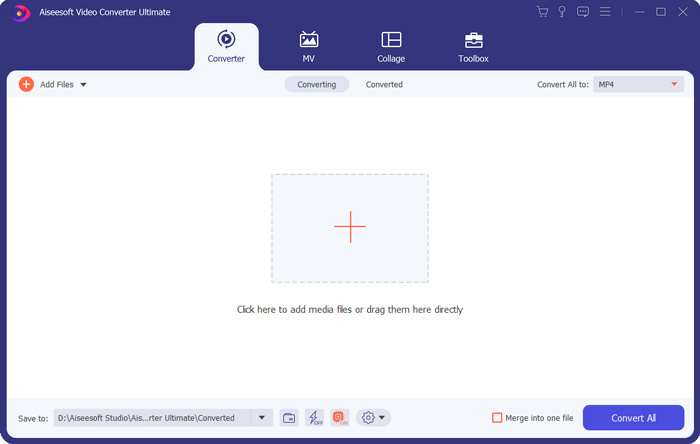
Paso 2. Ábrelo y asegúrate de que estás utilizando la función Converter. Luego haz clic en el gran signo + o en el botón Add Files para importar tu archivo MP4. Puedes añadir y convertir uno o varios vídeos a la vez.
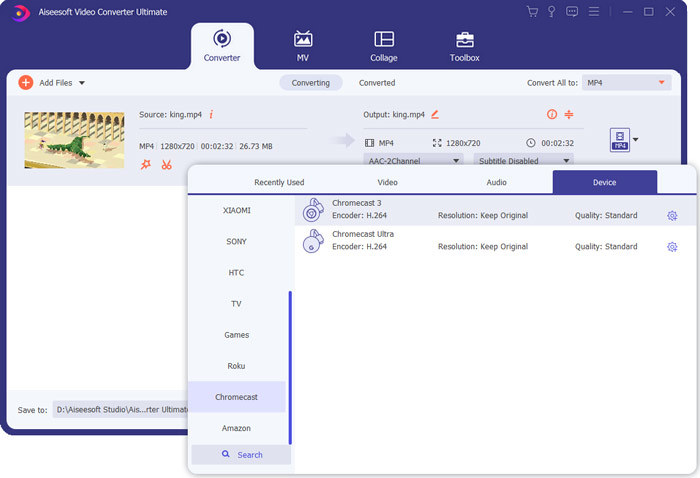
Paso 3. Haz clic en el icono de format en el lado derecho del vídeo importado. Selecciona un formato de salida adecuado en la lista desplegable. Aquí puedes hacer clic en la pestaña Device para localizar un formato compatible con Chromebook.
Paso 4. Antes de la conversión final, puedes usar distintas funciones de edición para editar el vídeo, mejorar su calidad y personalizar los efectos de salida. Después de todas estas operaciones, simplemente haz clic en el botón Convert All para empezar a convertir MP4 a Chromebook.
Con solo unos pocos clics, puede convertir fácilmente videos a un archivo compatible con Chromebook. Luego, puede transferirlo a su Chromebook para su reproducción.
Parte 4. Preguntas frecuentes sobre la reproducción de MP4 en Chromebook
Pregunta 1. ¿Qué formatos de video se reproducen en Chromebook?
Los Chromebook pueden admitir muchos tipos de archivos, dispositivos externos y sistemas de almacenamiento en la nube. Para los formatos de video, puede reproducir MP4, MOV, M4V, MKV, OGG, 3GP, OGM, WebM, WAV, AVI y más.
Pregunta 2. ¿Por qué no puedo usar Google Play en Chromebook?
Se le permite usar Google Play en Chromebook. Pero primero debe habilitar esta función. Puede ir a Configuración en Chromebook, elegir la sección Google Play Store y luego activar la función. Después de eso, puede usar Google Play en Chromebook normalmente.
Pregunta 3. ¿Cómo habilitar Flash Player en Chrome?
Cuando desee utilizar Flash Player en Google Chrome, puede hacer clic en el icono de candado en el lado izquierdo de la barra de direcciones. Haga clic en el cuadro Flash y luego elija el botón Permitir. Haga clic en Recargar para guardar el cambio. Al hacerlo, puede usar Flash Player en Chrome.
Conclusión
¿No puedes reproducir MP4 en Chromebook? Después de leer este artículo, puedes obtener 3 consejos útiles para solucionar el problema. Si tienes más preguntas sobre cómo reproducir MP4 en un Chromebook, puedes dejarnos un mensaje.
-
 Tutorial para abrir y convertir archivos ARF con WebEx ARF Player
 Estos son los pasos detallados para usar WebEx ARF Player. Puede reproducir y convertir archivos ARF de WebEx en su computadora Windows y Mac con facilidad. Además, también puede mejorar la experiencia de reproducción con un 3er reproductor ARF.
-
 Obtenga su mejor reproductor MP4 para reproducir archivos MP4 con alta calidad visual
 Lea y obtenga su mejor reproductor MP4 de las recomendaciones del último software de reproducción de video MP4 10. Puede reproducir archivos de video MP4 en Windows y Mac sin problemas y sin demoras.
-
 AVI VS MP4 - Diferencias y similitudes entre los formatos AVI y MP4 - FVC
 ¿Cuál es mejor formato de video, AVI o MP4? Si desea obtener la comparación detallada, puede consultar este artículo de AVI VS MP4. Puede conocer las diferencias y similitudes entre AVI y MP4 en muchos aspectos.
