


 Video Converter Ultimate
 Grabador de pantalla
 Reparación de vídeo
 Descarga segura
Guía Completa Cómo Convertir Video a GIF con las Mejores Herramientas
¿Estás harto y cansado de desplazarte sin cesar a través de las redes sociales y ver las mismas viejas imágenes estáticas? ¿Por qué no agregar algo de vida a su presencia en línea con GIF? Estas animaciones cortas y en bucle se han vuelto cada vez más populares en los últimos años, y es fácil ver por qué. No solo llaman la atención, sino que también pueden transmitir emociones o conceptos complejos de una manera que una imagen fija simplemente no puede.
La buena noticia es que no necesitas ser un animador profesional para crear tus propios GIF. En esta publicación, te mostraremos cómo convertir un vídeo en GIF, para que puedas empezar a compartir tus propias animaciones personalizadas con el mundo, aumentar tu visibilidad en línea y captar la atención de tu audiencia con animaciones llamativas desde hoy mismo.

Parte 1. Convertir video a GIF en la computadora
Convertir videos en GIF es una forma divertida y creativa de reutilizar el contenido existente. Si tiene un video que le encanta pero que no necesariamente quiere compartir en su totalidad, puede convertirlo fácilmente en un GIF y resaltar un momento o una escena específicos. Esto le permite dar nueva vida a su contenido anterior y mantener su presencia en línea fresca y emocionante. Por lo tanto, los siguientes programas demostrarán el proceso de cómo hacer un GIF a partir de un video.
1. Video Converter Ultimate (modo sin conexión)
FVC Video Converter Ultimate es una versátil aplicación de escritorio que te permite convertir vídeos a varios formatos, incluidos los GIF. Con su creador de GIF integrado, puedes transformar fácilmente tus vídeos favoritos en GIF compartibles que son perfectos para redes sociales, apps de mensajería y mucho más.
La función de creación de GIF en FVC Video Converter Ultimate ofrece una gama de opciones de personalización, incluida la capacidad de seleccionar la hora de inicio y finalización del video, ajustar la velocidad de fotogramas y el tamaño del GIF y elegir el número de bucles. Además, puede agregar marcas de agua de texto o imagen a sus GIF para fines de personalización o marca. Para usar este creador de GIF del video, puede seguir los pasos a continuación:
Paso 1. Descarga el programa e instálalo
Primero, debes tener el programa instalado en tu ordenador. Para hacerlo, haz clic en cualquiera de los botones de Descarga gratuita que aparecen a continuación. Después, procede a instalar el programa siguiendo el asistente de instalación. A continuación, inicia el programa.
Descarga gratuitaPara Windows 7 o posteriorDescarga segura
Descarga gratuitaPara macOS 10.7 o posteriorDescarga segura
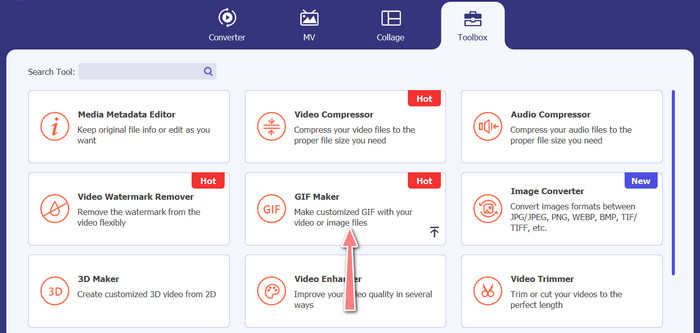
Paso 2. Accede al creador de GIF
Ahora que el programa está abierto y accesible, ya puedes empezar el proceso accediendo al Creador de GIF del programa. Ve a la pestaña Caja de herramientas y busca el Creador de GIF. Luego, en la siguiente interfaz verás el área de carga.
Paso 3. Carga un vídeo
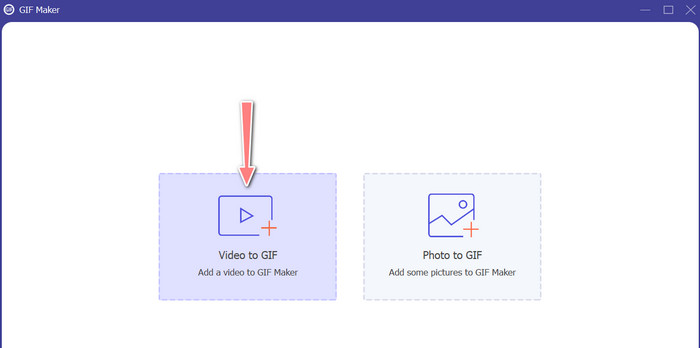
Esta vez, haz clic en el botón Vídeo a GIF y selecciona el vídeo que deseas convertir en GIF. Podrás seleccionarlo desde la unidad local de tu ordenador. Tras elegir el vídeo objetivo, ya puedes editarlo e iniciar el proceso de cómo hacer un GIF a partir de un vídeo.
Paso 4. Crea un GIF a partir de un vídeo
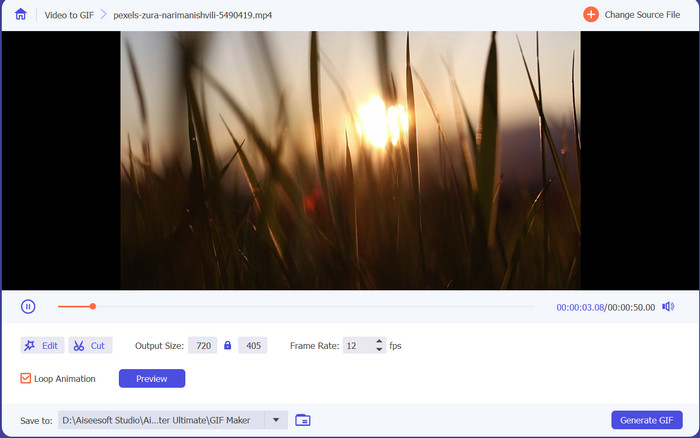
Una vez que tengas acceso al Creador de GIF, puedes recortar el vídeo cargado, editar el tamaño de salida, ajustar la velocidad de fotogramas o editarlo. Además, te permite activar o no la animación en bucle. Por último, haz clic en el botón Generar GIF cuando estés satisfecho con el resultado.
Pros
- Algoritmos avanzados de procesamiento de video para crear GIF de alta calidad.
- Ajuste la velocidad de fotogramas, el tamaño y la calidad del GIF.
- Interfaz amigable.
Contras
- La conversión puede ser lenta, dependiendo del hardware de la computadora.
2. GIMP
GIMP (Programa de manipulación de imágenes GNU) es un software de edición de imágenes de código abierto robusto y versátil que ofrece a los usuarios una amplia gama de herramientas y funciones para crear y manipular imágenes. Una de las características clave de GIMP es su capacidad para crear GIF animados. Con este creador de video a GIF, puede crear fácilmente GIF animados combinando múltiples imágenes o marcos en una sola animación. Puede importar imágenes a GIMP, agregar capas y usar las funciones de animación para crear una animación fluida y perfecta. También puede agregar texto, formas y otros elementos a sus GIF para hacerlos más interesantes y atractivos. Para crear un GIF a partir de un video, mira los pasos a continuación.
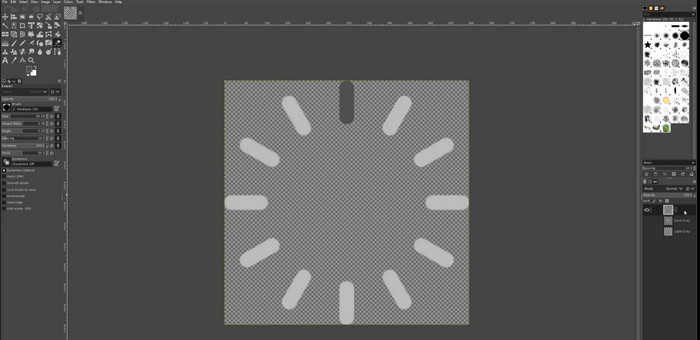
Paso 1. Abre GIMP e importa tu archivo de vídeo yendo a Archivo > Abrir y eligiendo el archivo de vídeo que quieras usar.
Paso 2. Una vez que hayas importado el vídeo, GIMP te pedirá que elijas la velocidad de fotogramas. Selecciona la velocidad de fotogramas que quieras para tu GIF y haz clic en Importar. Deberías ver los fotogramas del vídeo como capas separadas en el panel de Capas. Puedes eliminar cualquier fotograma que no quieras en tu GIF haciendo clic con el botón derecho sobre él y eligiendo Eliminar capa.
Paso 3. Haz clic con el botón derecho en la primera capa y elige Duplicar capa en el menú. Elige la copia y ve a Filtros > Animación > Blend. Ajusta la opacidad de la capa a 50% y establece el modo de fusión en Adición.
Paso 4. Ve a Archivo > Exportar como y elige el formato de archivo GIF para exportar el GIF. Ponle un nombre a tu archivo y elige la carpeta donde quieres guardarlo. Asegúrate de seleccionar Como animación y el retardo entre fotogramas que deseas en el cuadro de diálogo de exportación. También puedes elegir cuántas veces quieres que se repita tu animación o si quieres que se repita indefinidamente.
Pros
- El video a GIF en GIMP es gratuito y es de código abierto.
- Disponible en múltiples plataformas.
- Potentes herramientas de edición de imágenes.
Contras
- Curva de aprendizaje empinada.
- Falta de integración con otro software.
3. Convertidor de video gratuito en línea
Si deseas convertir al instante tus vídeos favoritos en GIF, puedes optar por usar Free Video Converter Online de FVC. Te permite subir muchos formatos de archivo de vídeo y convertirlos a varios formatos, incluido GIF. Por lo tanto, si estás buscando un conversor de vídeo a GIF en línea, deberías considerar usar esta herramienta. Además, el proceso es sencillo y no te quitará mucho tiempo. Todo lo que tienes que hacer es subir los archivos; la conversión está a un solo clic. A continuación, se indican los pasos sobre cómo convertir un vídeo en un GIF gratis en línea.
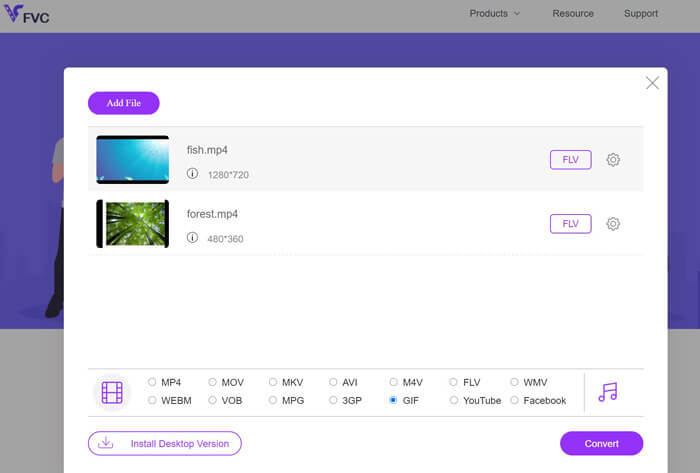
Paso 1. Abre un navegador en tu ordenador y ve al sitio web oficial del programa. En la página principal verás ya el botón de subida.
Paso 2. Ahora, pulsa el botón Añadir archivos para subir y se te pedirá que descargues el lanzador para habilitar la subida. Instálalo y listo.
Paso 3. Después de eso, añade el vídeo que hayas elegido desde tu ordenador. Luego, selecciona un formato configurando GIF como formato de salida de vídeo.
Paso 4. Puedes hacer clic en el icono de engranaje junto a la miniatura de tu vídeo para ajustar algunos parámetros de salida. Finalmente, pulsa el botón Convertir para transformar el vídeo en GIF.
Pros
- Convierte archivos sin perder calidad.
- Admite muchos formatos de archivo.
Contras
- Dependencia de la conectividad a Internet.
Ezgif es una herramienta en línea gratuita que le permite recortar, cambiar el tamaño, agregar texto o efectos y convertir entre diferentes formatos de imagen y video. También tiene una herramienta para hacer GIFs que permite a los usuarios hacer GIFs animados a partir de archivos de video o secuencias de imágenes. En general, Ezgif es una herramienta útil para la edición básica de imágenes y GIF, y su herramienta de creación de GIF facilita la creación de GIF animados. Pero puede que no sea bueno para tareas de edición más complicadas, y el hecho de que tenga límites en el tamaño y el control del archivo puede molestar a algunos usuarios. Aprenda cómo hacer un GIF con un video usando este programa a través de los pasos que se detallan a continuación.
4. EZGIF
Ezgif es una herramienta en línea gratuita que le permite recortar, cambiar el tamaño, agregar texto o efectos y convertir entre diferentes formatos de imagen y video. También tiene una herramienta para hacer GIFs que permite a los usuarios hacer GIFs animados a partir de archivos de video o secuencias de imágenes. En general, Ezgif es una herramienta útil para la edición básica de imágenes y GIF, y su herramienta de creación de GIF facilita la creación de GIF animados. Pero puede que no sea bueno para tareas de edición más complicadas, y el hecho de que tenga límites en el tamaño y el control del archivo puede molestar a algunos usuarios. Aprenda cómo hacer un GIF con un video usando este programa a través de los pasos que se detallan a continuación.
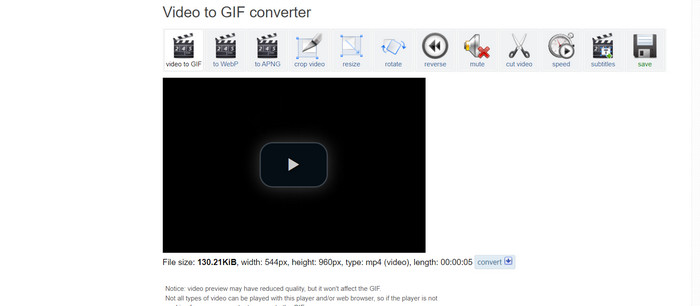
Paso 1. Ve al sitio de EZGIF. Luego, en las opciones de EZGIF, elige Vídeo a GIF.
Paso 2. Haz clic en Elegir archivo para subir el archivo de vídeo que quieres convertir en GIF. También puedes introducir la URL del vídeo.
Paso 3. Después de subir el vídeo, puedes usar los controles deslizantes para elegir dónde empieza y termina el GIF. También puedes usar las opciones para añadir texto, aplicar filtros o cambiar el tamaño del GIF.
Paso 4. Haz clic en el botón Convertir a GIF cuando estés satisfecho con la configuración. Una vez finalizada la conversión, puedes hacer clic en el botón Descargar para guardar tu GIF.
Pros
- Proporciona una gama de características y un Editor de GIF.
- Crea GIFs a partir de secuencias de imágenes.
- Completamente libre de usar.
Contras
- El sitio web muestra anuncios.
- Funciones de edición limitadas.
Parte 2. Convertir video a GIF en Android y iPhone
La aplicación móvil GIPHY es una potente herramienta para crear y compartir GIF animados estés donde estés. Con la app, puedes convertir fácilmente tus vídeos y fotos en GIF que pueden usarse en redes sociales, apps de mensajería y más. La app también ofrece acceso a una amplia biblioteca de GIF ya preparados que se pueden buscar y compartir al instante. Tanto si buscas un GIF de reacción, un meme divertido o un clip de un animal adorable, seguro que lo encuentras en GIPHY. Sigue las instrucciones para convertir vídeo a GIF en dispositivos Android e iOS.
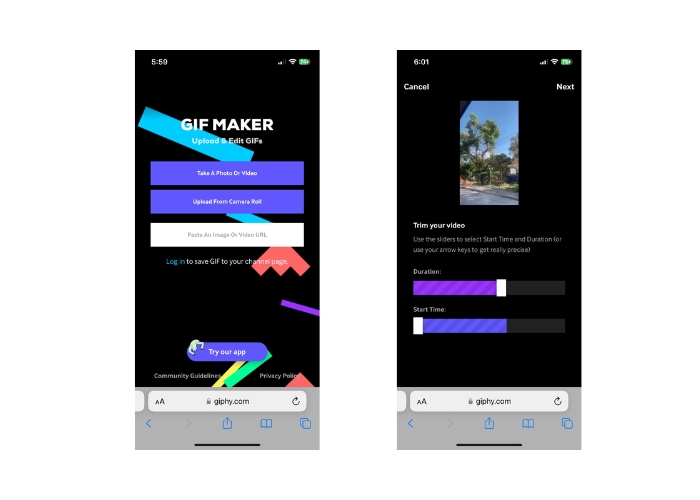
Paso 1. Descarga la app GIPHY desde la App Store (iOS) o Google Play Store e instálala en tu teléfono (Android). Para crear un nuevo GIF, abre la app y toca el icono de la cámara.
Paso 2. Elige el vídeo o las fotos que quieras usar para crear un GIF.
Paso 3. Usa el editor para recortar partes de tu vídeo, añadir filtros, cambiar la velocidad o modificar las opciones de bucle.
Paso 4. Toca el botón que dice Crear GIF para generar tu GIF. Una vez creado, puedes guardarlo en el carrete de tu cámara o enviarlo directamente a redes sociales o apps de mensajería.
Pros
- De uso gratuito.
- Compatibilidad multiplataforma.
- Biblioteca masiva de GIF prefabricados.
Contras
- Los derechos de autor.
- Duración limitada del vídeo.
Parte 3. Preguntas frecuentes sobre la conversión de videos a GIF
¿Cómo comparto mi GIF después de crearlo?
Una vez que haya creado su GIF, puede compartirlo en las redes sociales, aplicaciones de mensajería u otras plataformas cargándolo directamente o usando un enlace al archivo. Muchas herramientas de creación de GIF también ofrecen opciones integradas para compartir para que sea más fácil compartir su GIF con otros.
¿Cuáles son las limitaciones de crear un GIF a partir de un video?
La creación de un GIF a partir de un video puede provocar una pérdida de calidad, ya que los GIF suelen tener una resolución más baja y una paleta de colores limitada. Además, puede haber limitaciones en la longitud y el tamaño del GIF resultante, según la herramienta que esté utilizando.
¿Cuál es la duración ideal para un GIF creado a partir de un video?
La duración ideal de un GIF creado a partir de un video depende del uso previsto y de la plataforma en la que se compartirá. Para las plataformas de redes sociales, la duración recomendada suele ser de 3 a 6 segundos.
Conclusión
Con la variedad de conversores en línea, programas de software y aplicaciones móviles disponibles para crear GIF a partir de vídeos, nunca ha sido tan fácil compartir contenido animado y divertido con amigos y seguidores. Para algunas recomendaciones a la hora de crear GIF a partir de un vídeo con calidad, es importante elegir un vídeo con buena iluminación, una mínima trepidación de cámara y una duración adecuada para la plataforma a la que va destinado.
-
 Una guía paso a paso para convertir MP4 a GIF en el escritorio o en línea
 ¿Está buscando la mejor manera de convertir su video MP4 en GIF animados? Aquí hay una guía detallada para hacerlo en Photoshop, Windows Movie Maker, convertidor de video en línea y más.
-
 Loop GIF con el mejor GIF Looper animado en Windows y Mac
 ¿Quieres saber el secreto del mejor GIF en bucle? ¿Quieres hacer uno? Si es así, estás en el lugar correcto. Por lo tanto, aprenda a crear un bucle con el mejor looper disponible.
-
 Cómo dividir GIF y personalizar archivos GIF animados favoritos
 Aprende a dividir GIF en marcos y personalízalos para que se ajusten a tus necesidades con nuestra guía fácil de seguir. Ahorre tiempo y use solo las partes del GIF que necesita.
