


 Video Converter Ultimate
 Grabador de pantalla
 Reparación de vídeo
Cómo agregar rápidamente imágenes a un video en menos de un minuto
Hay muchas razones por las que necesita agregar imágenes al video. Por ejemplo, algunos editores descubrieron que agregar imágenes a sus videos crea una nueva interacción para los otros usuarios. De esta manera, puede usar esto para representar su marca o hacer una excelente presentación visual y ayudar a que su video transmita el mensaje correcto a los usuarios. Pero, ¿sabías que muchas herramientas realizan el mismo trabajo? Sabemos que es difícil elegir qué herramienta se adapta mejor a ti. Así que hoy, ya hemos seleccionado las tres herramientas que encontramos que funcionan bien. Una vez que hayas leído este artículo, aprenderás a agregar imágenes a tus videos.

Parte 1. Guía paso a paso sobre cómo agregar imágenes a videos con Video Converter Ultimate
¿Quieres añadir una imagen al vídeo con la herramienta definitiva? En ese caso, usa Video Converter Ultimate. Con la ayuda de esta herramienta definitiva, puedes superponer fácilmente la imagen al vídeo aunque no seas un profesional en este ámbito de la edición. Además de su capacidad para superponer imágenes en el vídeo, puedes usar esta herramienta para añadir música de fondo, añadir subtítulos y mucho más. Es conocida por ser la solución integral para la mayoría de los problemas relacionados con el vídeo. ¿Quieres saber cuáles son las ventajas de usarla? Si es así, puedes leer los detalles que te ofrecemos a continuación.

FVC Video Converter Ultimate
5,689,200+ Descargas- Proporciona un rendimiento excepcional en la conversión y edición.
- Edite y haga un video fantástico con unos pocos clics.
- Admite más de 200 formatos, como MP4, MOV, FLV, WMV, AVI, MTV, etc.
- Disponible en todas las plataformas cruzadas para descargar, como Windows y Mac.
Descarga gratuitaPara Windows 7 o posteriorDescarga segura
Descarga gratuitaPara macOS 10.7 o posteriorDescarga segura
¿No es increíble las cosas que puedes hacer con la herramienta? Sí, sabemos que la herramienta es impresionante en muchos sentidos. Si esta herramienta te llamó la atención y quieres aprender cómo agregar una imagen a un video con esta herramienta, puedes leer el tutorial a continuación.
Paso 1. Haz clic en el botón de descarga que aparece a continuación para descargarlo directamente en tu disco, sigue la instalación y ejecútalo. Antes que nada, te agradeceríamos que te familiarizaras con la interfaz de la herramienta para distinguir fácilmente los pasos siguientes.
Descarga gratuitaPara Windows 7 o posteriorDescarga segura
Descarga gratuitaPara macOS 10.7 o posteriorDescarga segura
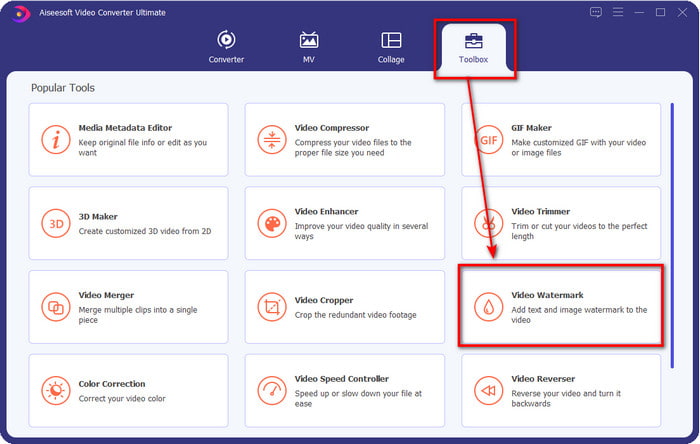
Paso 2. Una vez que la herramienta esté ejecutándose en el sistema, haz clic en Toolbox; debajo, localiza Video Watermark y ábrelo.
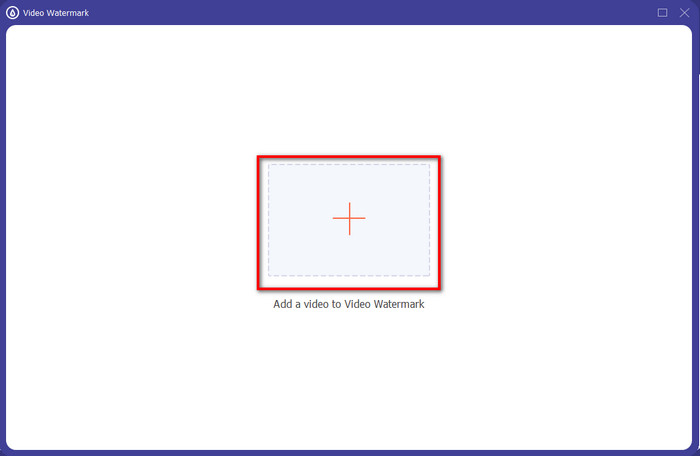
Paso 3. Cuando hayas pulsado el botón +, aparecerá una carpeta en la pantalla; localiza el archivo y haz clic en Open si se trata del archivo de vídeo.
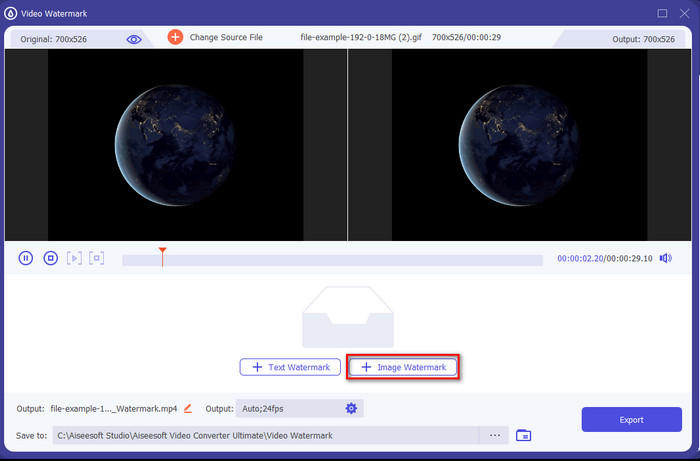
Paso 4. Aparecerá una nueva ventana, haz clic en Image Watermark; se abrirá de nuevo una carpeta, pero esta vez deberás insertar la imagen que quieres añadir a tu vídeo y pulsar Open.
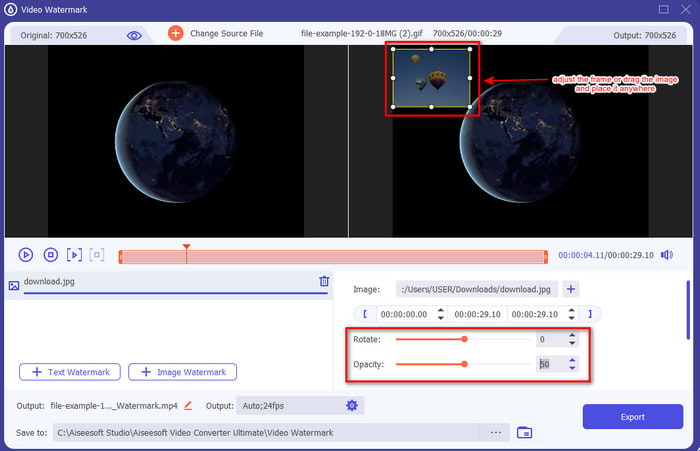
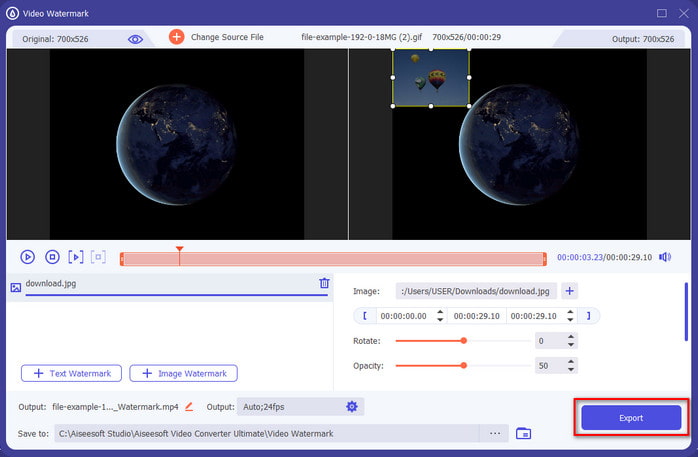
Paso 5. Ajusta el tamaño de la imagen que has insertado en el vídeo y su posición arrastrando el frame de la foto. Puedes colocarla donde quieras manteniendo pulsada y arrastrando la imagen. Además, puedes ajustar la visibilidad de la imagen modificando la Opacity. También puedes girar la imagen arrastrando el slider de Rotate.
Paso 6. Si ya has editado la foto, es el momento de hacer clic en Export.
Relacionado:
Cómo añadir subtítulos a un vídeo
Parte 2. Cómo superponer imágenes a videos en Internet de forma gratuita
Cortador de video en línea: agregue una imagen a un video
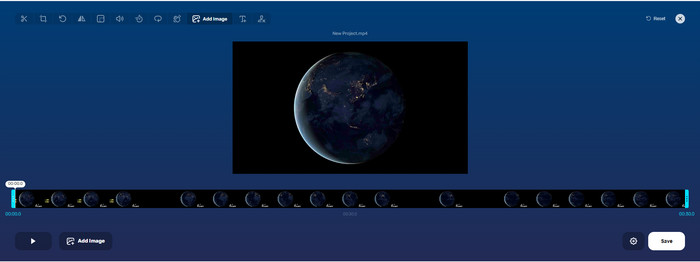
Si quieres superponer imágenes en línea, puedes usar Online Video Cutter – Add Image to a Video. Esta herramienta web ofrece una forma sencilla pero eficaz de añadir fotos a cualquier vídeo. Aunque la herramienta es muy buena, sigue siendo un poco engorroso subir el vídeo porque depende de tu conexión a Internet. Además, aquí no puedes añadir dos imágenes porque no es compatible. Pero si quieres usar la herramienta, puedes seguir los pasos siguientes.
Paso 1. Abre tu navegador y busca la herramienta web en la barra de búsqueda, luego ábrela.
Paso 2. Haz clic en Open File para subir el vídeo y, a continuación, en Add Image para subir la imagen que has insertado.
Paso 3. Arrastra la imagen para cambiar su posición, haz clic en Save para codificarla y guardarla en tu ordenador.
Pros
- De uso gratuito y no necesitarás descargarlo.
- Admite funciones de edición básicas para los usuarios.
- No tiene una marca de agua en la salida final.
Contras
- No puede agregar hasta 2 o más imágenes en el video.
- Cargar la imagen y el video toma tiempo para cargarse.
flixier
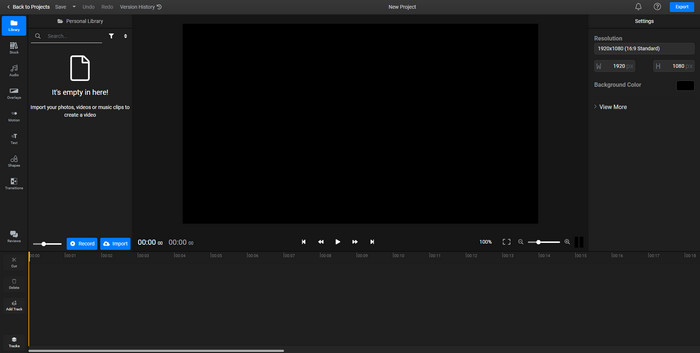
Puedes usar Flixier para añadir una imagen a un vídeo en línea de forma gratuita. Además, puedes editar tu plantilla de vídeo con esta herramienta online, incluida la opción de añadir imágenes. Esta herramienta ofrece excepcionales funciones de edición integradas que puedes usar para mejorar el aspecto de tu vídeo. Aunque la herramienta web te ofrece esta función exclusiva, en el momento de la exportación aparecerá una marca de agua en el resultado final porque es gratuita. Pero puedes comprar la versión de pago para eliminar esta marca de agua.
Paso 1. Abre tu motor de búsqueda, busca el nombre de la herramienta y haz clic en Choose File.
Paso 2. Haz clic en Import para subir el vídeo y las imágenes, arrastra el vídeo y la imagen a la línea de tiempo (Timeline) y asegúrate de que la imagen esté por encima del vídeo. Cambia la posición de la imagen arrastrándola dentro del vídeo.
Paso 3. Haz clic en Export y luego en Export and Download para guardarlo en el disco de tu ordenador.
Pros
- Gratuito y accesible en la web.
- Proporciona más funciones de edición que la primera herramienta en línea.
- Admite agregar múltiples imágenes a su video.
Contras
- La salida final tiene una marca de agua al final porque es gratis.
- Necesita comprar la versión VIP para eliminar la marca de agua en la salida de video.
Parte 3. Preguntas frecuentes sobre cómo agregar imágenes a un video
¿Agregar imágenes a un video afecta la calidad?
La calidad del video no afectará la imagen que agregue. Para simplificar, agregar imágenes no tiene una calidad de video significativa, incluso si agrega muchas fotos. Sin embargo, si exporta el video en el editor que usó y lo configura en baja calidad, espere la salida de video a continuación.
¿Por qué las imágenes que agrego al video se vuelven borrosas?
La razón principal por la que se convirtió es que la imagen ya está borrosa desde el principio. Para evitar este problema, primero debe verificar la imagen y asegurarse de que no esté borrosa antes de usarla en su video.
¿Puedo agregar una transición a la imagen en el video?
Con algunos editores, es posible agregar una transición a su imagen. Aunque hay muchas transiciones animadas diferentes, cortar, desvanecer, borrar y disolver son las más comúnmente disponibles. Aunque estos son los más comunes, sigue siendo ideal para agregar una transición a la imagen para hacer que el video sea más profesional y emocionante.
Conclusión
Después de leer este blog, aprender a añadir fotos en un vídeo se vuelve más fácil de entender si lees todo el contenido de este artículo con las diferentes herramientas online y offline. Aunque presentamos distintos conjuntos de herramientas, seguimos recomendando que cualquier usuario utilice la herramienta definitiva para realizar esta tarea. Video Converter Ultimate ofrece una interfaz fácil de entender para ayudar a los usuarios a hacer el trabajo de forma eficiente. ¿Sigues sin estar seguro de si es para ti? Bien, descargar la herramienta es la única manera de comprobar que se adapta a tus necesidades.
-
 5 convertidores OGV a WMV beneficiosos para convertir sus archivos OGV
 Hay 5 convertidores de OGV a WMV diferentes que puede usar para convertir los archivos OGV. Este artículo proporciona un hecho sólido sobre los 5 convertidores ogv disponibles.
-
 Tutorial de los 2 mejores software de conversión de AMV a WMV [2022]
 ¿Quieres convertir AMV a WMV? Si es así, debe leer este artículo para tener una idea de qué es AMV y cómo convertir el archivo a un formato WMV.
-
 Herramientas más útiles para convertir SWF a WMV (en línea y sin conexión)
 ¿Tiene dificultades para encontrar un reproductor para sus archivos SWF? No necesita preocuparse porque simplemente puede convertirlo a formato WMV para una mejor experiencia de consumo de video. Lea este artículo para saber más sobre este proceso de conversión.
