


 Video Converter Ultimate
 Grabador de pantalla
 Reparación de vídeo
 Descarga segura
4 formas más fáciles de cambiar la velocidad de reproducción de video en computadoras de escritorio, web y teléfonos
La mayoría de los usuarios encuentran una forma eficaz de ver un vídeo de una hora en menos de una hora. La única solución que puede resolver este problema es cambiar la velocidad de reproducción del vídeo que estás viendo. La mayoría de los editores de vídeo que encontrarás en el mercado pueden ayudarte a completar esta tarea, pero la pregunta es: ¿son fiables? Mientras investigábamos cada uno de ellos, descubrimos que puedes cambiar la velocidad de un vídeo en dispositivos de escritorio, en línea, iOS y Android. Si quieres saber cómo hacerlo, debes seguir leyendo este blog, ya que incluimos herramientas y aplicaciones que pueden ayudarte.

Parte 1. La mejor forma recomendada de cambiar la velocidad de video en Windows y Mac sin esfuerzo
Para cambiar fácilmente la velocidad de un vídeo, debes elegir la mejor herramienta que ofrezca grandes resultados incluso con unos pocos clics: te presentamos FVC Video Converter Ultimate. Esta herramienta manipula de forma eficaz la velocidad del vídeo que tengas, en cualquier momento y lugar. Además, puedes cambiar la velocidad del vídeo aunque los formatos sean MP4, MOV, AVI, FLV, TS, RMVB y más de 1000 formatos; subir tu archivo aquí es rápido y sencillo. Tanto si eres usuario de Windows como de Mac, descargar el software en ese sistema operativo puede ayudarte a completar la tarea de cambiar la velocidad de reproducción en unos pocos clics.
Además de su función de controlador de velocidad de video, la herramienta también tiene una caja de herramientas orgullosamente multifuncional que podría ayudar en otras tareas. Como agregar metadatos, crear un GIF, eliminar marcas de agua y mucho más. Aunque la herramienta se puede descargar, al usarla notará que no necesitará mucha experiencia en edición, ya que es fácil de usar. Hay funciones y características que aún no escribimos que resaltarán este producto. Pero si desea aprender cómo cambiar la velocidad de un video, lea los detalles para saber cómo hacerlo.
Ventajas de usar el software Ultimate como cambiador de velocidad de video:
◆ Interfaz intuitiva, por lo que aprenderán a usarla en unos minutos.
◆ Cargue más de 1000 videos para acelerar la reproducción que tiene.
◆ Fácil de usar para ayudar a los usuarios a experimentarlo al máximo.
◆ Hay otras funciones en Toolbox, como la edición de video básica y avanzada.
◆ Es la primera opción de casi un millón de usuarios que la descargan.
◆ Disponible en Windows y Mac para descargar la herramienta sin esfuerzo.
Pasos sobre cómo cambiar la velocidad de video usando el software Ultimate:
Paso 1. Puedes tener este software definitivo tanto en sistemas Windows como Mac haciendo clic en el botón de descarga. Completa el proceso de instalación después de hacer clic en el archivo que has descargado y, a continuación, inicia el software para continuar.
Descarga gratuitaPara Windows 7 o posteriorDescarga segura
Descarga gratuitaPara macOS 10.7 o posteriorDescarga segura
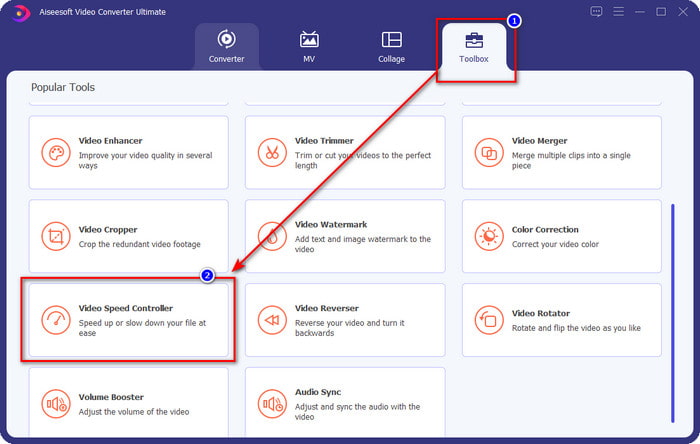
Paso 2. Una vez que hayas abierto el software, debes ir a la sección Toolbox y, dentro de ella, abrir Video Speed Controller. No tienes de qué preocuparte; no necesitarás descargar recursos adicionales para usar la herramienta.
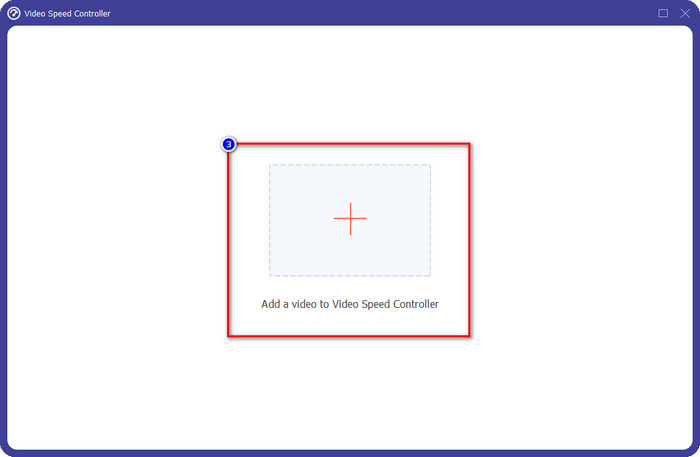
Paso 3. Pulsa el icono +, añade el archivo que tengas en la carpeta, haz clic en él y pulsa Open para subir el archivo de vídeo que tienes.
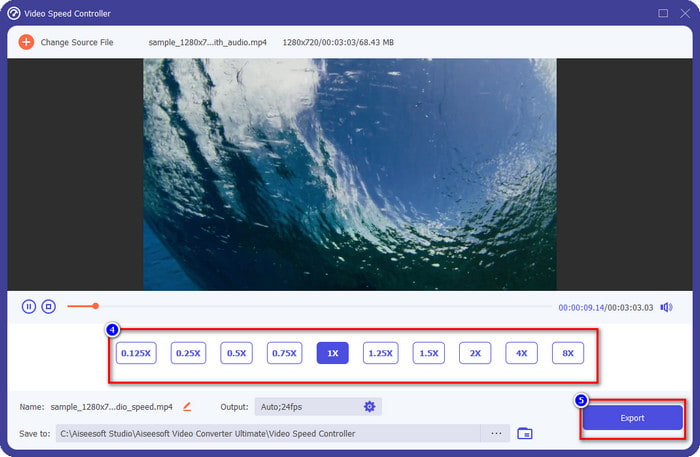
Paso 4. Elige en la lista la velocidad de reproducción que quieras conseguir; todos queremos una velocidad de reproducción diferente. Haz clic en Export para guardar el resultado final del vídeo al que has cambiado la velocidad. En menos de un minuto ya habrás cambiado la velocidad del vídeo que tienes. Ahora puedes disfrutar viéndolo en menos tiempo.
Parte 2. La mejor forma gratuita de cambiar la velocidad de video en la web
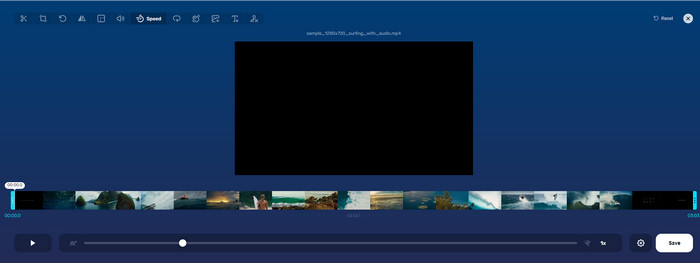
Con la ayuda de Online Video Cutter, puedes cambiar la velocidad de un vídeo en línea de forma gratuita. A diferencia de la primera herramienta, no tendrás que descargar recursos adicionales ni un instalador en tu ordenador para usar la herramienta web. Además de su función para cambiar la velocidad, también puedes utilizar esta herramienta para hacer algunas ediciones básicas. Aunque la herramienta es muy buena, no puedes subir aquí todos los formatos que tengas, porque los formatos que admite son limitados. Para usarla, sigue los pasos que indicamos a continuación.
Paso 1. Abre el navegador que quieras utilizar y busca la herramienta web.
Paso 2. Abre la herramienta web, haz clic en Open File, busca el archivo de vídeo que tengas y súbelo.
Paso 3. Arrastra los sliders a la izquierda o a la derecha para cambiar la velocidad; haz clic en el botón Save cuando estés satisfecho con la velocidad.
Parte 3. El mejor editor de video en iOS para cambiar la velocidad del video de forma gratuita
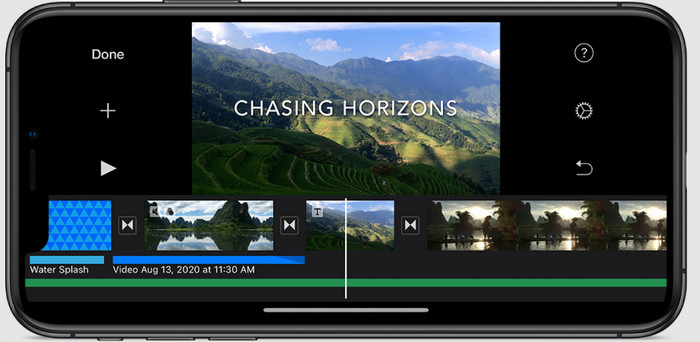
Para usuarios de iOS, puede usar iMovie para aprender cómo cambiar la velocidad de video en iPhone de forma gratuita. Aunque la herramienta es un editor de video nativo en Mac, aún tiene la opción de descargar la aplicación en su dispositivo o no. Esta elección demuestra que los usuarios de iOS pueden quedarse con el editor o no, para ahorrar algo de espacio en su almacenamiento. Pero si tienes la aplicación en tu iPhone, puedes seguir los pasos que agregamos a continuación para saber cómo funciona esta herramienta.
Paso 1. Descarga y luego abre la app en tu iPhone y, en Proyecto, toca el signo + y después toca Movie.
Paso 2. Toca el vídeo que quieres acelerar y, en la parte inferior de la pantalla, toca Create Movie para subirlo a la línea de tiempo.
Paso 3. Tocando el metraje que has subido, pulsa el icono de speed controller y ajusta la velocidad del vídeo arrastrando los sliders en tu iPhone. Pulsa Done para guardarlo y luego expórtalo si quieres.
Parte 4. La mejor manera de cambiar la reproducción de velocidad de video en dispositivos Android usando el editor incorporado

La descarga de una aplicación no es el caso si eres un usuario de Android; cambie la velocidad del video en su teléfono con el editor de video incorporado. Con este editor, puede realizar la edición básica necesaria en su video para que se vea mejor que antes. Puedes encontrar este editor en la Galería o el Álbum de tu Android. Si quieres saber cómo usarlo, la siguiente información te ayudará.
Paso 1. Abre tu Galería o Álbum y, después, toca el vídeo al que quieres cambiar la velocidad.
Paso 2. Haz clic en Edit para continuar.
Paso 3. Toca la sección Playback Speed y cambia la velocidad según tus necesidades.
Parte 5. Preguntas frecuentes sobre cómo cambiar la velocidad del video
¿Puedo cambiar la velocidad en YouTube?
Absolutamente sí, puede cambiar la reproducción del video en YouTube incluso si no descarga el software para hacerlo. Sigue los pasos para saber cómo cambiar la velocidad del video en YouTube. Primero, abra YouTube, busque el video que desea ver en un movimiento modificado, haga clic en el icono de la rueda dentada y, debajo, la velocidad de reproducción, elija la velocidad que desea alcanzar y disfrute.
¿Cambiar la velocidad acorta la duración del video?
Depende de cómo cambies la velocidad; si reduce la velocidad del video, espere que su duración se extienda porque lo reproduce en modo lento. Pero si cambia la velocidad a alta, la duración del video que está reproduciendo será más corta que la original. Para saber más sobre cómo cambiar la velocidad del video, debe leer los siguientes detalles que agregamos arriba.
Después de cambiar la velocidad, ¿tendrá algún efecto la calidad?
Dependiendo de la velocidad de video que configure, la calidad puede disminuir o mantenerse. Si reproduce un video ocho veces o más, espere el video que reproducirá. Sin embargo, no notará mucha diferencia aparte de la reproducción, en cuanto a la calidad, seguirá siendo la misma.
Conclusión
Ahora que ya sabemos cómo cambiar la velocidad de un vídeo en ordenadores, en línea y en teléfonos, es hora de decidir cuál deberíamos usar. Supongamos que no quieres descargar software en tu ordenador para ahorrar espacio y evitar pasos de instalación; entonces necesitas leer la segunda parte de este artículo. Pero si eres usuario de iOS o Android, las partes tres y cuatro son para ti. Si quieres usar el mejor editor de vídeo en Windows y Mac, debes descargar FVC Video Converter Ultimate. Es el mejor controlador de velocidad de vídeo para cambiar fácilmente la reproducción de vídeo que tienes en tu ordenador. ¿A qué estás esperando? ¡Descárgalo ahora y aprovecha nuestra promoción exclusiva para ti!
-
 Cómo acelerar el video en Premiere Pro y con sus alternativas
 ¿Quieres saber cómo usar Premiere Pro para acelerar un video? Entonces está en el artículo correcto, ya que proporcionamos pasos y otras alternativas asequibles.
-
 2 formas sencillas de acelerar un video en TikTok
 ¿Quieres saber el secreto sobre cómo acelerar el video en TikTok? Entonces lee este artículo para tener una idea de cómo hacerlo y saber cuáles son las otras 2 herramientas que te ayudarán.
-
 Excelentes consejos de 2021: Cómo acelerar un video en iMovie
 Tu amigo te sugiere iMovie para ayudarte con tu problema de cómo acelerar un video usando el sistema operativo iOS, pero ¿no sabes qué hacer? Vea más sobre esto a medida que lea más a través de este artículo.
