


 Video Converter Ultimate
 Grabador de pantalla
 Reparación de vídeo
 Descarga segura
De 50 MB a 5 MB: cómo comprimir archivos MP4 en segundos
Después de tomar algunos videos, es posible que desee subirlos a la historia de Instagram o compartirlos con sus amigos. Sin embargo, la mayoría de las plataformas de redes sociales tienen un límite de tamaño de archivo para las cargas. Por lo tanto, cuando envía un video MP4 a través de WhatsApp o agrega un archivo adjunto MP4 a su correo electrónico, es posible que a veces los encuentre demasiado grandes para cargarlos.
Por lo tanto, para resolver este problema, necesitas comprimir archivos MP4, o dicho de otro modo, ayudar a que tus vídeos pierdan peso.
El siguiente artículo te guiará para reducir el tamaño de los vídeos MP4 sin comprometer los efectos de visualización.

Parte 1. Cómo comprimir videos MP4 en línea y gratis
Si buscas un compresor MP4 online gratuito, sin registro ni costes ocultos, puedes probar FVC Free Video Compressor, que te permite reducir cualquier vídeo 4K, HD o SD a un archivo más pequeño sin marca de agua. Y a diferencia de otros compresores gratuitos, puedes comprimir tantos vídeos MP4 como quieras gratis, sin límite de tamaño de archivo ni de duración del vídeo.
Además, como este compresor es un producto basado en web, funciona perfectamente en Windows, Mac y Linux. Puede usarlo fácilmente en línea con un navegador, siempre que esté conectado a Internet.
Para dominar rápidamente esta herramienta de compresión, siga los pasos a continuación.
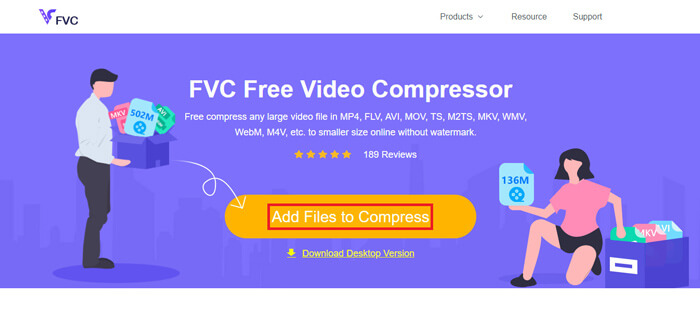
Paso 1. Ve a FVC Free Video Compressor en tu navegador y haz clic en Add Files to Compress para ejecutar el lanzador. Pero si utilizas la herramienta por primera vez, descárgate antes el lanzador.
Paso 2. Tras la instalación, elige el o los archivos MP4 que quieras comprimir. Ajusta el tamaño de vídeo, el formato, la resolución y la tasa de bits según tus necesidades.
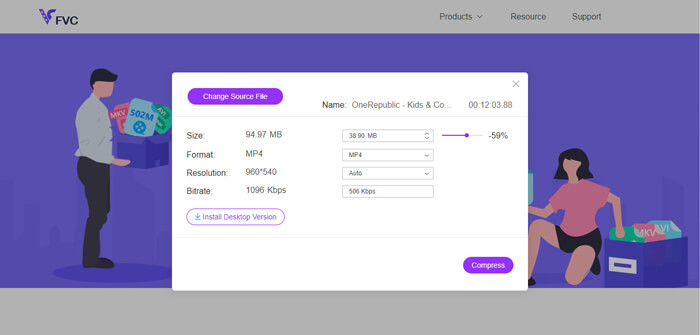
Paso 3. Haz clic en Compress para iniciar la compresión.
Parte 2. Cómo comprimir MP4 con un software gratuito sin conexión
Si su red no es tan estable, será mejor que elija comprimir el video sin conexión en su escritorio, lo que evita la influencia del estado de la red.
Video Converter Ultimate es un programa todo en uno y gratuito para comprimir, convertir y editar archivos de vídeo y audio en tu PC. Admite más de 1.000 formatos y te ofrece 10 opciones de resolución de salida entre las que elegir. Puedes cambiar el nombre del vídeo antes de la compresión, de modo que puedas distinguirlo fácilmente de otros archivos MP4. El nuevo Video Converter Ultimate incluye numerosas funciones de edición útiles y muchas características excelentes, como editor de metadatos, creador de GIF, creador 3D, mejorador de vídeo, etc.
Descarga gratuitaPara Windows 7 o posteriorDescarga segura
Descarga gratuitaPara macOS 10.7 o posteriorDescarga segura
Paso 1. Inicia Video Converter Ultimate en tu ordenador.
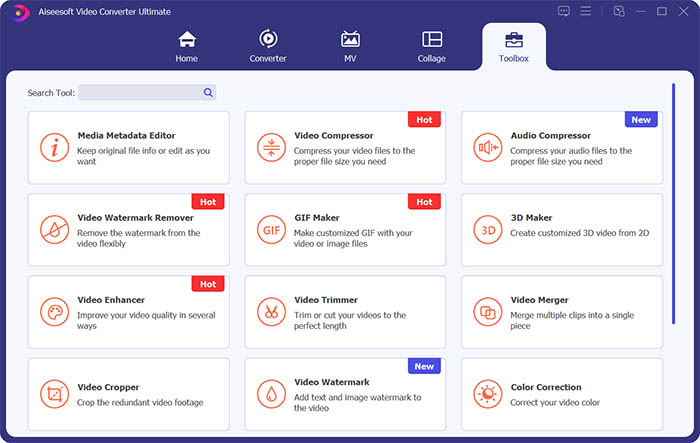
Paso 2. Haz clic en Toolbox. Busca Video Compressor en Toolbox. Haz clic en el icono + para añadir un vídeo que quieras comprimir.
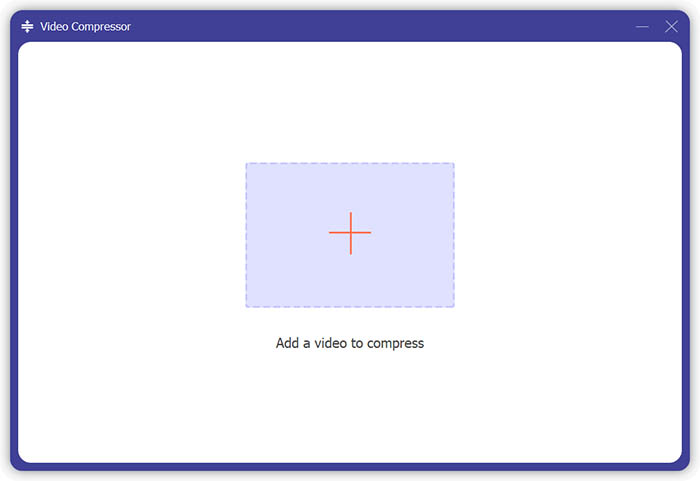
Paso 3. Puedes ajustar el tamaño, nombre, formato, resolución y tasa de bits del archivo de salida.
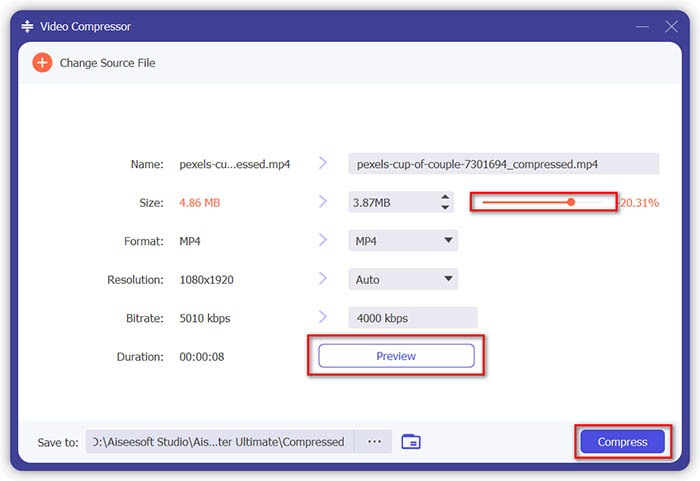
Paso 4. Haz clic en el botón Compress y espera a obtener tu vídeo MP4.
Parte 3. Cómo comprimir archivos MP4 con HandBrake
HandBrake también es una herramienta de compresión de video gratuita que puede ayudarlo a minimizar el tamaño del archivo MP4.
Paso 1. Descarga e instala HandBrake en tu ordenador. Luego ábrelo y haz clic en File en la parte izquierda. Selecciona el archivo que quieras comprimir.
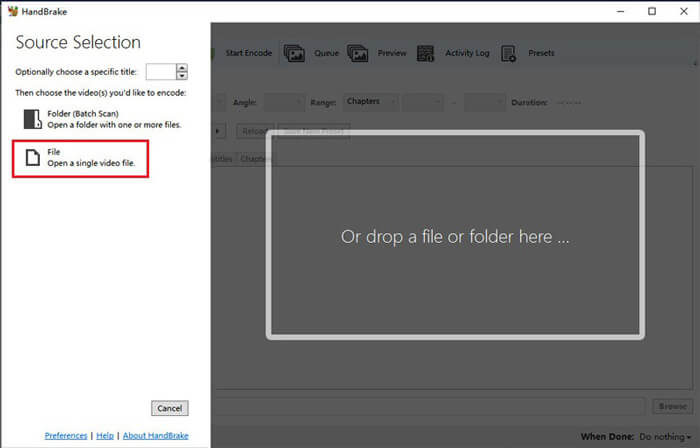
Paso 2. Cambia la ubicación para guardar el vídeo comprimido haciendo clic en Browse. También puedes cambiar el nombre del vídeo. Después, elige MP4 como formato de salida.
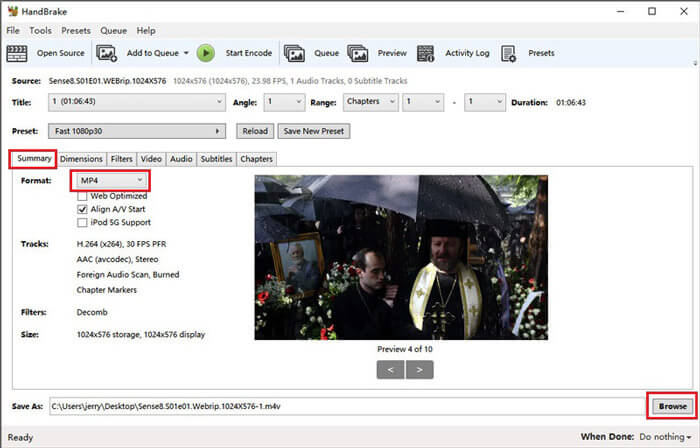
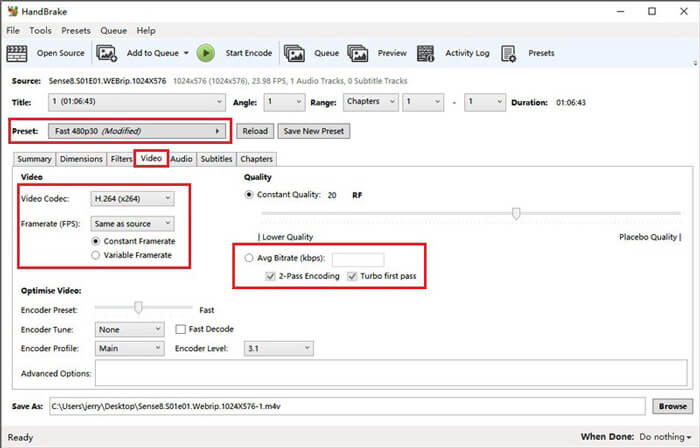
Paso 3. En cuanto al Preset de arriba, Fast 480p30 será suficiente. Ve a la pestaña Video y comprueba que el códec de vídeo sea H.264 (x264). Elige la tasa de fotogramas en función de tu vídeo de origen. Si no sabes qué elegir, selecciona Same as source. Marca Constant Framerate para garantizar una mejor compatibilidad. Introduce una Average Bitrate (kbps) para el vídeo (entre 5.000 y 10.000).
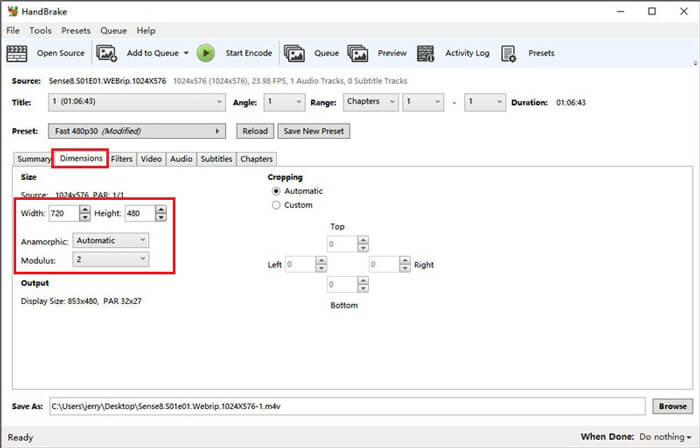
Paso 4. Haz clic en Dimensions y cambia el tamaño del fotograma o la resolución del vídeo. Cambia Anamorphic a None y Modulus a 2. Luego marca Keep Aspect Ratio. Si lo necesitas, puedes usar la flecha hacia abajo en Width para reducir el tamaño.
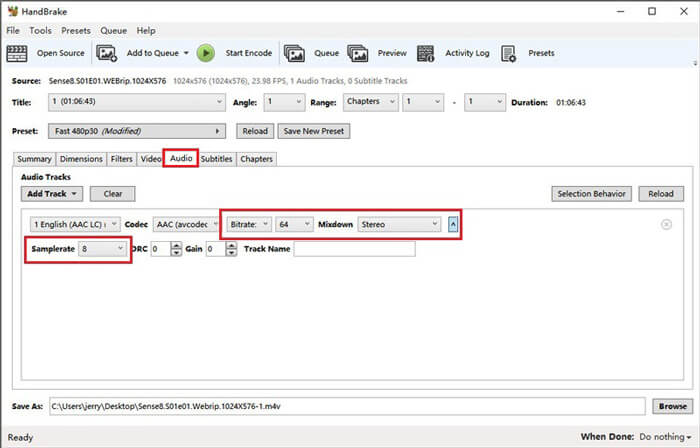
Paso 5. Selecciona la pestaña Audio y despliega el menú de ajustes oculto. Elige 8 para Samplerate y elige Stereo para Mixdown.
Paso 6. Haz clic en el botón Start Encode para empezar a comprimir.
Para los principiantes, en realidad no recomendamos que utilicen HandBrake, porque es difícil de entender y ajustar los parámetros. Y realmente lleva mucho tiempo obtener el archivo comprimido.
Parte 4. Preguntas frecuentes sobre la compresión MP4
1. ¿Puede ffmpeg comprimir MP4?
Sí, puedes utilizar la siguiente secuencia de caracteres para comprimir un archivo MP4:
$ ffmpeg -i input.mp4 -vcodec h264 -acodec mp2 output.mp4
Pero algunas personas pueden descubrir que el tamaño aumenta en lugar de disminuir cuando el vídeo ya es lo bastante pequeño.
2. ¿Puede HandBrake exportar WMV, MOV y FLV?
HandBrake solo te permite comprimir vídeos a MP4(.M4V) y MKV, lo que significa que no puede exportar archivos en otros formatos, como WMV, MOV, FLV, AVI, etc. Si utilizas HandBrake para obtener vídeos comprimidos, entonces tendrás que convertir MP4 a WMV u otros formatos por tu cuenta.
3. ¿La compresión de videos MP4 pierde calidad?
La calidad sin duda se perderá, en mayor o menor medida, cuando comprimimos un MP4 de tamaño completo a un tamaño más pequeño. Sin embargo, con un compresor de vídeo profesional como FVC Free Video Compressor y Video Converter Ultimate, puedes mantener la calidad de imagen original en la mayor medida posible. Además, usar un buen reproductor MP4 para reproducir archivos MP4 puede ayudarte a obtener una salida de alta calidad.
Conclusión
Hasta ahora te hemos presentado 3 métodos para comprimir MP4 a un tamaño más pequeño. Si no te gusta instalar demasiado software en tu ordenador, puedes probar FVC Free Video Compressor, que es online y gratuito. Pero si necesitas un potente procesador de vídeo, Video Converter Ultimate es tu mejor opción. Esperamos que esta entrada te resulte útil y no olvides dejarnos un mensaje para expresar tu opinión.
-
 Cómo convertir MP4 a WMV para Mac / Windows
 Esta publicación comparte cómo convertir videos MP4 a formato WMV en Mac o Windows. También le ofreceremos varias opciones, que incluyen tanto software de escritorio como convertidores en línea basados en la web. ¿Listo para conocer las mejores herramientas de conversión de MP4 a WMV?
-
 Cómo convertir sus archivos de video MP4 en imágenes GIF animadas sin pérdida de calidad
 ¿Está buscando la mejor manera de convertir su video MP4 en GIF animados? Aquí hay una guía detallada para hacerlo en Photoshop, Windows Movie Maker, convertidor de video en línea y más.
-
 MOV VS MP4 - Cuál es mejor
 MOV VS MP4, ¿cuál es mejor? Esta publicación indica la diferencia entre MP4 y MOV, para que pueda obtener la mejor opción para usar en sus archivos de video.
