


 Video Converter Ultimate
 Grabador de pantalla
 Reparación de vídeo
Aprenda a usar Premiere Pro para acelerar un video con 2 alternativas de Premiere
Premiere Pro es uno de los programas de gama alta desarrollados por Adobe para la edición de vídeo profesional. Además, el rendimiento de esta herramienta ha sido muy elogiado por muchos usuarios que ya la utilizan. De hecho, vamos a enseñarte a acelerar tus vídeos con la ayuda de esta herramienta, para que no tengas que pasar por un montón de configuraciones ni por todo lo que normalmente tendrías que hacer primero. Y ahora, vamos a explicarte cómo acelerar un vídeo en Premiere Pro y cuáles son las alternativas que existen.

Parte 1. Cómo acelerar un video en Premiere Pro
El editor de vídeo de gama alta que te encantará comprar y usar es Adobe Premiere Pro. Esta herramienta es el paquete completo que a cualquier profesional le encantaría utilizar, porque este software puede manejar trabajos de edición muy exigentes, ideales si eres un usuario avanzado. Además, si quieres un resultado impresionante, entonces debes aprender a usar esta herramienta. Pero aprender a usar Premiere Pro te llevará, sin duda, mucho tiempo, así que si eres una persona ocupada, esta debería ser tu última opción. Sin embargo, si tienes ganas de aprender y dispones de mucho tiempo libre, entonces deberías probarlo.
Además, si desea utilizar esta herramienta, debe gastar una gran cantidad de dinero porque es literalmente cara en comparación con las otras herramientas de edición de video. Entonces, ahora, si desea aprender cómo usar Adobe Premiere Pro cc 2018 o una versión superior para acelerar el video, siga los pasos simplificados a continuación.
Pasos para acelerar un vídeo en Adobe Premiere Pro:
Paso 1. Compra y descarga Adobe Premiere Pro desde su sitio web oficial. Después, inicia el programa para comenzar a acelerar el vídeo.
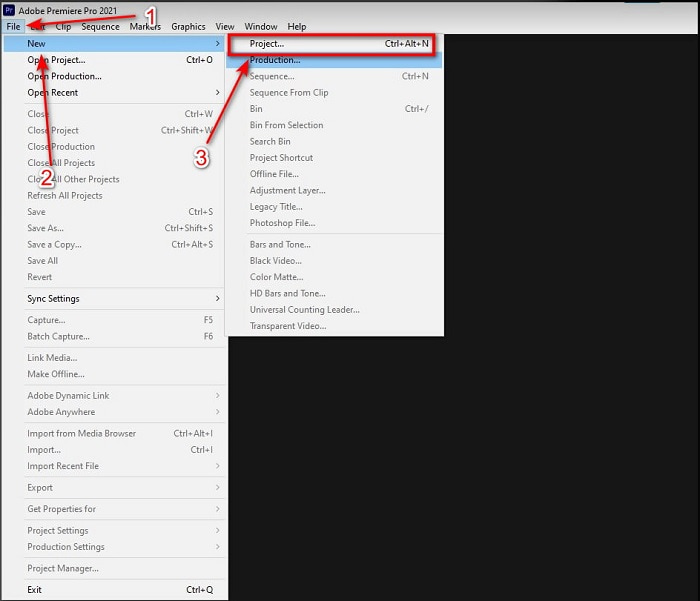
Paso 2. Haz clic en File, luego ve a New y Project, espera a que aparezca una interfaz como esta y haz clic en OK para continuar. Abre la carpeta y localiza el vídeo, arrastra y suelta el archivo en el Media Browser para colocarlo junto a la Timeline.
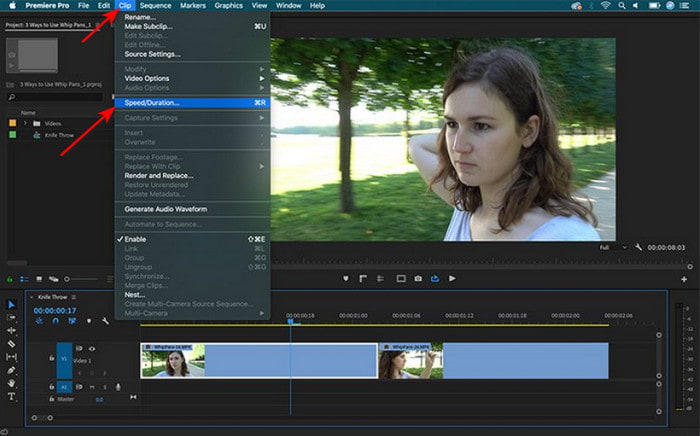
Paso 3. Haz clic en el vídeo que has insertado en la Timeline y haz clic en Clip en la parte superior. Después, debajo encontrarás Speed/Duration, y haz clic en esta opción. Cambia el porcentaje de velocidad según tus preferencias y haz clic en OK para guardar el cambio de velocidad; para guardar el archivo, haz clic en el botón Export.
Parte 2. 2 de las mejores alternativas de Premiere Pro para acelerar los videos
1. Video Converter Ultimate
Si tu problema es acelerar un vídeo, entonces esta debe de ser la solución: te presentamos Video Converter Ultimate. A diferencia de otros editores de vídeo, esta herramienta extraordinaria es la mejor para todo tipo de tareas de edición, conversión, creación de GIF, potenciador, reverso, aceleración y mucho más. Además, muchos usuarios ya adoran este software porque ofrece funciones avanzadas como Adobe Premiere Pro, pero en una versión simplificada. Por otro lado, es difícil encontrar una herramienta que ofrezca funciones avanzadas y que, a la vez, sea tan sencilla de usar. Básicamente, no hay nada como Video Converter Ultimate. Aunque es de pago, merece cada céntimo que inviertas y, además, es muy económico. Así que ahora, si quieres saber una alternativa a cómo acelerar un vídeo en Premiere Pro, sigue los pasos que encontrarás a continuación.
Pasos para acelerar vídeos con la ayuda de Video Converter Ultimate:
Paso 1. Descarga el software en el disco de tu ordenador y luego instálalo para continuar.
Descarga gratuitaPara Windows 7 o posteriorDescarga segura
Descarga gratuitaPara macOS 10.7 o posteriorDescarga segura
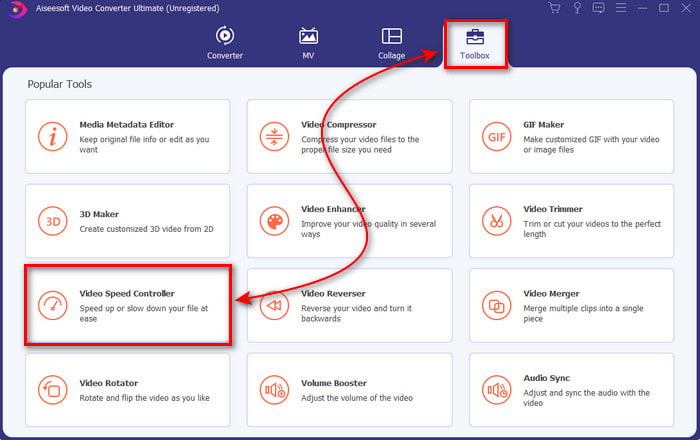
Paso 2. Inicia la herramienta y haz clic en Toolbox y busca la opción Video Speed Controller.
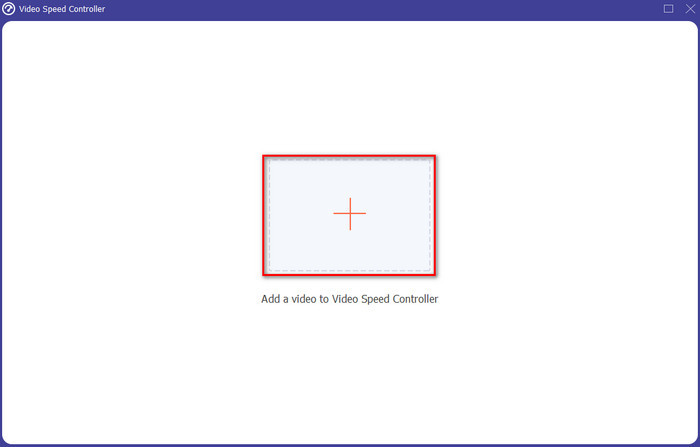
Paso 3. Para añadir el vídeo que quieres acelerar, haz clic en el botón +. Luego localiza el archivo en la carpeta y haz clic en Open para insertar el archivo de vídeo.
Paso 4. A continuación, elige la velocidad que quieres aplicar a tu vídeo haciendo clic en las opciones de box. Si ya estás satisfecho con la velocidad de tu vídeo, haz clic en Export para guardarlo directamente en tu ordenador.
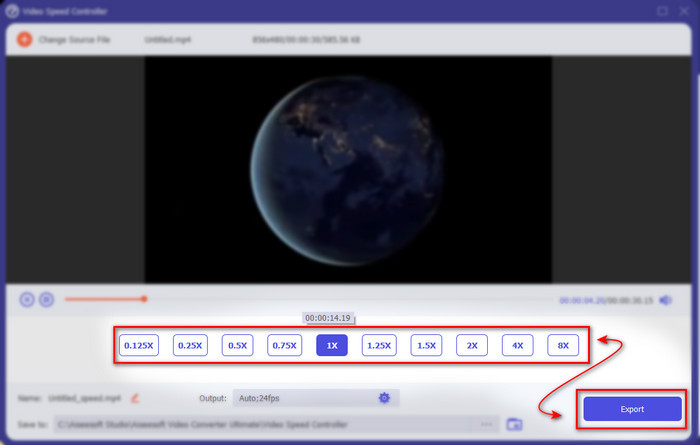
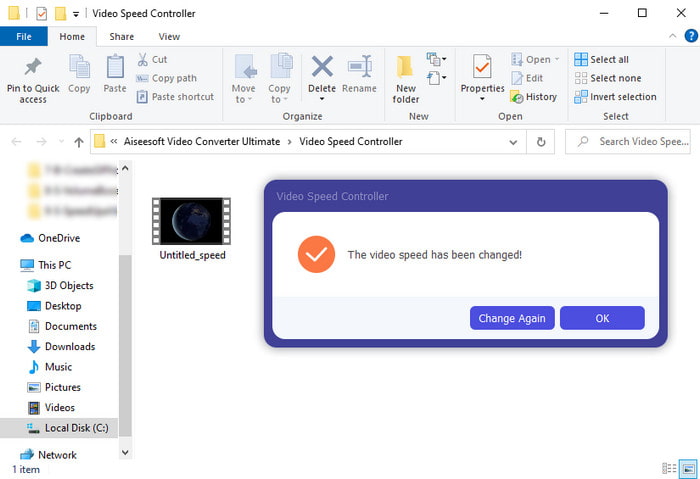
Paso 5. Cuando termine el proceso de exportación, se abrirá una carpeta emergente. Haz clic en el archivo que aceleraste antes y sorpréndete con la ausencia de pérdida de calidad en tu vídeo acelerado.
2. iMovie
Si tienes un Mac, entonces es casi obligatorio usar esta herramienta porque ya viene preinstalada en tu equipo. iMovie es uno de los editores de vídeo más populares que te encantará utilizar gracias a las funciones gratuitas que ofrece. Si eres usuario de Windows, no esperes poder usar esta herramienta porque no está disponible para tu PC. Aunque el programa es gratuito, tiene algunas limitaciones, como la ausencia de ciertas funciones de edición avanzadas que quizá te gustaría tener. Sin embargo, si tu presupuesto es ajustado, esta debería ser tu opción preferida si usas Mac. Además, si quieres conseguir algo similar a acelerar un vídeo en Premiere Pro, sigue los pasos que indicamos a continuación.
Cómo acelerar vídeos en iMovie:
Paso 1. Abre iMovie en tu Mac y haz clic en File y luego en Import Media, elige el archivo para continuar.
Paso 2. Arrastra el vídeo que has insertado antes a la Timeline. Luego haz clic en el archivo de vídeo de la Timeline para poder ajustar la velocidad. En la parte derecha, haz clic en Speed y elige en la lista desplegable la velocidad que quieras aplicar.
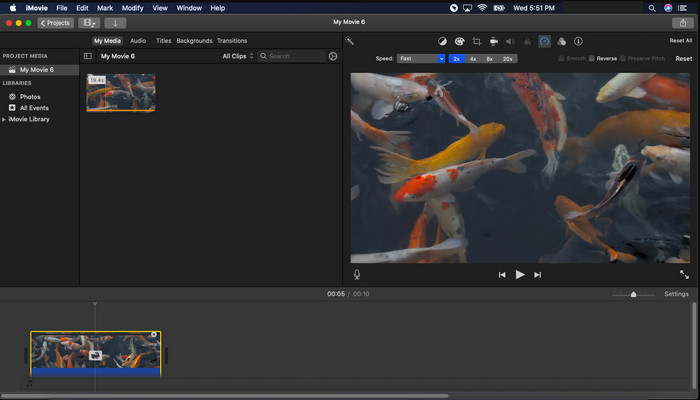
Paso 3. Después de aplicar la aceleración, haz clic en Export y en Export File para guardar la versión acelerada del vídeo.
Parte 3. Preguntas frecuentes sobre Premiere Pro Speed Up
¿Puedo ralentizar un video en Premiere Pro?
Por supuesto que sí, solo tienes que seguir el mismo procedimiento que hemos explicado arriba, pero ahora cambiando el porcentaje a menos de cien para hacerlo más lento. O puedes hacer clic aquí para aprender a ralentizar un vídeo con más detalle.
¿Qué tan rápido puedo configurar el video en Premiere Pro?
El porcentaje máximo que puede establecer en la velocidad del video es 10,000% por ciento. Entonces, si desea saber si es real, compruébelo usted mismo y establezca la velocidad en 10,000%.
¿Adobe Premiere Pro tiene un requisito del sistema?
De hecho, sí, existen requisitos mínimos que el software de Adobe necesita para poder utilizar la herramienta correctamente. Como, en esta lista a continuación: GPU: Intel® i5-4590 / AMD FX 8350 equivalente o más reciente; RAM: 8 GB de RAM o incluso más; sistema operativo: Microsoft Windows o macOS; la pantalla debe ser de 1920 x 1080 o superior.
Conclusión
A medida que llegamos a su fin, ahora nos queda más claro que incluso una simple aceleración se puede hacer con el estreno profesional. Sin embargo, el estreno profesional es muy caro, por lo que enumeramos algunos software asequibles que le encantaría usar para acelerar. Como Video Converter Ultimate porque este software proporciona funciones de edición de alta gama, incluso si su computadora es de gama baja. Entonces, si desea saber cómo acelerar un video en Premiere Pro fácilmente, descargue Video Converter Ultimate para experimentar la misma función pero en una versión fácil.
-
 [4 formas] Cómo acelerar fácilmente sus videos en línea
 ¿Quieres acelerar un video en línea? Lea este artículo para que sepa más sobre cómo acelerar un video de diferentes maneras posibles.
-
 Formas más fáciles de acelerar los videos en formato MP4 [sin conexión y en línea]
 ¿Quieres acelerar tu video, pero está en formato MP4? Este artículo puede ayudarlo a conocer las diferencias en cómo acelerar su video, ya sea en línea o sin conexión.
-
 Los 4 mejores reproductores de video con controlador de velocidad en 2021
 ¿No ha notado la velocidad de reproducción de todos los reproductores multimedia cada vez que reproduce un video? Este artículo es adecuado para que aprenda todo sobre los reproductores de video con control de velocidad.
