


 Video Converter Ultimate
 Grabador de pantalla
 Reparación de vídeo
Fortalezca su conocimiento utilizando diferentes prácticas sobre cómo ralentizar el video MP4
Montage is a film editing technique that brings together fragments of thematically related film to create a single, seamless shot. Montage allows directors, film editors, and visual and sound technicians to piece together sections of a film piece by piece, cutting and fitting each one together. Some montage uses Slow motion video clips to execute the process of making a montage. But to acquire this sort of cinematic scene, you need to learn how to slow down MP4 videos or other different formats like MOV, AVI, etc. Regarding this issue to resolve, this article provides various topics to discuss and learn more about creating a montage, in short, slowing down a video film.

Parte 1. ¿Por qué necesita ralentizar un video?
¿Alguna vez te has preguntado por qué algunas de las películas que miras tienen algunos actos en cámara lenta que siempre se destacan, especialmente si hay algo de acción y transición implementada en la escena de la película? Y como eres un fanático de las películas de acción, quieres recrear tu película de acción favorita, pero para lograr el impacto de acción de la película, necesitas reducir la velocidad de reproducción de algunas escenas, pero no sabes cómo lograrlo. esta tarea.
Parte 2. Mejores herramientas para ralentizar videos MP4
Much webtool and software can edit the videos, including slowing down an MP4 video, but these are the best web tools and software you need to use to achieve your preferred customized video. Some need to download and install it on your desktop, and some only require your email, and you can already edit at the mainstream of the web tool.
Método 1. Utilice Video Converter Ultimate
Video Converter Ultimate is a free-to-download software that can slow down a video permanently. One of the features this software offers can make a video speed up and slow down in accessible ways. Besides the feature of controlling video speed, this software has additional features like trim, reverse, merge, edit, and create a collage from a video to improve the video you desire. In addition, all the tools available in this software can be used easily by all users. Here are the steps you need to follow to accomplish the adjustment you desire.
Step 1: Please click on the Free Download button to start the download to your computer. After that, you can customize your system by installing and configuring the software.
Descarga gratuitaPara Windows 7 o posteriorDescarga segura
Descarga gratuitaPara macOS 10.7 o posteriorDescarga segura
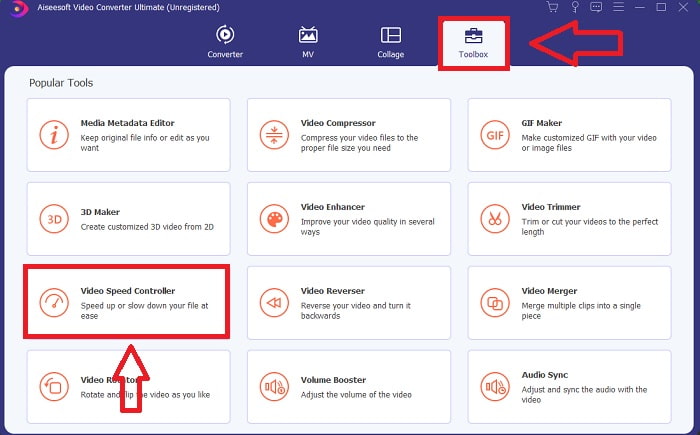
Step 2: Once the software has been installed, run it by selecting the Toolbox option from the menu bar and then selecting Video Speed Controller from the list that appears.
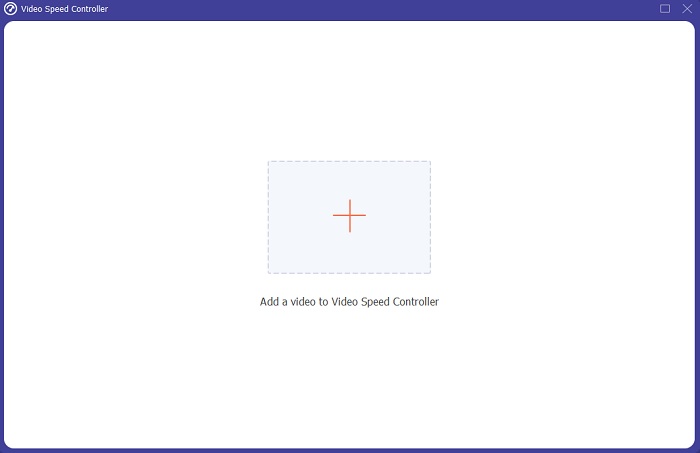
Step 3: Add any file by clicking the + button and modify the video clip.
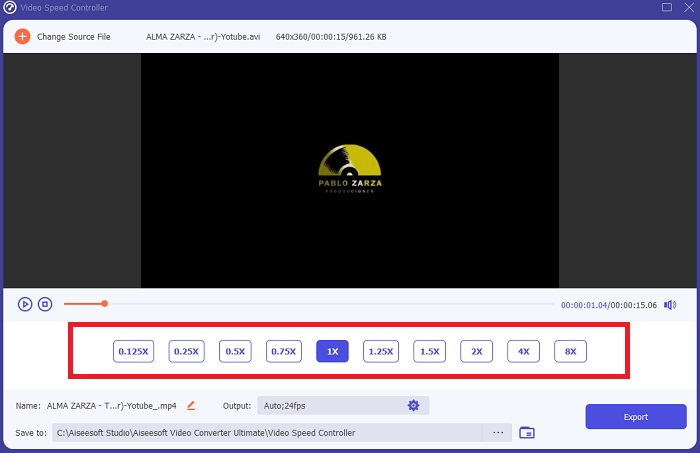
Step 4: Adjust the playback speed by adjusting the rate of the video.
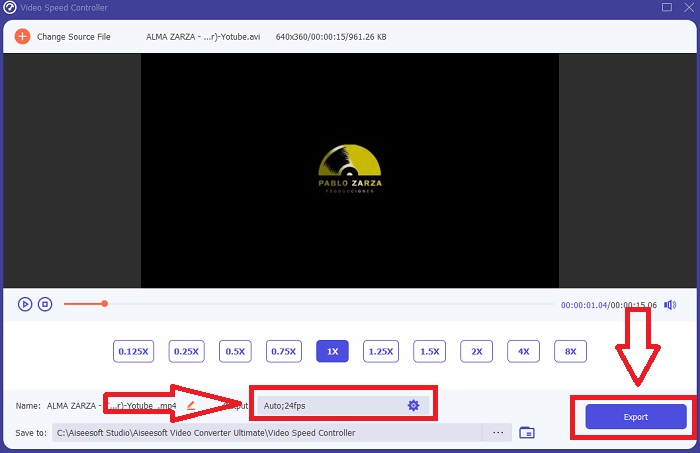
Step 5: After changing your video clip's playing speed, you may pick the export format, resolution, quality, etc. After that, click Export and choose a location to save your file.
Método 2. Utilice InVideo
When it comes to creating and sharing videos for social media and websites, InVideo is a web-based video editing tool, ideal for businesses of all sizes. It also has an image and video content library from various online repositories such as Story blocks and Shutterstock that can be used for the application. To use InVideo, you must first enter your email address, different from the previous web tool discussed in this article. This web tool offers a vast selection of templates for customizing your video. With its impressive features, this web application can elevate your editing skills to those of a professional. One of its features can slow down MP4 video accessible way possible; here are the steps provided:
Step 1: Create an account on the web tool to gain access. The next step is to select the template you want to work with. Click the Upload button in the interface's left corner to begin the upload process.
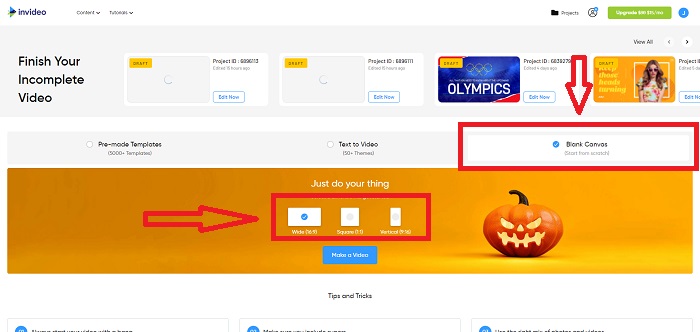
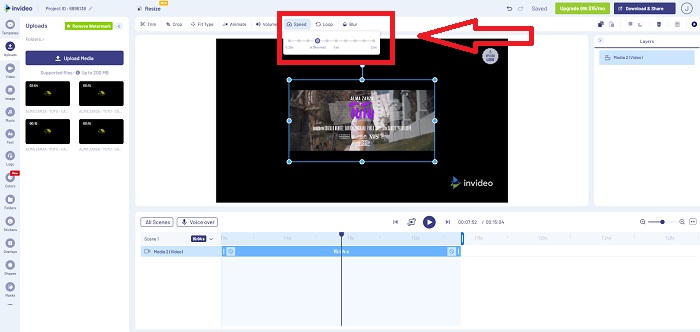
Step 2: To edit the playback speed of your video clip, click the Speed tab in the upper-right corner of the interface and drag it to the track. And drag the Slider to increase or decrease the playback speed of your video clip.
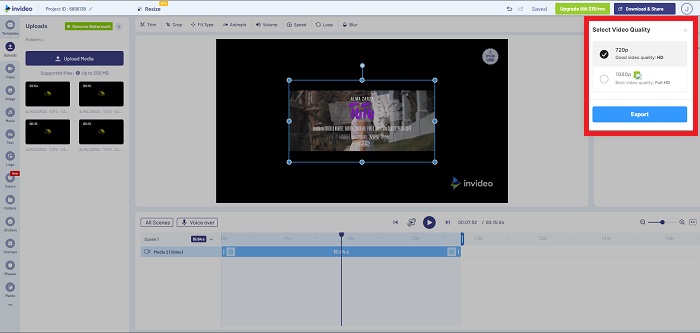
Step 3: When you're finished editing, click Download & Share and unlock Premium to get better results.
Método 3. VLC Media Player
Because it's free, VLC (Video Lan Client) is one of the most widely used media players on Windows and Mac. Playing different video clips like 360-degree videos or compressed file formats is possible even with the highest quality videos because it is flexible. The most widely used media player, on the other hand, can occasionally be a faulty product. In addition, this media player can slow down an MP4 file in easy ways. All the details about its feature are said below:
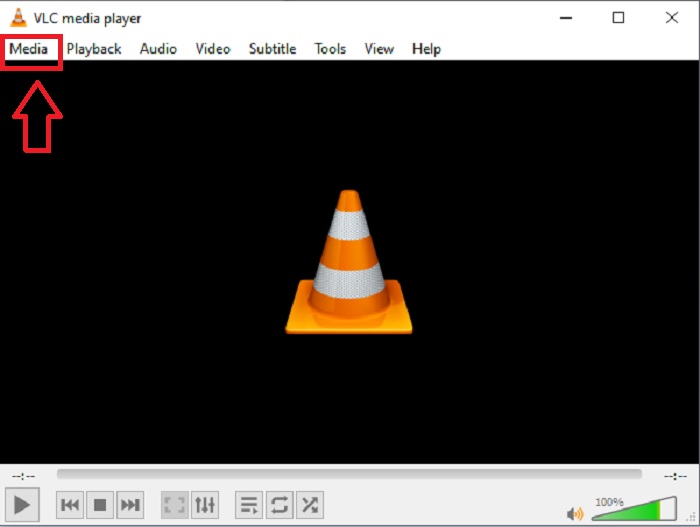
Step 1: First, you need to add your file in the Media tab and click Open File.
Step 2: Then, select the Playback tab and proceed to click the Speed section.
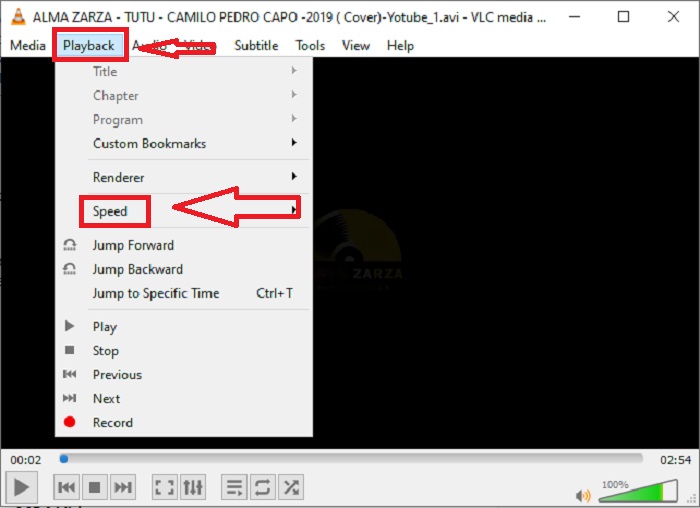
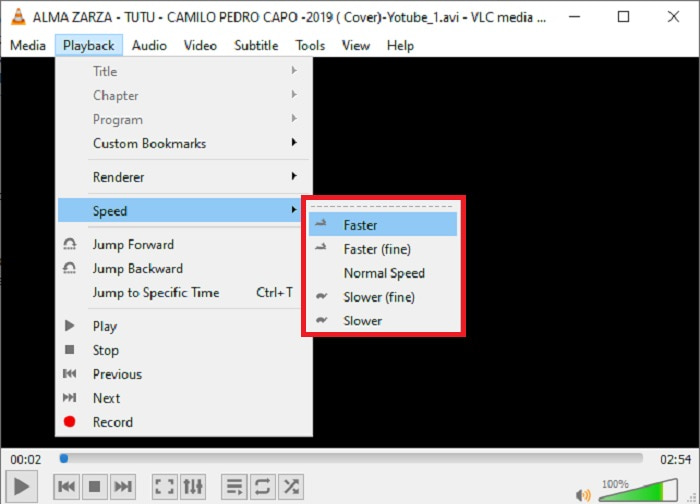
Step 3: With this, you will be given choices of which playback speed you will use. If you're going to slow down the speed of your video file, click the Slower (fine) and Slower, and if you want to increase its speed, click the Faster (fine) and Faster.
Relacionado:
Cómo solucionar que VLC no reproduzca DVDs
Parte 3. Preguntas frecuentes sobre la ralentización de los videos MP4
¿Pierdo la calidad del video si reduzco la velocidad?
No, lo mismo ocurre con el aumento de la velocidad de reproducción de su video; ralentizar su video no pierde la calidad de su video. Por alguna razón, algunos de los videos se vuelven un poco defectuosos después de reducir la velocidad de reproducción del video, es que su calidad de video ya es aburrida y baja. Además, si intensificas para disminuir la velocidad de reproducción de tu videoclip, la velocidad de fotogramas se dividirá a la mitad, lo que provocará un retraso y reducirá la calidad.
¿Puedo ralentizar un video sin conexión?
Existe un software que funciona perfectamente para reducir la velocidad o ralentizar un video. Video Converter Ultimate es un software creado para mejorar y realzar el video desde diferentes perspectivas. Además, con su finalidad, es de descarga gratuita y es accesible para usuarios de un amplio abanico de públicos.
¿Qué es mejor para ralentizar un video? ¿Sin conexión o en línea?
Algunos de los pasos en línea para ralentizar un video tienen muchos procesos a seguir que lo hacen más complicado que usarlo sin conexión. La mayor parte del software se puede descargar gratis, por lo que es conveniente ralentizar un video sin conexión.
Conclusión
To conclude, most of the media players nowadays support the MP4 format. That's why slowing down MP4 videos becomes a lot easier with these web tools and software presented in this article. To achieve the full potential of your video, download Video Converter Ultimate. Not just by slowing down your video, this software can turn your video to another level. With all the features available, you can call yourself a professional editor when using it.
-
 4 mejores convertidores MP4 a M4V para convertir videos MP4 en M4V con facilidad
 Cuando necesite cambiar archivos MP4 a M4V, debe obtener más detalles sobre las diferencias entre los dos formatos, así como los mejores convertidores MP4 a M4V del artículo.
-
 AMV Converter: los 3 mejores métodos para convertir MP4 a AMV en Win / Mac
 ¿Cuáles son los mejores convertidores de MP4 a AMV para convertir los videos en Amine Music Video? Puede obtener más información sobre los 3 métodos más eficientes para obtener los videos deseados con facilidad en el artículo.
-
 WebM a MP4 | Conversión gratuita de WebM a MP4 (en línea y de escritorio)
 ¿Cómo ver archivos WebM sin navegador web? Necesita convertir WebM a MP4. Aquí están los 10 mejores convertidores de WebM a MP4 gratuitos para cambiar WebM a MP4 en línea y en computadoras Mac y Windows.
