


 Video Converter Ultimate
 Näytön tallennin
 Videon korjaus
Yksinkertaisia tapoja lisätä kuvia videoon nopeasti iMoviessa
Kuvien lisäämisestä videoon on tullut yksi parhaista tavoista välittää viesti yleisölle entistä paremmin. Useimmilla videoeditoreilla voit nopeasti lisätä kuvan videon päälle, ja jos olet Applen käyttäjä, olet ehkä jo törmännyt iMovieen. Sitä pidetään yhtenä parhaista editoreista, joita voit käyttää Apple‑laitteellasi. Monien tavallisten Applen käyttäjien mielestä iMovien käyttäminen on kuitenkin haastavaa, koska heillä ei ole siitä aiempaa kokemusta. Jos siis olet samanlainen Applen käyttäjä, jolla on vaikeuksia sen käytössä ja haluat lisätä kuvan videoon, voit lukea tämän artikkelin – kuvien lisääminen videoon iMoviessa on yksinkertaista, kun luet alla olevat ohjeet.

Osa 1. Kuvan lisääminen videon päälle iMoviessa [Mac]
Jos sinulla on iMovie Macissa, voit käyttää sitä ja lisätä kuvan videoon. Joten nyt, jos haluat oppia lisäämään valokuvan iMovie-videoon, alla olevat vaiheet auttavat sinua.
Vaihe 1. Etsi iMovie Finderista ja napsauta sitä avataksesi sen.
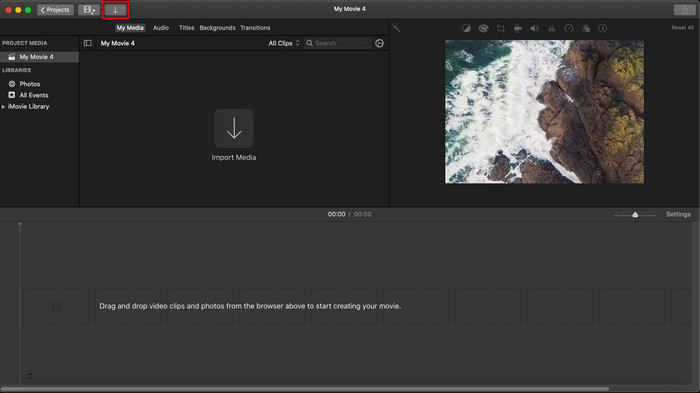
Vaihe 2. Napsauta iMovien vasemmassa yläkulmassa olevaa Import-painiketta tuodaksesi videon ja kuvan helposti. Vedä ja pudota lisäämäsi media Timeline-aikajanalle.
Vaihe 3. Säädä tuomasi kuvan kokoa ja sen kestoa. Napsauta sen jälkeen Export-painiketta ladataksesi tiedoston tietokoneellesi.
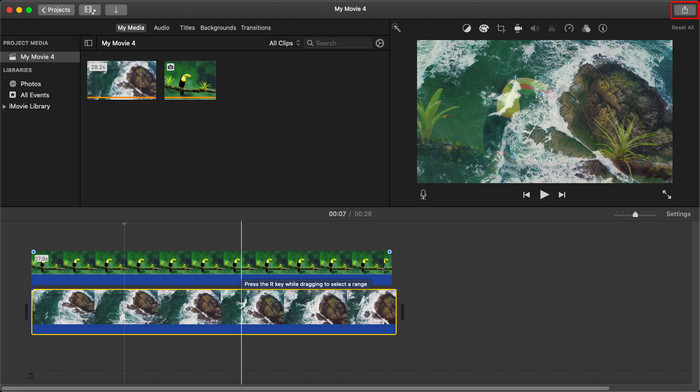
Tässä esittämämme vaiheet ovat peräisin iMovien käytännön käytöstä. Vaiheet voivat vaihdella, jos työkaluun on tulossa päivitys tai joitain muutoksia tapahtuu pian.
Osa 2. Valokuvien lisääminen videoon iMoviella [iOS]
Entä jos käytät iOS-laitetta ja haluat käyttää iMovie-ohjelmaa editorina kuvan lisäämiseen videoon? Onko se mahdollista? No kyllä, se on. Voimme opettaa sinulle kuvan lisäämisen iMovie-videoon iPhonessa lukemalla alla olevat tiedot antamillamme vaiheilla.
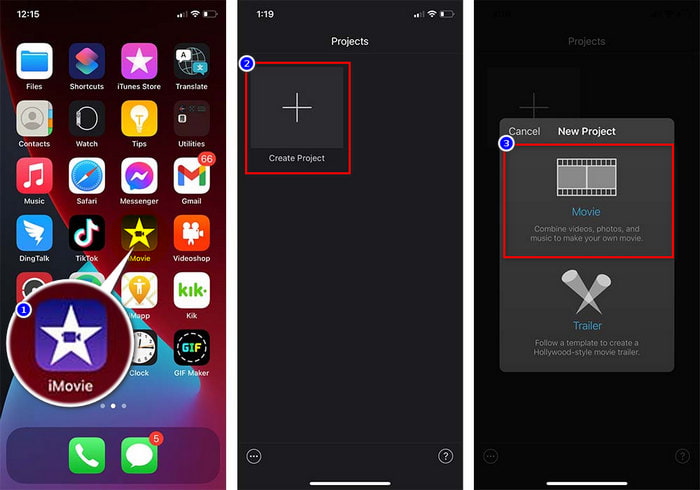
Vaihe 1. Avaa iMovie-sovellus iOS‑laitteellasi, napsauta Create Project ja sitten Movie. Lisää video, joka on kirjastossasi.
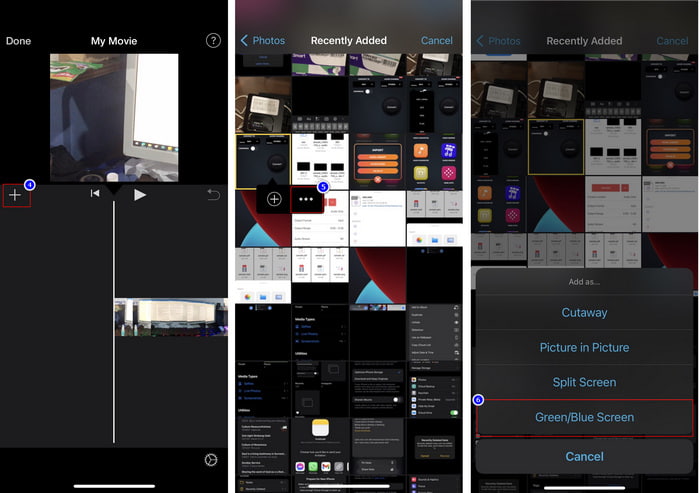
Vaihe 2. Napsauta +-painiketta lisätäksesi kuvavesileiman videoon. Etsi kuva kirjastosta, napsauta sitä, paina kolmea pistettä ja valitse Green/Blue Screen. Napauta kuvaa poistaaksesi taustan automaattisesti.
Vaihe 3. Paina Done, napsauta Export ja sitten Save Videos.
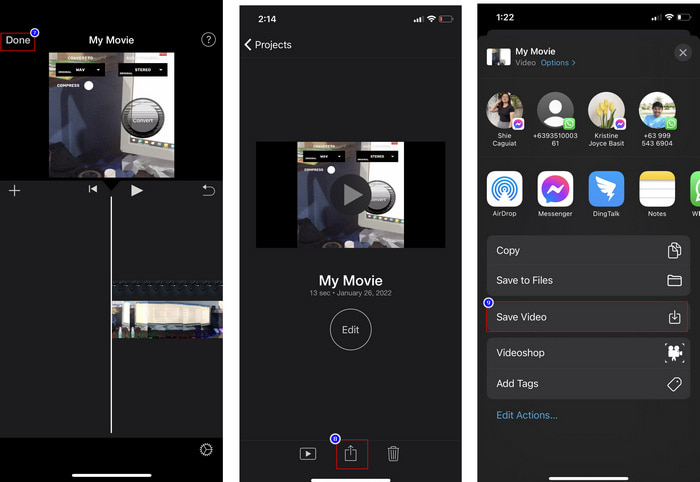
Kaikki tässä esittämämme vaiheet ovat käytännön kokemusta iMovien käytöstä iOS:ssä. Jotkut vaiheet voivat kuitenkin muuttua, jos editorisovelluksessa tapahtuu pian päivitys.
Osa 3. Helpoin ratkaisu valokuvan lisäämiseen videoon Macin parhaan videovesileimaohjelmiston avulla
Onko sinulla samoja vaikeuksia valokuvien lisäämisessä videon päälle iMoviessa? Kokeile Video Converter Ultimate -ohjelmaa, sillä tämä työkalu on paras vaihtoehto iMovielle. Sen kokonaisvaltaista suorituskykyä ovat jo ylistäneet miljoonat käyttäjät, jotka ovat sitä kokeilleet. Vaikka heillä on ollut hyvin erilaisia ongelmia videoidensa kanssa, he ovat silti valinneet tämän ohjelman ratkaisuksi. Tämän työkalun avulla voit tehdä lähes kaiken videon käsittelyyn liittyvän, kuten leikata, lisätä kuvia, yhdistää, rajata jne. Olipa ongelma mikä tahansa, tämä on kaiken kattava ratkaisu. Haluatko ratkaista ongelman? Seuraa alla olevia vaiheita, jotka olemme kirjoittaneet, jotta voit seurata niitä helposti.
Ominaisuudet:
◆ Paras työkalu tukee useita muotoja, joten muodon lataaminen ei ole vaikeaa.
◆ Se tukee helposti ymmärrettävää käyttöliittymää, jonka avulla voit lisätä nopeasti kuvia mihin tahansa videoon muutamassa sekunnissa.
◆ Se tukee eri alustoja, kuten Macia ja Windowsia, jotta käyttäjät voivat nauttia kaikilla alustoilla.
Vaihe 1. Voit ladata työkalun napsauttamalla alla olevaa latauspainiketta, asentaa sen nopeasti ja avata sen asennuksen jälkeen.
Ilmainen latausWindows 7 tai uudempiTurvallinen lataus
Ilmainen latausMacOS 10.7 tai uudempiTurvallinen lataus
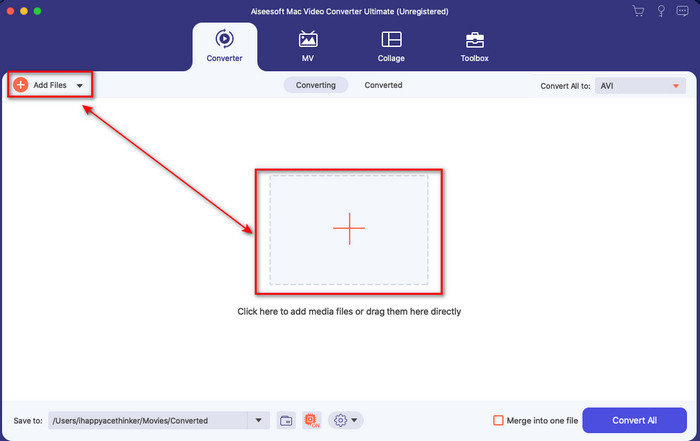
Vaihe 2. Kun olet avannut ohjelman, napsauta esillä olevaa +-painiketta tuodaksesi videotiedoston. Tämän jälkeen avautuu kansio, josta voit valita videotiedoston, ja napsauta Open.
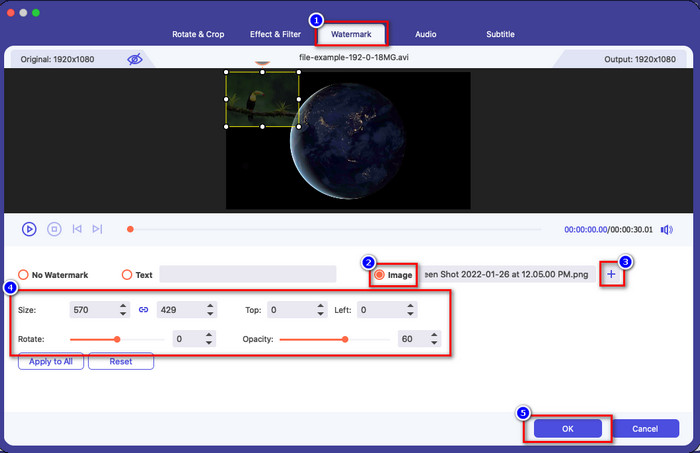
Vaihe 3. Paina taikasauva-painiketta avataksesi muokkausikkunan. Siirry kohtaan Watermark, napsauta kuvaa ja paina sitten add ladataksesi kuvan. Voit myös säätää kuvan opacity-läpinäkyvyyttä tai rotate-kiertää sitä tarpeidesi mukaan, ja napsauta OK ottaaksesi muutokset käyttöön.
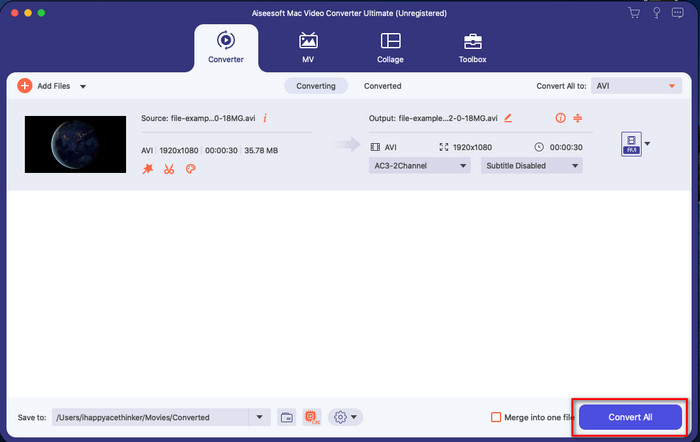
Vaihe 4. Napsauta Convert All -painiketta viedäksesi videotiedoston. Se tallennetaan tietokoneellesi vientiprosessin jälkeen, ja yhtä helposti sinulla onkin jo vesileimakuva videossasi. Uskotko nyt Video Converter Ultimaten kykyihin? Olet lisännyt kuvavesileiman videoon juuri noin nopeasti.
Aiheeseen liittyvää:
Kuinka lisätä tekstityksiä videoon
Osa 4. Usein kysytyt kysymykset kuvien lisäämisestä videoon iMoviessa
Onko iMovie-videoihin lisättävien kuvien määrällä rajoituksia?
Toistaiseksi emme ole kokeneet hankaluuksia useiden kuvien lisäämisestä videoon iMovien käytön aikana. Vientiprosessi vie kuitenkin aikaa, jos lisäät videoon liian monta kuvaa, mutta se ei kaadu kokemuksen mukaan.
Mitä kuvamuotoja voin käyttää iMoviessa?
iMovie tukee lukuisia still-kuvamuotoja, kuten BMP, PNG, JPG tai JPEG, HEIF, PSD, RAW TIFF ja TGA, mutta jos haluat animoidun kuvan, voit käyttää GIF-muotoa. Vaikka näitä muotoja on paljon, se ei silti tue kaikkia kuvamuotoja, kuten EXIF, WebP ja vastaavat.
Miksi minun pitäisi käyttää iMoviea?
Applen käyttäjille iMovie on yksi parhaista vaihtoehdoista lyhytelokuvan, mainoksen, vlogien ja muiden luomiseen. kaikki nämä ovat ilmaisia. Editori tarjoaa puoliksi edistyneen käyttöliittymän, joka auttaa käyttäjiä saamaan käytännön kokemusta siitä, miltä edistynyt käyttöliittymä tai työkalu näyttää. Myös ohjelmisto on vähemmän tekninen, mutta se on erikoistunut. Ei ole tavallista nähdä editoria, joka tarjoaa vähemmän teknisen tavan käyttää, mutta se voi auttaa sinua olemaan ammattilainen ja lisäämään erikoistekniikoita, joita edistyneillä työkaluilla on.
Johtopäätös
Lopuksi voidaan todeta, että meillä on nyt riittävästi tietoa, jotta voimme helposti lisätä valokuvia videon päälle iMoviessa. Applen parhaalla työkalulla voit tehdä lähes monimutkaisetkin muokkaukset täällä. Kaikkia tarvitsemiasi toimintoja ei kuitenkaan löydy iMoviesta, mutta voit käyttää Video Converter Ultimate -ohjelmaa helppokäyttöisenä editorina kaikilla alustoilla. Saatat miettiä, miksi sinun pitäisi käyttää tätä työkalua. Suurta selittelyä ei tarvita, kun puhumme tästä ohjelmasta, sillä olemme jo esitelleet todisteet yllä. Mitä siis pitäisi tehdä? Voit napsauttaa latauspainiketta saadaksesi omakohtaisen kokemuksen tästä työkalusta ja ratkaistaksesi tämän ongelman.
-
 5 suosituinta ääninauhurisovellusta Android- ja iOS-laitteissa [2022 päivitetty]
 Etkö tiedä mitä äänitallenninsovellusta sinun pitäisi käyttää? Jos näin on, tämä artikkeli auttaa sinua valitsemaan, mikä sovellus auttaa sinua äänen tallennustehtävässä.
-
 Äänimuistio iOS:ssä – plussat, miinukset, ominaisuudet ja 4 parasta vaihtoa
 Mikä on äänimuistio? Onko se iOS:n paras äänitallennin? Etsitkö vastausta tähän kysymykseen? Joten lue tämän artikkelin koko laajuus saadaksesi lisätietoja.
-
 7 uusinta ilmaista MOD-muunninta MOD-tiedoston vaihtamiseksi uuteen muotoon
 Mitä MOD-muuntimia voit käyttää? Mietitkö samaa kysymystä? Joten tässä olemme tarjoamassa seitsemän työkalua, joita voit käyttää MOD-tiedostojen muuntamiseen.
