


 Video Converter Ultimate
 Näytön tallennin
 Videon korjaus
 Suojattu lataus
6 tehokkain tapa muuttaa kuvan kokoa verkossa ja työpöydällä
Voimme ladata miljardeja arvostettuja valokuvia, ja useimmat meistä ottaa kauniita kuvia, mutta on tapauksia, joissa niiden koko ei ole se, mitä haluamme eniten. Käyttäjät yrittivät muuttaa saamansa kuvan kokoa säätämällä kuvan korkeutta, leveyttä ja kuvasuhdetta editorilla, mikä muutti kuvan PPI:tä. Tulos ei ole sitä mitä kaikki odottivat; teräväpiirtokuvat muuttuvat pikselöityiksi.
Miksi? Koska käyttämässään editorissa, jolla kuvaa muutettiin, ei osata luoda tai täyttää uudelleen koon muuttamisen yhteydessä syntyvää pikselirakoa. Siksi tähän aiheeseen liittyvät kyselyt yleistyivät, ja me olemme täällä auttamassa sinua ratkaisemaan ongelman. Tässä blogikirjoituksessa pääset käytännössä kokeilemaan, miten kuvaa voi suurentaa tai pienentää niin, ettei lopulliseen tiedostoon jää vääristymiä.

Osa 1. Parhaat valokuvan koon muuttajat, joita voit käyttää verkossa kuvan koon muuttamiseen verkossa [3 ilmaista työkalua]
Nämä verkkotyökalut, jotka lisäämme tähän, ovat käytettävissä laitteessasi olevissa eri verkkoselaimissa. Nämä ovat myös ilmaisia, mutta sinun on ostettava työkalu ilman rajoituksia. Nämä ovat kuitenkin verkkotyökaluja, joita voit käyttää ja voit aloittaa kuvan koon muuttamisen. Lue vaiheet saadaksesi tietää, kuinka niitä käytetään.
1. FVC Free Image Upscaler – paras kuvankoon muuttaja verkossa [suotuisa vaihtoehto]
Verkkotyökalu FVC Free Image Upscaler Online on tekoälyyn perustuva palvelu, joka voi muuttaa kuvien kokoa nopeasti laadun heikkenemättä. Työkalu muuttaa automaattisesti jokaisen tänne lataamasi kuvatiedoston kokoa. Vaikka kyseessä on verkkotyökalu, sen suorituskyky koonmuutoksessa on nopea ja tehokas. Jokainen tänne lataamasi kuva poistetaan automaattisesti palvelimelta heti koon muuttamisen jälkeen. Lisäksi sillä on yksi siisteimmistä ja monipuolisimmista koonmuuttajista, joita tulet tarvitsemaan; voit käyttää tätä työkalua eri laitteilla, kunhan sinulla on internet-yhteys. Haluatko nähdä, miten tämä ohjelma suoriutuu tästä tehtävästä? Jos haluat, lue alta vaiheet ja seuraa niitä, niin voit muuttaa kuvan kokoa nopeasti ja tehokkaasti.
Kuinka muuttaa kuvan kokoa käyttäen FVC Free Image Upscaleria:
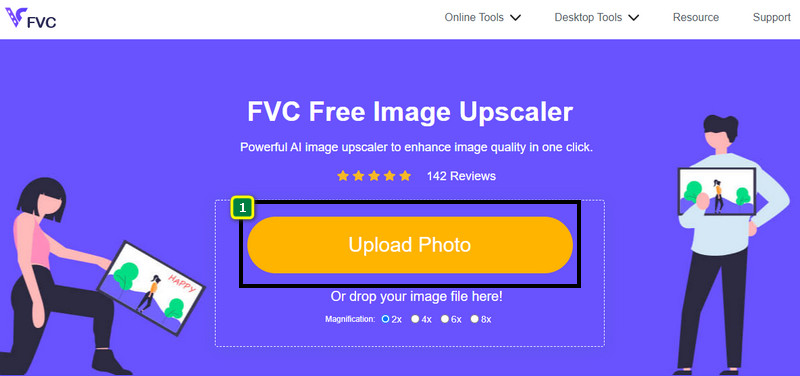
Vaihe 1. Päästäksesi verkkotyökaluun voit klikata tätä linkkiä, joka vie sinut automaattisesti koonmuuttajan viralliselle sivustolle.
Vaihe 2. Napsauta Add Image, jolloin näytölle avautuu kansio. Valitse ladattava kuvatiedosto ja paina Open.
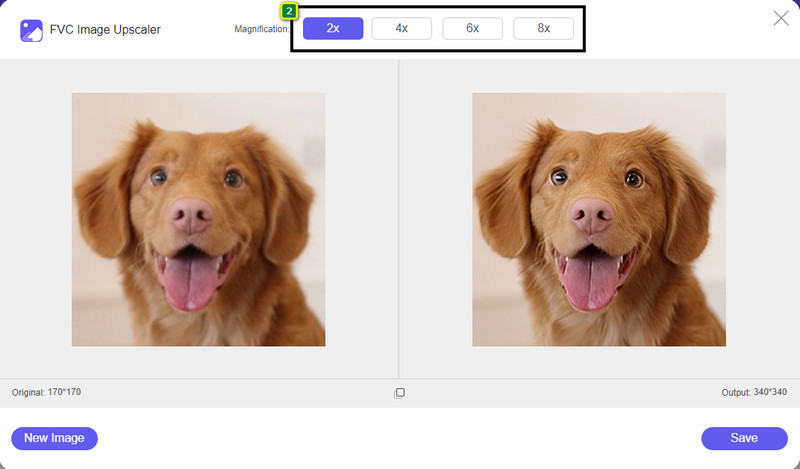
Vaihe 3. Muuttaaksesi kuvan kokoa sinun täytyy valita, millaisen suurennuksen haluat kuvaan tehdä. Kun kokeilet ja napsautat vaihtoehtoja 2x, 4x, 6x ja 8x, näet, että kuvan kokonaismitat muuttuvat.
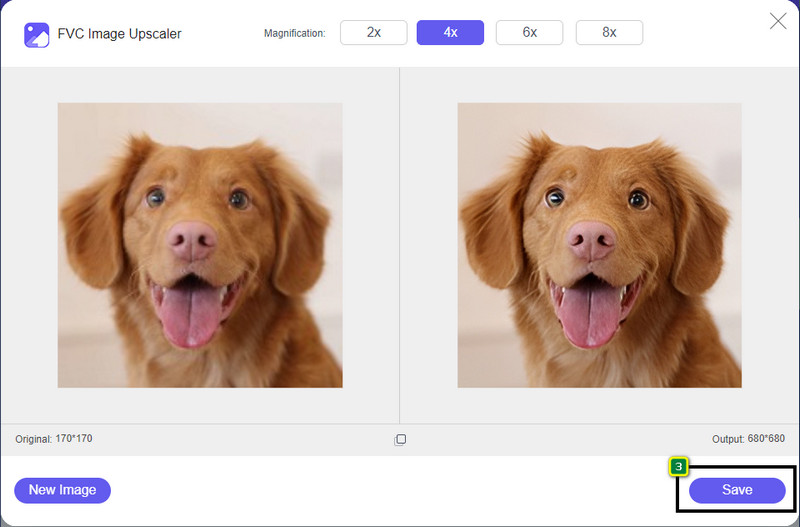
Vaihe 4. Kun olet valinnut suurennuksen, jonka haluat, voit painaa Save ladataksesi uuden koon mukaisen version tietokoneellesi.
2. Ole Funky – valokuvaeditori [ilmainen ja maksullinen]
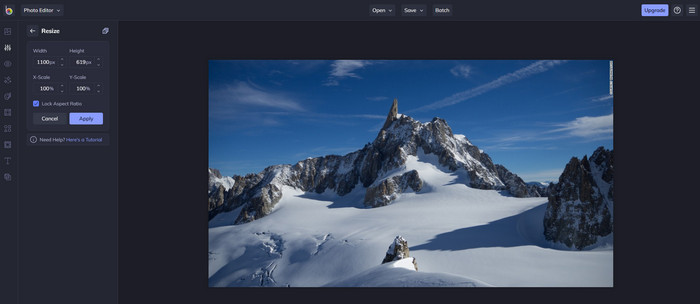
Be Funky - Photo Editor on luova alusta, jolla voit tehdä kuvillesi tavallisuudesta poikkeavia asioita. Sillä voi muuttaa BMP-kuvien kokoa laadun heikkenemättä. Tätä työkalua pidetään yhtenä parhaista verkossa käytettävissä olevista kuvankäsittelyohjelmista. Vaikka sen käyttöliittymä muistuttaa Photoshopia, sen tarjoamat toiminnot ovat yksinkertaiset ja helposti ymmärrettävät, joten voidaan sanoa, että se on myös käyttäjäystävällinen. Jos siis haluat kokeilla tätä verkkotyökalua kuviesi helppoon koonmuutokseen, seuraa tähän liittämiämme ohjeita.
Kuinka muuttaa kuvan kokoa käyttäen Be Funkyä:
Vaihe 1. Hae sen nimeä verkkoselaimessasi ja klikkaa sitten Get Started and Edit Photo.
Vaihe 2. Paina Open ladataksesi BMP- tai minkä tahansa muun kuvan, jonka kokoa haluat täällä muuttaa.
Vaihe 3. Mene kohtaan Edit ja valitse Resize.
Vaihe 4. Tässä voit vapaasti muuttaa kuvan leveyttä ja korkeutta tai x- ja y-asteikkoa. Paina sitten Apply nähdäksesi, miltä uusi koko näyttää.
3. Yksinkertainen kuvan koon muuttaja [maksuton]
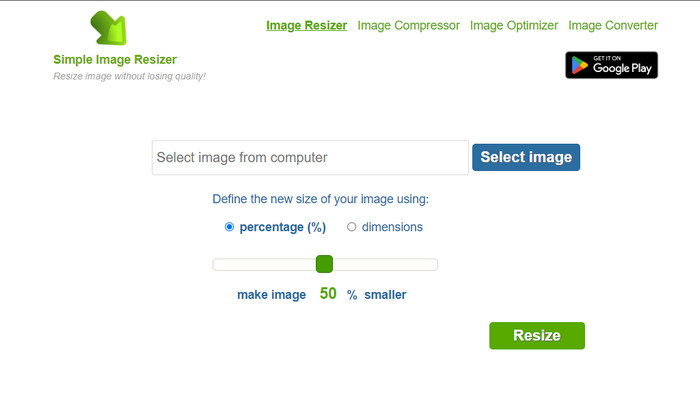
Simple Image Resizer antaa sinun muuttaa kuvan kokoa määrittämällä uudelle kuvalle koon prosentteina tai mitoissa. Se on viimeinen kuvan koonmuuttaja, jonka lisäsimme tähän artikkeliin. Sen yksinkertainen käyttöliittymä ja helppokäyttöisyys olivat pääsyyt, miksi otimme sen mukaan. Koonmuutoksen lisäksi voit optimoida, pakata ja muuntaa kuvaasi täällä ilmaiseksi, joskin sivustolla on häiritseviä mainoksia. Jos haluat kokeilla tätä verkkokoonmuuttajaa, seuraa alla olevia ohjeita.
Kuinka muuttaa kuvan kokoa käyttäen Simple Image Resizeria:
Vaihe 1. Etsi sen nimi verkkoselaimessasi aloittaaksesi tämän verkkokoonmuuttajan käytön.
Vaihe 2. Paina Select Image lisätäksesi kuvan, jonka kokoa haluat muuttaa.
Vaihe 3. Valitse, haluatko muuttaa kokoa prosentteina vai mittoina, ja säädä arvoja. Molemmat vaihtoehdot toimivat käytännössä samalla tavalla.
Vaihe 4. Klikkaa Resize tallentaaksesi lopullisen kuvan tietokoneellesi.
Osa 2. Kuvan koon muuttaminen Windowsissa ja Macissa [Maksullinen ja ilmainen offline]
Toisin kuin ensimmäinen 3 mainittu verkkotyökalu, seuraavat esittelemämme työkalut eivät ole Internet-riippuvaisia, mikä tarkoittaa, että vaikka sinulla ei olisi Internetiä, voit käyttää niitä ilman ongelmia. Ne ovat ladattavissa tai valmiiksi asennettuina työpöydällesi. Opi käyttämään niitä tänään lukemalla kuhunkin niistä lisäämämme tiedot.
1. Adobe Photoshop [Windows ja Mac]
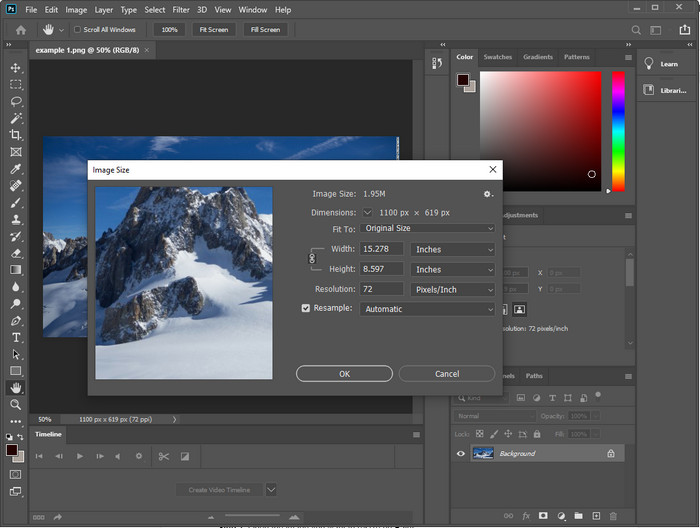
Ensimmäinen offline-kuvan koonmuuttaja, jonka voit ladata laitteellesi, on Adobe Photoshop. Miksi? Koska se luo uutta pikselidataa koonmuutoksen yhteydessä ja auttaa välttämään lopputuloksena heikkolaatuisen kuvan. Lisäksi ohjelmisto tunnetaan ammattimaisena kuvankäsittelyohjelmana, joka käsittelee vaivattomasti sekä rasteri- että vektorikuvia. Vaikka ohjelma on ammattilaistason työkalu, sen ostaminen pelkkää koonmuutosta varten voi olla liioittelua. Jos kuitenkin olet kiinnostunut siitä, miten kuvan kokoa muutetaan Photoshopissa, jatka lukemista.
Kuinka muuttaa kuvan kokoa käyttäen Adobe Photoshopia:
Vaihe 1. Lataa ja asenna ohjelmisto tietokoneellesi sen viralliselta verkkosivustolta.
Vaihe 2. Napsauta File ja etsi kuva kansiosta sen jälkeen, kun olet klikannut Open.
Vaihe 3. Paina yläreunasta Image-valikkoa ja valitse Image Size.
Vaihe 4. Muuta Width- ja Height-mittoja mieltymystesi mukaan ja klikkaa sitten OK ottaaksesi muutokset käyttöön.
Vaihe 5. Palaa kohtaan File ja tallenna kuva tietokoneellesi.
2. Maalaa [Oletussovellus Windowsissa]
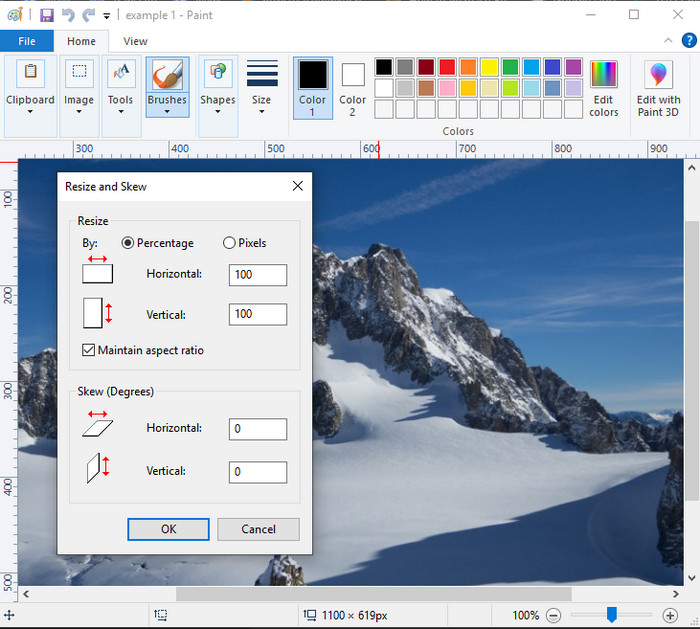
Paint tunnetaan sovelluksena, jolla voi piirtää tyhjälle kankaalle. Monet Windows-käyttäjät hyödyntävät sitä luodakseen jotakin tyhjälle sivulle, lisätäkseen yksityiskohtia kuviin ja muuttaakseen niiden kokoa. Vaikka se ei ole varsinainen kuvankäsittelyohjelma, se pystyy silti muuttamaan minkä tahansa paikalliselle levylle tallennetun rasterikuvan kokoa. Etuna on, ettei ohjelmaa tarvitse erikseen ladata Windowsiin, koska se on esiasennettu. Jos siis haluat tietää, miten matalan resoluution kuvan kokoa muutetaan tällä sovelluksella, lue alta lisää ohjeita.
Kuinka muuttaa kuvan kokoa käyttäen Paintia:
Vaihe 1. Avaa Paintissa kuva, jonka kokoa haluat muuttaa.
Vaihe 2. Kun kuva on avattu, klikkaa kaksi neliötä -kuvaketta aloittaaksesi kuvan koon muuttamisen.
Vaihe 3. Voit muuttaa kuvan kokoa prosentteina tai pikseleinä. Kun olet säätänyt arvot, paina OK ottaaksesi muutokset käyttöön.
Vaihe 4. Paina tallenna-kuvaketta viedäksesi muokatun kuvan ulos.
3. Esikatsele [Oletussovellus Macissa]
Preview on Macin oma sovellus, johon voit luottaa ja jonka avulla opit, miten kuvan kokoa muutetaan Macilla. Jos et halua ladata erillisiä sovelluksia macOS-laitteellesi, tämän käyttäminen on hyvä vaihtoehto. Se on aliarvostettu ratkaisu, mutta pystyy muuttamaan kuvien kokoa suoraan työpöydältäsi. Kun opit käyttämään sitä, voit hyödyntää ohjelmaa täysipainoisesti. Jos haluat tietää, miten tämä työkalu toimii, jatka seuraavaan osioon.
Kuinka muuttaa kuvan kokoa käyttäen Preview’ta:
Vaihe 1. Napsauta kuvaa Macilla hiiren oikealla, valitse Open with ja paina Preview.
Vaihe 2. Yläreunasta klikkaa Tools ja valitse sitten Adjust Size.
Vaihe 3. Muuta kuvan mittasuhteita tarpeidesi mukaan ja paina OK tallentaaksesi tekemäsi muutokset.
Osa 3. Lisätiedot: Top Image Resizer, jonka voit ladata Androidille ja iPhonelle
1. Valokuvien ja kuvien koon muuttaja [Android]
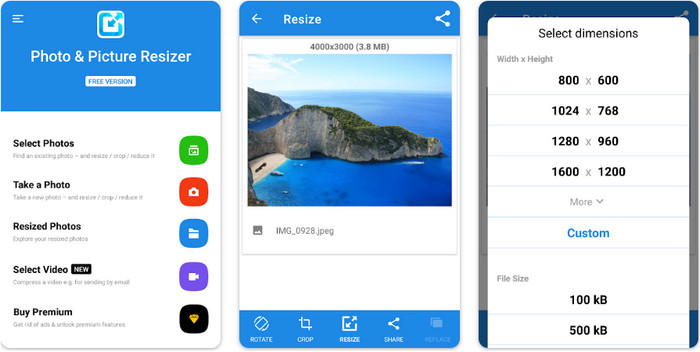
Photo & Picture Resizer on yksi nopeimmista ja helpoimmista tavoista muuttaa Android-laitteella olevan kuvan kokoa. Myös kokemattomat käyttäjät, jotka haluavat vain muuttaa kuvan kokoa, voivat ladata ja käyttää tätä koonmuuttajana. Sovellus on ilmainen, mutta jos haluat käyttää sen lisäominaisuuksia, ne täytyy ostaa. Kaiken kaikkiaan sen koonmuutosominaisuudet ovat erinomaiset, ja opit käyttämään niitä jo ensimmäisellä yrittämällä.
2. Ilmainen kuvan koon muuttaja [iPhone]
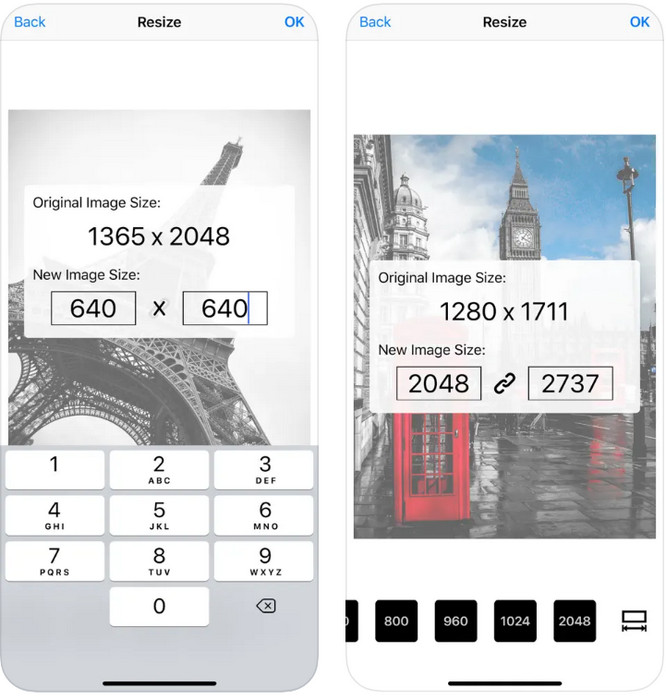
Image Resizer Free on iOS-sovellus, jonka voi ladata iOS 7.0 -versioon tai uudempiin. Se on täsmällinen kuvan koonmuuttaja, jota monet iOS-käyttäjät hyödyntävät. Sillä ei ole muita toimintoja kuin varsinainen päätoiminto, eli koon muuttaminen. Vaikka työkalu on käyttäjäystävällinen, monet käyttäjät valittavat, ettei se pysty korvaamaan alkuperäistä kuvaa uudella koonmuutatulla versiolla.
Osa 4. Usein kysyttyä kuvan koon muuttamisesta
Kumpi muoto on parempi muuttaa kokoa, rasteri vai vektori?
Rasterimuodot koostuvat pienistä pikseleistä kuvan ulkonäön luomiseksi, ja kun muutat sen kokoa tai mittaa, nämä pikselit venyvät ja tulevat näkyviin. Toisin kuin jos muutat vektorikuvan kokoa, se on erityisesti tehty kuvan koon muuttamiseen ja skaalaamiseen luomatta siihen sotkua.
Voinko muuttaa BMP:n kokoa verkossa?
Kyllä, voit muuttaa BMP:n kokoa käyttämällä tähän lisäämäämme online-ratkaisua. Kun kuitenkin suurennat kuvaa, BMP:llä on taipumus pikseloitua, koska ne ovat rasterikuvia. Joten jos haluat välttää BMP-tiedoston koon muuttamisen ongelman, sinun on parempi valita FVC Free Image Upscaler Online, sillä se ei jätä pikselointia muutetun BMP-tiedoston lopulliseen ulostuloon.
Kasvaako tiedostokoko kuvan koon muuttamisen jälkeen?
Kyllä. Pääasiassa siksi, että kuvan kokoa muutettu lisää pikselitietoja todelliseen ulostuloon. Sen tiedostokoko ei kuitenkaan eroa paljon alkuperäisestä tiedostokoosta.
Johtopäätös
Mikä kuvan koon muuttamisen tekniikka sopii mielestäsi sinulle parhaiten? Valitse jokin tässä esitellyistä koonmuuttajista. Jos sinulla on ongelmia valinnassa ja käytät internet-yhteyttä, suosittelemme vahvasti FVC Free Image Upscaler Online -työkalua sen erinomaisen suorituskyvyn vuoksi. Kun käytät tätä verkkotyökalua, koon muuttaminen käy ilman hankaluuksia.
-
 1440p-kuva – kaikki tarvitsemasi tiedot [2022 päivitetty]
 Haluatko tietää 1440p-kuvista? Tai mistä sen saa? Muutetaanko kuva 1440p:ksi? Lue tämä tietääksesi ne kaikki.
-
 Opastus kuvan poistamiseen 3 parhaan valokuvan pikselöinnin avulla
 Onko sinulla ongelmia pikselöityjen kuvien käsittelyssä? Tänään olemme ratkaisseet ongelman, ja voit käyttää tähän lisäämiämme työkaluja.
-
 Kuvan terävöittäminen valokuvassa kolmella tavalla [Pikaopastus]
 Onko sinulla ongelmia terävöittämättömän kuvan kanssa? Tässä esittelemme, kuinka voit terävöittää kuvia Photoshopissa käyttämällä kolmea lisäämäämme tapaa.
