


 Video Converter Ultimate
 Näytön tallennin
 Videon korjaus
 Suojattu lataus
Kuinka muuntaa zoomaustallennuksen MP4-muotoon Windows- ja Mac-tietokoneissa
Zoom on alusta, jonka avulla voi soittaa videopuheluja, kuten kokouksia ja verkkotunteja. Tavallisesti se tallentaa nauhoitukset muotoon, jota voi toistaa useimmilla laitteilla, kuten MP4. Jos kuitenkin lopetat nauhoituksen vahingossa liian aikaisin, tiedosto saattaa jäädä alustan alkuperäiseen .zoom-muotoon, jota ei voi heti avata. Tämä tapahtui siksi, että Zoom ei ehtinyt muuntaa tiedostoa automaattisesti MP4-muotoon. Jos näin käy sinulle, sinun täytyy muuntaa Zoom MP4:ksi joko Zoomin sisällä tai sen ulkopuolella. Onneksi on useita tapoja saada Zoom viimeistelemään tämä muunnosprosessi. Opastamme sinua, miten se tehdään sekä Zoom-ohjelman avulla että erityisellä Zoomin mukana tulevalla työkalulla. Jos nämä eivät toimi sinulla, olemme listanneet myös muita työkaluja, joita voit käyttää. Hypätään siis suoraan asiaan!

Osa 1. Ovatko zoomaustallenteet MP4-muodossa
Ensinnäkin Zoom tuottaa MP4-tallenteita, mikä on sen oletusasetus. Tämä ei kuitenkaan tapahdu hetkessä. Tarkoitamme sitä, että tallennuksen aikana raakamateriaalisi ei ole vielä siinä MP4-muodossa, jonka luulet sen olevan. Itse asiassa, kuten yllä mainittiin, prosessin materiaali on edelleen .zoom-muodossa, joka on alustan oma muoto, ja se muunnetaan MP4-muotoon vasta, kun tallennus on tehty ja muunnos on suoritettu. Tämä pätee erityisesti silloin, kun lopetat tallennuksen vahingossa.
Osa 2. 3 tapaa muuntaa zoom-tallennus MP4-muotoon zoomin avulla
Siirrytään nyt tehokkaisiin työkaluihin, joiden avulla voit muuntaa Zoom-tallenteet MP4-muotoon, jos sellaista ei ole alustassa.
1. Zoom Client (työpöytä)
Tiesitkö, että Zoom pitää kirjaa kaikista tallennuksistasi työpöytäasiakassovelluksessa? Sen lisäksi, että voit käyttää tallenteitasi helposti, Zoom tarjoaa myös sisäänrakennetun muuntimen. Tämä varmistaa toiston yhteensopivuuden useimmilla laitteilla. Jos et ole varma, miten sitä käytetään, tässä on yksityiskohtainen erittely Zoom-tallenteiden löytämisestä ja muuntamisesta MP4-muotoon.
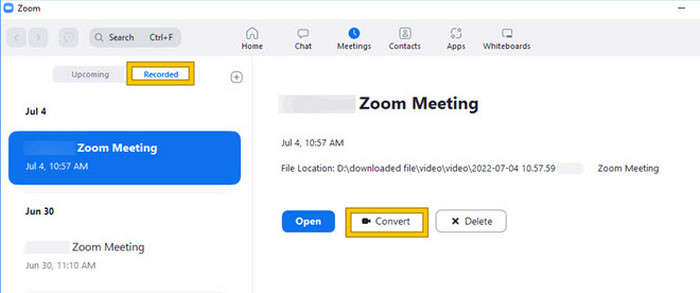
Vaihe 1. Käynnistä Zoom tietokoneellasi ja siirry heti Meetings-osioon avataksesi kokoushistoriasi.
Vaihe 2. Kun osio on avattu, näet listan tallennetuista kokouksistasi. Etsi tallenne, jonka haluat muuntaa, ja napsauta sitä valitaksesi sen.
Vaihe 3. Kun tallenne on valittu, näytön oikealle puolelle ilmestyy valikko. Napsauta Convert-painiketta ja odota, kunnes lopullinen MP4-muunnos on valmis.
2. Transcode (macOS)
Jos olet Mac-käyttäjä ja Zoomin automaattinen tallennuksen muunnos MP4:ksi epäonnistuu, tässä on kätevä työkalu nimeltä Transcode auttamaan sinua. Tämän työkalun avulla voit muuntaa .zoom-tiedostot manuaalisesti MP4-tiedostoiksi, jotka eivät välttämättä toistu oikein epäonnistuneen automaattisen muuntamisen vuoksi. Pohjimmiltaan Transcode tarjoaa Mac-käyttäjille manuaalisen ratkaisun varmistaakseen, että heidän Zoom-tallenteensa ovat saatavilla ja käyttökelpoisia, kun automaattinen prosessi ei toimi odotetulla tavalla.
Vaihe 1. Etsi .zoom-tiedosto, kaksoisnapsauta sitä ja valitse kehotteesta Choose Application. Avaa sitten tiedosto Transcode-sovelluksella, jonka voit myös asettaa oletussovellukseksi näille tiedostoille.
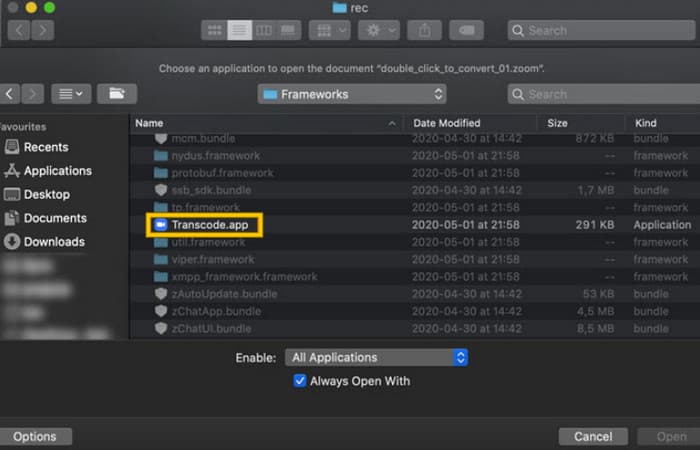
Vaihe 2. Heti sovelluksen valinnan jälkeen muunnosprosessi alkaa automaattisesti.
Vaihe 3. Kun muunnos on valmis, valitse haluamasi kansio, johon haluat tallentaa tulostiedoston.
3. zTscoder (työpöytä)
Jos haluat työpöydällesi samanlaisen työkalun kuin edellinen, suosittelemme zTscoderia. zTscoder on Windows-versio Transcodesta, joka on ohjelma, johon Mac-käyttäjät luottavat vastaavissa tilanteissa. Molempien työkalujen avulla voit muuntaa Zoom-tiedostosi manuaalisesti tavalliseen MP4-muotoon, joka ei välttämättä toistu kunnolla. Jos olet nyt työpöytääsi päin, noudata alla olevia ohjeita.
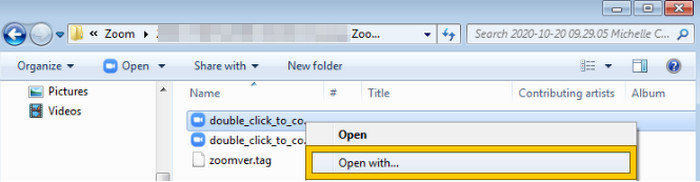
Vaihe 1. Etsi kansio, johon Zoom-tallenteesi on tallennettu, ja valitse tiedosto, joka pitää muuntaa. Napsauta tiedostoa hiiren oikealla painikkeella ja avaa se zTscoderilla.
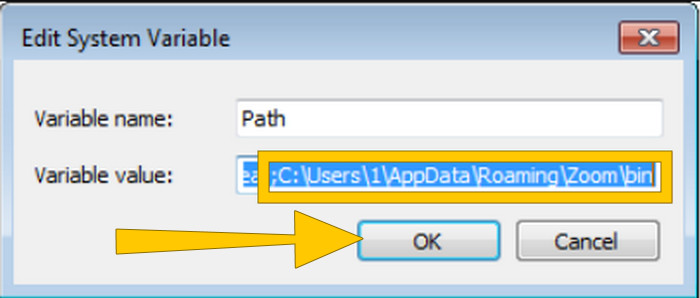
Vaihe 2. Jos työkalu ei vastaa, voit siirtyä Ohjauspaneeliin, mennä kohtaan Järjestelmä ja suojaus > Järjestelmä ja avata sitten Lisäjärjestelmäasetukset. Lisää sieltä polku C:\Users\*your username*\AppData\Roaming\Zoom\bin muuttujan arvoon ja napsauta OK.
Vaihe 3. Kun tiedosto on asetettu avautumaan työkalulla, muunnosprosessi alkaa automaattisesti.
Osa 3. Tallenna zoomauskokouksia MP4-muodossa jopa 4K-laadulla
Haluatko hyvän ratkaisun, jolla saat Zoom-kokouksesi suoraan MP4-muotoon? Tallenna ne FVC Screen Recorder -ohjelmalla! Tämä tallennin tarjoaa monipuolisen ratkaisun, joka ulottuu Zoom-kokouksia pidemmälle. Tämän työkalun avulla voit nauhoittaa verkkotunteja, konferensseja, opetusvideoita tai mitä tahansa, mitä näet Zoom-näytölläsi. Lisäksi voit valita, tallennatko koko näytön vai vain tietyn ikkunan, sillä ohjelma tarjoaa asetukset molempiin. Se voi myös tallentaa mikrofonin äänen, järjestelmä-äänen ja jopa webbikamerakuvan, kunhan säädät asetukset etukäteen. Ohjelma on yhteensopiva sekä Mac- että Windows-tietokoneiden kanssa, ja se tallentaa nauhoitukset korkealaatuisiin formaatteihin, jopa 4K-tarkkuudella. Toinen merkittävä syy pitää FVC:stä on se, että se menee vielä pidemmälle tarjoamalla annotointityökaluja, joilla voit korostaa tärkeitä kohtia nauhoituksen aikana. Näin muunnetaan Zoom-tallenteet MP4-muotoon.
Vaihe 1. Asenna tallennin tietokoneellesi. Voit käyttää alla olevaa Lataa-painiketta. Kun asennus on käynnissä, avaa Zoom-kokous, jonka haluat tallentaa MP4-muotoon.
Ilmainen latausWindows 7 tai uudempiTurvallinen lataus
Ilmainen latausMacOS 10.7 tai uudempiTurvallinen lataus
Vaihe 2. Käynnistä muunnin ja napsauta Video Recorder -työkalua. Aseta sitten näytön kaappaus kattamaan koko Zoom-kokouksen käyttöliittymä. Voit myös säätää System- ja Microphone-ääniasetuksia halutessasi.
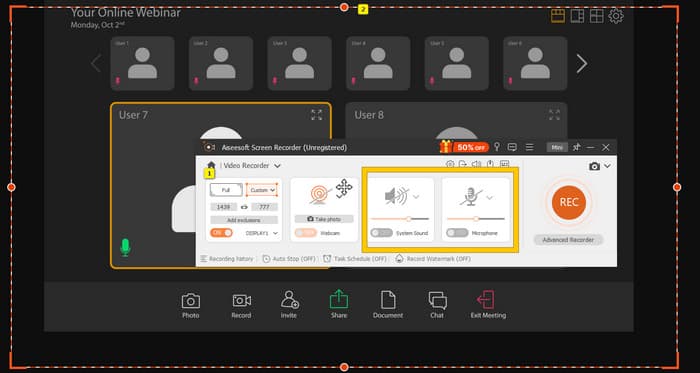
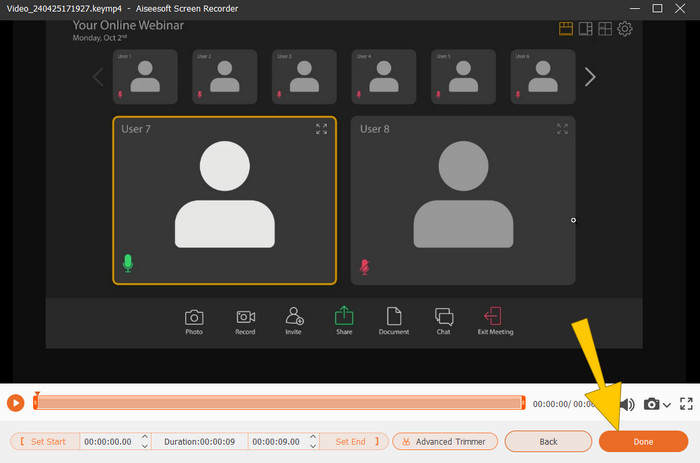
Vaihe 3. Napsauta sen jälkeen REC-painiketta aloittaaksesi tallennuksen. Kun kokous on ohi, napsauta kelluvasta palkista Stop-painiketta. Tee sitten pieniä säätöjä uudessa ikkunassa tai napsauta DONE-painiketta tallennuksen tallentamiseksi.
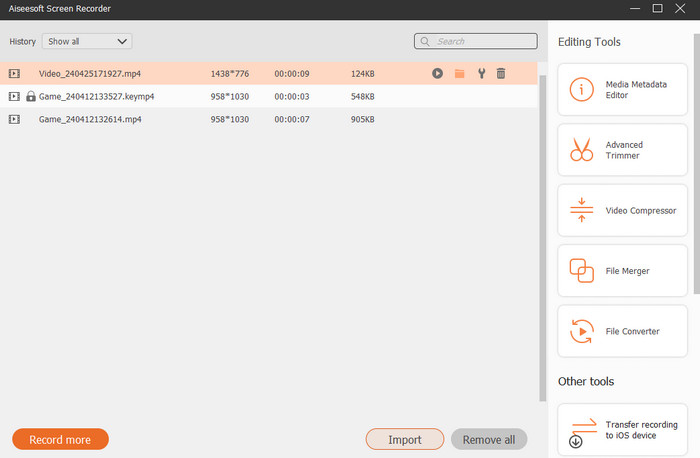
Vaihe 4. Lisämuokkausta varten työkalu ohjaa sinut sen kirjastoon, josta näet tallennusluettelosi. Samassa näkymässä ovat käytettävissäsi myös kaikki muokkaustyökalut.
Laajennettua luettavaa:
6 loistavaa MP4-tallennustyökalua vuodelle 2024 [Ilmaiset & maksulliset]
Top 5 Zoom Meeting Recorder -työkalua Zoom-kokousten tallentamiseen [2024]
Osa 4. Usein kysyttyä zoomaustallennuksen muuntamisesta
Ovatko Zoom-tallenteet MP4?
Joo. Tallenteet eivät kuitenkaan välttämättä ole MP4-muodossa, jos ne pysäytettiin vahingossa.
Onko tallenteiden kestolla rajoituksia, jotka voin muuntaa MP4-muotoon?
Se riippuu. Ilmaisilla tileillä voi olla rajoituksia tallennustilan ja muunnosvaihtoehtojen suhteen, kun taas maksulliset sopimukset tarjoavat yleensä enemmän joustavuutta ja korkeampia rajoja.
Kuinka voin muuntaa Zoom-tallenteen MP4-muotoon?
Voit muuntaa Zoom-tallenteen MP4-muotoon Zoom-asiakassovelluksella, koska siinä on sisäänrakennettu muunnosominaisuus. Kun avaat tallenteen, sinun tarvitsee vain napsauttaa Muunna-painiketta.
Johtopäätös
Oletusarvoisesti Zoom-kokoukset tallennetaan MP4-muodossa, mutta jos tallenteita ei tallenneta kunnolla, sinun täytyy silti muuntaa Zoom-tallenteet MP4:ksi. Hyvä uutinen on, että tehokkaat tavat muunnokseen on esitelty tässä artikkelissa. Toivottavasti siitä on sinulle apua.
-
 7 Magnificent Voice Recorderista, joka on käytettävissä kaikilla alustoilla
 Haluatko oppia äänittämään ääntä? Siirry sitten tähän artikkeliin, kun puhumme parhaasta äänitallentimesta, joka sopii tarpeisiisi.
-
 CamStudio 2025 -katsaus: CamStudion käytön plussat ja miinukset
 CamStudio on upea ilmainen ja avoimen lähdekoodin näytön sieppausohjelma näytön näytön tallentamiseen. Onko CamStudio-näytön tallennin turvallinen? No, tämä arvostelu auttaa sinua löytämään kaikki CamStudion ominaisuudet.
-
 Mahdollisia tapoja äänen tallentamiseen VLC Playerilla
 Opi parhaat tavat tallentaa ääntä VLC-soittimella ja muilla käytännön työkaluilla lukemalla artikkelin läpi.
