


 Video Converter Ultimate
 Näytön tallennin
 Videon korjaus
 Suojattu lataus
Muunna PPT MP4:ksi kolmella tehokkaalla menetelmällä
PPT on loistava työkalu esitelmien esittämiseen, olipa kyseessä sitten koulussa, töissä jne. Joskus esityksen jälkeen joku saattaa pyytää kopiota PPT-materiaalista viitteekseen.
On kuitenkin tärkeää huomata, että jotkut ihmiset eivät voi käyttää tiedostoa, koska heillä ei ole sovellusta tai ohjelmistotyökalua asennettuna laitteilleen. Tämän ansiosta useimmilla esiintyjillä on esityksestä muunnettu MP4-versio, jotta materiaali jaetaan helposti kaikille.
So, if you’re looking for a way to convert your PPT to MP4 for quick sharing and accessibility of the file material, you’re on the right page. Therefore, continue reading this article and immerse yourself in learning the 3 different methods of how you can turn your PPT file into a video.

Osa 1: Kuinka muuntaa PowerPoint MP4:ksi PPT:ssä
PowerPoint-esityksen avulla käyttäjät voivat helposti muuntaa PPT:nsä MP4:ksi. Se on hieno sisäänrakennettu ominaisuus mukavuuden ja joustavuuden vuoksi.
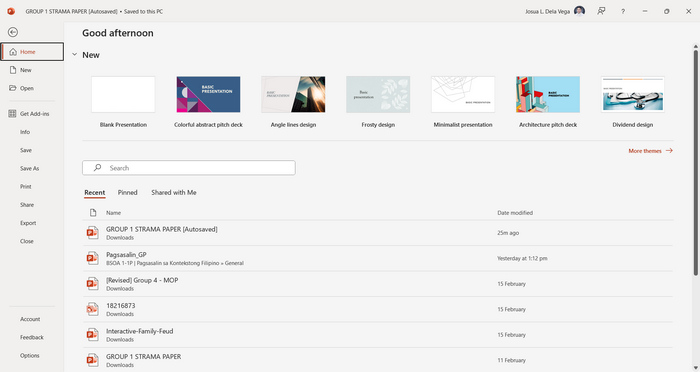
Step 1. Open your presentation using the PowerPoint presentation software tool on your device.
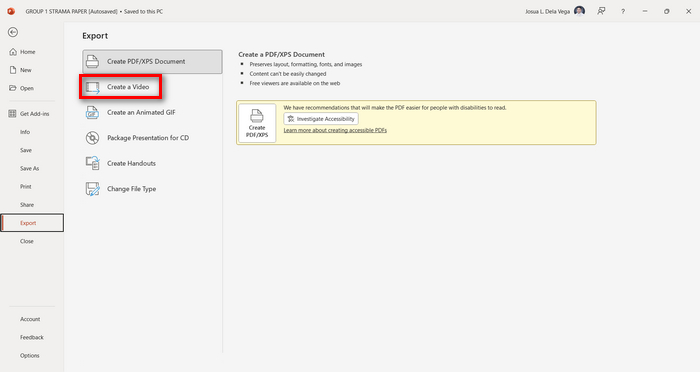
Step 2. Proceed to the File tab, look for the Export button, and click on it.
Step 3. Once you’re on the Export tab, click on the Create a Video option.
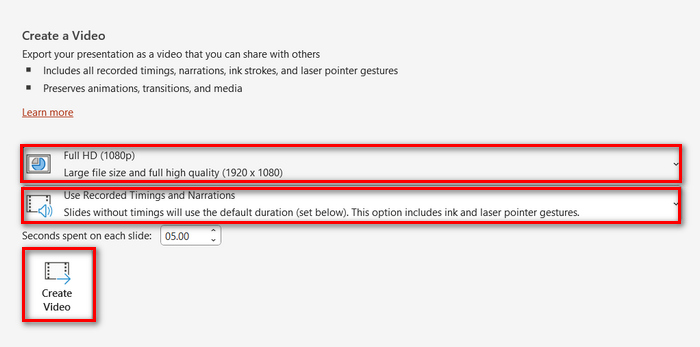
Step 4. Now, set your preferred video resolution. You can choose between 480p to 4K. Also, in the Use Recorded Timings and Narrations option, you can manually set the timing of your slides. After that, click on the Create Video button.
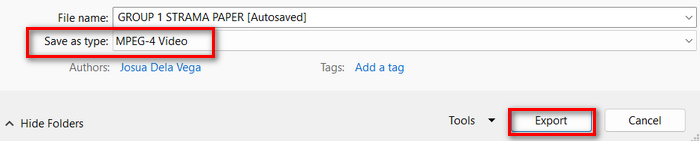
Step 5. After clicking the Create a Video button, there will be a new Window where you can check the format of your file output and where you want it to be saved. When set, just click the Export button and wait for it to be finished.
It is indeed convenient to convert PowerPoint to MP4 using its built-in feature. However, it lacks the customization feature if you want to add some background music. Nevertheless, if your goal is just for sharing purposes, then this is not a problem for you.
Osa 2: Muunna PPT MP4-muotoon Audio Online -sovelluksella
Jos sinulla on PPT-tiedosto ja haluat muuntaa sen verkossa, koska laitteellasi ei ole PowerPoint-esitysohjelmistosovellusta tai -työkalua, voit käyttää MagicSlides-sovellusta. Tämän online-muunnostyökalun avulla voit muuntaa PowerPointin helposti MP4-muotoon tuomalla tiedoston järjestelmään.
Step 1. Upload the PPT file that you want to convert into MP4 by clicking the Upload your source file button.
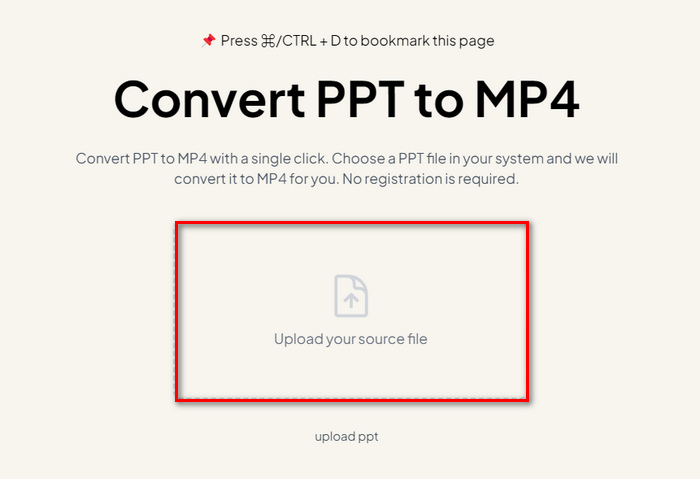
Step 2. Once the file is imported, click on the Create MP4 button to start the Conversion process.
Step 3. When it’s done, you can first preview the converted PPT file, and when you’re satisfied with the result, just click on the Download button to save it directly to your device.
Vaikka tämä työkalu tarjoaa hyvin yksinkertaisia vaiheita PPT:n muuntamiseksi MP4:ksi, PPT-tiedostojen tuonti vie niin paljon aikaa, mikä voi olla huolestuttavaa, varsinkin kun sinulla on kiire. Lisäksi siinä ei ole mukautusvaihtoehtoja. Se vain muutti PPT-tiedostot kirjaimellisesti videoksi.
Osa 3: Kuinka muuntaa PPT MP4:ksi tehosteilla ja äänellä
If you want to convert your PPT to MP4, but this time with effects and audio, then this is definitely for you. With FVC Screen Recorder, you are able to turn your PowerPoint presentation into a creative and interactive MP4 file using its editing features. Moreover, you have nothing to worry about the output quality as it supports up to 4K video resolution. So, to use this, follow the guide below:
Step 1. First, download the software tool and install it on your computer.
Ilmainen latausWindows 7:lle tai uudemmalleTurvallinen lataus
Ilmainen latausmacOS 10.7:lle tai uudemmalleTurvallinen lataus
Step 2. Open your PowerPoint presentation, and make sure that it is opened in full screen.
Step 3. Now, on the screen recorder tool, choose the Video Recorder feature and select the recording area as Full.
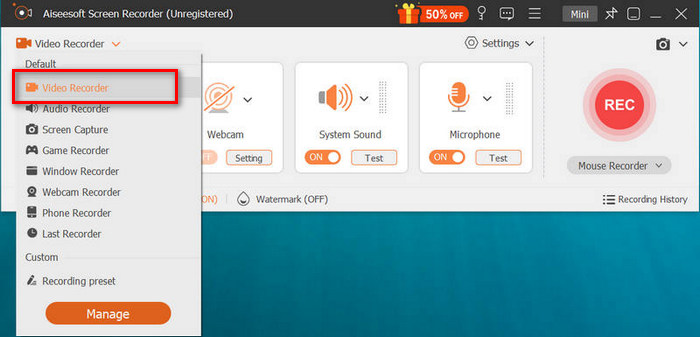
Step 4. After that, start to play the PowerPoint slideshow. Likewise, click the REC button to start recording the PowerPoint.
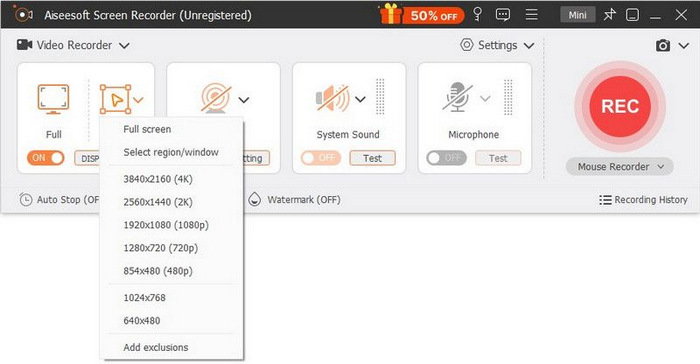
Step 5. When done, just click the Stop button, and it will bring you to the preview interface. From there, you can find in the bottom corner the editing features that you can utilize to edit audio and effects in converting your PPT to MP4.

Step 6. Lastly, you can access your file by clicking on the Open Folder button.
Hyvä puoli FVC Screen Recorderin käyttämisessä PowerPointin muuttamisessa MP4:ksi on, että voit hallita diojen ajoitusta ja tahdistusta. Lisäksi toisin kuin muut työkalut, jotka tarjoavat vain perusmuunnoksen, tässä työkalussa on muokkausominaisuuksia, joita voidaan käyttää muunnetun MP4-tiedoston parantamiseen edelleen.
Osa 4: Usein kysyttyä PPT:n muuntamisesta MP4:ksi
Kuinka kauan PPT:n muuntaminen MP4:ksi kestää?
Muunnosprosessin aika riippuu muunnettavan tiedoston koosta. Mutta yleensä yksinkertaiset esitykset eivät vie paljon aikaa muuntamisen aikana.
Voinko säilyttää animaatiot ja siirtymät muuntaessani PPT:n MP4:ksi PPT:ssä?
Kyllä. Sisäänrakennetun ominaisuuden avulla käyttäjät voivat säilyttää animaatioita ja siirtymiä muunnosprosessin aikana. Tällä varmistetaan, että esityksen visuaaliset elementit, kuten siirtymät ja animaatiot, säilyvät, kun ne muunnetaan MP4-muotoon. On kuitenkin tärkeää huomata, että animaatioiden ja siirtymien yhteensopivuus voi vaihdella käytetyn PowerPointin version ja käytettyjen tehosteiden monimutkaisuuden mukaan.
Säilyttääkö PowerPoint-esitykseni laatu MP4-muotoon muuntamisen yhteydessä?
Kyllä. PowerPoint-esitys tukee jopa 4K-videoresoluutiota. Siksi suuremman resoluution valitseminen auttaa säilyttämään esityksen laadun. Lisäksi, kun päätät muuntaa PPT:n MP4:ksi jollakin edistyneellä muunnintyökalulla, joka tarjoaa vaihtoehtoja bittinopeuden ja pakkausasetusten säätämiseen videon laadun optimoimiseksi edelleen, voit taata laadukkaan tulosteen.
Johtopäätös
Converting PPT to MP4 format indeed offers convenience and accessibility for sharing the file across various platforms and devices. Now that you have an idea of how to convert them, it's time to put this knowledge into action. Start converting today and enhance the reach and impact of your presentations!
-
 Kuvan koon muuttaminen PowerPointissa [nopein tapa muuttaa kokoa]
 Kuvien koon muuttamisen oppiminen PowerPointissa on välttämätöntä, varsinkin jos haluat käyttää sitä esityksessäsi. Lue tämä artikkeli saadaksesi tietää, miten se tehdään.
-
 Apowersoft Watermark Remover Review - Ominaisuus, edut ja haitat sekä hinta
 Apowersoft Watermark Remover on yksi parhaista vesileimoista, joka tukee online- ja offline-toimintoa. Napsauta tätä saadaksesi lisätietoja!
-
 Kuinka korjata video, joka ei toistu PowerPointissa | Pikaopas
 Eikö PowerPoint-videosi toistu? Voit voittaa upotettujen videoiden toiston epäonnistumisen turhautumisen viidellä parhaalla ratkaisullamme ratkaistaksesi ne vaivattomasti.
