


 Video Converter Ultimate
 Näytön tallennin
 Videon korjaus
Valitse paras GIF-näytönauhuri GIF-tallennusta varten [online ja offline]
Se on tosiasia, että GIF-tiedostot ovat yksinkertaisia, mutta silti helppokäyttöisiä tiedostomuotoja verkossa. GIF-tiedostojen koko on niin pieni, että siitä tuli yksi tehokkaimmista tavoista lähettää videoita tai elokuvia Internetin kautta. Katsoessasi elokuvaa löysit upean kohtauksen katsomastasi elokuvasta ja haluat jakaa sen ystävillesi, rakkaillesi tai perheellesi. Mutta suurin osa näytön tallentimista on MP4- ja MOV-muodossa, jotka ovat yksi suurimmista tiedostokokomuodoista. Meille ei ole uutta, että tämän tyyppisen tiedostomuodon siirtäminen kestää tunnin tai enemmän ja useimmiten ne epäonnistuvat Internet-katkoksen vuoksi tai muissa tapauksissa formaatti ei ole käytettävissä, koska kaikki paikallinen mediasoitin ei tue kaikkia muotoja.
Selaillessasi verkkoa ja etsiessäsi ratkaisua kohtaat GIF‑tiedostoja. Tämä tiedostomuoto on kooltaan paljon pienempi ja helppo jakaa. Mietit siis, mikä olisi paras GIF-tallennin, jolla voisit nauhoittaa kohtauksen katsomastasi elokuvasta. Alla oleva lista esittelee joitakin suosittuja GIF-tallennustyökaluja, joihin olet saattanut jo törmätä verkossa – tai sitten et. Jatka lukemista saadaksesi tietää, mitä nämä työkalut ovat ja miten niitä käytetään animoitujen GIFien tallentamiseen.

Osa 1. GIF-tallentimen parhaat ominaisuudet
Ennen kaikkea on tärkeää valita paras näytöntallennin. Mutta ehkä mietit, mitä sinun pitäisi painottaa valitessasi GIF‑tallenninta? Alla oleva lista antaa sinulle käsityksen siitä, millaisia ominaisuuksia hyvällä tallentimella tulisi olla.
● Sen pitää olla helppokäyttöinen – Valitse tuote, joka ei aiheuta ongelmia tallennuksen aikana.
● Budjettiystävällinen – Tämä koskee vain maksullisia työkaluja. On parempi valita edullinen ratkaisu kuin käyttää paljon rahaa ominaisuuksiin, jotka halvempi Premium-versiokin tarjoaa. On totta, että maksullinen työkalu voi tuottaa parhaimman laadun, mutta tämä pätee vain maksullisiin ohjelmiin. Ilmaisten verkko- tai offline-työkalujen kohdalla tästä ei tarvitse huolehtia.
● Ohjelman saatavuus – Tässä yhteydessä, jos vaihdat PC:stä Maciin tai päinvastoin, sinun ei pitäisi joutua totuttelemaan kokonaan uuteen tallentimeen. Siksi on tärkeää valita GIF‑näytöntallennin, joka on saatavilla kaikille alustoille. Näin vältyt ylimääräiseltä vaivalta, ja jos ohjelmaan tehdään muutoksia, ne koskevat todennäköisemmin vain nimeä, eivät koko käyttöliittymää.
● Ei haittaohjelmia tai viruksia – Tämä koskee sekä verkko- että offline-työkaluja. Jokaisen ohjelman tulisi tarjota paras mahdollinen tallennus turvallisesti, ilman haittaohjelmia. Näin vältetään tietojen katoaminen ja vuotaminen.
Vaikka nämä ovat yksinkertaisia ominaisuuksia, joita tallentimen tulee tarjota, valitsemasi työkalun ainutlaatuisuus on alla olevassa luettelossa. Löydä ero kunkin työkalun välillä ja valitse luettelosta paras GIF-tallennin nauhoitteellesi.
Osa 2. Parhaat GIF-tallentimet verkossa
1. FVC Free Screen Recorder
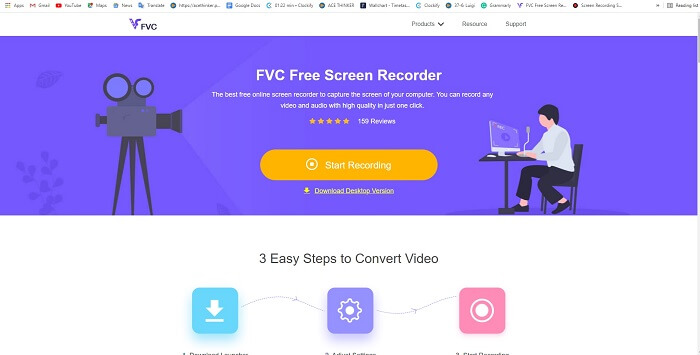
Paras tapa jakaa hetki on tallentaa se, ja paras tapa tallentaa näytöllä näkyvä kohtaus tai toiminto on FVC Free Screen Recorder. Tämä avoimen lähdekoodin työkalu toimii internetin avulla. Jos sinulla on verkkoyhteys, voit käyttää tätä työkalua. Se tukee myös tavallisimpia tiedostomuotoja, koodekkeja jne. Vaikka kyseessä on kevyt GIF-tallennin verkossa PC:lle ja Macille, se tarjoaa erinomaisen mahdollisuuden tehdä rajattomasti tallennuksia ilman vesileimaa. Seuraa alla olevia ohjeita nähdäksesi, miten työkalua käytetään.
Vaihe 1. Napsauta tätä annettua linkkiä siirtyäksesi työkalun pääsivulle.
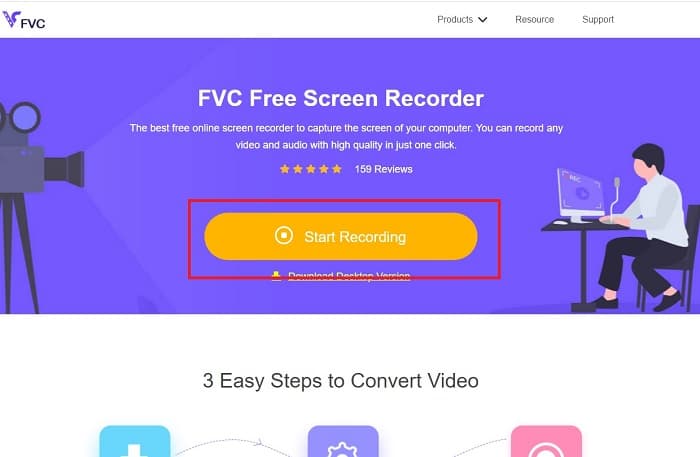
Vaihe 2. Näytöllesi avautuu tämän näköinen sivusto. Napsauta Start Recording ja sitten Allow käynnistääksesi verkkotyökalun.
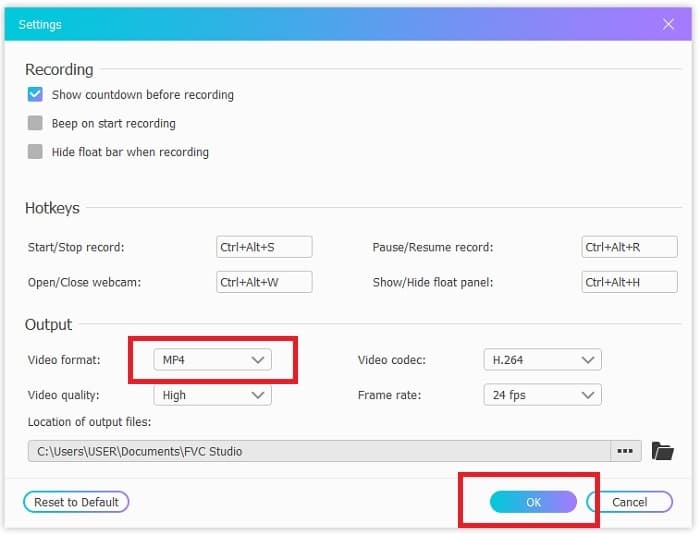
Vaihe 3. Näytölle ilmestyy kelluva työkalupalkki. Napsauta rataskuvaketta siirtyäksesi asetuksiin, vaihda videomuotoa ja muita asetuksia tarvittaessa. Napsauta OK tallentaaksesi muutokset.
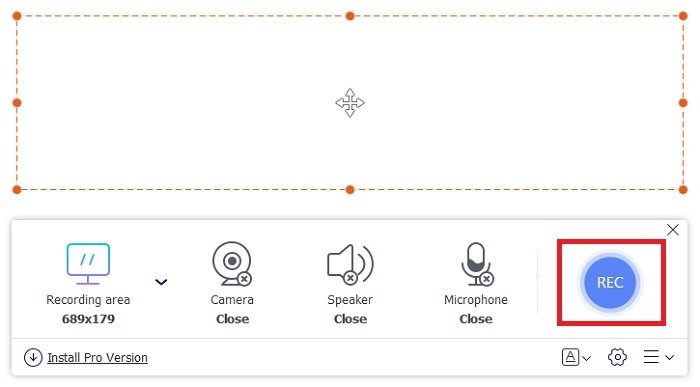
Vaihe 4. Säädä tallennusaluetta tai napsauta Full screen tallentaaksesi koko näytön. Kaiutin ja mikrofoni eivät ole mukana GIFien luonnissa, koska GIFeissä ei ole ääntä. Voit kuitenkin lisätä kasvokuvasi avaamalla Webcamin. Kun olet valmis aloittamaan tallennuksen, napsauta REC-painiketta.
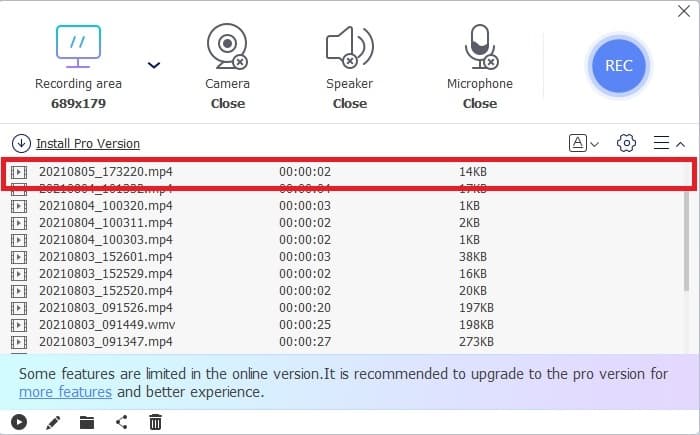
Vaihe 5. Kun haluat lopettaa tallennuksen, napsauta neliö-painiketta. Voit tarkistaa valmiin tallenteen History list -kohdasta.
2. FVC Screen Recorder
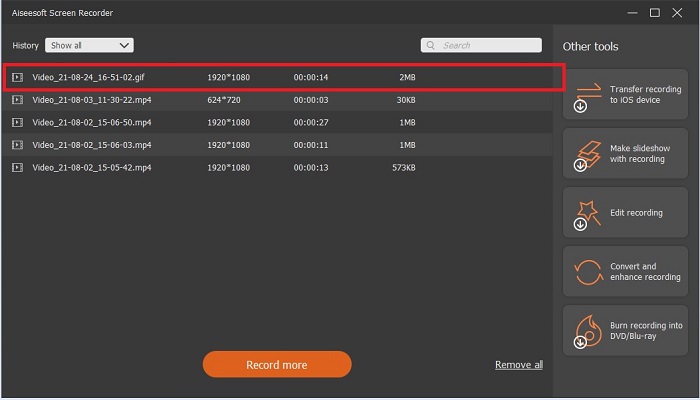
Jos FVC:n ilmainen verkkotyökalu tekee sinuun vaikutuksen, saman valmistajan asennettava paras GIF-tallennin – FVC Screen Recorder – tarjoaa vielä enemmän sitä wow‑efektiä, jota olet kaivannut. Mitä tämä työkalu tarjoaa, joka tekee siitä niin vaikuttavan? Se ei sovellu vain GIFien tallentamiseen, vaan mahdollistaa myös video- ja äänitallennuksen sekä näyttävän pelikuvatallennuksen. Nämä ovat kuitenkin vasta sen lisäominaisuuksia; ohjelma tukee myös useita eri lopputiedostomuotoja, kuten MP4, GIF, MOV ja monia muita.
Toinen sen ominaisuus on lukitusnäytön ominaisuus, tämä on tämän työkalun ainutlaatuinen ominaisuus, vaikka Bandicamin kaltainen raskaan sarjan tallennin ei pysty tarjoamaan tätä ominaisuutta. Tallenna ja ota kuvakaappaus GIF-muotoon näyttämättä itse työkalua. FVC Screen Recorder tarjoaa nauhoituksen punta kingista. Joten riippumatta siitä, mitä tallennat, tämä tallennin voi tallentaa sen. Jotta voit oppia käyttämään tätä työkalua, seuraa näitä yksinkertaisia ohjeita, jotta GIF-tallennus onnistuu.
Vaihe 1. Latausohjelma on tarjolla sinulle valmiiksi. Valitse kahdesta käyttöjärjestelmästä. Asenna työkalu kiintolevyllesi, säädä asetukset tarpeidesi mukaan ja napsauta Finish tallentaaksesi ne.
Ilmainen latausWindows 7:lle tai uudemmalleTurvallinen lataus
Ilmainen latausmacOS 10.7:lle tai uudemmalleTurvallinen lataus
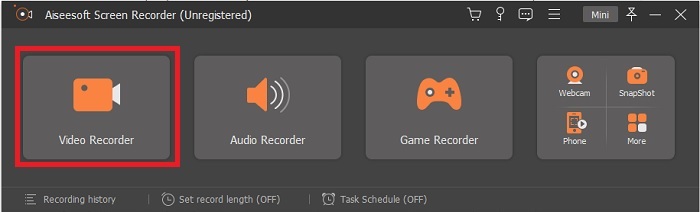
Vaihe 2. Valitse Video Recorder tallentaaksesi näytöllä näkyvät tapahtumat. Myös äänentallennin ja pelikuvatallennin ovat käytettävissä myöhempää käyttöä varten.
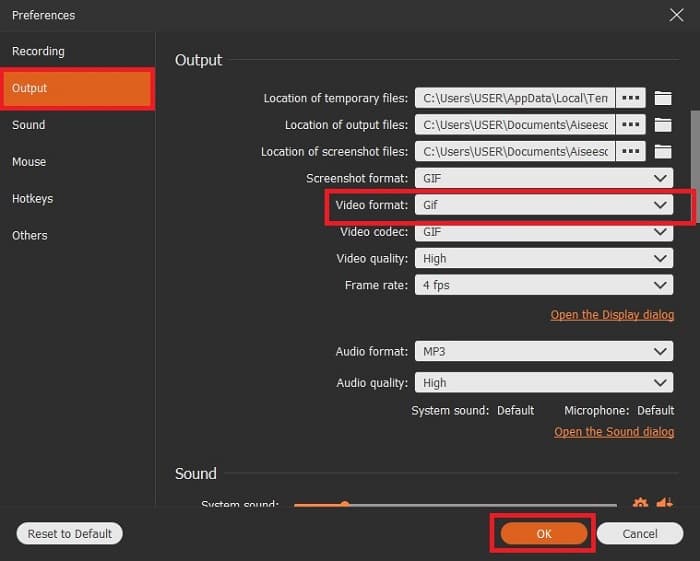
Vaihe 3. Näytölle ilmestyy kelluva työkalupalkki. Napsauta rataskuvaketta siirtyäksesi asetuksiin ja vaihda Output-kohdasta tallennusmuodoksi GIF tai jokin muu haluamasi muoto. Napsauta OK vahvistaaksesi muutokset.
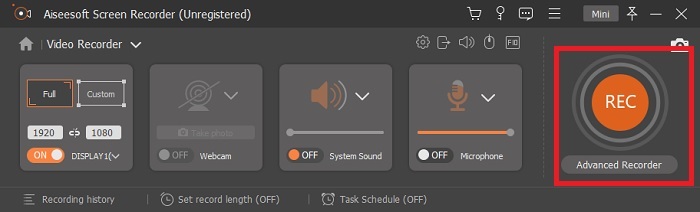
Vaihe 4. Päätyökalupalkissa voit säätää tallennettavan alueen kokoa tai valita koko näytön napsauttamalla Full screen. GIF-muotoon tallennettaessa äänellä ja mikrofonilla ei ole merkitystä, mutta voit lisätä Webcamin näyttämään reaktiosi. Kun kaikki on valmista, napsauta pyöreää painiketta aloittaaksesi tallennuksen.
Vaihe 5. Kun tallennus on valmis, napsauta kuutiokuvaketta pysäyttääksesi sen. Napsauta Save ja Next tallentaaksesi työn. Jos haluat esikatsella aiemmin tallentamasi GIFin, napsauta kolmirivistä kuvaketta, jolloin tallennushistoria avautuu näytölle.
3. ScreenToGif
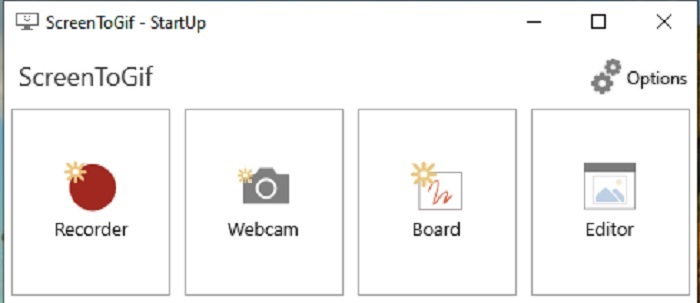
Tämä ladattava GIF-tallennin Macille ja PC:lle on saatavilla kahtena eri versiona: asennettavana ja siirrettävänä (portable). Valitse niistä omaan käyttöösi sopiva. On kuitenkin mahdollista, että ohjelmaa käyttäessäsi kohtaat pieniä bugeja. Lopputiedoston formaatti on aina .gif, eikä muita muotoja voi valita, joten jos tarvitset muun tiedostotyypin, tämä työkalu ei siihen sovellu. Ohjelma on kuitenkin ilmainen, joten jos haluat tallentaa GIFeja, se hoitaa tehtävänsä. Sen käyttöliittymä on kuitenkin melko ankea valkoisen taustan vuoksi – ulkoasu on tylsä, mutta työkalu tekee työnsä.
4. Gyazo
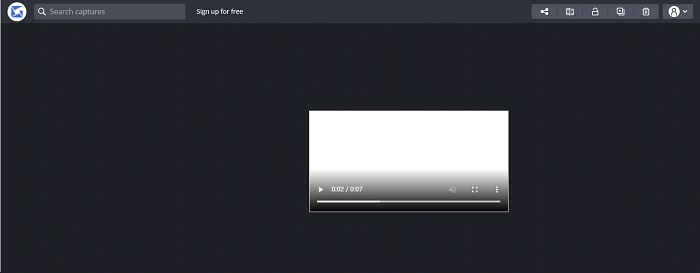
Tämä on yksi parhaista GIF-tallentimista Windowsille. Gyazo on ohjelmisto, joka on omistettu GIFien tallentamiseen. Asennuksen jälkeen koneellesi ladataan automaattisesti kolme työkalua, jotka kuuluvat samaan kokonaisuuteen, mutta eroavat toisistaan ja toiminnoiltaan. Nämä kolme työkalua ovat Gyazo, Gyazo GIF ja Gyazo Replay. GIFien tallennus Gyazo GIFillä on rajoitettu 7 sekuntiin, joten jos haluat tallentaa pidempää kuin 7 sekuntia, tämä ei ole paras vaihtoehto. Tallennettu video ei myöskään lataudu automaattisesti omalle koneellesi, vaan selain avaa uuden välilehden, josta sinun on ladattava se itse. Lopullisen tiedoston latausnopeus riippuu internet-yhteydestäsi, joten ota tämä huomioon.
5. RecordIt!
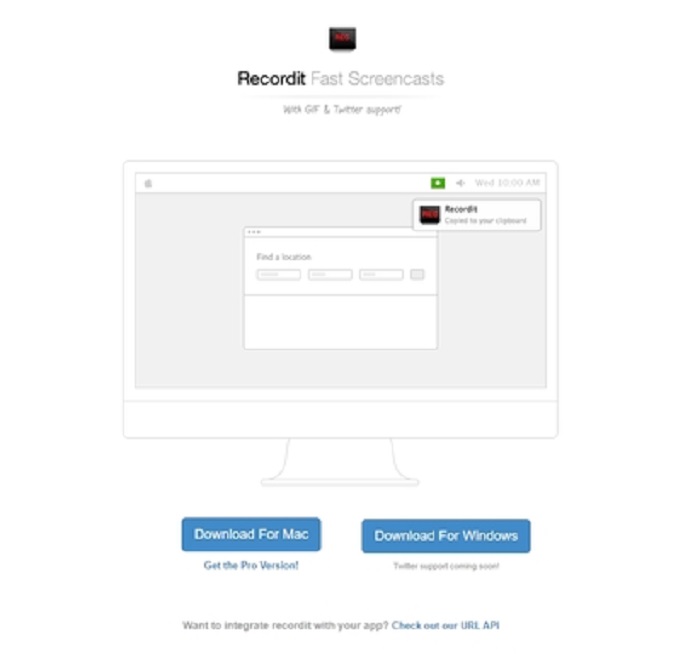
Toinen GIFien luomiseen käytetty työkalu on RecordIt!, yksi parhaista GIF-tallentimista Macille. Ohjelmasta on olemassa myös Windows-versio. Suurin ongelma liittyy kuitenkin asennukseen: kaikkien asetusten jälkeen saattaa esiintyä vaikeuksia, eikä ohjelma välttämättä asennu. Tämä on tavallista, jos et ole päivittänyt järjestelmäsi ohjelmistoja; ilman päivityksiä ohjelma ei lataudu. Vaihtoehtoisesti voit klikata ”Ignore” ohittaaksesi varoitukset ja pakottaa latauksen, mutta tämä voi olla riskialtista tietokoneellesi. Lisäksi työkalussa on mainoksia, ja osa niistä voi olla sopimattomia, joten ole varovainen. Tarjolla on myös Pro-versio, joka poistaa mainokset ja lisää muita ominaisuuksia.
Osa 3. Usein kysytyt kysymykset GIF-tallentimesta
Voinko muuntaa GIF:n MOV-muotoon?
Kyllä, voit muuntaa GIF:n MOV-muotoon online-videomuuntimen, kuten FVC Free Online Video Converterin, avulla.
Mitä eri GIF-tyyppejä on?
GIFejä on viisi: Toista GIF, Reaktio-GIF, Cinema graph, Perfect Loop ja Technical GIF. Kaikki nämä voivat olla animaatiopohjaisia, videopohjaisia ja tarroja.
Mitä muita vaihtoehtoja GIF-tiedostoille on?
Huolimatta GIF-kuvien luomisesta yli 30 vuoden ajan. Verkossa on joitain kilpailijoita, jotka tuottavat sekä elokuvia että GIF-kuvia. Nämä ovat parhaita vaihtoehtoja animoiduille GIF-kuville: APNG, WebP, AVIF, MNG ja FLIF.
Johtopäätös
Olemme tulleet loppuun – usein sanotaan, että jokainen hyvä tarina päättyy vahvaan loppupäätelmään. Yhteenvetona edellä mainitusta: GIFit välittävät voimakkaita ja ilmeikkäitä tunteita vastaanottajalle. Kaikki haluamasi videot eivät kuitenkaan ole valmiiksi GIF-muodossa. Sen sijaan, että odottaisit jonkun muun tekevän GIFin, mikset loisi sellaista itse? Parhaan GIF‑tallentimen, eli FVC Screen Recorderin, avulla voit tallentaa GIFeja ja lisätä niihin oman persoonallisen kosketuksesi. Jos mietit edelleen, mitä työkalua käyttäisit, palaa vielä kerran parhaiden ominaisuuksien listaan – kaikki nuo ominaisuudet löytyvät yhdestä ja samasta valitusta työkalusta, FVC Screen Recorderista.
-
 [2 Ratkaisut] Kuinka muuntaa SWF helposti GIF -tiedostoiksi ilmaiseksi
 Kun GIF-formaatin vieminen Flash-ohjelmiston kautta epäonnistuu, voit yrittää ensin tallentaa tiedostot SWF-muodossa. Sitten voit oppia 2 helppoa tapaa muuntaa SWF GIF-tiedostoiksi tästä artikkelista.
-
 4 tapaa yhdistää videot ilmaiseksi Windows / Mac / Online -palvelussa
 Tässä on 4 nopeaa tapaa yhdistää videot uudeksi videoksi. Ei videotiedoston koko- tai muotorajoitusta. Voit yhdistää 2, 3, 4 ja jopa useampia videoleikkeitä eri muodoissa ja resoluutioissa onnistuneesti.
-
 (2 ratkaisua) Kuinka muuntaa WMV-videoita GIF-tiedostoiksi ilmaiseksi
 Jos haluat leikata WMV -videoiden upeita osia ja tehdä niistä GIF -kuvia, voit oppia 2 helposta tavasta siirtää WMV -videoita GIF -tiedostoihin tässä artikkelissa.
