


 Video Converter Ultimate
 Näytön tallennin
 Videon korjaus
Kuinka rajata GIF parhaiden GIF-leikkureiden avulla
Oikeiden GIF-animaatioiden valitseminen viestiin on välttämätöntä, jotta saat välitettyä oikean sävyn siitä, mihin viittaat. Joitakin GIF‑animaatioita täytyy kuitenkin rajata, jotta niiden todellinen tarkoitus tulee esiin. Lisäksi, jos yrität rajata GIF‑tiedostojasi, niiden laatu ei saisi heikentyä ja GIF:in tulisi säilyttää sama fps. Sopivan rajaustyökalun valitseminen GIF‑animaatioillesi voi olla välillä hankalaa, sillä kaikki työkalut eivät tarjoa rajausmahdollisuutta. Ja osa työkaluista, joissa rajaus kyllä on, heikentää GIF‑tiedostojen laatua ja fps:ää. Tässä artikkelissa voit valita itsellesi parhaan GIF‑rajaustyökalun; kaikki luetellut työkalut on jo testattu meidän toimestamme, jotta voimme tarjota sinulle luotettavaa näyttöä. Lisäksi esittelemme parhaan GIF‑rajaustyökalun kaikille alustoille ja kerromme, miten sitä käytetään. Jatka lukemista saadaksesi lisätietoja.

Osa 1. Paras GIF-leikkuri, joka tukee Windows- ja Mac-käyttöjärjestelmiä
1. FVC Free Video GIF Makeriin
Tämä työkalu on saatavilla kaikille alustoille, kuten Windowsille ja Macille. Se on paras FVC:n kehittämä animoitujen GIF‑tiedostojen rajaustyökalu, nimeltään FVC Free Video to GIF Maker. Ohjelmisto antaa käyttäjilleen mahdollisuuden tutkia ja parannella jo tekemiään GIF‑animaatioita tai luoda myös kokonaan uusia. Jos siis haluat rajata GIF‑tiedostoasi, tämä työkalu auttaa sinua tekemään sen jopa ilman internet‑yhteyttä. Rajaa GIF‑animaatiostasi helpommin erottuva tehokkaasti ja vaivattomasti. Seuraa alla olevia ohjeita nähdäksesi, miten GIF rajataan.
Vaihe 1. Asenna työkalu levyllesi ja säädä asetukset tarpeidesi mukaisiksi.
Ilmainen latausWindows 7:lle tai uudemmalleTurvallinen lataus
Ilmainen latausmacOS 10.7:lle tai uudemmalleTurvallinen lataus
Vaihe 2. Työkalun käynnistämisen jälkeen näytöllesi ilmestyy tällainen pieni käyttöliittymä.
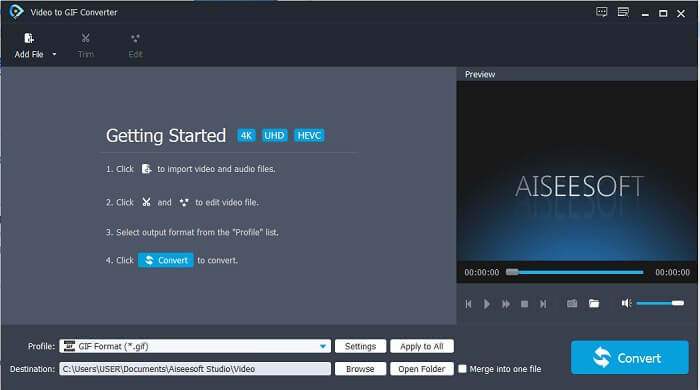
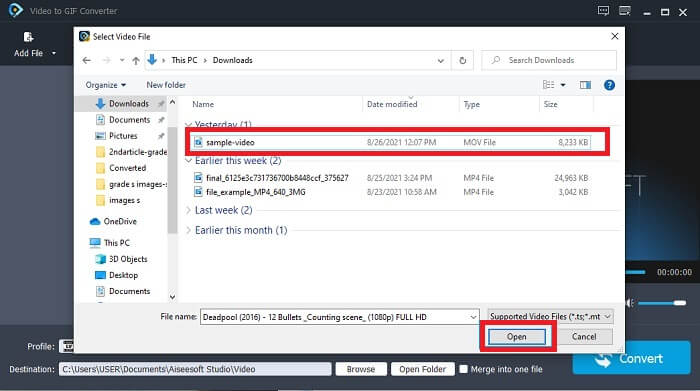
Vaihe 3. Napsauta Add File tai vaihtoehtoisesti vedä ja pudota videotiedosto työkalun käyttöliittymään.
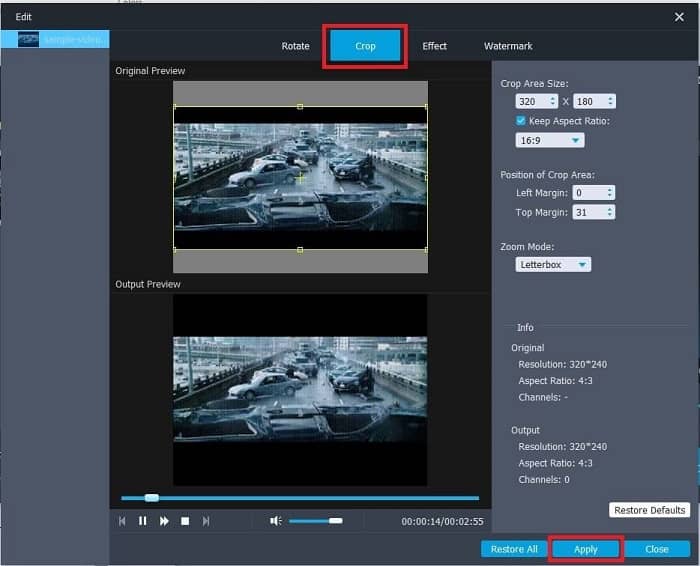
Vaihe 4. Napsauta Edit parantaaksesi GIF‑animaatiotasi. Siirry Crop-kohtaan ja säädä GIF‑tiedostosi kokoa. Voit myös muuttaa Aspect Ratio‑ ja Zoom Mode ‑asetuksia. Napsauta Apply tallentaaksesi tekemäsi säädöt.
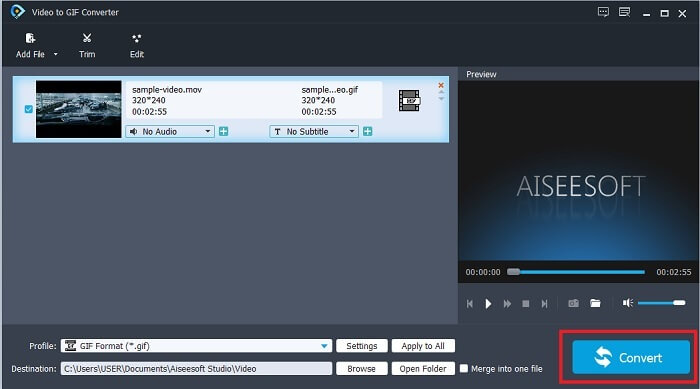
Vaihe 5. Napsauta Convert aloittaaksesi videosi muuntamisen GIF‑muotoon. Kun muunnos on valmis, voit tarkistaa lopullisen tulosteen tiedostonhallinnasta kirjoittamalla videon nimen.
Plussat
- Kaikki pienet ominaisuudet ovat saatavilla täältä.
- Se on paljon parempi kuin online-työkalu ja myös jotkut ladattavat työkalut.
- Luo GIF helposti tällä työkalulla.
Haittoja
- Et voi käyttää Ultimate-version tärkeimpiä ominaisuuksia.
- Se tukee pienempimuotoista videota premium-version sijaan.
2. Video Converter Ultimate
Tämän työkalun ilmainen versio voi tehdä yksinkertaisen työn, mutta sen premium-versio on paras GIF-rajaaja. Video Converter Ultimate ei ole vain nimi, vaan myös se, että tämä työkalu on paras mahdollinen videon muuntamisessa GIF-tiedostoksi. Toisin kuin ilmainen versio ja alla oleva työkalu, tämä työkalu voi tehdä yksinkertaisesta GIF-tiedostostasi upeamman. Muunna GIF-tiedostosi erinomaiseksi lisäämällä tehosteita, joita tämä työkalu voi tarjota. Se mahdollistaa myös videon muuntamisen GIF-muotoon, kuten MP4:stä GIF-muotoon, videoiden yhdistämisen yhdeksi, 3D-valmistajan ja paljon muuta. Joten käytä tätä työkalua henkilökohtaisena leikkurina, ja se ei koskaan petä sinua. Jatka lisäksi alla olevien vaiheiden lukemista saadaksesi tietää, kuinka voit rajata GIF-tiedostosi toimittamaan tarkemman viestin vastaanottajallesi.
Vaihe 1. Ennen kuin voit käyttää tätä työkalua, sinun täytyy ladata se. Asenna työkalu levyllesi, muuta asetukset tarpeidesi mukaisiksi ja napsauta finish käynnistääksesi työkalun näytölläsi.
Ilmainen latausWindows 7 tai uudempiTurvallinen lataus
Ilmainen latausMacOS 10.7 tai uudempiTurvallinen lataus
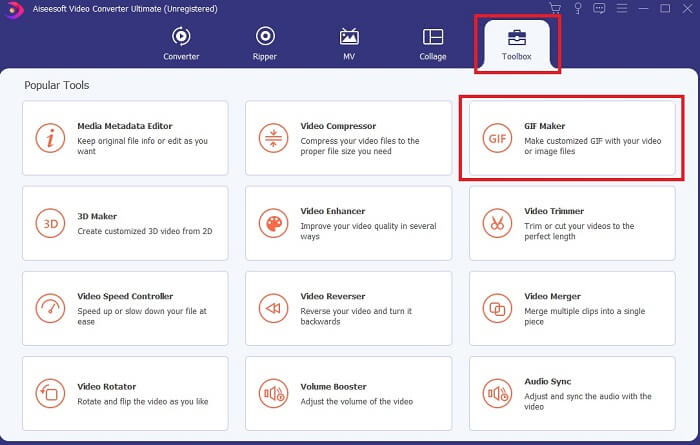
Vaihe 2. Kun työkalu on täysin ladattu levyllesi, näytöllesi ilmestyy helppokäyttöinen käyttöliittymä. Napsauta työkaluriviä ja sitten toolbar-valikossa GIF Maker.
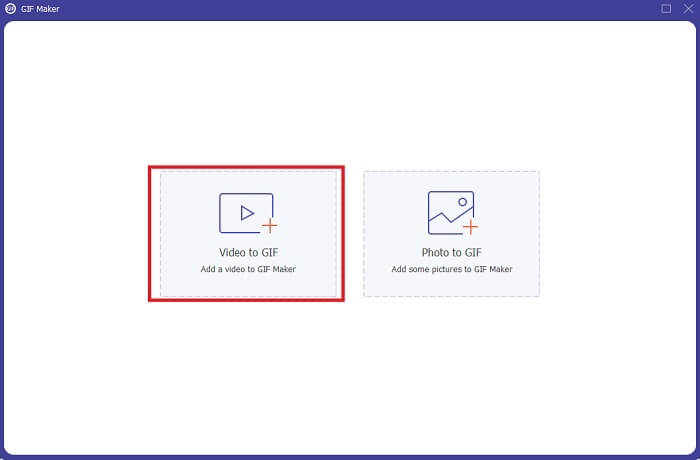
Vaihe 3. Lisätäksesi videon napsauta Video to GIF ja etsi GIF, jonka haluat rajata tai muokata. Kun olet valinnut videon, napsauta Open aloittaaksesi GIF Makerin käytön.
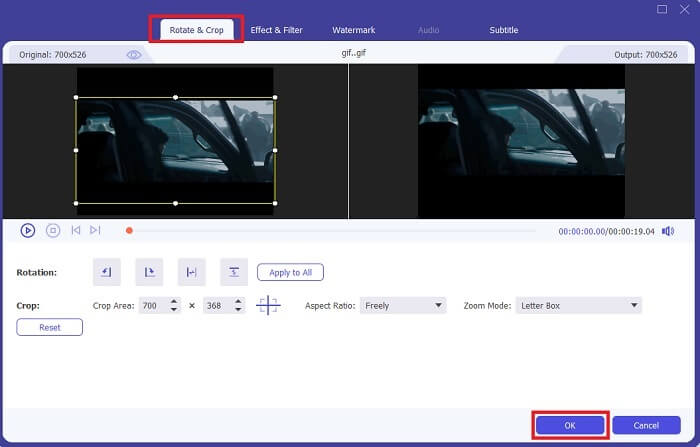
Vaihe 4. Aloita muokkaus napsauttamalla painiketta, jossa on tähti‑kuvake. Valitse Rotate & Crop aloittaaksesi GIF‑animaation rajaamisen. Voit myös lisätä tehosteita ja suodattimia, vesileiman sekä tekstityksiä. Kun kaikki säädöt on tehty, napsauta OK tallentaaksesi muutokset.
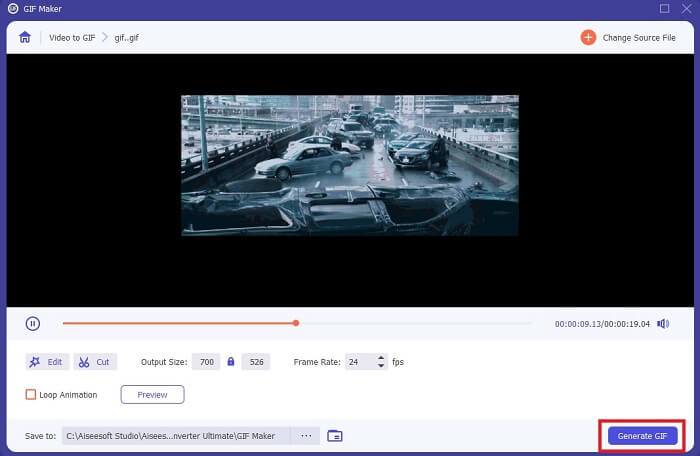
Vaihe 5. Vaihda sijainti, johon haluat tallentaa lopullisen tulosteen, jotta se on helpompi löytää. Napsauta Generate GIF aloittaaksesi muunnoksen. Kun muunnos on 100% valmis, etsi lopullinen tuloste valitsemastasi tallennuspaikasta tai tiedostonhallinnasta.
Plussat
- Käytännöllinen työkalu, jos haluat parantaa GIF-tiedostostasi paljon interaktiivisempaa. Käytä mielikuvitustasi maustaaksesi asioita GIF-tiedostoihisi.
- Se voi tehdä GIF-tiedostostasi vaikuttavan tuloksen käyttämällä tärkeimpiä ominaisuuksia, joita toinen premium-versio ei pysty tarjoamaan.
- Yli miljoona käyttäjää valitsee tämän työkalun ensisijaiseksi premium-version työkalukseen.
Haittoja
- Jotta voit käyttää työkalua, sinun on ensin suoritettava maksu, mutta se ei varmasti ole niin kallista. Joten sinun ei tarvitse odottaa mitään vähempää, jos ostit tämän työkalun.
- Lataa työkalu ennen sen käynnistämistä. Vaikka sinulla ei olisi Internetiä, voit silti käyttää tätä työkalua, koska se ei ole Internet-riippuvainen.
Osa 2. 5 parasta GIF-leikkuria, jota voit käyttää Internetin kautta
1. iLoveIMG
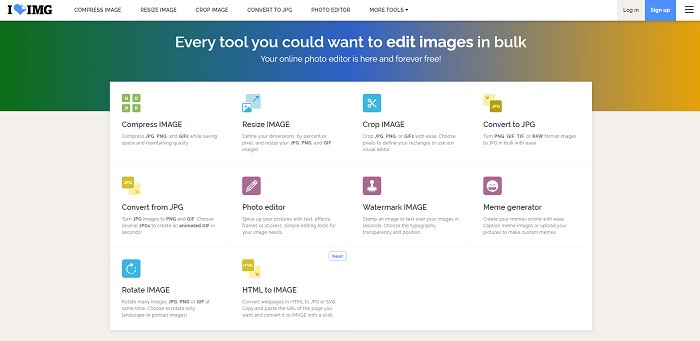
Rajaa GIF‑animaatiosi tämän verkkopohjaisen GIF‑rajaustyökalun avulla. iLoveIMG tunnetaan parhaana GIF‑, JPG‑ ja PNG‑tiedostojen rajauspalveluna verkossa. Työkalu ei tosin voi muuntaa videoita GIF‑muotoon, koska se keskittyy vain GIF‑, JPG‑ ja PNG‑kuvien parantamiseen. Verkkosivuston käyttöliittymä ylittää kuitenkin odotukset: se ei ole vain yksinkertainen, vaan myös vuorovaikutteinen. Voit siis odottaa, ettet tylsisty sivustoa käyttäessäsi. Arvio: 7/10, mikä on erinomainen tulos verkossa toimivalle sovellukselle.
Plussat
- Parasta parantaa GIF-, JPG- ja PNG-tiedostoja.
- Sivuston käyttöliittymä on hämmästyttävän kaunis.
- Ei tarvitse ladata.
Haittoja
- On olemassa mahdollisuus, että tiedot menetetään, jos yhteys on katkennut.
- Et voi muuntaa videomuotoa GIF-muotoon.
2. RedKetchup
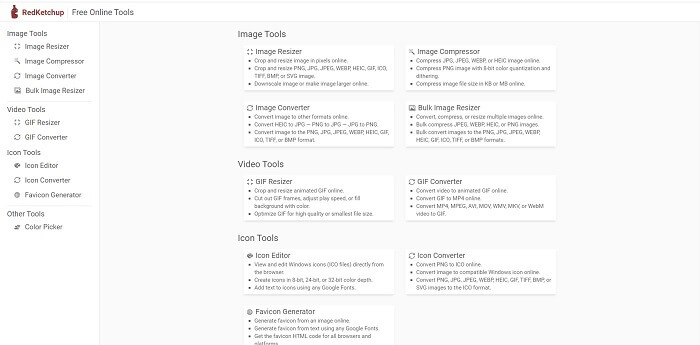
Jos iLoveIMG ei ole sinua varten, kannattaa kokeilla tätä online‑GIF‑rajainta. RedKetchup on hyvin informatiivinen, koska se tarjoaa kuvaukset jokaisesta muokkaustyökalustaan. Näin ominaisuuksien toiminnan ymmärtäminen on helpompaa, vaikka sinulla ei olisi niistä ennakkotietoa. Lisäksi voit muuntaa kuvia GIF‑, PNG‑, JPG‑, WEBP‑ ja muihin muotoihin. Se tukee useampia formaatteja kuin iLoveIMG, mutta työkalun huono puoli on, että verkkosivun käyttöliittymä on hyvin tylsä. Koko sivuston tausta on pelkästään valkoinen, ja ainoa värillinen asia on RedKetchup‑nimi ja ‑ikoni.
Plussat
- Se tukee useampaa kuvamuotoa kuin iLoveIMG.
- Jokaisella työkalun toiminnolla on lyhyt kuvaus, jotta käyttäjä voi ymmärtää sen toiminnot.
- Se on ilmainen online-työkalu.
Haittoja
- Tämän työkalun verkkosivu on niin tylsä katsoa sen yksitoikkoisen värin vuoksi.
- On mahdollista, että tiedostoa ei tallenneta oikein, jos Internet on epävakaa.
3. Kapwing
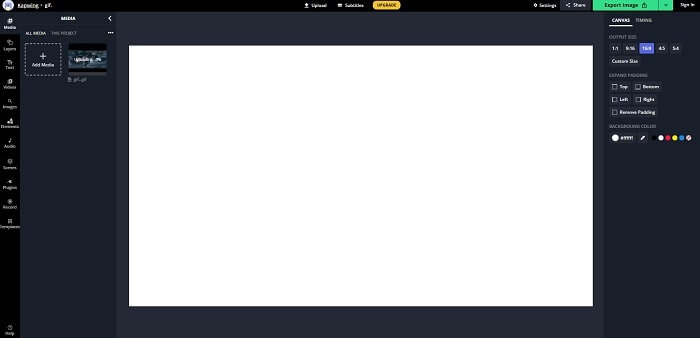
Tässä työkalussa on lähes samat ominaisuudet kuin Photoshopissa, mutta se toimii verkossa. Se on paras GIF‑ruutujen rajaustyökalu verkossa. Kapwing tunnetaan parhaiden ystävien kanssa jaettavien GIF‑animaatioiden luomisesta. Toisin kuin kaksi ensimmäistä työkalua, tämä tukee joitakin videoformaatteja niiden muuntamiseksi GIF‑muotoon. Työkalun käytön opettelu vie jonkin verran aikaa, mutta se on sen arvoista. Jos kuitenkin haluat luoda yksinkertaisen GIF‑animaation, tämä työkalu on siinä parhaimmillaan. Tässä työkalussa on lähes samat ominaisuudet kuin Photoshopissa, mutta se toimii verkossa. Se on paras GIF‑ruutujen rajaustyökalu verkossa. Kapwing tunnetaan parhaiden ystävien kanssa jaettavien GIF‑animaatioiden luomisesta. Toisin kuin kaksi ensimmäistä työkalua, tämä tukee joitakin videoformaatteja niiden muuntamiseksi GIF‑muotoon. Työkalun käytön opettelu vie jonkin verran aikaa, mutta se on sen arvoista. Jos kuitenkin haluat luoda yksinkertaisen GIF‑animaation, tämä työkalu on siinä parhaimmillaan.
Plussat
- Työkalun verkkosivuston käyttöliittymä antaa sinulle melkein saman tunnelman Photoshopin kanssa.
- Muunna videosi GIF-muotoon.
- Perusmuokkausominaisuudet ovat saatavilla.
Haittoja
- Videon lopullisen lähdön käsittely riippuu aina Internetin nopeudesta. Lopputuloksen tuottaminen vaatii siis paljon kärsivällisyyttä.
- Sinun on kirjauduttava sisään, jotta voit poistaa vesileiman tulosteesta. Joten odota sähköpostin jokaisesta päivityksestä ja joitain ärsyttäviä ilmoituksia. Koska annoit heidän käyttää tiliäsi.
4. GIFGIF-tiedostot
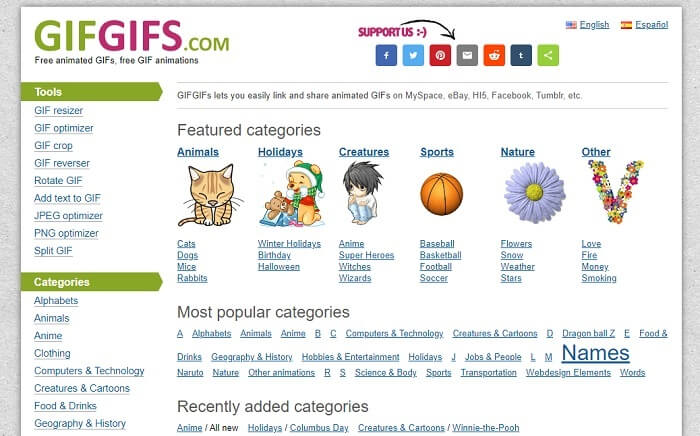
Voit rajata GIF‑animaatioitasi tällä laadun heikentymättä toimivalla GIF‑rajaimella. GIFGIFs tarjoaa sinulle verkossa valmiiksi tehtyjä, laadukkaita GIF‑animaatioita. Voit valita niitä sen tarjoamista kategorioista, kuten aakkoset, urheilu, anime, vaatetus jne. Työkalu tarjoaa paitsi parhaat ominaisuudet GIF‑animaatioiden parantamiseen, myös mahdollisuuden optimoida JPG‑ ja PNG‑kuvia.
Plussat
- Se on hyvä valinta parantaa GIF-tiedostoa paremmaksi.
- Se tukee JPEG, PNG ja GIF optimointia.
- Valitse jo valmiit GIF-tiedostot sen luokkaosioista.
Haittoja
- Se ei tarjoa hakupalkkia, joten on vaikea löytää täydellistä GIF-tiedostoa, jota haluat käyttää.
- Käyttöliittymä on kunnossa. Se ei ole mitään erikoista, tai pitäisikö meidän sanoa, että se ei ole hyvä, mutta ei huono.
5. VEED.IO
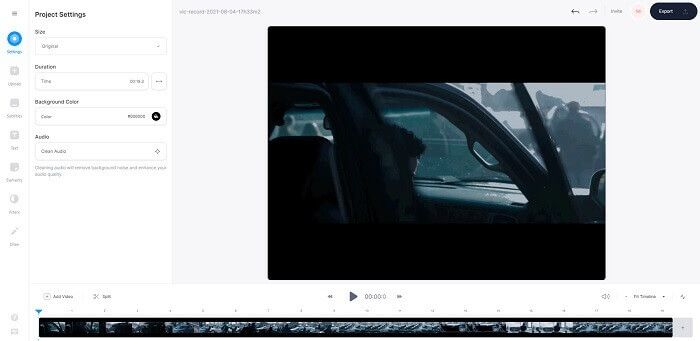
Valitse tämä ensisijaiseksi ilmaiseksi GIF-leikkausohjelmaksi verkossa, mutta se voidaan myös päivittää premium-versioksi, jos haluat. VEED.IO on yksi parhaista online-työkaluista parantaaksesi GIF-tiedostojasi paremmiksi. Mutta työkalun ilmainen versio tukee vain 50 megatavua GIF-tiedostokokoa, ja lisätäksesi tiedostokokoa sinun on ostettava työkalun premium-versio.
Plussat
- Se tarjoaa erinomaisen muokkausominaisuuden GIF-tiedostosi parantamiseksi.
- Yksinkertainen käyttöliittymä.
- Voit myös lisätä tekstityksiä, jos haluat.
Haittoja
- Se ei tarjoa 3D-tekijää 2D-kuvien parantamiseen.
- Joskus ohjelmisto kaatuu, kun yrität lähentää aikajanaa.
Osa 3. UKK GIF Cropperista
Onko olemassa GIF-muotoa parempaa muotoa?
Vaikka on hyvin tunnettua, että GIF on paras liikkuva kuvamuoto verkossa. Mutta tiesitkö, että on olemassa parempi muoto kuin GIF? Tämä on APNG. Tämä muoto tarjoaa enemmän väripaletin kuin GIF, ja se on myös parempi pakkaus. Mutta voit myös käyttää WEBP-, MNG-, FLIF- ja AVIF-tiedostoja.
Mikä on syy GIF-tiedostojen luomiseen?
Vuoden 1987 loppupuolella Steve Wilhite ‑niminen henkilö pohti, olisiko mahdollista luoda pienen tiedostokoon kuva tietokonenäytölle, ja tuolloin syntyi GIF‑formaatti. Jos haluat tietää lisää GIF‑tiedostoista, voit klikata täältä.
Kumpi on parempi? JPG vai GIF?
JPG-muoto tarjoaa sinulle yksityiskohtaisemman kuvan, koska se tukee laajaa värivalikoimaa, joten se on paras valokuvaamaan. GIF tarjoaa pienen määrän väripalettia, mutta se on hyvä luomaan staattista kuvaa.
Johtopäätös
Yhteenvetona: sinun on valittava paras GIF‑rajaustyökalu, joka tarjoaa tarvitsemasi rajausominaisuudet ilman, että GIF‑tiedoston laatu heikkenee rajauksen myötä. On kuitenkin selvää, että sinun kannattaa valita FVC:n kehittämä Ultimate‑työkalu. Se tarjoaa parhaat GIF‑ominaisuudet, joita haluat lisätä GIF‑animaatioosi, jotta se erottuu edukseen muista. GIF‑tiedostojen rajaaminen on helpompaa kuin koskaan, kun käytät Video Converter Ultimate ‑ohjelmaa.
-
 Opetusohjelma GIF-tiedostojen pakkaamiseen ja tiedostokoon pienentämiseen korkealaatuisina
 Tässä on 2 helppoa tapaa pakata GIF tietokoneellasi tai matkapuhelimellasi. Voit käyttää FVC Free Online Video Compressoria ja Photoshopia pienentämään GIF-tiedostokokoa eri näkökulmista.
-
 GIF Player - 5 parasta GIF-soitinta Windows PC: lle, Macille, Androidille ja iPhonelle
 Mikä ohjelma avaa GIF-tiedostot? Kuinka voin tarkastella GIF-tiedostoja Androidissa? Onko iPhonella GIF-soitin GIF-tiedostojen avaamiseen? Tämä viesti jakaa 5 parasta GIF-pelaajaa sinulle.
-
 Kuinka muuntaa AVI-videot animoituiksi GIF-tiedostoiksi Windows / Macissa
 Haluatko valita mielenkiintoiset AVI-segmentit GIF-meemien luomiseen? Tämä artikkeli kertoo sinulle 2 parasta tapaa leikata AVI-videoita ja muuntaa AVI animoituiksi GIF-tiedostoiksi ilmaiseksi.
