


 Video Converter Ultimate
 Näytön tallennin
 Videon korjaus
Top 9: Paras animoitu GIF -muokkausohjelma aloittelijoille [Online ja offline]
Paras tapa ilmaista tunteitasi on lisätä GIF -tiedostot viestiisi. Sen päätarkoitus on animoitujen ja staattisten kuvien tallentaminen ja tukeminen. Tiedetään, että GIF -tiedostot voivat ladata paremmin kuin muu verkossa saatavilla oleva muoto ja se on paljon pienempi. On jännittävämpää nähdä GIF kuin pelkkä kuva. Mutta kaikki Internetissä etsimäsi GIF -tiedostot eivät voi tarjota sinulle tunteita, jotka haluat toimittaa.
Joten sen sijaan, että he etsisivät GIF-kuvia internetistä, he käyttävät GIF-muokkausohjelmistoa luodakseen omat GIF:nsä. Mutta ehkä mietit, mitä työkalua sinun pitäisi käyttää luodaksesi majesteettisen GIF-kuvan, joka tekee vaikutuksen vastaanottajaasi. Tässä on joitakin parhaita työkaluja GIF-kuvien luomiseen. Kaikkia alla olevia työkaluja voidaan käyttää GIF-muotoon muuntamiseen, muokkaamiseen, tekemiseen ja muuhun. Joten jos etsit oikeaa työkalua oikeaan tarpeeseen, jatka lukemista alta saadaksesi lisätietoja työkaluista.

Osa 1. Paras offline -GIF -editori, joka toimii tehokkaasti PC: lle ja Macille
1. FVC Free Video GIF Makeriin
Muunna suosikkivideosi GIF-muotoon, jotta voit lähettää ne helposti ystävillesi, perheellesi tai kenelle tahansa. Tämä FVC Ilmainen video GIF-tekijä antaa sinulle mahdollisuuden luoda omia GIF:jäsi. Sen päätehtävä on muuntaa mikä tahansa videotiedostomuoto – olipa se MP4, MOV, AVI tai moni muu – GIF-muotoon. Se tarjoaa myös muokkaus- ja leikkaustoiminnot. Tämä GIF-muokkain on saatavilla kaikille käyttöjärjestelmille. Jotta tiedät, miten työkalua käytetään, tässä on vaiheittaiset ohjeet, joita voit seurata.
Vaihe 1. Lataa työkalu levyllesi, asenna se ja suorita alkuasetukset.
Ilmainen latausWindows 7:lle tai uudemmalleTurvallinen lataus
Ilmainen latausmacOS 10.7:lle tai uudemmalleTurvallinen lataus
Vaihe 2. Tällainen käyttöliittymä tulee näkyviin näytöllesi. Napsauta Lisää tiedosto tai vedä ja pudota tiedosto muuntimeen.
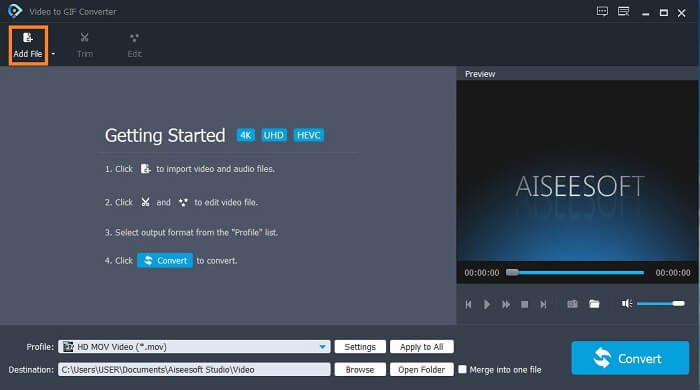
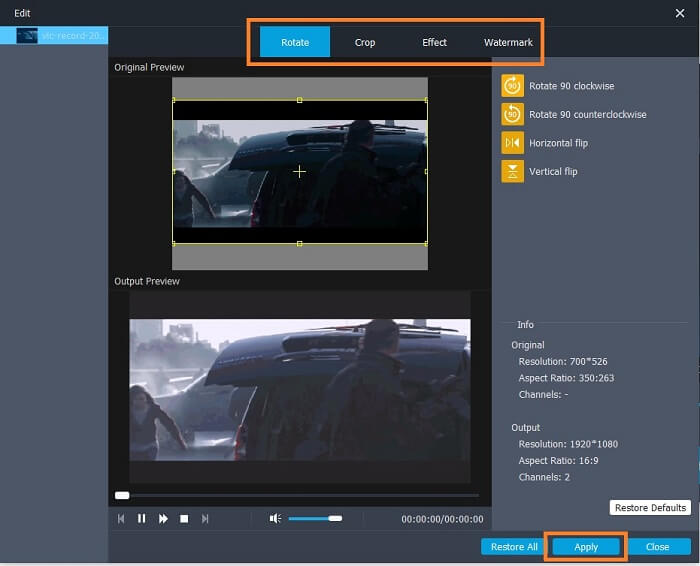
Vaihe 3. Jos olet jo lisännyt GIF-tiedoston, voit myös leikata sitä lyhyemmäksi ja napsauttaa OK tallentaaksesi muutokset. Voit myös kiertää, rajata, lisätä tehosteita ja vesileiman GIF-kuvaasi Muokkaa-osiossa ja tallentaa tekemäsi muutokset napsauttamalla Käytä.
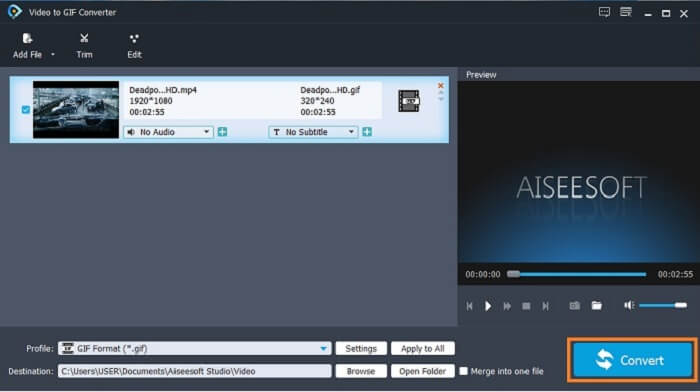
Vaihe 4. Valitse kohdekansio, johon haluat tallentaa lopullisen tuotoksen. Aloita muuntaminen napsauttamalla Muunna.
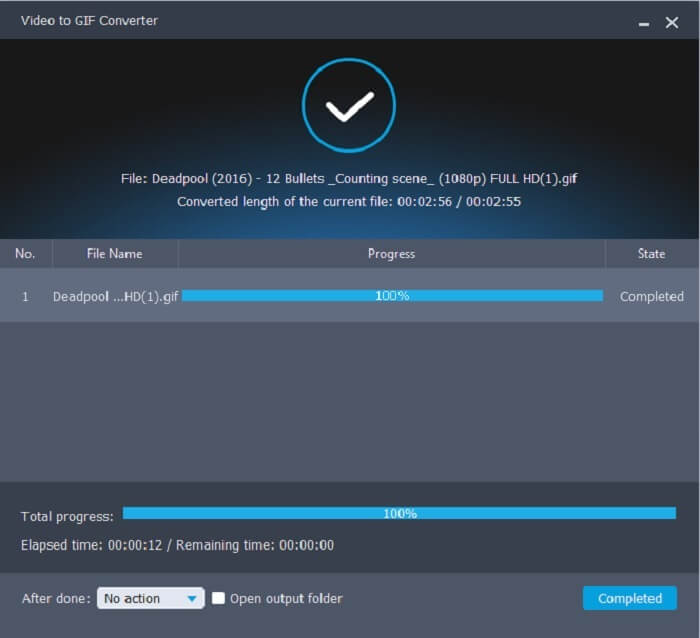
Vaihe 5. Kun kaikki on valmista, näet tämän näytölläsi; se tarkoittaa, että muuntaminen on valmis.
Plussat
- Paras ilmainen työkalu muuntaa videoformaatti GIF -muotoon.
- Se on saatavana kaikilla tunnetuilla alustoilla ja tuottaa aina uskomatonta tulosta.
- Se toimii, vaikka Internet ei olisi käytettävissä.
Haittoja
- Kaikkia lopullisia ominaisuuksia ei ole esitetty tässä.
- Se on myös ladattava työkalu, kuten premium -versio.
2. Video Converter Ultimate
On tiedossa, että yllä oleva GIF-muokkain antaa sinulle huipputason mahdollisuudet GIF-kuvien tekemiseen. Mutta tiesitkö, että on olemassa toinen työkalu, joka on vielä parempi kuin yllä ja alla mainitut? Video Converter Ultimate on nimensä veroinen – äärimmäinen GIF-tekijä, joka on saatavilla kaikille ohjelmistoalustoille. Se ei ole vain paras GIF-kuvien tekemisessä, vaan toimii myös muuntimena ja paljon muuna. Lisää tehosteita GIF-kuvaasi, jotta se erottuu muista. Joten jos kilpailet ystäviesi kanssa parhaasta GIF:stä ja haluat voittaa, tämä on tilaisuutesi tehdä heihin vaikutus. Lisäksi, jotta osaat käyttää työkalua oikein ja onnistut GIF:ssäsi, seuraa näitä ohjeita tarkasti.
Vaihe 1. Napsauta latauspainiketta ja asenna se tietokoneesi levylle. Muuta asetuksia tarpeen mukaan ja napsauta Valmis tallentaaksesi ja käynnistääksesi työkalun.
Ilmainen latausWindows 7 tai uudempiTurvallinen lataus
Ilmainen latausMacOS 10.7 tai uudempiTurvallinen lataus
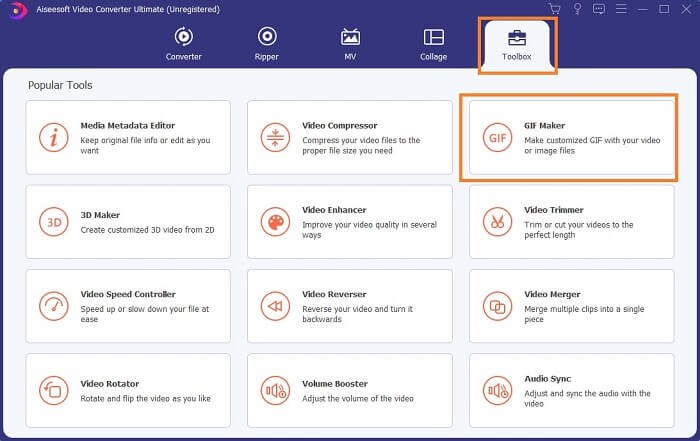
Vaihe 2. Kun työkalu on jo käynnissä järjestelmässäsi, tämän näköinen käyttöliittymä ponnahtaa näytöllesi. Siirry kohtaan Työkalupakki ja GIF Maker aloittaaksesi GIF:ien tekemisen.
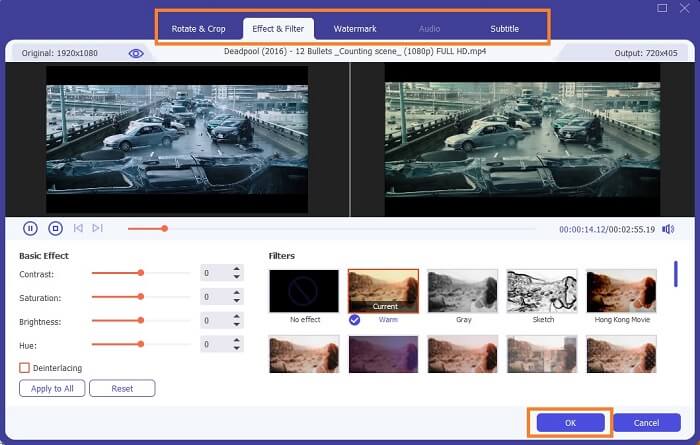
Vaihe 3. Napsauta sitten Video GIF:ksi ja valitse video, jonka haluat muuntaa. Videotiedoston valinnan jälkeen voit myös muokata videota, kuten kiertää ja rajata, lisätä tehostesuodattimen, vesileiman ja tekstityksen. Napsauta OK tallentaaksesi säädöt.
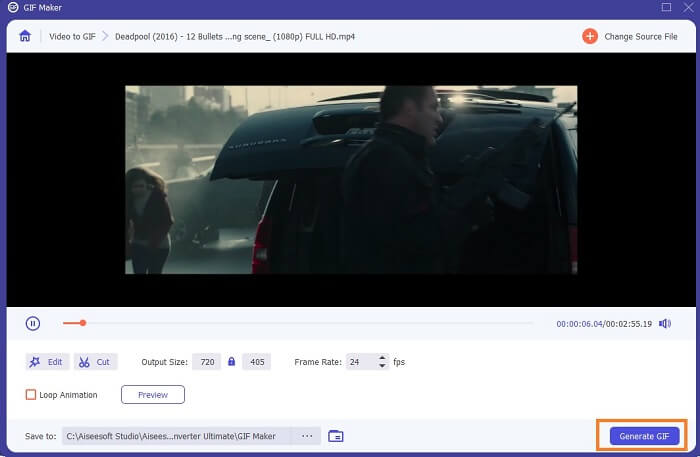
Vaihe 4. Napsauta Esikatselu katsoaksesi luomasi videon ensimmäiset 10 sekuntia. Napsauta Luo GIF aloittaaksesi muuntamisen.
Vaihe 5. Kun kaikki on valmista, paikanna tiedosto tiedostonhallinnastasi ja katso tai lähetä lopullinen tuotos.
Plussat
- Paras GIF -videomuunnin, jolla on paras työkalu GIF: n parantamiseen.
- Se tukee kaikkia tunnettuja ja tuntemattomia video-audio-formaatteja verkossa.
- Monikäyttöinen työkalu erinomaisella lopputuloksella.
Haittoja
- Se on maksullinen työkalu, mutta se on halvempi.
- Sinun on ladattava tallennustilaasi ennen kuin voit käyttää sitä.
Osa 2. 3 Parhaista online -GIF -editorista
1. Ezgif
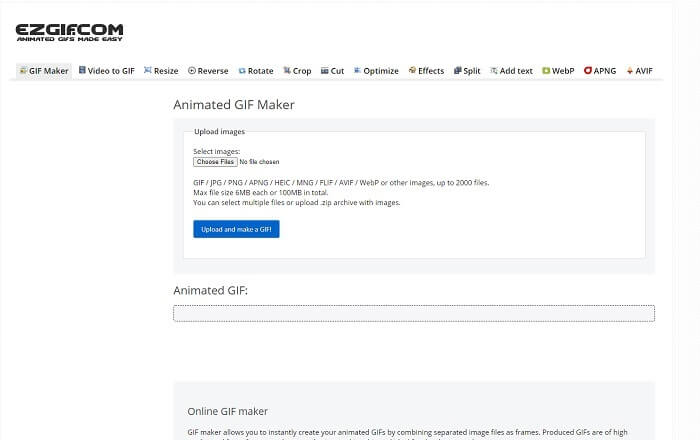
Yksi online-GIF-muokkaimista, johon olet saattanut jo törmätä internetissä. Ezgif tunnetaan yhtenä parhaista GIF-tekijöistä. Vaikka tämä työkalu tarjoaa lukuisia toimintoja, kuten videon kiertäminen, rajaaminen, kääntäminen ja niin edelleen, ne ovat kaikki erillisiä toisistaan. Sen sijaan, että voisit keskittyä GIF:ien tekemiseen ja muokkaukseen yhdessä paikassa, sinun täytyy siirtää tiedosto haluamaasi muokkaustyökaluun sen parantamiseksi, mikä on hankalaa. Lisäksi käyttöliittymässä on valkoinen tausta, joka on kyllä yksinkertainen, mutta tylsä katsella. Vaikuttaa siltä, ettei verkkotyökalun käyttöliittymää ole juurikaan päivitetty.
Plussat
- Pistetyökalu eri vaihtoehdoilla.
- Verkkosivutyökalu on yksinkertainen.
- Tehokas GIF -tiedostojen tekemiseen.
Haittoja
- Se on rajoitettu 6 Mt: iin ja yhteensä 100 Mb: iin.
- Se ei ole käyttäjäystävällinen, koska kaikki työkalun ominaisuudet ovat kaikkialla verkkosivustolla. Ja se on hieman tylsää katsoa sen valkoisen taustan vuoksi.
2. VEED.IO
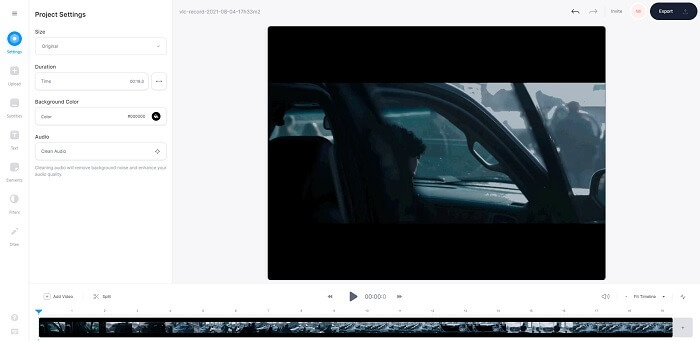
Toinen online GIF -muokkain GIF-kuvien tekemiseen on VEED.IO. Luo, muokkaa ja muunna oma videosi GIF-muotoon tällä työkalulla. Työkalun pääsivusto on ulkoasultaan melko miellyttävä, toisin kuin Ezgif. Mutta kun alat tehdä GIF-kuvia verkossa, sivu muuttuu tahmeaksi ja joskus epäluotettavaksi. Lisäksi sivusto ei ole kovin turvallinen. Älä siis syötä salasanojasi tai luottokorttitietojasi, koska on olemassa riski, että hyökkääjät voivat varastaa ne.
Plussat
- Parempi asiakastuki.
- Se tarjoaa työkalun pro -version.
- Helppo käyttää Internetin kautta.
Haittoja
- Verkkotyökalu on suojaamaton. Käy siis omalla vastuullasi.
- Ei 3D -muokkausominaisuuksia.
3. Giphy
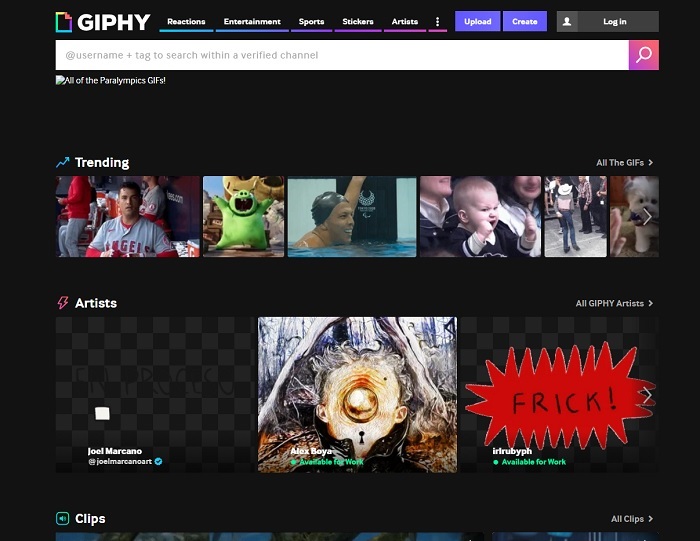
Giphy on verkkopohjainen animoitu GIF-muokkain. Tämä työkalu tarjoaa valmiita GIF:jä, kuten reaktioita, viihdettä, urheilua ja tarroja. Vaikka se on yksi parhaista GIF-tekijöistä, työkalu vaatii, että sinulla on tili ennen kuin voit käyttää sitä. Käytännössä se antaa sivustolle pääsyn tiliisi. Muista siis, että työkalun päivitykset, uudet ominaisuudet tai uudet GIF:t tulevat jatkuvasti sähköpostiisi.
Plussat
- Lataa ja luo GIF -tiedostoja verkossa.
- Suurin kirjasto ilmaisille GIF -tiedostoille, leikkeille ja tarroille verkossa.
- Käyttöliittymä on ajan tasalla ja se näyttää upealta.
Haittoja
- Sinun on rekisteröidyttävä ennen työkalun käyttöä. Joten jos et kirjaudu sisään tai kirjaudu sisään, työkalu ei ole käytettävissä.
- GIF -tiedoston enimmäispituus on vain 30 sekuntia.
Osa 3. GIF Editor -sovellukset Android- ja iOS -käyttöjärjestelmissä
1. GIPHY: GIF & Tarra Näppäimistö ja Maker
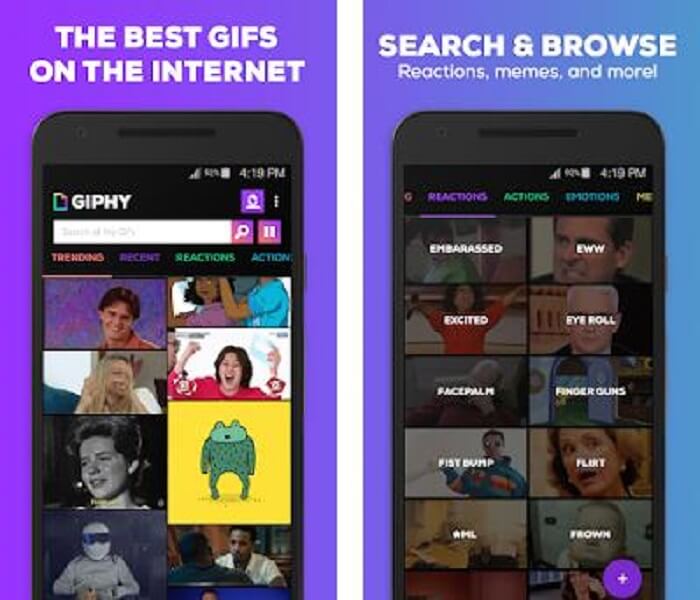
Toinen GIF-muokkaussovellus, joka on saatavilla Androidille ja iOS:lle, on GIPHY: GIF & Sticker Keyboard & Maker. Se tunnetaan yhtenä suurimmista GIF-kirjastoista koko Play Storessa ja App Storessa. Mutta ei ainoastaan sitä – sovellus tarjoaa valmiita GIF:jä, tai voit halutessasi luoda omia. Voit myös jakaa omia GIF:jäsi sovelluksessa. Joissakin tapauksissa, kun lataat GIF:n, joka toimi täydellisesti luomisvaiheessa tai puhelimessasi, sovellus tekee siitä hieman buginen: osa GIF:stä toistuu nopeammin ja osa hitaammin.
Plussat
- Upeita GIF -kuvia, tarroja ja videoleikkeitä.
- Sovelluksessa on vähän tai ei lainkaan mainoksia.
- Muokkaa GIF -tiedostojasi ja lisää niihin esteettistä animaatiota.
Haittoja
- Joskus lataat GIF -tiedostoja tästä sovelluksesta, saat still -kuvia. Sen sijaan, että olisit ladannut sen .gif -muotoon, siitä tuli .jpeg.
- Kirjautuminen sovellukseen on hieman ärsyttävää, koska joissakin tapauksissa et voi kirjautua sisään oikein ja sinun on tehtävä se enemmän.
2. ImgPlay – GIF Maker
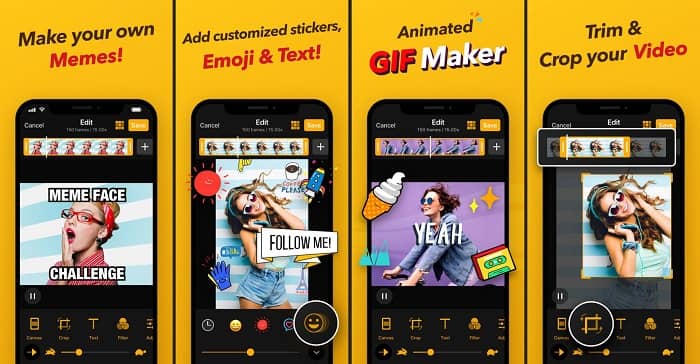
Paras ja helpoin tapa luoda GIF-kuva, olipa se sitten videosta tai kuvista. Imgplay voi muuntaa kuvasi tai videosi täysin toimivaksi GIF:ksi. Tämä sovellus tarjoaa parhaat ominaisuudet, jotta GIF:si erottuu mahdollisimman hyvin. Jos tallennat GIF:si lopullisen version, sen oikeaan alakulmaan tulee vesileima. Vesileiman poistaminen vaatii työkalun premium-version ostamista.
Plussat
- Se tukee Android- ja iOS -laitteita.
- Käytä GIF -tiedostossasi yli 30 suodatinta sen parantamiseksi, jos ostat työkalun premium -version.
- Luo GIF -videoita ja -kuvia helposti.
Haittoja
- Se toimii paremmin iOS: llä kuin Androidilla. Periaatteessa et voi säätää kirkkautta, kontrastia, kylläisyyttä ja kuvataajuutta muiden Android -ominaisuuksien kanssa.
- Odota myös mainoksia näissä sovelluksissa. Niiden poistamiseksi sinun on ostettava premium -versio. Sen fps on myös erittäin alhainen.
3. GIFX
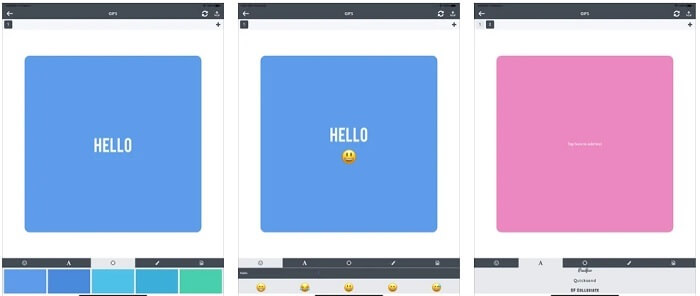
Tämä GIF-muokkain on saatavilla vain iOS:lle. GIFX pystyy tekemään juuri sellaisen GIF:n kuin haluat. Se tukee sekä kuvia että videoita muunnettavaksi GIF-muotoon. Voit myös jakaa GIF:si MMS-viesteinä ja sähköpostilla. Lisäksi se mahdollistaa emojien lisäämisen omaan GIF:ääsi, jotta voit ilmaista tunteesi paremmin myös tekstin avulla.
Plussat
- Luo oma animoitu GIF -sovellus tällä iOS -sovelluksella.
- Se tukee myös erilaisia Apple -tuotteita, kuten iPad, iPhone, iPod touch ja Mac.
- Säädä GIF -tiedoston nopeutta tällä työkalulla.
Haittoja
- Työkalu sanoo, että se tukee videoita, mutta se ei salli sinun lisätä videoita GIF -tiedostoosi.
- Sovelluksen luokitus on vain 1 tähti ja se saa vain 2 arvostelua, mikä on erittäin alhainen sovellukselle.
4. GIF -studio
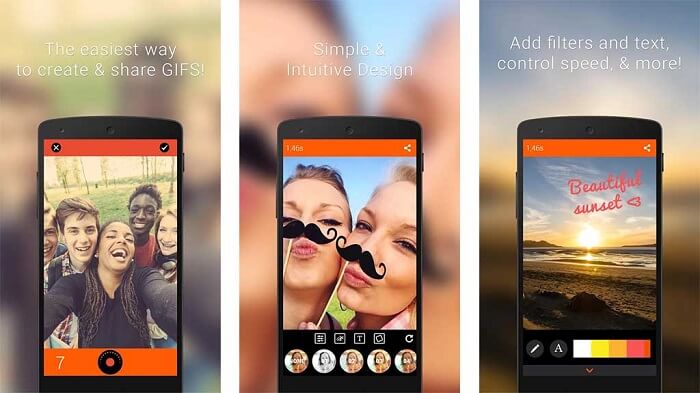
Jos etsit parasta GIF-muokkain-sovellusta, tämä GIF Studio voi olla etsimäsi. Se antaa mielikuvituksellesi tilaa toteutua GIF:issäsi. Luo, muokkaa ja toista animoituja GIF:jä tällä sovelluksella. Ja jos GIF:ien tekeminen tuntuu sinusta hankalalta, tämä työkalu tekee siitä sinulle helpompaa. Se tarjoaa myös runsaasti lisäominaisuuksia, joilla saat luomuksistasi entistä upeampia.
Plussat
- Yhdistä useita GIF -tiedostoja yhdeksi.
- Lisää teksti GIF -tiedostoihisi tehdäksesi onnittelukortin.
- Jaa GIF -tiedostot ja tallenna ne helposti.
Haittoja
- Koska kehittäjät tekevät siitä yksinkertaisen. Käyttöliittymä on kauhistuttava. Tämän sovelluksen käytön oppiminen on hieman jäykkää.
- Se ei tue GIF -tiedostoja, jotka on tehty toiselta Gif -valmistajalta.
Osa 4. Usein kysytyt kysymykset GIF -editorista
Onko olemassa muita muotoja, jotka voivat tallentaa elokuvia, kuten GIF voi tarjota?
Oltuaan 30 vuoden ajan yksi kuuluisista kuva-videoformaateista. Se on jo tehnyt kilpailijan: APNG, AVIF, MNG, WebP ja FLIF.
Mikä tietojen pakkaus on GIF?
Kyseessä on häviötön pakkaus, joten kun pakkaat dataa, mitään ei katoa ja formaattia on helppo siirtää internetissä. Jos GIF:si on suuri, voit katsoa ohjeen How to Compress Animated GIF into Small File Size
Mitä GIF -tallenninta voin käyttää GIF -muodon tallentamiseen?
Voit käyttää FVC -näytön tallenninta, joka on ladattava GIF -tallennin, joka on saatavana kaikilla eri alustoilla ja joka tarjoaa GIF -muotoa ja paljon muuta. Erittäin laadukas ja paljon muita vaihtoehtoja. Lataa FVC Free Screen Recorder Windowsille Lataa FVC Free Screen Recorder for Mac
Johtopäätös
Ja nyt kun on hyvin selvää, että paras tapa välittää loistava viesti on käyttää GIF -tiedostoja. Vaikka raakaviestin käyttäminen on hyvä, GIF -tiedoston lisääminen on paljon parempi. Joten parhaan GIF -editorin valitseminen on välttämätöntä, jotta voit jakaa jaettavan viestin oikean sävyn ja saada selkeän lausunnon tai lisätä hauskan sävyn. Valitse perimmäinen työkalu, jolla voit luoda lopullisen GIF -kuvan ja tehdä parhaan vaikutelman, jonka haluat jakaa.
-
 Kuinka muuntaa AVI-videot animoituiksi GIF-tiedostoiksi Windows / Macissa
 Haluatko valita mielenkiintoiset AVI-segmentit GIF-meemien luomiseen? Tämä artikkeli kertoo sinulle 2 parasta tapaa leikata AVI-videoita ja muuntaa AVI animoituiksi GIF-tiedostoiksi ilmaiseksi.
-
 [Ratkaistu] Kuinka muuntaa FLV -videot animoiduiksi GIF -tiedostoiksi ilmaiseksi
 Jos haluat luoda GIF-tiedostoja FLV-videosegmenteistä lähettämisen parantamiseksi, voit oppia lisää FLV-videoiden muuntamisesta GIF-tiedostoiksi helposti tästä artikkelista.
-
 [2 Ratkaisut] Kuinka muuntaa SWF helposti GIF -tiedostoiksi ilmaiseksi
 Kun GIF-formaatin vieminen Flash-ohjelmiston kautta epäonnistuu, voit yrittää ensin tallentaa tiedostot SWF-muodossa. Sitten voit oppia 2 helppoa tapaa muuntaa SWF GIF-tiedostoiksi tästä artikkelista.
