


 Video Converter Ultimate
 Näytön tallennin
 Videon korjaus
Hyödyllinen järjestelmä, joka koskee OBS-äänen viiveongelmaa
Haluat nauhoittaa esitysvideon, jotta voit näyttää sen huomenna luokallesi tai esitellä sen liiketapaamisissasi. Tehdäksesi tämän käytät OBS Studiota nauhoittamiseen ja tallennat videon tietokoneellesi. Mutta kun alat muokata esitysvideota lisätäksesi siihen yksityiskohtia, huomaat, että ääni on viivästynyt ja epäsynkassa. Tässä artikkelissa saat tietää, miksi OBS:n ääni on epäsynkassa. Ja jos et tiedä, miten tilanteesta pääsee eroon, tarjoamme myös helpot menetelmät ääniviiveen korjaamiseen.

Osa 1. Miksi OBS-ääni ei ole synkronoitu?
Useimpien striimaajien pääongelma on, että kun ääni menee epäsynkkaan, se kuulostaa aluksi parin ensimmäisen minuutin ajan hyvältä, mutta alkaa sitten viivästyä eikä enää vastaa huulten liikettä seuraavan tunnin aikana. Epätoivoisina he yrittävät korjata striimin epävarmuutta menemällä lisättyihin ääniasetuksiin säätämään synkronoinnin viivettä, jolloin äänilähteeseen voidaan lisätä vain tietyn pituinen viive – mikä ei ole suositeltavaa. Sen sijaan syy siihen, miksi OBS:n ääni on epäsynkassa, on näytteenottotaajuuksien yhteensopimattomuus.
Osa 2. 7 helppoa vaihetta OBS-ääniviiveen korjaamiseksi
Äänen viive tapahtuu milloin tahansa; se voi olla suoratoistoalustoilla, tallennetuissa esityksissä ja jopa suorissa lähetyksissä. Useimmat syyt tähän ovat yhteysongelmat, tekniset ongelmat ja virheelliset ohjelmoidut sovellukset. Käytät esimerkiksi OBS-studiota suoratoistotoimintasi alustana, ja tapahtuu, että jokaisessa suoratoistamassasi videolähdössä on jonkin verran viivettä. Hyvä asia, että on olemassa täydellisiä tapoja estää nämä tilanteet käyttämällä samaa alustaa. Tässä ovat helposti noudatettavat vaiheet:
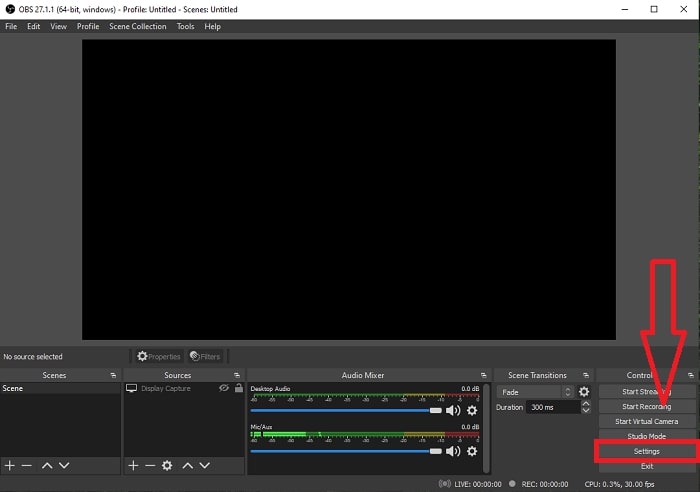
Vaihe 1: Etsi asetukset
Avaa OBS Studio jatkaaksesi sovelluksen käyttöliittymää ja napsauta Asetukset oikeassa alakulmassa.
Vaihe 2: Avaa ääniasetukset
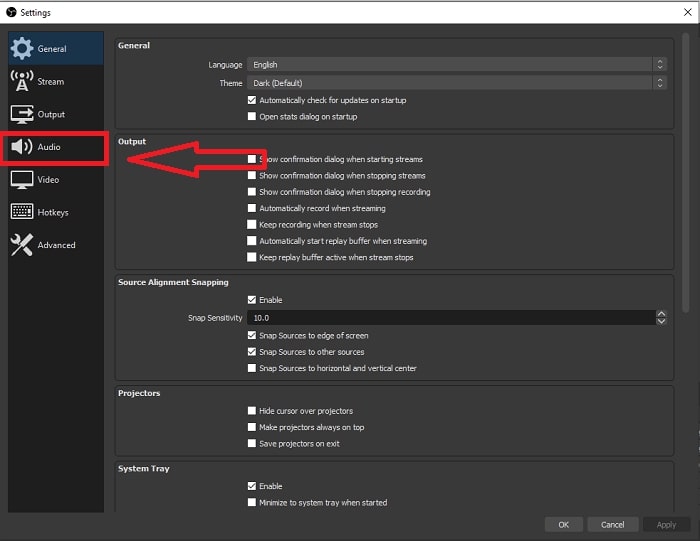
Kun olet klikannut Settings-painiketta, näytölle avautuu uusi näkymä. Tässä näkymässä näet OBS Studion yleiset asetukset. Jatkaaksesi ääniviiveen korjaamista OBS Studiossa, klikkaa vasemmasta reunasta Audio.
Vaihe 3: Valitse sopiva näytteenottotaajuus
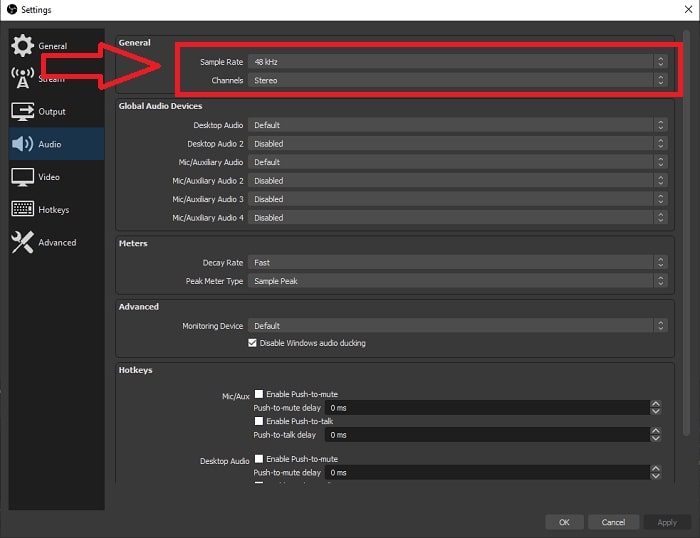
Muokkaa näytetaajuutta työpöytäsi ja tallennuslaitteidesi ensisijaisen näytteenottotaajuuden perusteella. Oletetaan, että tallennuslaitteesi on vähän vanha ja sinulla on vanha kokoonpano. Siinä tapauksessa on parempi alentaa näytteenottotaajuutta normaalista 48 kHz:n näytteenottotaajuudesta ja lisätä sen säätöä 48 kHz:stä, jos haluat tarkkailla laitteesi ensisijaista näytteenottotaajuutta. Koska mitä korkeammaksi videon näytteenottotaajuus kasvaa, sitä lähempänä se luo alkuperäisen äänen uudelleen. Lisäksi voit muuttaa kanavavaihtoehtoa vain sen mukaan, mitä työkalua käytät videon toistamiseen.
Vaihe 4: Avaa ääniasetukset (Sound Settings)
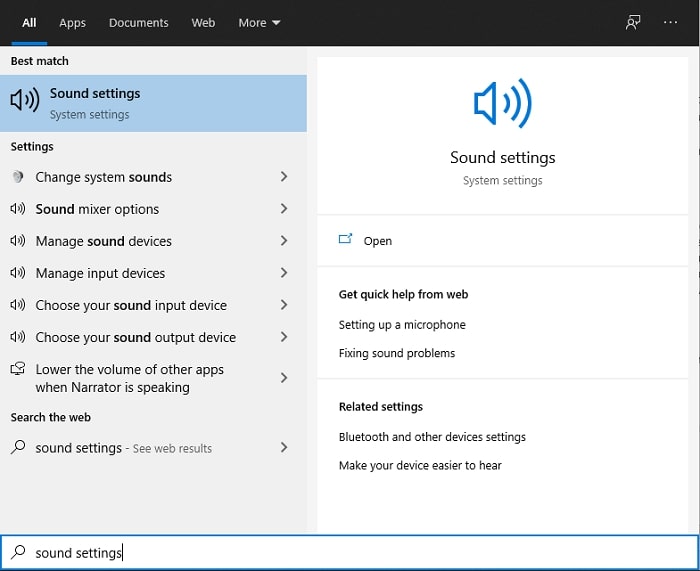
Kun olet asettanut haluamasi näytteenottotaajuuden OBS Studiossa, kirjoita hakupalkkiin (tehtäväpalkissa) Sound Settings, etsi Sound Settings ja klikkaa sitä siirtyäksesi työpöytäsi ääniasetuksiin.
Vaihe 5: Etsi äänen ohjauspaneeli (Sound Control Panel)
Klikkaa Sound Control Panel. Kun avaat sen, näytölle ilmestyy toinen ääni-ikkuna – yhteenveto kaikista käytettävissä olevista laitteista, jotka liittyvät äänentoistoon.
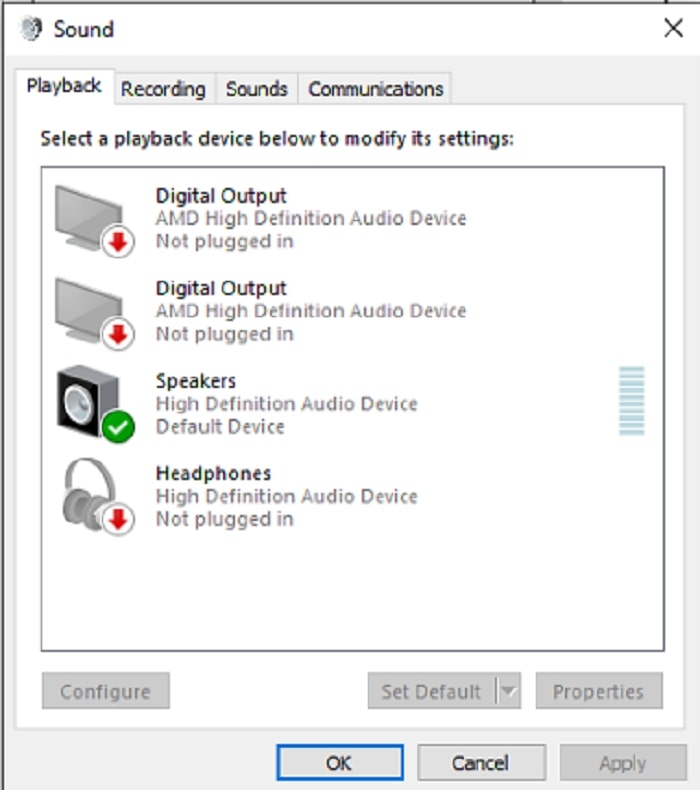
Vaihe 6: Valitse äänentoistolaitteet
Käytettävissä olevat vaihtoehdot ovat tallennusasetuksissasi käytettävissä olevia laitteita, olivatpa ne kaiutin tai kuulokkeet. Valitse, mikä laite tekee äänen epäsynkronista, ja napsauta sen jälkeen ominaisuuksia.
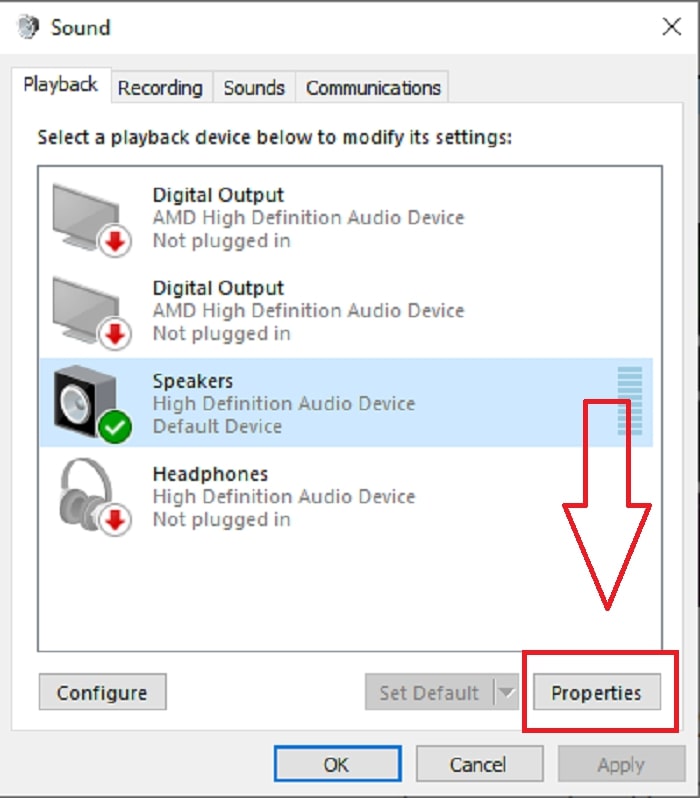
Vaihe 7: Jatka lisäasetuksiin
Kun olet klikannut haluamasi äänentoistolaitteen ominaisuuksia, valitse Advance, jolloin näet oletusmuodon. Kokeile kaikkia vaihtoehdoissa näkyviä formaatteja ja valitse sellainen formaatti, joka ei aiheuta äänen epäsynkkaa.
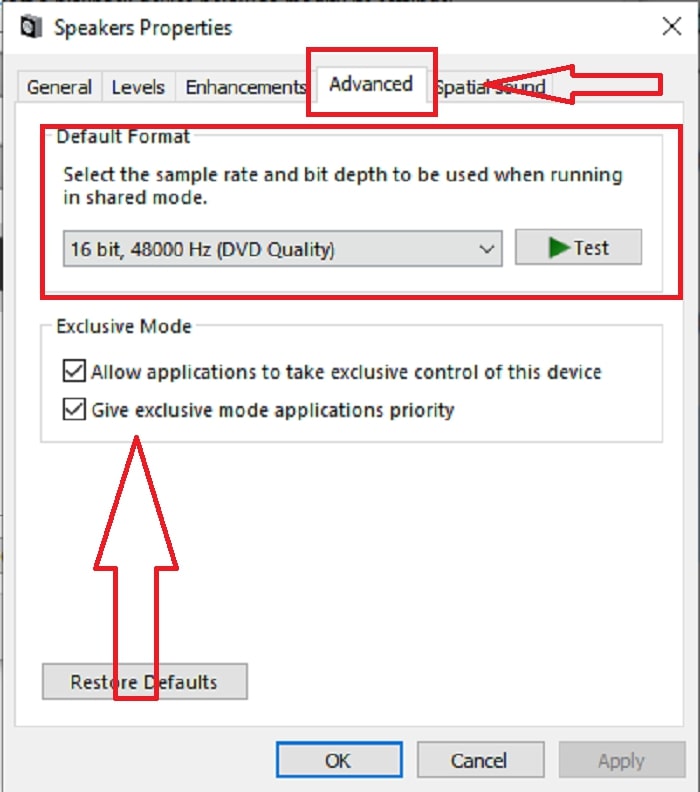
Osa 3. Paras tapa korjata OBS-ääniviive
Yllä oleva ratkaisu kertoo, miten välttää ääniviive OBS Studiota käytettäessä, mutta entä jos ongelmana on jo nauhoitettu ääni, jonka haluat esittää tai ladata, ja se on epäsynkassa? Käytä FVC Video Converter Ultimate -ohjelmistoa, jossa on useita videoleikkeen parannukseen tarkoitettuja ominaisuuksia. Yksi ominaisuuksista voi korjata videoleikkeen äänen synkronoinnin säätämällä sen viivettä. Seuraa alla olevia vaiheita oppiaksesi käyttämään ohjelmistoa:
Vaihe 1: Tallentaaksesi ohjelmiston tietokoneesi kiintolevylle, klikkaa Free Download -painiketta. Sen jälkeen voit asentaa ohjelmiston ja mukauttaa asetukset mielesi mukaan.
Ilmainen latausWindows 7 tai uudempiTurvallinen lataus
Ilmainen latausMacOS 10.7 tai uudempiTurvallinen lataus
Vaihe 2: Klikkaa Toolbox-ominaisuutta, kun olet käynnistänyt ohjelmiston, ja jatka klikkaamalla Audio Sync.
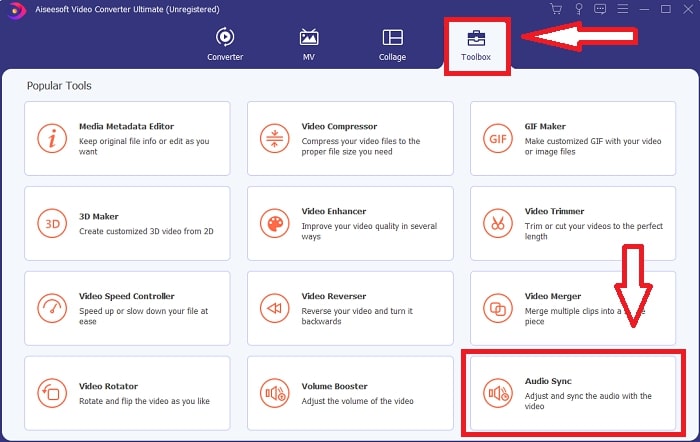
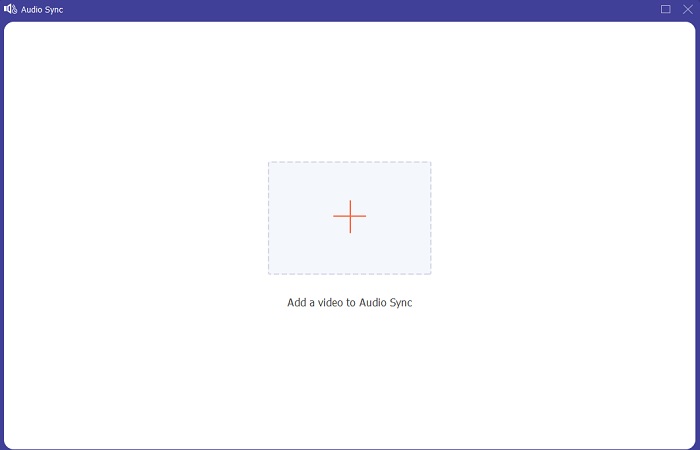
Vaihe 3: Kun olet klikannut Audio Sync -toimintoa, klikkaa + -painiketta ja aloita videoleikkeen muokkaaminen.
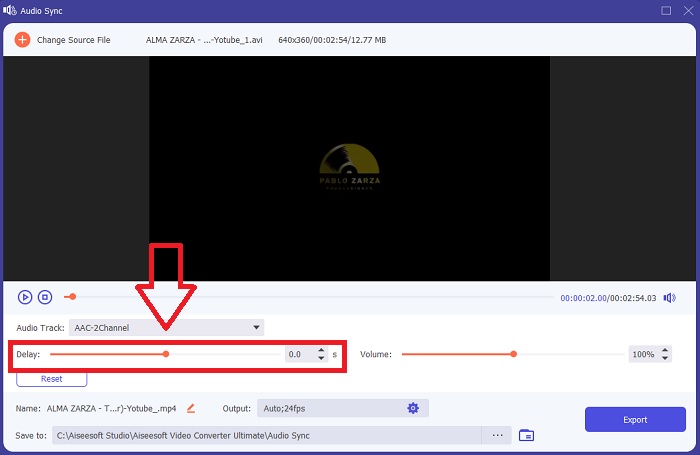
Vaihe 4: Säädä äänen Slider-liukusäädintä, jotta ääni synkronoituu videoleikkeen kanssa. Samalla voit myös vaihtaa toistolaitetta ja alkaa mukauttaa videoleikkeen äänenvoimakkuutta.
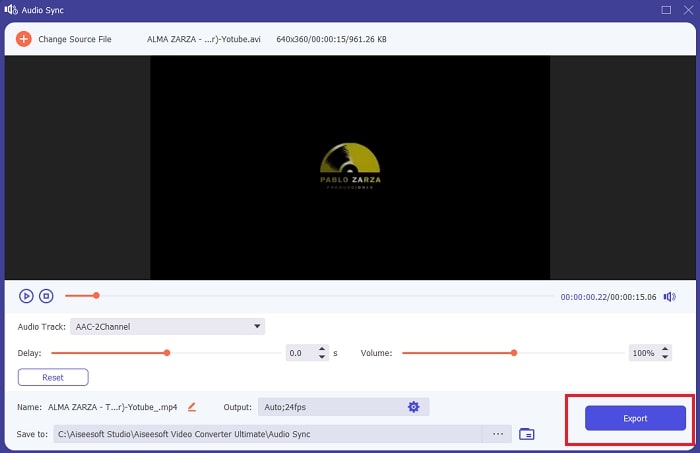
Vaihe 5: Klikkaa Export ja valitse, minne tallennat tiedoston, kun olet valmis muokkauksen kanssa.
Aiheeseen liittyvää:
Kuinka nauhoittaa ääntä VLC:llä
Osa 4. Usein kysyttyä OBS-ääniviiveestä
Mikä on näytetaajuuden epäsuhta?
Äänen näytetaajuus kilohertseinä ilmaistuna on nopeus, jolla järjestelmä suorittaa nämä mittaukset. Äänen näytteenottotaajuus määrittää taajuusalueen, jonka voit siepata digitaalisella äänellä – näytetaajuus muuttuu ääniasetuksissasi useimmissa DAW-levyissä. Näytetaajuuden muuttaminen vaikuttaa äänen laatuun. Näytteenottotaajuuden epäsuhta on kuitenkin epätasainen vastaanotto- ja lähetysäänen näytetaajuus lähteelle. Tämä tapaus tapahtuu aina, jos kaiuttimen lähtö ja kuulokelähtö eivät ole sama näytteenottotaajuus, mikä aiheuttaa ääniviiveen.
Menetänkö äänen laadun, jos säädän näytteenottotaajuutta?
Näytetaajuus muuttuu, jos haluat kuunnella videoleikkeen ääntä etkä muuta sitä. Kun käytät FVC Video Converter Ultimate -ohjelmaa, muutat vain videoleikkeen ääniviivettä sen äänen synkronoimiseksi. Et enää säädä näytetaajuutta ja pelkäät äänenlaadun menettämistä.
Mikä näytteenottotaajuus on parempi, jos käytän heikkolaatuista äänilähtöä?
Äänen laatu riippuu äänilähdöstä. Jos mikrofonisi tai kaiuttimesi tukee vain matalataajuista äänitaajuutta, on parempi laskea vakionäytetaajuus 44,1 kHz:iin kuin asettaa se 48 Hz:iin. Näytteenottotaajuus voi vaikuttaa äänen synkronointiviiveeseen, jos lähtöön ja tuloon ei ole yhtä taajuutta.
Johtopäätös
Yhteenvetona voidaan todeta, että ääniviive, joka esiintyy jatkuvasti OBS Studiossa, on korjattavissa useilla eri tavoilla. Käsittelimme näytteenottotaajuuden yhteensopimattomuutta ja tarkastelimme erilaisia äänentoistolaitteita, mutta paras tapa havainnollistaa ratkaisua äänen epäsynkan korjaamiseen on käyttää FVC Video Converter Ultimate -ohjelmistoa. Sen lisäksi, että se voi korjata äänen synkronoinnin, siinä on monia muita ominaisuuksia, jotka auttavat parantamaan videoleikettäsi.
-
 2 parasta ratkaisua ratkaista Windows Media Player, joka ei toista DVD-levyjä
 Kun haluat toistaa DVD-videoita Windows Media Playerin kautta, mutta saat vain virheen "Tiedostotyyppiä ei tueta", voit oppia kolme helppoa tapaa korjata Windows Media Player, joka ei toista DVD-levyjä.
-
 [Ratkaistu] Kuinka korjata videot, jotka eivät toistu iPhonessa yksityiskohtaisilla vaiheilla
 Gallerian paikallisia videoita ei voi toistaa iPhonellasi oletusvideosoitimen kautta? Tapahtuuko aina online -YouTube -videoita, joita ei toisteta iPhonessa? Tässä on 5 ratkaisua, jotka auttavat sinua tässä artikkelissa.
-
 Opas videoiden korjaamiseen, joita ei toisteta Android -puhelimissa
 Haluatko tietää, mistä syistä Android-laitteesi videoita ei voida toistaa? Ja jos on, onko olemassa keinoja korjata ongelma itse? Jatka lukemista saadaksesi lisätietoja.
