


 Video Converter Ultimate
 Näytön tallennin
 Videon korjaus
Paranna asiantuntemustasi esimerkiksi videon hidastamiseen liittyvien ongelmien ratkaisemisessa
Olet aloitteleva taiteilija ja haluat katsoa taide‑ ja design‑opetusvideon parantaaksesi taitojasi. Useimmat tällaiset videot ovat kuitenkin nopeutettuja, jotta ne voi ladata pienempinä tiedostoina tietyn pituuden sisään. Siksi keksit ratkaisuksi, että videon toistonopeutta pitäisi hidastaa. Et kuitenkaan tiedä, miten aikajakso‑ eli time‑lapse‑videota hidastetaan samalla tavalla kuin useimmissa taideopetusvideoissa. Lue tämä artikkeli kartuttaaksesi tietämystäsi aiheesta, joka vaivaa monia aloittelevia taiteilijoita.

Osa 1. 3 helppoa vaihetta videon hidastamiseen [pöytäkone/kannettava]
Verkko tarjoaa monia lähestymistapoja, joko online- tai offline-editoria. Jotkut niistä on ladattava, varsinkin kun käytät pöytätietokonetta tai kannettavaa tietokonetta editoinnissa. Työpöydän käytön välillä on merkittävä ero käytön yksityiskohtien suhteen. Siksi tässä artikkelissa valitaan paras tapa hidastaa videota offline-tilassa tai online-tilassa työpöydällä. Tässä ovat lähestymistavat vaiheineen:
Lähestymistapa 1. Käytä Video Converter Ultimate -ohjelmaa
On mahdollista ladata ja käyttää monia muuntimia myös ilman verkkoyhteyttä. Hidastaaksesi videota voit käyttää ohjelmaa Video Converter Ultimate, joka on yksi parhaista vaihtoehdoista. Sitä on helppo käyttää, ja sen voi ladata ilmaiseksi. Sinun ei tarvitse huolehtia siitä, että internet hidastaa videon käsittelyä verkossa, koska tämän ohjelmiston avulla voit muokata videota vaivattomasti. Sen vaikuttavan työkalun, Video Speed Controllerin, ansiosta voit nyt säätää videosi toistonopeutta alle minuutissa. Nyt kun olet kiinnostunut siitä, miten tämä tapahtuu, seuraa näitä ohjattuja vaiheita:
Vaihe 1: Napsauta vain Free Download ‑painiketta ladataksesi ohjelmiston tietokoneesi työpöydälle. Asennus ja asetusten mukauttaminen tehdään sen jälkeen seuraavissa vaiheissa.
Ilmainen latausWindows 7 tai uudempiTurvallinen lataus
Ilmainen latausMacOS 10.7 tai uudempiTurvallinen lataus
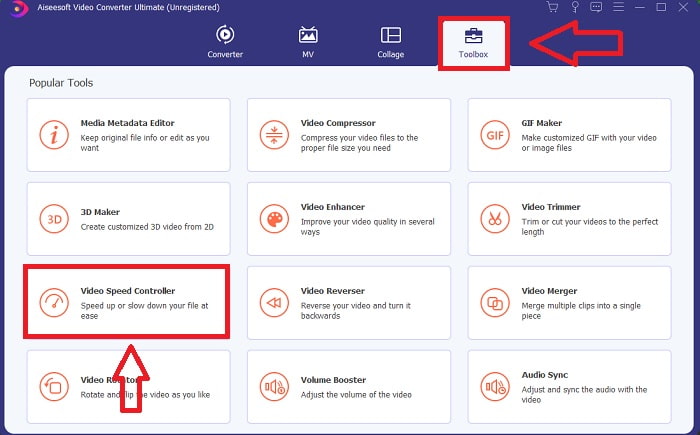
Vaihe 2: Käyttääksesi työkalua Video Speed Controller, käynnistä ohjelma heti asennuksen jälkeen ja valitse kyseinen työkalu Toolbox‑valikosta.
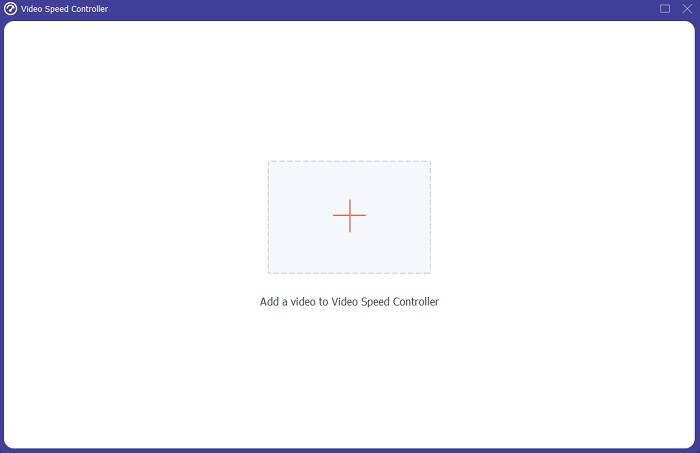
Vaihe 3: Video Speed Controller ‑työkalun käyttöliittymä avautuu, kun napsautat sitä. Lataa muokattava tiedosto napsauttamalla +-kuvaketta.
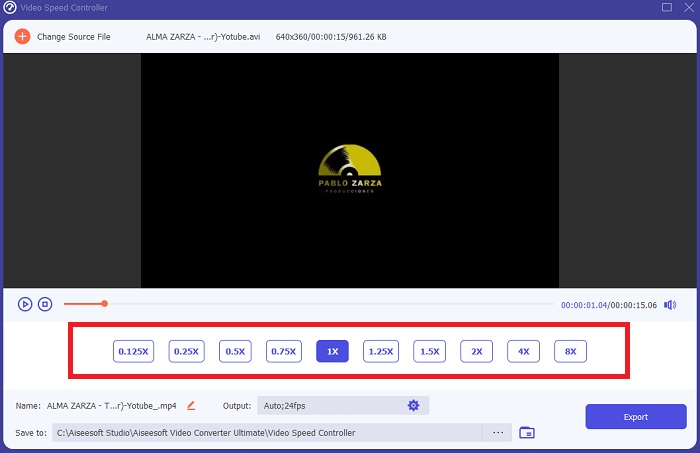
Vaihe 4: Voit nyt alkaa hidastaa videota valitsemalla normaalia toistonopeutta pienempiä kertoimia. Useimmat pienemmät arvot näkyvät videosi todellisen nopeuden vasemmalla puolella.
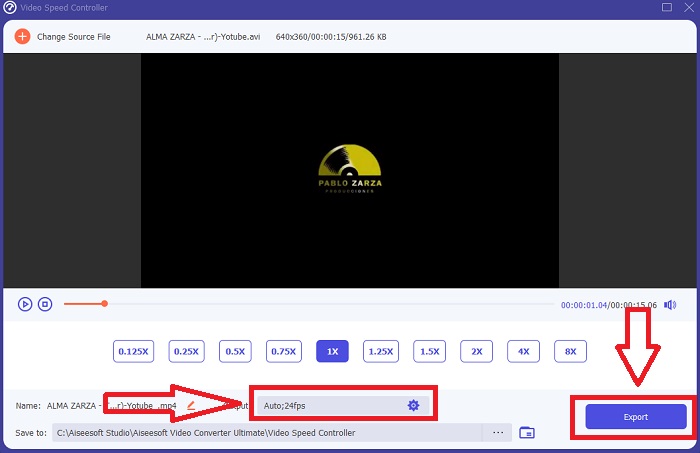
Vaihe 5: Kun olet saanut videosi toistonopeuden muokattua, voit valita lähtömuodon, tarkkuuden, laadun ja muut haluamasi asetukset. Kun kaikki on valmista, napsauta Export ja valitse, mihin haluat tallentaa tiedoston, kun vienti on valmis.
Lähestymistapa 2. Käytä VEED:ää
Sisällöntuottajat ympäri maailmaa luottavat VEEDiin ja sen avoimen lähdekoodin verkkotyökaluun videoiden tuottamiseen sosiaaliseen mediaan ja muihin tarkoituksiin. Se on verkkosovellus, joka vaatii kiinteän yhteyden toimiakseen oikein, mutta voit ladata suoraan ja muuttaa toistonopeutta sen käyttöliittymässä. Lisäksi siinä on useita ominaisuuksia, joista yksi on videon toistonopeuden hidastaminen. Voit nyt hidastaa videota lataamatta mitään työpöydällesi. Tarvitset vain hakukoneen ja vahvan yhteyden käyttääksesi tätä verkkotyökalua. Siinä on yksinkertainen, käyttäjäystävällinen käyttöliittymä, joka voi hyödyttää useimpia aloittelevia käyttäjiä, joiden on hidastettava videota oppimatta monimutkaisia vaiheita. Tässä on esimerkkejä toimenpiteistä, joiden avulla voit tehdä haluamasi säädöt videoosi.
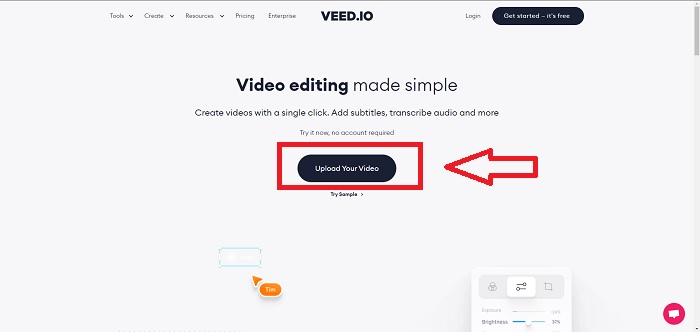
Vaihe 1: Napsauta Upload Your Video ‑painiketta lähettääksesi videotiedoston tietokoneeltasi palvelimeen.
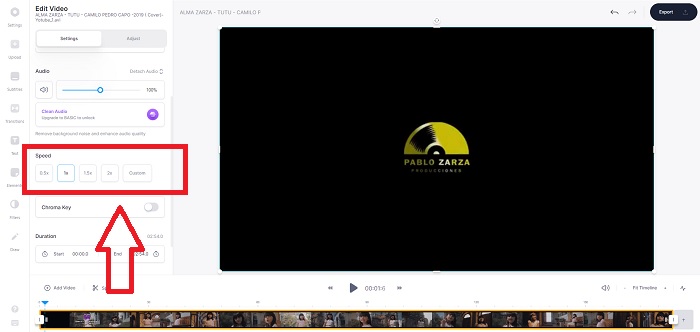
Vaihe 2: Pääset verkkotyökalun muokkausnäkymään napsauttamalla Video Track ‑kohtaa vasemmasta yläkulmasta. Valitse nopeampi toistonopeus etsimällä Speed‑asetus ja napsauttamalla sitä. Jos haluamaasi nopeutta ei ole valmiina vaihtoehtona, voit valita Custom ohittaaksesi oletusasetukset ja toistaa videoleikkeen omavalintaisella nopeudella.
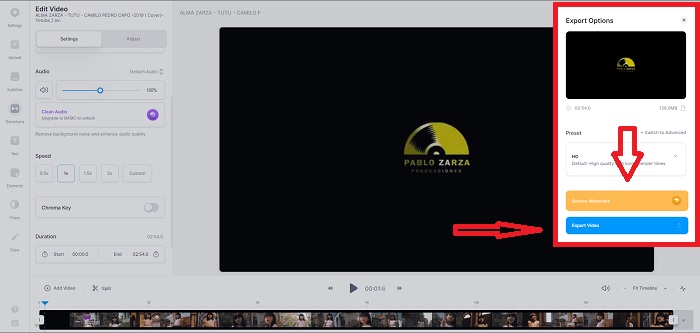
Vaihe 3: Kun olet säätänyt videon nopeuden haluamaksesi, siirry vientivälilehdelle napsauttamalla Export. Samalla voit valita videon laadun ja poistaa vesileiman ostamalla verkkotyökalun premium‑version. Jos kaikki on kunnossa, siirrä muutettu video tietokoneellesi valitsemalla Exporting Video.
Osa 2. 3 helppoa vaihetta videon hidastamiseen [matkapuhelin]
Oletko kyllästynyt miettimään ratkaisua, joka vastaa videon hidastamiseen iPhonessa tai Androidissa? Internetissä on monia sovelluksia ja työkaluja, joilla voidaan perustella, että annettuun ongelmaan on vastaus. Mutta tässä ovat parhaat ja helpoimmat työkalut, joita suosittelemme käyttämään, jos olet matkapuhelineditori ja haluat tehdä mestariteoksen pienestä laitteestasi.
Lähestymistapa 1. Käytä iMovie-ohjelmaa
Voit nyt hallita toistonopeutta tai hidastaa videota iPhonellasi ja iPadillasi tämän ilmaisen ja kätevän sovelluksen, iMovie, avulla. Se on yksi luotetuimmista iOS‑laitteilla saatavilla olevista sovelluksista, jolla voi muokata videoita ja ennen kaikkea säätää videon toistonopeutta. Jos haluat tietää lisää tästä sovelluksesta, noudata seuraavia vaiheita ratkaistaksesi edellä kuvatun ongelman:
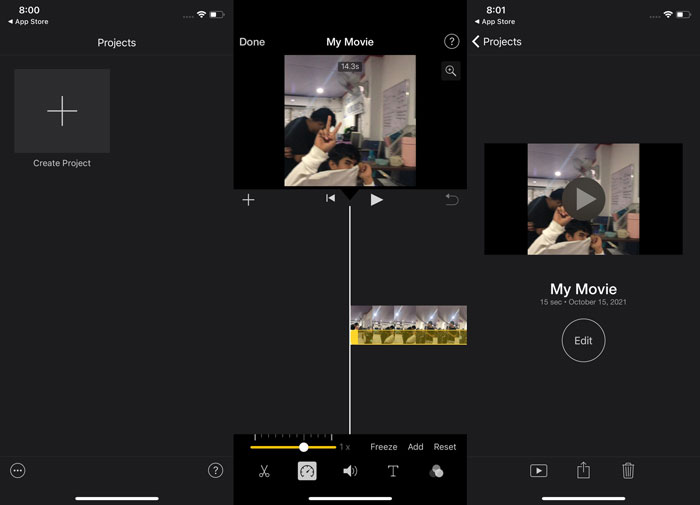
Vaihe 1: Aloita elokuvasi muokkaaminen iMovie‑sovelluksessa iPhonella tai iPadilla. Ennen jatkamista saatat nähdä lyhyen esittelyn käyttöliittymästä. Projects‑sivulla lisää uusi videoleike napsauttamalla plus‑merkkiä ja valitse sitten Movie New Projects ‑valikosta.
Vaihe 2: Valitse ensin videoleike kameran rullasta ennen siirtymistä Create Movie ‑osioon. Nopeustyökalu muistuttaa nopeusmittaria, ja sen löydät napauttamalla videoleikettä aikajanalla ja odottamalla, että muokkaustyökalut tulevat näkyviin. Kelaa videota taakse‑ tai eteenpäin liu’uttamalla alareunassa olevaa keltaista liukusäädintä. Alkuperäiseen nopeuteen verrattuna toistoa voi nopeuttaa jopa kaksinkertaiseksi tai hidastaa kahdeksasosaan alkuperäisestä.
Vaihe 3: Napsauta Done puhelimen vasemmassa yläkulmassa, kun olet valmis. Voit tallentaa valmiin videosi valitsemalla sen Share‑valikosta ja päättämällä, mihin haluat sen tallentaa.
Lähestymistapa 2. Käytä VideoFX Music Video Maker -ohjelmaa
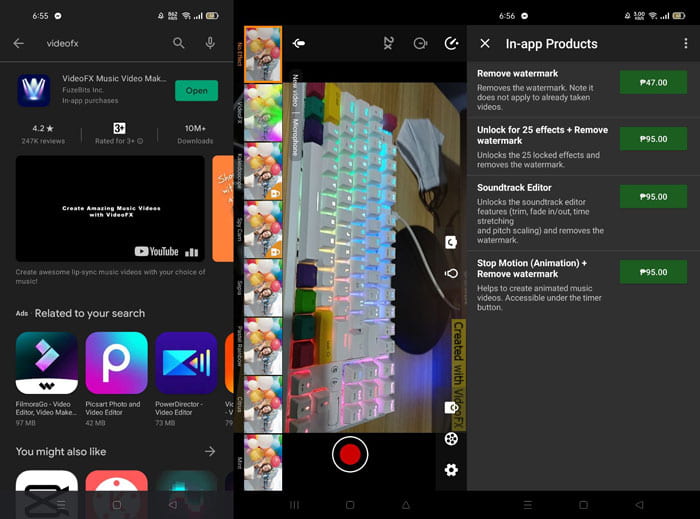
Luo musiikkivideot sekunneissa VideoFX Music Video Maker ‑työkalulla. Sinun tarvitsee vain kuvata video jollakin monista saatavilla olevista efekteistä, valita kappale ja tallentaa se Android‑puhelimesi sisäiseen muistiin. Koska voit lisätä suodattimet ennen videon kuvaamista, sovellusta on erittäin helppo käyttää. Hyvänä tai huonona puolena jälkikäsittelyä ei voi tehdä – muokkaukset on tehtävä ennen videon kuvaamista. Valitse siis ennen kuvausta kappale, joka sopii videoon. Voit nopeuttaa tai hidastaa musiikkia, mutta muutokset on tehtävä ennen kuin alat kuvata videota. Toimi näin:
Vaihe 1: Lataa ja asenna VideoFX Android‑puhelimeesi.
Vaihe 2: Koska tämän sovelluksen tehosteet voi ottaa käyttöön vain ennen videon kuvaamista, aloita tallennus painamalla Record‑painiketta.
Vaihe 3: Napsauta sitten 2x säätääksesi tallentamasi videon nopeutta. Ennen kuin voit käyttää kaikkia sovelluksen ominaisuuksia, sinun on ostettava täysversio.
Osa 3. Usein kysyttyä videon hidastamisesta
Kuinka hidastaa videota iPhonessa?
Sisällöntuottajilla ja videokuvaajilla on käytössään valtavasti työkaluja, joista hidastus on yksi parhaista. Suurempi kuvanopeus sekunnissa tekee katselukokemuksesta miellyttävämmän. Silti hidastettu video ei aina ole paras ratkaisu kaikkiin tekemiisi videoihin. Joissakin tapauksissa hidastus ei yksinkertaisesti sovi lainkaan tai on tarpeeton. Tällöin ainoaksi vaihtoehdoksi voi jäädä palauttaa iPhonen hidastusvideo normaalinopeudelle.
Kuinka hidastat videota galleriassa?
Android- ja iOS-puhelimissa on asetuskuvakkeita napauttamalla aktivoidaksesi hidastetun tai hidastetun tilan ennen videon tallentamista. Sinun tulee tallentaa hidastetut kohtaukset 5–10 sekunnin sarjassa, jotta videomateriaalia ei tule liikaa.
Meneekö laatu, jos hidastan videota?
Ei, et menetä videon laatua, mutta näet videosi resoluution ja kuvanopeuden putoavan joka sekunti, jonka pienennät keskinopeudella. Kun videosi toistonopeutta lisätään tai vähennetään, vain kehys jaetaan. Sen lisäämisellä on haluttu vaikutus. Viisi kertaa nopeampi eli 60 kuvaa 1/120 sekunnissa. Toisin sanoen, ellei videolla ole alhainen kuvataajuus, sillä ei ole vaikutusta.
Johtopäätös
Tämän artikkelin avulla opit eri menetelmistä, joita jokaisessa käyttöjärjestelmässä on tarjolla, kun kyse on erilaisista videoiden hidastamiseen tarkoitetuista sovelluksista. Mukana on myös vaiheittaisia ohjeita aloitteleville käyttäjille, joilla ei ole aiempaa kokemusta videonmuokkauksesta. Jos haluat sovelluksen, joka auttaa sinua videon toistonopeuden säätämisessä ja tarjoaa samalla muut tärkeät editointityökalut, lataa ohjelma Video Converter Ultimate ja koe, millaista on työskennellä kuin ammattilaisleikkaaja.
-
 Top 4 parasta VOB -soitinta Android -matkapuhelimille eri käyttötarkoituksiin
 Kun lataat VOB -videoita ja haluat katsella niitä Androidilla, voit valita sopivimman seuraavista neljästä tämän artikkelin VOB -soittimesta.
-
 Top 5 parasta Windows Media Player -vaihtoehtoa Android -matkapuhelimille
 Koska et voi ladata Windows Media Playeria Androidille, sinun tulee lukea tämä artikkeli ja oppia viidestä parhaasta vaihtoehdosta Windows Media Playerille.
-
 Top 5 parasta videosoitinta iPhonelle, jota sinun ei kannata jättää väliin vuonna 2021
 Jos haluat toistaa videoita kaikissa muodoissa ja saada paremman katselukokemuksen iPhonellasi, sinun kannattaa lukea tämä artikkeli ja oppia viidestä parhaasta videosoittimesta iPhonelle 12/11/ X/8/7/6.
