


 Video Converter Ultimate
 Näytön tallennin
 Videon korjaus
 Suojattu lataus
Äänen häivyttäminen iMoviessa: Opetusohjelma Macille ja iPhonelle
Häivytys on tehoste, jota käytetään luomaan vähitellen voimistuva tai heikkenevä vaikutus tietyssä mediassa. Äänieditoinnissa häivytystehosteen lisäämisen opettelu on olennaista; sitä käytetään siirtymiin tai vain kertomaan kuuntelijalle, että ääni tulee hiljenemään tai vaimenemaan, mikä vaikuttaa ääniraidan kokonaisuuteen. Käyttäjät voivat helposti lisätä häivytystehosteita iMoviella, Applen suunnittelemalla mediaeditointiohjelmalla. Jatka lukemista nähdäksesi, miten voit käyttää Macia ja iPhonea äänen häivyttämiseen sekä tutustua monipuoliseen vaihtoehtoiseen työkaluun häivytysten lisäämiseksi ääneesi.

Osa 1. Musiikin häivytys Macin iMoviessa
Häivytyskahvat
Ensimmäinen tapa lisätä häivytystehosteita ääneen iMovien Mac-versiolla on käyttää häivytyskahvaa. Tämä on helpoin tapa tehdä, koska se edellyttää vain, että käyttäjät lataavat äänitiedostonsa ja jatkavat sitten kunkin leikkeen alussa ja lopussa näkyvän häivyttävän ohjaustangon vetämistä.
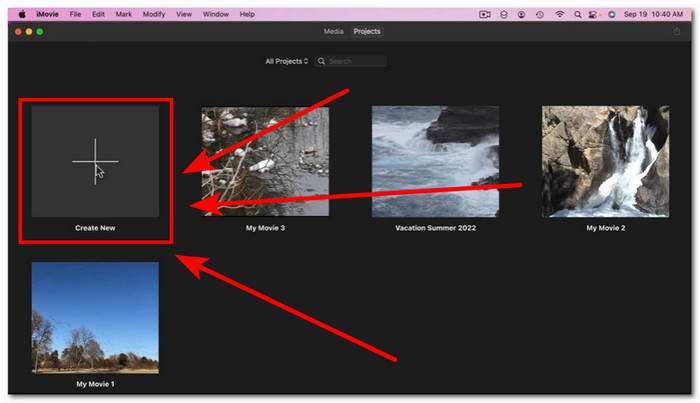
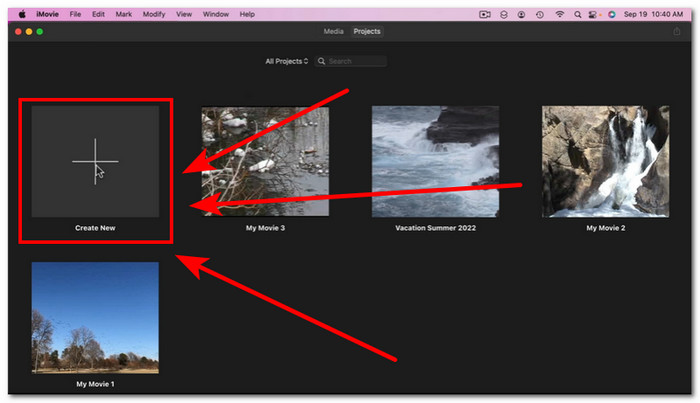
Vaihe 1. Käynnistä iMovie-sovellus Macillasi ja tuo haluamasi äänitiedosto vetämällä ja pudottamalla se ohjelman aikajanalle.
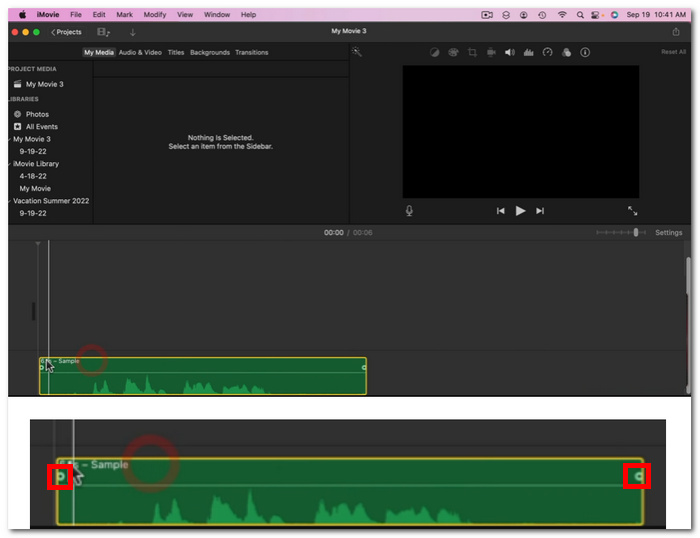
Vaihe 2. Kun äänitiedosto on iMovien aikajanalla, kunkin raidan alussa ja lopussa näkyy pieni ympyrä, mikä tarkoittaa, että voit käyttää häivytyskahvoja häivytystehosteen luomiseen.
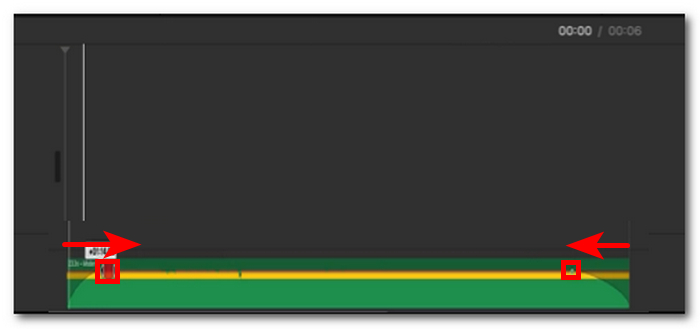
Vaihe 3. Vedä yksinkertaisesti häivytyskahvoja ääniraidan sisäpuolelle häivytystehosteen luomiseksi.
Huomautus: Kuten näet, se luo raitaan kaltevuuden, mikä osoittaa, että äänelläsi on nyt häivytystehoste.
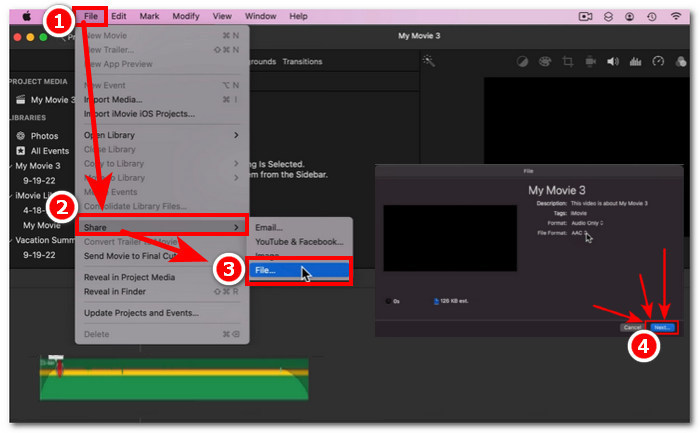
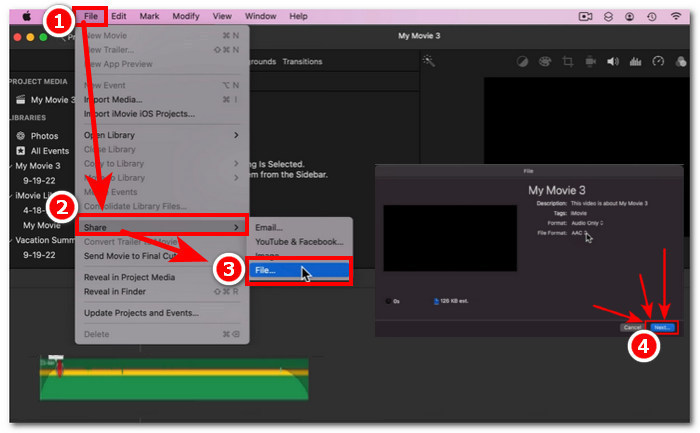
Vaihe 4. Tallenna lopuksi tiedostosi napsauttamalla File > Share > File… ja Next ladataksesi sen Macin Lataukset-kansioon.
Kun olet ladannut videon, jossa on häivytetty ääniraita, ja huomaat, että ääni ei ole synkassa videon kanssa iMoviessa, voit seurata tätä ohjetta ongelman korjaamiseksi.
Äänen tarkastaja
Toinen tapa vaimentaa ääntä iMoviessa Macilla on Audio Inspectorin kautta. Tämä on paljon monimutkaisempi kuin Fade Handles. Sen avulla käyttäjät voivat olla tarkkoja häivytystehosteiden asettamisessa, koska se antaa laskelmoidumman ja tarkemman aikanäytön sillä sekunnilla, jolloin haluat häivytyksen ja häivytyksen näkyvän äänessäsi.
Vaihe 1. Avaa Macilla iMovie-ohjelmassa äänitiedosto, johon haluat lisätä häivytystehosteita.
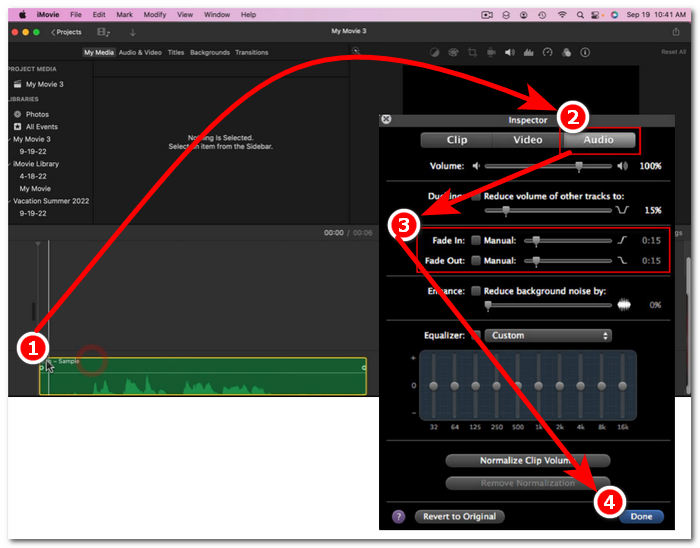
Vaihe 2. Kun äänitiedosto on ohjelman käyttöliittymässä, kaksoisnapsauta sitä aikajanalla ja valitse Clip Adjustments avataksesi Inspector-paneelin.
Vaihe 3. Kun Inspector-paneeli on avattu, siirry Audio-osioon. Siellä voit säätää raidan Fade in- ja Fade out -arvoja. Vedä häivytyksen pituuksia käsin mielesi mukaan ja napsauta lopuksi Done-painiketta tallentaaksesi muutokset äänitiedostoon.
Vaihe 4. Kun kaikki on valmista, voit ladata äänitiedoston napsauttamalla näytön yläreunassa olevaa File-painiketta ja valitsemalla sitten Share > File > Next.
Osa 2. Musiikin häivytys iPhonen iMovie-sovelluksessa
Äänen häipyminen iMoviessa iPhonella on suhteellisen helppoa, koska iMovien mobiiliversio iPhone-käyttäjille on melko yksinkertainen. Käyttäjät, jopa tekniikkaa tuntemattomat, voivat tehdä sen hikoilematta.
Vaihe 1. Jotta voit lisätä häivytystehosteita äänitiedostoon, sinun on tuotava äänitiedosto iPhonen iMovie-sovellukseen.,
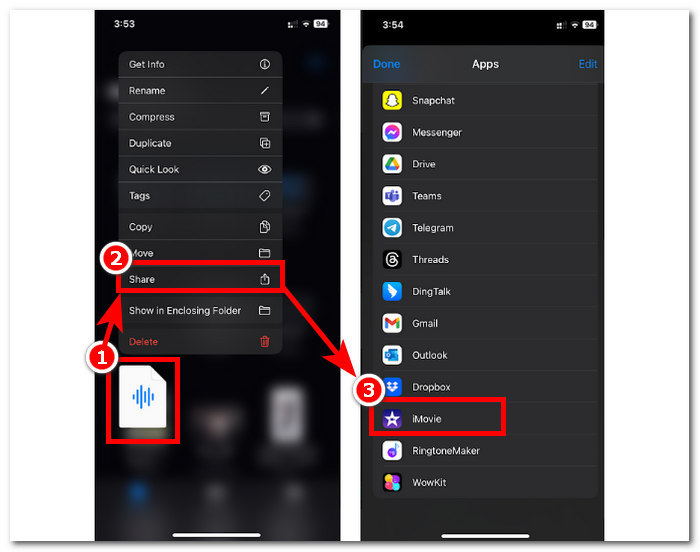
Vaihe 2. Kun olet sovelluksen käyttöliittymässä, napauta Sound > Fade -painiketta tuodaksesi näkyviin häivytyspalkit. Kun häivytyspalkit tulevat näkyviin, vedä niitä äänitiedoston sisäpuolelle ja säädä tarpeen mukaan; kun olet tyytyväinen, napauta Done-painiketta tallentaaksesi muutokset.
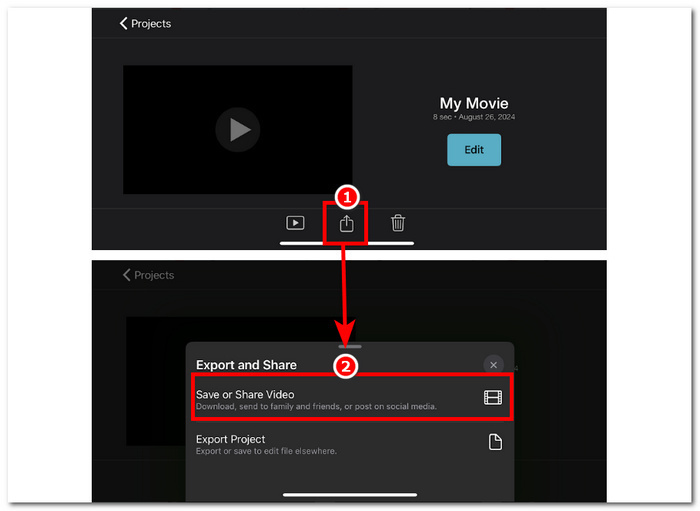
Vaihe 3. Tallenna tiedosto napauttamalla Share-kuvaketta ja valitsemalla sitten vaihtoehto Save tai Share Video.
Osa 3. Paras iMovien vaihtoehto häivytysmusiikille
Kun iMovie, laajasti käytetty videoeditointityökalu Macilla ja iPhonessa, kohtaa teknisiä ongelmia, FVC-valittu Video Converter Ultimate on ihanteellinen vaihtoehto. Tämä ohjelmisto on suunniteltu erityisesti häivytystehosteiden lisäämiseen videoihin saumattomasti, kiitos erillisen Fade In- ja Fade Out -toiminnallisuuden. Tarkkojen aikakestoarvojen syöttämisen ansiosta käyttäjät voivat saavuttaa haluamansa häivytystehosteet täsmällisesti. FVC-valittu Video Converter Ultimate menee pidemmälle kuin pelkkä äänen trimmaus tai leikkaus ja tarjoaa monipuolisen editointityökalupakin. Lisäksi sen poikkeuksellisen nopea käsittely takaa tehokkaan editoinnin säilyttäen samalla häviöttömän äänenlaadun, mikä erottaa sen muista ohjelmista.
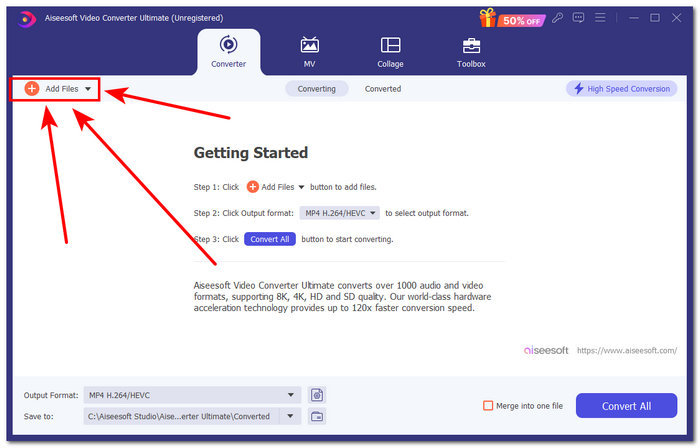
Vaihe 1. Lataa ja käynnistä tietokoneellasi FVC-valittu Video Converter Ultimate -ohjelmisto. Etsi ohjelman käyttöliittymästä Add Files -painike ja napsauta sitä ladataksesi äänitiedoston. Tämä vaihe on tärkeä, jos haluat trimmata tai leikata tiettyjä osia äänitiedostosta.
Ilmainen latausWindows 7 tai uudempiTurvallinen lataus
Ilmainen latausMacOS 10.7 tai uudempiTurvallinen lataus
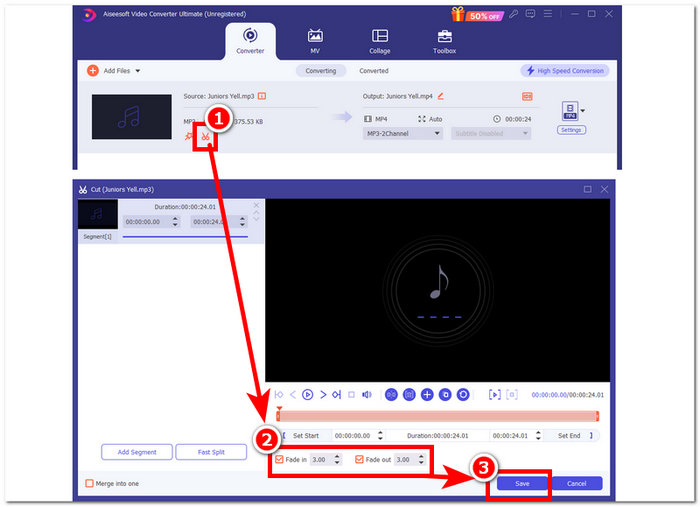
Vaihe 2. Napsauta sakset-painiketta avataksesi ohjelmiston leikkaus- ja trimmaustoiminnot. Leikkauspaneelissa näet Fade In & Out -ruudun. Lisätäksesi häivytystehosteita äänitiedostoon, laita siihen yksinkertaisesti valintamerkki.
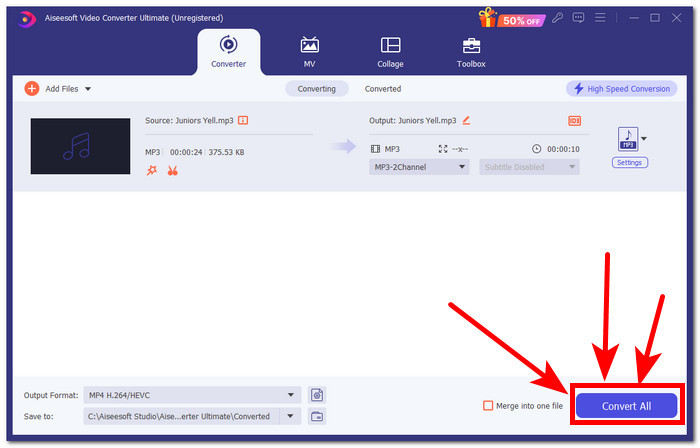
Vaihe 3. Napsauta Convert All -painiketta. Tämä toiminto tallentaa muutokset ja tallettaa tiedoston tiettyyn kansioon tietokoneellasi, jotta muutoksesi säilyvät varmasti.
Osa 4. Usein kysyttyä musiikin häivyttämisestä iMoviessa
Mitä eroa häivytyksen ja sisääntulon välillä on?
Häivytys tarkoittaa äänen asteittaista lisääntymistä täydellisestä hiljaisuudesta, kun taas fade out tarkoittaa äänenvoimakkuuden asteittaista pienentämistä täydelliseen hiljaisuuteen.
Onko iMoviessa häivytys?
Kyllä, iMoviessa on häivytystehosteita, joiden avulla Applen käyttäjät voivat lisätä ja vähentää äänenvoimakkuutta projektissaan sujuvasti. Siten sitä ei voi käyttää vain äänessä, vaan myös iMovie tarjoaa häivytystehosteita myös videoeditorilleen.
Miksi käytät häivytystä?
Häivytystehoste voi auttaa lisäämään projektiin ylimääräisen makukerroksen. Se luo sujuvan siirtymän tai lopun, mikä estää äkillisen pysähtymisen, mikä on epämiellyttävämpää kuulla etenkin musiikissa.
Johtopäätös
Apple-käyttäjien ei enää tarvitse erikseen miettiä, miten musiikki häivytetään iMoviessa, sillä iMovie Macille ja iPhonelle suoriutuu tällaisista tehtävistä helposti. Saumattoman häivytystehosteen lisäämisen lisäksi mainittiin myös vaihtoehtoinen ohjelmisto varajärjestelmäksi siltä varalta, että iMovie ei toimi. FVC-valittu Video Converter Ultimate auttaa paljon tarjoamalla nopean käsittelyn, kevyen ja helppokäyttöisen ohjelman sekä yksinkertaisen fade in- ja fade out -toiminnallisuuden.
-
 Yksinkertaisia tapoja lisätä tekstiä videoon iMoviella Macissa ja iPhonessa
 Haluatko lisätä tekstiä videoon iMovien avulla? Lue koko blogipostaus oppiaksesi lisäämään tekstiotsikoita iMovieen yksityiskohtaisten vaiheiden avulla.
-
 iMovie-opas - Kuinka tallentaa videokuvaa ja ääntä iMovie-sovelluksella
 Lue ja hanki yksityiskohtaiset vaiheet videon nauhoittamiseksi iMoviella. Jos sinulla on ongelmia iMovie-tallennuksen kanssa, voit saada iMovie-ilmaisen vaihtoehdon näytön tallennukselle Windowsissa ja Macissa ilman vesileimaa.
-
 Vesileiman lisääminen videoon Macin iMovie-sovelluksessa [All Embracing]
 Haluatko tietää iMovien videoon vesileiman lisäämisen salaisuudet? Älä läikytä teetä kenenkään päälle, vaan opi se lukemalla tämä artikkeli.
