Käyttöohjeet

Video / Audio-muunnosratkaisut

Aloittaa

FVC Free FLV to Audio Converter on paras ilmainen video-audio-muunnin. Se voi poimia ääniraitoja FLV-videotiedostosta. Lisäksi se tukee äänitiedostojen muuntamista eri äänimuotojen välillä.
Pääliitäntä

Lataa ja asenna

Lataa asennuspaketti tietokoneen käyttöjärjestelmän perusteella. Kaksoisnapsauta sitten asennustiedostoa ja asenna ohjelma noudattamalla näytön ohjeita.

Asetukset

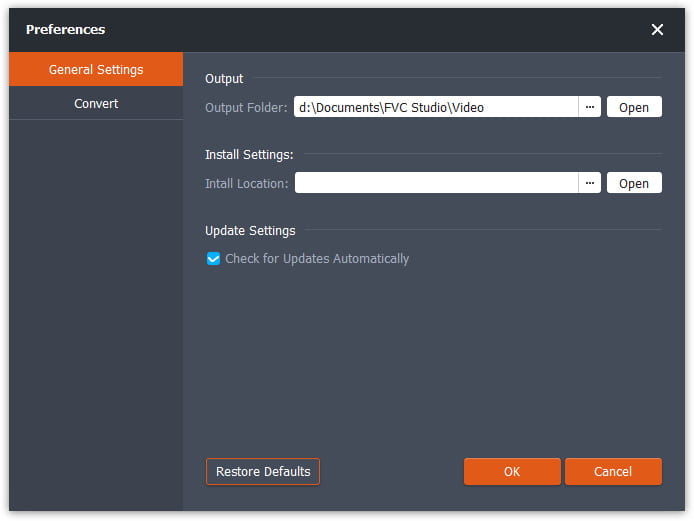
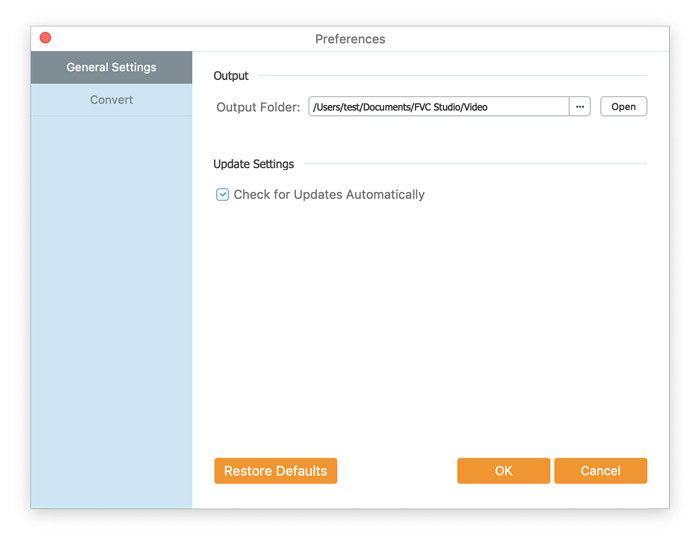
Before you start the conversion, it’s recommended to tweak the default settings. You can click the Menu icon and click on Preferences… to configure the specific settings. For example, you are free to choose the output folder to store your converted files.

Asetukset

Muunna FLV ääneksi

Nyt voit seurata näitä ohjeita muuntaa FLV-tiedostot äänimuodoiksi.

Step 1. Launch FVC Free FLV to Audio Converter

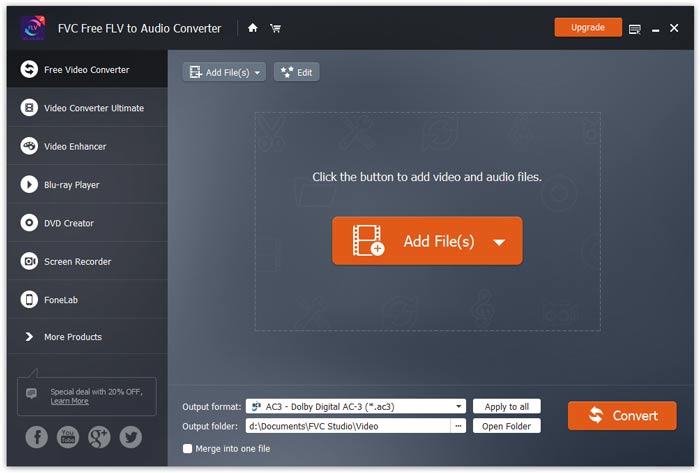
Käynnistä FVC Free FLV to Audio Converter, niin näet sen puhtaan käyttöliittymän.

Pääliitäntä

Step 2. Add an FLV file into the program

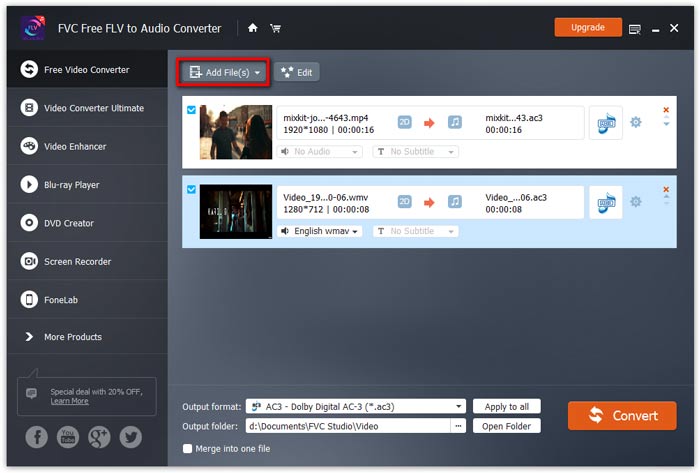
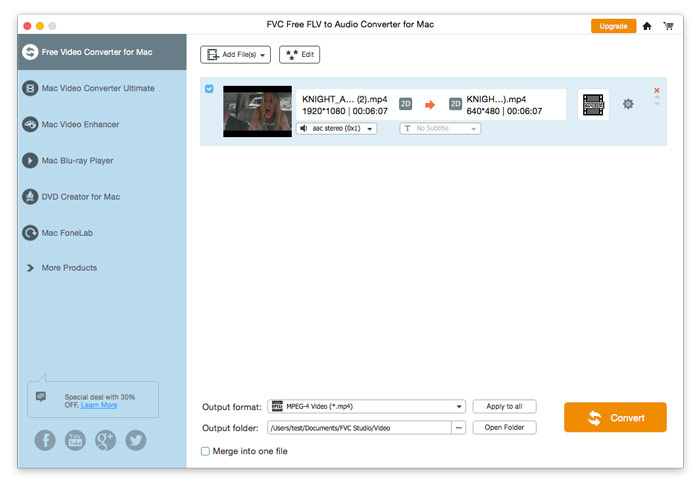
Click the Add File(s) button and choose FLV files you want to process in the dialogue opening subsequently. After the files are added to the program, they will be displayed on the file list.

Lisää FLV-tiedostot

Step 3. Select the output format

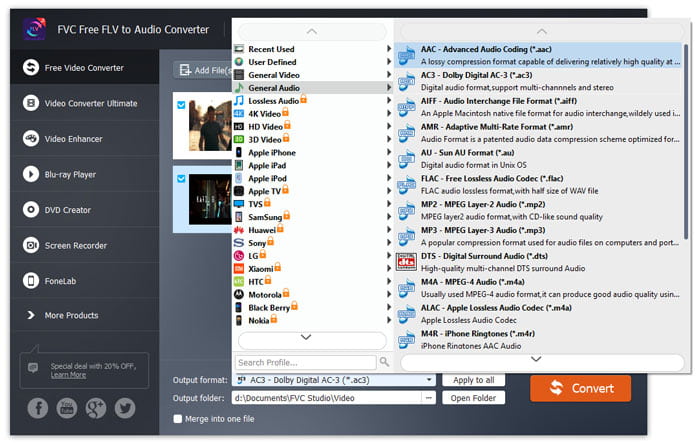
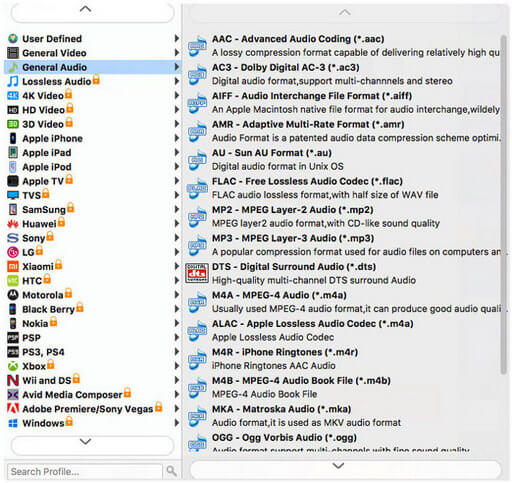
Click to open Output format drop-down list, then choose the audio format from the General Audio profile list. It can convert your FLV files to MP3, WMA, AAC, M4A, and so on.

Valitse Äänimuoto

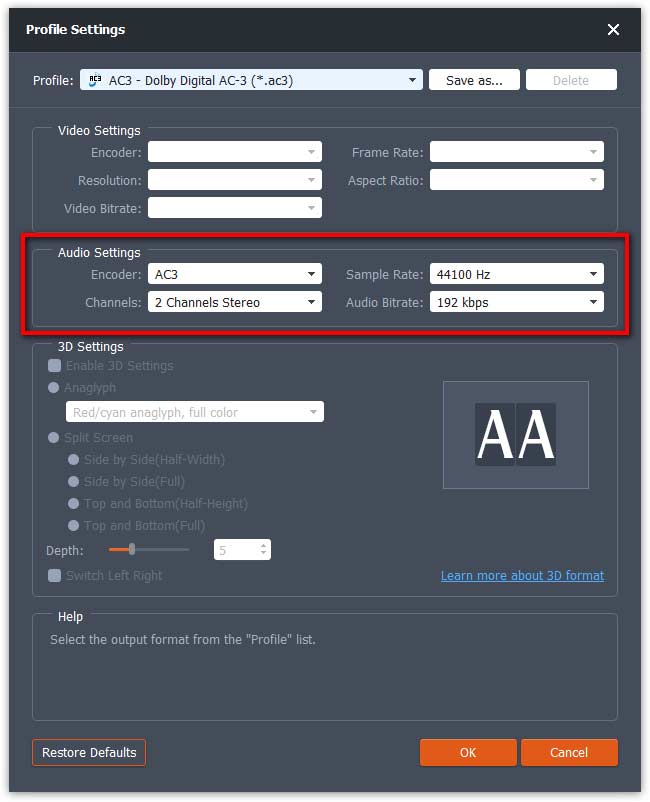
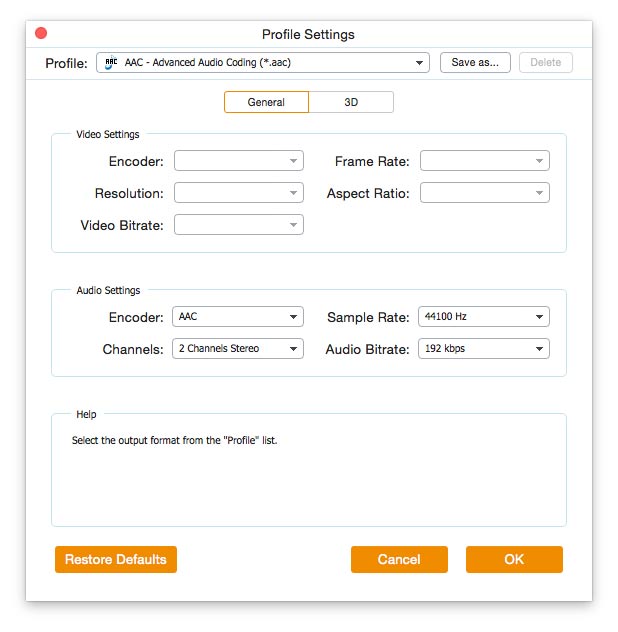
If you’re not satisfied with the original profile parameter settings, you can click the Cogwheel icon and adjust the encoder, channel, sample rate, and audio bitrate in the Profile settings window.

Profiilin asetukset

Step 4. Start converting FLV to Audio

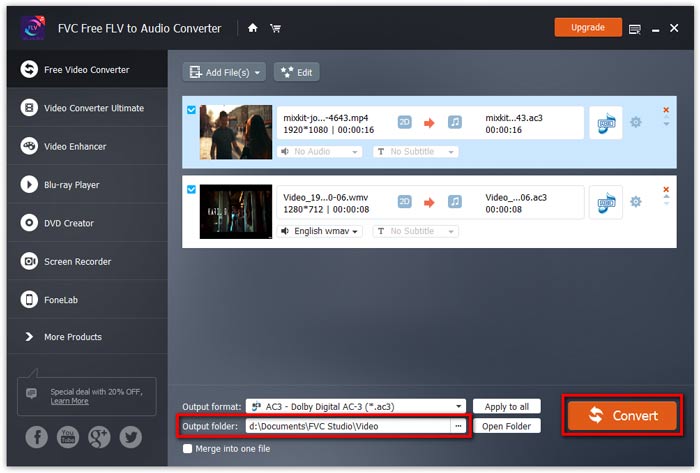
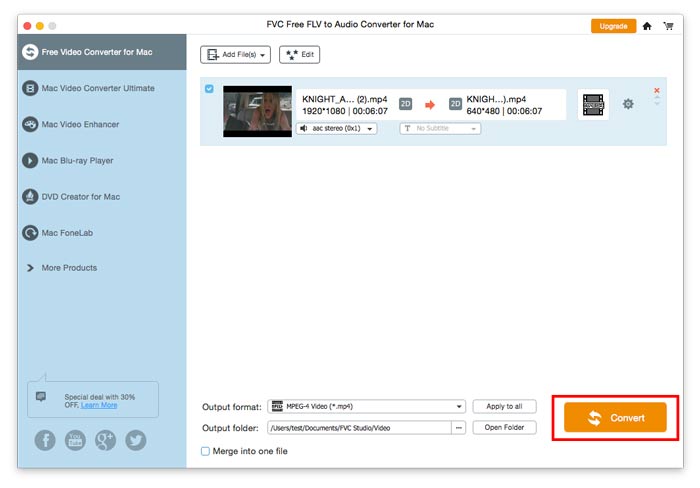
Go to Output folder to choose the destination folder for saving output files, and then click OK button to return to the main window. Finally, click the Convert button to start the conversion.

Aloita muuntaminen

Käyttöohjeet

Video / Audio-muunnosratkaisut

Aloittaa

FVC Free FLV to Audio Converter on paras ilmainen video-audio-muunnin. Se voi poimia ääniraitoja FLV-videotiedostosta. Lisäksi se tukee äänitiedostojen muuntamista eri äänimuotojen välillä.
Pääliitäntä

Lataa ja asenna

Lataa asennuspaketti tietokoneen käyttöjärjestelmän perusteella. Kaksoisnapsauta sitten asennustiedostoa ja asenna ohjelma noudattamalla näytön ohjeita.

Asetukset

Before you start the conversion, it’s recommended to tweak the default settings. You can click the Menu icon and click on Preferences… to configure the specific settings. For example, you are free to choose the output folder to store your converted files.

Asetukset

Muunna FLV ääneksi

Nyt voit seurata näitä ohjeita muuntaa FLV-tiedostot äänimuodoiksi.

Step 1. Launch FVC Free FLV to Audio Converter

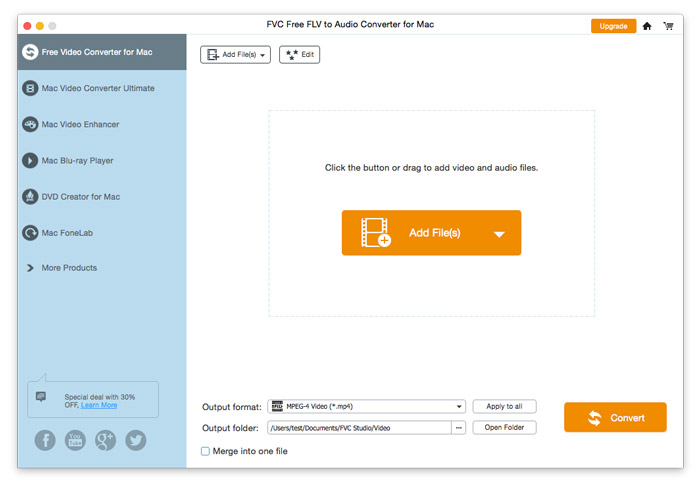
Käynnistä FVC Free FLV to Audio Converter, niin näet sen puhtaan käyttöliittymän.

Pääliitäntä

Step 2. Add an FLV file into the program

Click the Add File(s) button and choose FLV files you want to process in the dialogue opening subsequently. After the files are added to the program, they will be displayed on the file list.

Lisää FLV-tiedostot

Step 3. Select the output format

Click to open Output format drop-down list, then choose the audio format from the General Audio profile list. It can convert your FLV files to MP3, WMA, AAC, M4A, and so on.

Valitse Äänilähtö

If you’re not satisfied with the original profile parameter settings, you can click the Cogwheel icon and adjust the encoder, channel, sample rate, and audio bitrate in the Profile settings window.

Profiilin asetukset

Step 4. Start converting FLV to Audio

Go to Output folder to choose the destination folder for saving output files, and then click OK button to return to the main window. Finally, click the Convert button to start the conversion.

Aloita muuntaminen