


 Video Converter Ultimate
 Näytön tallennin
 Videon korjaus
 Suojattu lataus
Suosituimmat offline- ja online-GIF-yhdistimet | Kuinka yhdistää GIF-tiedostoja saumattomasti
Oletko koskaan halunnut tehdä hauskan ja mieleenpainuvan kuvan yhdistelemällä useita GIF‑tiedostoja? Hyviä uutisia! GIF-tiedostojen yhdistäminen ei ole koskaan ollut yhtä helppoa tai kätevää kuin käyttämällä verkossa ja offline-tilassa toimivia, korkealle arvostettuja GIF-yhdistämistyökaluja. Näiden tehokkaiden ohjelmien avulla voit helposti yhdistää suosikki‑GIF:si luodaksesi jotain täysin uutta ja ainutlaatuista, joka varmasti kiinnittää ihmisten huomion. Tässä opetusoppaassa esittelemme sekä verkossa että offline-tilassa toimivia tapoja yhdistää GIF-tiedostoja ja annamme vinkkejä kunkin menetelmän mahdollisimman tehokkaaseen käyttöön. Nyt on aika alkaa tutkia GIF-mashupien kiehtovaa maailmaa.

Osa 1. Paras GIF-yhdistäjä offline-tilassa
GIF-tiedostojen yhdistäminen offline‑ohjelmalla tarjoaa käyttäjille useita etuja, kuten sen, ettei internet-yhteyttä tarvita, paremman hallinnan prosessiin, paremman yksityisyyden ja turvallisuuden sekä nopeamman käsittelyn. Offline‑ohjelmalla voit luoda ja yhdistellä GIF-tiedostoja omaan tahtiisi ja mukauttaa lopputuloksen mieleiseksesi. Suosittelemme tähän FVC Video Converter Ultimate ‑ohjelmaa.
Tämän työkalun avulla käyttäjät voivat yhdistää useita GIF-tiedostoja ja säätää tuloksena olevan GIF:n kokoa, nopeutta ja toistoasetuksia. Se erottaa sen kilpailijoistaan siinä, että se on monitoiminen videonmuokkausohjelmisto, joka sisältää GIF Maker -ominaisuuden, jonka avulla käyttäjät voivat suorittaa muita videonmuokkaustehtäviä GIF-tiedostojen yhdistämisen lisäksi. Lisäksi siinä on käyttäjäystävällinen käyttöliittymä, joka tarjoaa vaiheittaiset ohjeet, mikä tekee siitä kokeneiden ja aloittelevien käyttäjien saatavilla. Opi yhdistämään useita GIF-tiedostoja MP4:ksi PC:llä tai muissa muodoissa noudattamalla yksinkertaistettua opasta.
Yhteensopivuus: Windows 11/10/8/7 & Mac OS X 10.12 tai uudempi
Arvostelu: 9,8 / 10
Hinta: $49,96 elinikäinen lisenssi
Keskeiset ominaisuudet:
◆ Videon muunnos: FVC Video Converter Ultimate voi muuntaa videoita monenlaisiin muotoihin, mukaan lukien MP4, AVI, WMV, MKV ja paljon muuta.
◆ Äänen poiminta: Käyttäjät voivat poimia ääniraitoja videotiedostoista.
◆ Yhdistä GIF-tiedostoja: FVC Video Converter Ultimate sisältää sisäänrakennetun GIF Maker -työkalun, jonka avulla käyttäjät voivat yhdistää useita GIF-tiedostoja, säätää toistonopeutta ja mukauttaa muita asetuksia.
◆ Laadukas tulostus: FVC Video Converter Ultimate väittää säilyttävänsä lähdetiedostojen alkuperäisen laadun muunnosprosessin aikana, mikä varmistaa korkealaatuisen tulosteen.
◆ Eräkäsittely: Käyttäjät voivat muuntaa ja yhdistää useita tiedostoja kerralla, mikä säästää aikaa ja lisää tehokkuutta.
Vaiheet GIF-tiedostojen yhdistämiseen tällä GIF-yhdistimellä:
Vaihe 1. Hanki ohjelma napsauttamalla jotakin alla olevista Ilmainen lataus ‑painikkeista, jotka vastaavat tietokoneesi käyttöjärjestelmää. Avaa sen jälkeen asennusohjelma ja seuraa ohjattua asennustoimintoa asentaaksesi GIF-yhdistimen oikein tietokoneellesi. Käynnistä ohjelma lopuksi.
Ilmainen latausWindows 7 tai uudempiSuojattu lataus
Ilmainen latausMacOS 10.7 tai uudempiSuojattu lataus
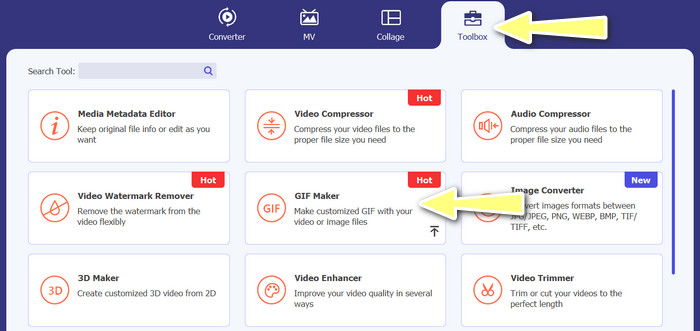
Vaihe 2. Siirry sitten ohjelman yläreunan käyttöliittymästä löytyvään Työkalupakki-välilehteen. Tämän jälkeen sinut ohjataan näkymään, jossa on ohjelman tarjoamia vaihtoehtoja. Valitse täältä GIF Maker ja lisää GIF-tiedostoja napsauttamalla Photos to GIF ‑painiketta. Valitse sitten kaikki GIF-tiedostot, jotka haluat yhdistää yhdeksi.
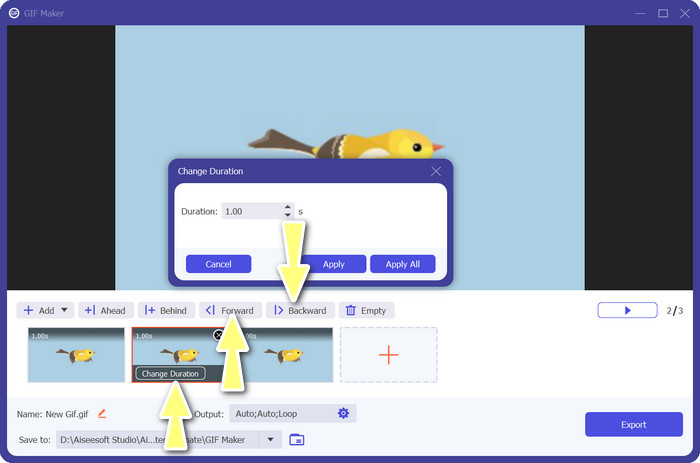
Vaihe 3. Muokkauspaneelissa vie hiiren osoitin kunkin GIF:in päälle nähdäksesi Change Duration ‑vaihtoehdon ja säätääksesi kunkin GIF:in kestoa. Voit myös muuttaa järjestystä valitsemalla päävalikosta Backward- tai Forward-painikkeet.
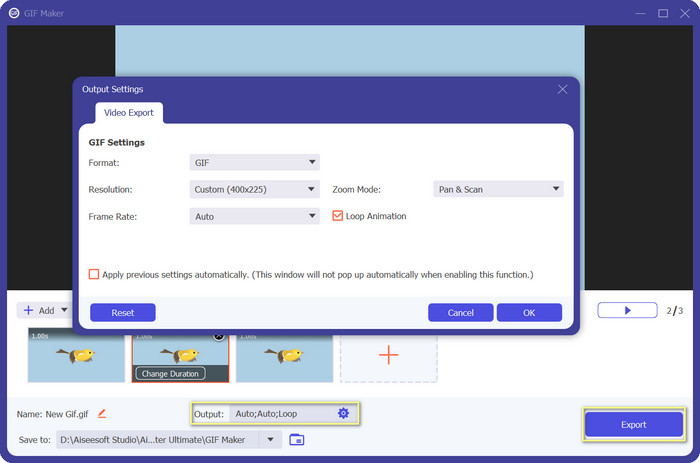
Vaihe 4. Seuraavaksi voit säätää muita asetuksia, kuten muotoa, resoluutiota, kuvanopeutta ja zoomaustilaa Output-asetuksista. Lopuksi napsauta Export-painiketta tuottaaksesi lopullisen tiedoston.
Osa 2. Top 4 GIF Combiner Online
On myös joitain online-vaihtoehtoja GIF-tiedostojen yhdistämiseen yhdeksi. Siksi voit helposti liittyä GIF-tiedostoihisi lataamatta mitään ohjelmia tietokoneellesi. Tarkista ne alla esitellyistä ohjelmista.
1. EZGIF
EZGIF on laajalti käytetty verkkopalvelu GIF-tiedostojen tekemiseen ja muokkaamiseen. GIF Joiner -toiminnon avulla voit yhdistää useita GIF-tiedostoja yhdeksi, ja voit muuttaa toistonopeutta ja muita parametreja. Alla on yksinkertainen opas GIF-tiedostojen yhdistämiseen EZGIF:n avulla.
Vaihe 1. Avaa suosikkiverkkoselaimesi ja siirry ohjelman viralliselle sivustolle. Siirry siellä GIF Maker ‑vaihtoehtoon.
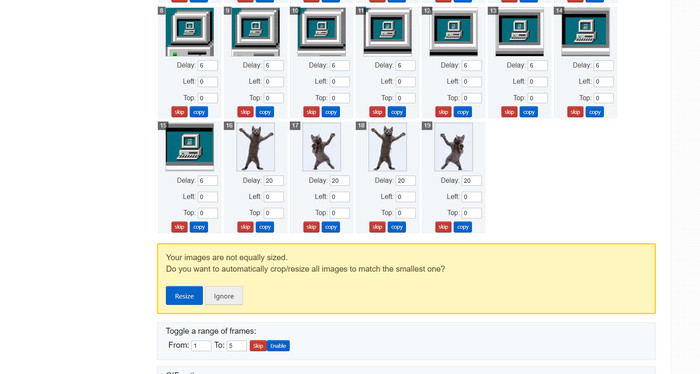
Vaihe 2. Lataa seuraavaksi GIF-tiedostot, jotka haluat yhdistää, ja työkalu lataa seuraavalla sivulla GIF-tiedostosi jokaisen ruudun.
Vaihe 3. Nyt voit säätää, mitkä GIF:in ruudut haluat ottaa mukaan tai jättää pois.
Vaihe 4. Sivun alareunassa on muita vaihtoehtoja. Kun olet tyytyväinen asetuksiin, napsauta Make a GIF ‑painiketta.
2. GIPHY
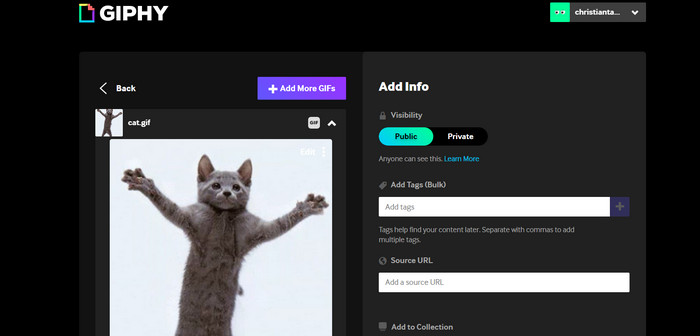
Vaikka useimmat ihmiset tietävät GIPHYn GIF-haku- ja jakamispaikkana, he eivät ehkä ymmärrä, että sivustolla on myös GIF Creator, jonka avulla käyttäjät voivat yhdistää GIF-tiedostoja ja lisätä tekstiä tai tarroja. Toisaalta tässä on vaiheittainen prosessi GIF-tiedostojen liittämiseksi GIPHY:n kanssa.
Vaihe 1. Aloittaaksesi GIF-tiedostojen tekemisen siirry GIPHY‑sivustolle ja käytä Create-välilehteä. Valitse avautuvasta valikosta GIF Creator.
Vaihe 2. Valitse tietokoneeltasi yhdistettävät GIF-tiedostot napsauttamalla Choose Files ‑painiketta.
Vaihe 3. Vedä valitut GIF-tiedostot näytön alareunassa olevalle aikajanalle. Voit muuttaa niiden esitysjärjestystä vetämällä GIF:ejä uuteen järjestykseen.
Vaihe 4. Muuta kunkin GIF:in kestoa käyttämällä liukusäädintä. GIPHY:n muokkaustyökaluilla voit personoida GIF:isi tekstillä, tarroilla ja muilla elementeillä. Kun olet tyytyväinen lopputulokseen, valitse Create GIF tallentaaksesi yhdistetyn GIF-tiedoston tietokoneellesi.
3. Kapwing
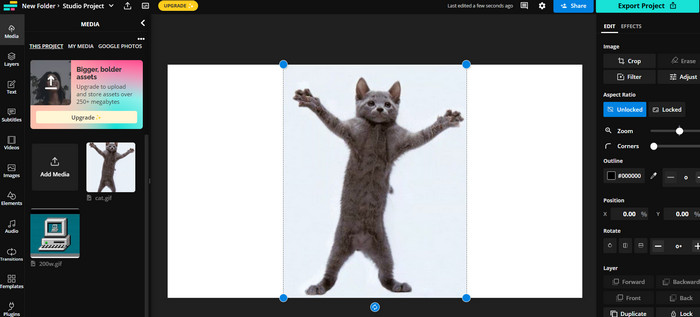
Kapwing on ilmainen, selaimessa toimiva palvelu, jonka avulla käyttäjät voivat muokata videoita ja luoda GIF-tiedostoja kuvista. Sen avulla käyttäjät voivat lähettää useita GIF‑tiedostoja, yhdistää ne yhdeksi, valita toistonopeuden ja muuttaa muita asetuksia. Jos haluat oppia, miten kaksi GIF-tiedostoa yhdistetään Kapwingilla, tutustu alla oleviin ohjeisiin.
Vaihe 1. Siirry Kapwingin sivustolle ja napsauta Get Started aloittaaksesi. Napsauta Click to Upload ja valitse tietokoneeltasi GIF-tiedostot, jotka haluat yhdistää.
Vaihe 2. Vedä ja pudota valitut GIF-tiedostot näytön alareunassa olevalle aikajanalle. Voit järjestää GIF:ien järjestyksen uudelleen vetämällä ne haluamaasi paikkaan.
Vaihe 3. Säädä kunkin GIF:in toistonopeutta ja kestoa Kapwingin tarjoamilla muokkaustyökaluilla. Voit myös lisätä GIF:iin tekstiä, tarroja ja muita elementtejä käyttämällä Kapwingin muokkaustyökaluja.
Vaihe 4. Kun olet tyytyväinen, napsauta Publish tallentaaksesi yhdistetyn GIF-tiedoston tietokoneellesi.
4. Imgflip
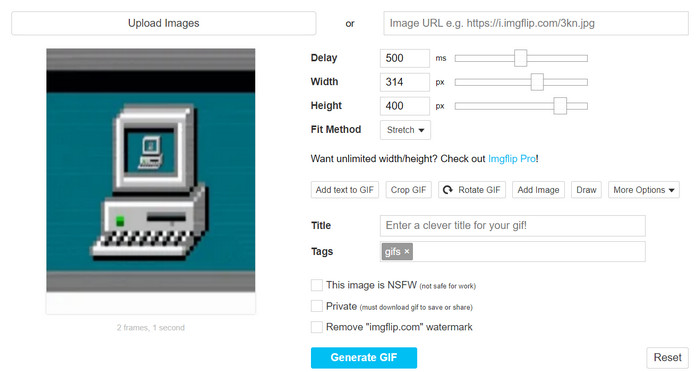
Suosittu online-meemi- ja GIF-luoja Imgflip sisältää myös GIF-generaattorin. Käyttäjät voivat lisätä tekstipeittokuvia, muuttaa toistonopeutta ja lähettää useita GIF-kuvia kerralla. Tutustu vaiheisiin ja saat tietoa GIF-tiedostojen yhdistämisestä yhdeksi.
Vaihe 1. Siirry Imgflipin sivustolle ja napsauta sivun yläreunassa olevaa Create-painiketta. Valitse pudotusvalikosta Video to GIF.
Vaihe 2. Napsauta Upload Video ja valitse tietokoneeltasi GIF-tiedostot, jotka haluat yhdistää. Kun GIF:it on ladattu, napsauta sivun yläreunassa olevaa Join GIFs ‑vaihtoehtoa.
Vaihe 3. Järjestä GIF:ien järjestys vetämällä ja pudottamalla ne haluttuun paikkaan. Säädä toistonopeutta ja muita asetuksia tarpeen mukaan.
Vaihe 4. Kun olet tyytyväinen lopulliseen tulokseen, napsauta Create GIF tallentaaksesi yhdistetyn GIF-tiedoston tietokoneellesi.
Osa 3. Usein kysyttyä GIF-yhdistäjistä
Voinko yhdistää erikokoisia GIF-kuvia?
Kyllä, useimmat GIF-fuusiot mahdollistavat erikokoisten ja -suhteisten GIF-kuvien yhdistämisen. On kuitenkin tärkeää huomata, että lopullinen tulos voidaan rajata tai muuttaa sen kokoa yksittäisten GIF-tiedostojen mittojen mukaan.
Onko laillista yhdistää GIF-tiedostoja, jotka eivät ole minun?
On tärkeää kunnioittaa tekijänoikeuslakeja ja yhdistää vain GIF-tiedostoja, joita sinulla on oikeus käyttää. Tämä voi sisältää GIF-tiedostoja, jotka ovat vapaasti käytettävissä tai jotka olet luonut itse.
Voinko lisätä tekstiä tai tarroja yhdistettyyn GIF-tiedostooni?
Kyllä, useimmat GIF-yhdistimet tarjoavat muokkaustoimintoja, joiden avulla voit lisätä GIF‑tiedostoihisi tekstiä, tarroja ja vesileimoja. Tämä voi parantaa GIF:isi visuaalista vetovoimaa ja viestin välittymistä.
Johtopäätös
Maailmassa, jossa visuaalinen sisältö on yhä tärkeämpää, GIF-tiedostojen yhdistäminen on arvokas taito. Kun voit yhdistää useita GIF-tiedostoja yhdeksi, voit luoda jotakin todella ainutlaatuista, joka herättää yleisön huomion ja saa heidät haluamaan olla tekemisissä sisältösi kanssa.
-
 5 parasta GIF-koon muuttajaa, jotka ovat saatavilla kaikilla alustoilla [2023]
 Haluatko tietää, mitä GIF-koon muuttajia voit käyttää? Siinä tapauksessa alla annetut tiedot kertovat koon muuttajista, joita voit käyttää GIF-tiedostoissasi kaikilla alustoilla.
-
 Jatka GIF-toistoa Windows- ja Mac-käyttöjärjestelmän parhaalla animoidulla GIF-silmukkaalla
 Haluatko tietää parhaan silmukka-GIF:n salaisuuden? Haluatko tehdä sellaisen? Jos näin on, olet oikeassa paikassa. Joten opi luomaan silmukka parhaalla saatavilla olevalla looperilla.
-
 6 parasta tapaa yhdistää MP4-tiedostoja Windows / Mac / Online-käyttöjärjestelmissä
 Haluatko yhdistää raaka-MP4-tiedostosi projektiisi? Tämä viesti kerää 6 parasta tapaa auttaa yhdistämään MP4-videoita helposti Windowsissa, Macissa ja verkossa.
