


 Video Converter Ultimate
 Näytön tallennin
 Videon korjaus
Muunna GIF-tiedostosi verkossa näiden online-GIF-tiedostojen avulla videomuuntimeksi
GIF-tiedostojen lähettäminen viestien kanssa tuli meille uusi rutiini ilmaisemaan paljon parempi viesti. Siitä huolimatta alustat, kuten Instagram, eivät edelleenkään tue GIF-muotoa. Se tukee vain kuvien ja videoiden muotoa, ei staattisia kuvia. Joten jos yrität lisätä GIF-tiedoston Instagramiisi, on mahdollista, että tiedosto ei lataudu tai sitä ei voida ladata. Toiseksi, voit saada still-kuvan vain, jos se on lähetetty. Mutta on toinenkin tapa, se on ladata kolmannen osapuolen sovellus tai käyttää sitä verkossa GIF:n muuntamiseksi videomuotoon. Näiden työkalujen käytön oppiminen on hyvä tieto muistaa. Joten, jos etsit online-GIF-videomuunninta, olet oikeassa paikassa. Jatka lukemista saadaksesi tietää, mitä työkaluja on saatavilla ja kuinka niitä käytetään vastaavasti.

Top 1. Ezgif
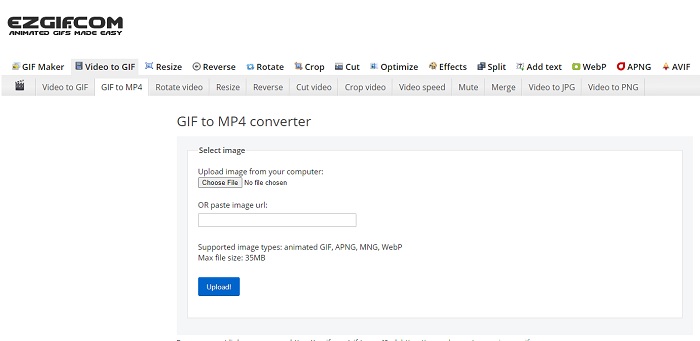
Onko GIF-animaation tekeminen ja muuntaminen sinulle hankalaa? Ei syytä huoleen, sillä Ezgif tulee apuun. Tämä verkkotyökalu ei ole omistettu vain yhteen tehtävään, vaan sen avulla voi myös muokata GIF-animaatioita. Vaikka sen muokkausominaisuudet eivät ole kovin hämmästyttäviä, ne täyttävät perusvaatimukset. Lisäksi GIF-tiedostojen luomiselle ja muuntamiselle on kokorajoitus.
Plussat
- On ihanteellinen tehdä GIF.
- Kaikki sen verkkosivuston mainokset ovat PG-13-rajoituksia.
- Yksinkertaiset muokkausominaisuudet aloittelijoille.
Haittoja
- Verkkokäyttöliittymä on hieman tylsää katsoa.
- Vain MP4-muoto on käytettävissä, jos yrität muuntaa GIF-tiedostoja.
Top 2. Cloudconvert
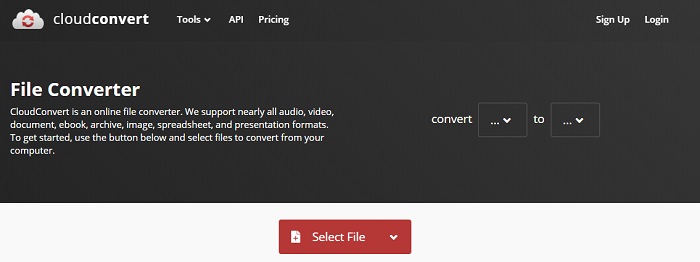
Kun puhutaan muuntamisesta, Cloudconvert kuuluu listalle. Tämä online-GIF–video-muunnin on erityisesti tehty muuntamaan mikä tahansa video- ja äänitiedosto toistettavaan formaattiin. Tällä työkalulla on kuitenkin rajoitus: sillä ei voi parantaa muunnettavien GIF-animaatioiden laatua. Eli tämän työkalun kanssa laatu pysyy sellaisena kuin se on.
Plussat
- Yksi tehokkaimmista muuntimista verkossa.
- Voit käyttää sitä lataamatta työkalua.
- Upea väriyhdistelmä verkkokäyttöliittymässä.
Haittoja
- Muunnettua tiedostoa ei voi muokata paremmaksi.
- Mahdollisuus epäonnistumiseen muuntamisessa on suuri. Varsinkin jos internetyhteys on katkennut.
Top 3. Convertio
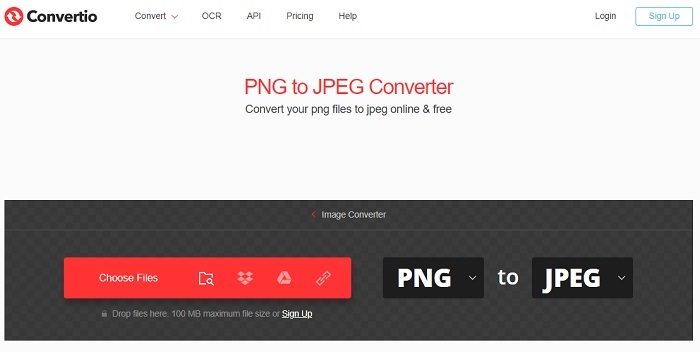
Aivan kuten Cloudconvert, myös Convertio on tehty ainoastaan muuntamista varten. Se tukee yhtä monia formaatteja kuin edellinen työkalu. Haittapuolena kuitenkin on, että sivu on täynnä mainoksia. Vaikka mainoksia onkin, se on silti hyvä muunnostyökalu, jota voi käyttää harjoitellessa eri tiedostotyyppien muuntamista uusiin formaatteihin.
Plussat
- Avoin pääsytyökalu saatavilla verkossa.
- Ei tarvitse ladata ylimääräistä tiedostoa konvertoinnin aloittamiseksi.
- Valitse, mikä on tiedoston bittinopeus.
Haittoja
- Tällä työkalulla ja muokkauksella ei voi luoda GIF-tiedostoja.
- Mainoksia on kaikkialla, joten vältä niitä, jotta et avaa tarpeettomia verkkosivustoja.
Top 4. Zamzar
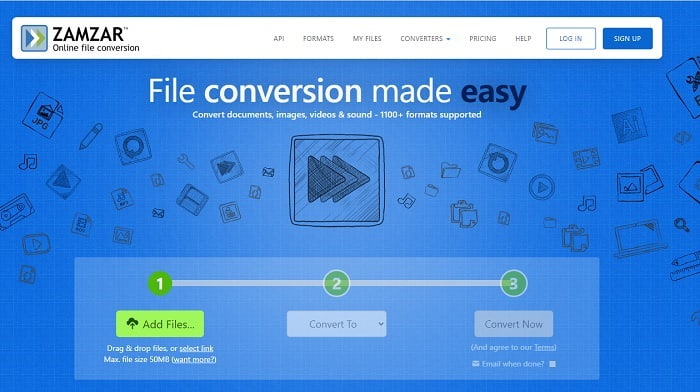
Zamzar-palvelun käyttöliittymä on erinomainen ja työkalun käyttäminen on erittäin helppoa. Suurin sallittu tiedostokoko on kuitenkin 50 Mt, joten jos haluat ylittää tämän, sinun täytyy ostaa maksullinen versio tai kirjautua sisään. Lisäksi, jos muunnos on käynnissä, sitä ei voi keskeyttää edes klikkaamalla x-painiketta. Varmista siis, että valitset oikean tiedoston, koska prosessia ei voi pysäyttää.
Plussat
- Muunna kaikki videot, kuvat ja ääni täällä.
- Kaikki täällä olevat tiedostot säilytetään yli päivän ajan.
- Yhden tiedoston enimmäiskoko on 50 mb.
Haittoja
- Muuntaminen riippuu Internet-nopeudestasi, joten jos sinulla on Internet, muuntaminen vie paljon aikaa.
- Muunnettua videota ei voi muokata paremmaksi.
Suositus: FVC Video ConverterUltimate - paras GIF-muunnin
Sanonnan mukaan parhaat säästetään viimeiseksi, ja paras tässä tapauksessa on FVC Ultimate Video Converter. Tämä premium-työkalu tarjoaa enemmän kuin yksikään muu tässä mainittu – tai mainitsematon – muunnin. Jos etsit työkalua, joka parantaa muunnosprosessia eikä vaadi internetyhteyttä, tämä on sinua varten. Lisäksi tämän työkalun hienous on siinä, että se ei ainoastaan muunna, vaan myös parantaa, luo ja tekee paljon muutakin kuin pelkkää muuntamista. Se antaa käyttäjälle mahdollisuuden tutkia kaikkia sen ominaisuuksia ja tuottaa muita parempia lopputuloksia. Lue vaiheet huolellisesti oppiaksesi käyttämään työkalua askel askeleelta. Myöhemmin voit tarkistaa työkalupalkin parantaaksesi muunnetun GIF-animaation.
Vaihe 1. Asenna oikea ohjelma kiintolevyllesi. Seuraa asennusasetuksia, muuta ne tarpeidesi mukaan ja napsauta Valmis käynnistääksesi itse työkalun.
Ilmainen latausWindows 7 tai uudempiTurvallinen lataus
Ilmainen latausMacOS 10.7 tai uudempiTurvallinen lataus
Vaihe 2. Kun työkalu on käynnissä taustalla, huomaat välilehdessä pienen kuvakkeen, joka osoittaa, että työkalu on jo käynnissä. Lisäksi näytölle avautuu tällainen käyttöliittymä.
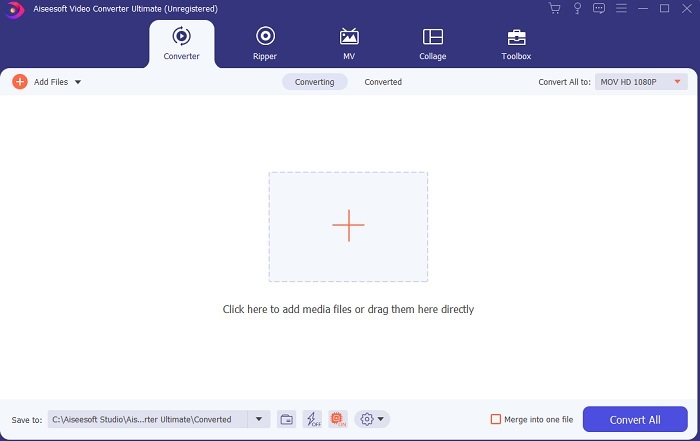
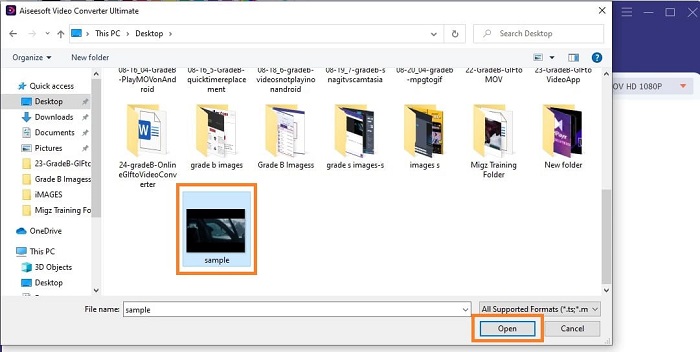
Vaihe 3. Lisätäksesi tiedostoja muuntimeen, paina käyttöliittymän keskellä olevaa Plus-merkkiä. Vaihtoehtoisesti voit vetää ja pudottaa tiedostot, jos niitä on enemmän kuin 2 tai 3.
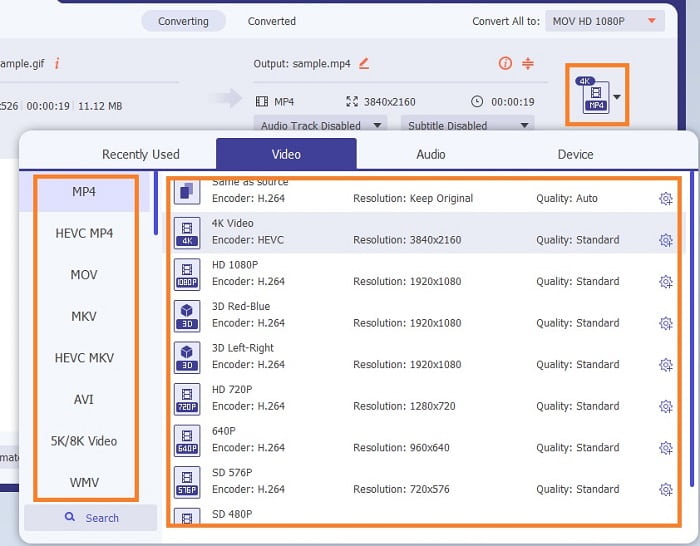
Vaihe 4. Kun GIF-tiedosto näkyy käyttöliittymässä, paina pudotusvalikko-painiketta ja valitse sen alavalikosta muoto, johon haluat muuntaa. Napsauta Convert All aloittaaksesi muunnosprosessin.
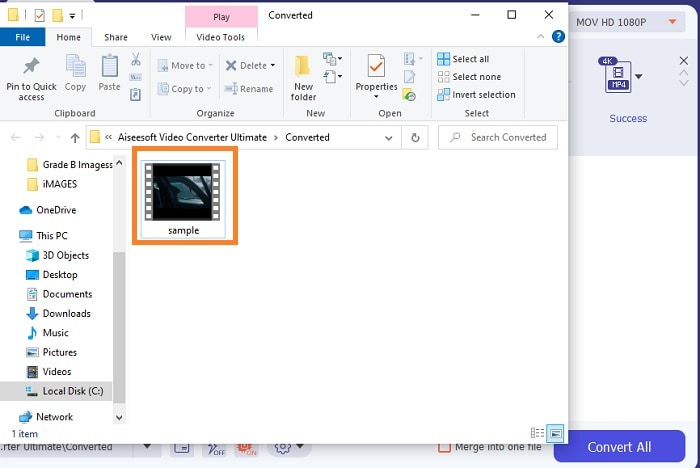
Vaihe 5. Kun prosessi on valmis, tiedostonhallintaikkuna avautuu automaattisesti välilehdelle ja voit tarkistaa tiedoston. Jos haluat parantaa muunnettua GIF-animaatiota, voit tarkastella työkalupalkkia myöhemmin.
Plussat
- Se on monikäyttöinen työkalu, jota asiakkaat voivat käyttää.
- Älä koskaan rajoita mielikuvitustasi lisäämällä tehosteita ja muuta lopputulokseen näyttääksesi paljon paremmalta kuin muut.
- Muunnosprosessi on paljon nopeampi kuin mikään online- ja offline-työkaluista.
Haittoja
- Maksa käyttökohtaisesti, mikä tarkoittaa, että et voi käyttää työkalua ilmaiseksi, mutta se ei ole niin kallis.
- Ladattava työkalu, se tarkoittaa vain, että tarvitset ylimääräisen tiedoston työkalun käynnistämiseen. Mutta siitä huolimatta voit käyttää tätä työkalua huoletta, jos Internet on katkennut.
Usein kysytyt kysymykset online-GIF-videomuuntimesta
Voinko tallentaa GIF-muodossa?
Itse asiassa vastaus on kyllä – voit tallentaa oman GIF-animaation. Voit tehdä sen käyttämällä tätä tehokasta mutta kevyttä GIF-tallenninta tai jotakin muuta tallenninta, joka tukee GIF-muotoa. Lue artikkeli Best GIF Recorder Review oppiaksesi, miten voit tallentaa suoraan GIF-muodossa.
Mikä on paras vaihtoehto GIF-tiedostoille? WebM vai APNG?
GIF-tiedostot ovat vanha muoto, joka tukee animoituja ja staattisia kuvia, mutta ajan myötä. Nyt on kilpailijoita, kuten WebM ja APNG. Verrataan näitä kahta, WebM on uusi GIF, joka tukee kuvien liikkumista verkkosivustolla, mutta jos yrität käyttää vanhaa hakukoneversiota, WebM:ää ei tueta. Toisaalta APNG tunnetaan visuaalisesti houkuttelevampana kuin kaksi, koska se tukee 24-bittistä väriä ja läpinäkyvyyttä, mutta jotkin sosiaalisen median alustat eivät tue APNG:tä toistaiseksi.
Mikä on GIF:n lyhenne?
GIF tekstissä tarkoittaa Graphic Interchange Format.
Johtopäätös
Lopuksi on nyt helpompi ymmärtää, mikä on paras offline- ja online-GIF-videomuunnin, jota voit käyttää. Tämän työkalun käytön tunteminen on hieno taito kehittää ja ehkä tulevaisuudessa voit käyttää sitä myös maksettavaksi. Jos haluat äärimmäisen suorituskyvyn, sinun on valittava täsmälleen paras työkalu. FVC Ultimate Video Converter on aina paras työkalu minkä tahansa videon muuntamiseen ja sen parantamiseen, jotta se tekee hyvän vaikutelman muille tai kenelle toimitetaan. Kuten he sanovat, älä odota vähempää, koska tämä työkalu tuo enemmän kuin mitä sen nimi antaa ymmärtää.
-
 WebM -GIF - 3 ilmaista WebM -GIF -muunninta omien GIF -tiedostojen luomiseen
 Onko WebM GIF? Kuinka tehdä videosta GIF? Onko olemassa ilmaista WebM -GIF -muunninta? Tämä viesti jakaa 3 ilmaista tapaa muuntaa WebM GIF -muotoon.
-
 Kuinka muuntaa MKV -videot animoiduiksi GIF -tiedostoiksi ilman Photoshop/FFmpeg -tiedostoa
 Kun olet ladannut ja katsellut MKV -elokuvia tietokoneellasi, saatat haluta jakaa upeita hetkiä ystävien kanssa tai Internetissä GIF -tiedostoina. Tässä artikkelissa voit oppia kahdesta helpoimmasta tavasta muuntaa MKV GIF -muotoon.
-
 Luo paras animoitu GIF Online GIF Makerin avulla [2021]
 Informatiivinen katsaus siitä, kuinka voit tehdä GIF:n näillä yksinkertaisilla online-GIF-valmistajilla, joita jo kohtaat verkossa tai et.
