


 Video Converter Ultimate
 Näytön tallennin
 Videon korjaus
3 tapaa lisätä taustaa Photo Onlineen iPhonessa, Androidissa ja tietokoneessa
Kun muokkaat kuvaa, joudut usein poistamaan alkuperäisen taustan ja lisäämään siihen uuden. Kuvan, jossa on läpinäkyvä tausta, taustaa voi helposti vaihtaa kuvankäsittelyohjelmalla. Useimmissa tapauksissa nykyinen tausta on kuitenkin ensin poistettava ja vasta sitten lisättävä kuvaan uusi tausta. Etsitkö hyvää kuvankäsittelysovellusta, jolla voit lisätä taustan valokuvaan?
Tämä viesti kertoo 3 tehokkaasta menetelmästä taustan lisäämiseksi valokuvaan. Haluatpa sitten lisätä valkoisen taustan valokuvaan suoraan verkossa, lisätä taustan valokuvaan iPhonessa tai vaihtaa kuvan taustaa Android-laitteella, voit tehdä sen noudattamalla tiettyä menetelmää.

Osa 1. Taustan lisääminen valokuvaan ilmaiseksi verkossa
Lisätäksesi nopeasti taustan valokuvaan voit ensin kokeilla jotakin verkossa toimivaa kuvankäsittelyohjelmaa. Suosittelemme lämpimästi helppokäyttöistä Free Background Remover Online -työkalua, jolla voit poistaa kuvasi alkuperäisen taustan ja lisätä siihen uuden taustan. Tämä ilmainen taustanvaihtotyökalu tukee kaikkia yleisimmin käytettyjä kuvamuotoja, kuten JPG, PNG, GIF ja muita. Se tarjoaa yksinkertaisen tavan lisätä valkoisen taustan valokuvaan tai korvata nykyisen taustan toisella kuvalla.
Vaihe 1. Avaa verkkoselain, kuten Chrome, Safari, Yahoo, IE tai Firefox, ja siirry tälle ilmaiselle valokuvan taustanvaihtosivustolle. Kun olet sivulla, voit yksinkertaisesti klikata Upload Portrait -painiketta valitaksesi ja lisätäksesi valokuvasi myöhempää muokkausta varten.

Vaihe 2. Kehittyneen tekoälyteknologian avulla työkalu valitsee automaattisesti lähettämäsi kuvan pääkohteen. Sen jälkeen voit käyttää Keep tai Erase -toimintoa jatkotoimenpiteisiin.
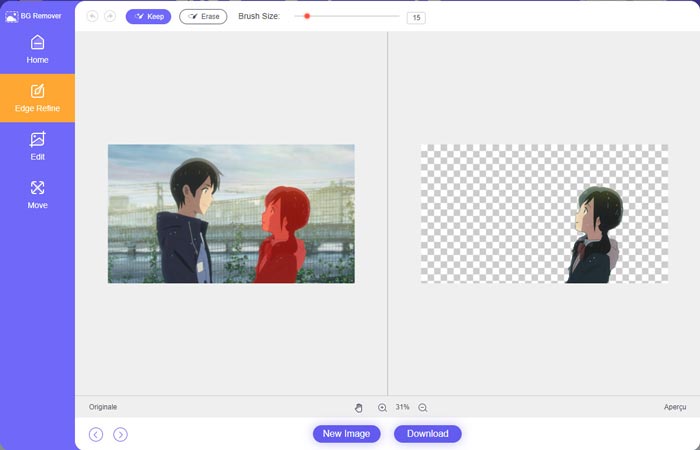
Vaihe 3. Napsauta vasemmalla olevaa Edit-vaihtoehtoa ja valitse sitten, haluatko vaihtaa taustaväriä vai lisätä kuvalle kokonaan uuden taustan. Tässä vaiheessa voit myös käyttää Crop-toimintoa mukauttaaksesi kuvan koon tarpeesi mukaan.
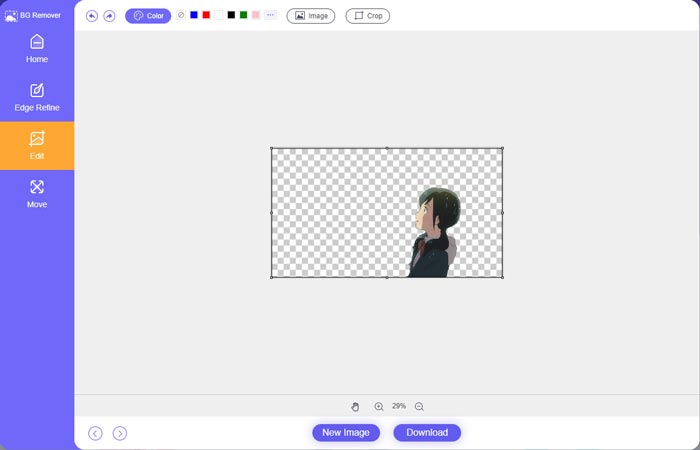
Vaihe 4. Kun olet lisännyt kuvaan sopivan taustan, voit napsauttaa Download-painiketta tallentaaksesi sen tietokoneellesi. Muokattu kuva tallennetaan oletusarvoisesti PNG-muodossa.
Osa 2. Taustan lisääminen valokuvaan Adobe Photoshopilla
Adobe Photoshop on yksi tunnetuimmista kuvankäsittelyohjelmista, joka sisältää monia ominaisuuksia, joiden avulla voit muokata kuvia, mukautettuja tehosteita ja tehdä muita toimintoja. Jos tietokoneellesi on asennettu Photoshop, voit lisätä valokuvaan taustan Photoshopissa.
Vaihe 1. Avaa Photoshop-ohjelma tietokoneellasi ja lisää kuva siihen. Voit ladata uusimman Photoshop-version ilmaiseksi Adoben virallisilta sivuilta. Huomaa, että Adobe tarjoaa Photoshopista vain 7 päivän ilmaisen kokeilujakson.
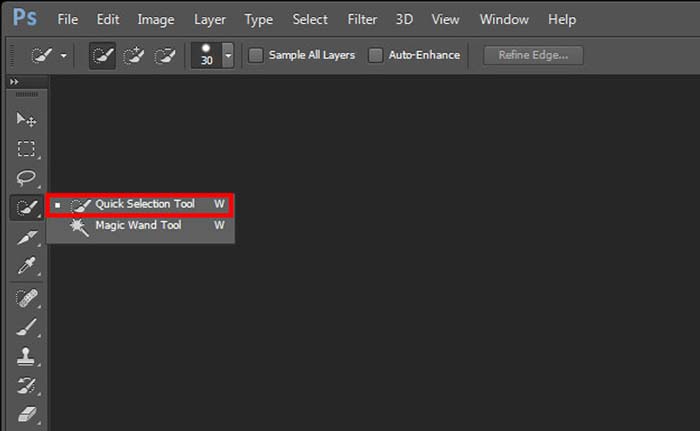
Vaihe 2. Kun kuvasi on ladattu Photoshopiin, voit napsauttaa vasemman työkalupalkin Quick Selection Tool tai Magic Wand Tool -kuvaketta valitaksesi taustan, jonka haluat muuttaa.
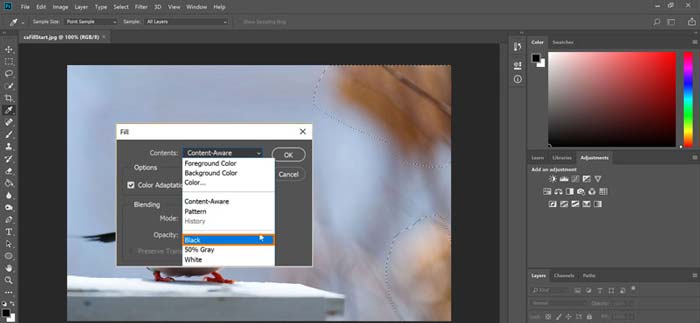
Vaihe 3. Kun olet valinnut kuvan taustan, voit napsauttaa sitä hiiren oikealla painikkeella ja valita Fill-asetuksen. Nyt voit helposti lisätä kuvaan valkoisen taustan tai vaihtaa taustan toiseen väriin, kuten mustaan, siniseen, harmaaseen tai mihin tahansa muuhun tarvitsemaasi väriin.
Vaihe 4. Jos haluat lisätä uuden kuvan taustaksi, sinun täytyy ensin poistaa valittu tausta. Voit painaa näppäimistösi Delete-näppäintä poistaaksesi nykyisen taustan. Tämän jälkeen voit lisätä taustakuvan Photoshopiin ja vetää sen tason taustakerroksen alle. Näin voit helposti korvata alkuperäisen taustan uudella kuvalla.
Vaihe 5. Kun olet lisännyt taustan valokuvaan Photoshopissa, voit napsauttaa yläreunan File-valikkoa ja valita avautuvasta luettelosta Save As -vaihtoehdon. Valitse kuvalle sopiva tiedostomuoto ja tallenna se tietokoneellesi.
Osa 3. Taustan lisääminen valokuvaan iPhonessa ja Android-puhelimessa
Kun haluat lisätä taustan valokuvaan iPhonella, iPadilla tai Android-puhelimella, sinun on löydettävä hyvä kuvan taustan muokkaussovellus.
LightX on monipuolinen kuvankäsittelysovellus sekä iOS- että Android-käyttäjille. Sen avulla voit vaivattomasti poistaa ei-toivotun taustan, lisätä kuvaan uuden taustan, lisätä erilaisia tehosteita, luoda korkealaatuisia selfieitä ja paljon muuta suoraan puhelimellasi. LightX-sovellukseen on sisällytetty monia edistyneitä kuvankäsittelytyökaluja, kuten värien sekoitus, mukautettu värikylläisyys, kontrasti, sävy, käyrät ja paljon muuta. Voit ladata sen App Storesta tai Google Play -kaupasta.
Vaihe 1. Asenna ja avaa LightX-sovellus iPhonessa, iPadissa tai Android-puhelimessa. Anna sovellukselle lupa käyttää laitteesi kuvia. Lisää kuva sovellukseen taustan jatkomuokkausta varten.
Vaihe 2. Poistaaksesi nykyisen kuvan taustan ja vaihtaaksesi sen johonkin muuhun, voit pyyhkäistä vasemmalle esiin saadaksesi useita eri vaihtoehtoja. Creative-osion alta voit valita Cutout-toiminnon lisätäksesi taustan kuvaan. Nyt sinun täytyy valita päähahmo manuaalisesti ja pyyhkiä pois alkuperäinen tausta.
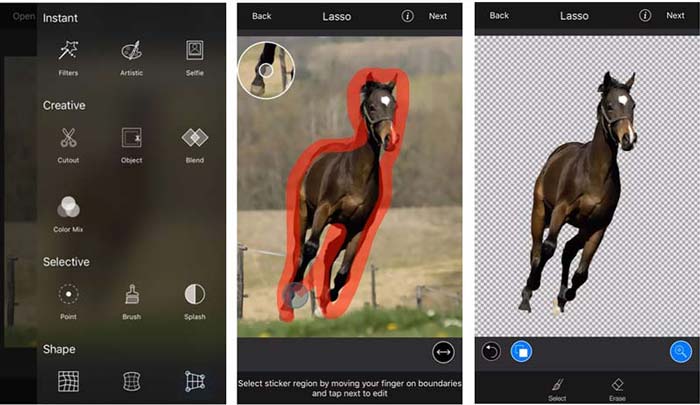
Vaihe 3. Kun tausta on poistettu, voit napauttaa oikeassa yläkulmassa olevaa Next-painiketta jatkaaksesi. Sen jälkeen voit käyttää Crop-toimintoa kuvan koon muuttamiseen. Napauta Done vahvistaaksesi toiminnon. Tämän jälkeen voit napauttaa näytön alareunassa olevaa BG Image -vaihtoehtoa lisätäksesi kuvaan uuden taustan. Voit vapaasti säätää uuden taustan tehosteita tarpeidesi mukaan.
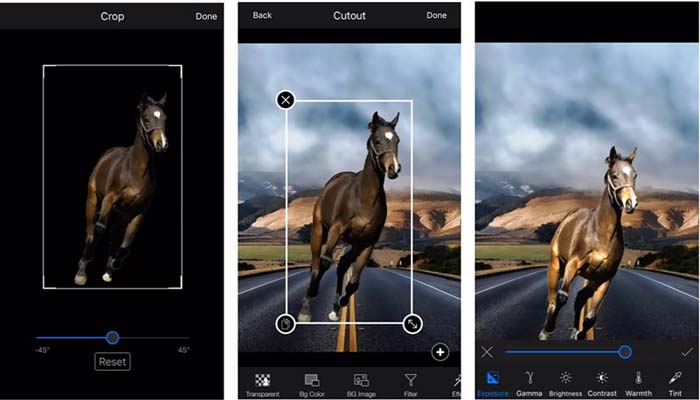
Käytätpä sitten iOS- tai Android-laitetta, voit lisätä valokuvaan taustan LightX-sovelluksella noudattamalla samanlaisia ohjeita. Huomaa, että iOS-käyttäjänä sinun on maksettava $3.99 tästä taustalla lisättävästä sovelluksesta. Jos olet Android-käyttäjä, voit asentaa sen Google Play Kaupasta. Jos haluat päivittää premium-versioon, sinun on maksettava sama hinta.
Aiheeseen liittyvää:
Mikä on videon resoluutio: syvällinen katsaus tarkkuuteen ja muuhun
6 suosittua animoitua Snapchat-filtteriä Snapchatissa
Osa 4. Usein kysyttyä taustan lisäämisestä valokuvaan
Kuinka lisätä eri tausta valokuvaan Macissani?
Voit käyttää kahta ensimmäistä menetelmää vaihtaaksesi helposti valokuvan taustan Macilla. Suositeltujen työkalujen Free Background Remover Online ja Adobe Photoshop lisäksi voit hyödyntää myös muita kuvankäsittelyohjelmia lisätäksesi kuvaasi uuden taustan.
Kuinka vaihtaa taustakuva iPhonessa?
iOS tarjoaa yksinkertaisen tavan vaihtaa taustakuvaa iPhonessa tai iPadissa. Voit siirtyä Asetukset-sovellukseen, napauttaa Taustakuva-vaihtoehtoa ja napauttaa sitten Valitse uusi taustakuva.
Voinko lisätä taustan live-valokuvaan iPhonessani?
Ei. iPhone ei tarjoa sinulle suoraa tapaa vaihtaa elävän valokuvan taustaa. Voit vain rajata sitä, käyttää suodattimia, säätää tehosteita ja muuttaa sen still-kuvaksi.
Johtopäätös
Tämä viesti jakaa 3 hyödyllistä tapaa lisätä taustaa valokuvaan. Kun sinun on poistettava alkuperäinen valokuvatausta ja lisättävä siihen uusi, voit valita haluamasi kuvankäsittelyohjelman.
-
 3 parasta tapaa lisätä suodattimia GIF-tiedostoon parhaiden GIF-editorien avulla [Suosikki]
 Haluatko tietää, kuinka GIF:iin lisätään suodatin sen parantamiseksi? Tässä blogissa opit helposti erilaisia tekniikoita suodattimien lisäämiseksi GIF-tiedostoihisi.
-
 3 helpointa tapaa lisätä vesileima GIF-tiedostoon verkossa ja offline-tilassa
 Vesileiman lisääminen GIF-tiedostoon voi olla yhtä helppoa kuin 1-2-3, jos käytät oikeaa työkalua oikein. Markkinoilla olevat työkalut ovat liian laajoja, mutta esittelemme kolme työkalua, joihin voit luottaa.
-
 5 parasta tapaa vaihtaa kuva animoituun GIF-muotoon [Päivitetty 2022]
 Tarvitsetko muunnoksen GIF-kuvaksi? Tämä artikkeli tarjoaa viisi parasta muuntajaa, jotka voimme löytää markkinoilta. Tutustutaanpa näihin työkaluihin lukemalla tämä artikkeli.
