


 Video Converter Ultimate
 Näytön tallennin
 Videon korjaus
Kätevimmät tavat MP3:n muuntamiseen M4R:ksi Apple-laitteille
Oletko koskaan ajatellut muuttaa lempimusiikkisi iPhonisi soittoääneksi? Onko se edes mahdollista? Ehdottomasti on. Sinun täytyy vain muuntaa tiedosto. Miksi se pitää ensin muuntaa? Jotta sen voi asettaa soittoääneksi. Jotta tietyn kappaletiedoston voi asettaa soittoääneksi, sen on oltava M4R-muodossa. Siksi sinun täytyy löytää itsellesi sopivin MP3–M4R iTunes -muunnin. Tässä artikkelissa esitellään eri menetelmiä, joilla voit muuntaa MP3-tiedostosi, ja lisäksi voit tehdä erämuunnoksen eli muuntaa MP3 M4R-muotoon lukemalla alta löytyvät ohjeet.

Osa 1. Toteutettavin tapa muuntaa MP3 M4R:ksi
Video Converter Ultimate on ylivoimaisesti vakuuttavin työkalu, jolla voit muuntaa MP3:n M4R:ksi. Ei vain yksittäinen tiedosto, vaan se voi myös tehdä erämuunnoksen MP3:sta MP4:ksi. Se on muunnin, joka voi tuottaa HD-videoita ja häviöttömän äänen. Itse asiassa se on ihanteellinen ja suositeltavaa, että se muuntaa tiedoston menettämättä sen alkuperäistä laatua. Nopeus on 30 kertaa nopeampi kuin tavallisella muuntimella. Lisäksi, jos muunnat soittolistan tallennettavaksi puhelimeesi, tämä työkalu voi varmasti tehdä työn puolestasi. Vaivatonta eikä hikoilua. Tässä on joitain muita ominaisuuksia, joista voit myös nauttia äänen muuntamisen lisäksi. Lisäksi alla on kirjoitettu vaiheittainen opas viitteellesi, jos päätät käyttää sitä.
◆ Muokkaa metatietoja.
◆ Nopea GPU-kiihdytys.
◆ Reaaliaikainen tekninen tuki.
◆ Videon pakkaaminen on tuettu.
Vaihe 1. Käyttääksesi ohjelmaa lataa se napsauttamalla alla olevaa latauspainiketta. Kun sovellus on ladattu Windows- tai Mac-tietokoneellesi, käynnistä se.
Ilmainen latausWindows 7 tai uudempiTurvallinen lataus
Ilmainen latausMacOS 10.7 tai uudempiTurvallinen lataus
Vaihe 2. Työkalun pääikkunassa näet kaksi vaihtoehtoa tiedoston lisäämiseksi. Voit joko napsauttaa keskellä olevaa plusmerkki-kuvaketta tai valita ylävasemmalta Lisää tiedostoja -painikkeen. Valitse kohdetiedosto ja lataa se.
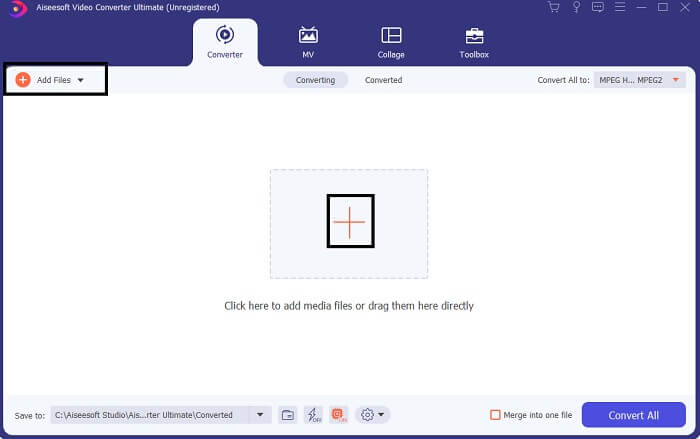
Vaihe 3. Saadaksesi halutun tulosteen vaihda muotoa napsauttamalla pudotusvalikkoa, joka sijaitsee käyttöliittymän oikeassa yläkulmassa.
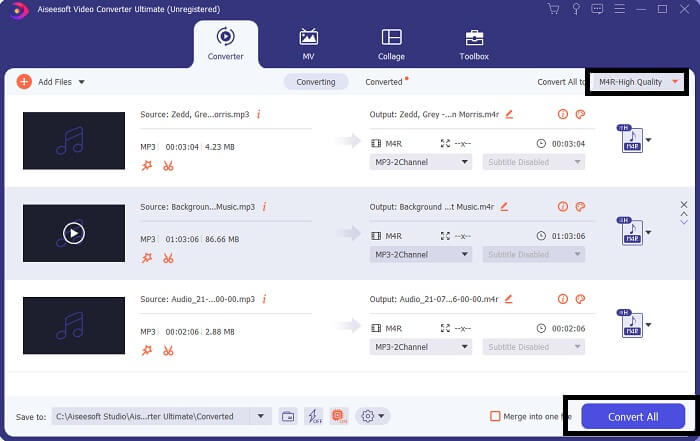
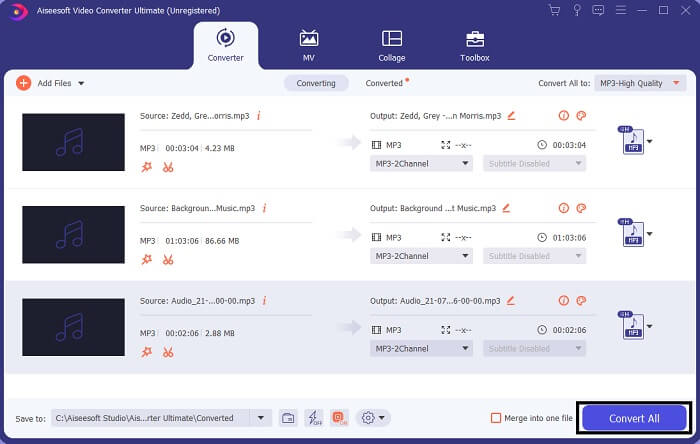
Vaihe 4. Napsauta lopuksi pääikkunan oikeassa alakulmassa olevaa Muunna kaikki -painiketta. Odota sitten, kunnes tiedosto on muunnettu.
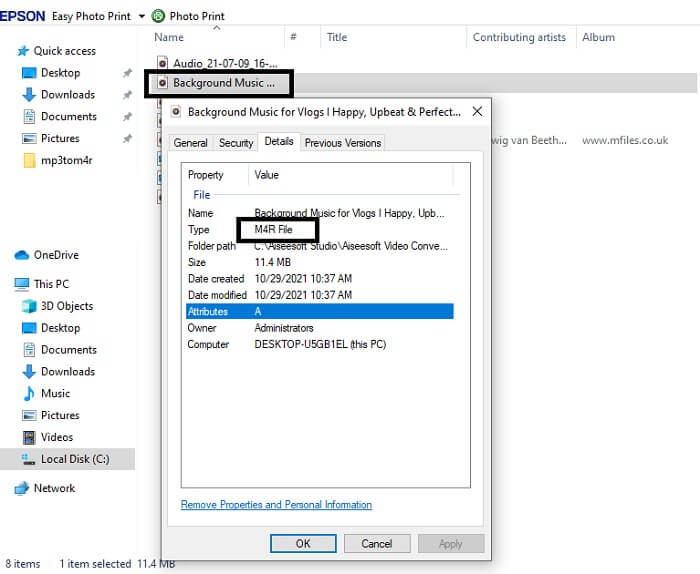
Vaihe 5. Avaa lopuksi kansio, johon äänitiedosto tallennettiin, ja siirrä se iPhoneesi. Voit käyttää siirtoon erillistä siirto-ohjelmaa tai -sovellusta. Löydät suosituksia internetistä – riittää, että etsit, ja opit, miten teet siitä iPhonesi soittoäänen.
Osa 2. Jotkut parhaista työkaluista MP3:n muuntamiseksi M4R-muotoon verkossa
FVC ilmainen online-äänimuunnin
Maksullinen muunnostyökalu on hyvä, mutta mikään ei voita käytännöllistä ratkaisua. Tarpeesi huomioiden FVC on luonut työkalusta ilmaisen version. FVC Free Audio Converter on ilmainen apuvälineesi milloin ja missä tahansa. Tarvitset vain toimivan internet-yhteyden ja tuetun selaimen. Tämä MP3–M4R iPhone -soittoäänimuunnin pystyy tuottamaan korkealaatuista, häviötöntä ääntä. Lopputulos on erittäin tyydyttävä, eikä sinun tarvitse käyttää siihen rahaa. Eikä siinä kaikki – tiesitkö, että tämä työkalu tukee myös erämuunnosta? Kyllä, voit muuntaa useita tiedostoja kerralla. Lisäksi alla on joitakin merkittäviä ominaisuuksia, joista pääset nauttimaan työkalua käyttäessäsi. Mukavuutesi vuoksi on myös laadittu käyttöopas.
◆ Muunnetulla tiedostolla on samanlainen laatu kuin alkuperäisellä.
◆ 100% ilmainen ja turvallinen käyttää.
◆ Ei kokorajoitusta muunnoksen yhteydessä.
◆ Erämuunnos on tuettu.
Vaihe 1. Päästäksesi työkaluun siirry FVC Free Audio Converter -palvelun viralliselle sivustolle.
Vaihe 2. Napsauta siellä Add Files to Convert. Ensimmäisellä käyttökerralla sinun on annettava lupa käynnistämällä Open FVC Launcher. Tämän jälkeen näytölle avautuu ikkuna, jossa voit etsiä muunnettavan tiedoston.
Lataa työpöytäversio muuntaaksesi tiedostoja erissä.
Vaihe 3. Kun olet ladannut tiedoston, näyttöön ilmestyy uusi ikkuna. Vaihda alareunasta tulostiedoston muodoksi M4R valitsemalla kyseinen vaihtoehto.
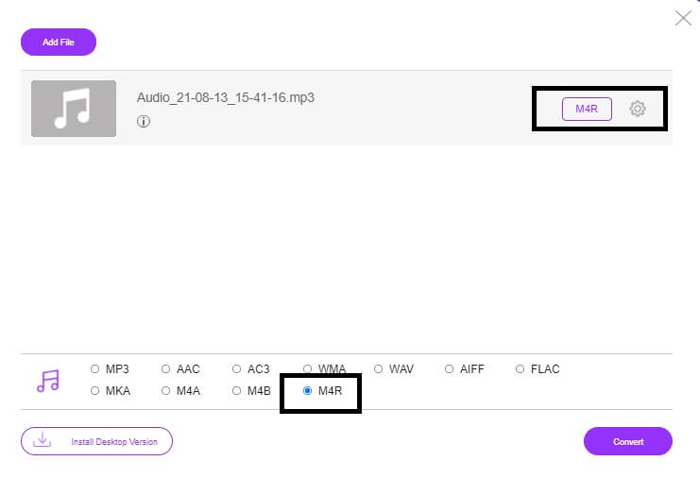
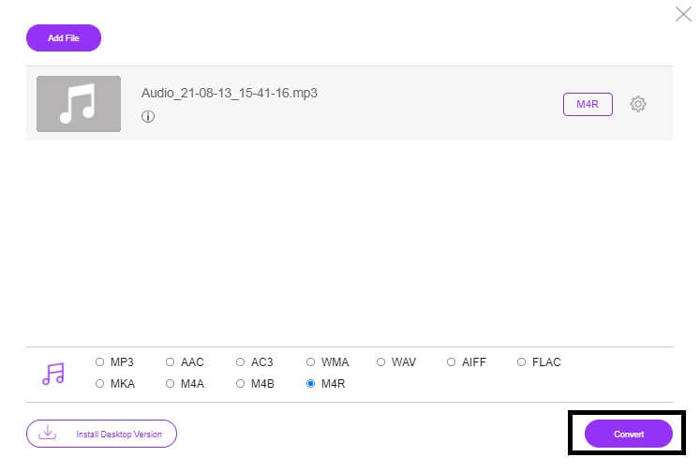
Vaihe 4. Napsauta sitten Convert-painiketta aloittaaksesi muunnoksen.
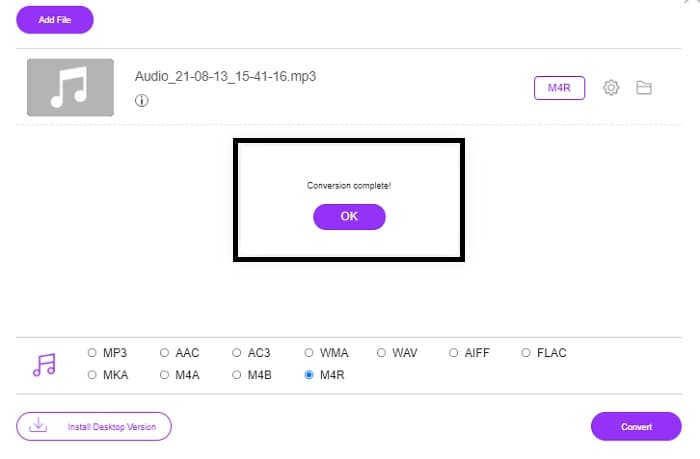
Vaihe 5. Valitse lopuksi kansio, johon tiedosto tallennetaan, ja tiedosto tallentuu automaattisesti. Siirrä se sen jälkeen iPhoneesi. Muista, että voit tehdä myös erämuunnoksia, joten älä rajoita itseäsi.
Aiheeseen liittyvää:
M4ROnline by File Converter
Yksinkertainen mutta luotettava – näin käyttäjät kuvailevat tätä verkkotyökalua. Se on oletusarvoisesti suunniteltu erityisesti MP3–M4R-muunnokseen. Jo nimi kertoo, mihin tarkoitukseen työkalu on tehty. Se toimii eri verkkoselaimilla, joten sitä ei tarvitse ladata tai ostaa. Kun vierailet sivustolla, huomaat käyttöliittymän yksinkertaisuuden. Se on hyvin suoraviivainen: sinun tarvitsee vain napsauttaa Browse-painiketta käynnistääksesi tiedoston lataus- ja muunnosprosessin. Jos haluat kokeilla työkalua, on suositeltavaa käydä sen virallisella sivustolla ja kokeilla sitä käytännössä. Näin ollen tämä työkalu on hyvä vaihtoehto. Voit myös tarkistaa alla olevat vaiheittaiset ohjeet työkalun käyttöä varten.
Vaihe 1. Ensimmäiseksi sinun tulee siirtyä M4R Online -palvelun viralliselle sivulle ja napsauttaa Browse.
Vaihe 2. Valitse tiedosto kansiostasi ja napsauta Upload File -painiketta.
Vaihe 3. Kun näet ilmoituksen, että prosessi on valmis, napsauta tiedostoa ladataksesi sen.
Online-convert.com
Tämä työkalu on tarjonnut palvelua jo melko pitkään. Voidaan sanoa, että monet ovat kokeneet tämän verkkotyökalun erittäin hyödylliseksi muunnostarpeisiinsa – muuten se ei olisi olemassa vielä tänäkään päivänä. Kun vierailet sivuston etusivulla, näet kaikki käytettävissä olevat työkalut: äänimuunnin, videomuunnin, kuvamuunnin, asiakirjamuunnin, e-kirjamuunnin – kaikki koottuna etusivulle. Tällainen kokoaminen helpottaa käyttäjää löytämään tarvitsemansa työkalun. Siksi tämä työkalu ansaitsee paikkansa tässä MP3–M4R iTunes -muuntimien listassa. Alla on ohjeet työkalun käyttöön viitteeksesi.
Vaihe 1. Vieraile työkalun virallisella sivustolla ja valitse Audio Converter.
Vaihe 2. Napsauta pudotusvalikkoa, valitse haluamasi tulostusmuoto ja napsauta GO.
Vaihe 3. Näyttöön avautuu uusi ikkuna. Napsauta siellä Choose Files -painiketta ja lataa tiedosto. Aloita muunnos napsauttamalla Start Conversion. Kun tiedosto on valmis, se ladataan automaattisesti tietokoneellesi.
MP3 vs. M4R
MP3-muodon julkaisi vuonna 1993 Moving Picture Experts Group (MPEG). Se oli musiikin tallennuksen standardi, koska se pystyi pakata äänen paljon pienempään kokoon kuin muut pakkaamattomat muodot. Sitä käytetään edelleen laajalti, erityisesti äänen jakelussa verkossa.
M4R-tiedostoa käytetään Apple iTunesilla luodun mukautetun iPhone-soittoäänen tallentamiseen. Normaalisti näet tämän muodon, kun siirrät soittoäänen tietokoneesta iOS-laitteeseen. iTunesilla luodut M4R-tiedostot sisältävät yleensä tekijänoikeussuojan.
Osa 3. Usein kysyttyä MP3:n muuntamisesta M4R:ksi
Mikä on M4R?
Se on Applen erityisesti luoma tiedostopääte, jota käytetään tiukasti soittoäänenä iPhonelle ja muille Applen laitteille. Tämä on laadultaan yhtä hyvä kuin M4A ja MP4.
Onko iTunesin lisäksi olemassa MP3-M4R-muunnin?
Varmasti niitä on. Voit valita yllä olevista työkaluista tai harkita Windows Media Playerin käyttöä kopioimalla. Jos et halua käydä läpi kaikkia prosesseja, voit vain käyttää verkossa saatavilla olevia ilmaisia työkaluja. Ne muuntavat äänen suoraan haluamaasi muotoon sen sijaan, että he kävisivät läpi pitkän kopiointiprosessin.
Miksi minun täytyy muuntaa tiedostoni MP3:sta M4R-muotoon, jotta voin käyttää sitä soittoäänenä?
Se on pakollinen. Jotta tiedosto katsottaisiin soittoääneksi, sen on oltava oletusarvoisesti M4R-muodossa, jotta sitä voidaan toistaa soittoäänenä.
Johtopäätös
Kaiken tämän kanssa voit varmasti luottaa yllä lueteltuihin työkaluihin. Sinun tarvitsee vain päästä käsiksi, mikä työkalu voi olla hyödyllinen sinulle tarpeidesi mukaan. Jos olet opiskelija ja tavallinen kansalainen, joka haluaa muuntaa MP3:n M4R:ksi Macissa ilmaiseksi tai millä tahansa käyttämäsi laitteella, voit viitata ilmaisiin työkaluihin. Ammattikäyttöön on suositeltavaa käyttää Video Converter Ultimate -ohjelmaa. Voit aina palata tälle sivulle, jos haluat tietää lisää muuntamiseen liittyvistä työkaluista.
-
 [Ilmainen ja online] 3 tapaa muuntaa MP3 MP4:ksi kuvan avulla
 Kuinka muuntaa MP3 MP4: ksi korkealaatuisena? Tämä viesti näyttää 3 tehokasta ja ilmaista tapaa vaihtaa MP3 MP4-kuviksi Windows- ja Mac-tiedostoilla.
-
 Lue, miten voit muuntaa MP3 WAV -muotoon
 Haluatko tietää kuinka muuntaa MP3 WAV:ksi? Selvitä, mitkä työkalut tuottavat parhaan mahdollisen konversion.
-
 Ohjeita M4A:n muuntamiseen WAV:ksi [PC ja Mac]
 Saat lisätietoja M4A:n muuntamisesta WAV:ksi yksityiskohtaisilla vaiheilla ja erilaisilla työkaluilla, joista voit valita.

