


 Video Converter Ultimate
 Näytön tallennin
 Videon korjaus
 Suojattu lataus
Mikä on JPG/JPEG ja kuinka muuntaa kuvat JPG-muotoon
JPG-, PNG- ja GIF-tiedostomuodot ovat nykyään suosituimpia. Kun käytät kuvia verkkosivustollasi tai sosiaalisen median julkaisuissa, juuri näihin tiedostoihin todennäköisimmin törmäät. On tärkeää muistaa, että jokaisella näistä on omat, toisistaan poikkeavat ominaisuutensa. Toisin sanoen niillä kaikilla on omat erityispiirteensä. Tässä artikkelissa keskitymme kuitenkin JPG/JPEG-tiedostomuotoon. Opit, mitä se tarkoittaa, mitkä ovat sen ominaisuudet ja miten JPG/JPEG-tiedostoja avataan. Lisäksi opit parhaan tavan muuntaa kuvia JPG/JPEG-muotoon verkossa toimivan työkalun avulla.

Osa 1. Tietoja JPG:stä tai JPEG:stä
Mikä on JPG/JPEG-muoto
JPG-kuvatiedostomuoto on paras tiedosto kuvan pakkaamisessa. JPG on suosittu tiedosto käyttäjien keskuudessa. He käyttävät sitä valokuviin ja Internet-grafiikkaan. Se tunnetaan myös JPEG- tai JPG-tiedostoina. JPEG:n koko nimi on Joint Experts Group. Tämä ryhmä luo tämän suositun kuvatiedoston. Lisäksi suurimmalla osalla bittikarttakuvista on .jpg-tiedostotunniste. Pääsyynä on tiedostojen koon pienentäminen. JPG on häviöllinen muoto, joka vaikuttaa kuvan laatuun, kun pakkaat sitä liikaa. Tämä muoto on käytettävissä kaikissa ohjelmissa. Tällä tavalla sinun ei tarvitse miettiä, kuinka voit avata tämän tiedoston eri ohjelmissa tai laitteissa. Sen pakkausalgoritmi pienentää tiedoston kokoa. Se on yksi syistä, miksi siitä on tullut suosittuja näinä päivinä. Näin tarinan luominen, jakaminen ja valokuvien julkaiseminen verkkosivustoilla on verkkaisempaa. Saat lisätietoja tilanteista, joissa verkkosivustot eivät tunnista JPEG-tiedostoa. Esimerkiksi jotkut valokuvien katseluohjelmat ja muokkausohjelmat avaavat vain kuvan, jossa on .JPG-tiedosto. Paras ratkaisu, jonka voit tehdä, on nimetä tiedostopääte uudelleen. Voit muuttaa JPEG-tiedoston JPG-tiedostoksi. Tällä tavalla verkkosivusto voi tunnistaa kuvan.
Lisäksi JPG-tiedostolla on etuja, jotka sinun on tiedettävä. JPG on korkearesoluutioinen kuva. Sen teräväpiirto on yksi tämän kuvatiedoston suurista eduista. Se tukee 24-bittisiä värejä jopa 16 miljoonalla värillä. Resoluutio on edelleen erinomainen, vaikka korkeatasoinen muokkaus on tehty joillakin työkaluilla. Lisäksi JPG on kooltaan pienempi. Muihin kuvatiedostomuotoihin verrattuna sen tiedostokoko on ihanteellinen. Vaikka sen koko olisi pienempi, se ei vaikuta kuvan laatuun ja resoluutioon. Kun olet tuntenut edut, sinun on tiedettävä sen haitat saadaksesi lisää tietoisuutta. Kun kuvaat JPG:llä, sinun on rajoitettava kameran prosessoria ja värivaihteluita. Tämä tiedosto ei myöskään tue kerroskuvia. Jos aiot muokata kuvaa ja tarvitset ylimääräisen kerroksen, JPG ei ole täydellinen muoto tähän.
Osa 2. JPG/JPEG-tiedoston avaaminen
Jos sinulla on ongelmia JPG-tiedoston avaamisessa laitteillasi, tämä osa auttaa sinua. Haluatko tietää kuinka avata JPG-tiedosto Windows 11:ssä, Androidissa ja iPhonessa? Voit seurata alla olevia ohjeita.
Windows-käyttäjille
Vaihe 1: Paina näppäimistöltäsi Ctrl + E avataksesi Resurssienhallinnan. Sen kuvake näyttää kansionkuvalta, jossa on sininen pidike.
Vaihe 2: Siirry Pikaosoitteet-kansiopaneeliin. Mene sitten Lataukset-kohtaan nähdäksesi tallentamasi JPG-kuvan.
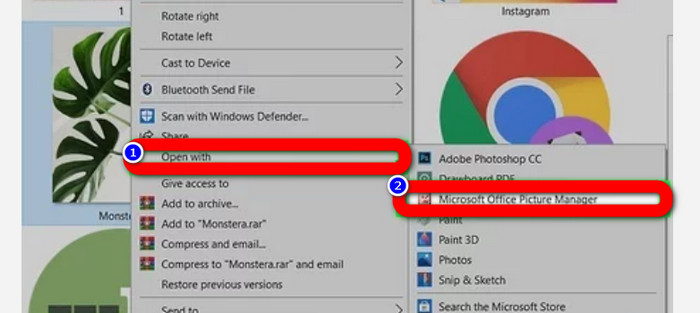
Vaihe 3: Kun näet JPG/JPEG-tiedostot, avaa ne jollakin muulla ohjelmalla kuin Kuvat-sovelluksella. Avaa ne napsauttamalla kuvaa hiiren oikealla painikkeella, valitsemalla Avaa sovelluksella ja sitten haluamasi ohjelma.
Android-käyttäjille
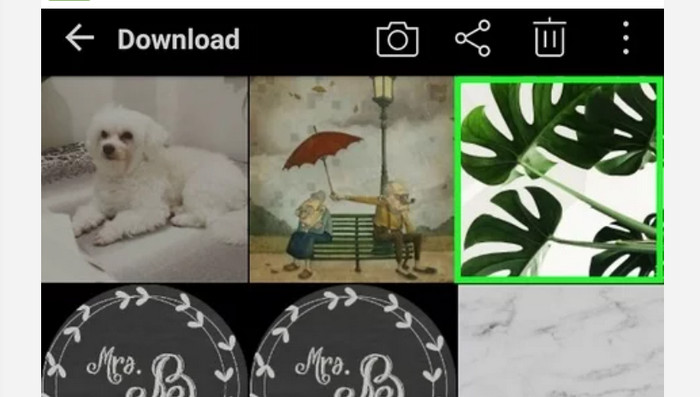
Vaihe 1: Avaa Galleria-sovellus Android-laitteestasi.
Vaihe 2: Avaa kamera-albumi nähdäksesi puhelimesi kameralla ottamasi kuvat. Puhelimessasi on myös useita muita albumeja.
Vaihe 3: Jos kuvia on paljon, napauta jotakin yksittäistä kuvaa avataksesi sen koko näytön tilaan. Näin voit tarkastella JPG/JPEG-kuvaasi.
iPhone-käyttäjille
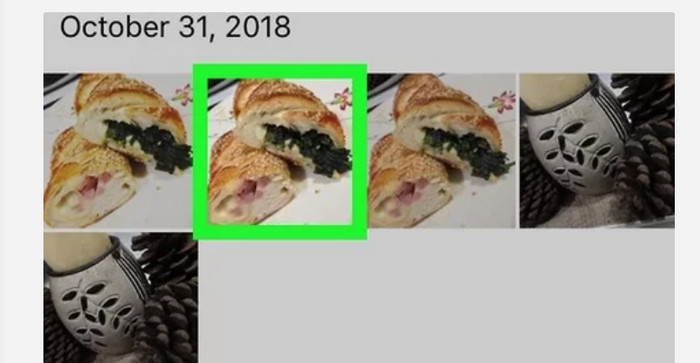
Vaihe 1: Napauta Kuvat-sovellusta iPhonessasi. Tässä sovelluksessa ovat kaikki valokuvat ja internetistä tallentamasi kuvat. Sovelluksen kuvake muistuttaa moniväristä kukkaa.
Vaihe 2: Kun olet avannut Kuvat-sovelluksen, näet siellä kaikki kuvasi. Samoin kuin Android-puhelimessa, sovelluksessa on useita eri albumeja.
Vaihe 3: Napauta kuvaa avataksesi sen koko näytön tilaan. Näin näet kuvan selkeämmin. Kuvan avaamisen lisäksi voit myös muokata sitä Kuvat-sovelluksessa. Käytettävissä on erilaisia kuvakkeita, joilla voit parannella kuviasi.
Osa 3. Erinomainen tapa muuntaa kuvat JPG-muotoon
FVC Free Image Converter on verkkotyökalu, jolla voit muuntaa kuvia JPG-muotoon. Se auttaa sinua muuttamaan kuvan muodossa vain muutamalla napsautuksella. Työkalu tukee myös useita lähtömuotoja, kuten JPG, PNG, GIF, TIFF ja monia muita. Sinun ei siis tarvitse enää murehtia, jos jotkin ohjelmat tai laitteet eivät pysty avaamaan kuvaasi. Käytä tätä online-muunninta muuntaaksesi ne. Se säilyttää myös alkuperäisten kuvien erinomaisen laadun. Muunnoksen jälkeen et käytännössä huomaa eroa alkuperäisen ja muunnetun tiedoston välillä. Lisäksi tämä kuvamuunnin on helppokäyttöinen. Se tarjoaa selkeän muunnosprosessin, joten se sopii hyvin myös aloittelijoille. Työkalu pystyy lisäksi käsittelemään useita kuvia kerralla. Näin voit muuntaa monta tiedostoa yhdellä kertaa. Voit käyttää sovellusta useilla eri selaimilla, kuten Google Chromella, Safarilla, Mozillalla, Explorerilla ja muilla. Lopuksi sovellus takaa jokaisen käyttäjän yksityisyyden: kun olet ladannut ja muuntanut kuvan, muunnin poistaa kuvan automaattisesti.
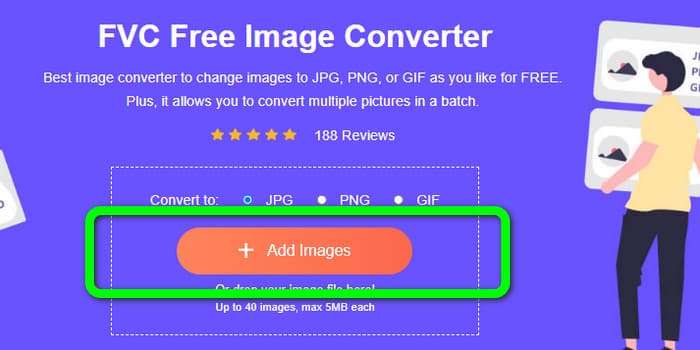
Vaihe 1: Siirry ensin FVC Free Image Converter -sivustolle. Mene muotoasetuksiin ja valitse JPG-tiedostomuoto.
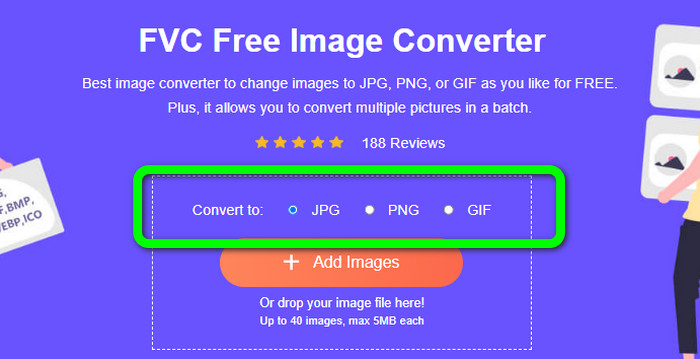
Vaihe 2: Lataa muunnettava kuva napsauttamalla Lisää kuvia -painiketta. Jos haluat suorittaa joukkomuunnoksen, napsauta Lisää kuvia -painiketta uudelleen.
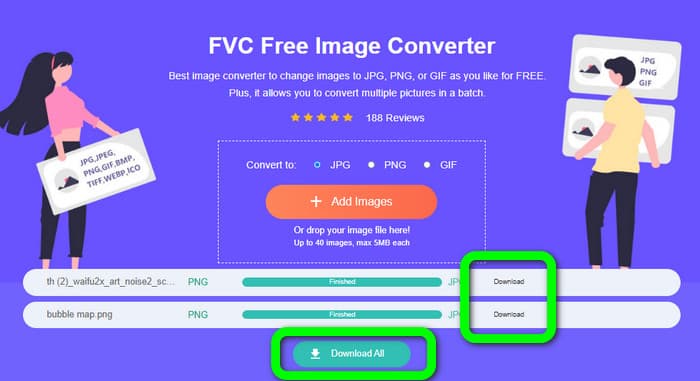
Vaihe 3: Kun muunnos on valmis, napsauta Lataa-painiketta tallentaaksesi tiedostot yksi kerrallaan. Jos haluat tallentaa ne kaikki kerralla, napsauta Lataa kaikki -painiketta.
Liittyen:
Täydelliset tiedot JPEG-, JPG- ja PNG-muotojen eroista
8 hämmästyttävää kuvamuunninta [täydelliset tiedot]
Osa 4. Usein kysyttyä JPG/JPEG-tiedostosta
1. Mistä tiedän, onko valokuvani JPG-tiedosto?
Voit napsauttaa tiedostokansiossasi olevaa valokuvaa hiiren kakkospainikkeella. Siirry sitten Ominaisuudet-vaihtoehtoon. Siirry Yleiset-valikkoon ja katso kuvasi tiedostotyyppi.
2. Kuinka hyvin JPEG pakkaa kuvat?
Hyvä on. Täysvärikuvien pakkaamaton data on 24 bittiä/pikseli. Suosituimmat häviöttömät pakkausmenetelmät voivat pakata tällaiset tiedot keskimäärin noin 2:1. JPEG voi saavuttaa 10:1 - 20:1 pakkaussuhteen ilman havaittavia häviöitä. Se vähentää tarvittavan tallennustilan määrän 1–2 bittiin pikseliä kohden. Pienillä tiedoilla 30:1-50:1-pakkaus on käyttökelpoinen virheiden leikkaamiseksi. Vaikka heikkolaatuiset käyttötavat, kuten arkistohakemistot, voivat pakata suhteellisesti 100:1 suhteellisen helposti. Pakatun kuvan JPEG-kuvasuhde 100:1 käyttää saman verran tilaa kuin täysvärinen, kymmenesosan mittakaavakuva. Huolimatta siitä, että siinä on paljon enemmän yksityiskohtia kuin pikkukuva, siinä on.
3. Kuinka avata JPG-tiedosto Photoshopissa?
Käynnistä Photoshop tietokoneellasi. Siirry kohtaan Tiedosto > Avaa vaihtoehto. Kansiotiedosto avautuu näytölle. Valitse JPG-tiedosto ja napsauta OK. Tämän jälkeen näet JPG-kuvatiedoston Photoshopissa.
Johtopäätös
Tässä artikkelissa kerrottiin, mitä JPG/JPEG tarkoittaa, mukaan lukien sen määritelmä ja ominaisuudet. Lisäksi esittelimme sinulle helpoimman tavan muuntaa kuvia JPG-muotoon käyttämällä työkalua FVC Free Image Converter. Mitä siis enää odotat? Käytä tätä työkalua ja muunna kuvasi JPG-muotoon vaivattomasti.
-
 Menetelmät kuvien muuntamiseksi JPG-muotoon verkossa ja offline-tilassa
 Haluatko muuntaa tiedoston jostain syystä JPG-muotoon? Sitten tämä artikkeli on sinua varten. Opetamme sinulle parhaan tavan muuntaa kuvasi JPG-muotoon
-
 Hyödyllisiä menetelmiä kuvien muuntamiseen helposti PNG-muotoon
 Etsitkö parasta tapaa tallentaa kuvasi PNG-muodossa? Tämä opas tarjoaa erinomaisia ratkaisuja kuvien muuntamiseen PNG-muotoon online- ja offline-tilassa
-
 Muunna HEIC JPG-muotoon kuudella tehokkaalla offline- ja online-tavalla
 Haluatko tietää kuinka muuntaa HEIC JPG: ksi? Tässä tapauksessa lisäämme 6 online- ja offline-tapaa, joiden avulla voit suorittaa tämän tehtävän kokonaan.
