


 Video Converter Ultimate
 Näytön tallennin
 Videon korjaus
 Suojattu lataus
Kuinka helposti lisätä vesileima videoon | 3 parasta menetelmää
Vesileimat ovat olennainen osa julkaisemaamme digitaalista sisältöä: ne toimivat sekä tunnisteena että suojakerroksena luvattomalta käytöltä. Jos siis olet videosisältöä julkaiseva tekijä etkä halua, että videoitasi käytetään ilman lupaasi tai nimeäsi mainitsematta, vesileiman lisääminen on yksinkertainen mutta tehokas ratkaisu. Tässä artikkelissa autamme sinua sen vuoksi lisäämään vesileiman videoon kolmella eri tavalla. Jos olet valmis, mennään suoraan asiaan.

Osa 1. Lisää vesileima videoon | Lopullinen ratkaisu
Paras ratkaisu vesileiman lisäämiseen videoon on käyttää ohjelmaa FVC Screen Video Converter Ultimate. Tämän työkalun avulla käyttäjät voivat helposti lisätä videoihin vesileiman Video Watermark -toiminnolla. Kyllä, tästä videomuunninohjelmasta löytyy Toolbox-työkalupakki, joka sisältää erilaisia työkaluja, joita käyttäjät voivat hyödyntää aina, kun he tarvitsevat ratkaisun mihin tahansa ääni‑ tai video‑ongelmaan.
Pääpiirteet
• Tuki yli 1000 syöttömuodolle, jotka sopivat lähes kaikentyyppisille videoille.
• Antaa käyttäjien lisätä kuvavesileiman videoon.
• Antaa käyttäjien lisätä tekstivesileiman videoon.
• Mahdollistaa lisätyn vesileiman mukauttamisen ja perusmuokkauksen.
• Tukee useita videolähtöasetuksia.
Näin lisäät vesileiman videoon FVC Video Converter Ultimate -ohjelmalla:
Vaihe 1. Lataa ja asenna ensin FVC Video Converter Ultimate tietokoneellesi. Huomaa, että se on yhteensopiva sekä Windowsin että macOS:n kanssa.
Ilmainen latausWindows 7 tai uudempiTurvallinen lataus
Ilmainen latausMacOS 10.7 tai uudempiTurvallinen lataus
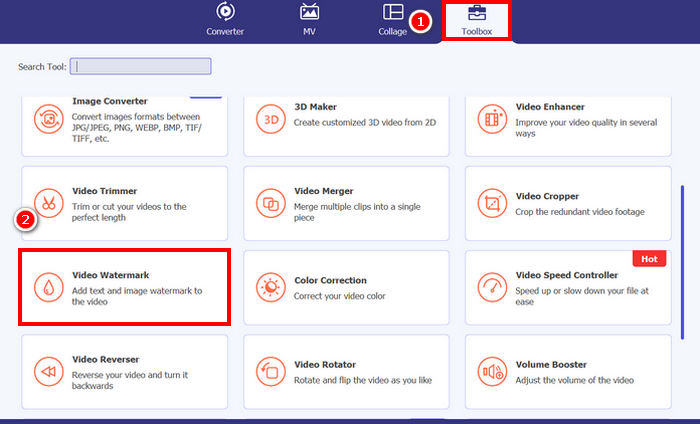
Vaihe 2. Käynnistä työkalu, napsauta Työkalupakki (Toolbox)-välilehteä ja valitse sieltä Video Watermark.
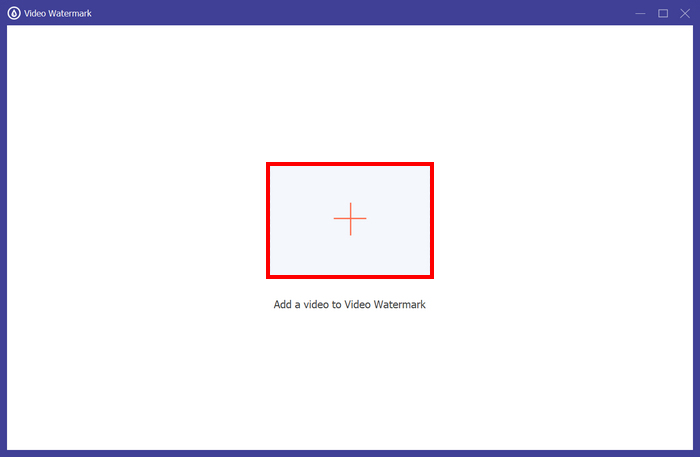
Vaihe 3. Napsauta sen jälkeen kohtaa Add a Video to Video Watermark ja valitse video, johon haluat lisätä kuvavesileiman.
Vaihe 4. Valitse nyt + Kuvavesileima (+ Image Watermark) lisätäksesi kuvan, jota haluat käyttää videon vesileimana. Tämän jälkeen voit säätää sitä. Kun olet valmis, napsauta Vie (Export)-painiketta.
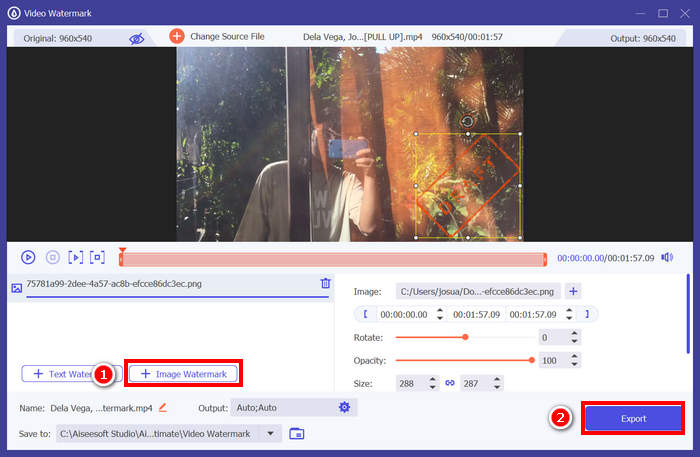
FVC Video Converter Ultimate -ohjelman avulla voit helposti lisätä vesileiman videoon, ja huomaa, että voit lisätä joko teksti- tai kuvavesileiman. Siinä on myös perusmuokkaustoiminnot, joilla voit säätää sen läpinäkyvyyttä, kokoa ja jopa kiertää sitä. Lopuksi, käyttöliittymä on erittäin yksinkertainen ja intuitiivinen, joten jopa aloittelijat voivat helposti oppia käyttämään sitä.
Osa 2. Kuinka lisätä vesileima videoon Canvassa?
Canva on suosittu muokkaustyökalu, josta olet varmasti kuullut. Mutta tiesitkö, että tällä työkalulla voi myös lisätä vesileiman videoon? Kyllä – sen helppokäyttöisen käyttöliittymän ja tehokkaan vedä‑ja‑pudota‑toiminnallisuuden ansiosta Canvalla on vaivatonta ladata oma logosi tai mukautettu vesileimasi ja sijoittaa se juuri haluamaasi kohtaan videolla. Alla on vaiheittainen opas siitä, kuinka voit lisätä vesileiman videoon Canvaa käyttäen:
Vaihe 1. Sinulla täytyy ensin olla Canva-tili. Voit rekisteröityä tai kirjautua sisään Google-tililläsi.
Vaihe 2. Avaa sitten Canva ja napsauta Create a Design ja valitse Upload-vaihtoehto tuodaksesi sen videotiedoston, johon haluat lisätä vesileiman.
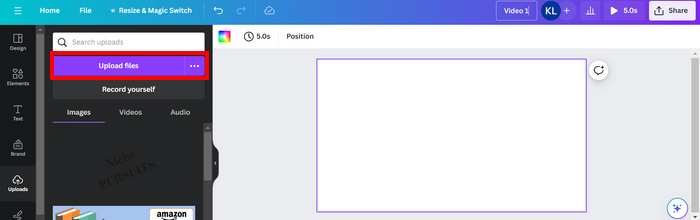
Vaihe 3. Tee nyt sama vesileimallesi: lataa se ja vedä se videon päälle. Kun se on paikoillaan, voit suurentaa tai pienentää vesileimaa sekä muokata sen väriä ja läpinäkyvyyttä.
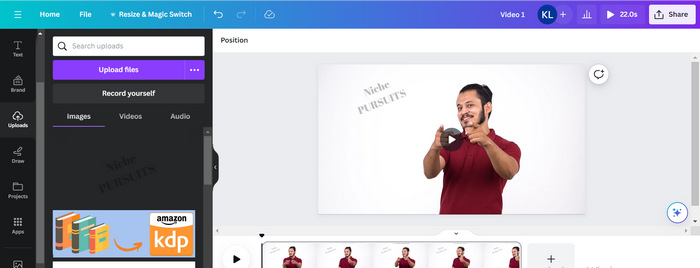
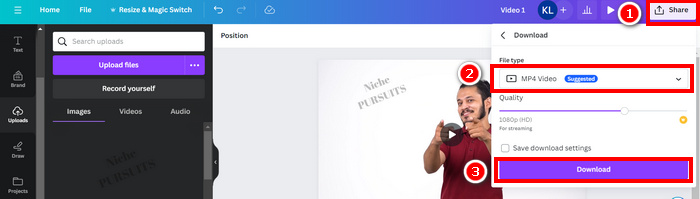
Vaihe 4. Toista videosi esikatsellaksesi, näkyykö vesileima videolla. Jos kaikki toimii hyvin, napsauta Share-painiketta ja lataa tiedosto MP4‑videotiedostona napsauttamalla Download-painiketta.
Huom: Jos vesileimakuvasi on videolle liian kirkas tai tumma, voit säätää sen läpinäkyvyyttä, jotta se sulautuu luontevammin kuvaan peittämättä liikaa visuaalista sisältöä tai häiritsemättä katsojia.
Osa 3. Lisää tekstivesileima videoon verkossa [Ilmainen]
Jos haluat mieluummin verkkopohjaisen ja ilmaisen tavan lisätä vesileima videoon, echowave.io voi olla loistava vaihtoehto. Tämä verkkoalustatyökalu tarjoaa intuitiivisia ominaisuuksia, joiden avulla käyttäjät voivat luoda, muokata ja visualisoida ääni- ja videosisältöä. Mutta sen lisäksi käyttäjät voivat hyödyntää työkalun muokkaustoimintoa, jolla he voivat lisätä tekstivesileiman. Alla on vaiheittainen opas tekstivesileiman lisäämiseen videoon verkossa:
Vaihe 1. Avaa ensin Chromessa sivusto echowave.io.
Vaihe 2. Kun olet työkalun etusivulla, napsauta Create Watermarked Video.

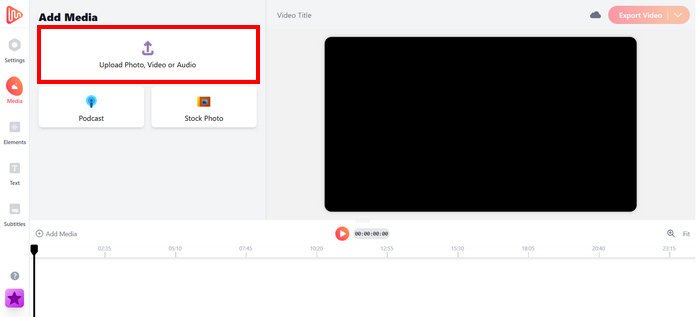
Vaihe 3. Napsauta sen jälkeen Upload Photo, Video, or Audio ladataksesi videon, johon haluat lisätä vesileiman.
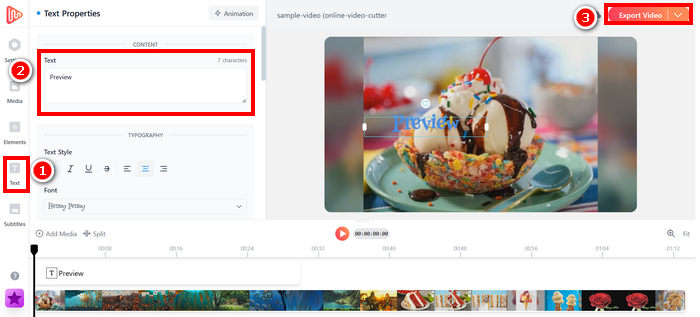
Vaihe 4. Lopuksi napsauta näytön vasemmalla puolella olevaa Text-painiketta lisätäksesi ja kirjoittaaksesi tekstivesileiman, jonka aiot tehdä. Valitse kuitenkin ensin, mitä tekstimuotoa haluat käyttää. Sen jälkeen kirjoita teksti. Kun olet valmis, voit säätää, mihin kohtaan videota haluat sijoittaa vesileiman, ja kun kaikki näyttää hyvältä, tallenna tiedosto napsauttamalla Export-painiketta.
Vaikka vesileiman lisääminen videoon echowave.io:lla on suoraviivaista ja aloittelijaystävällistä, työkalu voi joskus toimia hitaasti, jopa lyhyitä videoita tai pienikokoisia tiedostoja käsiteltäessä.
Klikkaa tästä, jos haluat lukea lisää GIF‑kuvien vesileiman lisäämisestä.
Osa 4. Usein kysyttyjä kysymyksiä vesileiman lisäämisestä videoon
Onko vesileiman peittäminen laitonta?
Kyllä, se on laitonta. Vesileimoja käytetään usein tekijänoikeussuojana, ja ne osoittavat sisällön omistajuuden tai tekijänoikeuden. Niiden tahallinen piilottaminen tai poistaminen voi rikkoa tekijänoikeuslakeja ja johtaa oikeudellisiin seuraamuksiin, varsinkin jos muokattua sisältöä jaetaan edelleen, käytetään uudelleen tai kaupallisiin tarkoituksiin.
Kuinka lisätä vesileima videoon DaVinci Resolvessa?
Lisää vesileima DaVinci Resolveen tuomalla videosi ja vesileimakuvasi tai -tekstisi. Aseta video aikajanalle ja vedä sitten vesileima sen yläpuolelle erilliselle raidalle. Käytä Tarkastaja-paneelia koon muuttamiseen, siirtämiseen ja läpinäkyvyyden säätämiseen. Kun kaikki näyttää oikealta, vie video vesileima mukana.
Miten lisään vesileiman videoon Lightroomissa?
Lisää vesileima videoon Lightroomissa avaamalla Lightroom ja valitsemalla kuva, johon haluat lisätä vesileiman. Napsauta sitten Lightroom-välilehteä näytön yläreunassa ja valitse avattavasta valikosta Muokkaa vesileimoja. Kirjoita näkyviin tulevassa Vesileimaeditori-ikkunassa haluamasi vesileimateksti esikatselukuvan alapuolella olevaan ruutuun. Sieltä voit myös mukauttaa vesileiman tyyliä, fonttia, kokoa ja sijaintia.
Johtopäätös
Vesileiman lisääminen videoon on todella tärkeää, ja sen opetteleminen on olennainen taito, kun haluat suojata sisältöäsi ja osoittaa omistajuuden. Vaikka työkaluja on tarjolla paljon, FVC Video Converter Ultimate tarjoaa yksinkertaisen ja tehokkaan tavan lisätä vesileima videoon. Se on käytännöllinen valinta erityisesti aloittelijoille, jotka kaipaavat nopeaa ratkaisua, mutta myös muiden työkalujen, kuten Canvan tai erilaisten verkkopohjaisten editorien, kokeileminen voi olla hyödyllistä tarpeistasi riippuen.
-
 5 tapaa poistaa vesileima videosta ammattimaisesti
 Haluatko poistaa vesileiman videosta, jotta se näyttää ammattimaiselta? No, lue tämä artikkeli, kun lisäämme opetusohjelman sen tekemiseen!
-
 2 hienoa sovellusta, joilla voit poistaa vesileiman MP4-videoista
 Tämä artikkeli tarjoaa sinulle yksinkertaisia ja helpoimpia tapoja poistaa vesileima MP4-videoista käyttämällä laitteitasi, kuten Windows ja Mac
-
 Poista Animotica-vesileima vietyistä videoista kolmella todistetulla tavalla
 Oletko koskaan miettinyt, voiko Animotica-vesileiman poistaa viemistäsi videoista? Tämä artikkeli tarjoaa ohjeet.
