


 Video Converter Ultimate
 Näytön tallennin
 Videon korjaus
4 helpointa menetelmää videon resoluution muuttamiseen kattavilla vaiheilla
On monia syitä, miksi sinun täytyy muuttaa videon tarkkuutta. Yksi syy voi olla se, että haluat säästää tilaa videolta. Oli syysi mikä tahansa, tämä opas esittelee neljä tapaa pienentää laatua tai tehdä videosta korkealaatuisen. Ilman enempää viivyttelyä, tutustutaan videon tarkkuuden muuntimiin, joilla voit muuttaa videosi resoluutiota.

Osa 1. 1. menetelmä: Ultimate Desktop -työkalu videon resoluution muuttamiseen Windowsissa ja macOS:ssä
Video Converter Ultimate on tähän tehtävään erinomainen työkalu, sillä sen avulla voit muutamalla napsautuksella muuntaa paitsi videon formaatin myös videon laadun. Työkalu tukee erittäin nopeaa muunnosprosessia, joten voit helposti muuntaa videosi laadun korkeimpaan tai vakiotarkkuuteen. Eikö olekin kätevää käyttää tällaista ohjelmaa? Haluatko tietää lisää? Tämä työkalu tukee molempia työpöytäalustoja. Vaikka se tukee sekä Windowsia että Macia, ne ominaisuudet, jotka näet Windowsilla, ovat käytettävissä myös Macilla ja päinvastoin. Tiedämme, että työkalussa on jotain erityistä, siksi lisäsimme sen tähän listaan. Jos nyt haluat vaiheittaiset ohjeet, voit seurata alla olevaa kirjallista opasta oppiaksesi muuttamaan videon tarkkuutta onnistuneesti.
Vaihe 1. Napsauta sopivaa painiketta ladataksesi ohjelman onnistuneesti levyllesi. Avaa ladattu tiedosto ja seuraa asennusohjelman näytöllä antamia ohjeita. Kun asennus on valmis, avaa videon tarkkuusmuunnin ja siirry seuraaviin vaiheisiin.
Ilmainen latausWindows 7 tai uudempiTurvallinen lataus
Ilmainen latausMacOS 10.7 tai uudempiTurvallinen lataus
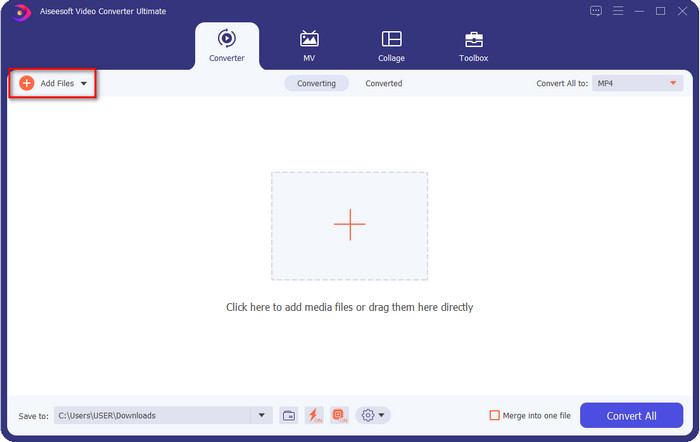
Vaihe 2. Lisätäksesi videon, jonka tarkkuutta haluat muuttaa, napsauta Add File -painiketta. Selaa avautuvasta tietokonekansiosta haluamasi tiedosto, napsauta sitä ja valitse Open.
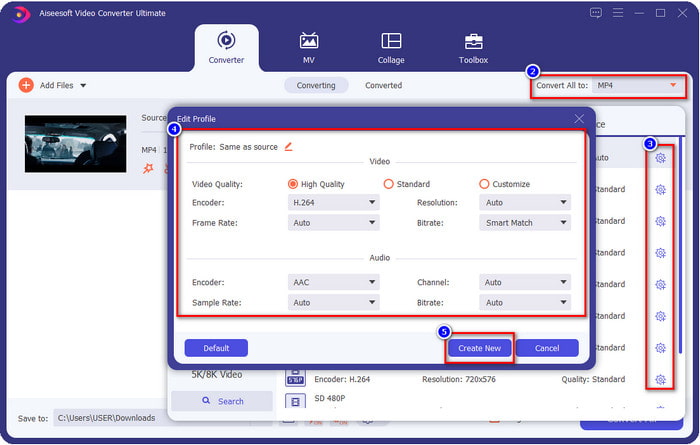
Vaihe 3. Katso oikeaan yläkulmaan ja napsauta pääikkunassa olevaa pudotusvalikko-painiketta. Valitse haluamasi videoformaatti; MP4, MOV, AVI, MKV, FLV ja yli 200 muuta formaattia ovat täällä käytettävissä. Kun olet valinnut formaatin, napsauta ratas-painiketta muokataksesi formaatin profiilia. Täällä voit nostaa tai laskea resoluutiota, vaihtaa enkooderia, laatua, bittinopeutta ja muuta, joko parantaaksesi videon tarkkuutta tai et. Tallenna muutokset napsauttamalla Create New.
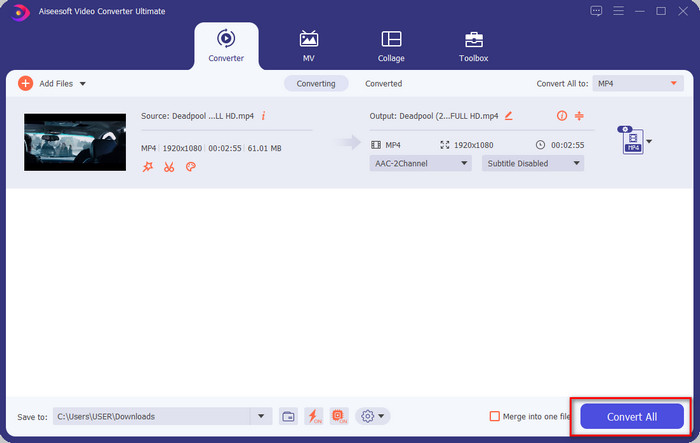
Vaihe 4. Lopuksi napsauta Convert All, jolloin resoluution muuntaminen alkaa. Näin olet nyt muuttanut videon tarkkuuden Video Converter Ultimate -ohjelman avulla.
Osa 2. 2. menetelmä: yksinkertainen ja ilmainen menetelmä videon resoluution muuttamiseen verkossa
Haluatko muuttaa videon resoluutiota verkossa? Siinä tapauksessa kannattaa käyttää tämän työkalun ilmaista verkkoversiota, eli FVC Free Video Converter Online -palvelua. Tämän työkalun avulla voit muuntaa videosi resoluution maksutta. Koska kyseessä on verkkotyökalu, se vaatii toimiakseen internet-yhteyden. Lisäksi tämä työkalu ei tue kaikkia videoformaatteja, joten siihen lisättävissä formaateissa on rajoituksia. Kokeillaan nyt, miten työkalua käytetään resoluution muuttamiseen seuraamalla alla olevia ohjeita.
Vaihe 1. Avaa videon tarkkuuden verkkomuunnin napsauttamalla tätä linkkiä.
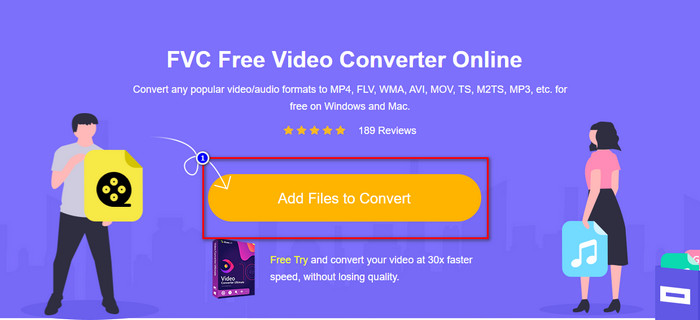
Vaihe 2. Paina Add Files to Convert ladataksesi käynnistysohjelman ensimmäisellä käyttökerralla, ja napsauta sitä uudelleen, kun olet ladannut asennusohjelman. Kun olet napsauttanut sitä, kansioikkuna avautuu; etsi videon tiedosto, ja valitse Open.
Vaihe 3. Napsauta ratas-painiketta avataksesi uuden ikkunan, jossa voit muuttaa videon resoluutiota. Uuden ikkunan yläosassa napsauta Resolution, valitse haluamasi videon resoluutio ja napsauta OK tallentaaksesi sen.
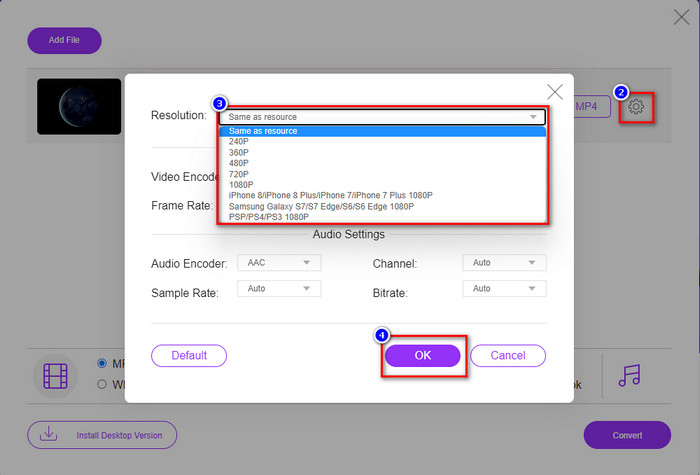
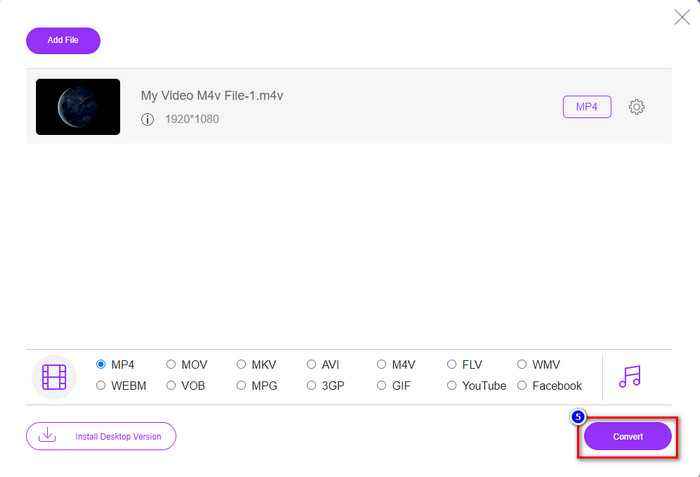
Vaihe 4. Valitse formaatti asetuslistasta ja napsauta Convert aloittaaksesi resoluution muunnosprosessin.
Aiheeseen liittyvää:
Osa 3. 3. menetelmä: mobiilipohjainen tapa muuttaa videon resoluutiota iPhonessa ja Androidissa
Nämä menetelmät eivät voi muuntaa videon resoluutiota, mutta voit kuvata pienemmän tai korkeamman resoluution videota. Lisäksi katsotaan kuinka voimme muuttaa videon resoluutiota kuvattaessamme videota.
1. Sisäänrakennettu iPhonen videoresoluutio
Jos olet iOS-käyttäjä, voit halutessasi muuttaa valitsemaasi videoresoluutiota. Et kuitenkaan löydä sitä kamerasta, joten jos et löydä sitä, voit seurata alla olevia ohjeita saadaksesi tietää, miten voit muuttaa videon resoluutiota iPhonessa ennen videon kuvaamista.
Nämä vaiheet on otettu iPhone X -mallista, joten vaiheet saattavat poiketa hieman muista iPhonen kaltaisen nimen tai toimintojen versioista.
Vaihe 1. Avaa iPhonesi Asetukset.
Vaihe 2. Etsi sen alta Camera ja napsauta sitä.
Vaihe 3. Napsauta Record Video ja valitse, minkä resoluution haluat videon tallennuksen aikana. Palaa Koti-valikkoon, avaa Kamera ja kuvaa video asetuksissa määrittämälläsi resoluutiolla.
2. Sisäänrakennettu Android-videoresoluutio
Android-käyttäjät voivat käyttää kameran videoresoluutiota suoraan. Tarjoamamme vaiheet eivät ole yhtä monimutkaisia kuin iPhonessa, koska sinun ei tarvitse määrittää asetuksia. Joten nyt, jos haluat muuttaa videon resoluutiota Androidissa, seuraa alla olevia ohjeita.
Nämä vaiheet on otettu Redmi 10:stä, joten vaiheet voivat olla hieman erilaisia joidenkin muiden Android-laitteiden, kuten nimen tai toimintojen, kanssa.
Vaihe 1. Avaa puhelimellasi Camera-sovellus.
Vaihe 2. Kun sovellus on auki, siirry Video-tilaan, napsauta kolmea rinnakkaista viivaa ja valitse haluamasi videon resoluutio.
Vaihe 3. Paina punaista painiketta tallentaaksesi videon valitsemallasi videon resoluutiolla.
Osa 4. Usein kysytyt kysymykset videon resoluution muuttamisesta
Mikä on videon resoluutio?
Kuvassa olevien pikselien määrää kutsutaan videoresoluutioksi. Se ohjaa myös yksittäisen videon yksityiskohtia, kuten kuinka selkeämpi kuva voi olla. Lisäksi on olemassa erilaisia videoresoluutiovaihtoehtoja; kutsumme korkeampaa resoluutiota alkaen HD:stä ja sitä korkeammalla, joka käyttää enemmän laadukkaita kuvia sekunnissa. Vaikka pienempi tarkkuus alkaa SD:stä ja sitä alhaisemmasta, tämä videoresoluutio saa vähemmän kaistanleveyttä kuin korkeampi resoluutio, mutta sillä on pienemmän kuvanlaatu sekunnissa.
Onko 1080 paras videoresoluutio?
Se tuottaa yhden suosituimmista videoresoluutioista, jotka on yleisimmin valittu Youtubessa ja muissa videoiden suoratoistosovelluksissa. Mutta korkealaatuisen videon katsominen ei ole aina paras vaihtoehto, koska videon puskurointi voi viedä enemmän aikaa kuin 720. Joten kun seuraavan kerran katsot videota verkossa, käytämme mieluummin 720:ta kuin 1080:aa lataamaan videota paljon nopeammin, eikä kummankaan laadussa ole merkittäviä muutoksia, jos muutat sitä.
Vaikuttaako resoluution pienentäminen laatuun?
Kyllä, se muuttuu, kun olet alentanut videon laatua. Jos videosi on esimerkiksi HD-laatuinen, vaihdat sen SD-laatuiseksi, laatu muuttuu dramaattisesti. Joten jos muutat videon resoluutiota, näet äkillisen muutoksen, mutta se on silti katsottavissa sen jälkeenkin.
Johtopäätös
Vihdoinkin voimme nyt muuttaa videon resoluutiota toiveidemme mukaan. Vaikka voit muuttaa videon laatua monilla eri työkaluilla, tarjoamme silti turvallisimmat ja parhaat online-, offline- ja sisäänrakennetut työkalut. Toivomme, että tämä artikkeli auttaa sinua muuttamaan resoluutiota; Jos sinulla on lisää kysymyksiä, voit jättää kommentin alle, ja todellakin vastaamme kommentteihisi.
-
 Katsaus Top 10 HD Video Converter -ohjelmistoon (ilmainen ja kaupallinen)
 Lue ja vertaa saadaksesi parhaan HD-videon muunnosohjelmiston 10 suosituksesta. Tässä on yksityiskohtaiset arvostelut kustakin HD-videomuuntimesta monikäyttöiselle alustalle.
-
 Ohjeita M4A:n muuntamiseen WAV:ksi [PC ja Mac]
 Saat lisätietoja M4A:n muuntamisesta WAV:ksi yksityiskohtaisilla vaiheilla ja erilaisilla työkaluilla, joista voit valita.
-
 Erinomainen valinta muuntaa MKV AVI -muotoon
 Opi muuttamaan MKV-videoita helpoilla vaiheilla, jotka tarjotaan yksinomaan sinulle. Haluatko tietää miten? Napsauta sitten tätä linkkiä saadaksesi lisätietoja.
