


 ממיר וידאו אולטימטיבי
 מקליט מסך
 תיקון וידאו
 הורדה מאובטחת
4 הדרכים הקלות ביותר לשנות את מהירות השמעת הווידאו בשולחן העבודה, באינטרנט ובטלפונים
רוב המשתמשים מחפשים דרך יעילה לצפות בווידאו שאורכו שעה בפחות משעה. הפתרון היחיד שיכול לפתור את הבעיה הזו הוא שינוי מהירות הנגינה של הווידאו שבו אתם צופים. רוב עורכי הווידאו שתמצאו בשוק יכולים לעזור לכם לבצע את המשימה, אך השאלה היא – האם הם אמינים? בזמן שבדקנו כל אחד מהם, גילינו שאפשר לשנות את מהירות הווידאו בשולחן עבודה, אונליין, ובמכשירי iOS ואנדרואיד. אם אתם רוצים לדעת איך לעשות זאת, עליכם להמשיך לקרוא את הבלוג הזה, שכן צירפנו בו כלים ואפליקציות שיכולים לעזור לכם.

חלק 1. הדרך המומלצת הטובה ביותר לשנות את מהירות הווידאו ב-Windows וב-Mac ללא מאמץ
כדי לשנות את מהירות הווידאו בקלות, עליכם לבחור בכלי הטוב ביותר שמספק תוצאה מעולה אפילו בכמה לחיצות פשוטות – קבלו את FVC Video Converter Ultimate. כלי זה משנה ביעילות את מהירות הווידאו שיש לכם בכל זמן ובכל מקום. בנוסף, תוכלו לשנות את מהירות הווידאו גם אם הפורמטים הם MP4, MOV, AVI, FLV, TS, RMVB ועוד יותר מ־1000 פורמטים; העלאת הקובץ שלכם לכאן היא מהירה וקלה. גם אם אתם משתמשי Windows או Mac, הורדת התוכנה על גבי מערכת ההפעלה הזו תעזור לכם לסיים את משימת שינוי מהירות הנגינה בכמה לחיצות בלבד.
מלבד פונקציית בקר מהירות הווידאו שלו, לכלי יש גם ארגז כלים רב תכליתי בגאווה שיכול לעזור למשימות אחרות. כגון הוספת מטא נתונים, יצירת GIF, הסרת סימני מים ועוד רבים. למרות שהכלי ניתן להורדה, תבחין בעת השימוש בו שלא תזדקק לניסיון רב בעריכה, כי הוא ידידותי למשתמש. יש פונקציות ותכונות שעדיין לא כתבנו שיבליטו את המוצר הזה. אבל אם אתה רוצה ללמוד איך לשנות את המהירות של סרטון, קרא את הפרטים כדי לדעת.
יתרונות השימוש בתוכנה האולטימטיבית כמחליף מהירות וידאו:
◆ ממשק אינטואיטיבי, כך שהם ילמדו כיצד להשתמש בו תוך מספר דקות.
◆ העלה 1000+ סרטונים כדי להאיץ את ההשמעה שיש לו.
◆ ידידותי למשתמש כדי לעזור למשתמשים לחוות את המרב.
◆ פונקציות אחרות נמצאות בארגז הכלים, כגון עריכת וידאו בסיסית ומתקדמת.
◆ זוהי הבחירה הראשונה מבין כמעט מיליון משתמשים שמורידים אותו.
◆ זמין ב-Windows וב-Mac כדי להוריד את הכלי ללא מאמץ.
שלבים כיצד לשנות את מהירות הווידאו באמצעות התוכנה האולטימטיבית:
שלב 1. תוכלו להתקין את התוכנה האולטימטיבית גם במערכות Windows וגם ב‑Mac על‑ידי לחיצה על כפתור ההורדה. השלימו את תהליך ההתקנה לאחר שלחצתם על הקובץ שהורדתם, ולאחר מכן הפעילו את התוכנה כדי להמשיך.
הורדה חינמיתל-Windows 7 ומעלההורדה מאובטחת
הורדה חינמיתל-MacOS 10.7 ומעלההורדה מאובטחת
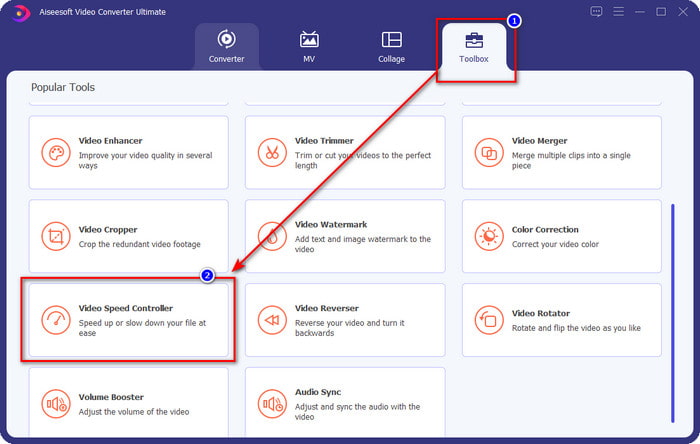
שלב 2. לאחר שפתחתם את התוכנה, עברו לחלק של Toolbox; תחתיו פתחו את Video Speed Controller. אין צורך לדאוג – אינכם צריכים להוריד משאבים נוספים כדי להשתמש בכלי.
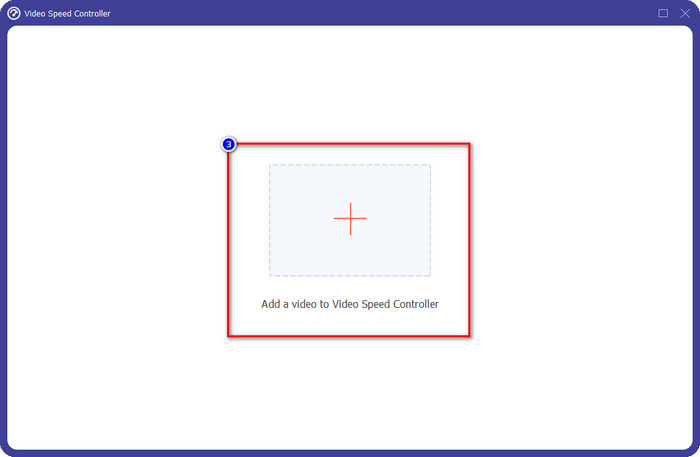
שלב 3. לחצו על סמל ה־+, הוסיפו את הקובץ שיש לכם בתיקייה, לחצו עליו ואז לחצו על Open כדי להעלות את קובץ הווידאו שברשותכם.
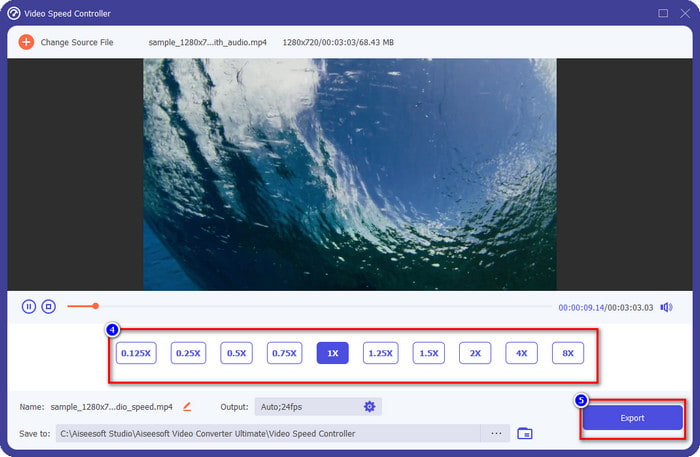
שלב 4. בחרו מתוך הרשימה את מהירות הנגינה הרצויה לכם; לכל אחד מאיתנו יש מהירות נגינה אחרת שהוא רוצה. לחצו על Export כדי לשמור את התוצאה הסופית של הווידאו ששיניתם בו את המהירות. בפחות מדקה כבר שיניתם את הקצב של הווידאו שלכם. כעת תוכלו ליהנות מצפייה בו בזמן קצר יותר.
חלק 2. הדרך החינמית הטובה ביותר לשנות את מהירות הווידאו באינטרנט
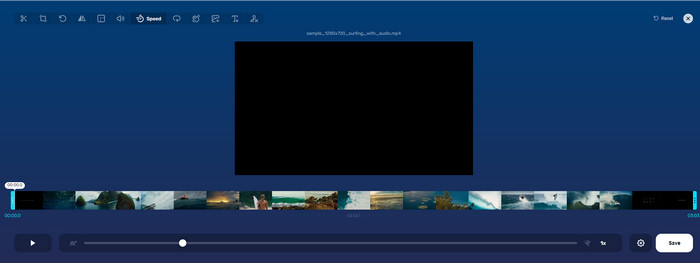
בעזרת Online Video Cutter תוכלו לשנות מהירות וידאו אונליין בחינם. בשונה מהכלי הראשון, אינכם צריכים להוריד משאבים נוספים או תוכנת התקנה למחשב כדי להשתמש בכלי האינטרנטי. בנוסף לפונקציה של שינוי המהירות, תוכלו להשתמש בכלי הזה גם לעריכה בסיסית. למרות שהכלי מצוין, לא תוכלו להעלות אליו את כל הפורמטים שיש לכם, משום שתמיכת הפורמטים שלו מוגבלת. כדי להשתמש בו, עקבו אחר השלבים הבאים.
שלב 1. פתחו את הדפדפן שבו תרצו להשתמש וחפשו את כלי האינטרנט.
שלב 2. פתחו את כלי האינטרנט, לחצו על Open File, מצאו את קובץ הווידאו שברשותכם והעלו אותו.
שלב 3. גררו את המחוונים שמאלה או ימינה כדי לשנות את המהירות; לחצו על כפתור Save אם אתם מרוצים מהקצב.
חלק 3. עורך הווידאו הטוב ביותר ב-iOS לשינוי מהירות הווידאו בחינם
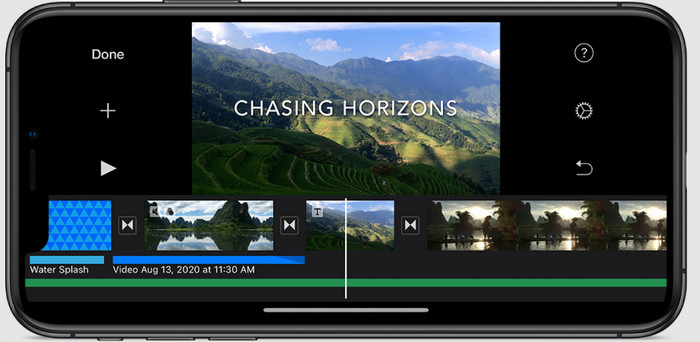
עבור משתמשי iOS, אתה יכול להשתמש ב-iMovie כדי ללמוד כיצד לשנות את מהירות הווידאו באייפון בחינם. למרות שהכלי הוא עורך וידאו מקורי ב-Mac, עדיין יש לך אפשרות להוריד את האפליקציה במכשיר שלך או לא. בחירה זו מוכיחה שמשתמשי iOS יכולים לשמור את העורך או לא, כדי לחסוך קצת מקום באחסון שלהם. אבל אם יש לך את האפליקציה באייפון שלך, תוכל לבצע את השלבים שאנו מוסיפים להלן כדי לדעת כיצד הכלי הזה פועל.
שלב 1. הורידו ואז פתחו את האפליקציה ב‑iPhone שלכם ובפרויקט, לחצו על סימן ה‑+, ואז לחצו על Movie.
שלב 2. הקישו על הווידאו שתרצו להאיץ, ואז בתחתית המסך הקישו על Create Movie כדי לייבא אותו לציר הזמן.
שלב 3. לאחר שתלחצו על הקליפ שהעליתם, הקישו על סמל בקרת המהירות, והתאימו את מהירות הווידאו על‑ידי גרירת המחוונים ב‑iPhone שלכם. הקישו על Done כדי לשמור אותו, ואז ייצאו אותו אם תרצו.
חלק 4. הדרך הטובה ביותר לשנות את מהירות השמעת וידאו במכשירי אנדרואיד באמצעות העורך המובנה
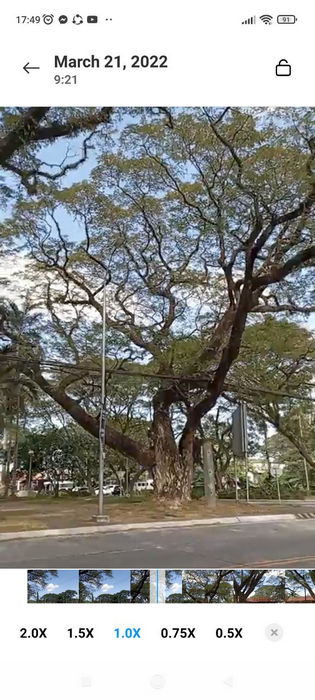
הורדת אפליקציה אינה המקרה אם אתה משתמש אנדרואיד; שנה את מהירות הווידאו בטלפון שלך עם עורך הווידאו המובנה. עם עורך זה, אתה יכול לבצע את העריכה הבסיסית הדרושה בסרטון שלך כדי לגרום לו להיראות טוב יותר מבעבר. אתה יכול למצוא את העורך הזה בגלריה או באלבום באנדרואיד שלך. אם אתה רוצה לדעת איך להשתמש בו, המידע הבא יעזור לך.
שלב 1. פתחו את הגלריה או האלבום שלכם ואז הקישו על הווידאו שברצונכם לשנות את מהירותו.
שלב 2. לחצו על Edit כדי להמשיך.
שלב 3. הקישו על החלק של Playback Speed, ואז שנו את המהירות בהתאם לצרכים שלכם.
חלק 5. שאלות נפוצות לגבי שינוי מהירות הווידאו
האם אני יכול לשנות את המהירות ביוטיוב?
בהחלט כן, אתה יכול לשנות את ההשמעה של הסרטון ביוטיוב גם אם אתה לא מוריד תוכנה לעשות זאת. עקוב אחר השלבים כדי לדעת כיצד לשנות את מהירות הסרטון ב-YouTube. ראשית פתח את YouTube, מצא את הסרטון שאתה רוצה לצפות בתנועה שונה, לחץ על סמל גלגל השיניים, ומתחתיו, מהירות ההשמעה, בחר את המהירות שאתה רוצה להשיג, ותיהנה.
האם שינוי המהירות מקצר את משך הסרטון?
זה תלוי איך אתה משנה את המהירות; אם אתה מאט את הסרטון, צפה שמשך הזמן שלו ימשך כי אתה מנגן אותו במצב איטי. אבל אם תשנה את המהירות לגבוהה, משך הסרטון שאתה מנגן יהיה קצר יותר מהמקור. כדי לדעת יותר על שינוי מהירות הווידאו, עליך לקרוא את הפרטים הבאים שאנו מוסיפים לעיל.
האם לאחר שינוי המהירות לאיכות תהיה השפעה?
בהתאם למהירות הווידאו שתגדיר, האיכות עשויה לרדת או להישאר. אם תפעיל סרטון שמונה פעמים ומעלה, צפה לסרטון שתפעיל. עם זאת, לא תבחין בהבדל רב מלבד ההשמעה, מבחינת איכות, זה יישאר זהה.
סיכום
כעת, כשיש לנו מושג איך לשנות את מהירות הווידאו במחשבים, אונליין ובטלפונים, הגיע הזמן להחליט באיזה פתרון להשתמש. אם אינכם רוצים להוריד תוכנה למחשב כדי לחסוך מקום ושלבי התקנה, עליכם לקרוא את חלק 2 של המאמר. אבל אם אתם משתמשי iOS או אנדרואיד, חלקים 3 ו‑4 מיועדים לכם. אם אתם רוצים להשתמש בעורך הווידאו הטוב ביותר ב‑Windows וב‑Mac, עליכם להוריד את FVC Video Converter Ultimate. זהו בקר מהירות הווידאו הטוב ביותר לשינוי מהירות הנגינה של הווידאו שעל שולחן העבודה שלכם ללא מאמץ. אז למה אתם מחכים? הורידו אותו עכשיו ונצלו את המבצע שזמין במיוחד עבורכם!
-
 כיצד להאיץ את הווידאו ב-Premiere Pro ועם האלטרנטיבות שלו
 האם אתה רוצה לדעת איך להשתמש ב-Premiere Pro כדי להאיץ סרטון? אז אתה במאמר הנכון מכיוון שאנו מספקים שלבים וחלופות אחרות במחיר סביר.
-
 2 דרכים ללא מאמץ כיצד להאיץ סרטון ב-TikTok
 האם אתה רוצה לדעת את הסוד כיצד להאיץ וידאו ב- TikTok? לאחר מכן קרא את המאמר הזה כדי לקבל את הרעיון כיצד לעשות זאת ולדעת מהם 2 הכלים האחרים שיעזרו לך.
-
 טיפים מצוינים של 2021: כיצד להאיץ סרטון ב-iMovie
 חבר שלך מציע את iMovie כדי לעזור לך עם הבעיה שלך איך להאיץ סרטון באמצעות מערכת ההפעלה iOS, אבל אתה לא יודע מה לעשות? ראה עוד על זה כפי שאתה קורא עוד דרך מאמר זה.
