


 ממיר וידאו אולטימטיבי
 מקליט מסך
 תיקון וידאו
 הורדה מאובטחת
כיצד להאט את הסרטון באייפון בקלות ובמהירות עם הפתרונות הטובים ביותר
Have you ever watched a grammy of your favorite artist and seen them step on a GlamBot? Most of us already saw how beautiful this machine could do in less than a second after taking a shot of a few movements and setting it into slow motion. Unfortunately, not everyone can afford to get into grammy and take a slow-mo video with the GlamBot, but if you are a celebrity, that is a way to try using it. Don’t be sad if you can’t use the Glambot because even you can take and make a slow-motion on your iPhone with high quality. So, are you ready to shoot and learn how to slow down a video on iPhone that looks as impressive as the machine we were talking about? Then this article is all for you.

חלק 1. כיצד להאט סרטון באייפון עם 3 אפליקציות בקר המהירות הטובות ביותר
iMovie
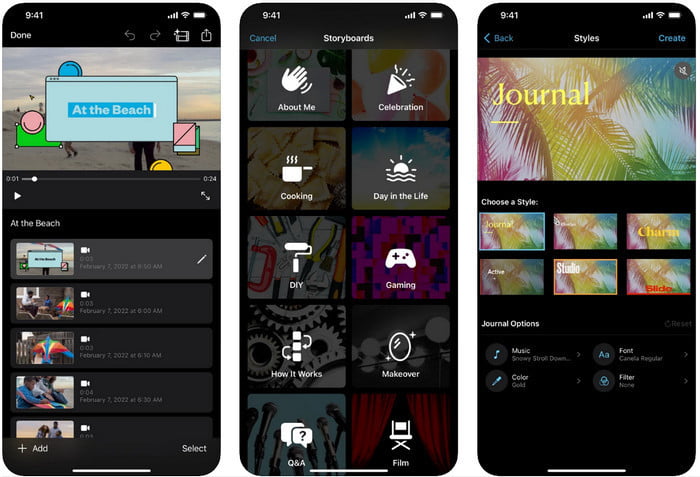
Step 1. Tap the iMovie on your screen to open the app, then tap the plus icon on your screen. A new window will show on your screen, giving you a two-set of options, but click the Movie.
Step 2. Choose the video on the list that will show on your screen and click Create Movie to proceed. After you upload it, click the clock-like icon to change the speed of your video, and drag the slider to the left to slow down the video.
Step 3. After you’ve finished editing the speed of the video, click Done, then Export to save it on your device drivers.
עורך וידאו מהיר בקצב איטי
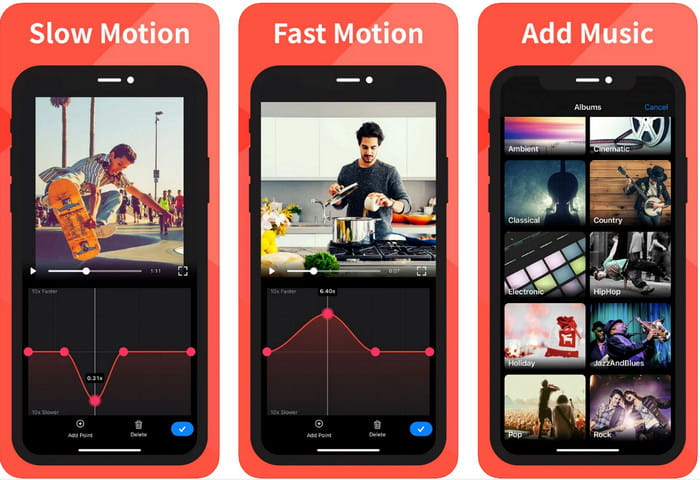
Slow Fast Motion Video Editor isn’t as good as the iMovie at making the video look amazing, but this app can easily slow down video on iPhone. Due to its multifunctional speed editor, there is nothing much this app can’t do, especially on speed up. Even though the video in portrait or landscape, it can work in two ways. Thus, learning how to use the app isn’t stiff compared to the other speed controller you can download on your device. However, to be able to use the app on your iOS, you must pay the subscription fee, but it has a free 3-days trial, but with that trial, there will be ads everywhere. To use the app, you can follow the given steps below.
Step 1. Download the app, then open it on your iOS, tap the Allow Access to give the app access to your Photos.
Step 2. Select the video on your device and tap Show Selected; tap All Videos to see the video you upload and tap Select.
Optional: You can trim and cut the video according to your preferences and drag the play-heads into your desired length. But if you don’t want to do trimming and cutting, you can tap Skip, but tap Next if you edit it.
Step 4. Tap the Speed button, adjust each speed according to your wants, and drag down to slow down the video. Remember, on every dot you drag; a specific portion will slow down and not the whole video. Tap Check and Save to export the video you changed speed.
Slo-Mo: צור וידאו בהילוך איטי
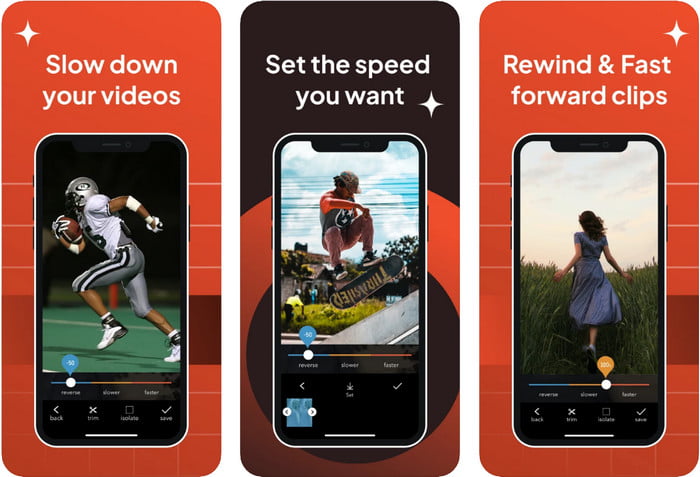
Slo-Mo: Make Slow Motion is another particular app you can download on your iOS for free, but it offers in-app purchases. Same as the Slow Fast Motion Video Editor, you will need to subscribe to it before you can use its full potential. Although you will still need to avail the subscription, it is worth it and not cost you too much. On changing the playback speed of a video, we can see that this tool is on-point in this type of task. To know more about how to slow-mo a video on iPhone, you can read the tutorial below.
Step 1. To download the app, you can access it on the Appstore and then download it; then, open the app to start slowing down the video you have.
Step 2. Tap Library, choose the video you want to change the playback speed, tap Choose to begin.
Step 3. Drag the slider to the left to make it slow; click Save if you are satisfied with the speed.
חלק 2. בקר מהירות וידאו מהשורה הראשונה זמין ב-Windows וב-Mac
FVC Video Converter Ultimate has the best speed controller you must use on your video store on Windows and Mac. With its unique features in speeding up video, if we are about to compare it with the other application we mention in here, there is a large gap between a good and the ultimate speed controller. Due to its limited support on the operating system, you can’t download the software on your iOS because it is unsupported. Nevertheless, it is still considered an all-in-one software that can resolve your video and audio problem. So, to learn how to make a video in slow motion on an iPhone after recording, you must follow and read the tutorial we added in the next part.
Step 1. To get this ultimate speed controller software on your desktop, you must click the download button and choose whether you are using a Windows or Mac. After that, click the file you download to install and launch.
הורדה חינמיתל-Windows 7 ומעלההורדה מאובטחת
הורדה חינמיתל-MacOS 10.7 ומעלההורדה מאובטחת
Step 2. Go and open the Toolbox of this tool to access the Video Speed Controller here.
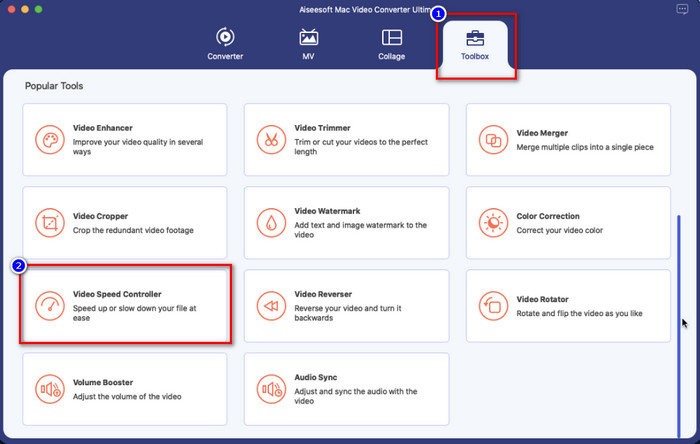
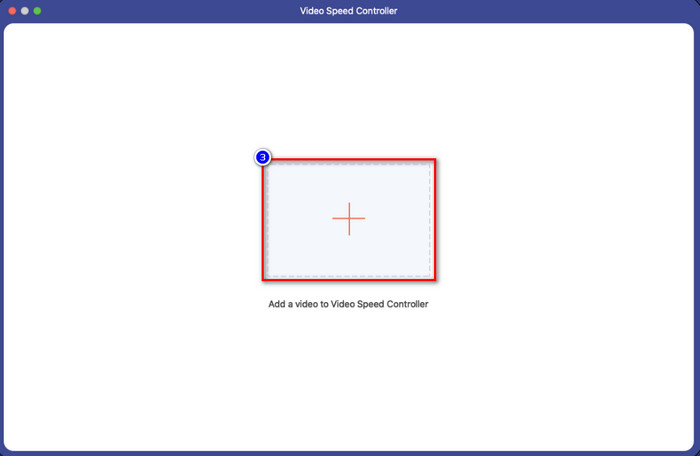
Step 3. Click the plus icon, and a file folder will show on your screen. Look out for the video you want to upload, click the file, and press Open.
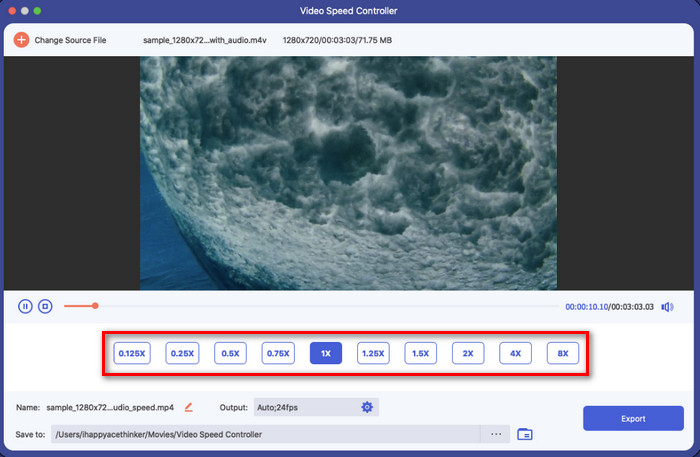
Step 4. You can now choose the slow motion you want to apply to your video in this area. Test them all out to see if that is the playback speed you want on the video you selected earlier.
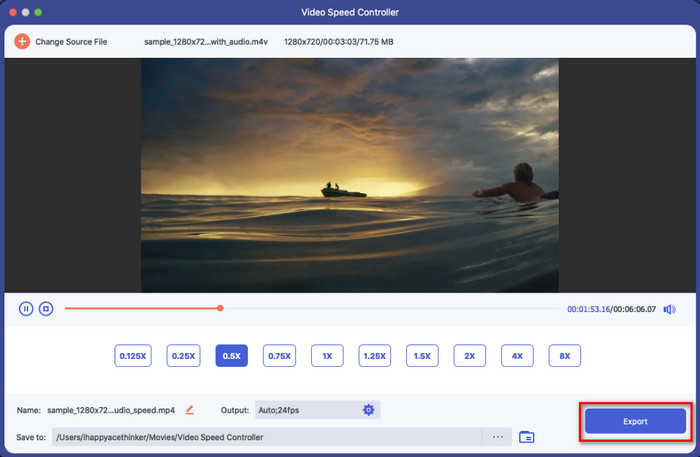
Step 5. Lastly, you can now save the changes you’ve applied to the video by clicking the Export button. After exporting, a folder will show on your screen with the slow-down video you exported.
חלק 3. שאלות נפוצות על איך להאט סרטון באייפון
האם האטה של סרטון תשפיע על האיכות?
עקב שינוי הפעלת הסרטון, עשויים להתרחש שינויים מסוימים בסרטון ברגע שתשנה את המהירות בפועל לאפקט איטי. אבל אם תחיל השפעה איטית על הסרטון, אנחנו יכולים להבטיח לך שהסרטון לא יפחית את האיכות, אז הקפד לא להגזים בשימוש בו.
מדוע הסרטון שלי הפך מטושטש לאחר שהחלתי איטי-מו?
סביר להניח שמקרים כאלה יקרו אם הכלי שבחרת אינו תומך בייצוא סרטון באיכות גבוהה. אבל כמה כלים חינמיים עוזרים להחיל אפקט איטי ללא הגבלות על האיכות. כמו מה שאתה יכול לקבל ב-FVC Video Converter Ultimate, ברגע שאתה מאט את הסרטון שלך כאן, אותה איכות גבוהה תישאר בסרטון שאתה מעלה.
למה יש סימני מים אחרי שאני מייצא את הסרטון בהילוך איטי?
אם אתה משתמש בגרסה החינמית של האפליקציה כדי להעביר סרטון איטי, אז יש סיכוי שכאשר אתה מייצא את הסרטון, הוא ישאיר עליו סימן מים. לכן, חובה לקרוא מידע על התוכנה שבחרת ולראות אם היא תשאיר סימן מים על הסרטון אם תרצה לייצא אותה.
סיכום
If you want to shoot like a celebrity on grammy, using your iOS devices can help, and with the tutorial, we made learning how to slow down a video on iPhone possible and easy. With the app, we selected the assurance of taking the task as a pro became at reach for everyone who loves to add slow-mo effects. Although the apps are great, we can’t still hide that the FVC Video Converter Ultimate surpasses all of the standards on slowing down the video speed. If you want to have and use the tool, you can read the instructions we add in part 2 and download them.
-
 אכן: השיטה הטובה ביותר להאטת וידאו MP4
 מלבד הגדלת מהירות הווידאו שלך, האטה היא אחת משיטות העבודה הרבות הנדרשות כדי להשיג את הפלט הטוב ביותר מהסרטון שלך. שאפו להיות העורך הטוב ביותר האפשרי על ידי קריאת שאר המאמר.
-
 כיצד לשנות סרטון בהילוך איטי למהירות רגילה [שלבים קלים]
 רוצה לדעת איך להחזיר סרטון בהילוך איטי שהורדת מהאינטרנט או שהקלטת בטעות בהילוך איטי? למד כיצד להמיר וידאו בהילוך איטי למהירות רגילה ב-Mac, Windows, iOS ו-Android.
-
 כל מה שאתה צריך לדעת על איך ליצור סרטונים בהילוך איטי
 אתה רוצה ליצור סרטונים בהילוך איטי כמו עורך מקצועי, אבל אתה לא יודע באילו תוכנות או יישומים אתה רוצה להשתמש? קרא את המאמר הזה כדי ללמוד את כל הפרטים שאתה צריך.
