


 ממיר וידאו אולטימטיבי
 מקליט מסך
 תיקון וידאו
 הורדה מאובטחת
טיפים וטריקים כיצד לבצע Slow-mo ב-CapCut עם שלבים מפורטים
On emphasizing a specific detail in the video, adding a slow-mo effect can help you. Though changing the frame per second speed on the video is easy, choosing the right tool can be bothersome on most occasions. But with software like Cap Cut, you can quickly do the task effectively even though you don't have expertise. Instead of wasting time searching for a tutorial on how to do a slow-mo on CapCut, you can read this article as we provide an easy to follow steps. In the latter part, we will add the best alternative for you if you think that the software we will introduce doesn't fit your standards.

חלק 1. כיצד לבצע Slow-mo ב-CapCut במכשירי אנדרואיד ו-iOS
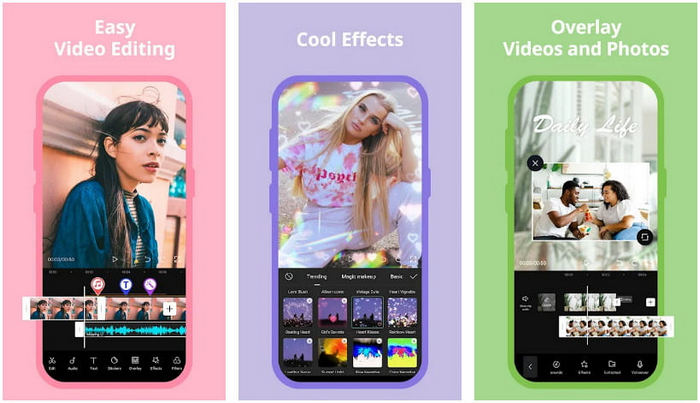
המידע שלהלן יתמקד במפורט כיצד להאט סרטון ב-CapCut. לכן, אם אתה רוצה להשתמש בתוכנה במכשיר שלך כדי להאט סרטון, השלבים הבאים הם מוחלטים ונוסו לפני הוספתו כאן. לפני כל דבר אחר, השלבים כאן הם בקר המהירות הבסיסי ביותר שתוכלו לקבל ב-CapCut.
Step 1. Download the Capcut on your device and open it right after installing it.
Step 2. After you open the app, click New Project, then add the video you want to slow-mo.
Step 3. Tap the video you upload on the Timeline and click the Speed menu, then choose between the Normal and Curve speed controller methods you want. For an easier way of slowing down a video, you must click the Normal.
Step 4. Move the video speed point to the left to slow down the video, click check, then Export.
יתרונות
- זהו אחד מבקרי המהירות הטובים ביותר שתוכל להוריד באנדרואיד ו-iOS.
- עורך All-in-One אתה יכול לקבל בחינם.
- ממשק אינטואיטיבי כדי לקבל חווית זרימה קלה של המשתמשים.
חסרונות
- משאבי עיבוד מוגבלים במכשיר שלך.
- תכונות העריכה העיקריות עדיין אינן זמינות.
- לפעמים קורים באגים וקריסות.
חלק 2. אלטרנטיבה אולטימטיבית עבור CapCut להאטת סרטון על שולחן העבודה
Although Capcut can do the slowdown, you will need on the video you have, and we still find that there are things that hold this tool to become an ultimate. Undoubtedly, FVC Video Converter Ultimate has the upper hand and has become the ultimate resolver of video speed controlling problems.
בשל התכונות והפונקציות שלו, משתמשים רבים התחבבו על זה מכיוון שהוא מרשים בכל מה שהוא מציע. זה משנה ללא רבב את מהירות הווידאו כדי ליצור פלט וידאו יפה תוך פחות מדקה. למרות שאתה לא מקצוען בבקרת מהירות וידאו, אתה עדיין יכול להצליח בקלות להשתמש בתוכנה. מרשים נכון? זה יותר מזה; אתה יכול לעקוב אחר הפרטים שלהלן כשאנחנו מלמדים אותך איך לעשות איטי-מו על האלטרנטיבה האולטימטיבית של Capcut תוך פחות מדקה.

ממיר וידיאו אולטימטיבי
5,689,200+ הורדות- זה תומך בהאצה אולטימטיבית ומאט את האפקט ליישום.
- ייבא את הסרטון שלך לכאן, מכיוון שהוא תומך ב-1000+ פורמטים.
- תכונות ופונקציות רב תכליתיות נוספות זמינות.
- יש לו ממשק אינטואיטיבי לחוויית משתמש טובה יותר.
- אתה יכול לקבל את התוכנה ב-Windows וב-macOS.
הורדה חינמיתל-Windows 7 ומעלההורדה מאובטחת
הורדה חינמיתל-MacOS 10.7 ומעלההורדה מאובטחת
Step 1. Please click the download button below to have the ultimate software on your Windows and Mac. After that, click the file you've downloaded to install it promptly, and click Start Now to run the software on your system.
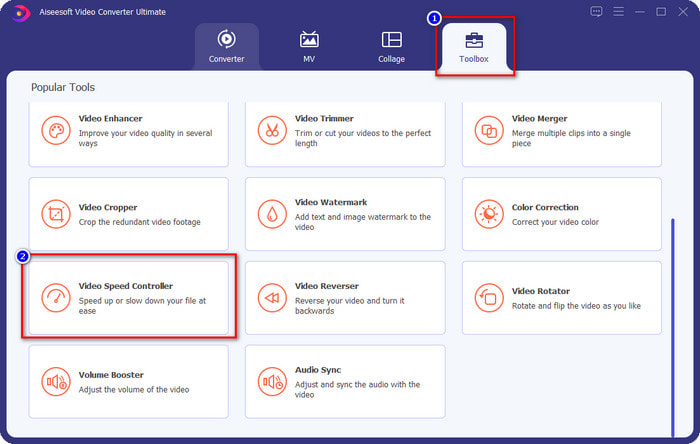
Step 2. When the tool runs into your system, click the Toolbox and locate the Video Speed Controller.
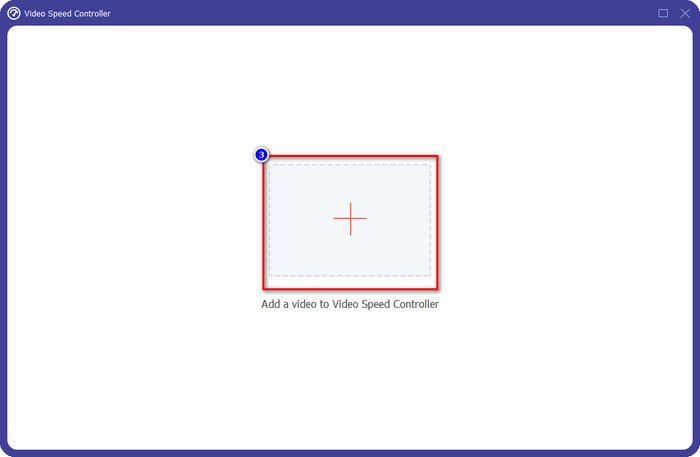
Step 3. Press the + button to open the folder on your desktop. Locate the video file you want to slow-mo and click Open to proceed.
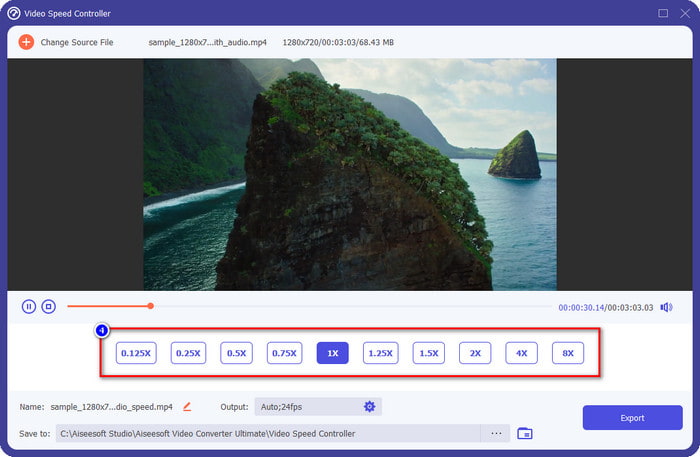
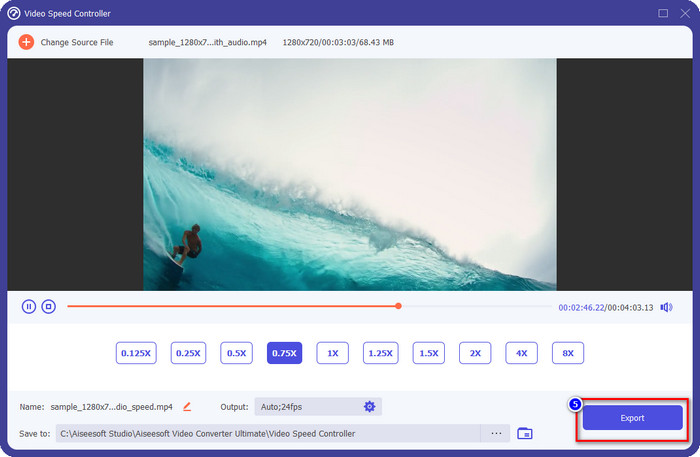
Step 4. After uploading the video file here, click the video speed you want on the options presented below. Every time you click one of them, a preview will happen on the preview pane. It will show you the video you upload but at your chosen speed.
Step 5. Everything is settled now; click Export to start the converting the regular speed video into a slow-mo. Easy right? Yes, it is; even though you aren't an editing expert, there is no need to worry if you choose to use this software.
יתרונות
- זהו הפתרון האולטימטיבי לפתרון בעיית מהירות הווידאו ובעיות וידאו ואודיו אחרות.
- למרות שאתה מתחיל בעריכת המהירות, אתה יכול לשלוט במהירות בשימוש בה תוך פחות מדקה.
- זה יכול לייבא ולייצא את הסרטון מבלי להפחית באיכות הגולמית.
- זמין בכל מערכות ההפעלה Mac ו-Windows.
חסרונות
- זה לא זמין ב-iOS וב-Android.
חלק 3. שאלות נפוצות על איך לעשות Slow-Mo ב-CapCut
האם יש גרסת שולחן עבודה כלשהי של CapCut?
למרבה הצער, CupCat אינו זמין ב-Windows וב-Mac, כך שאינך יכול להוריד אותו על שולחן העבודה שלך למרות שאתה רוצה זאת. במקרה זה, אסור להוריד את האפליקציה באתרי צד שלישי אחרים או פיראטיות כי זה לא חוקי, ותמיד יהיו השלכות לאחר מכן.
האם אני יכול לקנות CapCut?
אם אתה בתקציב מצומצם, רכישה או מנוי ל-CapCut אינה הכרחית מכיוון שהיא בחינם. אין חיובים נסתרים לאחר הורדת האפליקציה לאנדרואיד ול-iOS שלך. אתה יכול ליהנות מהפוטנציאל המלא של עורך וידאו זה בחינם.
כיצד להאיץ וידאו ב- Tiktok באמצעות CapCut?
You can follow the steps we added above and download the Tiktok video you want to speed up. But if you want a comprehensive, detailed step on how to speed up video on Tiktok, you can read this article instead and rely on it.
האם לאחר ייצוא הסרטון ב-Capcut, הוא יחיל סימן מים?
סימן המים לא מוחל ישירות על הסרטון שאתה עורך כאן, אבל הוא מתווסף לחלק האחרון של הסרטון. אבל אתה יכול לחתוך את הווידאו קליפ עם סימן מים באמצעות עורך הווידאו הייעודי שלך או FVC Video Converter Ultimate כדי להסיר אותו לצמיתות. אתה יכול לייצא סרטון ללא סימן מים על ידי הקשה על הייצוא ללא סימן מים במקום עריכה.
סיכום
Now that we know how to slow down a video on CapCut, we have now the chance to change the speed of the video we want. Despite being a free app on Android and iOS, there are still limitations that could hold you back while using this app. So, if you want to fill the gap that this app can't provide, it is a must to download the best alternative on the desktop, for it is the ultimate software to slow down the video. To download the ultimate tool, you must click the download button above to have it within your reach.
-
 5 יצרני וידאו מקצועיים בהילוך איטי עבור Windows/Mac/Online
 האם אתה רוצה לדעת איך לגרום לסרטון שלך להתנגן בהילוך איטי? לאחר מכן קרא את המאמר הזה כדי להבין מהם 5 יצרני הוידאו המקצועיים בהילוך איטי.
-
 הדרכים הטובות ביותר להשתמש ב-iMovie ביצירת סרטוני וידאו בהילוך איטי [פתורה]
 האם אי פעם השתמשת באפליקציית iMovie כדי להמיר את הווידאו במהירות הרגילה שלך להילוך איטי? זו ההזדמנות לדעת יותר על יישום זה, אז המשך לקרוא.
-
 3 מצלמות הילוך איטי הטובות ביותר שכדאי לשקול לקנות
 האם אתה מתקשה לבחור את המצלמה הטובה ביותר ליצירת סרטונים בהילוך איטי? המשך לקרוא ושקול את האפשרויות הטובות ביותר ברשימה של מצלמות בהילוך איטי עבורך.
