


 ממיר וידאו אולטימטיבי
 מקליט מסך
 תיקון וידאו
אמן כיצד להאיץ סרטונים ב-Windows Media Player בדרכים הטובות ביותר האפשריות [מבוסס על ראיות]
כל סצנות הווידאו שונות במהירות הנ播放 שלהן, אך הן גם שונות במטרות כשמשנים את המהירות. כאשר מגבירים את מהירות הווידאו, זה מסמל אירועים לא רלוונטיים או לא מעניינים בסרט או בקליפ. לעומת זאת, כאשר מאיטים את הווידאו, זה מדגיש רגעים או סצנות שחשוב מאוד להבליט בתמונה. השינויים הללו במהירות הנ播放 חשובים מאוד בתהליך העריכה או יצירת סרטי וידאו. קרא מאמר זה כדי ללמד משתמשים כיצד להאיץ סרטוני וידאו, במיוחד בנגני מדיה נפוצים במחשב השולחני שלנו כמו Windows Media Player.

חלק 1. Windows Media Player: כיצד להאיץ סרטונים
Windows Media Player הוא נגן מדיה חינמי מבית Microsoft שמגיע עם כל עותק של Windows. זה ידוע גם בתור נגן WMP או WM על ידי מיקרוסופט. בנוסף לאפשר להם להסתכל על תמונות ולהאזין למוזיקה, זה גם מאפשר להם לצפות בסרטונים. העתקת תקליטורי שמע וארגון ספריית המוזיקה שלך אפשריים עם Windows Media Player (WMP). יש לו גם לשונית עריכה שעוזרת להתאים סרטונים, תמונות ומוזיקה. אם ברצונך להאיץ סרטון באמצעות Windows Media Player, הנה השלבים שיש לבצע:
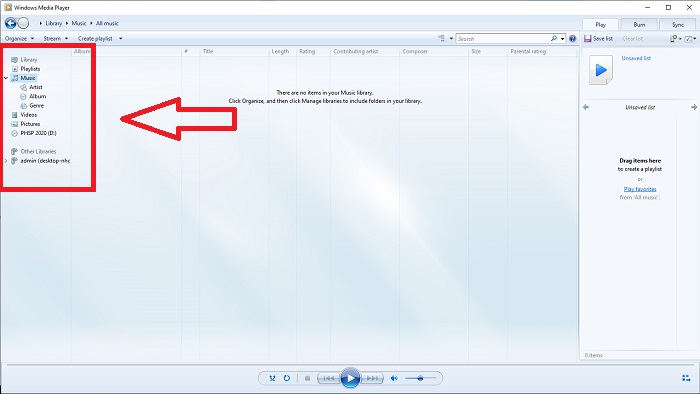
שלב 1: פתח את Windows Media Player; בפינה השמאלית, בחר בלשונית Video.
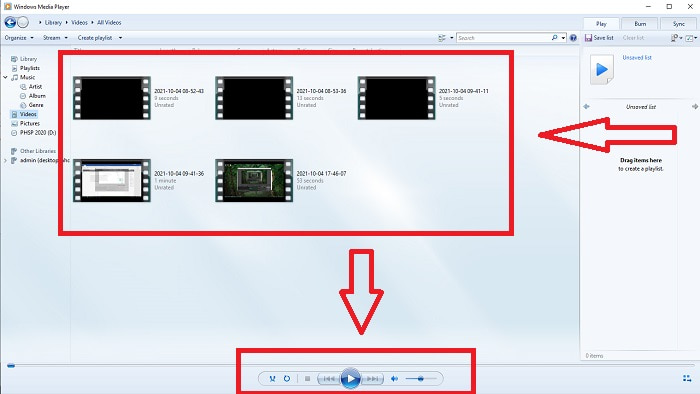
שלב 2: נגן את הווידאו בלחיצה כפולה בשמאל או באמצעות לחיצה ימנית, או שתוכל ללחוץ על כפתור Play בפינה התחתונה האמצעית של הממשק.
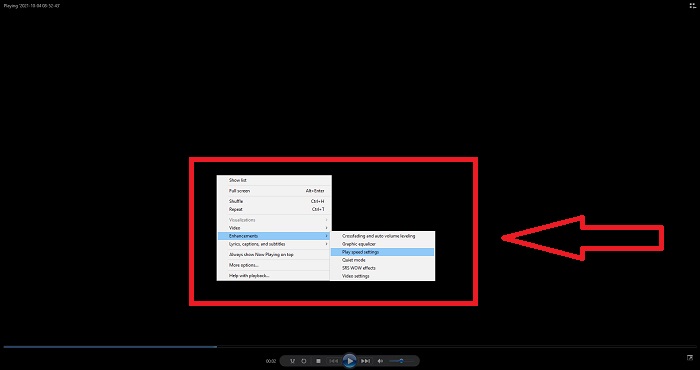
שלב 3: לאחר מכן, לחץ לחיצה ימנית על המסך כדי לגשת ללשונית העריכה. המשך בלחיצה על Enhancements ולאחר מכן על Play Speed Settings. לאחר מכן תוכל להתאים את מהירות הנ播放 של קטע הווידאו שלך על‑ידי גרירת הSlider.
חלק 2. מה אם מהירות ההשמעה של Windows Media Player לא עובדת?
בעת הפעלת קובצי וידאו AVI, WAV או MOV, אתה עלול להיתקל בנגן המדיה של Windows ולהיתקל בבעיה בעת הפעלת שגיאת הקובץ. סרטון באיכות בינונית נצפה לעתים קרובות בפורמט AVI. לנגני מדיה אחרים אין בעיות בהפעלת ה-AVI. WMP, לעומת זאת, עשויה להיות תקלה בעת הפעלת קובץ AVI. Windows Media Player אינו תומך בקבצי AVI מכיוון שהם מקודדים באמצעות קודקים. ייתכן שקיבלת את ההודעה הבאה: Windows Media Player לא יכול להפעיל את הקובץ. ייתכן שהנגן לא תומך בסוג הקובץ או שלא תומך ב-codec ששימש לדחיסת הקובץ. ישנם שני הסברים אפשריים לתופעה זו.
1. מכיוון שהוא אינו תואם לקובץ הנדרש, נגן המדיה של Windows (WMP) אינו יכול לתמוך ב-codec עבור הקובץ.
2. נגן המדיה של Windows אינו תומך בקודקדי הדחיסה.
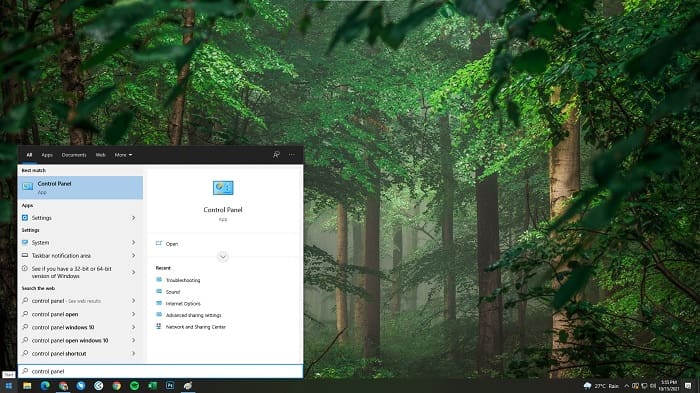
שלב 1: פתח את לוח הבקרה במחשב שלך ומצא את View By, ואז לחץ על Large Icons כדי לגשת לכל הפונקציות המלאות של לוח הבקרה.
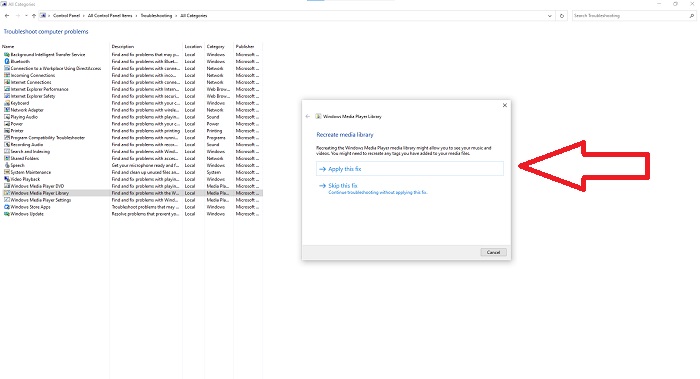
שלב 2: המשך בלחיצה על Troubleshooting. בפינה השמאלית לחץ על View all ואתר את Windows Media Player Library.
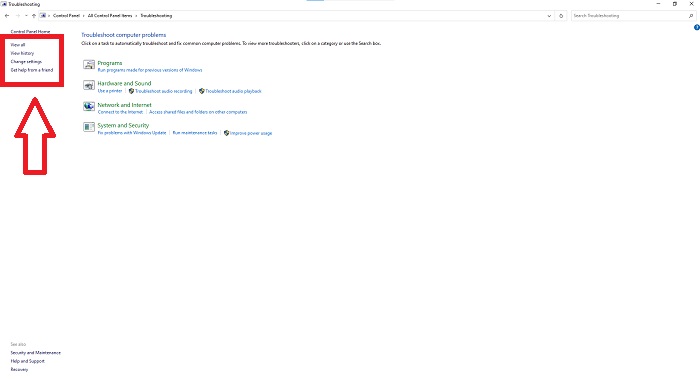
שלב 3: לבסוף, בצע פתרון בעיות ל־Windows Media Player שלך על‑ידי לחיצה על Next לאחר שהלשונית מופיעה. לאחר מכן המשך בבחירה ב־Apply this Fix. אם פתרון הבעיות הושלם, בחר אם לסגור את חלון פתרון הבעיות או לתת עליו משוב.
חלק 3. דרך אפשרית נוספת להאיץ סרטונים
נניח שאתה מתקשה לתקן את מהירות ההפעלה של הסרטונים שלך בגלל השלבים המסובכים. בנוסף, אם פתרון התקלות לא עובד ועדיין אינך יכול להפעיל את הסרטון. ישנם כלי אינטרנט זמינים באינטרנט, ואת חלקם יש לרכוש לפני גישה לכלי המלא. Video Converter Ultimate הוא האלטרנטיבה הטובה ביותר להאצת סרטונים, והוא חופשי לשימוש. תוכנה זו יכולה לערוך את הסרטון שלך לשלב הבא, והנה השלבים המסופקים:
שלב 1: בחר Free Download כדי להוריד את התוכנה ישירות למחשב שלך. לאחר מכן התאם אישית והתקן את התוכנית.
הורדה חינמיתל-Windows 7 ומעלההורדה מאובטחת
הורדה חינמיתל-MacOS 10.7 ומעלההורדה מאובטחת
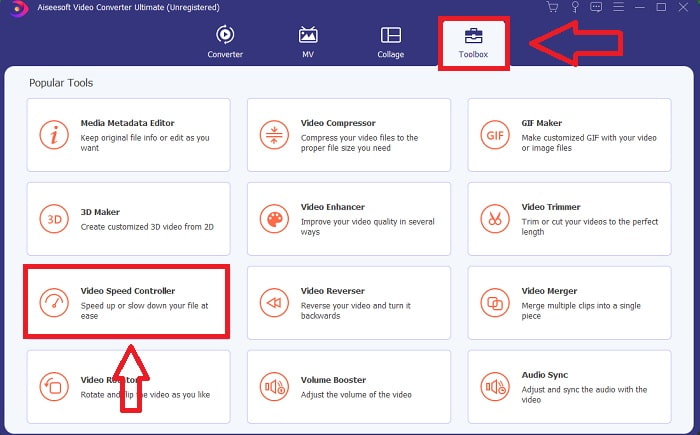
שלב 2: לאחר התקנת התוכנה, הפעל אותה על‑ידי בחירת האפשרות Toolbox משורת התפריט ואז בחירת Video Speed Controller מהרשימה שמופיעה.
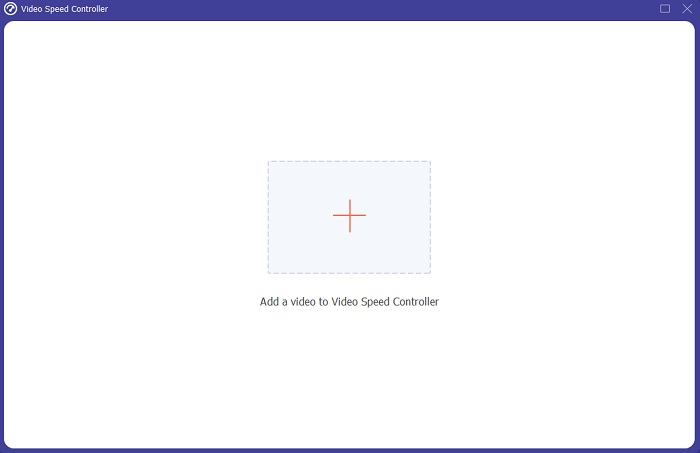
שלב 3: לחץ על כפתור ה־+ לפי העדפתך כדי להוסיף קובץ ואז המשך לערוך את הווידאו.
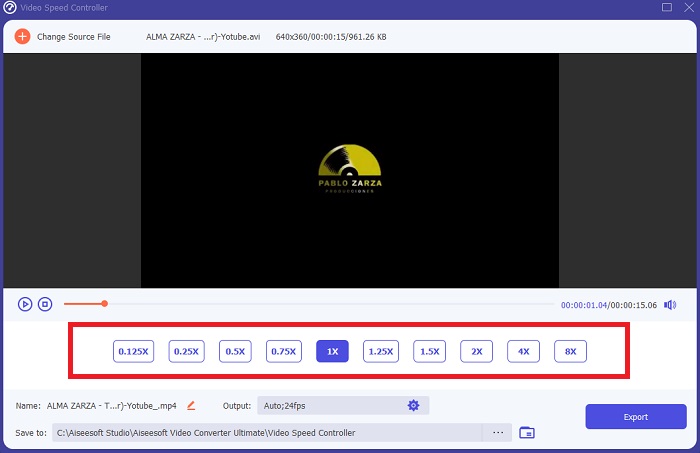
שלב 4: בחר בכמה פעמים יוגדל או יופחת קצב הפריימים של הווידאו כדי לשנות את מהירות הנ播放.
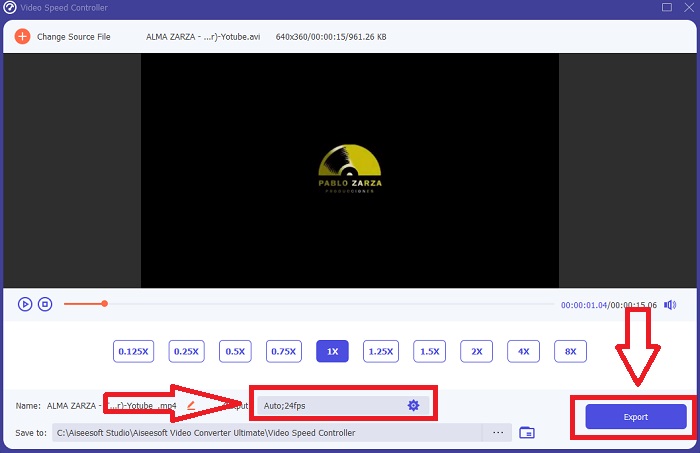
שלב 5: שינוי הפורמט, הרזולוציה, האיכות ועוד יאפשר לך לבחור את הפלט הרצוי לאחר שסיימת לכוונן את מהירות הנ播放 של הווידאו שלך. לחץ על Export ואז בחר מיקום לשמירת העבודה עם סיום התהליך.
חלק 4. שאלות נפוצות לגבי איך להאיץ סרטונים ב-Windows Media Player
כיצד לתקן סרטוני MP4 שאינם יכולים לנגן ב-Windows Media Player?
כפי שנאמר במאמר קודם לכן, Windows Media Player אינו תומך במגוון רחב של פורמטי וידאו. מכיוון שהוא תומך בעיקר בפורמטים המתאימים ל־Windows, קשה לתקן שגיאות באמצעות נגן מדיה זה. לכן עליך ללמוד כיצד להמיר או כיצד לנגן פורמטי וידאו מסוג MP4. הקישור כאן הוא מאמר מועיל שיעזור לך לפתור בעיה זו.
כיצד לנגן DVD ב-Windows Media Player?
חלק מהסרטים נמצאים על־גבי DVD, וכדי לנגן אותם עליך למצוא את נגן המדיה המתאים שיכול לנגן DVD. Windows Media Player הוא אחד מנגני המדיה הנפוצים שמסוגלים לנגן DVD. בנוסף, נגן מדיה זה מציע גם כמה הגדרות שעוזרות בעריכה בזמן ניגון DVD. הנה פרטים נוספים על כיצד לנגן DVD ב־Windows Media Player.
האם גודל הקובץ של הסרטון הופך קטן יותר אם מגבירים את מהירות ההשמעה?
רק המסגרת תחולק בכל פעם שתגדיל או תקטין את מהירות ההשמעה של הסרטון שלך. אם תגדיל אותו פי 5 מהר יותר, המסגרת תהיה 60 פריימים לכל 1/120 שניות. בקיצור, זה לא יכול להשפיע על הסרטון אלא אם כן לסרטון כבר יש קצב פריימים נמוך.
סיכום
לסיכום, ייתכן ש־Windows Media Player היא תוכנה בעייתית שמגבילה את עצמה למעט פורמטים בלבד. ובכל זאת, קיימים כמה מאפיינים שתוכנה זו מציעה שיכולים לפתור בעיות הקשורות לפורמטי וידאו. עם זאת, אם ברצונך להגדיל את מהירות הנ播放 של קליפ הווידאו שלך, הורד את Video Converter Ultimate, לא רק כדי להאיץ את הווידאו. תוכנה זו יכולה לקחת את הווידאו שלך לרמה אחרת. עם כל התכונות הזמינות, זו תהיה התוכנה הטובה והנגישה ביותר שאנו ממליצים להשתמש בה.
-
 WebM ל- GIF - 3 ממירים WebM ל- GIF בחינם ליצירת קובצי GIF משלך
 האם WebM הוא קובץ GIF? כיצד להפוך סרטון ל- GIF? האם יש ממיר WebM ל- GIF בחינם? פוסט זה חולק 3 דרכים חינמיות לעזור לך להמיר WebM ל- GIF.
-
 כיצד להמיר סרטי MKV ל- GIF מונפש ללא Photoshop/FFmpeg
 לאחר הורדה וצפייה של סרטי MKV במחשב שלך, ייתכן שתרצה לשתף כמה רגעים נפלאים עם חברים או באינטרנט כקבצי GIF. במאמר זה תוכלו ללמוד על 2 הדרכים הקלות ביותר להמיר MKV ל- GIF.
-
 צור את ה-GIF המונפש הטוב ביותר שלך באמצעות יוצר GIF מקוון [2021]
 סקירה אינפורמטיבית, על איך ליצור GIF באמצעות יצרני GIF מקוונים פשוטים אלה שכבר נתקלת בהם או לא דרך האינטרנט.
