


 ממיר וידאו אולטימטיבי
 מקליט מסך
 תיקון וידאו
 הורדה מאובטחת
כיצד להמיר ולהעלות קבצי וידיאו מסוג FLV ליוטיוב
“הרגע העליתי קובץ וידאו עם סיומת .flv, אבל קיבלתי הודעת אזהרה שאומרת שפורמט הקובץ אינו תקין. איך אפשר להעלות FLV ליוטיוב?” FLV הוא לא רק סיומת קובץ, אלא גם מכולת וידאו (video container). פירוש הדבר שקובץ וידאו בפורמט FLV יכול להכיל מקודדי וידאו ואודיו שונים, וחלק מהם אינם נתמכים על ידי YouTube. במאמר זה תמצא את כל מה שצריך לדעת כדי להעלות FLV ליוטיוב בצורה חלקה.

חלק 1: אילו תומכים ב- Codec וידאו ואודיו
על פי גוגל, YouTube מעדיף את פורמט השידור כמו גם את זרמי MPEG-2 התואמים ל- DVD עם סיומת .mpg. הקודיקים הנתמכים על ידי YouTube כוללים:
- MPEG-2
- קוד אודיו: MPEG Layer II או Dolby AC-3
- Bitrate אודיו: 128 kbps ומעלה
- MPEG-4
- Codec וידאו: H.264
- קוד אודיו: AAC
- Bitrate אודיו: 128 kbps ומעלה
יתר על כן, YouTube תומך רק במיכל WAV עם שמע MP3 או PCM, MOV עם שמע AAC ואודיו FLAC. YouTube תומך ב- WMV, AVI, MOV, MP4 ו- FLV עם ה- codec המתאים.
כשמדובר ב- FLV, YouTube ניגש לסרטונים המקודדים באמצעות קודק וידאו Adobe-FLV1 יחד עם שמע MP3 ו- AAC. אם סרטון ה- FLV שלך מכיל שמע לא דחוס או שמע ADPCM, YouTube לא יקבל אותו.
חוץ מזה, ישנם כללים נוספים להעלאת FLV ל- YouTube:
- ממליץ על קצב פריימים: 24 עד 60
- המלץ על החלטה: 1080p
- משך זמן מינימלי: 33 שניות
חלק 2: הדרכים הקלות ביותר להמיר FLV ל- YouTube
דרך 1: המרת FLV ל- YouTube בשולחן העבודה
אם אתה נתקל בשגיאה בעת העלאת FLV ליוטיוב, הדבר הראשון שכדאי לעשות הוא לחפש ממיר FLV, כגון FVC Free FLV Converter. הוא מאפשר לך להתאים את מקודדי הווידאו והאודיו וכן פרמטרים נוספים, כך שתוכל להתאים את קובצי ה‑FLV שלך לכללי YouTube. בנוסף, הוא מנצל האצת חומרה וריבוי־תהליכונים (multi‑threading) כדי לשפר את הביצועים.
התכונות העיקריות של ממיר FLV הטוב ביותר עבור YouTube
- 1. התאם את רכיבי ה- codec של וידאו ושמע של FLV בקלות.
- 2. תהליך אצווה של סרטוני FLV ללא הגבלה בו זמנית.
- 3. הגן על איכות הווידיאו באופן אוטומטי בזמן ההמרה.
הורדה חינמיתל-Windows 7 ומעלההורדה מאובטחת
הורדה חינמיתל-MacOS 10.7 ומעלההורדה מאובטחת
כיצד להמיר FLV ל- YouTube בשולחן העבודה
שלב 1: הוספת קובצי FLV
הפעל את ממיר ה- FLV הטוב ביותר לאחר התקנתו במחשב שלך. לחץ על תפריט הוסף קבצים בצד שמאל עליון והוסף את קבצי FLV שברצונך להעלות ל- YouTube.

שלב 2: שינוי מקודדים
לחץ על התפריט הנפתח לצד Output format בתחתית כדי לפתוח את חלון הפרופיל. הקלד FLV בתיבת Search Profile ולחץ על מקש Enter במקלדת. לאחר מכן בחר בפורמט FLV עם מקודדי הווידאו והאודיו המתאימים.
אם סרטון ה‑FLV שלך ארוך מדי, עדיף לפצל אותו לקליפים ורק אז להעלות ליוטיוב. ניתן ללחוץ על תפריט Edit כדי לפתוח את חלון עורך הווידאו.

שלב 3: המרת FLV עבור YouTube
לאחר מכן עבור לתחתית ולחץ על כפתור Open Folder. בחר תיקייה ספציפית לשמירת קובצי הפלט. לבסוף, לחץ על כפתור Convert כדי להתחיל מיד להמיר FLV עבור YouTube.

דרך 2: המרת FLV ל- YouTube Online
אם אינך מעוניין להתקין תוכנת ממיר וידאו על הדיסק הקשיח שלך, FVC Free Online Video Converter היא חלופה טובה. היא חינמית לחלוטין וללא מגבלות, כגון סימן מים. נוסף על כך, אין בה הגבלה על גודל הקובץ. הנה השלבים הבאים:
שלב 1: בקר בכתובת https://www.free-videoconverter.net/free-online-video-converter/ בדפדפן ולחץ על הכפתור Add Files to Convert כדי לקבל את המשגר (launcher).

שלב 2: לחץ על כפתור Add File כדי להעלות כמה קובצי FLV. לאחר מכן לחץ על סמל Gear כדי לפתוח את חלון הפרופיל. כאן ניתן להתאים את Video Encoder ו‑Audio Encoder. לחץ על OK לאישור.

שלב 3: בחר פורמט הנתמך על ידי YouTube בתחתית ולחץ על כפתור Convert כדי להתחיל להמיר FLV עבור YouTube. בסיום, הורד את קובצי הפלט.
אל תפספס:
חלק 3: כיצד להעלות FLV ל- YouTube
לאחר ההמרה, אתה יכול להעלות את קבצי ה- FLV שלך ל- YouTube במחשב שלך עכשיו. אנו חולקים את השלבים כאן כדי שלא תלך לאיבוד.
שלב 1: עבור לדף הבית של YouTube והיכנס לחשבון שלך.
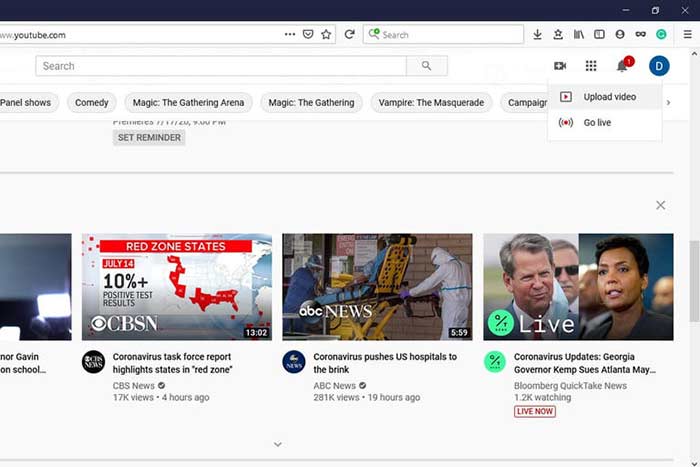
שלב 2: לחץ על סמל Camcorder ובחר Upload video כדי להיכנס לדף ההעלאה.
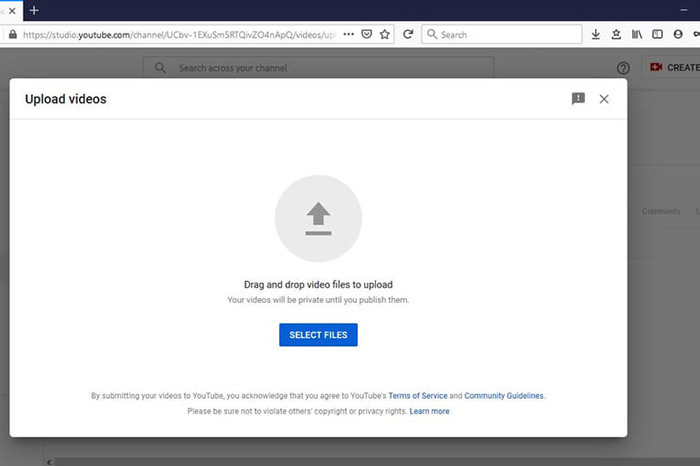
שלב 3: לחץ על כפתור Select Files הגדול בעמוד ולאחר מכן פתח את קובצי ה‑FLV שהומרו עבור YouTube. לחלופין, גרור ושחרר את קובצי ה‑FLV אל תוך העמוד כדי להעלות אותם.
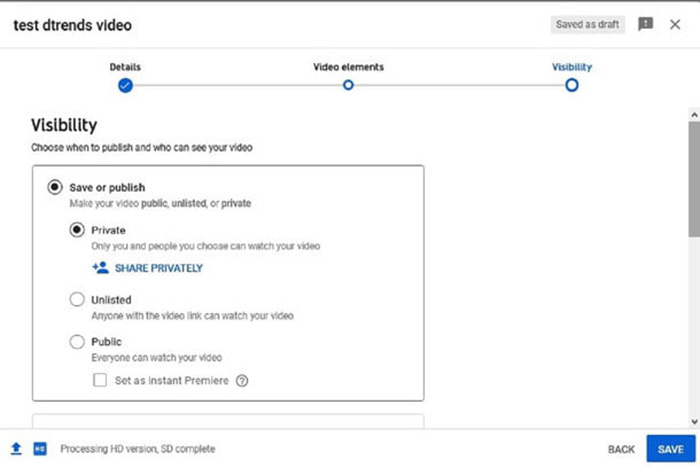
שלב 4: כעת קבע את הגדרת הפרטיות. כברירת מחדל, היא Public, אך ניתן לשנות אותה ל‑Private, Schedule או Unlisted.
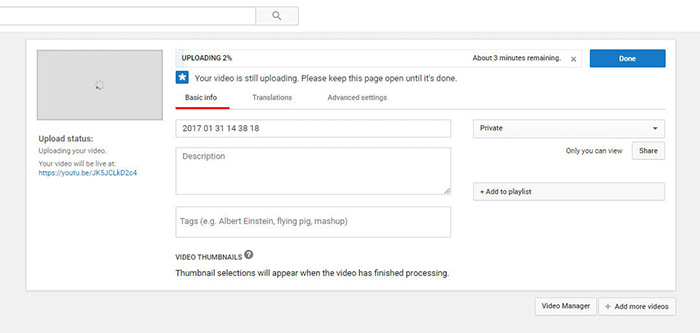
שלב 5: לחץ על כפתור Save או Publish לאחר שסיימת את ההגדרות. לאחר מכן תועבר אל דף ה‑Dashboard. כאן תוכל לראות את קובץ ה‑FLV שהועלה לחשבון YouTube שלך.
חלק 4: שאלות נפוצות על FLV ל- YouTube
האם אתה יכול להעלות FLV ל- YouTube?
כן ולא. YouTube תומך בפורמט וידיאו FLV, אך כמכל וידאו, ניתן להעלות רק קבצי FLV עם רכיבי codec שמע ושמע נתמכים; אחרת זה יהיה כישלון.
האם אני יכול להוריד סרטוני YouTube ב-FLV?
אם סרטון YouTube מציע את כפתור ההורדה, אתה יכול ללחוץ עליו ולבחור בפורמט FLV כפורמט פלט.
איזה פורמט וידאו מתאים ביותר ליוטיוב?
MP4 הוא פורמט הווידיאו הטוב ביותר עבור YouTube. גוגל ממליצה להשתמש ב- MP4 עם codec וידאו H.256 ו- codec שמע AAC. הסיבה לכך היא שהיא מייצרת איכות גבוהה עם גודל קובץ קטן יותר. בנוסף, MOV, WMV, AVI, FLV ו- 3GPP נתמכים גם ב- YouTube.
סיכום
מדריך זה סיפר לכם אילו פורמטים של וידיאו מקבלים וכיצד להעלות FLV ל- YouTube ללא כישלון. ממיר FLV חינם של FVC יכול לעזור לך להמיר FLV ל- YouTube ולאפשר לך להתאים את רכיבי ה- codec של וידאו ושמע בקלות. זה אפילו לא דורש שום כישורים טכניים, כך שמתחילים יכולים לשלוט במהירות. אם אתה נתקל בבעיות אחרות בעת העלאת סרטון ל- YouTube, השאיר הודעה מתחת לפוסט זה.
-
 כיצד להמיר קבצי וידיאו FLV ל MP4 מבלי לשלם אגורה
 מדריך זה חולק ארבע שיטות חינמיות להמרת קבצי הווידאו של ה- FLV לפורמט MP4 ב- Windows 10/8/7 / XP וב- Mac OS X, כך שתוכלו ליהנות מהסרטונים בכל המכשירים.
-
 כיצד להמיר את קטעי ה - FLV שלך לקובצי MP3 בשולחן העבודה ובאינטרנט
 כיצד להמיר FLV לקובץ MP3? כל שעליך לעשות הוא לקרוא בעיון את המאמר הזה, למצוא את השיטה המועדפת עליך ופעל לפי המדריך המפורט שלנו כדי לקבל את מה שאתה רוצה.
-
 3 דרכים חינם להמיר FLV ל- WAV
 כיצד ניתן להמיר קובץ FLV? האם VLC יכול להמיר את YouTube FLV ל- WAV? הודעה זו מציגה 3 דרכים חינמיות להמיר FLV ל- WAV ללא אובדן איכות.
